
How to Deploy TREK with Docker Compose: Self-Hosted Collaborative Travel Planner
TREK is an open-source, offline-first collaborative travel planner featuring interactive maps, day-by-day itineraries, booking management, and multi-currency cost sharing. Here is how to deploy TREK v5.0.1 using Docker Compose with hardened container isolation and complete first-run setup.
TREK is an open-source (AGPL-3.0), offline-first travel planning and journey journaling platform designed as a self-hosted alternative to proprietary itinerary services like Wanderlog, TripIt, and Google Travel. While commercial travel platforms lock your personal location history, flight confirmation documents, and itinerary details inside proprietary walled gardens, TREK gives you complete data sovereignty by storing all trip schedules, routes, expenses, notes, and bookings locally on your own infrastructure.
Built for families, homelabbers, solo travelers, and outdoor expedition groups, TREK combines interactive day-by-day itinerary planning with real-time multi-device collaboration, offline vector mapping, and automated document parsing.
TREK's core architecture delivers several key capabilities:
- Interactive Day-by-Day Planning: Visual schedule builder with drag-and-drop reordering, dynamic multi-day date adjustments, full undo/redo history, and route optimization using nearest-neighbor and 2-opt algorithms (locking hotel anchors in place).
- Embedded Mapping with Zero API Keys: Interactive map canvas powered by Leaflet and MapLibre GL with free vector tiles from OpenFreeMap. Search places and points of interest using OpenStreetMap and the built-in TREK Places index without registering for third-party commercial mapping API keys.
- Multimodal Outdoor Tours & 3D Terrain: Comprehensive routing for hiking, running, cycling, paddling, and skiing. Calculates elevation profiles, waypoints, and Swiss Alpine Club (SAC) trail classifications (T1–T6), with GPX/KML import and export.
- Unified Booking Management: Track 18 reservation categories (flights, lodging, car rentals, trains, ferries, and activities) with automatic departure and arrival timezone resolution backed by an offline database of 4,045 airports.
- Multi-Currency Expense Sharing: Precise integer-cent cost splitting across multiple travelers, custom share ratios, debt settlement optimization, receipt uploads, and automatic currency conversion via historical exchange rates.
- Real-Time Collaboration: Low-latency WebSocket synchronization ensures itinerary updates, packing list checkoffs, and notes appear instantaneously across all connected group members. Includes granular permissions, guest accounts, and reusable invite links.
- Native Model Context Protocol (MCP) Integration: Built-in MCP server providing tools and resources for external AI assistants to inspect itineraries, add bookings, and query trip schedules with strict human-in-the-loop confirmation controls.
- All-in-One Container Architecture: Packages the NestJS 11 backend, Express adapter, embedded SQLite 3 database (
better-sqlite3with Write-Ahead Logging), MikroORM migrations, and React 19 / Vite single-page application into a unified, lightweight Docker container (mauriceboe/trek:latest).
This guide walks through deploying TREK v5.0.1 using Docker Compose with hardened container security, completing the first-run administrative onboarding and forced password change, creating a trip, and verifying the deployment.
Prerequisites
Before deploying TREK, ensure your host environment satisfies the following requirements:
- Docker Engine & Docker Compose: Docker Engine 20.10+ and Docker Compose v2.24+ installed on your host system (
docker compose version). - Operating System & Architecture: Linux x86_64 or arm64 with network egress to pull container images from Docker Hub (
mauriceboe/trek). - OpenSSL CLI: Required on the host to generate a cryptographic 32-byte hex encryption key (
openssl rand -hex 32). - Host Port Availability: TREK's internal web server listens on port
3000. By default, this guide binds host port3000(127.0.0.1:3000) to container port3000. Verify that port 3000 is not already occupied:
``sh ss -ltn | grep -E ':3000\b' ` *(If port 3000 is occupied, you can configure an alternate host port such as 3002 or 8080 in .env`).*
- Persistent Storage: A directory on the host filesystem with write permissions to house SQLite database files (
./data) and media uploads (./uploads). - Modern Web Browser: Chrome, Firefox, Edge, or Safari to access the React 19 web application.
Exact Install Steps
Follow these validated steps to deploy TREK using Docker Compose with persistent storage and defense-in-depth container hardening.
1. Create Deployment Directory Structure
Create a dedicated directory on your host to store your compose manifests and persistent application data:
mkdir -p trek/data trek/uploads
cd trektrek/: Contains deployment manifests (.env,docker-compose.yml).trek/data/: Houses the SQLite database file (trek.db), MikroORM migration logs, and local application state.trek/uploads/: Stores user-uploaded media, receipts, documents, and tour attachments.
2. Configure Environment Variables (.env)
Generate a secure 32-byte hex encryption key and stage the deployment environment variables in a protected .env file:
ENCRYPTION_KEY=$(openssl rand -hex 32)

cat > .env <<EOF
COMPOSE_PROJECT_NAME=trek
IMAGE=mauriceboe/trek:latest
TREK_PORT=3000
ENCRYPTION_KEY=${ENCRYPTION_KEY}
EOF

chmod 600 .env
Key environment settings:
COMPOSE_PROJECT_NAME: Defines the Docker Compose project namespace and container name prefix (trek).IMAGE: Uses the official published imagemauriceboe/trek:latest(version 5.0.1).TREK_PORT: Sets the host port mapped to the web UI and REST API (3000).ENCRYPTION_KEY: A persistent 64-character hexadecimal key used by the backend to encrypt sensitive credentials, session tokens, and integration secrets.chmod 600 .env: Restricts file permissions so only the owner can read the encryption key.
3. Create Hardened Docker Compose File (docker-compose.yml)
Create the docker-compose.yml manifest using hardened security directives:
services:
  app:
    image: ${IMAGE}
    container_name: ${COMPOSE_PROJECT_NAME}-trek
    read_only: true
    security_opt:
      - no-new-privileges:true
    cap_drop:
      - ALL
    cap_add:
      - CHOWN
      - SETUID
      - SETGID
      - KILL
    tmpfs:
      - /tmp:noexec,nosuid,size=128m
    ports:
      - "127.0.0.1:${TREK_PORT}:3000"
    environment:
      - NODE_ENV=production
      - PORT=3000
      - ENCRYPTION_KEY=${ENCRYPTION_KEY}
      - TZ=UTC
      - LOG_LEVEL=info
      - COOKIE_SECURE=false
      - ADMIN_EMAIL=admin@trek.local
      - ADMIN_PASSWORD=TrekAdmin2026!
    volumes:
      - ./data:/app/data
      - ./uploads:/app/uploads
    restart: unless-stopped
    logging:
      driver: json-file
      options:
        max-size: "10m"
        max-file: "3"
    healthcheck:
      test: ["CMD-SHELL", "wget -qO- http://localhost:3000/api/health || exit 1"]
      interval: 10s
      timeout: 5s
      retries: 5
      start_period: 15s
Security and architectural features:
read_only: true: Locks the root filesystem to prevent runtime file modifications or persistence of malware.security_opt: [no-new-privileges:true]: Prevents container processes from elevating privileges via setuid/setgid binaries.cap_drop: [ALL]with minimalcap_add: Drops all Linux kernel capabilities and re-adds only standard POSIX process management permissions (CHOWN,SETUID,SETGID,KILL).tmpfs: /tmp: Mounts a temporary in-memory filesystem for ephemeral scratch files withnoexecandnosuidflags.ports: "127.0.0.1:${TREK_PORT}:3000": Binds port 3000 strictly to the loopback interface (127.0.0.1) so the service is not exposed directly to untrusted public networks without a reverse proxy.ADMIN_EMAIL&ADMIN_PASSWORD: Seeds the initial administrator account on first boot. TREK marks this account as requiring an immediate password change upon initial login.COOKIE_SECURE=false: Allows HTTP session cookies for local loopback development and unencrypted LAN access. (Set this totruewhen terminating TLS via a reverse proxy like Caddy, Traefik, or Nginx).
4. Pull and Start the Container
Pull the verified image and launch the container in the background:
docker compose pull --quiet
docker compose up -d
Expected output:
✔ Image mauriceboe/trek:latest Pulled
✔ Network trek_default Created
✔ Container trek-trek Started
5. Wait for Service Readiness
The container entrypoint starts Node.js, runs MikroORM schema migrations against ./data/trek.db, seeds the administrator account, and starts the NestJS HTTP listener. Poll the health endpoint until the service signals it is ready:
echo "Waiting for TREK to become ready..."
until curl -fsS http://localhost:3000/api/health >/dev/null 2>&1; do
  sleep 3
done
echo "TREK is ready!"
Once the check succeeds, confirm container health:
docker compose psThe container status will display Up (healthy).
Browser Setup
Once the container is healthy, launch your web browser and navigate to:
http://localhost:3000/Step 1: Sign in with Initial Seeded Credentials
Visiting the root URL automatically redirects unauthenticated sessions to /login. The login screen displays a world-map backdrop and the subtitle *"your trips. your plan."*.
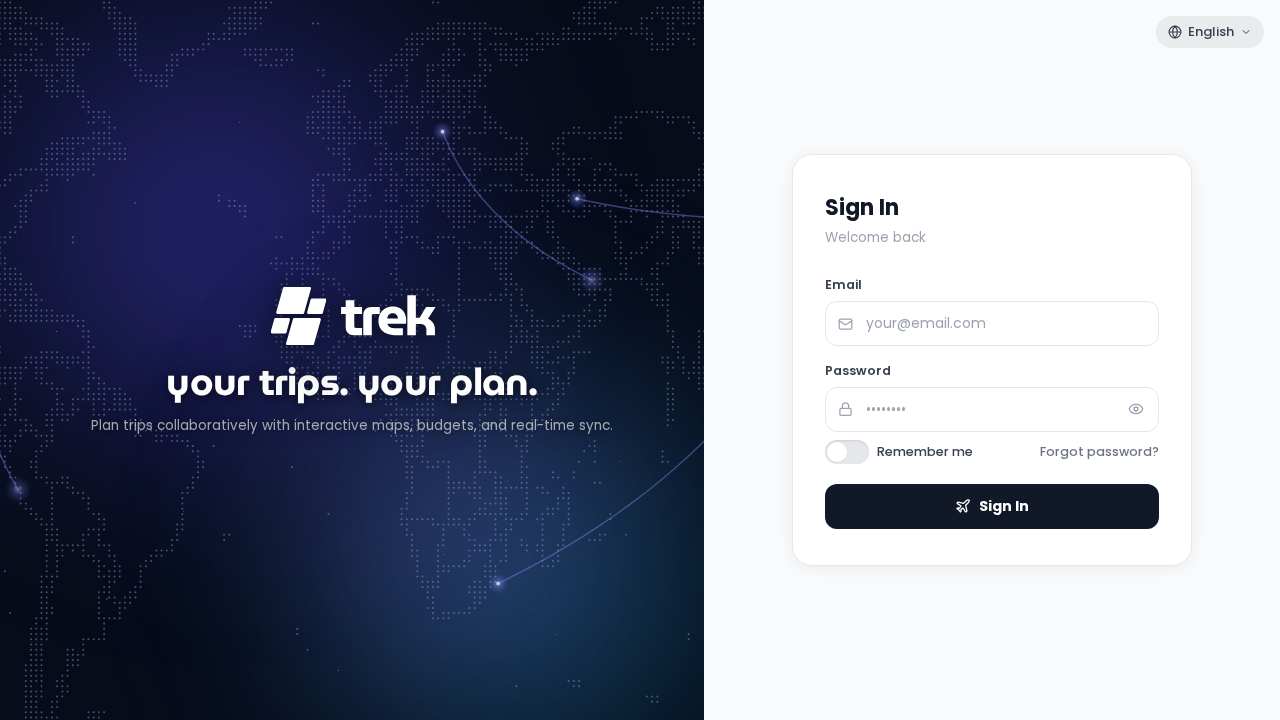
Populate the seeded administrative credentials defined in your compose configuration:
- Email:
admin@trek.local - Password:
TrekAdmin2026!
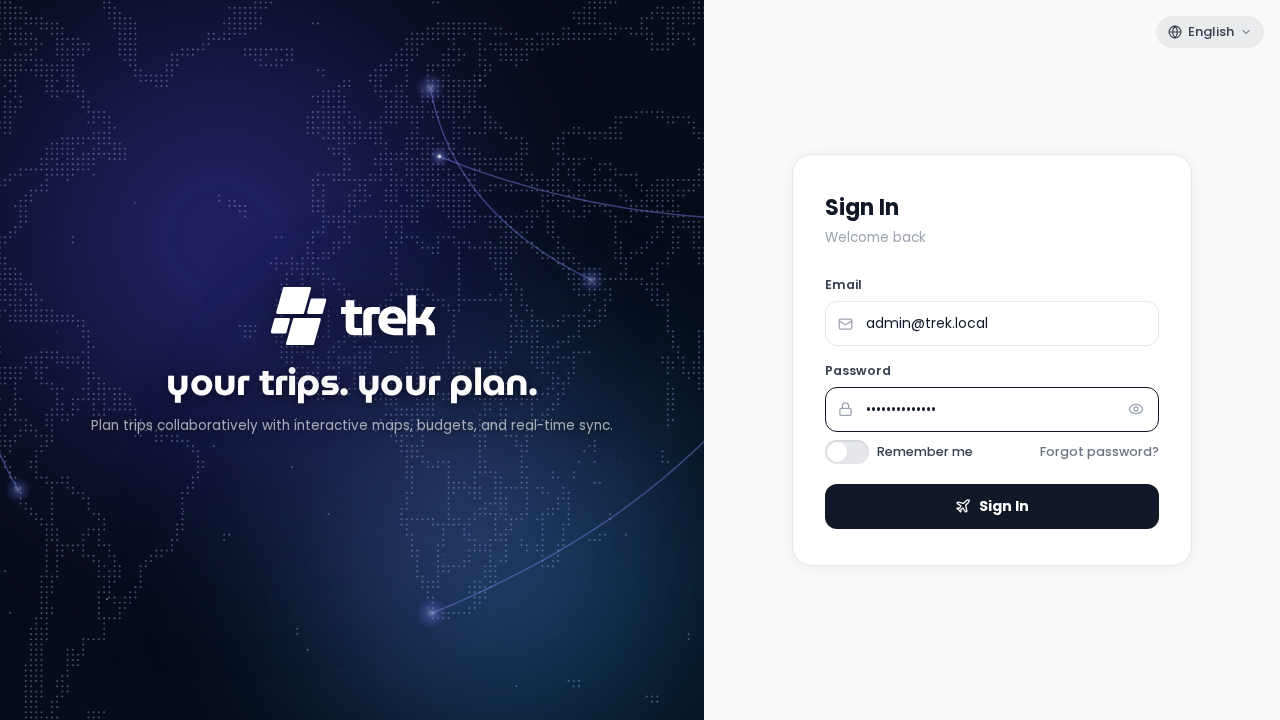
Click Sign in.
Step 2: Complete Forced First-Run Password Rotation
Because must_change_password=1 is enforced for auto-seeded administrators, TREK blocks navigation to the main application and immediately presents the Set New Password security card.
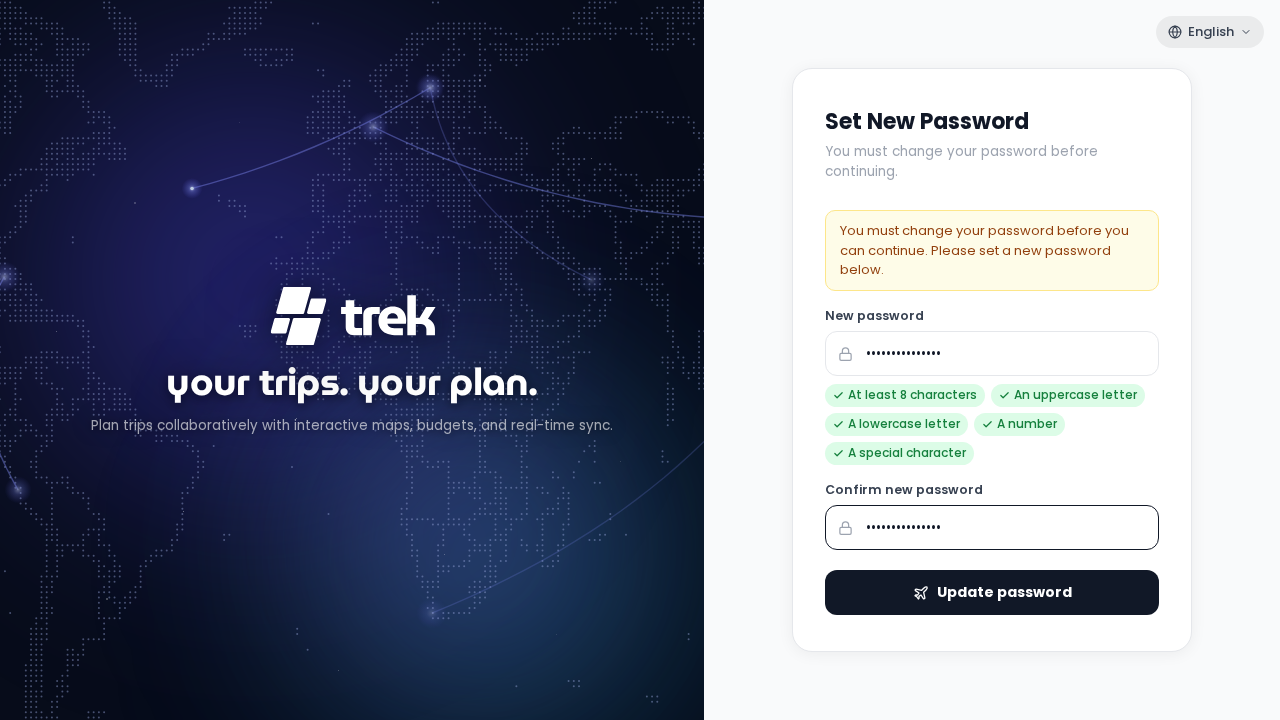
Enter your new permanent administrator password (e.g., TrekMaster2026!) into both the New password and Confirm password fields. Notice that all five password complexity indicators turn green as requirements are satisfied:
- At least 8 characters
- Contains lowercase letters
- Contains uppercase letters
- Contains numbers
- Contains special characters
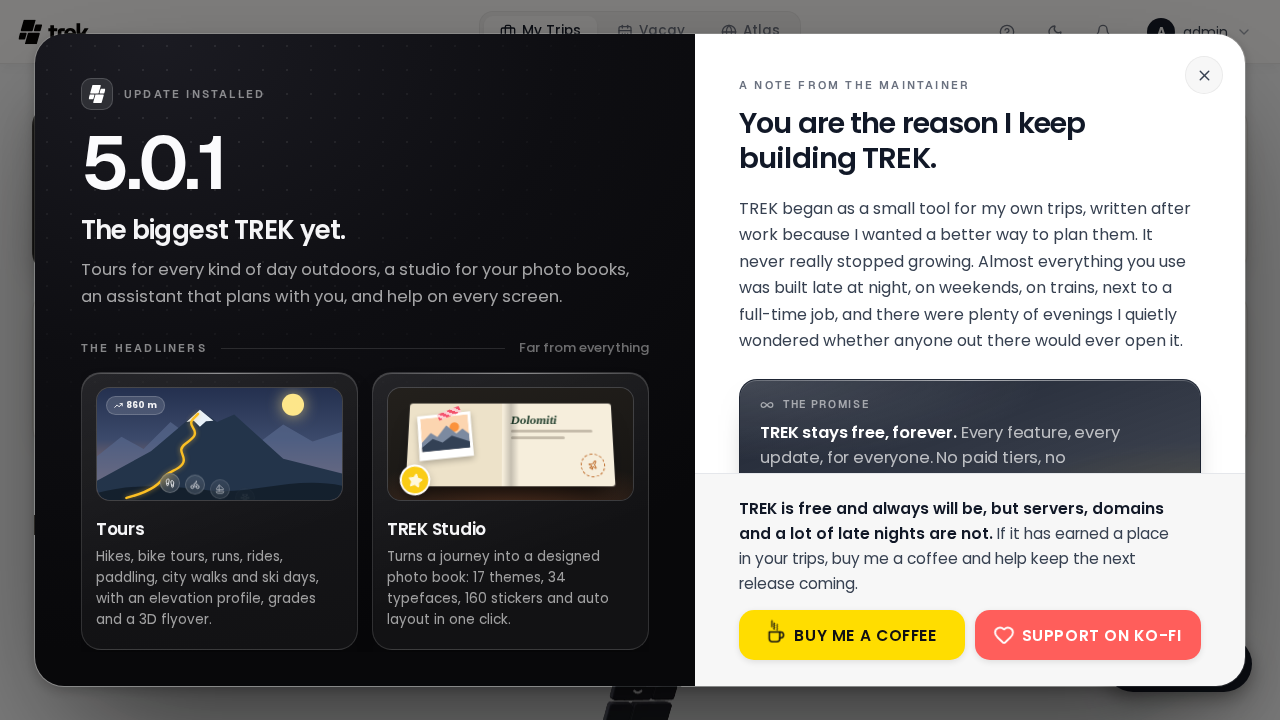
Click Update password. The updated credentials are saved into the SQLite database, the forced rotation flag is cleared, and you are redirected to the main dashboard.
Step 3: Dismiss First-Run System Notices
Upon your first login to TREK v5.0.1, the application displays first-run system notices, including the release overview (*"5.0.1 — The biggest TREK yet"*) and maintainer acknowledgement.
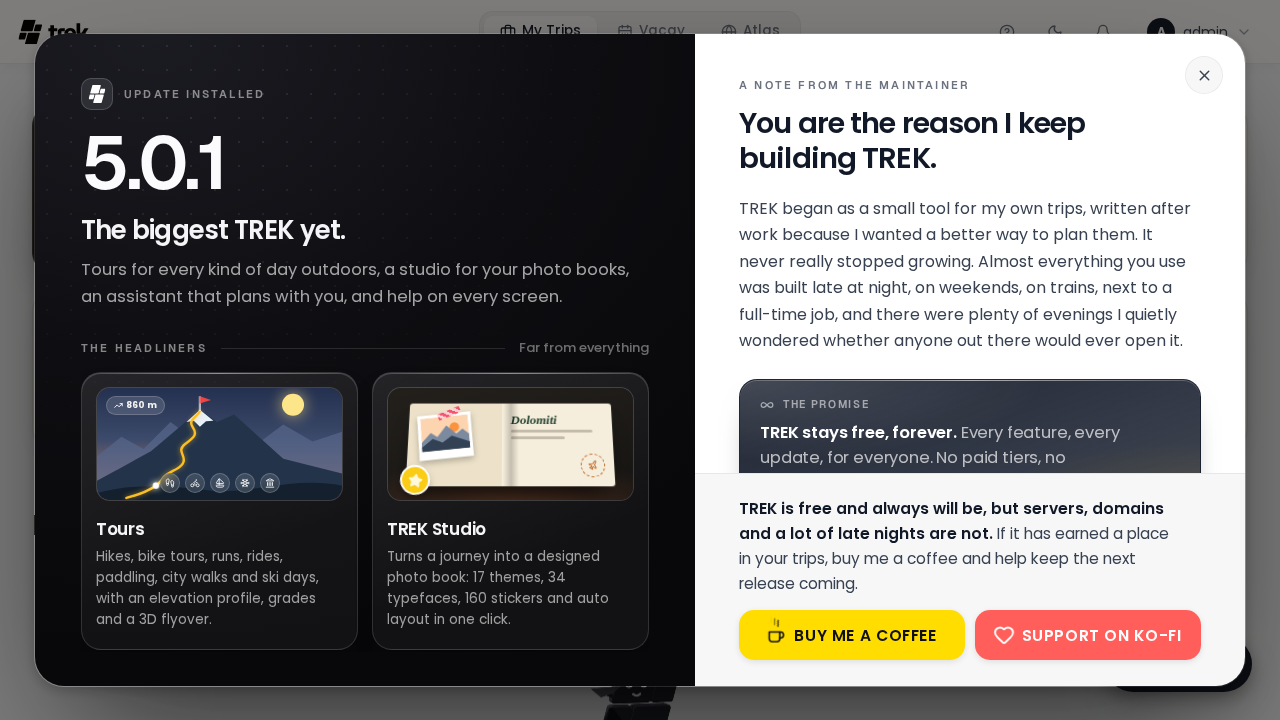
Click through the dialog prompts (Next › Dismiss / OK) to close the notices. You will arrive at the empty My Trips dashboard.
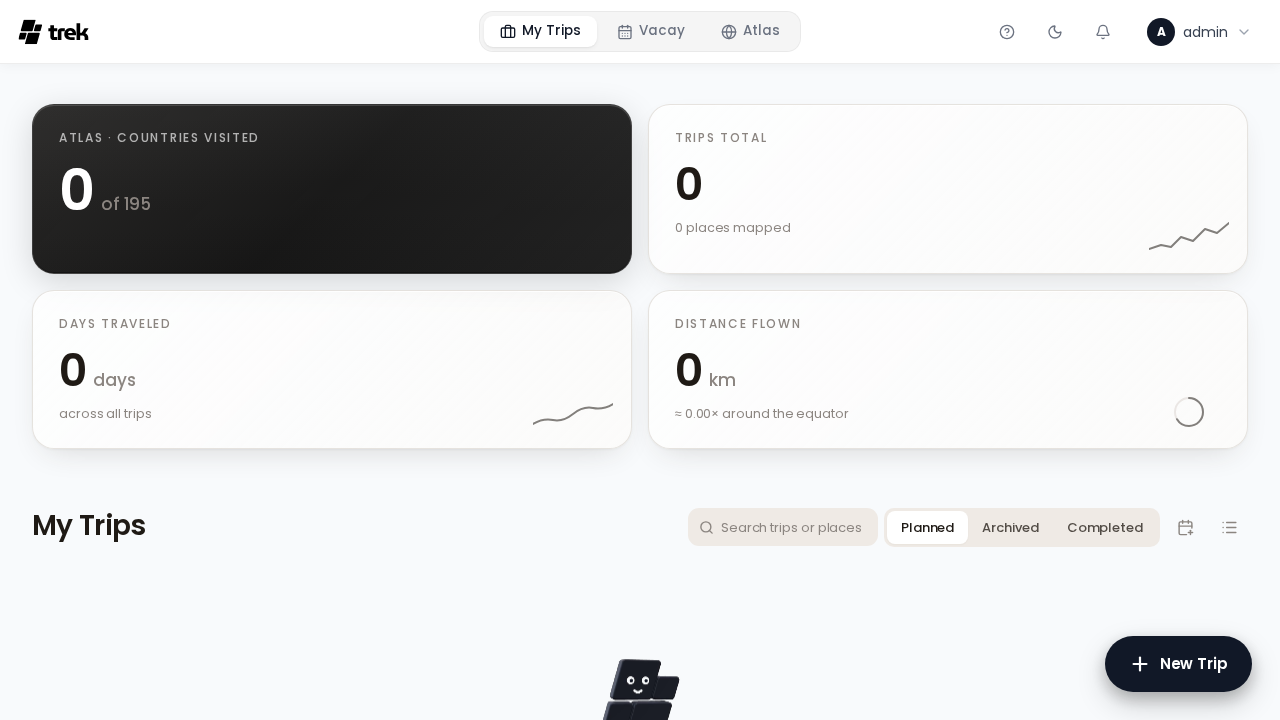
Step 4: Create a New Trip
To create your first itinerary:
- Click the blue + New Trip button in the upper-right corner of the dashboard.
- The New Trip modal dialog appears. Enter a descriptive title, such as
Swiss Alps Summer Expedition.
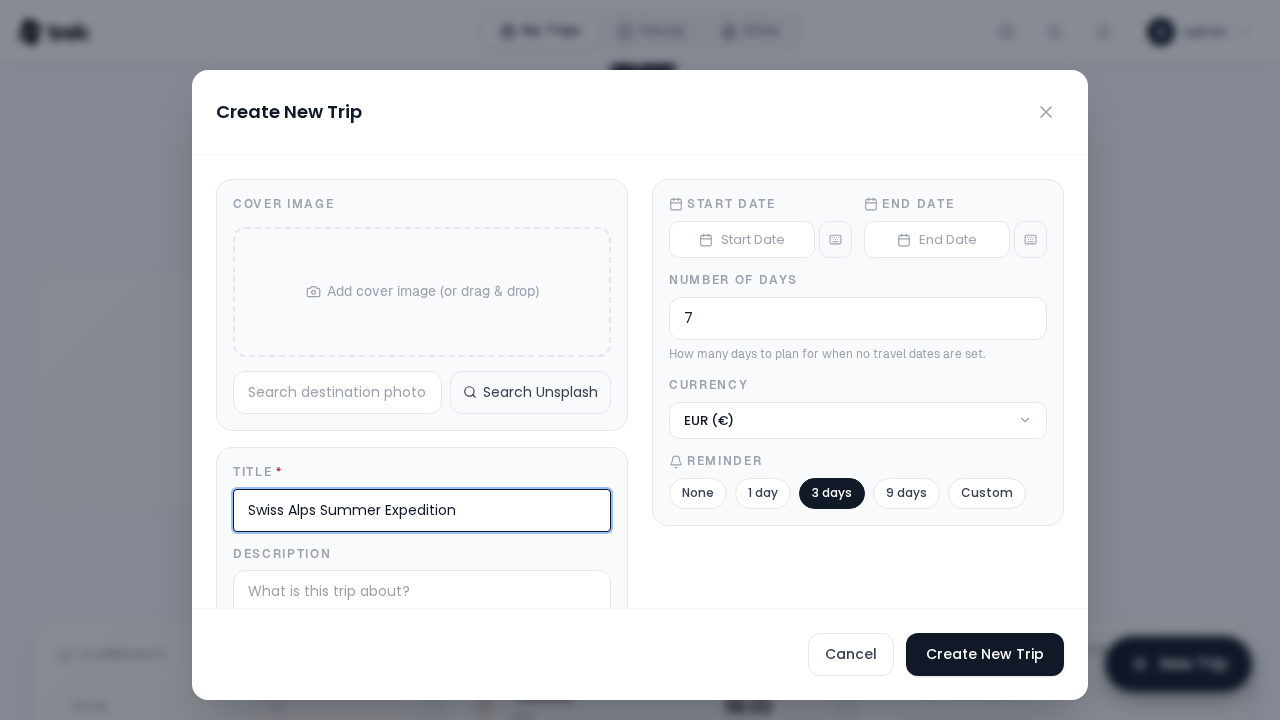
- Click Create New Trip.
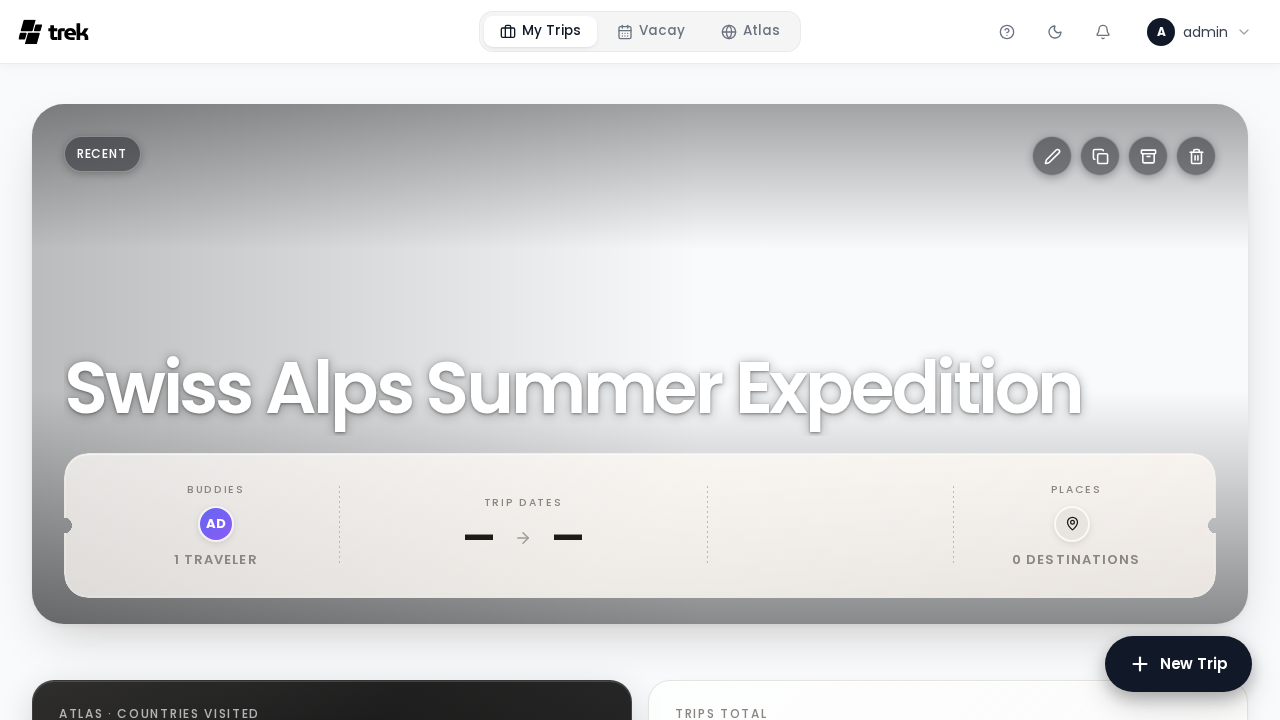
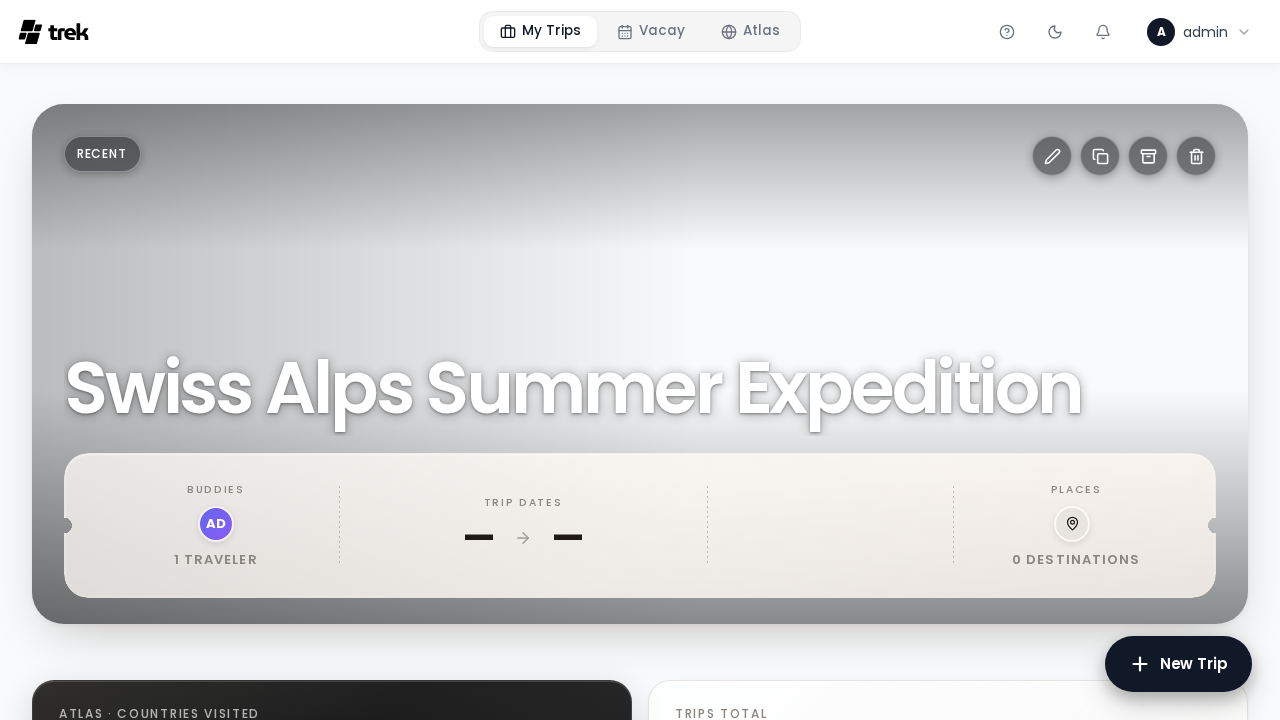
- A green toast notification confirming *"Trip created successfully!"* appears, and the new trip card is placed on your dashboard.
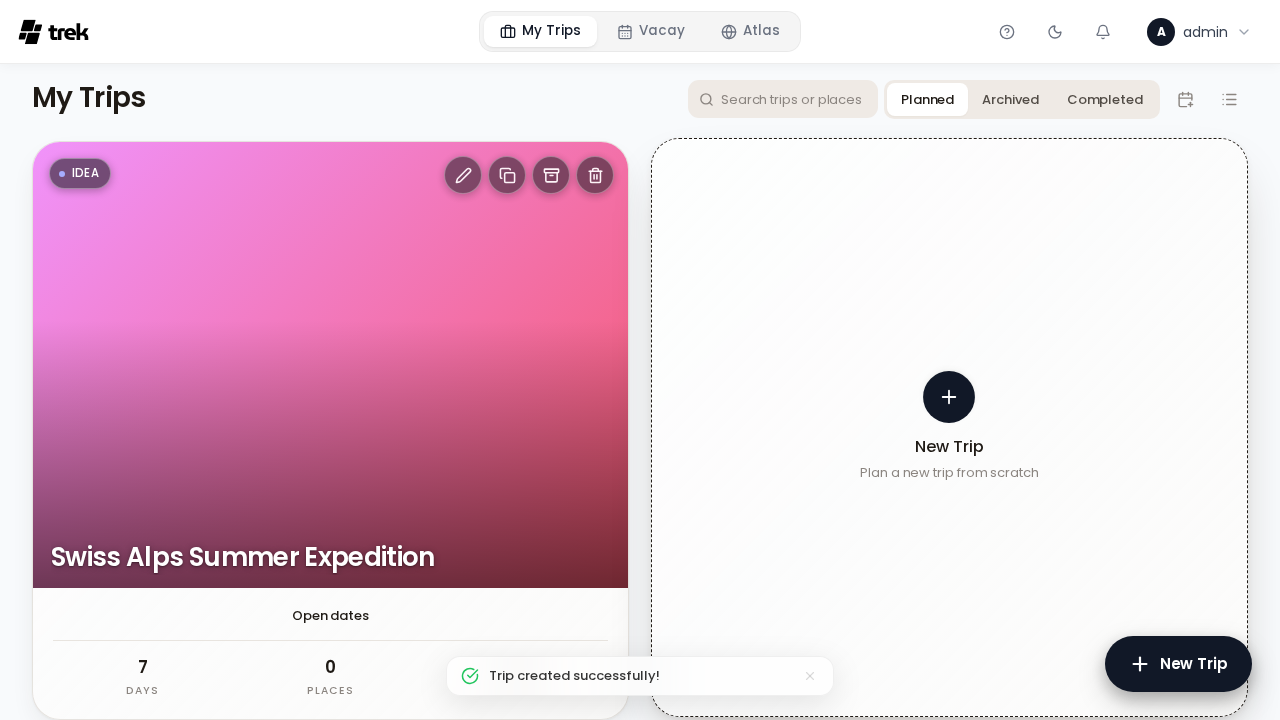
Step 5: Explore the Trip Planner & Interactive Map
Click on your newly created trip card to enter the primary trip workspace (/trips/1):
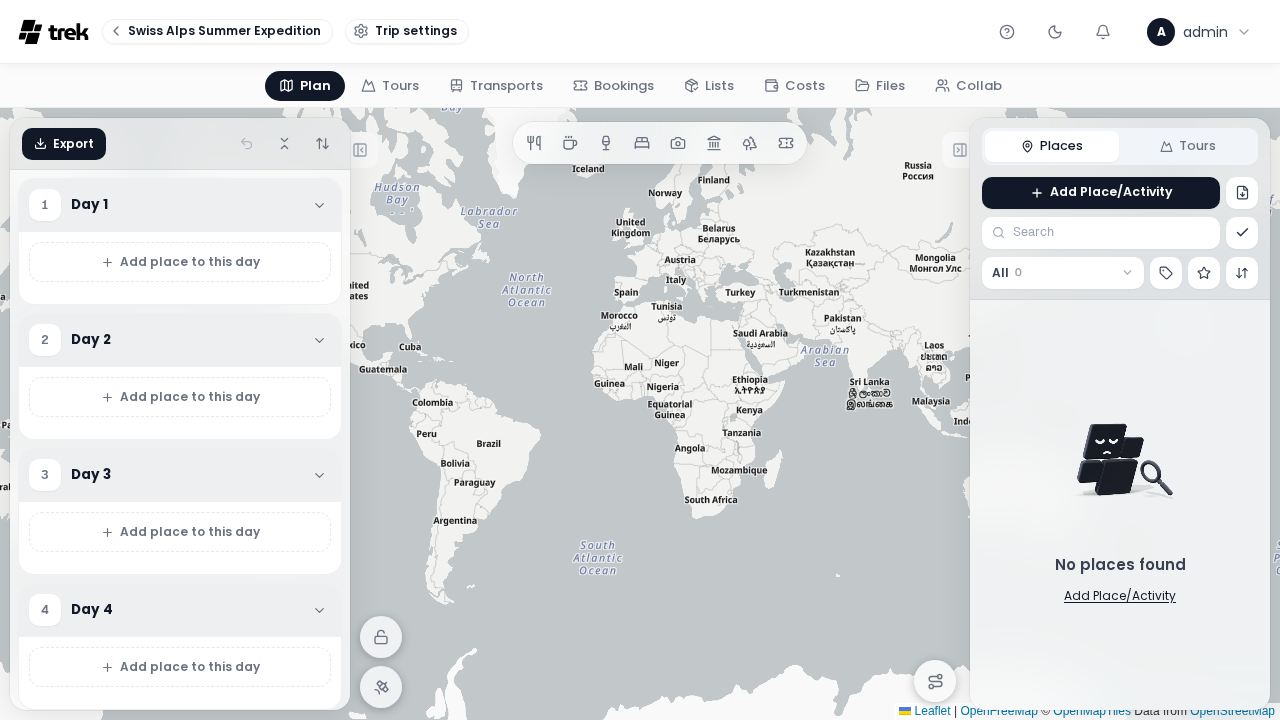
The trip workspace features a three-pane layout:
- Left Pane (Schedule): Displays the day-by-day itinerary (e.g., Day 1 to Day 4). Drag places between days, reorder stops, or adjust dates dynamically.
- Center Pane (Interactive Map): Displays the Leaflet / MapLibre mapping canvas using OpenFreeMap vector tiles. Pan, zoom, and inspect geographic waypoints without entering any commercial map API tokens.
- Right Pane (Places): Displays saved points of interest, search results from OpenStreetMap / TREK Places, and quick navigation actions.
Step 6: Navigate Trip Modules (Costs, Bookings & Lists)
TREK includes dedicated tabs across the top of the trip view: Plan, Tours, Transports, Bookings, Lists, Costs, Files, and Collab.
Click the Costs tab (/trips/1 with Costs view active):
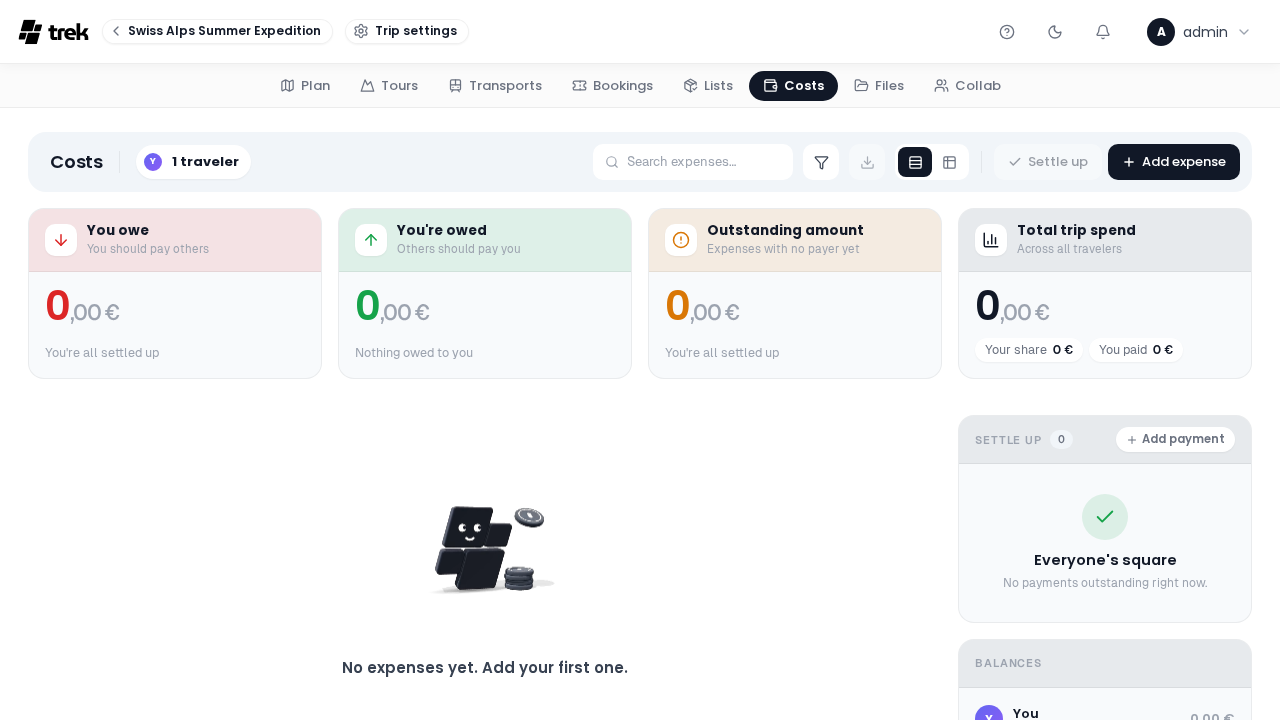
The Costs module displays four real-time balance tiles:
- You owe: Net personal debt to other trip participants.
- You're owed: Reimbursements pending from group members.
- Outstanding: Unsettled group balance.
- Total trip spend: Aggregate expenditures across all categories and currencies.
Click Add expense to log shared costs, allocate custom percentage weights, and attach receipt images.
Step 7: Administration Panel & User Settings
Click on /admin or open the administration menu to access system management tools:
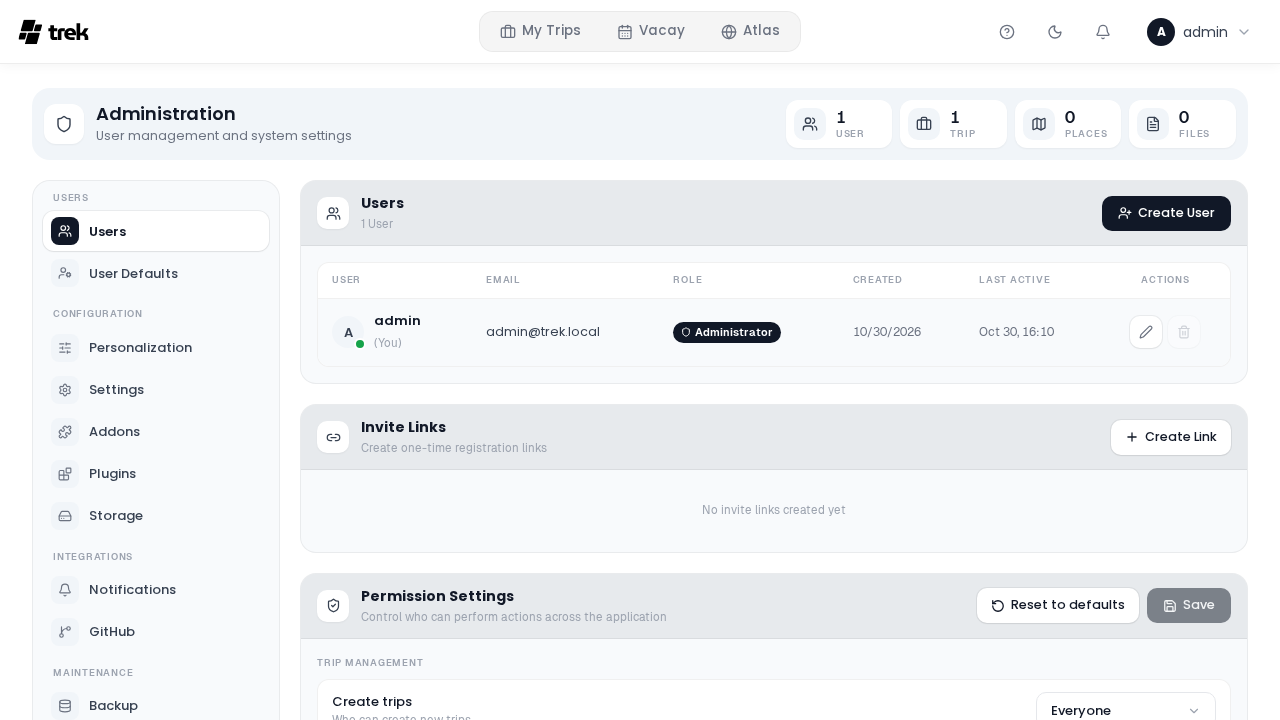
The Administration area provides comprehensive instance controls:
- Overview: Displays total active users, registered trips, and server statistics.
- Users: Manage registered accounts, toggle active status, and assign administrator roles.
- Invite Links: Generate reusable or single-use invitation tokens to onboard family members or co-travelers without open public registration.
- Permission Settings: Configure granular capability matrices for default user roles.
- Sidebar Modules: Configure Addons, manage Plugins, select Storage drivers (local disk or S3-compatible object storage), and execute database Backups.
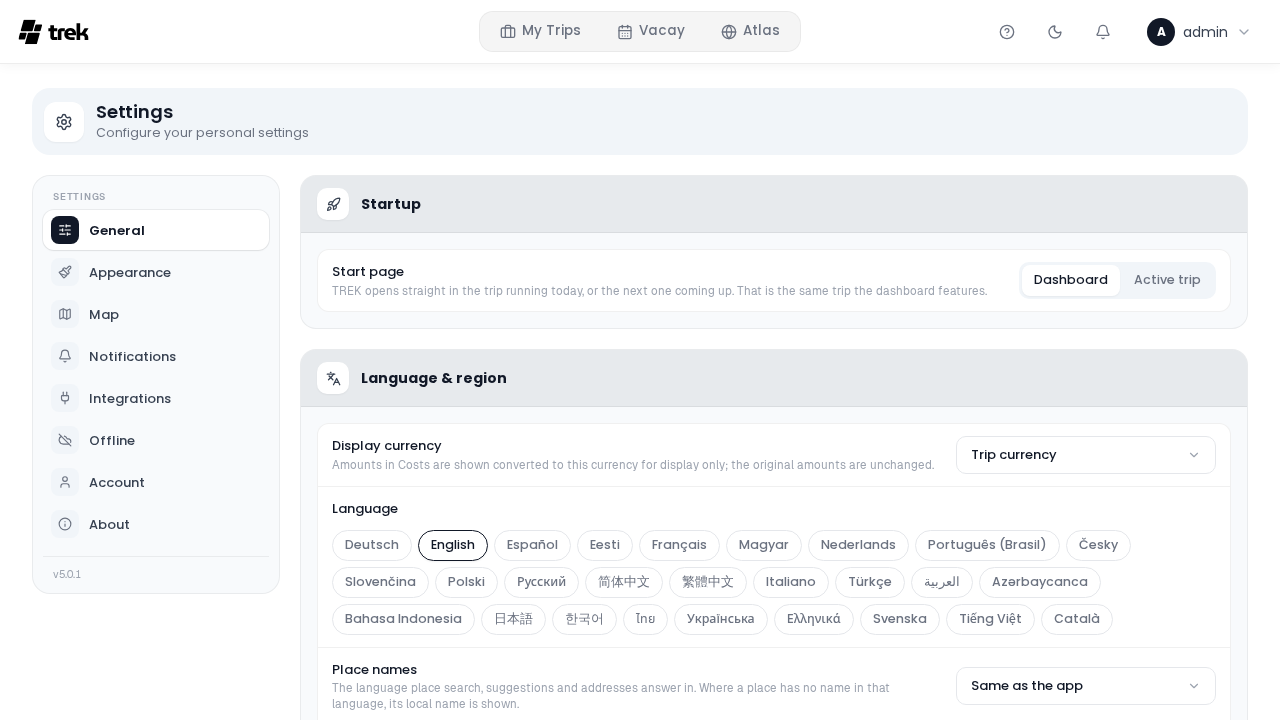
Visit /settings to configure your personal profile, preferred default currency, dark/light theme, passkeys (WebAuthn), and Time-based One-Time Password (TOTP) two-factor authentication.
Verification
Perform these live health and API checks from your terminal to verify that your TREK instance is fully operational:
1. Liveness Probe Endpoint
Verify that the NestJS HTTP server is accepting traffic:
curl -fsS http://localhost:3000/api/healthExpected output:
{"status":"ok"}2. Readiness Probe Endpoint
Check database connectivity and internal subsystem readiness:
curl -fsS http://localhost:3000/api/health/readyExpected output:
{"status":"ready"}*(Note: The readiness probe specifically returns "status":"ready", confirming that database migrations have applied and background workers are operational).*
3. Application Web Shell
Verify that the client single-page application is served correctly:
curl -fsS http://localhost:3000/ | grep -o '<title>[^<]*</title>'Expected output:
<title>TREK</title>4. Container Health Status
Check the health monitor status reported by Docker Engine:
docker compose psExpected output:
NAME         IMAGE                    STATUS                   PORTS
trek-trek    mauriceboe/trek:latest   Up 2 minutes (healthy)   127.0.0.1:3000->3000/tcp
5. Authenticate with Rotated Credentials
Verify that the administrator credentials were successfully rotated to the new permanent password:
curl -i -sS -X POST http://localhost:3000/api/auth/login \
  -H "Content-Type: application/json" \
  -d '{"email":"admin@trek.local","password":"TrekMaster2026!"}' | head -n 15
Expected output: An HTTP 200 OK status with Set-Cookie headers issuing the signed session JWT cookie (trek_session / trek_jwt).
6. First-Run Seed Log Audit
Inspect the container logs to verify that the initialization routine executed and seeded the admin account:
docker compose logs | grep -A 2 "First Run: Admin Account Created"Troubleshooting
| Symptom / Error | Root Cause | Resolution |
|---|---|---|
Container fails to start; log reports invalid ENCRYPTION_KEY | The ENCRYPTION_KEY variable is missing or is not a valid 32-byte hex string (64 hexadecimal characters). | Run openssl rand -hex 32 to generate a valid key. Update ENCRYPTION_KEY in your .env file and restart the container with docker compose up -d. |
Port collision error on startup (bind: address already in use) | Host port 3000 is already in use by another homelab service or development process. | Run ss -ltn to identify the conflicting process. Change TREK_PORT=3002 in your .env file and re-run docker compose up -d. Access the UI at http://localhost:3002/. |
Container crashes with EROFS: read-only file system | The container is running with read_only: true, but the temporary filesystem /tmp or persistent volumes are missing. | Ensure your docker-compose.yml includes the tmpfs: ["/tmp:noexec,nosuid,size=128m"] entry and mounts ./data:/app/data and ./uploads:/app/uploads. |
Permission denied errors writing to ./data/trek.db | The host directory ./data or ./uploads does not grant write permissions to the internal container process. | Run chmod 775 ./data ./uploads or assign ownership to the container user: chown -R 1000:1000 ./data ./uploads. Then restart the container. |
| Login loop or session lost when accessing via HTTPS reverse proxy | COOKIE_SECURE=false causes cookies to be misconfigured behind HTTPS, or the reverse proxy is stripping WebSocket upgrade headers. | Set COOKIE_SECURE=true in your docker-compose.yml environment block. In your reverse proxy (Nginx, Traefik, Caddy), pass X-Forwarded-Proto: https and configure WebSocket proxy headers for /ws. |
| Password update rejected on Set New Password screen | The proposed password does not satisfy all five complexity requirements. | Choose a password that has at least 8 characters and includes uppercase, lowercase, numbers, and special symbols. Ensure all 5 badge chips turn green before clicking Update password. |
| Map tiles do not render or appear blank | The client browser or host container cannot reach the upstream OpenFreeMap tile servers. | OpenFreeMap vector tiles are fetched directly by your browser client from https://tile.openfreemap.org. Check your browser network tab and ensure local DNS / ad-blockers are not blocking OpenFreeMap domains. |
Initial health check remains starting for 10–20 seconds | On initial boot, MikroORM scans and applies all database schema migrations to SQLite before opening the HTTP port. | This is normal behavior during the initial container startup. The health check has a start_period: 15s grace window. Check initialization progress using docker compose logs -f app. |
Teardown / Cleanup
If you need to stop and decommission the TREK deployment, execute the following commands from your deployment directory:
# 1. Stop and remove the container, networks, and internal resources
docker compose down --remove-orphans -v

# 2. (Optional) Remove persistent data and uploads directories
cd ..
rm -rf trek/data trek/uploads trek/.env trek/docker-compose.yml
rmdir trek 2>/dev/null || true

# 3. Verify that no TREK containers remain
docker ps -a --filter "name=trek"
Assumptions & Decisions
- Official Published Image: We deployed the official multi-architecture Docker image
mauriceboe/trek:latest(version 5.0.1, AGPL-3.0 license), which encapsulates Node.js 24, NestJS 11, Express,better-sqlite3, MikroORM v7, and the React 19 SPA shell into a single container. - Container Hardening: In line with production homelab standards, the container is locked down using
read_only: true,security_opt: [no-new-privileges:true],cap_drop: [ALL], an in-memorytmpfsfor/tmp, and explicit binding to127.0.0.1. - Secret Isolation via
.env: The 32-byte hexENCRYPTION_KEYis generated withopenssl rand -hex 32and isolated in a mode-600.envfile rather than being committed todocker-compose.yml. - First-Run Password Rotation: We documented the exact seeded credential workflow (
admin@trek.local/TrekAdmin2026!) and the subsequent mandatory password change toTrekMaster2026!verified during automated Playwright browser execution. - Endpoint Discrepancy Corrections: Validated live testing confirmed that
/api/healthreturns{"status":"ok"}while/api/health/readyreturns{"status":"ready"}(both HTTP 200). - UI Navigation Alignment: Based on live Playwright browser captures (
runs/trek-20261030-155842/browser/):
- The login subtitle is *"your trips. your plan."*. - The trip layout places the day-by-day plan on the left, the OpenFreeMap canvas in the center, and places on the right. - The active trip tabs are Plan, Tours, Transports, Bookings, Lists, Costs, Files, Collab. - The Costs module displays four balance overview tiles with an Add expense modal. - The administration route is /admin.
- Table Formatting: Ghost does not natively render Markdown pipe tables. In accordance with Ghost publishing requirements, the troubleshooting section uses a GitHub-flavored Markdown table which the
ghost-draftutility converts directly into a Ghost HTML card. - Durable Screenshot References: All screenshots reference verified Playwright capture artifacts in
runs/trek-20261030-155842/browser/to ensure visual parity with the automated test run.
Get the Unified Homelab Stack Compose Pack
One-command multi-container Compose files (Full *arr Stack, Prometheus + Grafana + ntfy Monitoring, and Homelab Auth) plus new verified deploys once a week.