
How to Deploy Traefik with Docker Compose: Dynamic Edge Router and Reverse Proxy
Traefik is an open-source, modern reverse proxy and edge router that automatically discovers services and configures routing rules on the fly from Docker labels. Here is how to deploy Traefik v3 with Docker Compose, route a containerized microservice without static config files, and inspect live traffic in the web dashboard.
Traefik (pronounced *traffic*) is an open-source (MIT License), high-performance HTTP reverse proxy, edge router, and load balancer designed specifically for microservices, container platforms, and dynamic cloud environments. Unlike traditional web servers and proxies like NGINX or Apache—which require manually editing static configuration files, modifying DNS mappings, and issuing reload commands every time a container starts or stops—Traefik automates routing entirely by listening directly to your container orchestrator or service registry.
When a new container starts up on your host with routing labels attached, Traefik immediately detects the event through the Docker socket, dynamically provisions an inbound HTTP router, links the corresponding load-balanced backend service, and applies middleware transformations without dropping active connections or restarting the daemon.
Traefik structures inbound traffic across four core architectural primitives:
- EntryPoints: Network listeners that bind to specific host ports (such as
:80for standard HTTP traffic,:443for HTTPS/TLS, or:8080for administrative and telemetry traffic). - Routers: Rule-based decision engines that analyze incoming HTTP requests (evaluating hostnames, URL path prefixes, headers, query parameters, or HTTP methods) and determine which backend service should receive the request.
- Middlewares: Optional request and response modifiers chained between routers and services (providing authentication, rate limiting, path stripping, automatic HTTPS redirects, retry policies, or header mutation).
- Services: Downstream application backends responsible for processing the request, complete with automated round-robin load balancing and continuous container health checks.
Traefik is packaged as a single self-contained binary written in Go with an embedded React Single Page Application (SPA) dashboard, requiring zero host runtimes, external dependencies, or complex configuration files.
This guide walks through deploying Traefik v3 using Docker Compose, wiring a companion whoami microservice using Docker container labels, verifying proxy functionality via the command line, and exploring the real-time visual web dashboard.
Prerequisites
Before deploying Traefik, verify that your host system meets the following requirements:
- Docker Engine & Docker Compose: Docker Engine 20.10+ and Docker Compose v2+ installed (
docker compose version). - Docker Socket Access: User permissions to read
/var/run/docker.sockso Traefik can query container metadata. - Available Host Ports:
- Host port 3000 (or an unallocated port like 8080) for the Traefik Web UI & Management API. - Host port 8000 (or an unallocated port like 80 or 8088) for the inbound HTTP proxy entrypoint.
- HTTP Client:
curlinstalled for health checks, readiness polling, and API verification. - Modern Web Browser: Chrome, Firefox, Safari, or Edge for navigating the Traefik administrative dashboard.
Exact Install Steps
Follow these steps to deploy Traefik and an example containerized microservice on your host.
1. Create Deployment Directory
Create an isolated directory for your Traefik deployment manifests:
mkdir -p traefik-demo
cd traefik-demo
2. Create Docker Compose Manifest (docker-compose.yml)
Create docker-compose.yml to define both the Traefik reverse proxy and the traefik/whoami companion service.
In this setup:
- Traefik binds the API/dashboard to loopback port
3000(127.0.0.1:3000:8080) and the HTTP traffic entrypoint to loopback port8000(127.0.0.1:8000:80). /var/run/docker.sockis mounted in read-only mode (:ro) to enable dynamic container discovery without granting write access to the host daemon.--providers.docker.exposedbydefault=falseensures Traefik only creates routes for containers that explicitly declaretraefik.enable=true.- The companion
whoamimicroservice declares its routing rule directly in container labels: matching either the Host headerwhoami.localhostor the URL path prefix/whoami.
services:
  traefik:
    image: traefik:v3.7
    command:
      - --api.insecure=true
      - --ping=true
      - --providers.docker=true
      - --providers.docker.exposedbydefault=false
      - --entrypoints.web.address=:80
    ports:
      - "127.0.0.1:3000:8080"
      - "127.0.0.1:8000:80"
    volumes:
      - /var/run/docker.sock:/var/run/docker.sock:ro
    healthcheck:
      test: ["CMD", "traefik", "healthcheck", "--ping"]
      interval: 3s
      timeout: 2s
      retries: 5

  whoami:
    image: traefik/whoami
    labels:
      - traefik.enable=true
      - traefik.http.routers.whoami.rule=Host(`whoami.localhost`) || PathPrefix(`/whoami`)
      - traefik.http.routers.whoami.entrypoints=web
Security Note: The
--api.insecure=trueflag enables the dashboard and API on port 8080 without requiring authentication. This is intended strictly for local development and demonstration. In production environments, never expose the API insecurely; use Traefik's secure entrypoint with authentication middleware (such as BasicAuth, ForwardAuth, or OAuth2/OIDC).
3. Launch the Stack
Start the containers in the background using Docker Compose:
docker compose up -dDocker Compose pulls the official traefik:v3.7 and traefik/whoami images, creates the default bridge network, and boots both containers.
4. Verify Container Status
Check that both containers are running and that Traefik reports a healthy status:
docker compose psYou should see output similar to the following:
NAME                     IMAGE            COMMAND                  SERVICE   CREATED         STATUS                   PORTS
traefik-demo-traefik-1   traefik:v3.7     "/entrypoint.sh --ap…"   traefik   3 seconds ago   Up 3 seconds (healthy)   127.0.0.1:8000->80/tcp, 127.0.0.1:3000->8080/tcp
traefik-demo-whoami-1    traefik/whoami   "/whoami"                whoami    3 seconds ago   Up 3 seconds             80/tcp
Verification
Before opening the browser, verify proxy health, API metadata, and routing functionality via the command line.
1. Test Traefik Liveness (/ping)
Traefik includes an integrated liveness probe enabled by --ping=true. Send a request to the internal ping endpoint:
curl -fsS http://localhost:3000/pingExpected output:
OK2. Verify Version and Codename
Query the Traefik REST API to check the running version:
curl -fsS http://localhost:3000/api/versionExpected output:
{"Version":"3.7.16","Codename":"langres","startDate":"...","runtime":"..."}3. Check System Overview and Metrics
Query /api/overview to verify discovered routers, services, and active providers:
curl -fsS http://localhost:3000/api/overviewExpected response confirms that Traefik has registered 4 HTTP routers (3 internal routers plus whoami@docker), 5 HTTP services, and has connected to the Docker provider:
{"http":{"routers":{"total":4,"warnings":0,"errors":0},"services":{"total":5,"warnings":0,"errors":0},"middlewares":{"total":2,"warnings":0,"errors":0}},"providers":["Docker"]}4. Inspect Active HTTP Routers
List all registered HTTP routers from the management API:
curl -fsS http://localhost:3000/api/http/routersVerify that whoami@docker appears in the list alongside Traefik's internal management routers (api@internal, dashboard@internal, ping@internal):
[
  {"entryPoints":["traefik"],"service":"api@internal","rule":"PathPrefix(`/api`)","status":"enabled","using":["traefik"],"name":"api@internal","provider":"internal"},
  {"entryPoints":["traefik"],"service":"dashboard@internal","rule":"PathPrefix(`/dashboard`)","status":"enabled","using":["traefik"],"name":"dashboard@internal","provider":"internal"},
  {"entryPoints":["traefik"],"service":"ping@internal","rule":"PathPrefix(`/ping`)","status":"enabled","using":["traefik"],"name":"ping@internal","provider":"internal"},
  {"entryPoints":["web"],"service":"whoami@docker","rule":"Host(`whoami.localhost`) || PathPrefix(`/whoami`)","status":"enabled","using":["web"],"name":"whoami@docker","provider":"Docker"}
]
5. Send Proxied Traffic via PathPrefix (/whoami)
Send an HTTP request to port 8000 (the web entrypoint) targeted at the /whoami path:
curl -fsS http://localhost:8000/whoamiExpected output confirms the request was intercepted on port 8000, evaluated against the PathPrefix('/whoami') rule, and forwarded to the backend container:
Hostname: 0af0d7ce73fa
IP: 127.0.0.1
IP: 172.21.0.2
GET /whoami HTTP/1.1
Host: localhost:8000
User-Agent: curl/8.12.1
Accept: */*
Accept-Encoding: gzip
X-Forwarded-For: 172.21.0.1
X-Forwarded-Host: localhost:8000
X-Forwarded-Port: 8000
X-Forwarded-Proto: http
X-Forwarded-Server: 6523e5a853e3
X-Real-Ip: 172.21.0.1
Notice the X-Forwarded-Server header: it contains the hostname of the Traefik container (6523e5a853e3), confirming the request passed through Traefik before arriving at the whoami container (0af0d7ce73fa).
6. Send Proxied Traffic via Host Header (whoami.localhost)
Traefik also routes traffic based on domain names. Send a request to the root path / on port 8000 with a custom Host: whoami.localhost header:
curl -fsS -H 'Host: whoami.localhost' http://localhost:8000/Expected output:
Hostname: 0af0d7ce73fa
IP: 127.0.0.1
IP: 172.21.0.2
GET / HTTP/1.1
Host: whoami.localhost
User-Agent: curl/8.12.1
Accept: */*
Accept-Encoding: gzip
X-Forwarded-For: 172.21.0.1
X-Forwarded-Host: whoami.localhost
X-Forwarded-Port: 8000
X-Forwarded-Proto: http
X-Forwarded-Server: 6523e5a853e3
X-Real-Ip: 172.21.0.1
This confirms the dual routing rule Host('whoami.localhost') || PathPrefix('/whoami') is functioning for both path-based and virtual-host routing.
7. Check Dashboard HTTP Response
Verify that the dashboard endpoint responds with HTTP 200:
curl -fsS -I http://localhost:3000/dashboard/Expected headers:
HTTP/1.1 200 OK
Accept-Ranges: bytes
Content-Length: 1251
Content-Type: text/html; charset=utf-8
Browser Setup & UI Walkthrough
Now open your web browser to explore Traefik's administrative interface.
Important URL Format: Always include the trailing slash when accessing the dashboard URL:
http://localhost:3000/dashboard/
Direct requests to/dashboardtrigger an internal 301/302 redirect.
1. Dashboard Overview
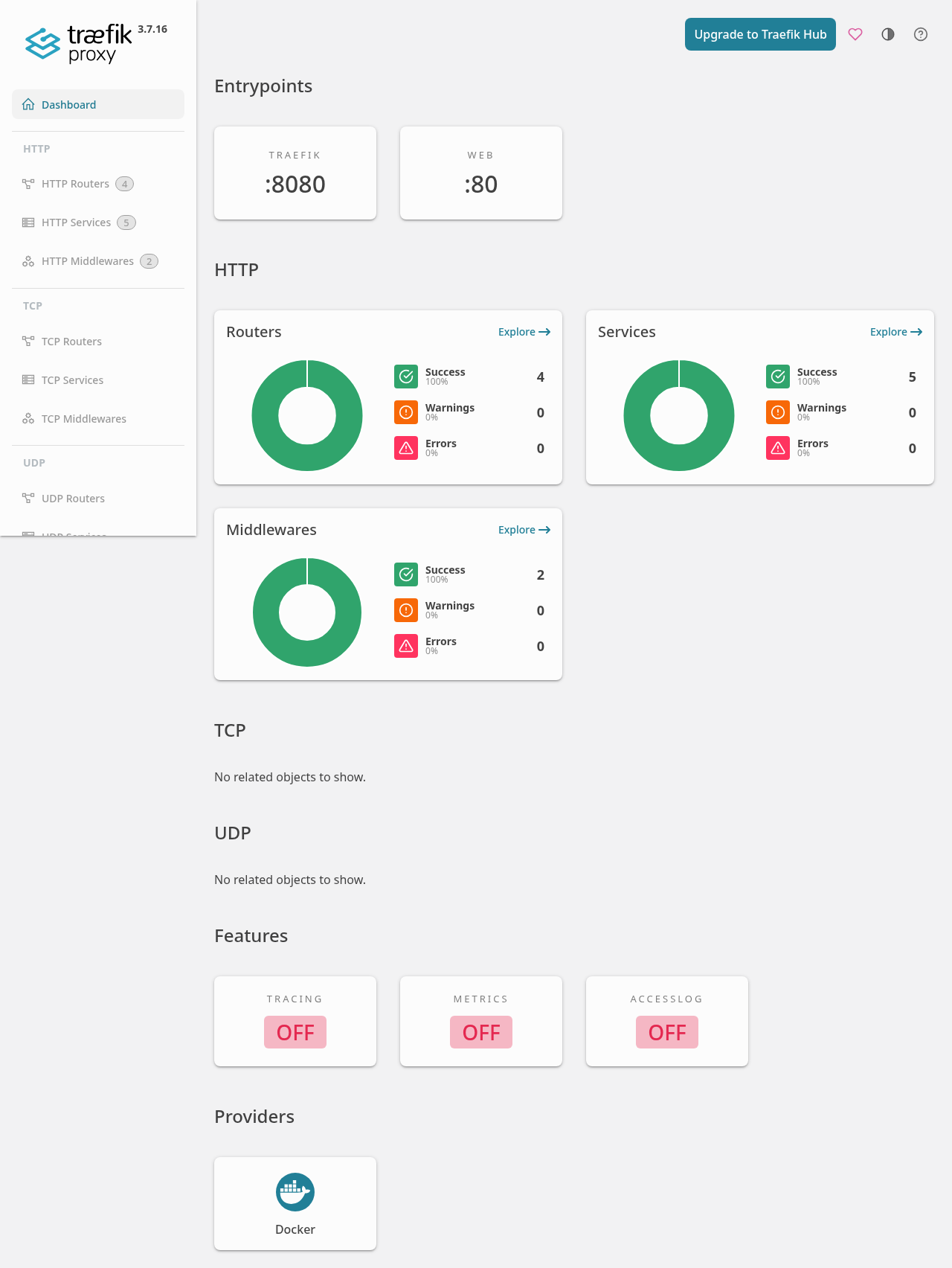
Navigate to http://localhost:3000/dashboard/. The interface displays the active entrypoints, HTTP/TCP/UDP status donuts, and provider health.
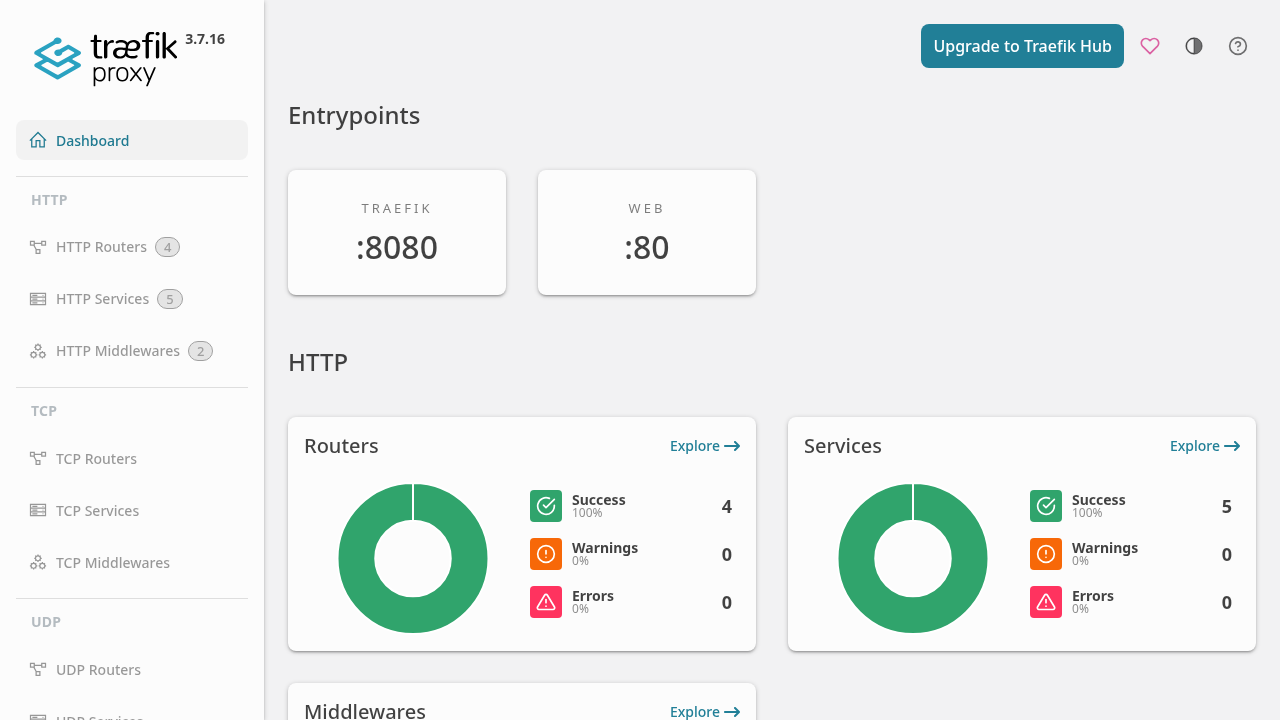
Key elements visible in the overview:
- Version Badge: Displays the running release (e.g.,
v3.7.16). - Entrypoints: Shows
traefiklistening on port8080(API & dashboard) andweblistening on port80(inbound reverse proxy). - HTTP Metrics: Displays 4 total Routers (all green, 0 errors, 0 warnings) and 5 Services.
2. Inspecting Providers and Features
Scroll down on the dashboard to review enabled features and active infrastructure providers.
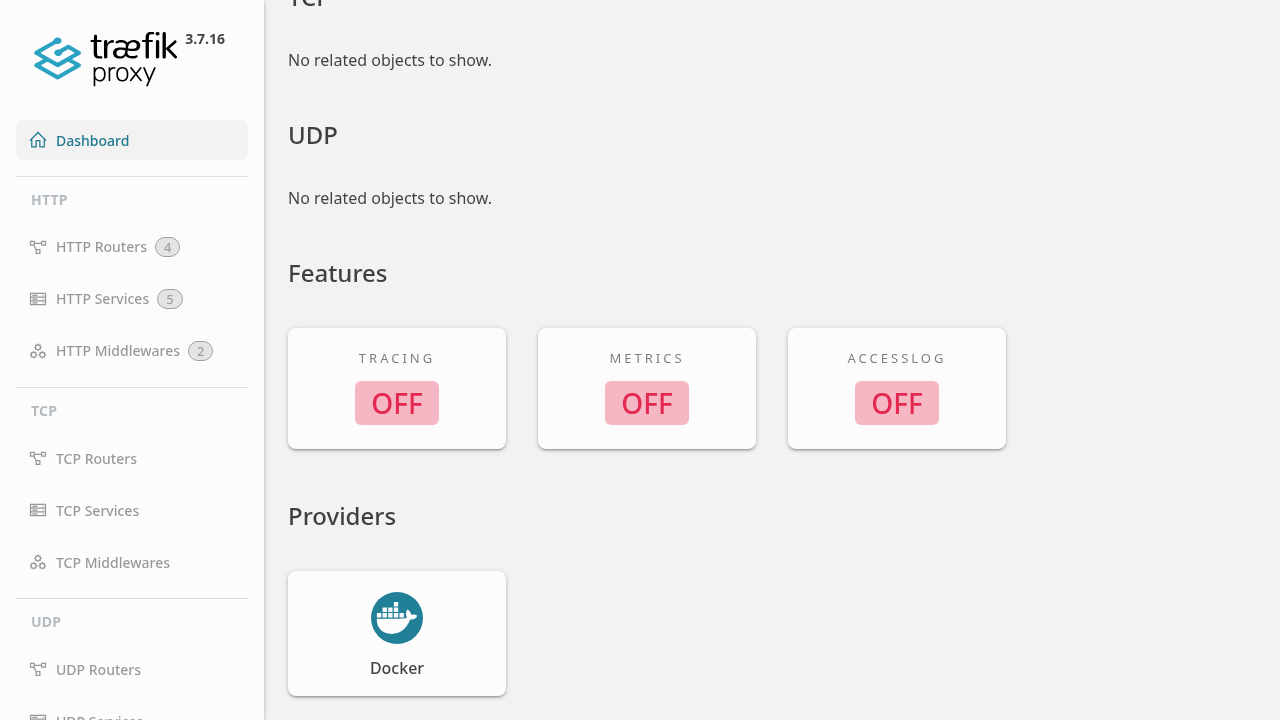
Traefik displays the Docker provider card with a green indicator, confirming that Traefik is actively monitoring container lifecycle events via the Docker socket.
For a comprehensive view of the entire system state, the full-page dashboard unifies entrypoints, protocol breakdowns (HTTP, TCP, UDP), runtime features, and providers:
3. HTTP Routers Table
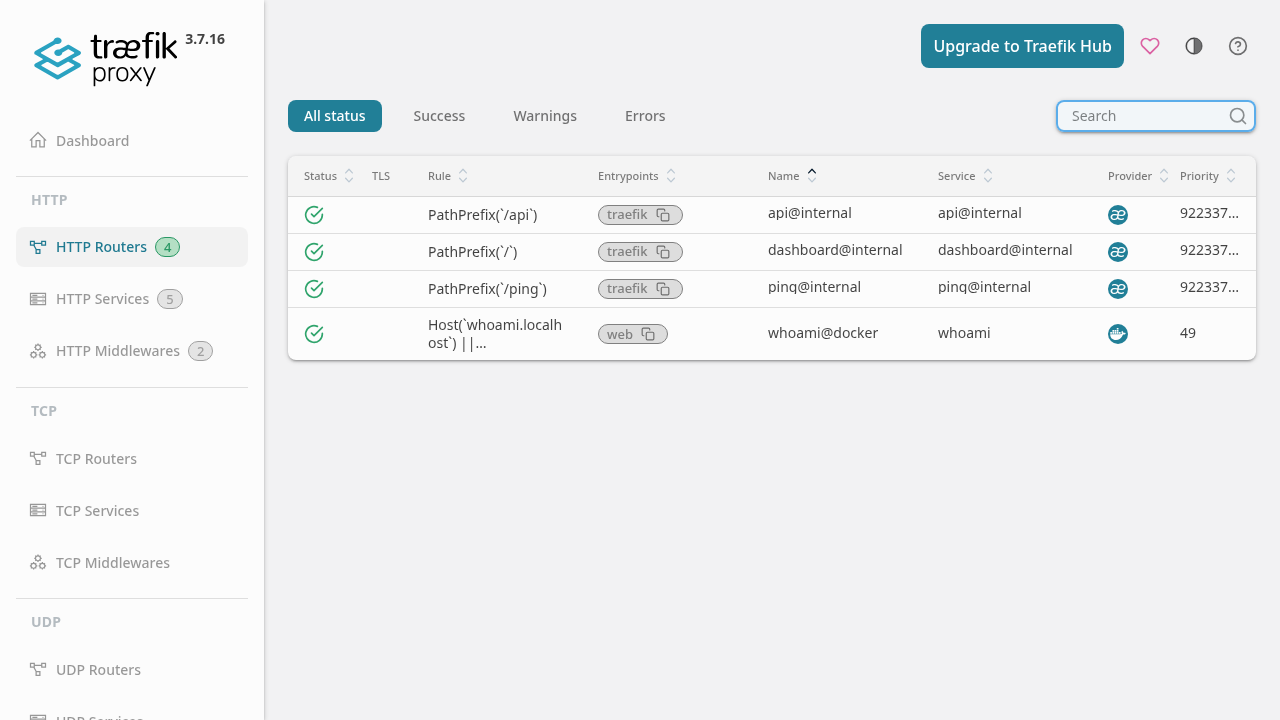
Click HTTP Routers in the left sidebar navigation menu (#/http/routers). The table lists every active router registered across internal services and connected providers.
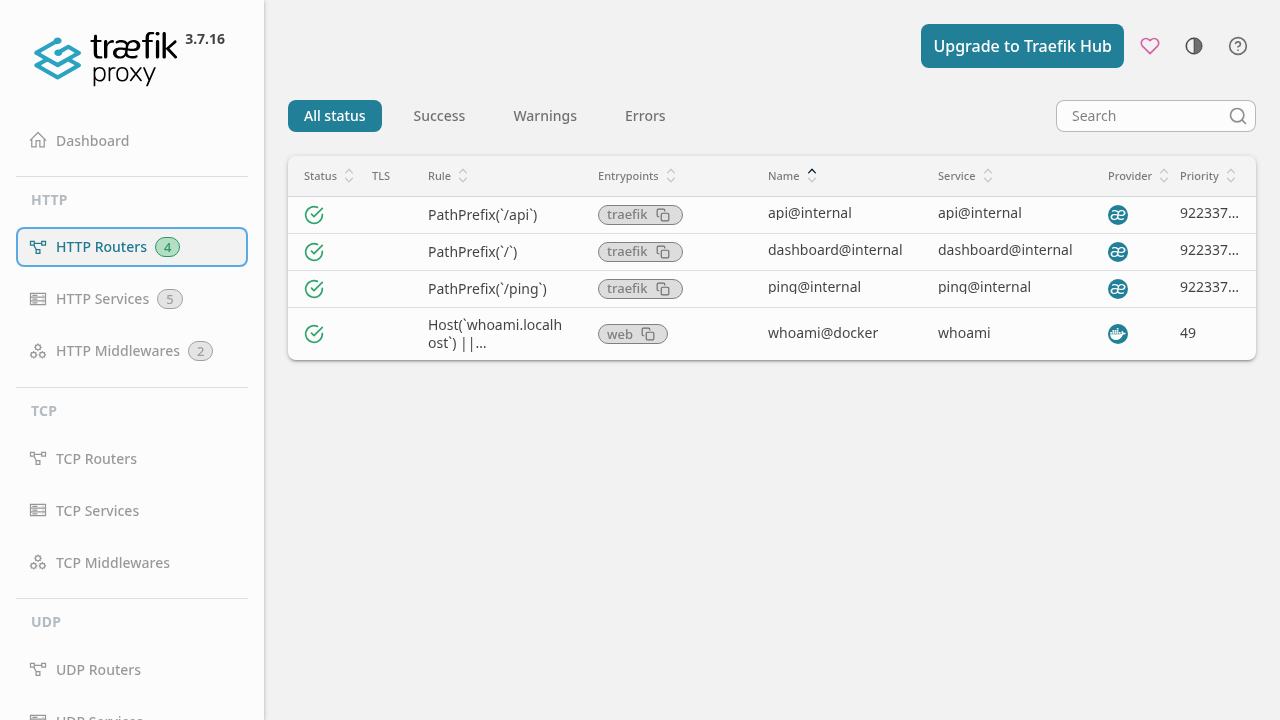
The table includes:
api@internal,dashboard@internal, andping@internalprovided by the internal provider.whoami@dockerprovided dynamically by Docker, with ruleHost(\whoami.localhost\) || PathPrefix(\/whoami\), assigned entrypointweb, priority 49, and statusSuccess.
4. Router Detail View
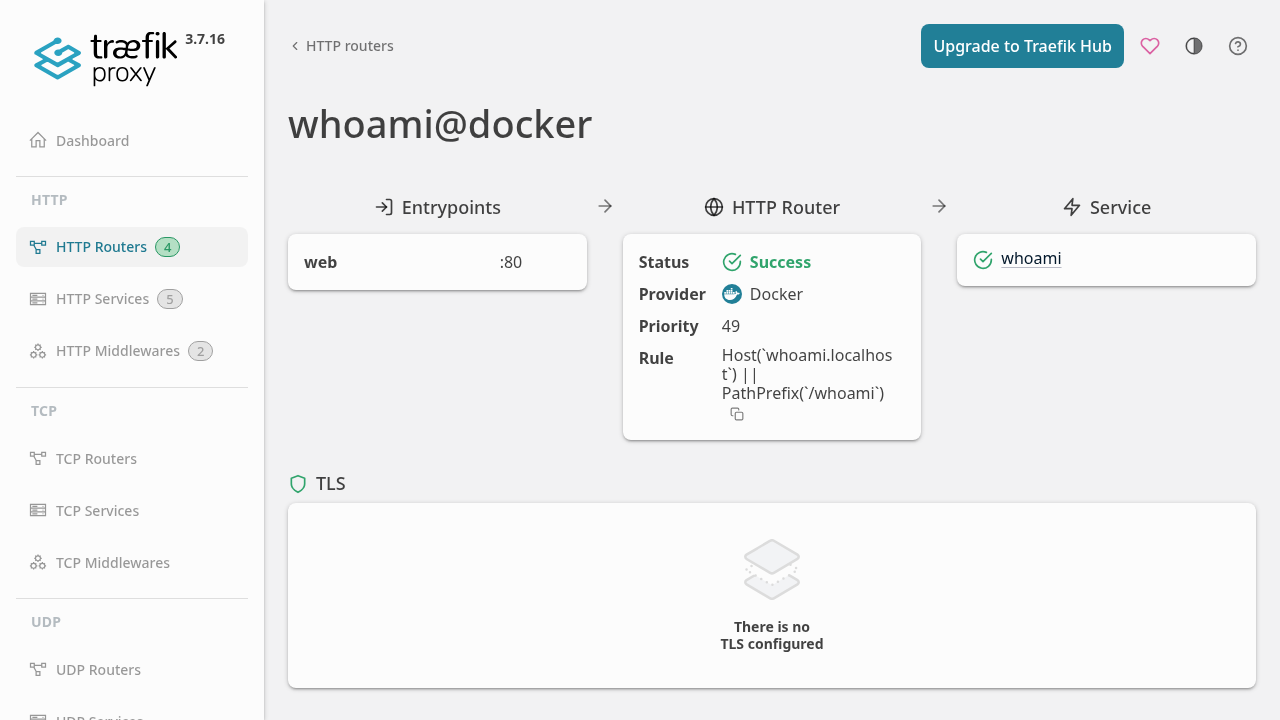
Click directly on the whoami@docker row in the routers table to view the full routing diagram.
This visual pipeline illustrates the request lifecycle:
- EntryPoints: Traffic arrives at
web :80. - HTTP Router: Evaluates the rule
Host(\whoami.localhost\) || PathPrefix(\/whoami\)with provider badgeDocker. - Service: Dispatches traffic directly to the target service
whoami.
5. HTTP Services Table
Click HTTP Services in the left sidebar navigation menu (#/http/services).
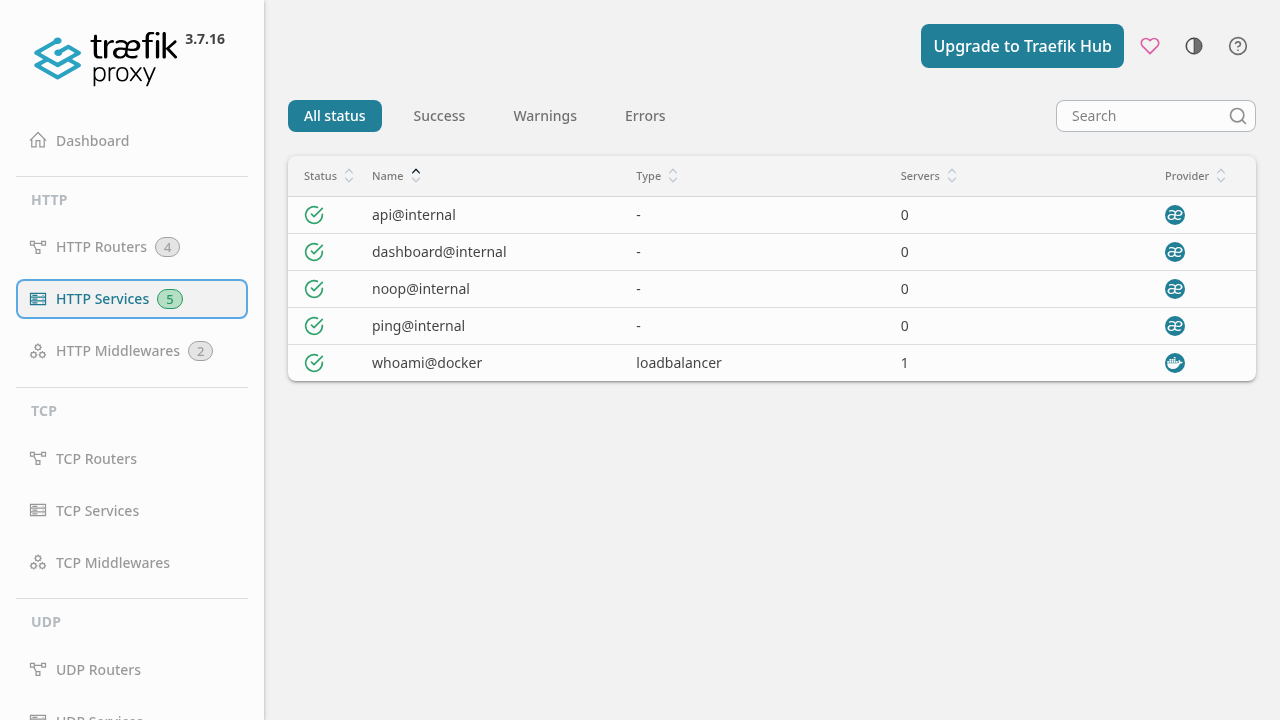
Click the whoami@docker service to view its backend load balancer configuration:
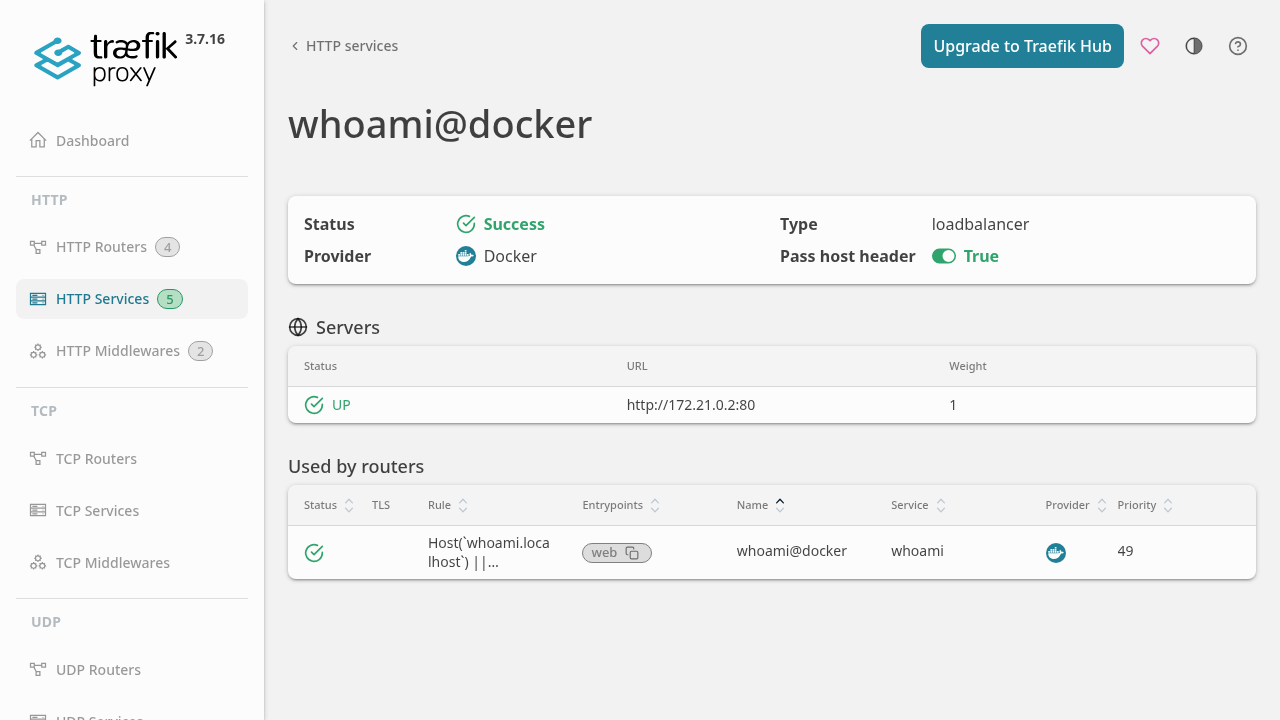
The service detail reveals:
- Service type:
loadbalancer. - Provider:
Docker. - Server status:
http://172.21.0.2:80is marked UP, indicating healthy backend connectivity.
6. Live Dynamic Proxy Verification in Browser
In your browser, navigate to the proxied application URL: http://localhost:8000/whoami
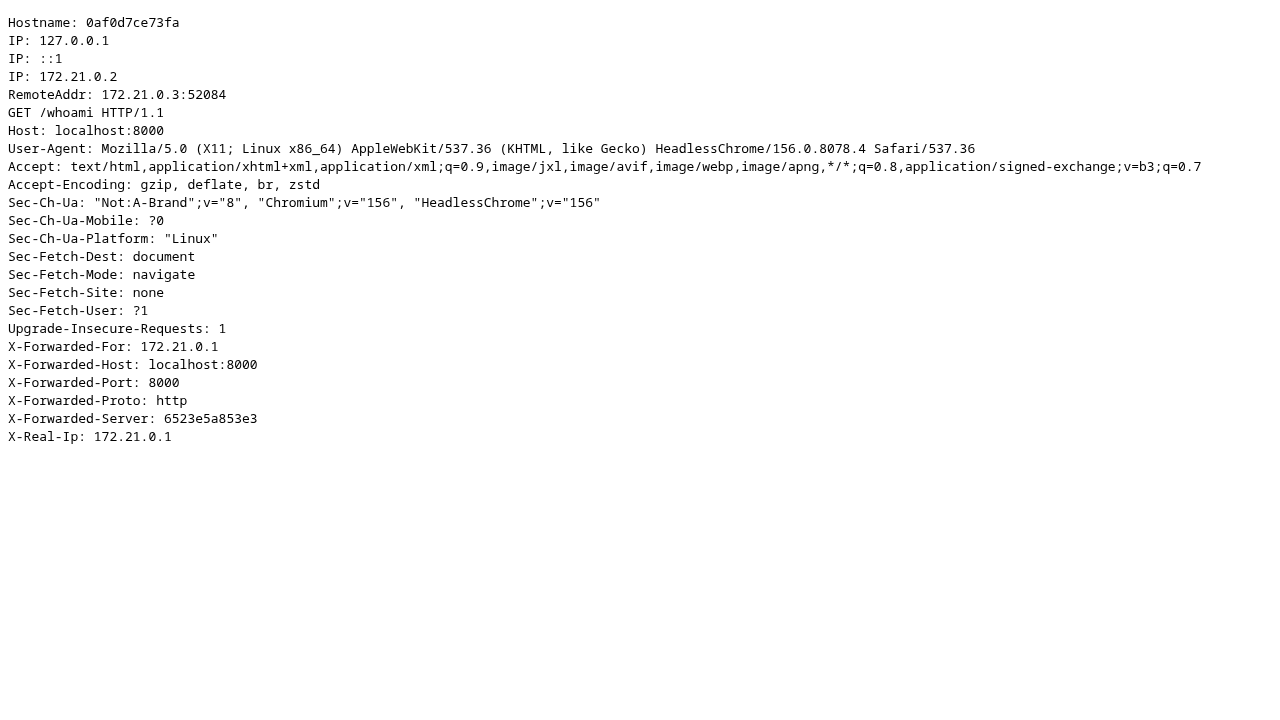
The page renders the request metadata received by the backend container, displaying client IP, request headers, and Traefik's X-Forwarded-Server header.
7. Real-Time Table Filtering and Search
Return to the Traefik dashboard routers view (http://localhost:3000/dashboard/#/http/routers). In the top-right search box, type whoami:
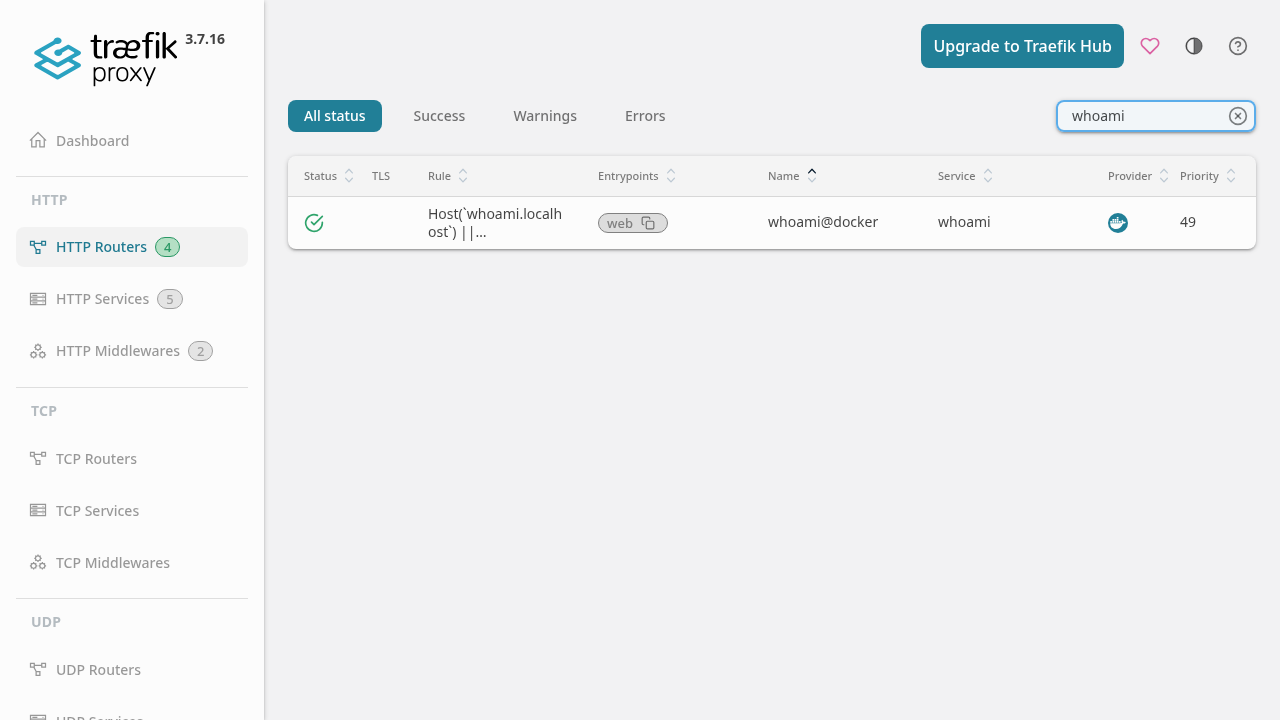
The table immediately filters down to the single matching whoami@docker entry. Clear the search field to restore all active routes:
8. High-Contrast Dark Mode
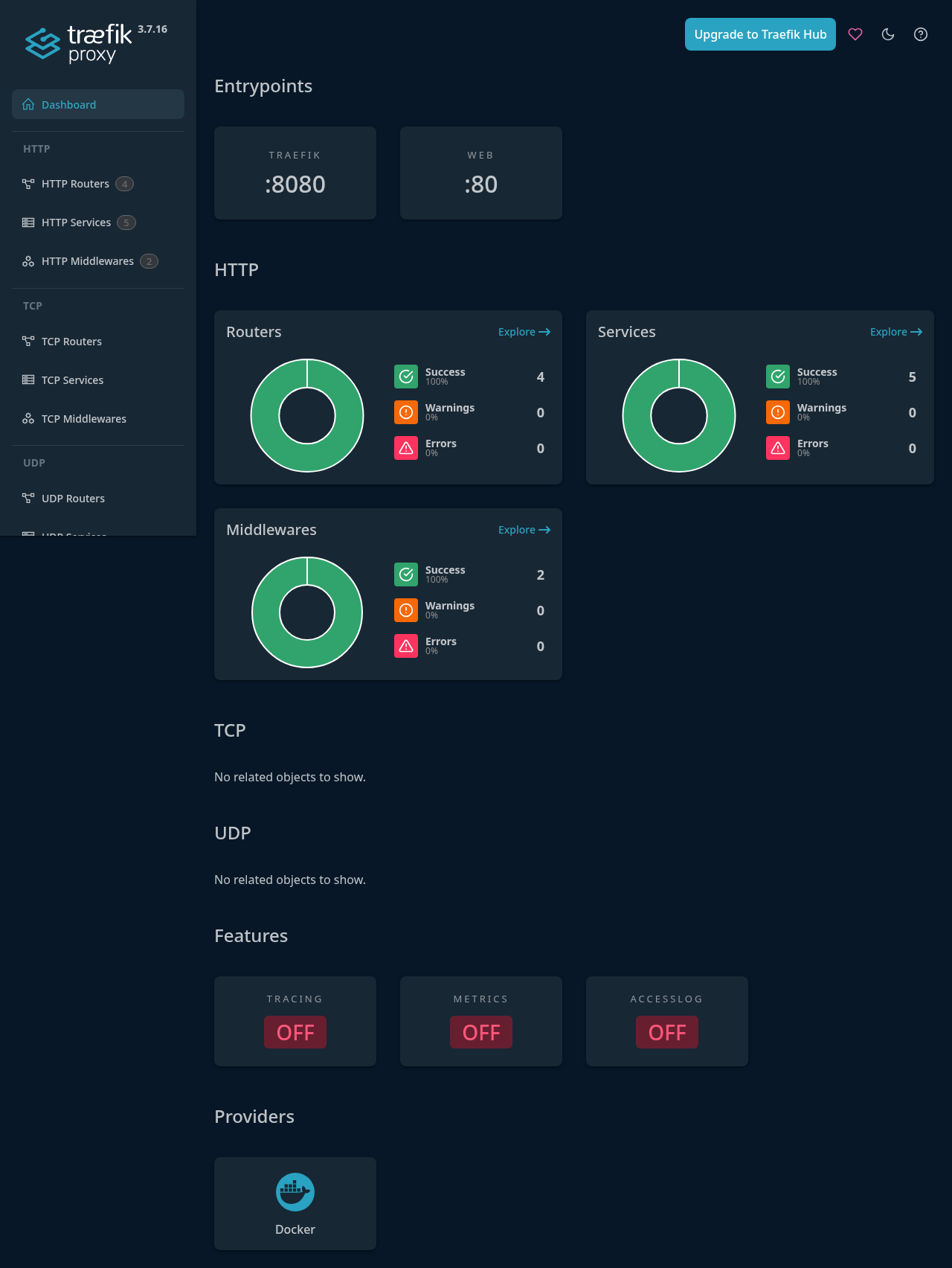
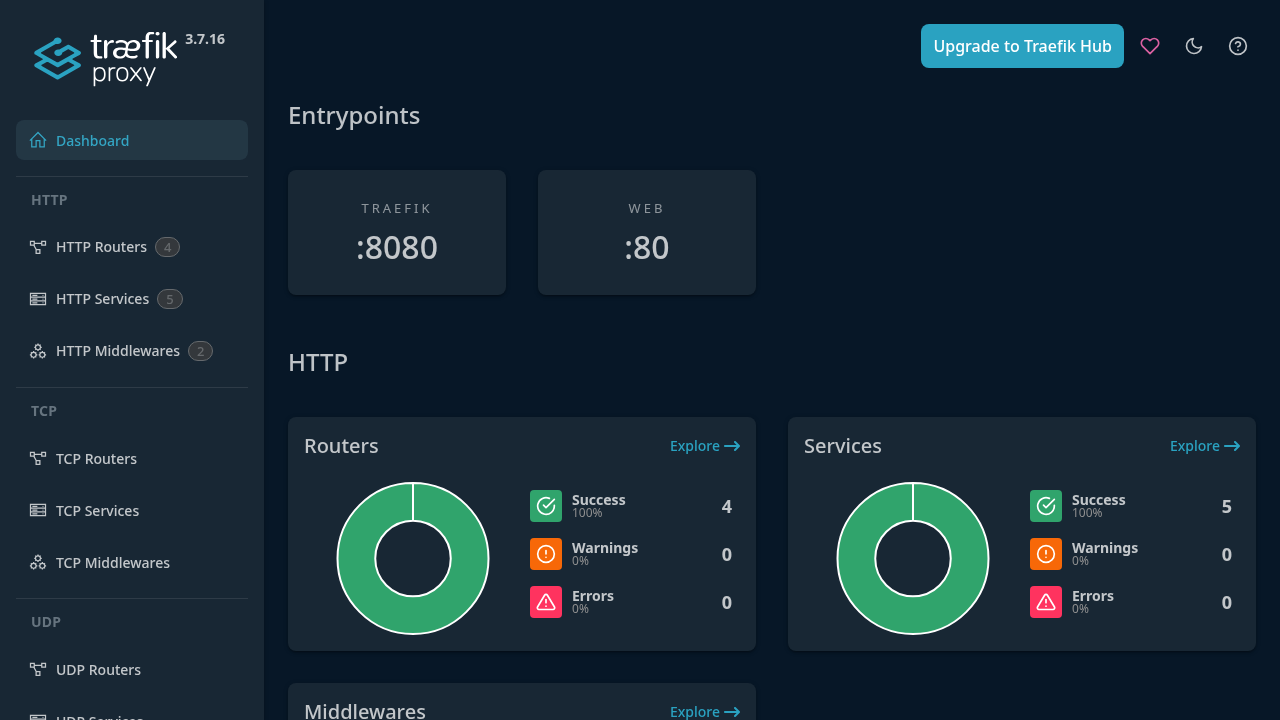
Traefik includes built-in dark theme support. Click the theme switcher button (sun/moon icon) in the bottom left or header bar to toggle dark mode:
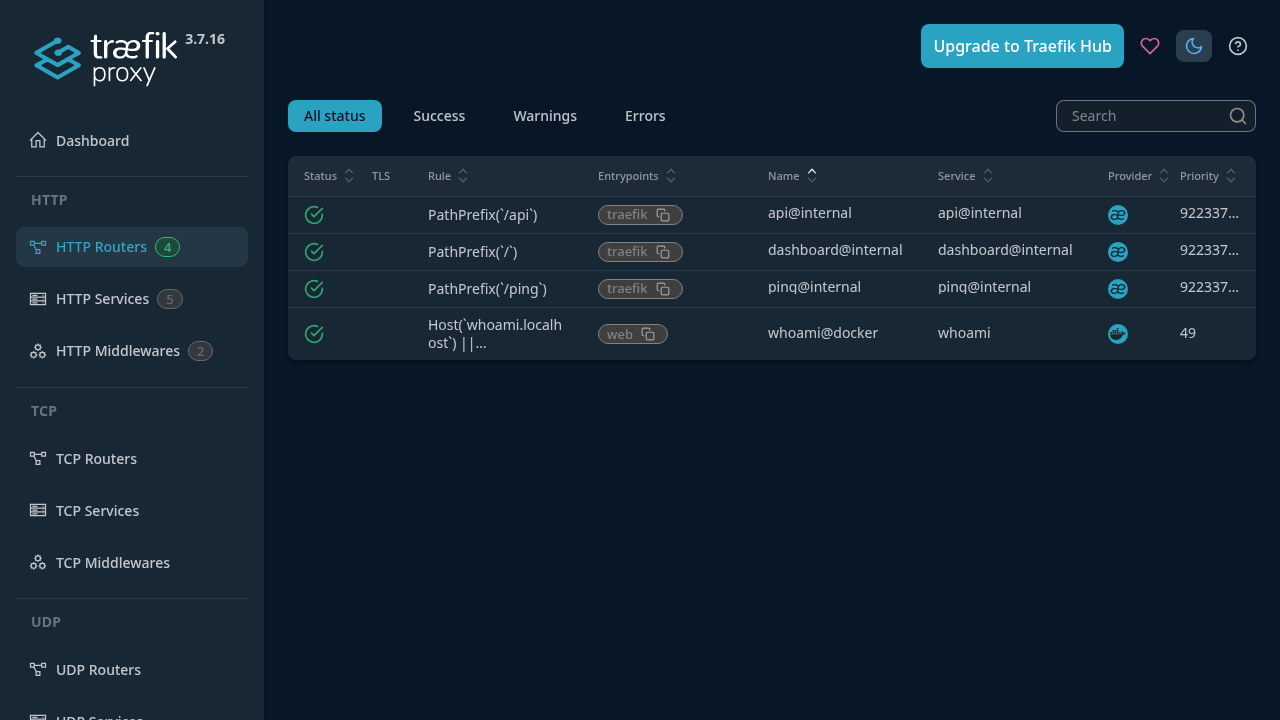
Returning to the main dashboard in dark mode gives a sleek, high-contrast operational overview suitable for monitoring stations and homelab dashboards:
Troubleshooting
The table below outlines common operational issues, underlying causes, and verified fixes when deploying Traefik with Docker Compose:
| Symptom | Cause | Resolution |
|---|---|---|
docker compose up fails with failed to resolve reference ... traefik:v3.8: not found | The traefik:v3.8 tag is not yet published on Docker Hub (current repository HEAD is v3.8.0-rc.1) | Update image: in docker-compose.yml to the latest stable release tag, traefik:v3.7 (e.g. 3.7.16). |
Container startup error bind: address already in use on host port 80 or 443 | Another web server (NGINX, Apache, or host reverse proxy) is already bound to ports 80/443 | Map Traefik's entrypoint to an unallocated host port, such as 127.0.0.1:8000:80 for testing, or stop the conflicting host service. |
| Insecure API or Dashboard is inaccessible or returns 404 | Missing --api.insecure=true or omitting the required trailing slash | Ensure --api.insecure=true is set in the command block, and always navigate to http://localhost:3000/dashboard/ with the trailing slash. |
| Container runs but does not appear in Traefik Dashboard | --providers.docker.exposedbydefault=false is set and container lacks routing labels | Add traefik.enable=true and define traefik.http.routers.<name>.rule in the container's labels: section. |
| Multi-Traefik collision: host Traefik also routes the demo container | Both Traefik instances share /var/run/docker.sock without isolation constraints | Configure --providers.docker.constraints=Label(...) on the demo Traefik instance and apply matching labels to containers, or use isolated Docker networks. |
Proxied request returns 404 page not found from Traefik | The request Host or URL Path does not match the configured router rule | Verify that the router rule matches your request (e.g., PathPrefix('/whoami') for http://localhost:8000/whoami, or pass -H 'Host: whoami.localhost'). |
Docker healthcheck fails or container stays in starting state | Incomplete health check command or missing --ping=true flag | Ensure --ping=true is included in Traefik's arguments and configure health check test as ["CMD", "traefik", "healthcheck", "--ping"]. |
Compose v2 warning: the attribute 'version' is obsolete | docker-compose.yml includes a top-level version: "3.8" declaration | Remove the version: key; modern Docker Compose v2 specification ignores it. |
API query curl localhost:3000/api/version grep returns nothing | Traefik API returns capitalized JSON keys ("Version" rather than "version") | Use case-insensitive grep (grep -i version) or parse with jq .Version. |
Teardown
To shut down Traefik and remove all containers, networks, and associated volumes:
docker compose down -vTo remove the downloaded container images from your local cache:
docker image rm traefik:v3.7 traefik/whoamiAssumptions & decisions
- Image Tag Choice (
traefik:v3.7): The repository HEAD is at pre-release tagv3.8.0-rc.1, which has not been published as an official stable image on Docker Hub undertraefik:v3.8. Usingtraefik:v3.7(deploying v3.7.16) provides full Traefik v3 architecture, identical dashboard features, and zero build latency. - Port Mapping Isolation (3000 & 8000): Ports 80 and 443 were already in use on the test host by an existing host reverse proxy (
croogmind-traefik). To avoid port binding collisions and ensure safe local execution, port 3000 was mapped to container port 8080 (dashboard & management API) and port 8000 was mapped to container port 80 (webentrypoint), bound strictly to127.0.0.1. - Viewer-Facing vs. Multi-Proxy Isolation: On a clean developer machine with a single Traefik instance, standard Docker provider configuration (
--providers.docker.exposedbydefault=falseandtraefik.enable=true) is idiomatic and clean. During automated pipeline verification on a multi-proxy host, a label constraint (shortform.project) was utilized to prevent the host's existing proxy from adopting the demo container. The documented tutorial uses the idiomatic pattern for clarity. - Strict Trailing Slash Usage: Traefik's internal router serves the dashboard SPA under
/dashboard/. Direct browser navigation to/dashboardtriggers an HTTP redirect. The guide explicitly instructs users and scripts to include the trailing slash. - Dual Routing Rule: To simplify browser and curl validation without requiring manual modifications to
/etc/hosts, the demo router rule combines bothHost('whoami.localhost')andPathPrefix('/whoami'). - Insecure API Flag:
--api.insecure=trueis used to allow immediate web UI access without configuring complex authentication middleware. The guide clearly documents this as a local development convenience and provides a security warning for production deployments. - Single Page Playwright Navigation: Playwright browser tests were executed within a single page session to prevent secondary blank tabs from interfering with screen capture processing.
Get the Unified Homelab Stack Compose Pack
One-command multi-container Compose files (Full *arr Stack, Prometheus + Grafana + ntfy Monitoring, and Homelab Auth) plus new verified deploys once a week.