
How to Install and Run ThinkRail: JetBrains' Open-Source Agentic Web IDE
ThinkRail is an open-source agentic IDE incubator project from JetBrains that pairs autonomous AI coding agents with living architecture specs, isolated git worktrees, and a full visual web workbench. Here is how to deploy ThinkRail v0.3.0 in an isolated Docker Compose container, navigate the workbench interface, and configure model providers and MCP tools.
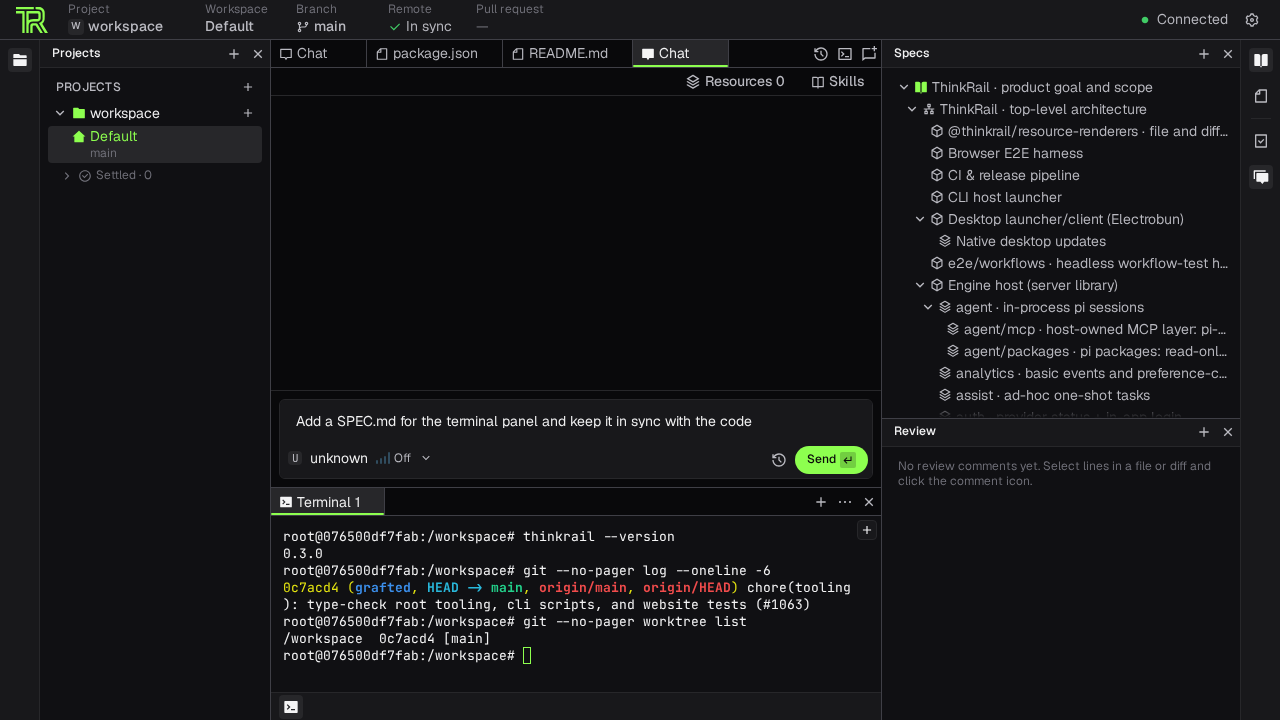
ThinkRail is an open-source (Apache License 2.0) agentic integrated development environment (IDE) developed as an incubator project by JetBrains. It embeds the pi autonomous coding agent inside a purpose-built, browser-accessible workbench designed to address the core limitations of terminal-only AI coding workflows.
While terminal-based AI agents (such as Claude Code, Aider, and standard CLI assistants) are capable of generating code rapidly, running multiple autonomous agents directly inside a single working directory introduces severe friction:
- Worktree and Git Collisions: Unsupervised agents overwrite unstaged changes, dirty the working tree, and conflict with active developer edits.
- Context Loss Across Sessions: Intent, architectural constraints, and task definitions drift as context windows fill or sessions end.
- Inadequate Review Affordances: Terminal diffs lack syntax highlighting, anchored line commenting, side-by-side comparisons, and direct feedback loops back to the agent.
- Uncontrolled Tool Execution: External tools and Model Context Protocol (MCP) servers run without granular approval gates.
ThinkRail resolves these challenges by wrapping autonomous agent execution inside an isolated web-based IDE that automatically isolates each task into a separate Git worktree, visualizes living system architecture specifications, and provides a full developer workbench.
Key Architectural Pillars
- Isolated Workspaces via
git worktree:
Every agent task, feature branch, or bug investigation executes in its own isolated git worktree under a dedicated branch. Multiple autonomous agents can run concurrently without touching your active working directory or dirtying your primary repository. Once tasks are complete, workspaces settle onto a per-project shelf and can be revived or merged cleanly.
- Full Visual IDE Workbench:
ThinkRail provides a comprehensive single-page React 19 web interface powered by a Monaco code editor, a dynamic project file explorer with real-time Git modification indicators, side-by-side diff viewers, and anchored review comments fed directly back to the agent's context.
- Container-Backed Terminal Emulation:
Includes integrated xterm terminals (@xterm/xterm) connected to persistent container pseudo-terminals (bun-pty), giving both the developer and the agent full command-line access inside the isolated execution sandbox.
- Living Specs as Ground Truth:
Rather than relying on transient chat prompts, ThinkRail maintains a connected graph of SPEC.md files (such as goal-and-requirements.md and architecture.md) directly in the codebase. Agents read, update, and enforce architectural boundaries using built-in spec_* tools across turns.
- Granular Agent Tooling & MCP Integration:
Bundles structured clarification prompts (pi-ask-user-question), interactive UI diagrams and mockups (pi-visualize), web search tools, and secure Model Context Protocol (MCP) server presets protected by explicit user approval gates.
- Lightweight Headless Web Daemon:
Boots in-process via high-performance Bun (Bun.serve), exposing the complete workbench over HTTP and WebSockets. It can run on a remote server, inside a local container, or as a native desktop application via Electrobun.
---
Prerequisites
Before deploying ThinkRail, ensure your host environment meets the following requirements:
- Host Operating System: Linux x86_64, macOS, or Windows (via WSL2).
- Container Runtime: Docker Engine and Docker Compose v2 (
docker compose versionv2.20+ recommended). - Git: Git installed on the host to manage the repository you wish to mount into ThinkRail.
- Network Port: A free TCP port on
localhost(default: 3000; fallback:24242). - Web Browser: Any modern web browser (Google Chrome, Chromium, Mozilla Firefox, or Apple Safari).
- Model Provider (Optional for Agent Execution): ThinkRail's web workbench, file editor, spec viewer, and terminal functions operate without any API credentials. However, running autonomous agent coding sessions requires an active subscription or API key from a supported provider:
- JetBrains AI (via Central CLI) - Anthropic (Claude 3.5 Sonnet / Haiku / Opus) - GitHub Copilot - Kimi (Moonshot AI)
---
Exact Install Steps
Upstream ThinkRail distributes pre-compiled standalone binary releases for Linux x86_64, macOS, and Windows. To keep your host operating system clean and isolate file modifications, this guide installs official standalone release v0.3.0 inside a lightweight Debian Bookworm container managed by Docker Compose.
Step 1: Create the Deployment Directory
Create an isolated directory for the Docker configuration and navigate into it:
mkdir -p thinkrail-deploy
cd thinkrail-deploy
Step 2: Define the Container Dockerfile
Create a Dockerfile that packages debian:bookworm-slim, installs Git and CA certificates, downloads the official JetBrains standalone binary release using the upstream installer script, and configures Git defaults for containerized worktree operations:
# Dockerfile
FROM debian:bookworm-slim

# Install runtime dependencies required by Git worktree operations and CLI utilities
RUN apt-get update && apt-get install -y --no-install-recommends \
    curl \
    ca-certificates \
    git \
 && rm -rf /var/lib/apt/lists/*

# Install official JetBrains ThinkRail standalone binary (pinned to v0.3.0)
RUN curl -fsSL https://raw.githubusercontent.com/JetBrains/thinkrail/main/install.sh \
    | bash -s -- --version 0.3.0 --prefix /usr/local --no-modify-path

# Configure safe git defaults inside the container
RUN git config --global user.name "ThinkRail Demo" && \
    git config --global user.email "demo@thinkrail.local" && \
    git config --global init.defaultBranch main && \
    git config --global --add safe.directory "*"

WORKDIR /workspace

EXPOSE 24242

ENV THINKRAIL_HOST=0.0.0.0
ENV THINKRAIL_PORT=24242
ENV THINKRAIL_NO_ANALYTICS=1

ENTRYPOINT ["/usr/local/bin/thinkrail"]
CMD ["--no-open", "--no-analytics", "--host", "0.0.0.0", "--port", "24242", "/workspace"]
Step 3: Configure Environment Variables
Create a .env file to define the project name, host port, and repository path. Replace /path/to/your/repo with the absolute path to your local Git repository:
cat > .env <<EOF
COMPOSE_PROJECT_NAME=thinkrail-workbench
THINKRAIL_PORT=3000
REPO_PATH=/path/to/your/repo
EOF
Note: If port
3000is currently used by another service on your machine, select an alternate port such as24242,3002, or8080in.env.
Step 4: Create the Docker Compose Specification
Create the docker-compose.yml file. This mounts your repository into /workspace, binds the HTTP server to 127.0.0.1:${THINKRAIL_PORT}, preserves application settings and chat history in a named Docker volume (thinkrail-data), and defines a container health check against /health:
services:
  thinkrail:
    build:
      context: .
      dockerfile: Dockerfile
    image: thinkrail-app:v0.3.0
    container_name: thinkrail-app
    ports:
      - "127.0.0.1:${THINKRAIL_PORT}:24242"
    volumes:
      - "${REPO_PATH}:/workspace"
      - thinkrail-data:/root/.thinkrail
    restart: unless-stopped
    healthcheck:
      test: ["CMD-SHELL", "curl -fsS http://localhost:24242/health || exit 1"]
      interval: 5s
      timeout: 3s
      retries: 10
      start_period: 5s

volumes:
  thinkrail-data:
Step 5: Build and Start the ThinkRail Container
Build the container image and launch the ThinkRail service in the background:
docker compose up -d --buildWait for the health check to report that the web service is ready:
until [ "$(curl -s -o /dev/null -w '%{http_code}' http://localhost:3000/health)" = 200 ]; do
  sleep 1
done
echo "ThinkRail web IDE is healthy and listening on http://localhost:3000/"
---
Verification
Run the following smoke tests to confirm that your ThinkRail instance is operating correctly:
1. Verify Container Health and Status
Check that the container is running and healthy:
docker inspect --format='{{.State.Status}} (healthy: {{.State.Health.Status}})' thinkrail-app*Expected output:* running (healthy: healthy)
2. Check the Health HTTP Endpoint
Query the built-in HTTP health endpoint:
curl -fsS http://localhost:3000/health*Expected output:* ok
3. Verify the Web Application Mount Point
Confirm that the server is serving the React single-page application:
curl -fsS http://localhost:3000/ | grep -q 'id="root"' && echo "React web mount OK"*Expected output:* React web mount OK
4. Verify CLI Binary Version and Help Output
Execute thinkrail --version inside the container:
docker exec thinkrail-app thinkrail --version*Expected output:* 0.3.0
Inspect available command-line flags:
docker exec thinkrail-app thinkrail --help*Expected output:* Lists flags including --host, --port, --no-open, --no-analytics, and subcommands.
---
Browser Setup & Feature Walkthrough
Open your web browser and navigate to http://localhost:3000/.
1. Project Welcome & Workspace Selection
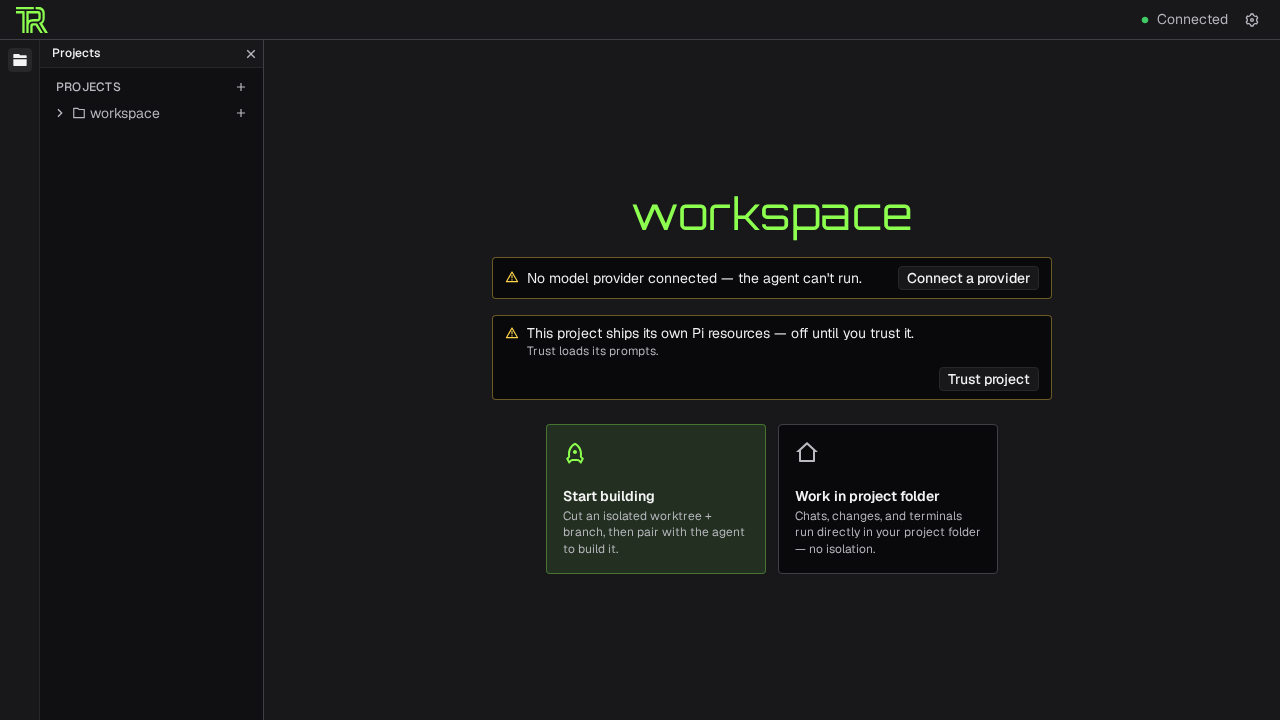
When you first open ThinkRail, you are greeted by the Project Home screen:
- Start building: Clones an isolated Git worktree and launches an autonomous agent pairing session.
- Work in project folder: Opens the repository directly in the main workbench without cutting a new worktree.
- Trust project notice: Prompts whether to trust the repository's bundled
.piprompt templates and MCP server configurations. - Model provider banner: Informs you if no model provider is currently connected.
Click Work in project folder to enter the workbench.
2. The Central Workbench Layout
The workbench provides a modern, high-density interface with a top navigation bar, project directory tree, chat interface, integrated terminal, living specs, and task queues:
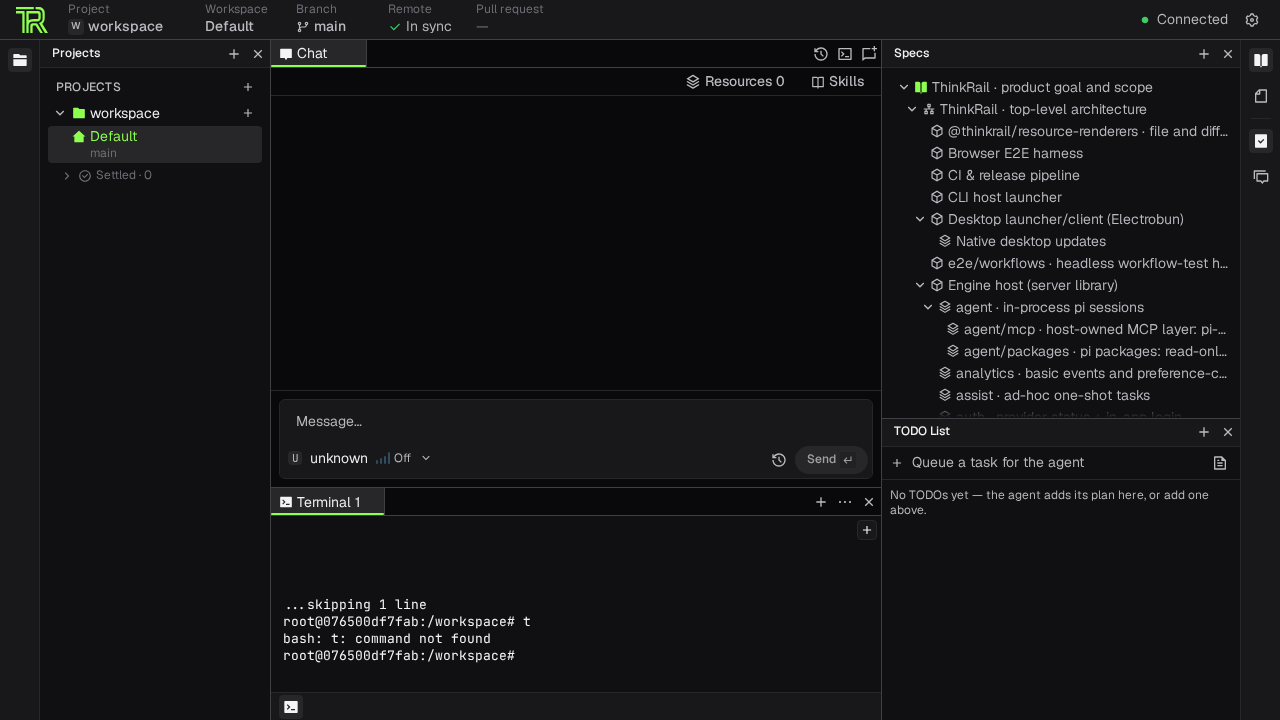
The header displays your active project, working directory, Git branch (main), and remote sync status.
3. Integrated Container Terminal
Click the Terminal tab in the bottom panel to open an interactive pseudo-terminal session running directly inside the container:
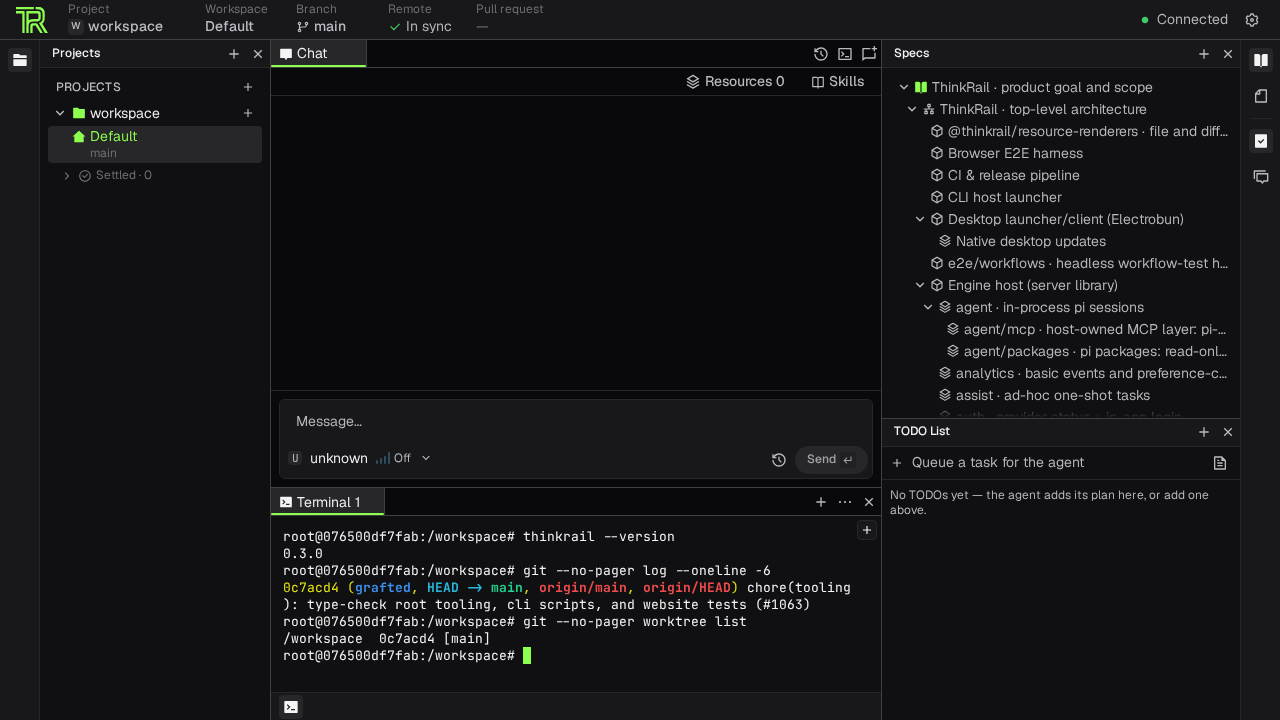
This terminal runs as root inside /workspace. You can run Git commands (git worktree list, git status), execute build tools, or verify binary versions without switching to an external terminal emulator.
4. Living Architecture Specs
ThinkRail promotes architectural specifications from static documentation to living ground truth:
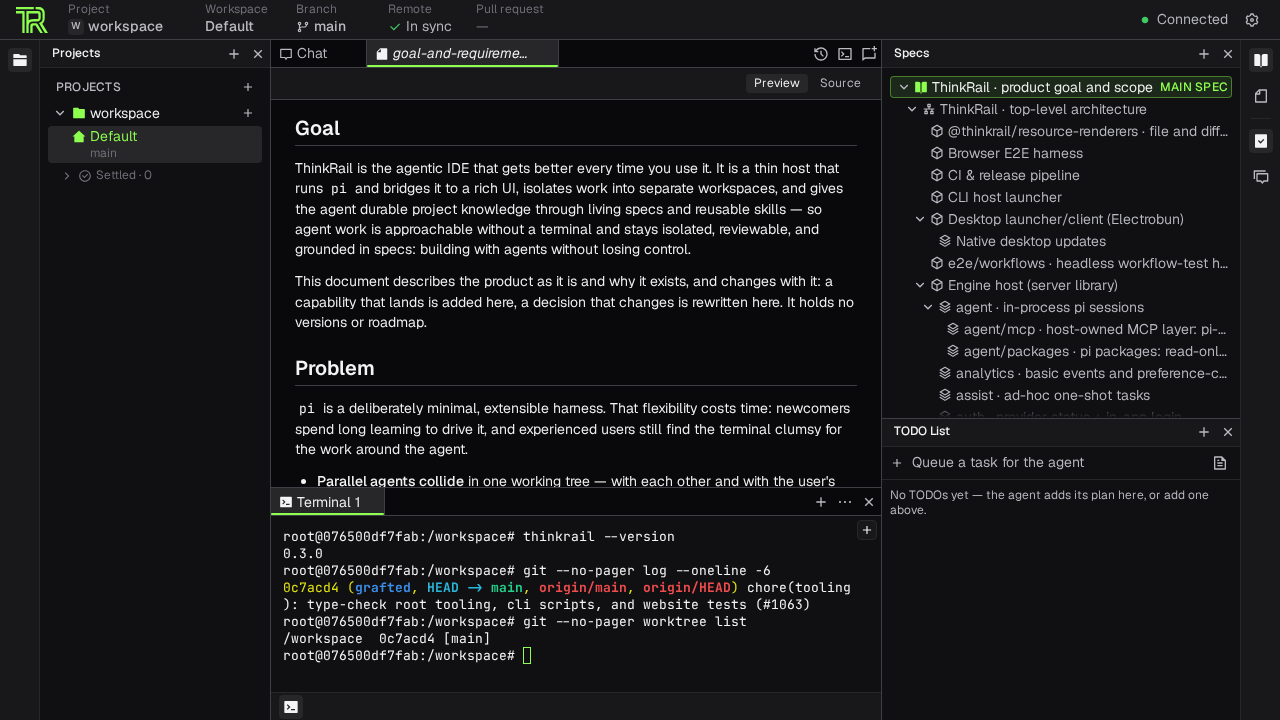
Selecting the Specs tab opens an interactive tree of your project's SPEC.md hierarchy, starting from high-level product goals down to individual packages and modules.
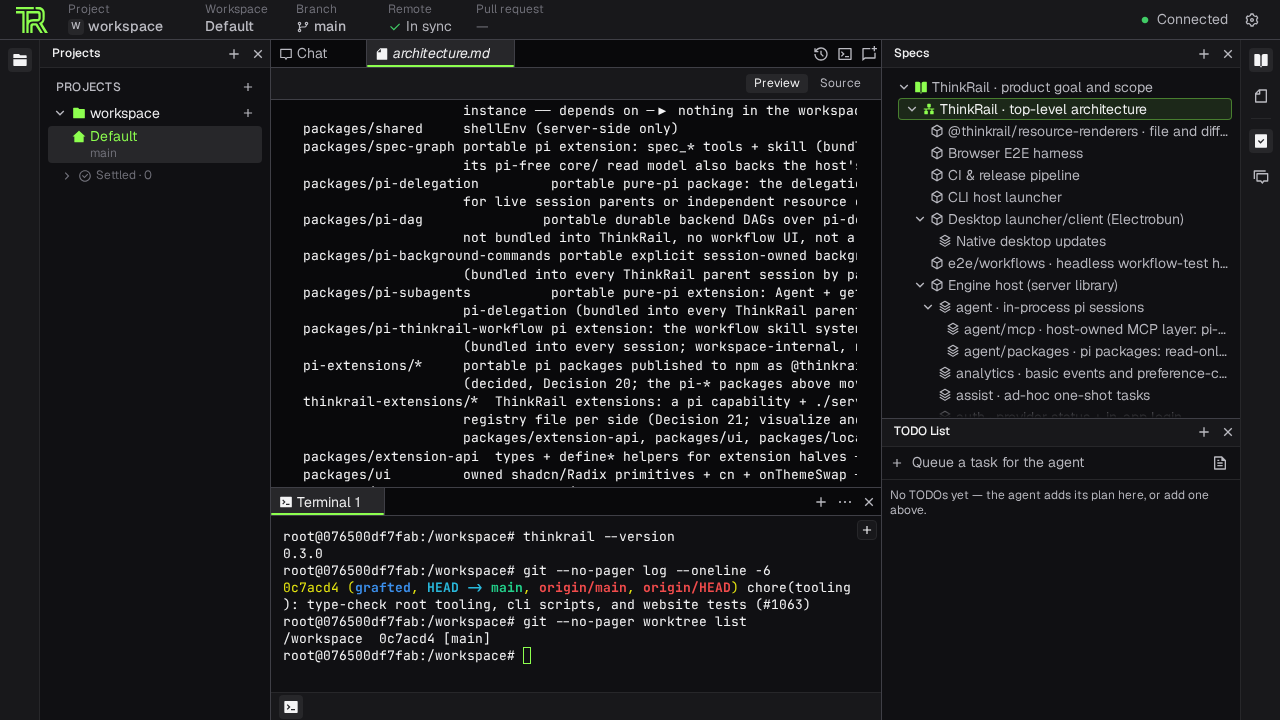
Opening any spec renders a Markdown preview with interactive navigation. The AI agent uses these files to verify that code modifications align with system constraints.
5. File Explorer & Monaco Editor
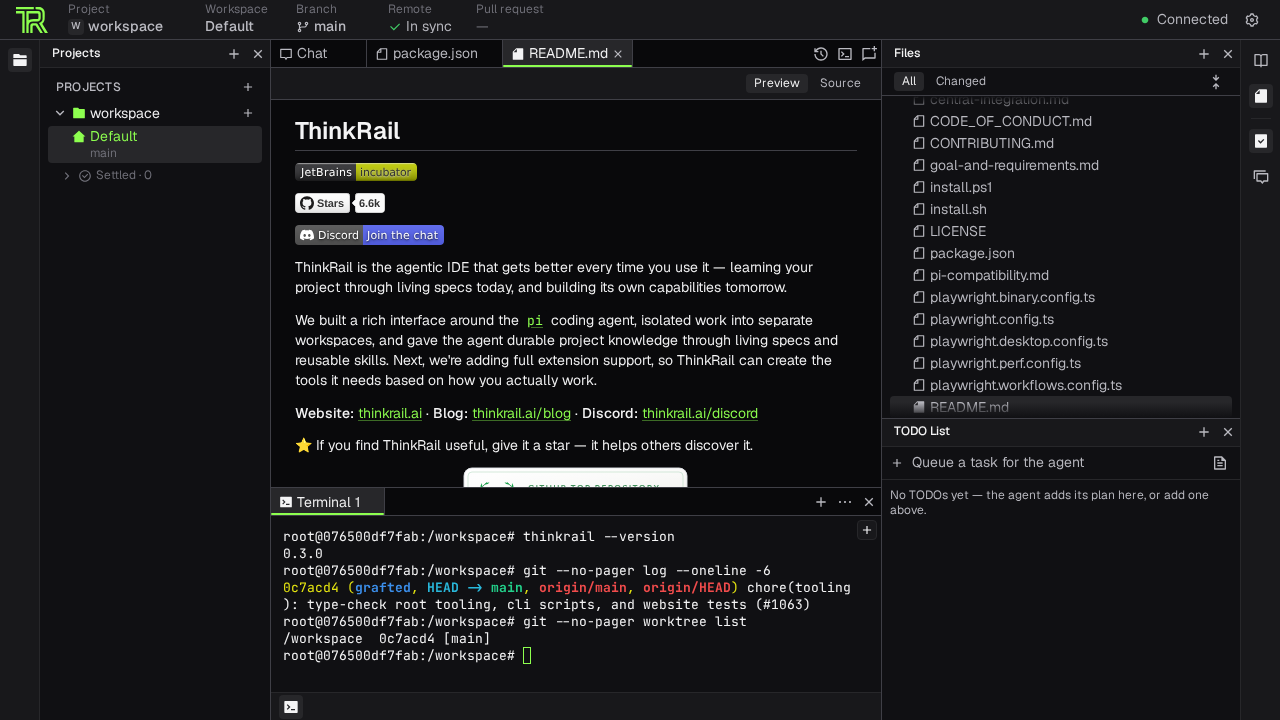
The Files tab lists your repository tree with filters for All files and Changed files:
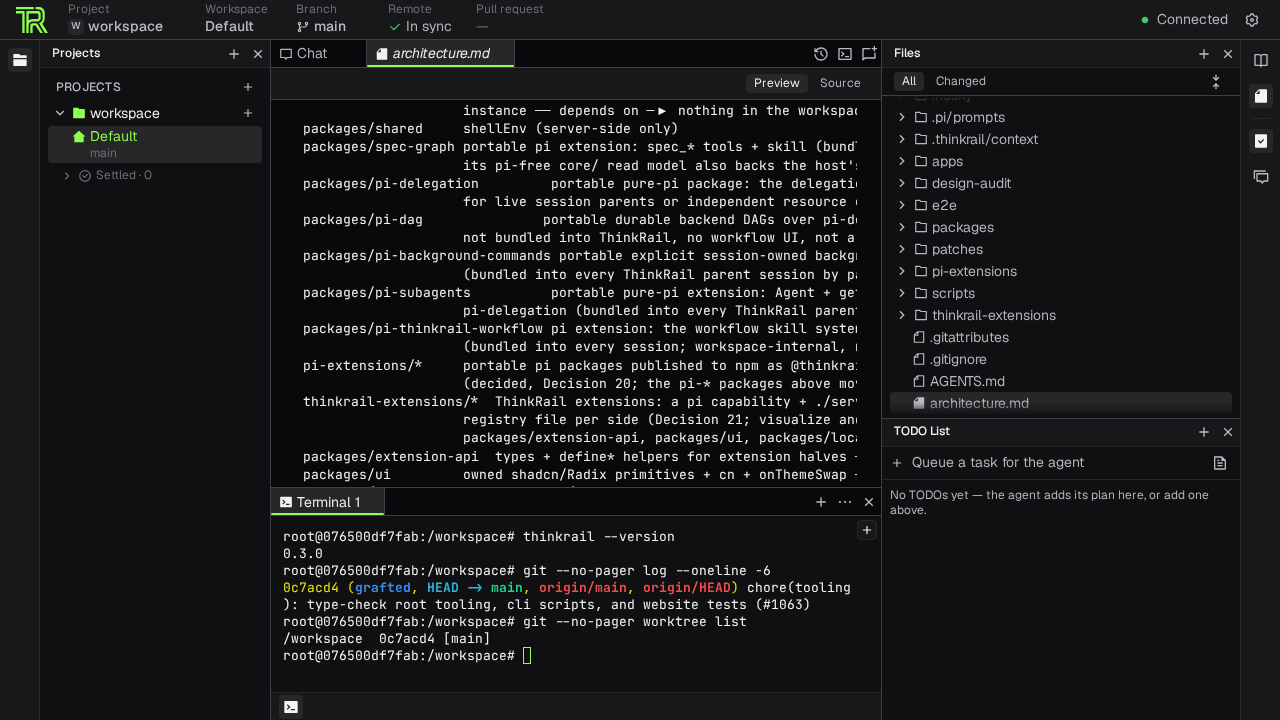
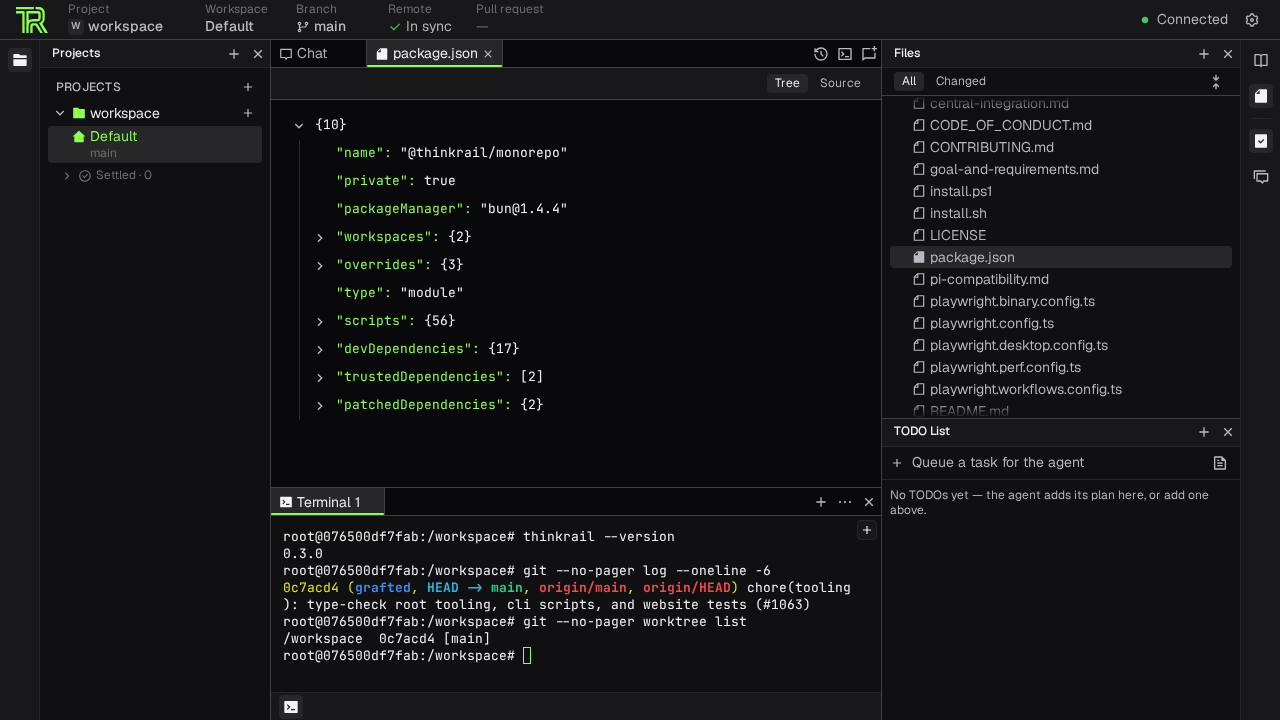
Clicking a file opens Monaco Editor with full syntax highlighting, tree view navigation for JSON structures, and rich Markdown rendering:
6. Agent Chat Composer & Task Queues
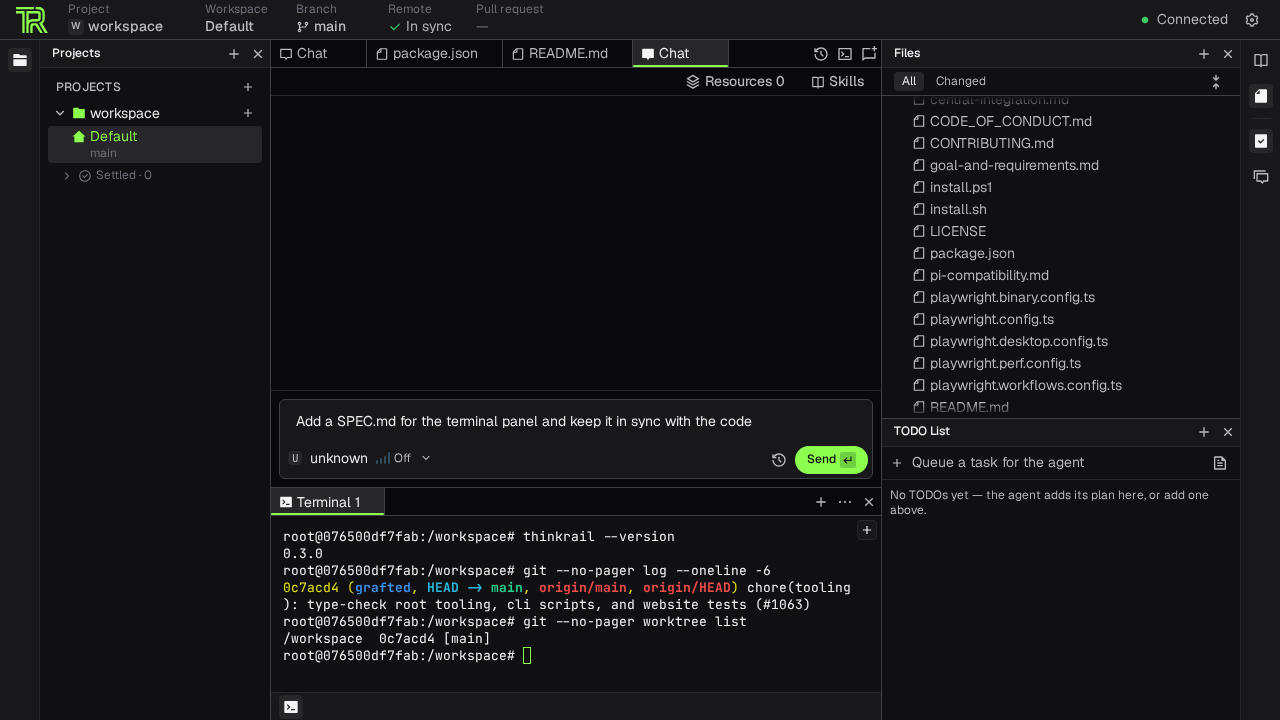
The Chat panel provides an input composer for issuing instructions to the agent:
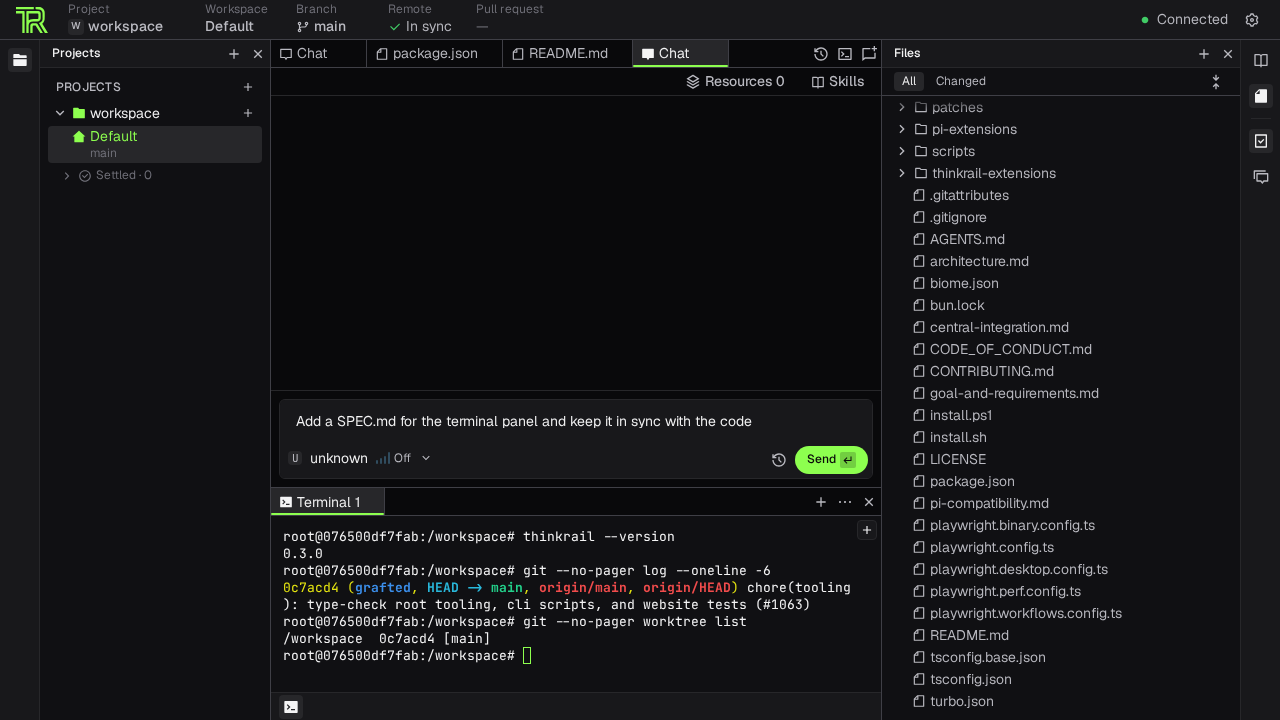
To the right, the TODO rail lets you queue sequential tasks for the agent to execute autonomously:
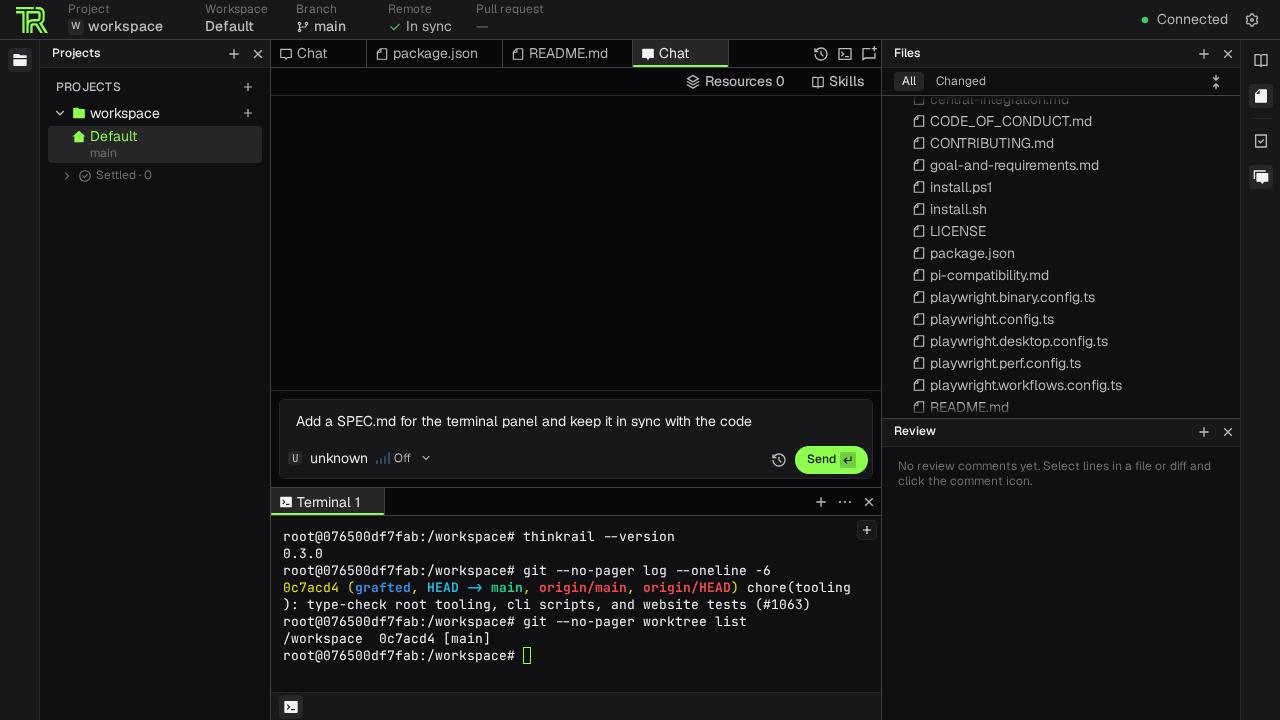
The Review rail aggregates pending diffs and review comments for developer inspection:
7. Configuring Model Providers
To enable autonomous code generation, open Settings (gear icon) and select the Providers tab:
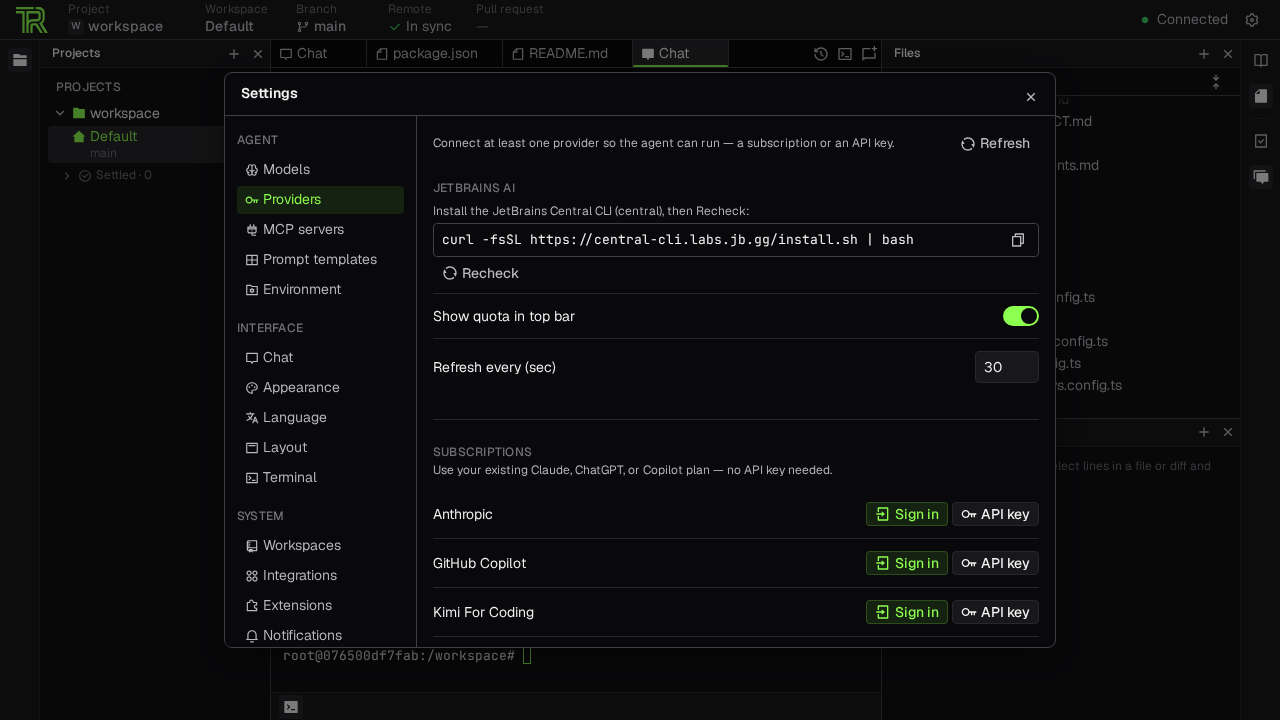
Supported provider integrations include:
- JetBrains AI: Connect via the Central CLI utility.
- Anthropic: Provide an Anthropic API key (
sk-ant-...) for direct Claude access. - GitHub Copilot: Sign in with your GitHub account credentials.
- Kimi: Provide an API key for Moonshot AI models.
8. Model Context Protocol (MCP) Integration
ThinkRail includes first-class support for Model Context Protocol servers under Settings → MCP:
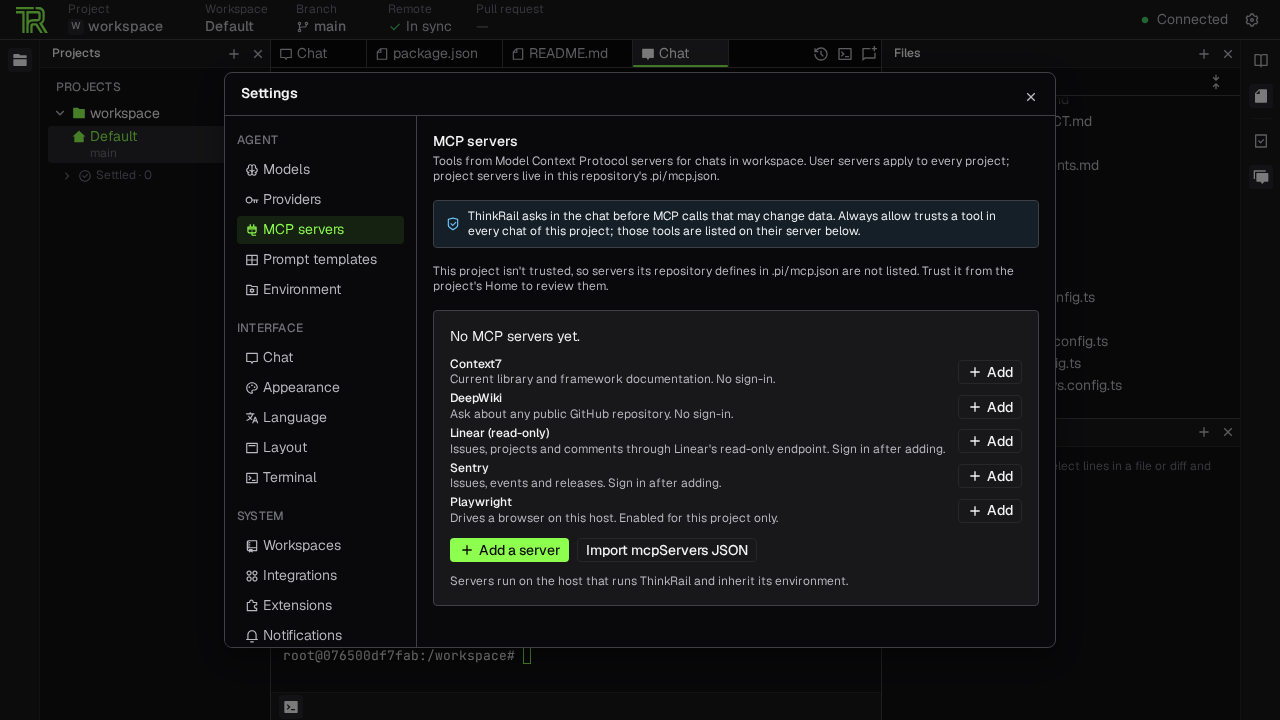
ThinkRail enforces strict security approval gates: external tools cannot execute without user authorization. Built-in presets are available for Context7, DeepWiki, Linear, Sentry, and Playwright.
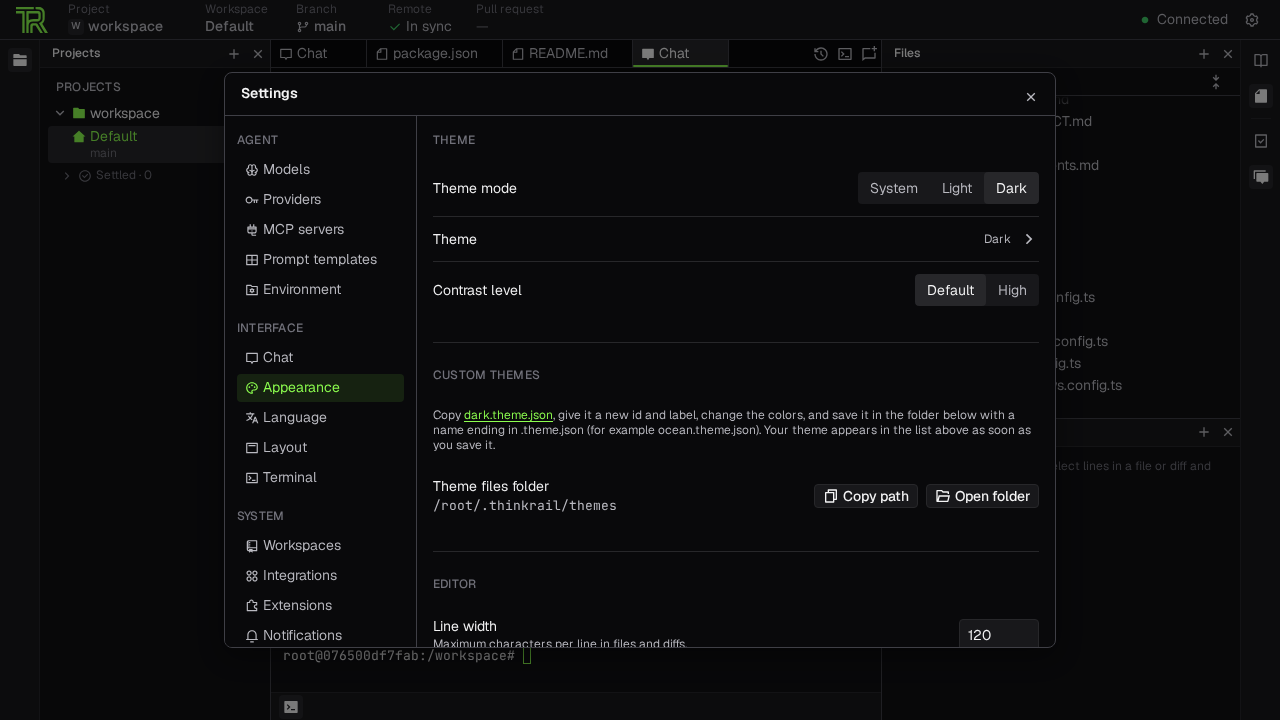
9. Customization & Appearance
Under Settings → Appearance, you can toggle between Dark and Light mode, adjust contrast levels, or load custom syntax themes:
---
Troubleshooting
The following table provides diagnosis and resolution steps for common deployment and operational issues:
| Issue / Symptom | Root Cause | Resolution |
|---|---|---|
bind: address already in use (Port 3000 occupied) | Another local service (such as Node.js or Grafana) is currently listening on port 3000. | Inspect active listeners with ss -ltn or change THINKRAIL_PORT=24242 in your .env file and re-run docker compose up -d. |
Health check fails (curl localhost:3000/health returns connection refused) | Container failed to start or crashed during initialization. | Inspect container output with docker compose logs -f thinkrail. Verify Docker has sufficient memory and CPU allocated. |
| Banner shows "No model provider connected" | No API key or subscription credentials have been configured. | This is normal for initial setup. Go to Settings → Providers and add an Anthropic API key, connect GitHub Copilot, or authenticate JetBrains AI. |
| Terminal keystrokes swallowed or frozen | The container pseudo-terminal (PTY) was left inside a terminal pager like less or git log. | Send q, Ctrl+C, or Ctrl+U in the terminal to exit the pager, or restart the container via docker compose restart thinkrail. |
Git commands fail with fatal: detected dubious ownership in repository | Container runs as root, while mounted repository files are owned by the host user. | The Dockerfile sets git config --global --add safe.directory "*". If building your own image, ensure this Git setting is present. |
| Analytics consent dialog appears on launch | Telemetry prompt displayed prior to persistent settings storage. | Select "Share additional usage data: OFF" and click Done. ThinkRail runs with --no-analytics and THINKRAIL_NO_ANALYTICS=1, preventing data transmission. |
| Chat sessions or editor state persist unexpectedly after reload | Browser and server state are preserved in the thinkrail-data volume. | To reset to a clean state, tear down the stack with volume deletion: docker compose down -v. |
---
Teardown & Clean Removal
To stop ThinkRail and completely remove all containerized assets, execute:
# Stop and remove container, network, and data volume
docker compose down --remove-orphans -v

# Remove the built container image
docker image rm thinkrail-app:v0.3.0
Because all state was confined to the Docker container and named volume, your host machine and mounted repository remain clean and unmodified.
---
Assumptions & Decisions
The following architectural and operational decisions were established during process validation and testing:
- Isolated Docker Containerization vs Host Binary: Although JetBrains provides a one-line host installer (
curl ... | bash), we package the official release inside a Docker container. This guarantees zero host pollution, uniform Debian Bookworm dependencies, and clean teardown. - Pinned Official Binary Release: Used official release binary
v0.3.0via--version 0.3.0in the installer rather than floating thelatesttag, ensuring reproducible deployments. - Localhost Binding Security: Bound ports exclusively to
127.0.0.1:${THINKRAIL_PORT}rather than0.0.0.0to protect unauthenticated WebSockets and root container terminals from local network exposure. - Provider-Free Verification: Verified full IDE workbench, file trees, living specs, and terminal PTY functionality without requiring external provider API keys.
- Strict Telemetry Opt-Out: Enforced
--no-analyticsCLI flag andTHINKRAIL_NO_ANALYTICS=1environment variable to ensure private codebase confidentiality. - GFM Tables for Ghost Compatibility: Structured all diagnostic tables as standard GitHub-flavored Markdown to enable automated HTML card rendering by
ghost-draft.
Get the Unified Homelab Stack Compose Pack
One-command multi-container Compose files (Full *arr Stack, Prometheus + Grafana + ntfy Monitoring, and Homelab Auth) plus new verified deploys once a week.