
How to Deploy and Play Termcraft: 2D Terminal & Web Sandbox Survival with Docker Compose
Termcraft is an open-source 2D sandbox survival game written in Rust that renders in ANSI truecolor terminal half-blocks and runs in the browser via WebAssembly. Here is how to deploy its headless co-op server and WebAssembly client using Docker Compose.
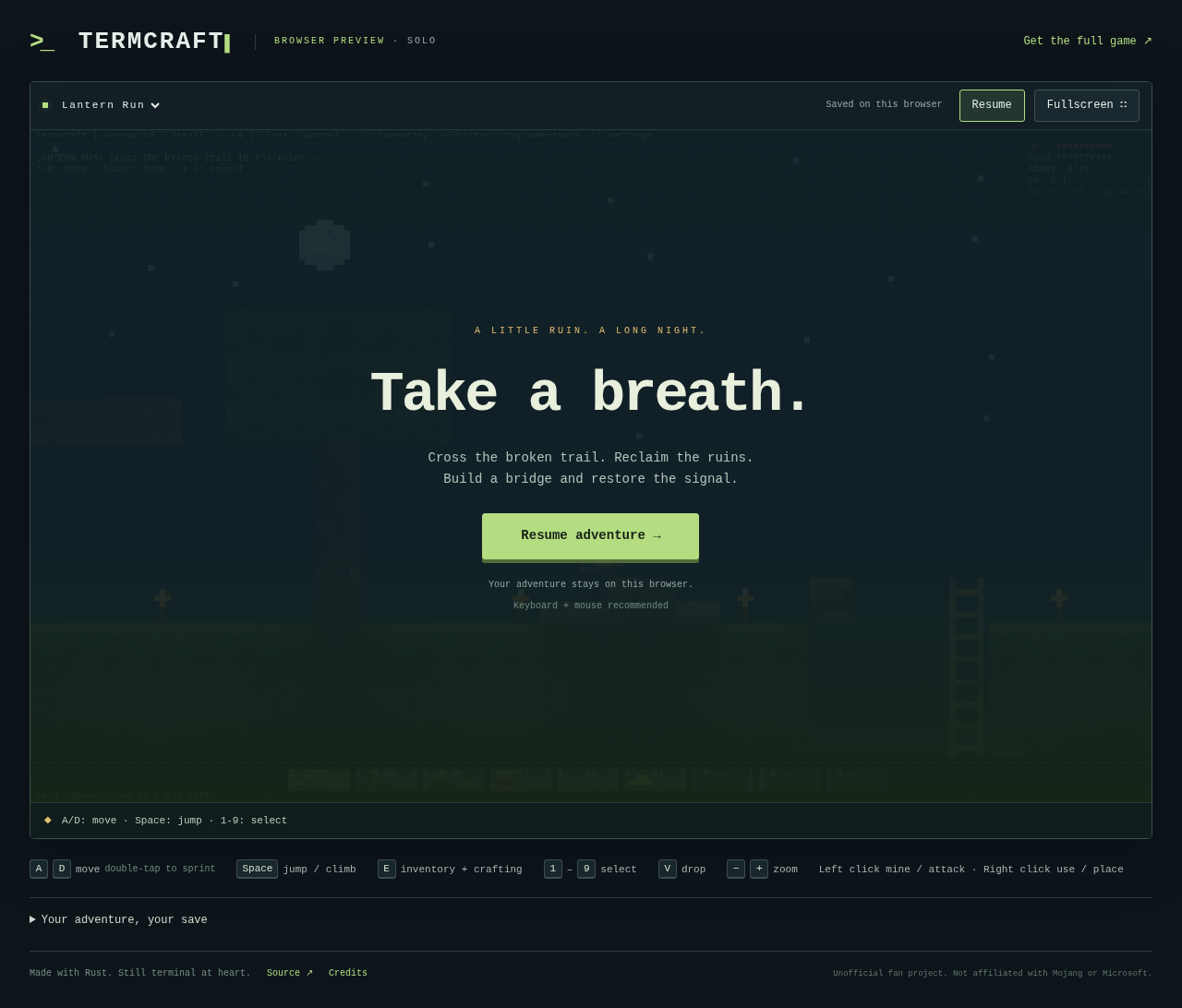
Termcraft is an open-source (AGPL-3.0), terminal-native 2D sandbox survival and crafting game created by Silas Pagel. Built entirely from scratch in Rust, Termcraft adapts familiar voxel survival mechanics into an interactive 2D side-scrolling sandbox rendered directly inside terminal emulators using Unicode half-blocks (▀, ▄) and 24-bit ANSI truecolor pixel art—with zero external game engine dependencies. It also compiles to WebAssembly to run seamlessly inside any modern web browser.
Whether played in a command line terminal or via the browser canvas, Termcraft delivers a complete survival loop:
- Procedural Multi-Dimension World Generation: Generates dynamic terrain with biomes, caves, ore veins, underground caverns, the Nether, and The End dimension culminating in an Ender Dragon boss fight.
- Classic Survival Mechanics: Full health, hunger, armor ratings, experience levels, day/night atmospheric cycles, and environmental weather.
- Resource Gathering & Crafting System: Tool tiers (wood, stone, iron, diamond) with realistic durability, mining hardness, a 2×2 player crafting grid, a 3×3 crafting table for advanced recipes, and furnace smelting.
- Dynamic Mob AI & Combat: Hostile mob spawns (zombies, skeletons with physics-based projectile arrows, explosive creepers, wall-climbing spiders), neutral animal mobs, and fluid melee/ranged combat.
- Multiple Game Modes: Standard seed-based procedural Survival mode, Creative mode with unlimited inventory, and Lantern Run, an atmospheric, ruin-scaling challenge mode.
- Authoritative Multiplayer & Tooling: Features an authoritative binary TCP co-op server (default port 25565, experimental protocol 23) supporting up to 8 players, secure SSH tunneling (
termcraft join), Model Context Protocol (MCP) server integration (termcraft mcp) for AI agent interaction, and an HTML5 WebAssembly browser client.
This guide details how to deploy Termcraft v0.2.0 using Docker Compose with isolated persistent storage, configure both the headless multiplayer server and the WebAssembly client, play through the browser interface, and verify runtime health.
Prerequisites
Before deploying Termcraft, verify that your host environment meets the following requirements:
- Docker Engine & Docker Compose: Docker Engine 20.10+ and Docker Compose v2.24+ installed on your host system (
docker compose version). - Operating System: Linux x86_64 with network egress to GitHub releases and GitHub Pages.
- Core CLI Utilities:
curl,tar,sha256sum, andbash. - Available Host Ports:
- 3000: Web client preview port (served via Nginx). Fallbacks: 3002, 3003, 8080, or 13000. - 25565: Dedicated game server TCP port (binary co-op protocol). Fallbacks: 25566–25568.
- Zero Host Toolchains Required: No Rust compiler, Cargo toolchain, wasm-bindgen, or C build tools are required on the host system.
Verify port availability before starting:
ss -ltn | grep -E ':(3000|25565)\b'If either port is bound, stop any conflicting containers or select alternative host ports.
Exact Install Steps
Follow these validated steps to stage the release artifacts, construct the dedicated server container, and launch the Termcraft services via Docker Compose.
1. Create Staging Directory Structure
Create an isolated directory structure on your host filesystem:
mkdir -p termcraft-deploy/{data,web/pkg,native,native-saves}
cd termcraft-deploytermcraft-deploy/data/: Houses persistent game world files and save data for the dedicated server.termcraft-deploy/web/: Houses the static HTML5/WASM browser client served by Nginx.termcraft-deploy/web/pkg/: Contains the compiled WebAssembly binary and JavaScript bindings.termcraft-deploy/native/: Contains the unpacked Linux release binary for native execution and verification.termcraft-deploy/native-saves/: Isolated directory for native terminal trials to prevent cluttering$HOME.
2. Download and Verify Official Release
Fetch the official v0.2.0 Linux binary release and its upstream SHA256 checksum:
RELEASE_TAR="termcraft-0.2.0-x86_64-unknown-linux-gnu.tar.gz"
RELEASE_URL="https://github.com/pagel-s/termcraft/releases/download/v0.2.0/${RELEASE_TAR}"

curl -fsSL -o "${RELEASE_TAR}" "${RELEASE_URL}"
curl -fsSL -o "${RELEASE_TAR}.sha256" "${RELEASE_URL}.sha256"

# Verify binary integrity
sha256sum -c "${RELEASE_TAR}.sha256"
Expected output:
termcraft-0.2.0-x86_64-unknown-linux-gnu.tar.gz: OKUnpack the archive and verify the native binary:
tar -xzf "${RELEASE_TAR}" -C native/ --strip-components=1
cp native/termcraft ./termcraft
chmod +x ./termcraft

./termcraft --version
Expected output:
termcraft 0.2.03. Stage WebAssembly Browser Client
Termcraft includes a lightweight browser shell under docs/browser/. However, the compiled WebAssembly binary (termcraft_bg.wasm) and bindings (termcraft.js) are published via GitHub Pages rather than stored in git.
If you have cloned the repository, copy the web shell files:
# Copy browser shell (HTML, CSS, worker logic)
cp -r ../repo/docs/browser/* web/
Next, retrieve the matching precompiled WebAssembly runtime bundle into web/pkg/:
curl -fsSL -o web/pkg/termcraft.js \
  https://pagel-s.github.io/termcraft/browser/pkg/termcraft.js

curl -fsSL -o web/pkg/termcraft_bg.wasm \
  https://pagel-s.github.io/termcraft/browser/pkg/termcraft_bg.wasm
4. Create Server Dockerfile
Create a hardened Dockerfile based on debian:trixie-slim to host the headless dedicated server:
cat > Dockerfile <<'EOF'
FROM docker.io/library/debian:trixie-slim
LABEL org.opencontainers.image.source="https://github.com/pagel-s/termcraft" \
      org.opencontainers.image.licenses="AGPL-3.0-only"
RUN apt-get update && apt-get install -y --no-install-recommends ca-certificates && rm -rf /var/lib/apt/lists/*
COPY termcraft /usr/local/bin/termcraft
RUN chmod +x /usr/local/bin/termcraft && mkdir -p /data
ENV TERMCRAFT_SAVE_DIR=/data
WORKDIR /data
EXPOSE 25565/tcp
STOPSIGNAL SIGTERM
ENTRYPOINT ["/usr/local/bin/termcraft"]
CMD ["server", "0.0.0.0:25565"]
EOF
5. Create Docker Compose Configuration
Create docker-compose.yml to define both the headless server and the static web preview services:
cat > docker-compose.yml <<EOF
services:
  server:
    build:
      context: .
      dockerfile: Dockerfile
    container_name: termcraft-server
    user: "$(id -u):$(id -g)"
    restart: unless-stopped
    ports:
      - "127.0.0.1:25565:25565"
    volumes:
      - "./data:/data"
    security_opt:
      - no-new-privileges:true
    cap_drop:
      - ALL

  web:
    image: nginx:alpine
    container_name: termcraft-web
    restart: unless-stopped
    ports:
      - "127.0.0.1:3000:80"
    volumes:
      - "./web:/usr/share/nginx/html:ro"
    security_opt:
      - no-new-privileges:true
EOF
[!NOTE]
Theservercontainer runs explicitly withuser: "$(id -u):$(id -g)". Because./datais a bind mount owned by your host user, matching the container user preventsPermission denied (os error 13)when the server initializes its world state.
6. Launch the Stack
Start the containers in detached mode:
docker compose up -d --buildExpected output:
✔ Container termcraft-server Started
✔ Container termcraft-web    Started
Check container status:
docker compose psBoth termcraft-server and termcraft-web should report Up.
Browser Setup
Once the containers are running, navigate to http://localhost:3000/ in any modern web browser to access the Termcraft WebAssembly interface.
Step 1: Cover Screen & Mode Selection
Upon loading, the Termcraft web shell displays the cover hero card: *"A NEW WORLD. A CLEAN START. Make this world yours."*
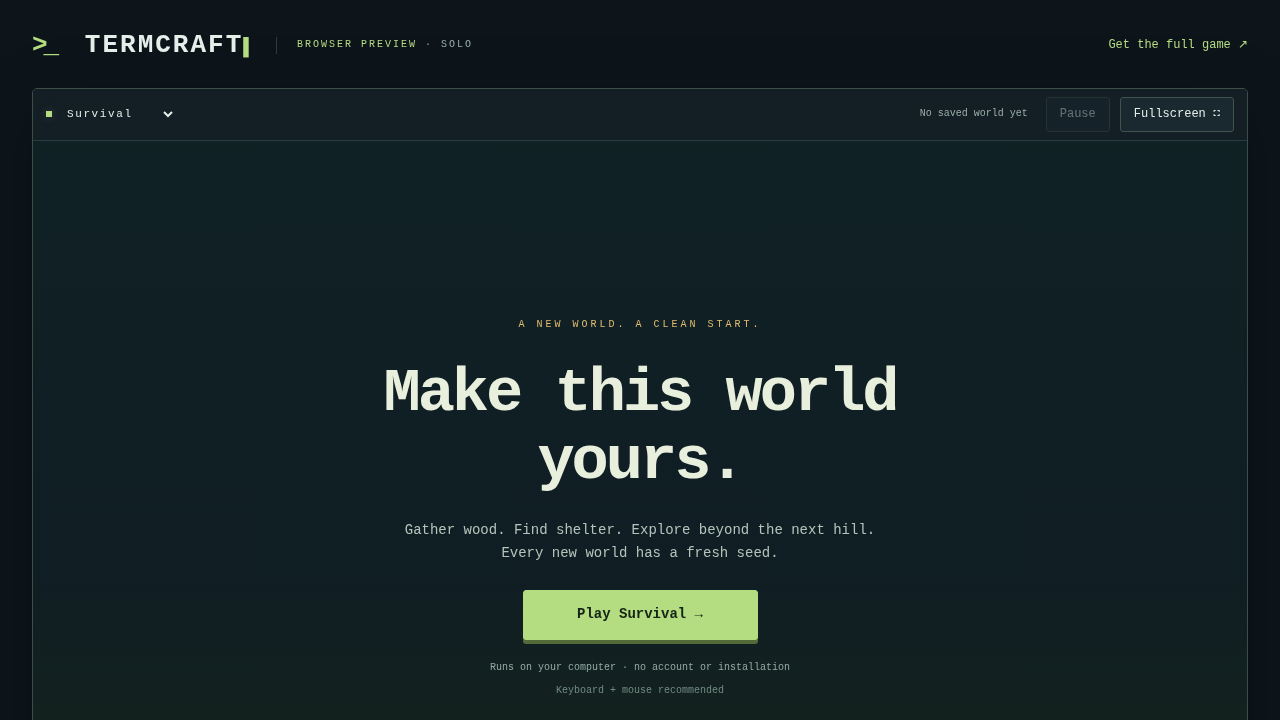
- Use the World Mode dropdown (
#world-mode) to choose your play mode:
- Survival: Default procedural world generation with survival progression. - Lantern Run: A tailored obstacle course through night ruins. - Creative: Free exploration with unlimited inventory access.
- Click Play Survival → (
#play) to initialize the WebAssembly worker and start the game engine.
Step 2: Exploring the Survival World
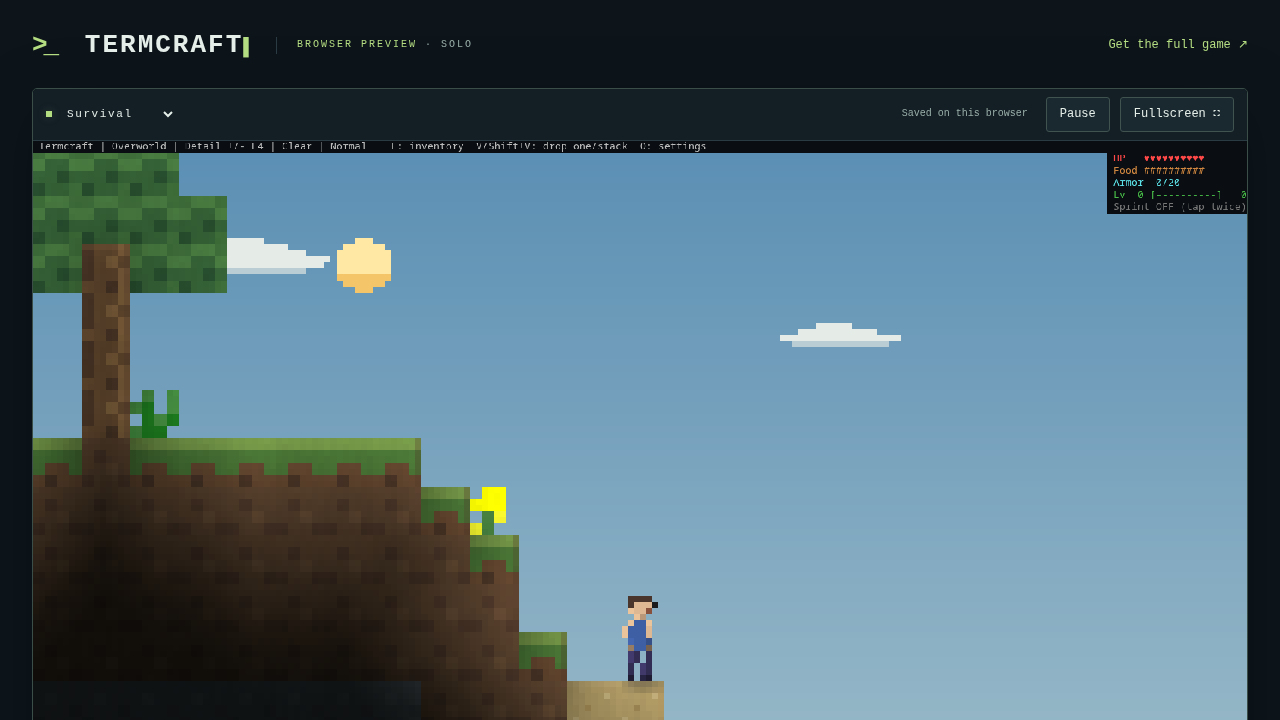
The WebAssembly engine renders the pixel-art environment to an HTML5 canvas element at a steady 20 simulation ticks per second.
The HUD displays:
- Health Bar: Red hearts tracking player vitality.
- Hunger / Food Bar: Drumsticks indicating nourishment.
- Armor Rating: Displays protection level when defensive gear is equipped.
- Experience Bar: Tracks XP gained from mining, smelting, and combat.
Step 3: Movement & Physics
Use keyboard inputs to traverse the terrain:
A/ Left Arrow: Walk left.D/ Right Arrow: Walk right.SpaceorW/ Up Arrow: Jump or swim upward when in water.
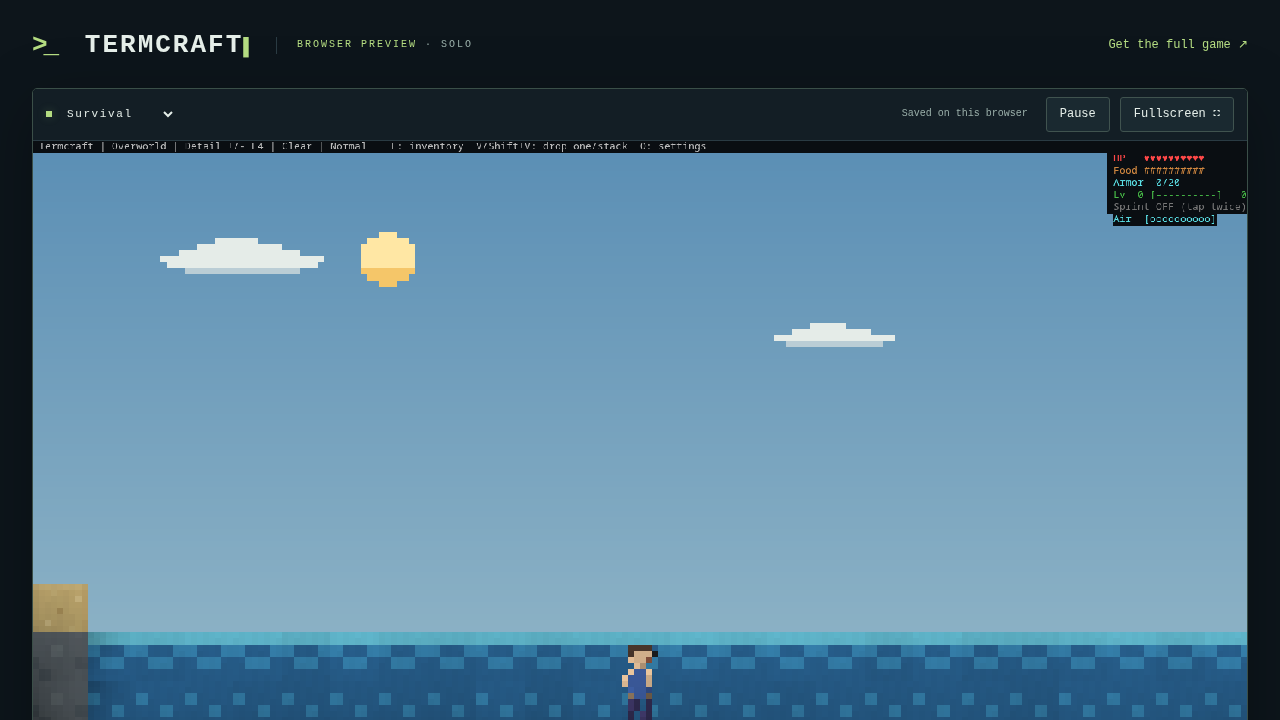
When entering rivers or oceans, physics transitions to buoyancy mechanics requiring repeated jump inputs to swim to safety.
Step 4: Resource Gathering & Mining
To gather wood, dirt, coal, or ore, move adjacent to the target block and hold the Left Mouse Button.
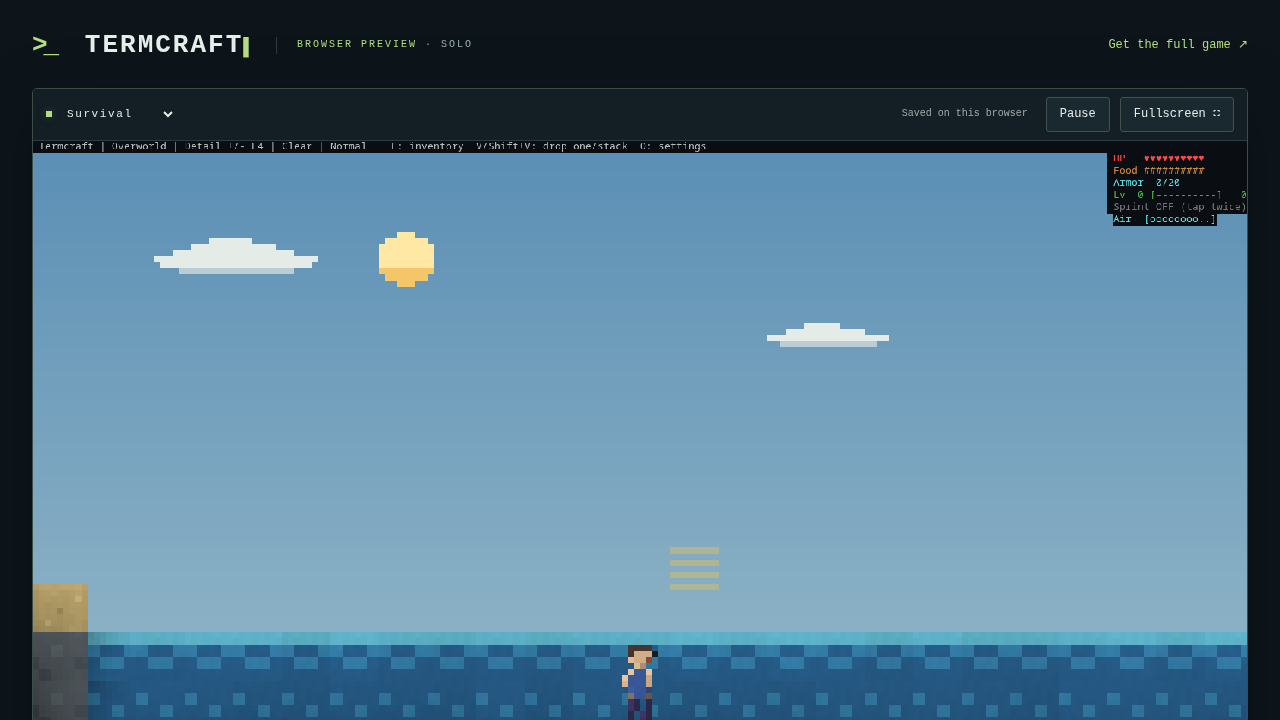
Block breaking duration corresponds directly to block hardness and the equipped tool tier (e.g., wooden pickaxes mine stone slower than iron or diamond pickaxes).
Step 5: Inventory & 2×2 Crafting
Press E to open the Survival Inventory overlay.
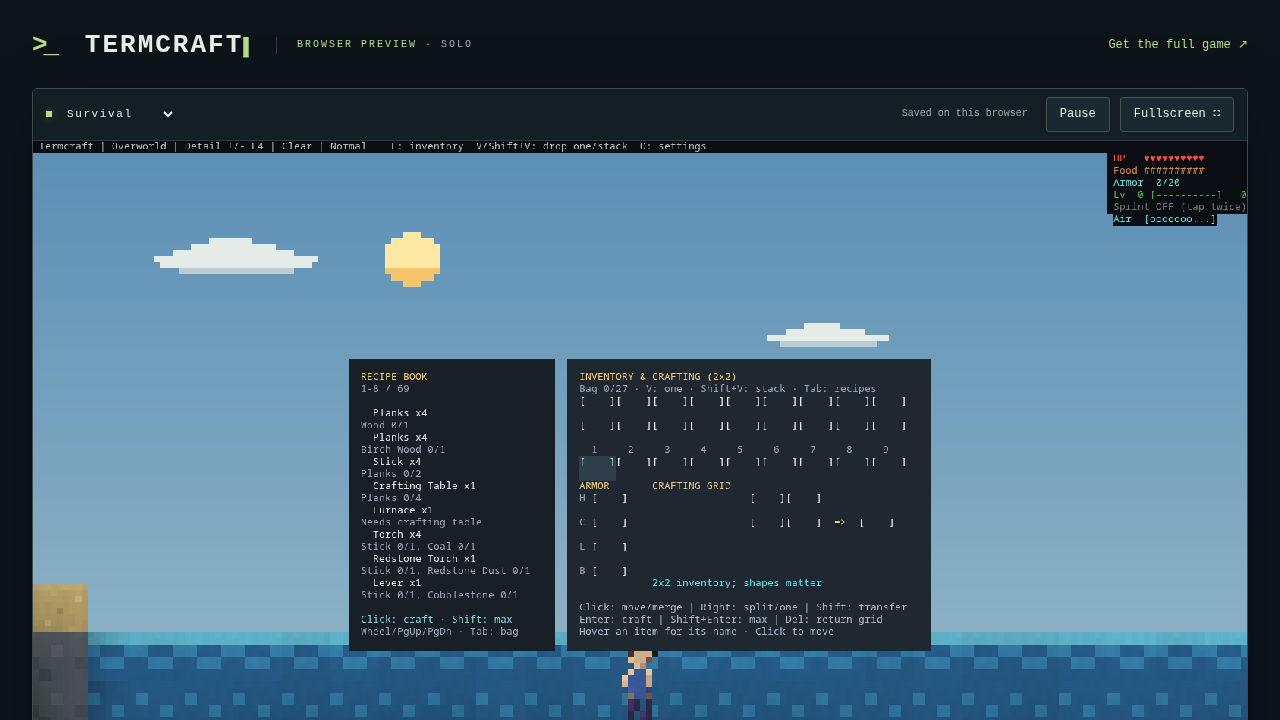
The inventory view includes:
- Recipe Book: A searchable reference displaying valid crafting recipes (e.g., Oak Wood to Oak Planks, Planks to Sticks, Crafting Table, Torches).
- 2×2 Personal Crafting Grid: Build fundamental tools and crafting tables.
- Equipped Gear Slots: Armor, helmet, boots, and off-hand items.
Press E or Escape to close the inventory.
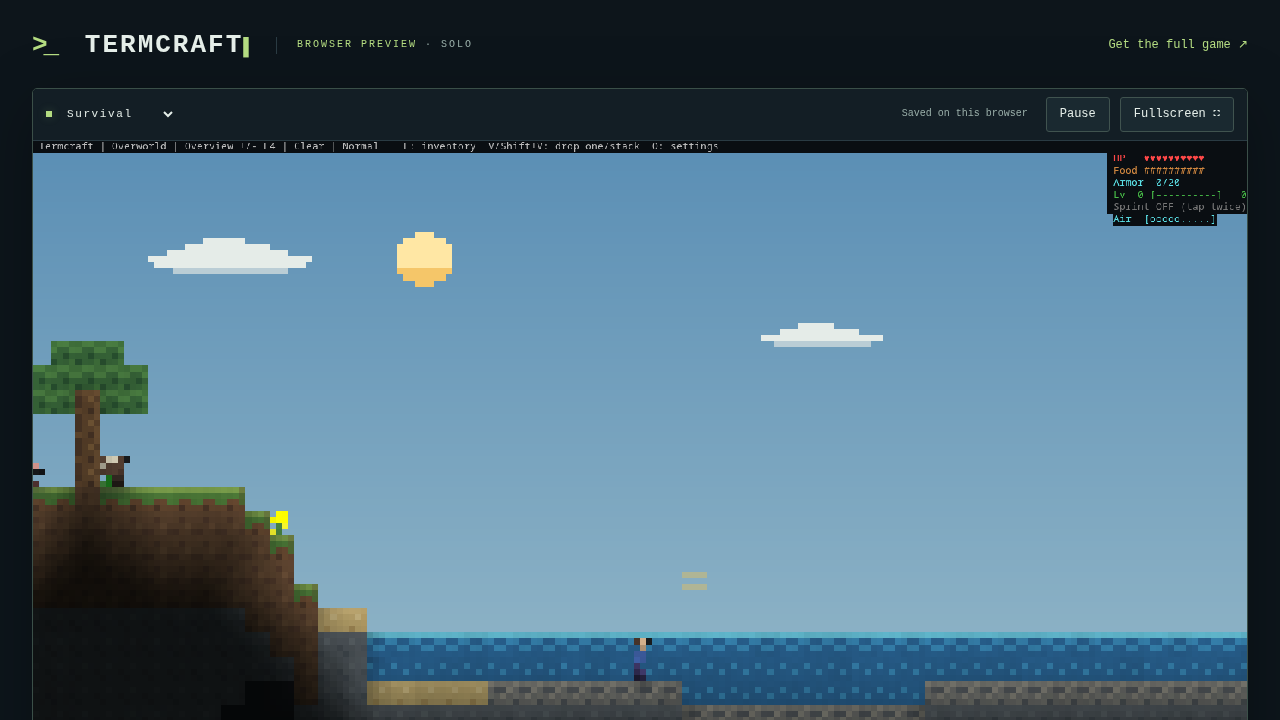
Step 6: Adjusting Camera Zoom
Adjust the canvas viewport scale to survey your surroundings:
- Press
-(Minus): Zoom out to see wide-area topography, approaching hostile mobs, and terrain elevation. - Press
=/+(Equal / Plus): Zoom back in to close inspection scale.
Step 7: Playing Lantern Run Challenge Mode
Switching modes presents alternative gameplay loops. Select Lantern Run from the title screen or pause menu.
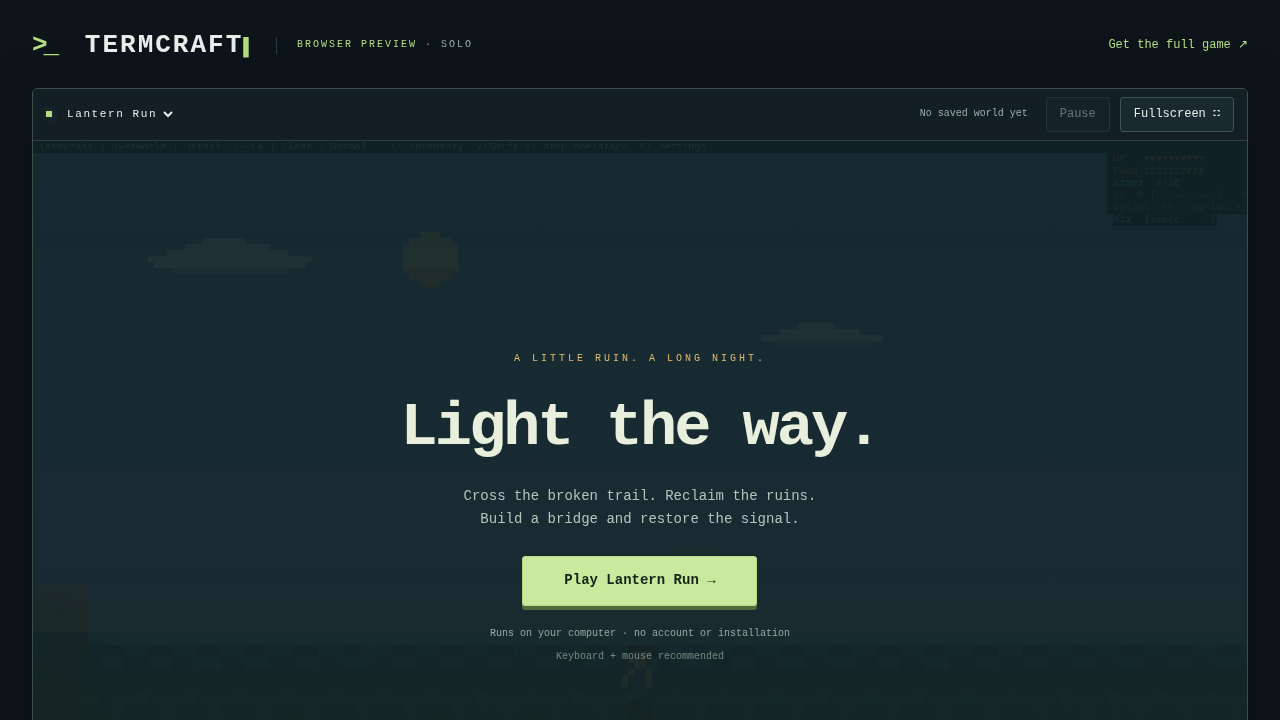
Lantern Run places the player in an atmospheric night ruins environment with dynamic lighting effects.
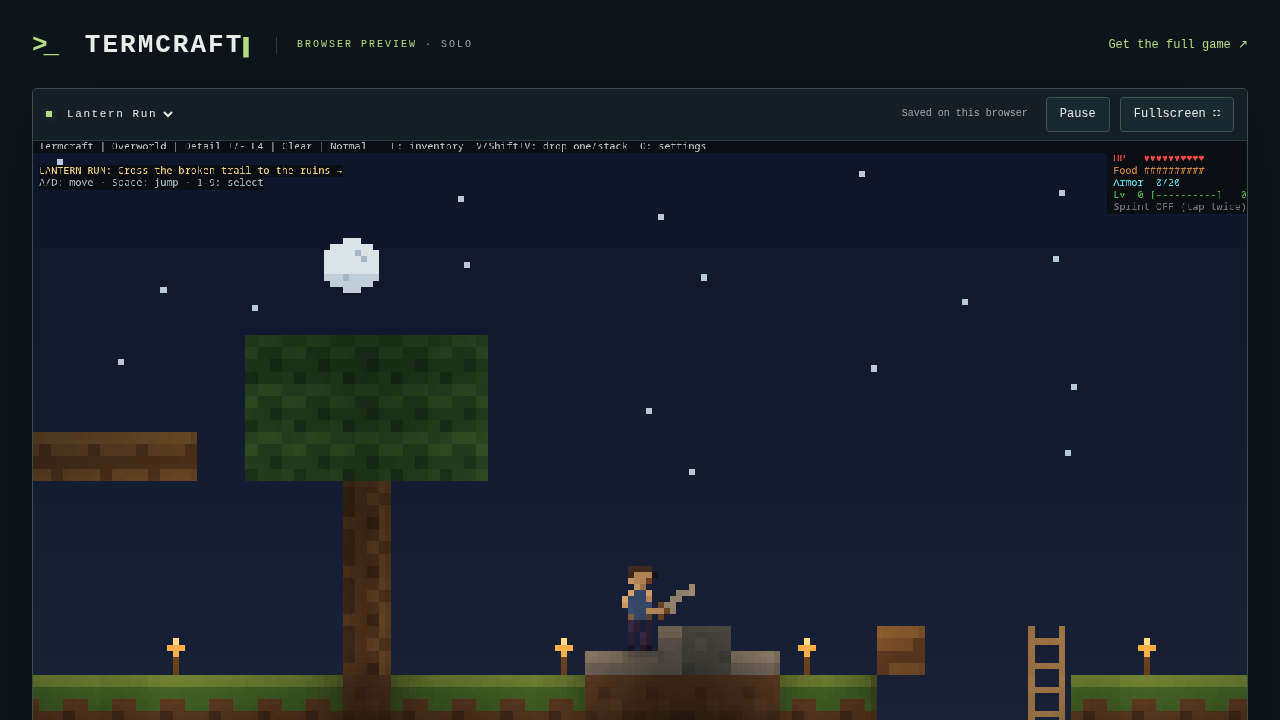
The active objective banner displays: *"Cross the broken trail to the ruins"*. Cross chasms, climb ladders, and navigate illuminated ruins.
Step 8: Pausing and Local Save Persistence
Press Escape or click the Pause icon in the lower controls bar to freeze the game loop.
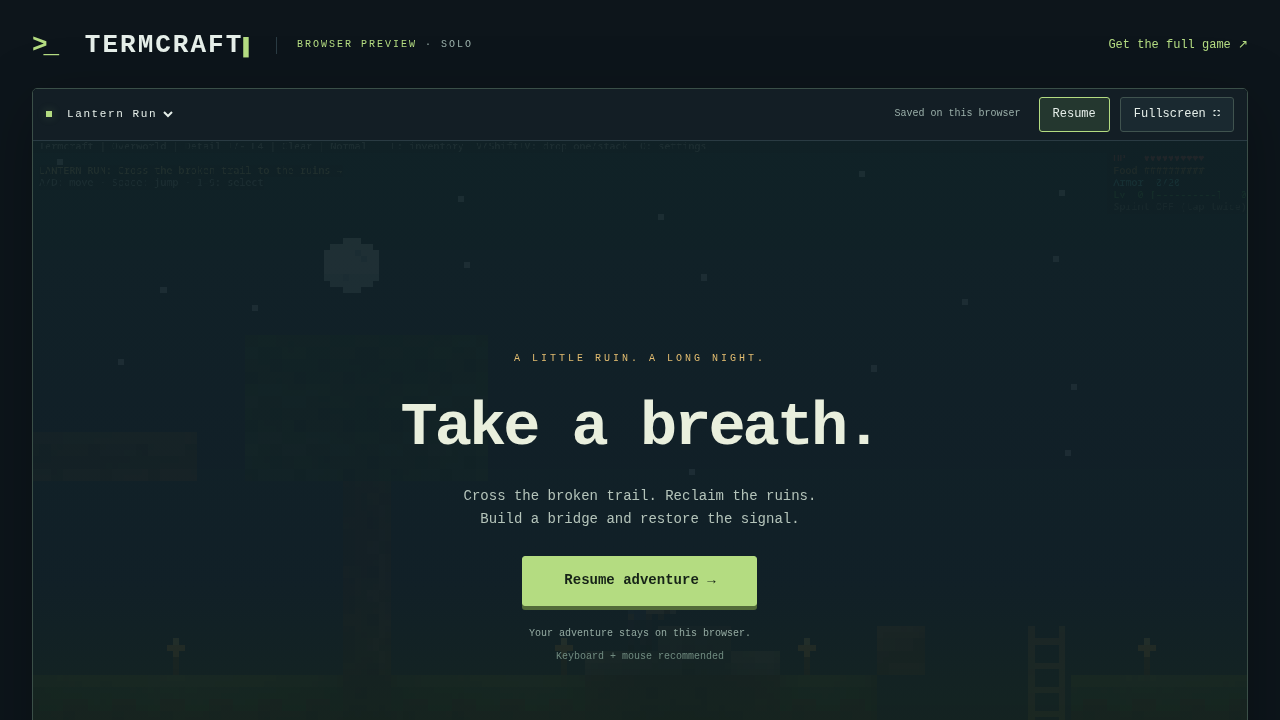
The pause screen confirms: *"Saved on this browser"*. Termcraft stores your character coordinates, inventory items, and modified world chunks locally in your browser's IndexedDB database (termcraft-browser), allowing seamless session resumption.
Verification
Perform these checks to verify that both the browser preview and the authoritative multiplayer server are functioning correctly.
1. Verify Running Containers
Check that both services are running:
docker compose psExpected output:
NAME               IMAGE          COMMAND                  SERVICE   CREATED         STATUS         PORTS
termcraft-server   termcraft      "/usr/local/bin/term…"   server    2 minutes ago   Up 2 minutes   127.0.0.1:25565->25565/tcp
termcraft-web      nginx:alpine   "/docker-entrypoint.…"   web       2 minutes ago   Up 2 minutes   127.0.0.1:3000->80/tcp
2. Verify Web Application Shell
Curl the web endpoint to verify that Nginx is serving the HTML title card:
curl -fsS http://localhost:3000/ | grep -o '<title>.*</title>'Expected output:
<title>Play Termcraft · Survival</title>3. Verify WebAssembly Binary
Verify that the 2.4 MB WebAssembly binary serves with the correct MIME type:
curl -fsSI http://localhost:3000/pkg/termcraft_bg.wasmExpected output:
HTTP/1.1 200 OK
Content-Type: application/wasm
Content-Length: 2433168
4. Verify Headless Server Game Socket
Probe TCP port 25565 to confirm the multiplayer server socket is accepting incoming TCP connections:
bash -c '(exec 3<>/dev/tcp/127.0.0.1/25565) && echo game_socket_ok'Expected output:
game_socket_ok5. Inspect Dedicated Server Logs
Check server container logs to verify world generation and listener status:
docker compose logs server | tail -n 6Expected output:
Loading server world…
Starting headless server on 0.0.0.0:25565 (experimental local co-op, protocol 23)
6. Optional: Native Terminal TUI Trial
To verify the native ANSI terminal renderer directly in your Linux terminal (140×45 minimum size recommended), run the precompiled release binary:
cd native
TERMCRAFT_SAVE_DIR=../native-saves COLORTERM=truecolor TERM=xterm-256color ./termcraft trial
The game renders full-color pixel art using Unicode half-blocks. Press q to cleanly save and exit back to your shell prompt.
Troubleshooting
| Symptom / Error | Root Cause | Resolution |
|---|---|---|
Server container exits with Permission denied (os error 13) | The container defaulted to uid 10001, but the ./data bind mount is owned by the host user (uid 1000). | Add user: "$(id -u):$(id -g)" to the server service in docker-compose.yml so file write permissions match host ownership. |
| Web browser loads UI shell but game canvas remains blank | The pkg/termcraft.js or pkg/termcraft_bg.wasm bundle files are missing from web/pkg/. | Run Step 3 to curl termcraft.js and termcraft_bg.wasm from https://pagel-s.github.io/termcraft/browser/pkg/ into web/pkg/. |
| Nginx web service fails with permission or capability errors | Setting cap_drop: ALL on nginx:alpine drops SETUID, SETGID, and CHOWN required by Nginx worker processes. | Remove cap_drop: ALL from the web service in docker-compose.yml. |
Port binding failure (bind: address already in use) | Host port 3000 or 25565 is in use by another running service or previous container run. | Check open ports using ss -ltn. Stop conflicting containers using docker compose down or remap host ports in docker-compose.yml. |
Native trial fails with world is already open, or cannot be locked (os error 17) | A killed native process left an orphaned .session.lock inside ~/.local/share/termcraft. | Isolate save directories by exporting TERMCRAFT_SAVE_DIR=./native-saves, or delete the stale lock file inside ~/.local/share/termcraft. |
| Garbled terminal text or missing truecolor hues during native play | The host terminal emulator does not declare 24-bit ANSI color capability. | Export COLORTERM=truecolor and TERM=xterm-256color in your terminal environment before executing ./termcraft. |
Teardown / Cleanup
To shut down the Termcraft stack and free host resources:
# 1. Stop and remove containers and networks
docker compose down

# 2. (Optional) Remove staged deployment files and world data
cd ..
rm -rf termcraft-deploy
Because the server runs with your host user ID, rm -rf termcraft-deploy requires no sudo privileges.
Assumptions & Decisions
- Browser Capture for Visual Story: Termcraft is primarily a terminal-based game rendered with Unicode half-blocks, but the official WebAssembly build runs the identical engine and renders the exact same pixel-art assets. Browser captures from Playwright (
runs/termcraft-20261030-164347/browser/) are used to illustrate gameplay mechanics (movement, mining, crafting, zooming, and challenge runs). - WebAssembly Bundle Staging: The repository checkout (
docs/browser/) includes the web shell and web worker, but not the compiled WebAssembly binary. We fetched the precompiled 2.4 MBtermcraft_bg.wasmandtermcraft.jsdirectly from the official upstream GitHub Pages release to avoid requiring a local Rust andwasm-bindgentoolchain on the host. - Container UID/GID Configuration: Running the dedicated server container with
user: "$(id -u):$(id -g)"prevents filesystem permission errors on the host bind mount (./data) while avoiding root container execution. - Nginx Capabilities: We omitted
cap_drop: ALLfor thenginx:alpinestatic web container because Nginx's master process requires user-switching capabilities (SETUID/SETGID) to drop privileges to thenginxworker user. - Multiplayer vs. Web Client Scope: The WebAssembly client operates in solo mode and persists world state to IndexedDB (
termcraft-browser). The dedicated server on port 25565 hosts binary TCP co-op sessions for native desktop clients. - Table Formatting: In accordance with Ghost publishing requirements, troubleshooting grids are formatted as standard GitHub-flavored Markdown tables, which the
ghost-draftprocessor converts into native Ghost HTML cards.
Get the Unified Homelab Stack Compose Pack
One-command multi-container Compose files (Full *arr Stack, Prometheus + Grafana + ntfy Monitoring, and Homelab Auth) plus new verified deploys once a week.