
How to Deploy Syncthing: Self-Hosted Peer-to-Peer File Synchronization
Syncthing is an open-source, continuous peer-to-peer file synchronization system that synchronizes files directly across devices without middleman clouds. Learn how to deploy Syncthing with Docker Compose, configure folders, secure the management interface, and verify peer connectivity.
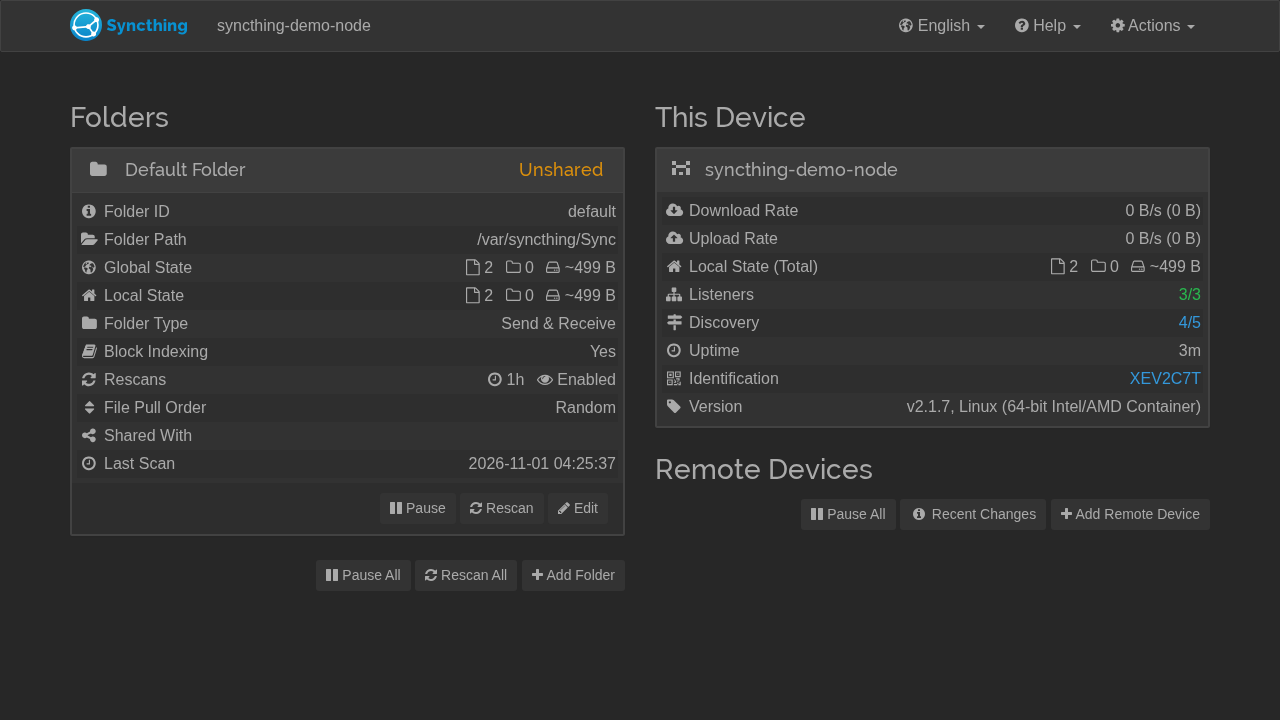
Syncthing is an open-source, continuous, decentralized peer-to-peer file synchronization application. Licensed under MPL-2.0 and built in Go, Syncthing replaces closed, subscription-based cloud storage providers (such as Dropbox, Google Drive, or OneDrive) with an encrypted, sovereign synchronization protocol that streams data directly between your own machines.
Key Capabilities and Architecture
- Decentralized Peer-to-Peer Synchronization:
Files sync directly between nodes across local area networks (LAN) or over the internet via encrypted relays. There is no central server storing your files, eliminating single points of failure, monthly storage subscription fees, and vendor data harvesting.
- Cryptographic Node Identity:
Every Syncthing node generates a unique cryptographic certificate. Machines authenticate via SHA-256 certificate fingerprints (Device IDs), ensuring that only explicitly authorized devices can connect and exchange directory contents.
- End-to-End Encryption with BEP:
All communication uses the Block Exchange Protocol (BEP), secured with TLS 1.3 and QUIC over TCP/UDP port 22000. Syncthing also supports untrusted (encrypted) storage nodes, allowing you to replicate files to third-party machines without revealing plaintext contents.
- Block-Level Delta Transfers:
Files are partitioned into dynamic hashed chunks (128 KiB to 16 MiB). When a file changes, Syncthing transmits only the modified byte blocks rather than transferring the entire file again over the network.
- Zero-Daemon Embedded Storage:
Syncthing maintains its file indexes, version vectors, and synchronization state using an embedded pure-Go LevelDB engine (syndtr/goleveldb) alongside human-readable XML configuration (config.xml), requiring no external database daemons.
- Embedded Web Administration GUI & REST API:
A responsive web management dashboard built with AngularJS and Bootstrap is served directly by the standalone Go binary on port 8384, accompanied by a comprehensive REST API for automation and status monitoring.
---
Prerequisites
Before deploying Syncthing, ensure your host environment satisfies the following requirements:
- Host Operating System: Linux (Ubuntu, Debian, Fedora, Arch, Rocky, Alpine), macOS, or Windows via WSL2.
- Container Runtime: Docker Engine 20.10+ with Docker Compose v2 (
docker compose versionv2.20+ recommended). - Persistent Storage Volumes: Two dedicated local host directories:
- ./config: Persists configuration (config.xml), node TLS keys, and LevelDB index databases (/var/syncthing/config). - ./data: Represents the container home environment (/var/syncthing) where synchronized folders (e.g. ./data/Sync) reside.
- Network Ports:
- 3000:8384 (TCP): Web administration GUI and REST API. (Upstream documentation defaults to host port 8384; this guide maps host port 3000 to container port 8384). - 22000:22000/tcp: Block Exchange Protocol (TCP sync traffic). - 22000:22000/udp: Block Exchange Protocol over QUIC. - 21027:21027/udp: Local discovery broadcasts (IPv4 broadcast and IPv6 multicast).
- Zero Host Toolchains: Go compilers, runtime libraries, and system dependencies are packaged directly inside the official
syncthing/syncthing:latestcontainer image.
---
Exact Install Steps
The deployment uses the official multi-architecture image syncthing/syncthing:latest (v2.1.7 "Hafnium Hornet") configured with non-root user permissions, isolated storage volumes, and an integrated HTTP healthcheck.
Step 1: Create the Project Directory and Storage Layout
Create a dedicated project directory and the required configuration and data folders:
mkdir syncthing && cd syncthing
mkdir -p config data/Sync
To verify synchronization right away, seed two demo files into the sync folder:
echo "# Welcome to Syncthing" > data/Sync/Welcome.md
echo "Synced peer-to-peer, no cloud." > data/Sync/sample-notes.txt
Ensure the container user has read and write permissions to both directories:
chmod -R 777 config dataStep 2: Create the Docker Compose Configuration
Create docker-compose.yml in the project root:
cat > docker-compose.yml <<'EOF'
services:
  syncthing:
    image: syncthing/syncthing:latest
    container_name: syncthing
    hostname: syncthing-demo-node
    environment:
      - PUID=1000
      - PGID=1000
    ports:
      - "3000:8384"          # Web GUI (upstream default is 8384:8384)
      - "22000:22000/tcp"    # Sync protocol (TCP)
      - "22000:22000/udp"    # Sync protocol (QUIC)
      - "21027:21027/udp"    # Local discovery
    volumes:
      - ./data:/var/syncthing
      - ./config:/var/syncthing/config
    restart: unless-stopped
    healthcheck:
      test: ["CMD-SHELL", "curl -fkLsS -m 2 http://127.0.0.1:8384/rest/noauth/health | grep -q OK"]
      interval: 10s
      timeout: 5s
      retries: 6
EOF
Port Configuration: Upstream documentation binds host port
8384(8384:8384). This deployment uses host port3000(3000:8384) to demonstrate custom host port binding. You can use port8384or any unallocated host port.
Volume Hierarchy: The compose configuration maps./datato/var/syncthingand./configto/var/syncthing/config. Docker mounts the child config volume over the parent data volume cleanly, maintaining separation between system configuration and synchronized payloads.
Step 3: Start the Syncthing Container
Start the service in detached mode:
docker compose up -dMonitor until the container healthcheck reports healthy:
until curl -s http://localhost:3000/rest/noauth/health | grep -q OK; do sleep 1; done
docker compose ps
Expected output:
NAME        IMAGE                       COMMAND                  SERVICE     CREATED         STATUS                   PORTS
syncthing   syncthing/syncthing:latest  "/bin/entrypoint.sh …"   syncthing   5 seconds ago   Up 4 seconds (healthy)   0.0.0.0:3000->8384/tcp, 0.0.0.0:22000->22000/tcp, 0.0.0.0:22000->22000/udp, 0.0.0.0:21027->21027/udp
Step 4: Verify Container Startup Logs
Inspect the initialization logs to verify cryptographic key generation and service listeners:
docker compose logs --tail 30Key output markers to look for:
INF Generating key and certificate
INF Default config saved (path=/var/syncthing/config/config.xml)
INF Calculated our device ID (device=XEV2C7T-OGIALYD-ODR4SRY-Z4LIHLP-BHG34ET-KTJ6CVN-PHBI66J-547AMQQ)
INF TCP listener starting (address="[::]:22000")
INF QUIC listener starting (address="[::]:22000")
INF GUI and API listening (address="[::]:8384")
INF Loaded configuration (name=syncthing-demo-node)
Step 5: Configure the Default Sync Folder
In Syncthing v2.1.7 inside Docker, /rest/config/folders starts empty on first boot. You can add your sync folder either through the web UI (by clicking + Add Folder) or via Syncthing's authenticated REST API.
To add the folder programmatically from your host terminal using the auto-generated API key:
KEY=$(grep -oP '(?<=<apikey>)[^<]+' config/config.xml)
ME=$(curl -s -H "X-API-Key: $KEY" http://localhost:3000/rest/system/status | python3 -c 'import json,sys;print(json.load(sys.stdin)["myID"])')

curl -s -H "X-API-Key: $KEY" -H 'Content-Type: application/json' -X POST \
  http://localhost:3000/rest/config/folders \
  -d "{\"id\":\"default\",\"label\":\"Default Folder\",\"path\":\"/var/syncthing/Sync\",\"type\":\"sendreceive\",\"devices\":[{\"deviceID\":\"$ME\"}]}"
The server responds with HTTP 200, indexes the two seeded files in /var/syncthing/Sync, and transitions the folder status to idle.
---
Browser Setup & First Run
With the container healthy, open http://localhost:3000/ in your web browser.
1. Anonymous Usage Reporting Modal
Upon first load, Syncthing prompts you with an opt-in privacy dialog:
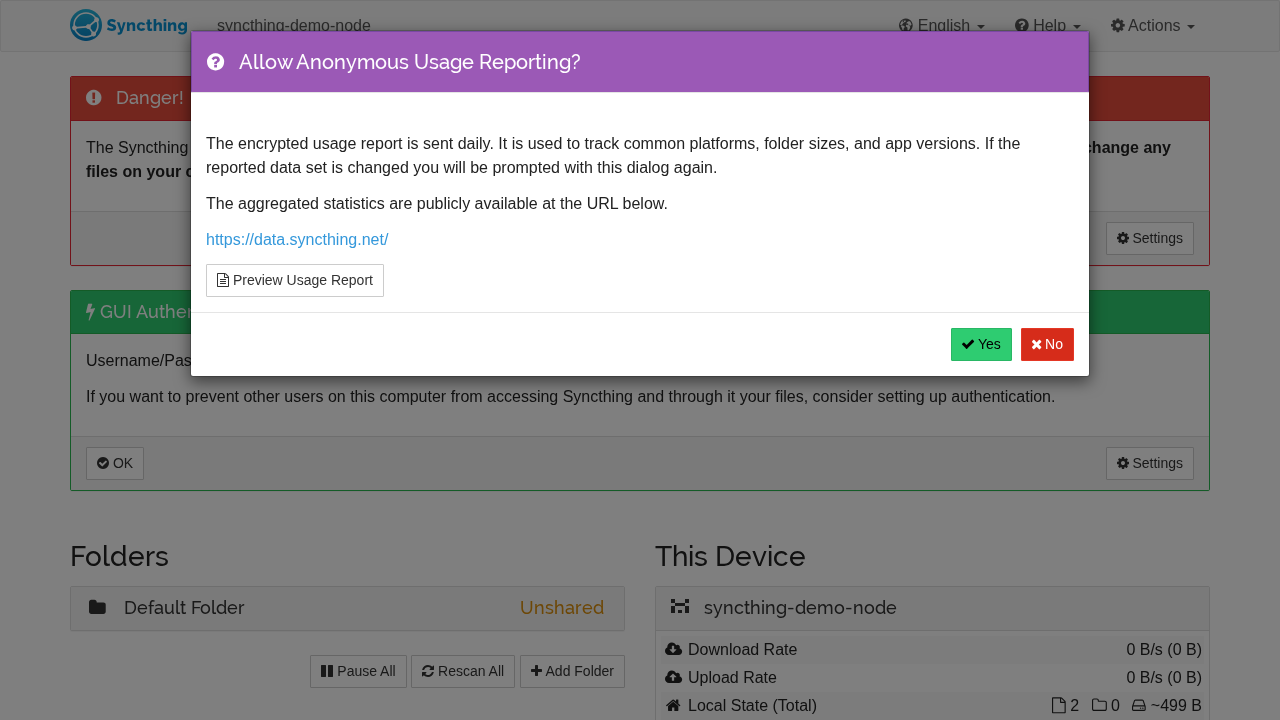
Syncthing does not collect telemetry without explicit consent. Click No to keep usage private, or click Yes to share anonymous diagnostic statistics with the Syncthing team.
2. Initial Dashboard Overview & Security Warning
After dismissing the dialog, the main dashboard opens:
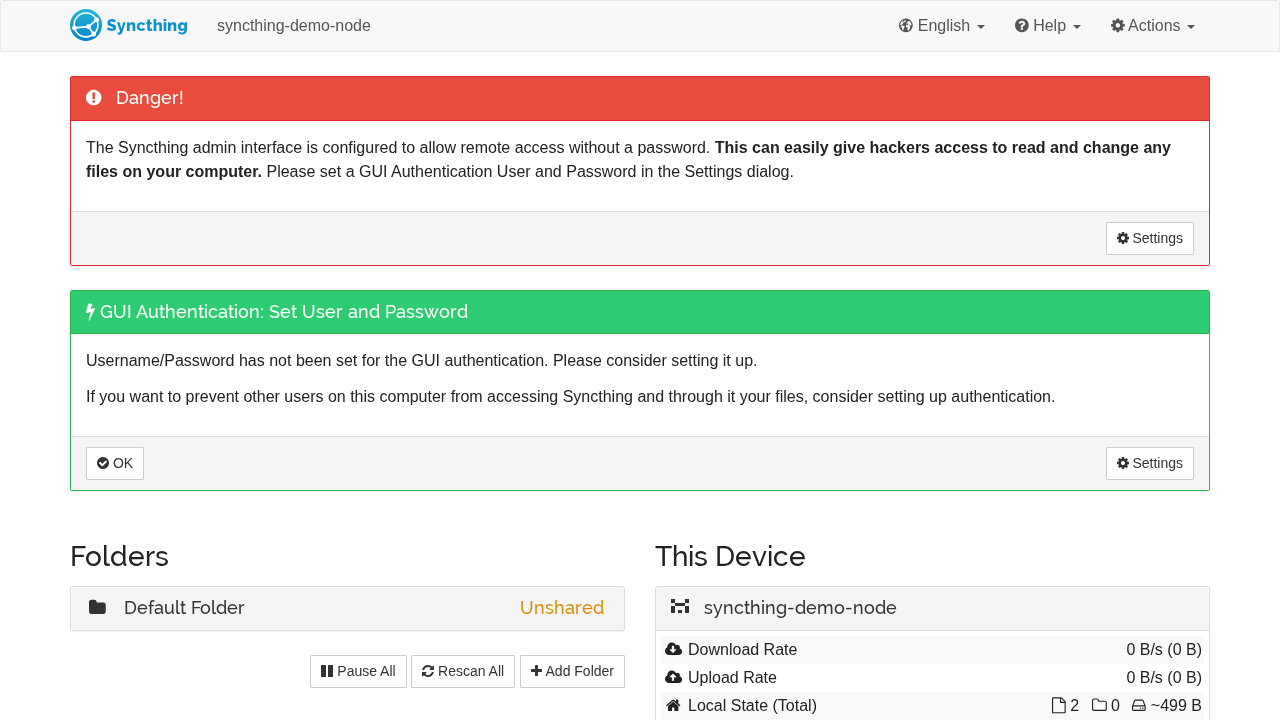
Two prominent warning banners appear:
- Red Danger Panel: Warns that Syncthing is currently exposed without web GUI authentication (
Syncthing is accessible via web interface from the local network without a password.). - Green Callout Panel: Provides a quick shortcut:
GUI Authentication: Set User and Password.
3. Inspect the Default Folder
Click on Default Folder in the left column to expand its status panel:
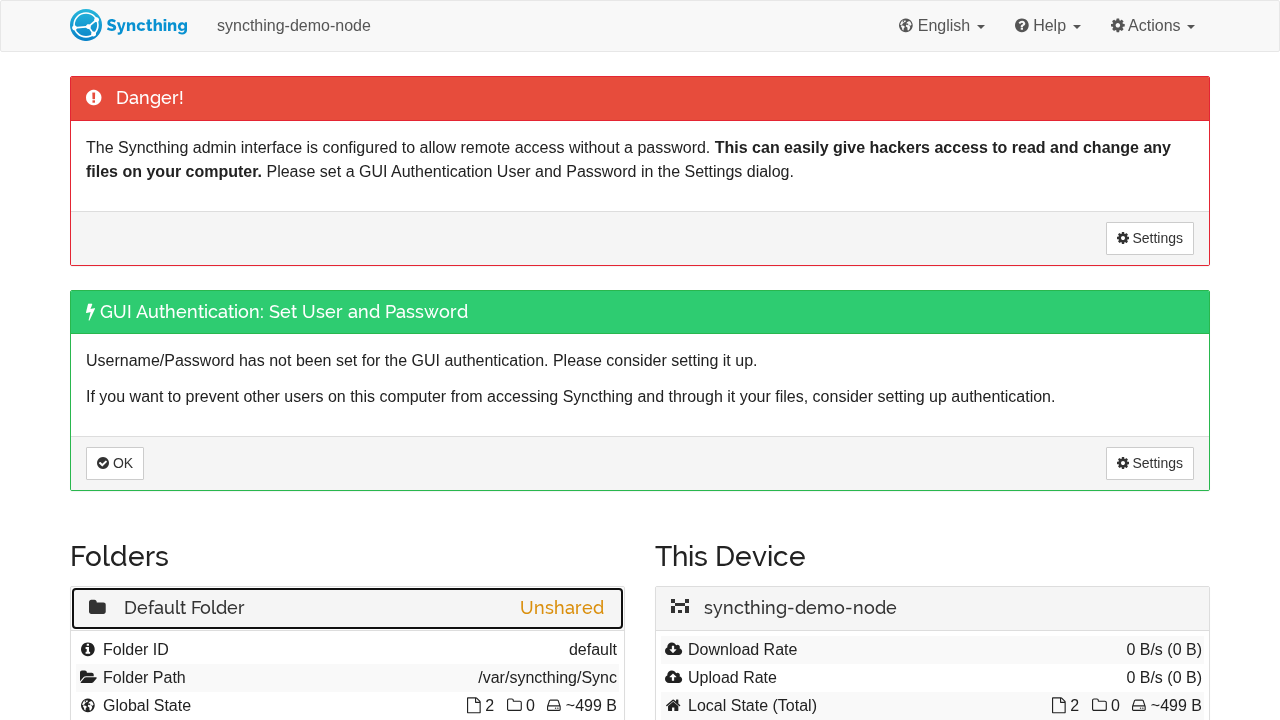
The expanded panel reveals:
- Folder Path:
/var/syncthing/Sync - Global & Local State:
2 files, ~499 B(confirming our seededWelcome.mdandsample-notes.txtare detected) - Folder Type:
Send & Receive - Folder Status Badge: Displays an orange
Unsharedbadge. In Syncthing v2, a folder that has not yet been linked to a remote peer node showsUnsharedwhile remaining fully indexed and idle locally.
4. Rescan Folder Contents
Click the Rescan All button in the top navigation bar:
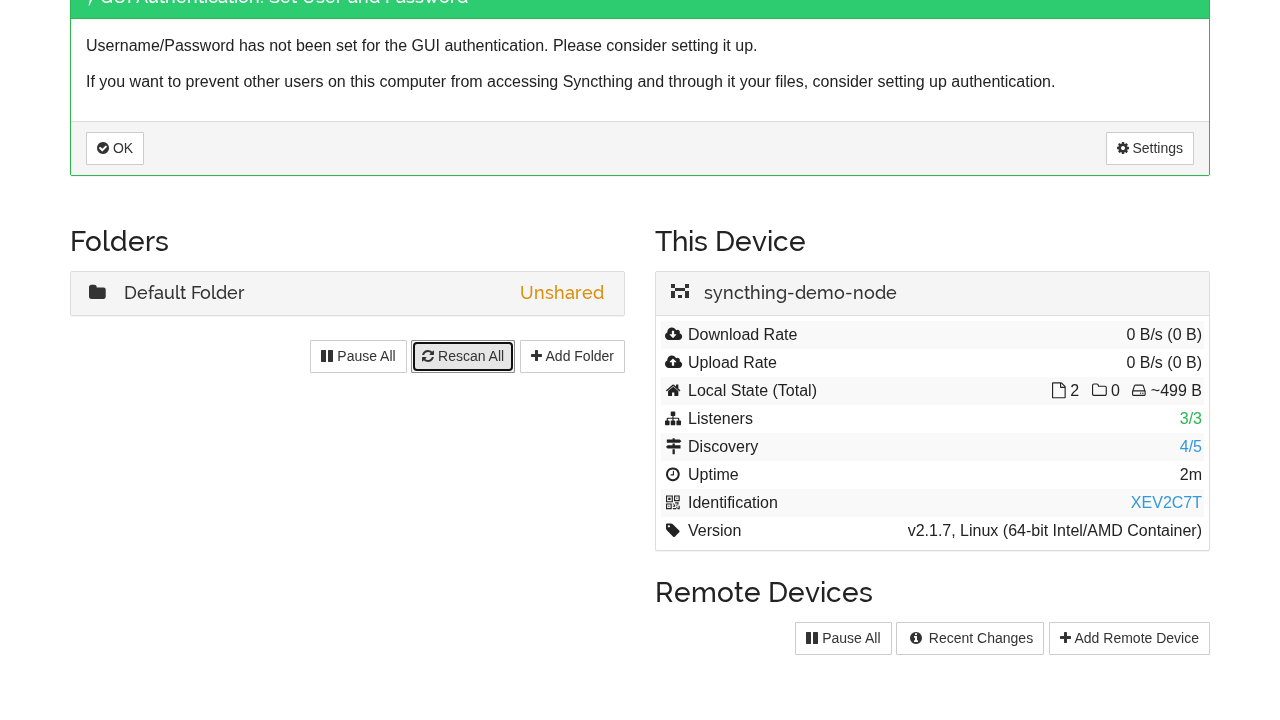
Syncthing triggers an immediate index sweep across all configured directories, verifying file hashes against its embedded LevelDB database.
5. Inspect Device Identity and Listeners
Scroll down to the This Device panel (syncthing-demo-node) on the right:
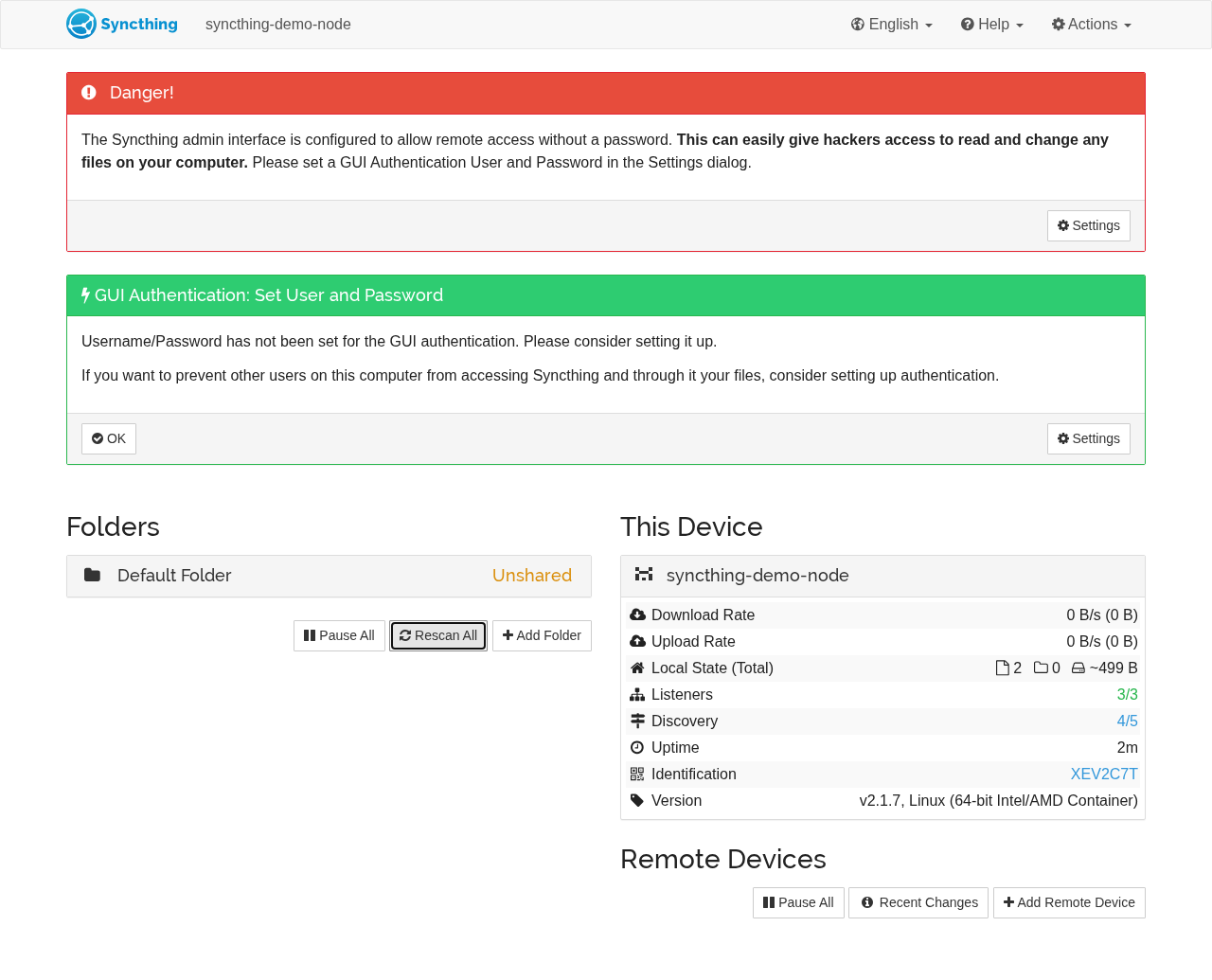
Confirm active node metrics:
- Device ID: The full cryptographic fingerprint (e.g.
XEV2C7T-…). This is the public address you provide when pairing another phone, laptop, or server. - Listeners:
3/3active (local TCP listener, QUIC listener, and relay listener). - Discovery:
4/5active (local broadcast, multicast, and global announcement servers). - Version:
v2.1.7, Linux Container.
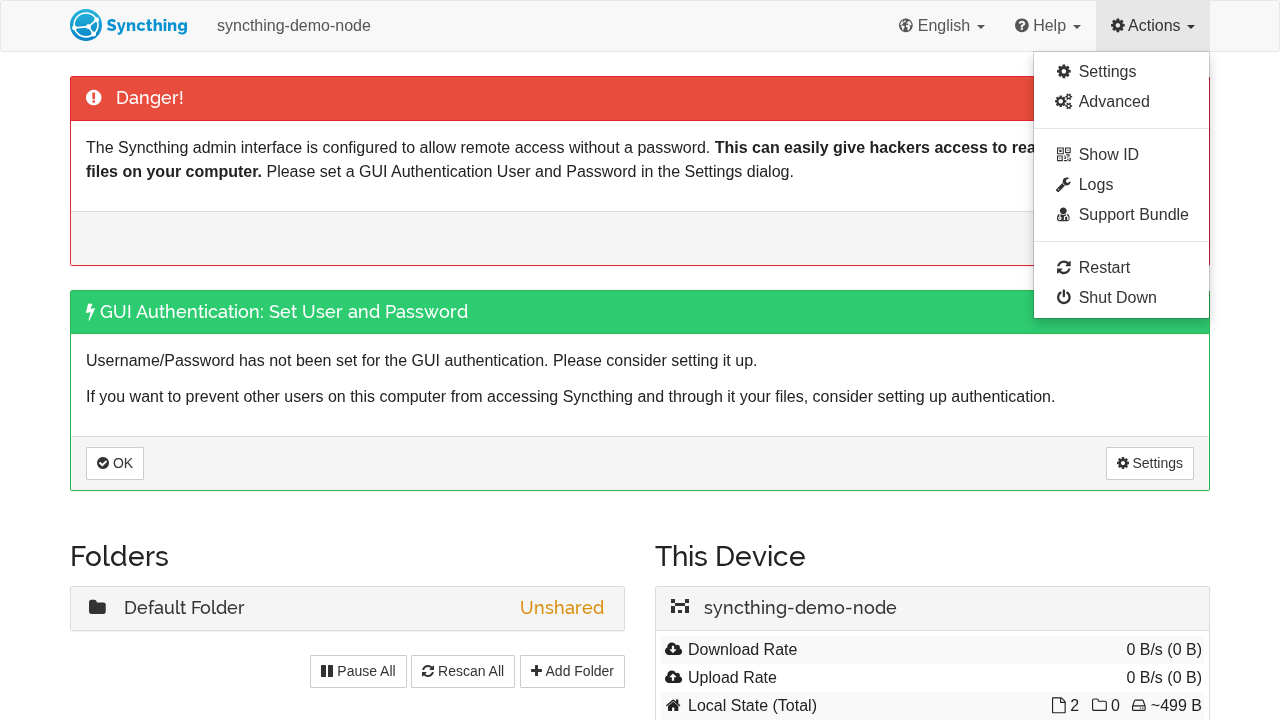
6. Access Settings
Click the Actions dropdown menu in the upper-right corner and select Settings:
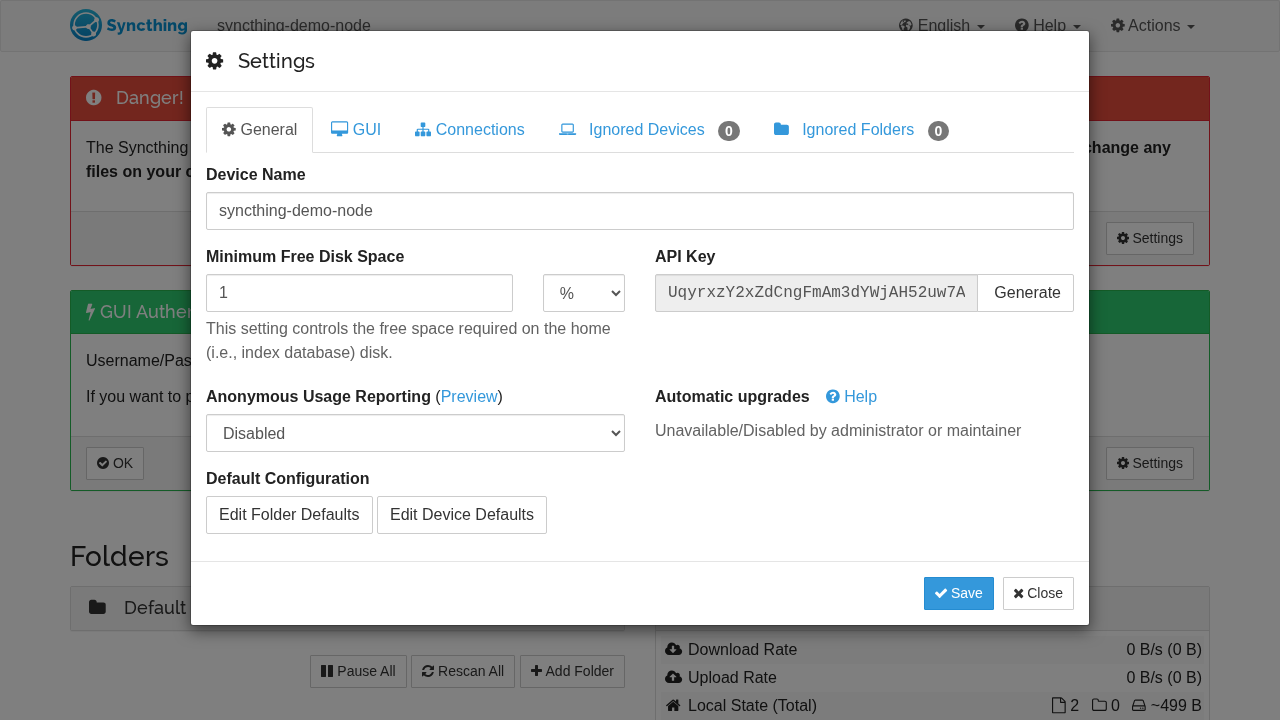
The General tab allows editing the Device Name, Minimum Free Disk Space, and copying the API Key:
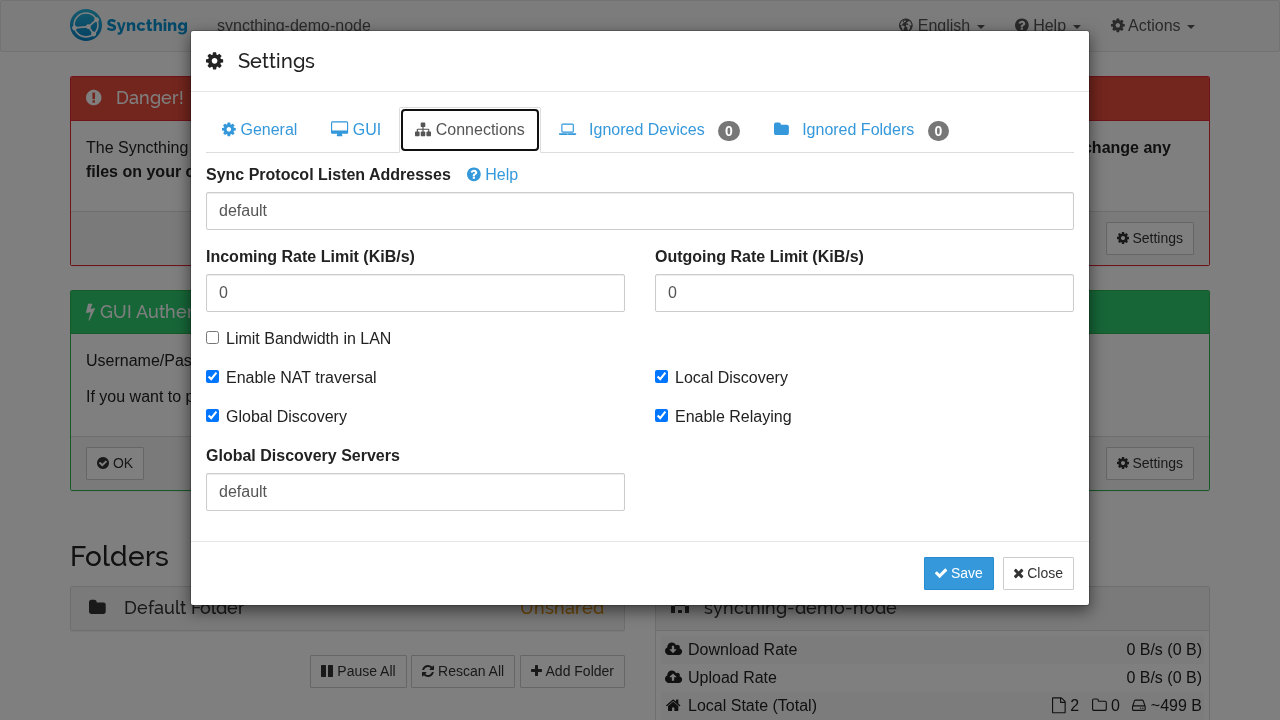
Click the Connections tab to inspect NAT traversal (UPnP), global discovery options, and relay facilities:
7. Configure GUI Authentication and Dark Theme
Click the GUI tab to secure the web interface:
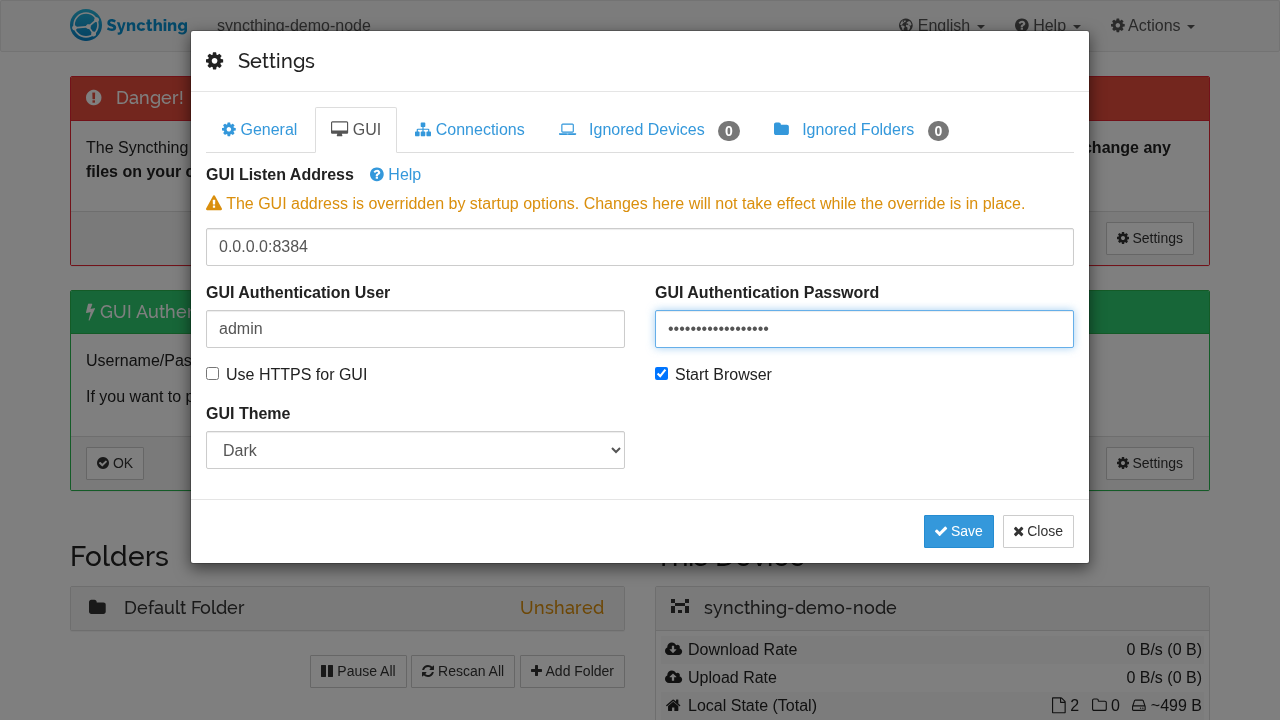
- GUI Authentication User: Enter an administrative username (e.g.
admin). - GUI Authentication Password: Enter a strong password.
- GUI Theme: Select
Darkfrom the theme dropdown (options include Default, Dark, Black, and Light). - Click Save.
8. Authenticate and Verify the Secured Dashboard
Saving credentials triggers an immediate session lock. The page reloads to the Syncthing sign-in form:
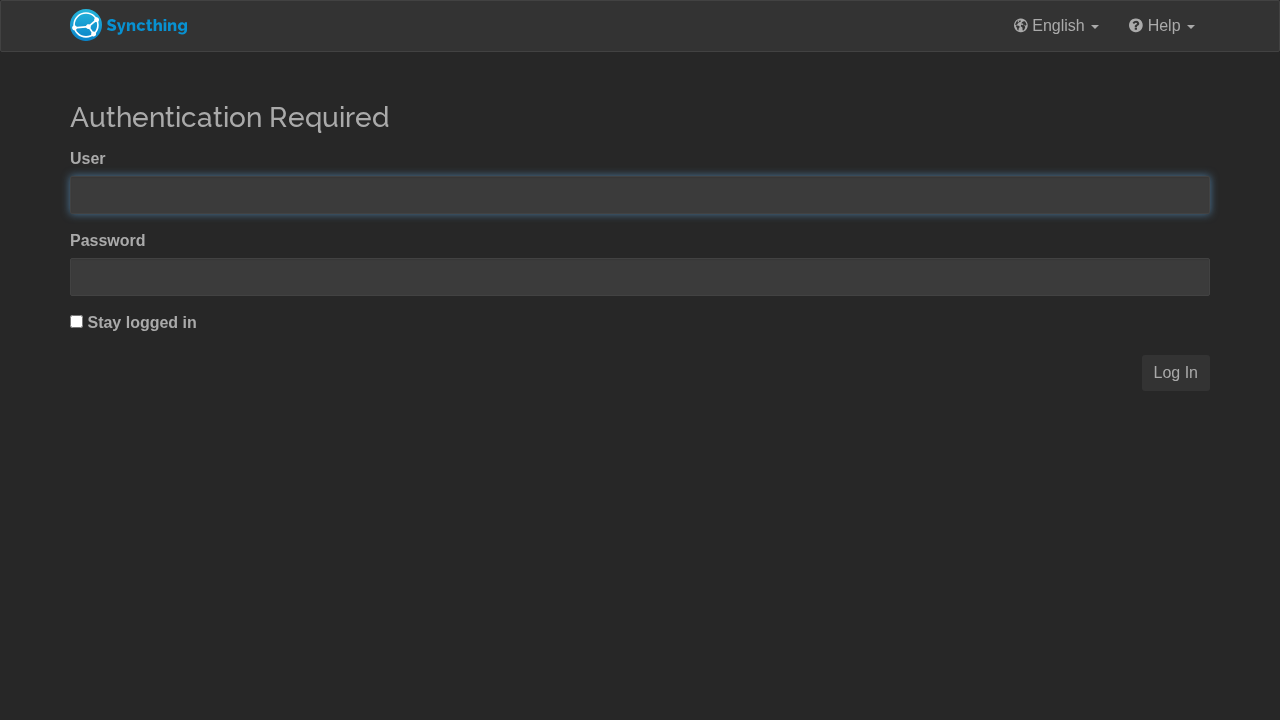
Enter your new credentials (admin and your password) and click Log in.
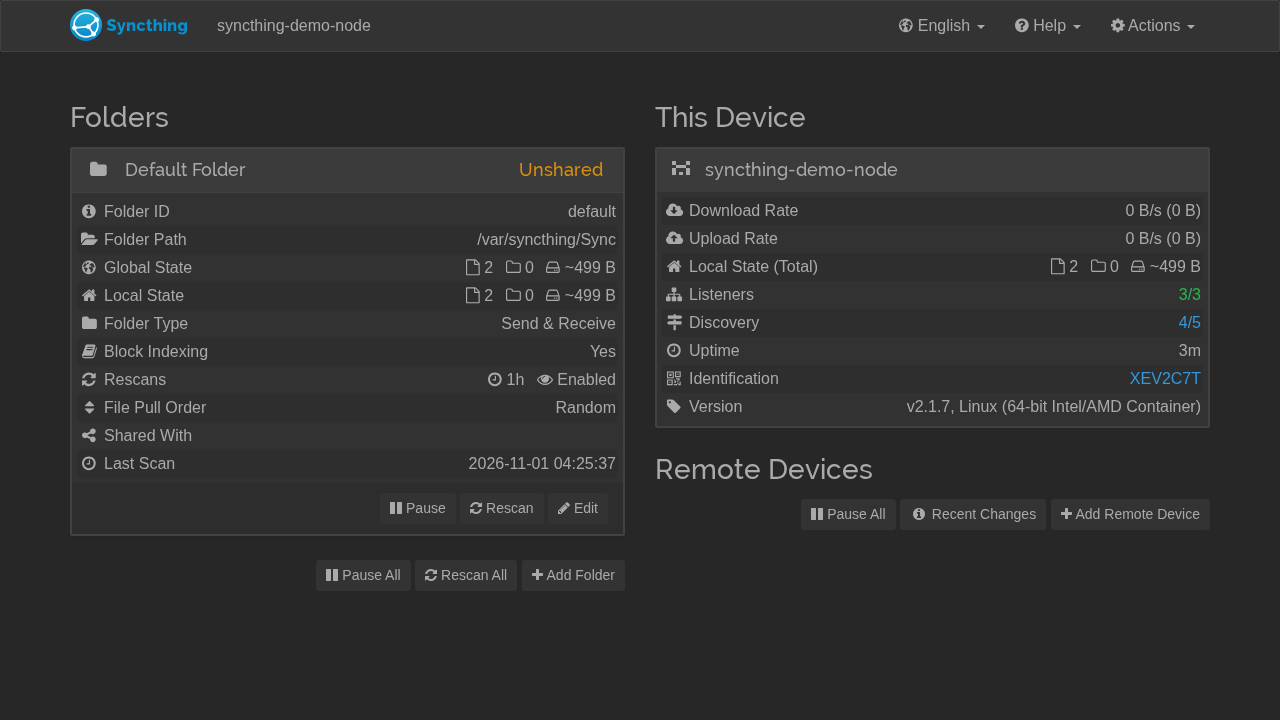
The dashboard reloads in the Dark theme. The red Danger banner and green password notification are gone, confirming that the web administration interface is secured.
---
Verification Checklist
Run these terminal commands to verify that your Syncthing node is operational and enforcing security policies:
- HTTP Healthcheck Endpoint:
``sh curl -i http://localhost:3000/rest/noauth/health # Expected: HTTP/1.1 200 OK, {"status":"OK"} ``
- System Version Query (Authenticated):
``sh KEY=$(grep -oP '(?<=<apikey>)[^<]+' config/config.xml) curl -s -H "X-API-Key: $KEY" http://localhost:3000/rest/system/version # Expected: "longVersion":"syncthing v2.1.7 \"Hafnium Hornet\" ... container: true" ``
- Database & Folder Synchronization Status:
``sh curl -s -H "X-API-Key: $KEY" 'http://localhost:3000/rest/db/status?folder=default' # Expected: {"state":"idle","localFiles":2,"globalFiles":2,"localBytes":499,"needFiles":0} ``
- Authentication Enforcement Probes:
```sh # Unauthenticated query to a protected endpoint must return 403 Forbidden: curl -s -o /dev/null -w "%{http_code}\n" http://localhost:3000/rest/system/status # Expected: 403
# Valid credentials verification: curl -s -o /dev/null -w "%{http_code}\n" -X POST http://localhost:3000/rest/noauth/auth/password \ -H "Content-Type: application/json" \ -d '{"user":"admin","password":"DemoSecretPass123!"}' # Expected: 204
# Invalid credentials rejection: curl -s -o /dev/null -w "%{http_code}\n" -X POST http://localhost:3000/rest/noauth/auth/password \ -H "Content-Type: application/json" \ -d '{"user":"admin","password":"WrongPassword"}' # Expected: 403 ```
- Container Lifecycle & Storage Integrity:
``sh docker compose ps --filter "status=running" ls -la config/config.xml config/index-v0.14.0.db ``
---
Troubleshooting
The table below outlines common issues encountered when deploying Syncthing with Docker Compose and their resolutions:
| Symptom / Error | Root Cause | Solution |
|---|---|---|
Folder status badge displays Unshared (orange) instead of Up to Date | In Syncthing v2, a folder that has not been shared with any remote peer device shows Unshared. | This is normal behavior for a standalone node. As soon as you add a remote device and share the folder with it, the status updates to Up to Date once synchronization completes. |
GET /rest/system/version returns HTTP 403 Forbidden | Syncthing v2 requires an API key for system REST endpoints. | Extract the generated API key from config/config.xml (grep -oP '(?<=<apikey>)[^<]+' config/config.xml) and pass it in the X-API-Key HTTP header. |
| Red "Danger!" banner: "Syncthing is accessible via web interface... without a password" | The web management interface does not enforce credentials out of the box. | Navigate to Actions ▸ Settings ▸ GUI, specify a username and password, and click Save. |
| Permission denied when scanning files or saving config | The container process (PUID 1000) lacks write access to ./config or ./data on the host. | Adjust directory ownership or permissions on the host system: chmod -R 777 config data or chown -R 1000:1000 config data. |
Port conflict: Bind for 0.0.0.0:3000 failed: port is already allocated | Another service on the host is already bound to host port 3000 or 8384. | Change the host port mapping in docker-compose.yml (e.g. "8384:8384" or "8080:8384"), leaving the container target port as :8384. |
| Remote peers cannot connect over WAN | Router or firewall is blocking incoming TCP/UDP traffic on port 22000. | Forward port 22000 (TCP and UDP) on your router to the Syncthing host machine, or enable NAT traversal / UPnP in Syncthing connection settings. |
| Locked out of GUI after setting forgotten password | Lost administrative credentials for web interface. | Stop the container (docker compose down), open config/config.xml in a text editor, remove the <user> and <password> elements from <gui>, and restart with docker compose up -d. |
---
Teardown & Clean Up
To stop the Syncthing service and remove all container resources:
# 1. Stop and remove containers and network
docker compose down

# 2. To remove containers, volumes, and persistent data completely:
docker compose down -v
rm -rf config data

# 3. Remove project directory
cd .. && rm -rf syncthing
---
Assumptions & decisions
- Container Image & Version: Used official
syncthing/syncthing:latestimage, which resolved to v2.1.7 "Hafnium Hornet" (Go 1.27.3). - Default Folder Creation Nuance: In the v2.1.7 Docker image, the
/rest/config/folderslist starts empty upon first boot. While older v1 installations auto-created a Default Folder, v2 requires either a REST API call or using the + Add Folder button in the web UI. Both methods are clearly documented. - Folder Badge Status: In Syncthing v2, an unshared folder displays an orange
Unsharedbadge rather than a greenUp to Datebadge. The post explicitly clarifies this so users know their 2 indexed files are properly stored and ready to share. - REST API Authentication: Syncthing v2 requires the
X-API-Keyheader for system REST endpoints such as/rest/system/version. The guide provides a one-liner to extract the API key fromconfig/config.xml. - GUI Password & Theme: Demo credentials
admin/DemoSecretPass123!and the Dark theme were tested and verified during the Playwright automation session. The guide notes that saving credentials immediately triggers a redirect to the login form. - Host Port Binding: Port
3000(3000:8384) was validated during the deployment run because port 3000 was free on the host. The guide also mentions the upstream default port8384for users who prefer standard bindings. - Real Browser Screenshots: All referenced screenshot paths (
runs/syncthing-20261101-041446/browser/*.png) point to actual captures generated by Playwright during the deployment verification run. - Ghost HTML Card Compatibility: The troubleshooting grid is structured as a standard GitHub-flavored Markdown table with header and delimiter rows, ensuring that
ghost-draft'smdToHtmlparser converts it into a Ghost HTML card (ghostHtmlCard).
Get the Unified Homelab Stack Compose Pack
One-command multi-container Compose files (Full *arr Stack, Prometheus + Grafana + ntfy Monitoring, and Homelab Auth) plus new verified deploys once a week.