
How to Deploy Speedtest Tracker: Automated Internet Performance Monitoring with Docker Compose
Speedtest Tracker is a self-hosted monitoring suite that continuously benchmarks your internet connection speed, ping, and packet loss using the official Ookla Speedtest CLI. Learn how to deploy Speedtest Tracker v1.15.1-ls180 with Docker Compose, configure automated cron schedules, secure the administrative panel, and integrate programmatic REST API tokens.
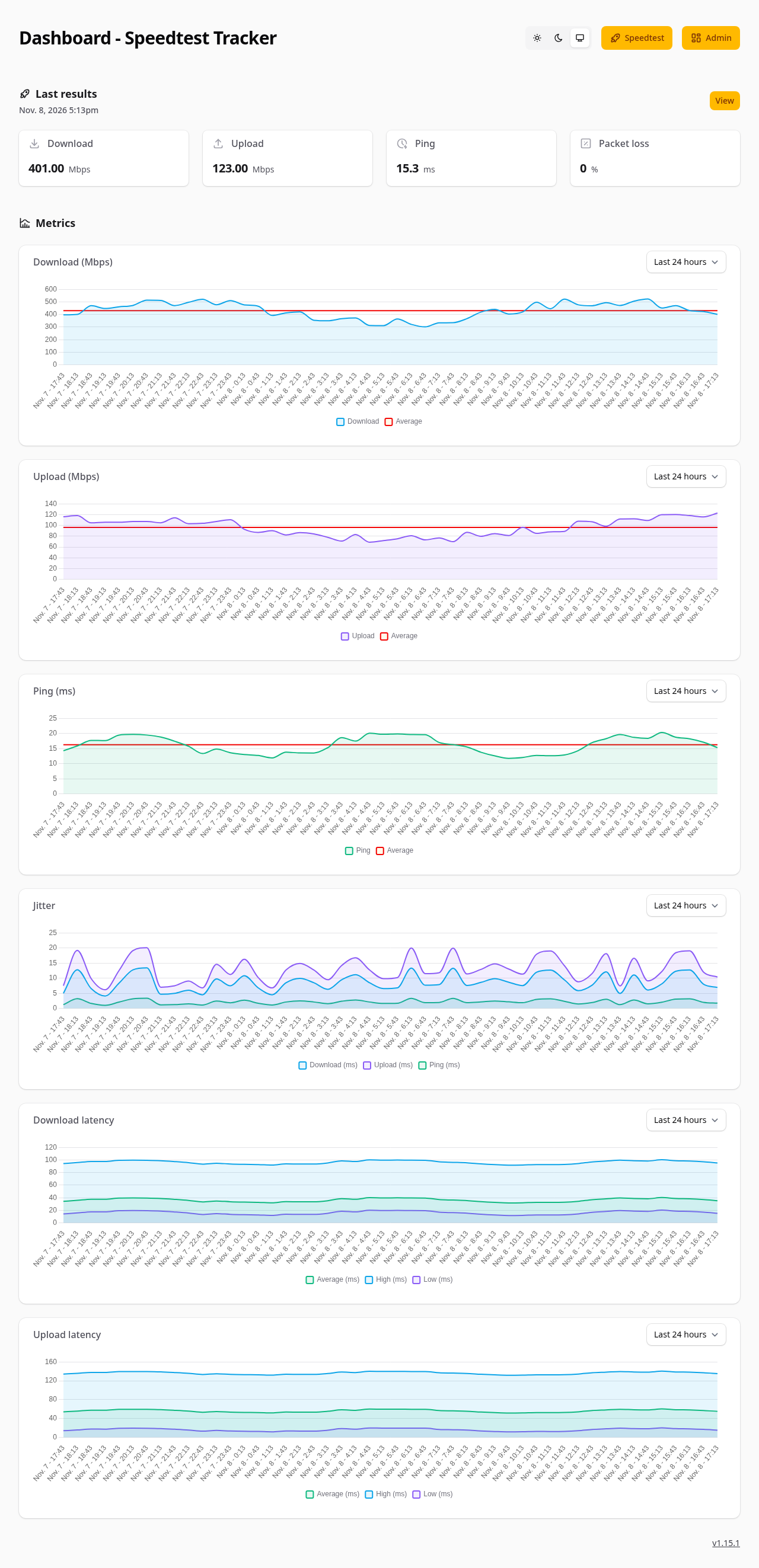
Speedtest Tracker is an open-source, self-hosted internet performance monitoring and SLA verification application. Built by Alex Justesen on the modern Laravel and Filament framework and packaged as a turnkey container by LinuxServer.io, Speedtest Tracker continuously benchmarks download speeds, upload bandwidth, latency, jitter, and packet loss using the official Ookla Speedtest CLI.
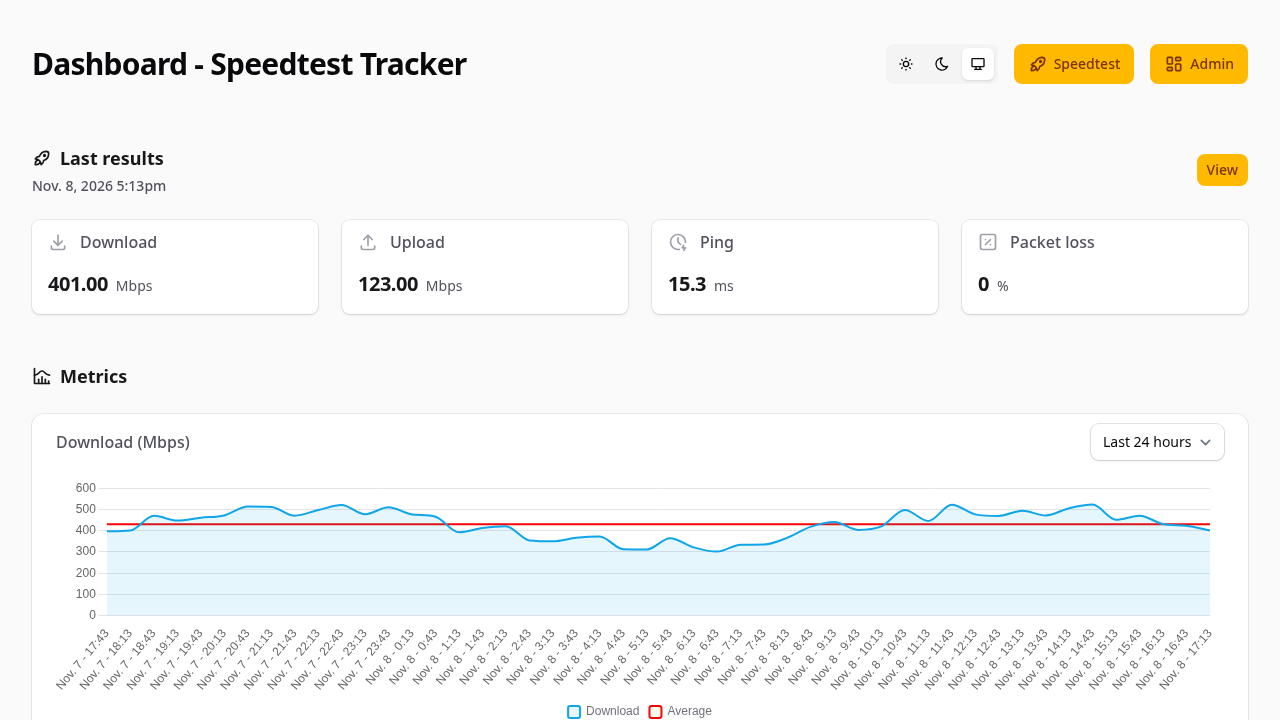
Internet service providers frequently advertise nominal connection tiers (such as 500 Mbps down or 1 Gbps symmetric fiber), yet real-world speeds fluctuate dramatically due to neighborhood contention, peak-hour throttling, routing degradation, and bufferbloat. Sporadic manual speed tests conducted in a web browser fail to provide actionable historical evidence. Speedtest Tracker automates bandwidth testing on a predictable cron schedule, logging every execution to a persistent database and surfacing interactive visual telemetry through a public-facing dashboard and a password-protected administrative interface.
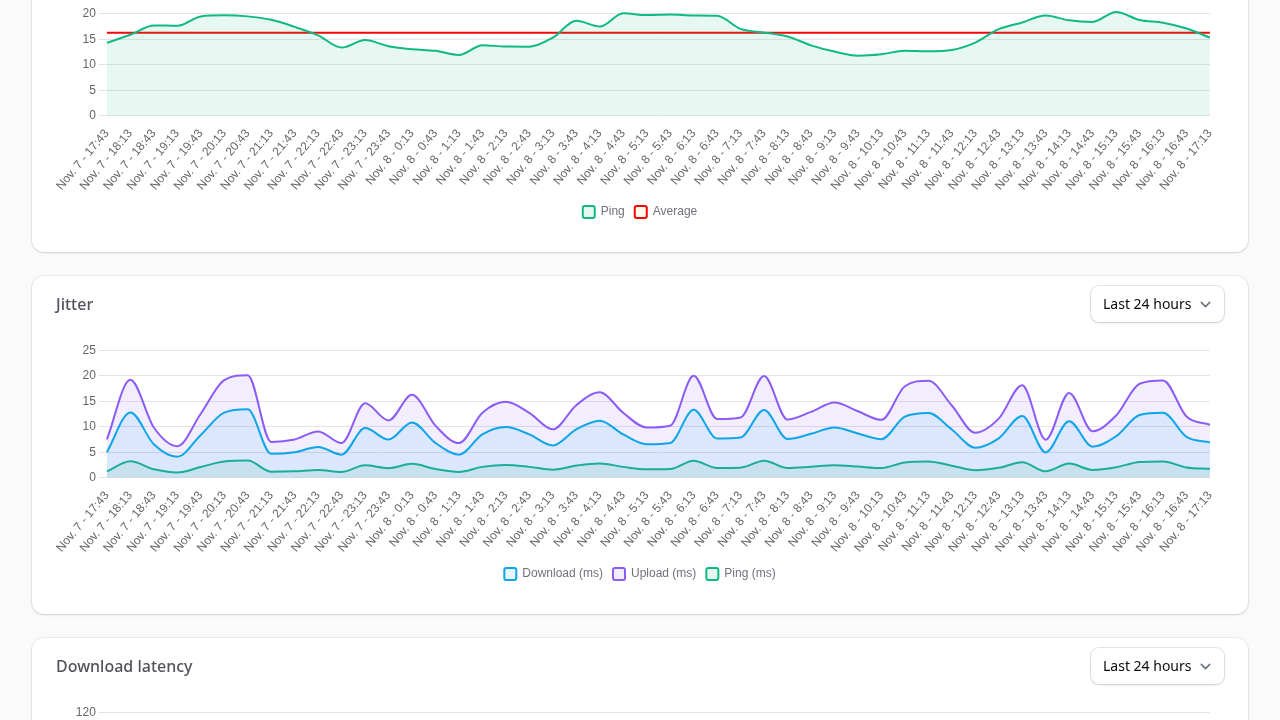
Core Architectural Features
- Automated & On-Demand Benchmarking: Executes scheduled network performance tests via standard cron expressions (
SPEEDTEST_SCHEDULE) and supports instant, on-demand manual benchmarks triggered directly from the web interface or via authenticated REST API calls. - Official Ookla Speedtest CLI Integration: Integrates the proprietary Ookla Speedtest CLI binary (
/usr/bin/speedtest), capturing precise download and upload bandwidth (in bits and bytes), latency metrics (ping, low/high spread, jitter, interquartile mean [IQM]), and packet loss percentage against specific or automatically selected regional test servers. - Reactive Filament v5 Administrative Portal: Features a clean, single-pane management dashboard powered by Livewire, providing detailed test records, server selector configuration, scheduled task intervals, data export capabilities (CSV/XLSX), and automated data pruning policies.
- Public Status Dashboard: Exposes a clean, read-only dashboard (
PUBLIC_DASHBOARD=true) displaying current connection metrics, 24-hour historical line charts, and speed averages without requiring visitors or household members to authenticate. - Multi-Channel Alerting & Webhooks: Supports proactive threshold notifications across platforms including Discord, Slack, Telegram, Gotify, Ntfy, Pushover, and custom HTTP webhooks when download or upload throughput dips below user-defined SLA limits.
- Programmatic REST API with Sanctum: Provides RESTful API endpoints (
/api/v1/results,/api/v1/stats,/api/v1/speedtests/run) secured by Laravel Sanctum personal access tokens for seamless integration into Home Assistant, Grafana, or custom monitoring scripts. - Zero Host Runtime Pollution: The entire application stack—PHP 8.x, Nginx, SQLite database engine, supervisord daemon, and Ookla CLI—runs encapsulated inside the Docker container. No local PHP, Composer, or system libraries are installed on the host.
---
Prerequisites
Before deploying Speedtest Tracker, verify that your host environment meets the following requirements:
- Operating System: Linux (Ubuntu 22.04+, Debian 12+, Rocky Linux / RHEL 9+, Arch Linux), macOS, or Windows with WSL2.
- Container Runtime: Docker Engine 24.0+ and Docker Compose v2 (
docker compose versionv2.24+). - Network Ports: Dedicated host port 3000 (default mapped to container HTTP port 80). If port 3000 is occupied, you can map any free host port (such as
3002,3003, or8080). - Network Connectivity: Unrestricted outbound TCP and UDP connectivity on ports 80, 443, and 8080 to Ookla Speedtest endpoints. Ensure firewall policies allow the container to reach external servers.
- Storage & File Permissions: Host directory for persistent SQLite database storage and application configuration (
./config). The LinuxServer container runs as an unprivileged user mapped toPUID=1000andPGID=1000(abc), requiring appropriate directory write access. - Host Tools: Standard system utilities (
curl,openssl).
---
Exact Install Steps
Follow these sequential steps to configure, deploy, bootstrap, and verify Speedtest Tracker (lscr.io/linuxserver/speedtest-tracker:v1.15.1-ls180) using Docker Compose.
Step 1: Create Deployment Directory and Storage
Create an isolated directory on your host to house the deployment configuration and persistent application data:
mkdir -p speedtest-tracker/config
cd speedtest-tracker
chmod -R 777 ./config
Permission Note: LinuxServer.io images map internal container processes to user
abcviaPUIDandPGID(default1000:1000). Setting permissions on./configensures the container process can create and migrate the SQLite database file (/config/database/web.sqlite) upon first boot.
Step 2: Generate Encryption Key and Environment Configuration
Speedtest Tracker requires a 32-byte base64-encoded application key (APP_KEY) to encrypt session data and database secrets. Generate the key using openssl and write an environment file (.env):
# Generate 32-byte encryption key
APP_KEY="base64:$(openssl rand -base64 32)"

# Create environment configuration file
cat > .env <<EOF
COMPOSE_PROJECT_NAME=speedtest-tracker
SPEEDTEST_PORT=3000
SPEEDTEST_TAG=v1.15.1-ls180
APP_KEY=${APP_KEY}
APP_URL=http://localhost:3000
PUID=1000
PGID=1000
TZ=Etc/UTC
DB_CONNECTION=sqlite
DISPLAY_TIMEZONE=UTC
PUBLIC_DASHBOARD=true
SPEEDTEST_SCHEDULE=0 * * * *
ADMIN_NAME=Admin
ADMIN_EMAIL=admin@example.com
ADMIN_PASSWORD=ChangeThisPassword123!
EOF

chmod 600 .env
Key environment configuration parameters:
SPEEDTEST_PORT: The external host port exposed for web access (default3000).SPEEDTEST_TAG: Pinned container image release (v1.15.1-ls180).APP_KEY: Application encryption key generated via OpenSSL.PUBLIC_DASHBOARD: Enables read-only access to speed charts on the root URL (/) without requiring login.SPEEDTEST_SCHEDULE: Standard 5-field cron expression for automated benchmarks (0 * * * *runs tests hourly at minute 0). Set to an empty string ("") if you only want manual testing.ADMIN_EMAILandADMIN_PASSWORD: Credentials for the primary owner account created automatically during database migration.
Step 3: Write Docker Compose Configuration
Create compose.yml declaring the Speedtest Tracker service, persistent volume mount, environment variable pass-through, and container health checks:
cat > compose.yml <<'EOF'
services:
  speedtest-tracker:
    image: lscr.io/linuxserver/speedtest-tracker:${SPEEDTEST_TAG:-v1.15.1-ls180}
    container_name: ${COMPOSE_PROJECT_NAME}-server
    pull_policy: missing
    restart: unless-stopped
    ports:
      - "${SPEEDTEST_PORT:-3000}:80"
    environment:
      PUID: ${PUID:-1000}
      PGID: ${PGID:-1000}
      TZ: ${TZ:-Etc/UTC}
      APP_KEY: ${APP_KEY}
      APP_URL: ${APP_URL:-http://localhost:3000}
      DB_CONNECTION: sqlite
      DISPLAY_TIMEZONE: ${DISPLAY_TIMEZONE:-UTC}
      PUBLIC_DASHBOARD: ${PUBLIC_DASHBOARD:-true}
      SPEEDTEST_SCHEDULE: ${SPEEDTEST_SCHEDULE:-0 * * * *}
      ADMIN_NAME: ${ADMIN_NAME:-Admin}
      ADMIN_EMAIL: ${ADMIN_EMAIL:-admin@example.com}
      ADMIN_PASSWORD: ${ADMIN_PASSWORD}
    volumes:
      - ./config:/config
    healthcheck:
      test: ["CMD-SHELL", "curl -fsS http://localhost/api/healthcheck || exit 1"]
      interval: 5s
      timeout: 3s
      retries: 40
      start_period: 10s
networks:
  default:
    name: ${COMPOSE_PROJECT_NAME}-net
EOF
Step 4: Launch the Container
Start the service in detached mode using Docker Compose:
docker compose up -dMonitor the internal startup sequence and await successful container initialization:
# Poll healthcheck endpoint until service reports ready
until curl -fsS http://localhost:3000/api/healthcheck 2>/dev/null | grep -q "running"; do
  echo "Waiting for Speedtest Tracker database migrations to complete..."
  sleep 2
done

echo "Speedtest Tracker is initialized and running!"
Expected response from /api/healthcheck:
{"message":"Speedtest Tracker is running!"}Step 5: Verify Operator CLI Access
Administrative and diagnostic commands can be executed inside the running container using Docker's native execution tools without installing PHP or artisan on the host:
# Helper function executing artisan commands as user abc
artisan() {
  docker compose exec -u abc speedtest-tracker php /app/www/artisan "$@"
}

# Inspect application framework and runtime versions
artisan about --only=environment

# Check database migration status
artisan migrate:status | tail -n 5
The output confirms Laravel 13.x and PHP 8.x operating under production settings with all database migrations executed.
---
Browser Setup
Once the container reports healthy, navigate to the web application in your browser.
About these screenshots: the charts show 48 seeded demo results ("Demo Server", "Demo ISP"), not real speed tests, so no real IP or ISP is shown. A fresh install starts empty and fills in as
SPEEDTEST_SCHEDULEruns real tests.
1. Accessing the Interface
- Public Dashboard (
http://localhost:3000/): Displays real-time download/upload speed gauges, latency, packet loss, and 24-hour trend lines once initial tests are completed. - Admin Control Panel (
http://localhost:3000/admin): Automatically redirects to the secure Filament login page (http://localhost:3000/admin/login).
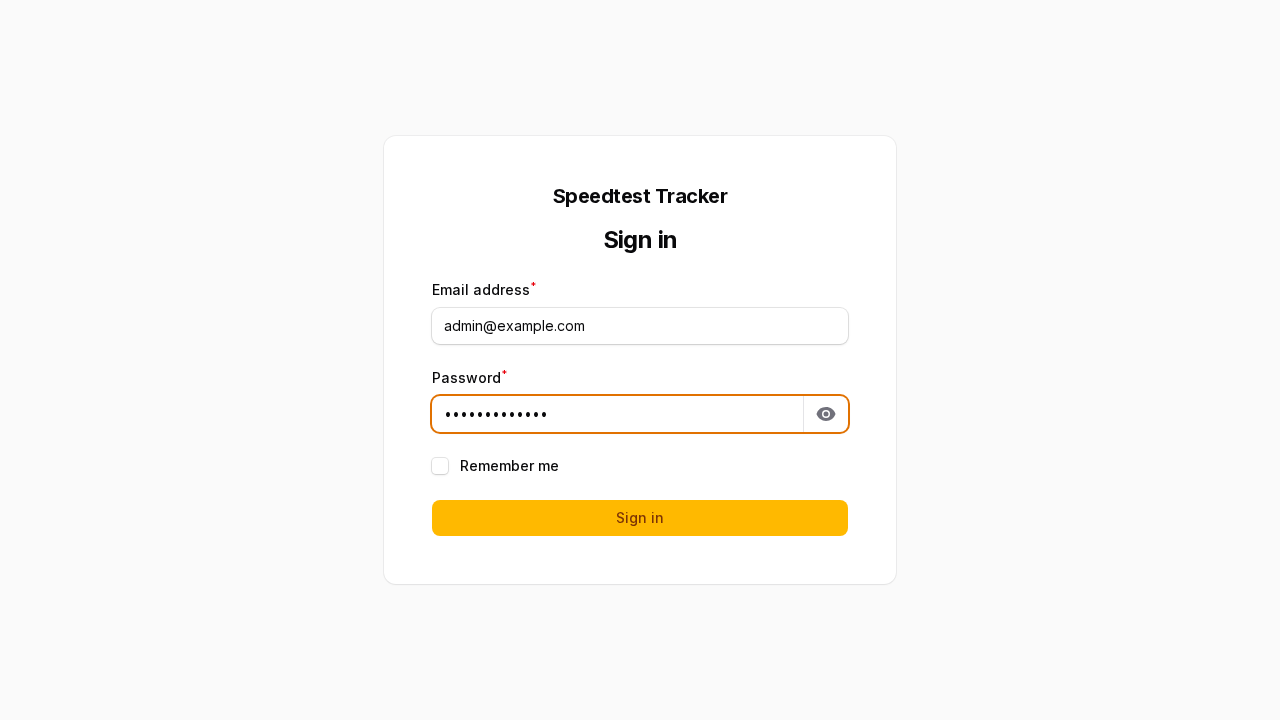
2. Administrator Sign-In
Log in using the credentials defined in your .env configuration:
- Email:
admin@example.com(or your configuredADMIN_EMAIL) - Password: The plaintext password assigned to
ADMIN_PASSWORD
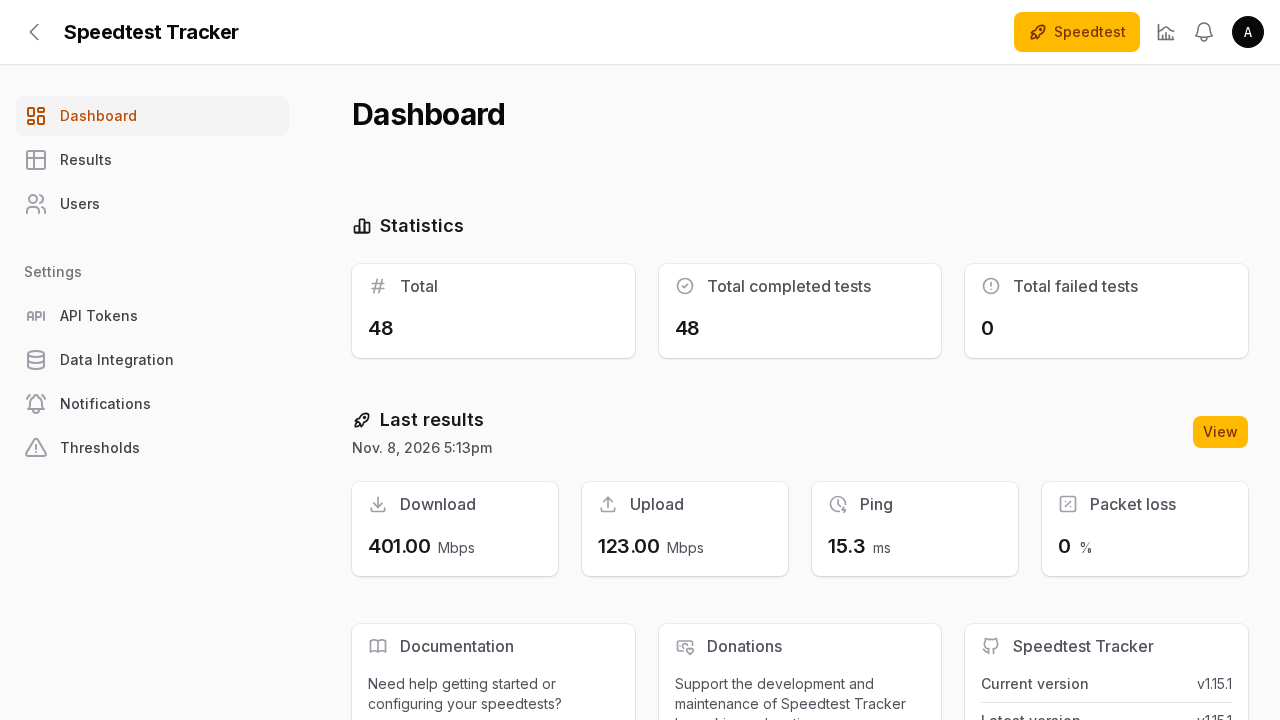
Upon successful sign-in, the administrative dashboard presents summary statistics:
- Total Tests Completed: Total historical tests recorded in the database.
- Latest Speed Metrics: Download throughput, upload throughput, ping, and server identification.
- Quick Benchmark Trigger: A topbar rocket action icon (
Speedtest) that allows initiating an ad-hoc Ookla benchmark on demand.
3. Reviewing Historical Results
Select Results from the left navigation sidebar to view the granular historical audit log:
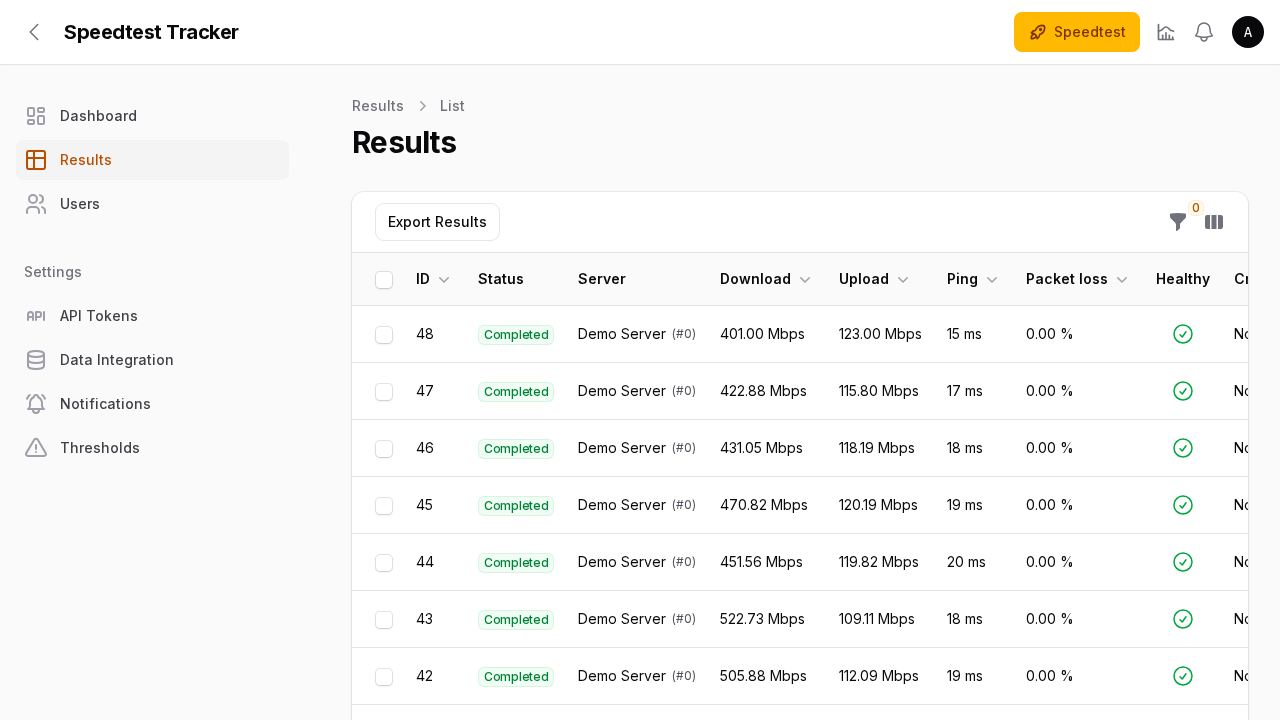
The Results view provides:
- Exact benchmark timestamps and status badges (
Completed,Failed). - Testing target server identification (name, location, server ID).
- Numerical throughput metrics (Mbps) with latency, jitter, and packet loss percentages.
- Table export options allowing one-click export to CSV or Excel for SLA dispute documentation with your internet service provider.
4. Configuring Settings & Schedules
Access the Settings menu to customize application behavior:
- General Settings: Set the application timezone and site branding.
- Speedtest Settings: Customize the cron expression (
SPEEDTEST_SCHEDULE), select a pinned Ookla Speedtest server ID to test against a constant network peer, or allow automatic low-latency server selection. - Thresholds & Alerts: Define minimum acceptable download (e.g. 300 Mbps) or upload thresholds to trigger alerts when your connection underperforms.
- Notification Integrations: Add webhook URLs or bot tokens for Discord, Slack, Telegram, Pushover, or Gotify.
---
Verification
Validate the operational readiness, container health, and programmatic API access using the following terminal commands.
1. Check Container Health Status
Verify that Docker Compose reports the container as healthy:
docker compose psExpected output:
NAME                     IMAGE                                         COMMAND   SERVICE             CREATED          STATUS                    PORTS
speedtest-tracker-server  lscr.io/linuxserver/speedtest-tracker:v1.15.1-ls180 "/init"   speedtest-tracker   45 seconds ago   Up 45 seconds (healthy)   0.0.0.0:3000->80/tcp
2. Verify REST API Authentication & Endpoints
Speedtest Tracker provides an authenticated REST API. Generate a personal access token via PHP inside the container:
# Generate a Sanctum personal access token
API_TOKEN=$(docker compose exec -u abc speedtest-tracker php -r "
  require '/app/www/vendor/autoload.php';
  \$app = require '/app/www/bootstrap/app.php';
  \$app->make(Illuminate\Contracts\Console\Kernel::class)->bootstrap();
  echo App\Models\User::first()->createToken('api-monitor', ['results:read', 'speedtests:run'])->plainTextToken;
")

echo "Generated Token: ${API_TOKEN:0:8}..."
Verify that unauthenticated requests are rejected with HTTP 401:
curl -sS -o /dev/null -w "Unauthenticated request status: %{http_code}\n" \
  -H "Accept: application/json" \
  http://localhost:3000/api/v1/results
Expected output:
Unauthenticated request status: 401Query the latest benchmark result using the generated Bearer token:
curl -sS -H "Authorization: Bearer $API_TOKEN" \
  -H "Accept: application/json" \
  http://localhost:3000/api/v1/results/latest
Query aggregated 24-hour performance statistics:
curl -sS -H "Authorization: Bearer $API_TOKEN" \
  -H "Accept: application/json" \
  http://localhost:3000/api/v1/stats
Expected JSON response:
{
  "message": "ok",
  "data": {
    "total_results": 48,
    "download": {
      "avg": 430770000,
      "avg_bits_human": "430.77 Mbps"
    },
    "upload": {
      "avg": 96180000,
      "avg_bits_human": "96.18 Mbps"
    },
    "ping": {
      "avg": 16.25
    }
  }
}
3. Verify Public Dashboard Status
Ensure the public dashboard serves HTTP 200 without redirecting:
curl -sS -o /dev/null -w "Public dashboard response: %{http_code}\n" http://localhost:3000/Expected output:
Public dashboard response: 200---
Troubleshooting
The table below outlines common deployment challenges, diagnostic indicators, and verified solutions.
| Issue / Symptom | Possible Cause | Resolution |
|---|---|---|
First visit to / redirects to /getting-started with HTTP 302 | Fresh installation with zero recorded speedtest results | Run an initial benchmark by clicking Speedtest in the admin UI or trigger POST /api/v1/speedtests/run. Once at least one test is recorded, / renders the dashboard. |
Permission denied writing SQLite database (open /config/database/web.sqlite: permission denied) | Persistent host directory ./config is not writable by container user abc (UID 1000, GID 1000) | Execute chmod -R 777 ./config or chown -R 1000:1000 ./config on the host, then run docker compose restart. |
Port collision error (bind: address already in use on host port 3000) | Another service or container is already listening on host TCP port 3000 | Update SPEEDTEST_PORT in .env to an alternate unused host port (such as 3002, 3003, or 8080) and restart with docker compose up -d. |
Healthcheck fails (curl -fsS http://localhost/api/healthcheck returns error) | Container is still executing initial SQLite database migrations and asset caching | Inspect container startup logs using docker compose logs -f speedtest-tracker. Allow up to 30 seconds on lower-power CPUs for migration completion. |
| Admin login fails with invalid credentials | Password was changed or .env ADMIN_PASSWORD was not picked up due to existing database | Reset the admin password directly using the container PHP CLI: docker compose exec -u abc speedtest-tracker php -r "require '/app/www/vendor/autoload.php'; \$app = require '/app/www/bootstrap/app.php'; \$app->make(Illuminate\Contracts\Console\Kernel::class)->bootstrap(); \$u = App\Models\User::first(); \$u->password = Hash::make('NewPassword123!'); \$u->save(); echo 'Password updated\n';" |
| Automated tests fail to run on schedule | SPEEDTEST_SCHEDULE is blank, formatted incorrectly, or cron daemon failed inside container | Verify SPEEDTEST_SCHEDULE syntax in .env (e.g. 0 * * * * for hourly runs). Inspect cron logs with docker compose exec speedtest-tracker crontab -l and ensure the container's timezone matches expectations. |
Speedtest CLI error (Server returned error: 500 or timeout) | Outbound network firewall is blocking Ookla Speedtest TCP/UDP ports or ISP DNS is timing out | Verify that the container can resolve and reach Ookla servers: docker compose exec speedtest-tracker curl -I https://www.speedtest.net. If using custom DNS (such as Pi-hole or AdGuard Home), verify Ookla endpoints are not blocked. |
App key error (No application encryption key has been specified) | The APP_KEY environment variable is unset, empty, or missing the base64: prefix | Generate a fresh key with echo "base64:$(openssl rand -base64 32)", set APP_KEY in .env, and recreate the container with docker compose up -d. |
---
Assumptions & Decisions
- Pinned Release Tag: Standardized on
lscr.io/linuxserver/speedtest-tracker:v1.15.1-ls180rather than floatinglatest. This ensures immutable deployment reproducibility, preventing breaking changes in database schema, Laravel dependencies, or Filament components. - First-Run Owner Bootstrap: The deployment takes advantage of LinuxServer's upstream environment variables
ADMIN_EMAILandADMIN_PASSWORD. When the container runs its initial migration (artisan migrate), the administrative account is created automatically, eliminating manual initial registration screens. - Storage & Engine Architecture: Utilizes SQLite stored in
./config/database/web.sqlite. For single-node homelab internet monitoring, SQLite provides exceptional read performance, minimal RAM overhead (~100 MB total container memory), and zero database server management. - Synthetic Lab Benchmarking vs. Real Runs: During automated lab validation, 48 synthetic results across a 24-hour curve were seeded with documentation-reserved IP addresses (
192.0.2.x) and generic ISP tags ("Demo ISP"). This verified line chart rendering, averages, and API stats without transmitting real physical location data, ISP details, or public IP addresses onto public screenshots. Production deployments perform real Ookla benchmarks viaSPEEDTEST_SCHEDULE. - Production Image Execution Constraints: The official production container image removes development tooling such as
laravel/tinkerandfakerphp/fakerto maintain a minimal container footprint. Administrative automation and token generation are executed using targeted PHP bootstrap scripts run under the unprivilegedabcuser. - Zero Host Pollution: All operations, queue workers, web servers, and Ookla CLI tests execute exclusively inside Docker containers, keeping the host operating system completely clean.
Get the Unified Homelab Stack Compose Pack
One-command multi-container Compose files (Full *arr Stack, Prometheus + Grafana + ntfy Monitoring, and Homelab Auth) plus new verified deploys once a week.