
How to Deploy Sonarr with Docker Compose: Smart PVR and TV Series Management
Sonarr is an open-source smart PVR that automates tracking, downloading, and organizing television series. Here is how to deploy Sonarr v4 using Docker Compose, configure storage paths, and manage your first show.
Sonarr is a leading open-source (GPL-3.0) Smart PVR (Personal Video Recorder) and TV show collection management platform designed for Usenet and BitTorrent users. It completely automates the workflow of monitoring TV shows, searching indexers, sending release jobs to download clients, organizing downloaded files into season folders, and upgrading existing media files when higher-quality releases become available.
Unlike manual downloading workflows that require frequent tracking of release schedules, manual torrent or NZB file searches, and manual renaming of obscure scene filenames, Sonarr operates continuously as an autonomous daemon. It interfaces with external metadata sources (such as TheTVDB and SkyHook) to maintain up-to-date broadcast schedules and metadata, watches RSS feeds for new episode releases, and automatically initiates downloads based on user-defined quality profiles and release filters.
Sonarr's architecture is structured around several core components:
- Indexer Integration: Periodically polls Usenet indexers (via Newznab) and BitTorrent indexers (via Torznab, Prowlarr, or Jackett) using automated RSS sync and targeted interactive searches.
- Download Client Orchestration: Natively integrates with Usenet clients (such as SABnzbd and NZBGet) and BitTorrent clients (including qBittorrent, Transmission, Deluge, rTorrent, and Aria2), orchestrating download priorities, category tagging, and queue progress monitoring.
- Intelligent Post-Processing & Renaming: Monitors completed downloads, parses standard scene release tags (e.g.,
S01E01, release group tags, daily air dates, or anime absolute numbering), moves or hardlinks media files into organized season directories, cleans up leftover junk files, and renames video and subtitle files according to custom naming schemas. - Quality Profiles & Upgrade Ladders: Allows administrators to establish hierarchical quality targets (such as SDTV, HDTV-720p, WEB-DL 1080p, or Bluray-2160p Remux). When a higher-ranked release becomes available, Sonarr grabs the upgrade and replaces the older file automatically.
- Media Server & Notification Webhooks: Automatically triggers library updates on media servers like Plex, Jellyfin, Emby, and Kodi upon successful imports, and dispatches real-time event notifications via Discord, Telegram, Pushbullet, Slack, or custom webhooks.
- Modern Web Application & API: Features a responsive React Single Page Application (SPA) with SignalR real-time websocket updates, backed by an ASP.NET Core service exposing full REST APIs (v3/v5) and backed by an embedded SQLite database.
This guide walks through deploying Sonarr v4 (4.0.20.3014) using Docker Compose with the official LinuxServer image, completing the first-run browser setup, mounting persistent media volumes, and tracking a sample series.
Prerequisites
Before deploying Sonarr, ensure your host environment meets the following requirements:
- Docker Engine & Docker Compose: Docker Engine 20.10+ and Docker Compose v2+ installed on your host (
docker compose version). - User Permissions (UID/GID): Determine the user and group ID of the account managing your media files (typically
1000:1000viaid -uandid -g) so file permissions remain consistent across Docker mounts. - Network Port: An available host port for Sonarr's Web UI and REST API. By default, Sonarr listens internally on port
8989. In this guide, host port3000(or8989) is mapped to container port8989. - Storage Volumes: Sufficient disk space on local or networked storage for three directories:
- Configuration directory (/config) for database files (sonarr.db, logs.db) and runtime settings. - TV library directory (/tv) for organized season folders and completed media files. - Download directory (/downloads) where your torrent or Usenet client places incoming files.
- Modern Web Browser: Chrome, Firefox, Safari, or Edge to access the web interface.
Exact Install Steps
Follow these steps to deploy Sonarr using Docker Compose with persistent bind mounts.
1. Create Deployment Directory Structure
Create a dedicated directory for your deployment manifests and mount directories:
mkdir -p sonarr-deploy/config sonarr-deploy/tv sonarr-deploy/downloads
cd sonarr-deployconfig/: Contains Sonarr's SQLite database, logs, andconfig.xml.tv/: Root destination for your organized TV library.downloads/: Ingest destination for completed files from your download client.
2. Configure Environment Variables (.env)
Create a .env file to define the project name, port binding, and file ownership:
cat > .env <<'EOF'
COMPOSE_PROJECT_NAME=shortform-sonarr
IMAGE=lscr.io/linuxserver/sonarr:latest
SONARR_PORT=3000
PUID=1000
PGID=1000
TZ=Etc/UTC
EOF
If you prefer Sonarr's default port, change
SONARR_PORT=3000toSONARR_PORT=8989. EnsurePUIDandPGIDmatch your host user ID (id -uandid -g).
3. Create Docker Compose File (docker-compose.yml)
Create the docker-compose.yml file:
services:
  sonarr:
    image: ${IMAGE}
    container_name: ${COMPOSE_PROJECT_NAME}-sonarr
    environment:
      - PUID=${PUID}
      - PGID=${PGID}
      - TZ=${TZ}
    ports:
      - "127.0.0.1:${SONARR_PORT}:8989"
    volumes:
      - "./config:/config"
      - "./tv:/tv"
      - "./downloads:/downloads"
    healthcheck:
      test: ["CMD-SHELL", "curl -fsS http://127.0.0.1:8989/ping || exit 1"]
      interval: 5s
      timeout: 3s
      retries: 10
      start_period: 10s
    restart: unless-stopped
4. Start the Sonarr Container
Launch Sonarr in detached mode:
docker compose up -dDocker Compose will pull the latest LinuxServer Sonarr image, initialize the storage directories, and start the service.
5. Wait for Readiness
Wait until Sonarr's internal Kestrel web server initializes and responds to health ping requests:
timeout=120
while [ $timeout -gt 0 ]; do
  if curl -fsS http://localhost:3000/ping >/dev/null 2>&1; then
    echo "Sonarr is ready!"
    break
  fi
  sleep 2
  timeout=$((timeout - 2))
done
[ $timeout -gt 0 ] || { echo "Timed out waiting for Sonarr"; docker compose logs --tail 50; exit 1; }
Once the loop outputs Sonarr is ready!, the service is live and healthy.
Browser Setup
Once the container is healthy, open your browser and navigate to:
http://localhost:3000/*(If you configured SONARR_PORT=8989, navigate to http://localhost:8989/).*
Step 1: Complete the First-Run Authentication Setup
In Sonarr v4, the service ships with authentication required by default. On your first visit, Sonarr presents an Authentication Required modal that blocks the main interface until credentials and access rules are configured.
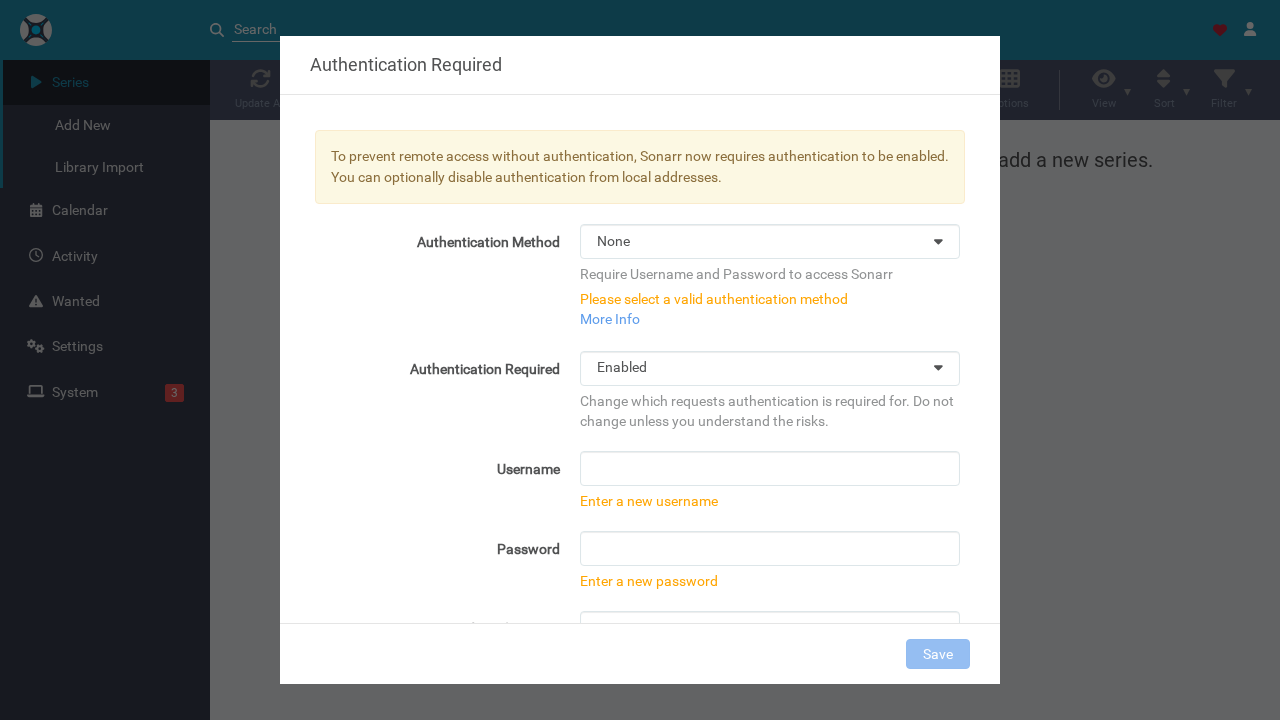
Fill in the authentication fields as follows:
- Authentication Method: Select
Forms (Login Page). - Authentication Required: Select
Disabled for Local Addresses. This allows seamless access from your local network or localhost without repeated password prompts. - Username: Enter your desired administrative username (e.g.,
demoor your username). - Password: Enter a secure administrative password.
- Allowed Hosts: Enter
localhost(or your domain/IP). Important: Sonarr requires this field when *Authentication Required* is set to *Disabled for Local Addresses*; omitting it will result in an HTTP 400 error.
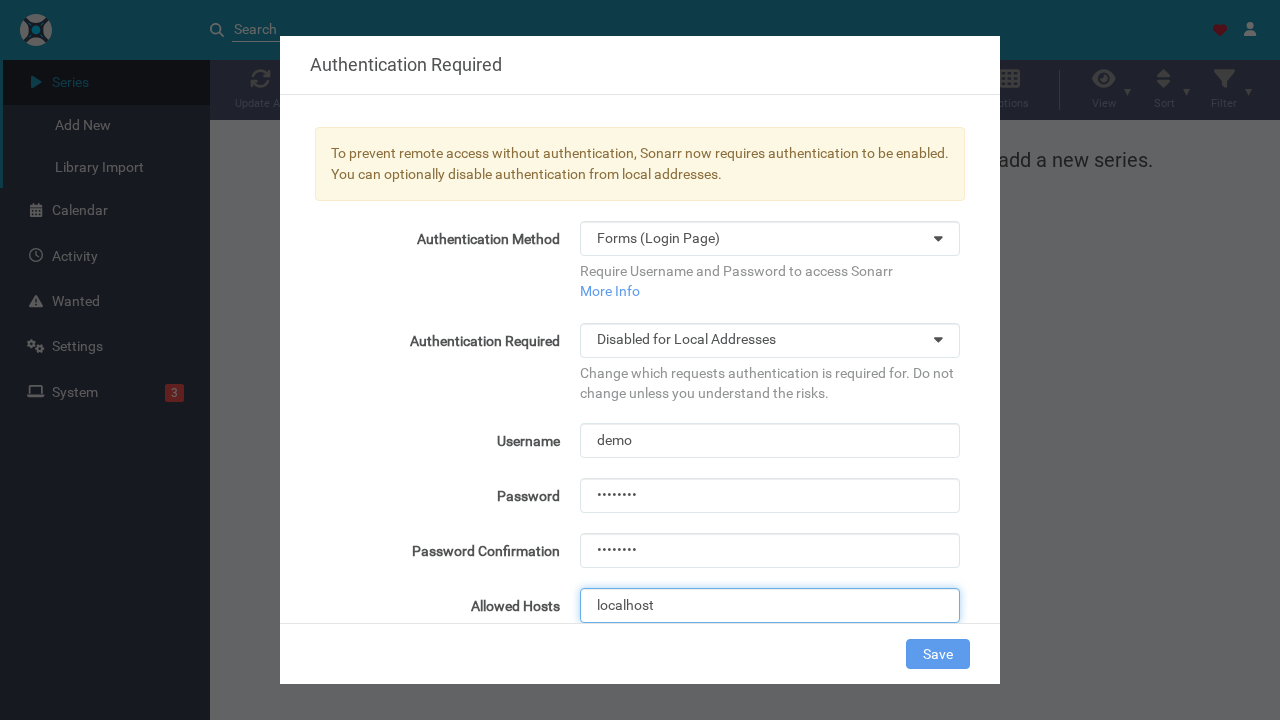
Click Save. The modal will dismiss, and Sonarr will mount the main dashboard. Because authentication is disabled for local addresses, you will immediately enter the application.
Step 2: Add a Media Root Folder
Before adding series to track, Sonarr needs to know where your TV library resides on disk.
- Navigate to Settings in the left navigation sidebar.
- Select the Media Management tab.
- Scroll down to the Root Folders section at the bottom of the page.
- Click Add Root Folder.
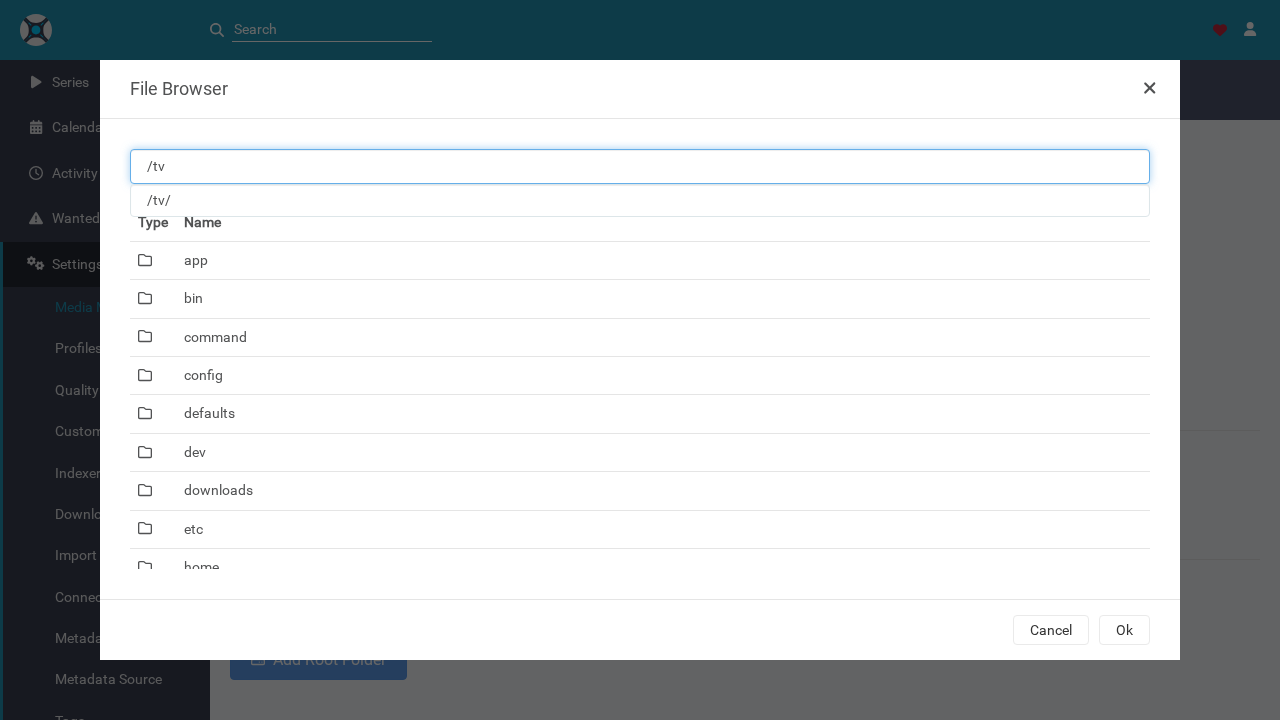
- In the path picker dialog, enter or select
/tv, then click the blue checkmark button. - The
/tvpath appears in the Root Folders list, displaying available free disk space. Root folders are persisted immediately—no additional page save is required.
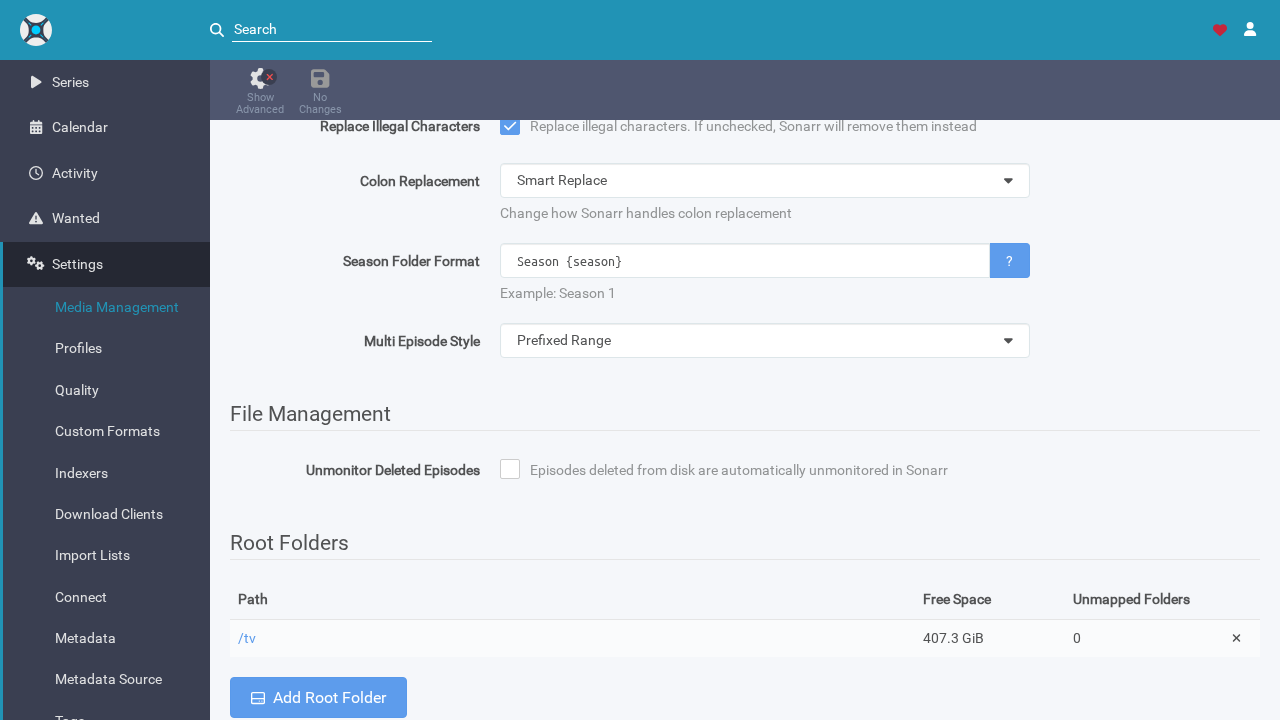
Step 3: Search for and Add a Series
With storage configured, you can now add your first TV show.
- In the left navigation menu, click Series › Add New (or click the search bar at the top).
- Type a series title (for example,
Breaking Bad) into the search input. - Sonarr contacts the SkyHook and TheTVDB metadata services and displays series matching the query along with poster art, ratings, and network information.
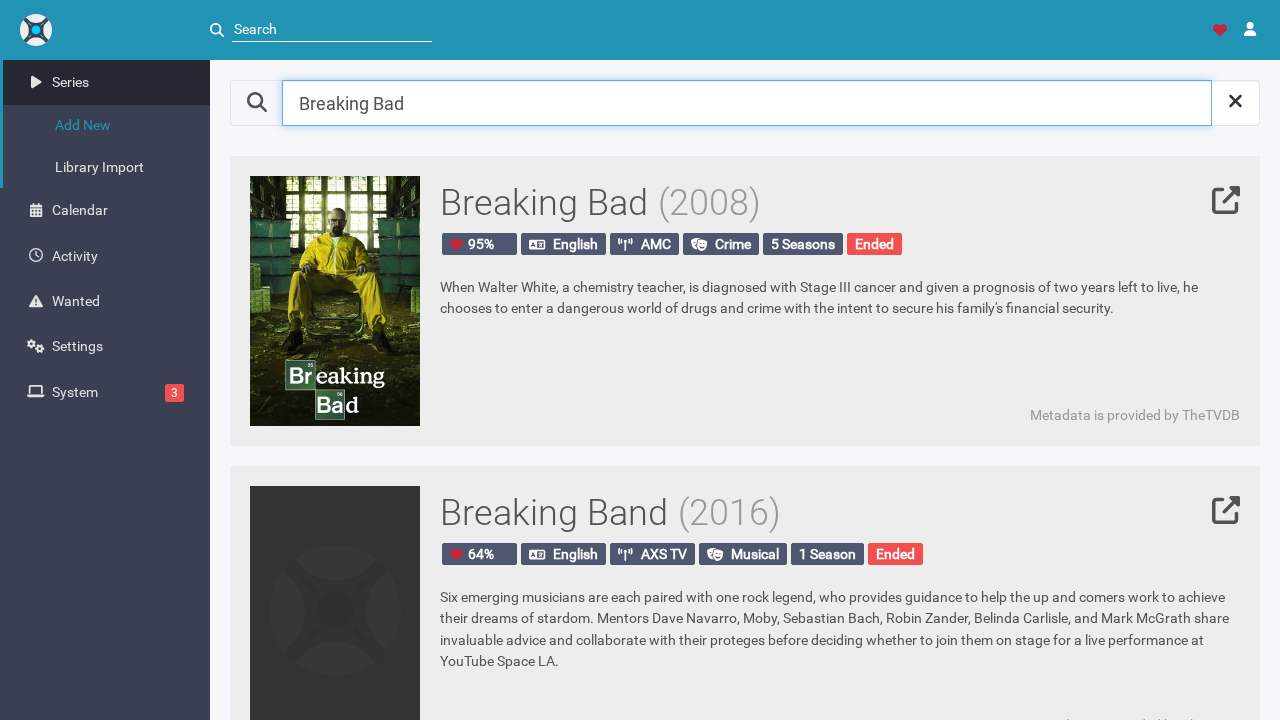
- Click on the series card to open the Add Series configuration modal.
- Configure the import options:
- Root Folder: /tv/Breaking Bad - Monitor: All Episodes (monitors all aired and future episodes) - Quality Profile: HD-1080p (or your preferred target quality) - Series Type: Standard (for episodic series) - Season Folder: Toggle to Yes (creates structured Season 01, Season 02 directories) - Leave the "Start search for missing episodes" checkboxes unchecked for now if download clients are not yet configured.
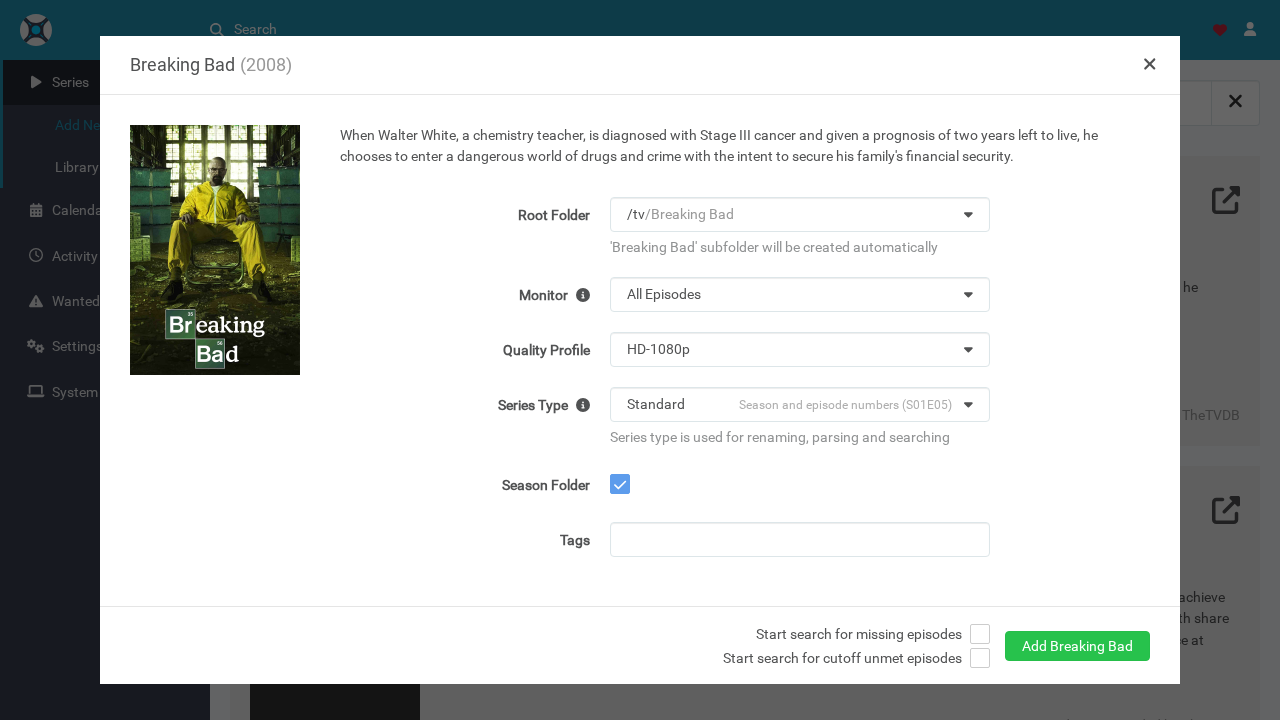
- Click Add Breaking Bad. Sonarr saves the series to its SQLite database and creates the library records.
Step 4: Explore the Series Library & Episode Breakdown
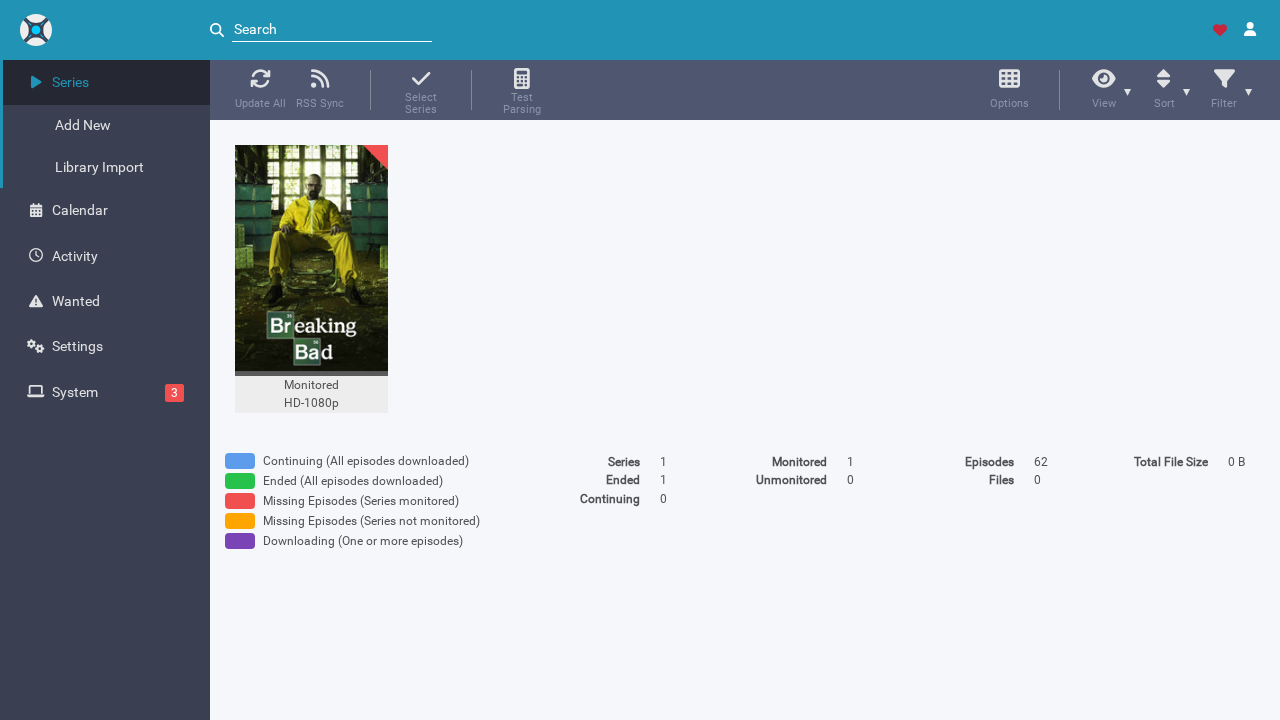
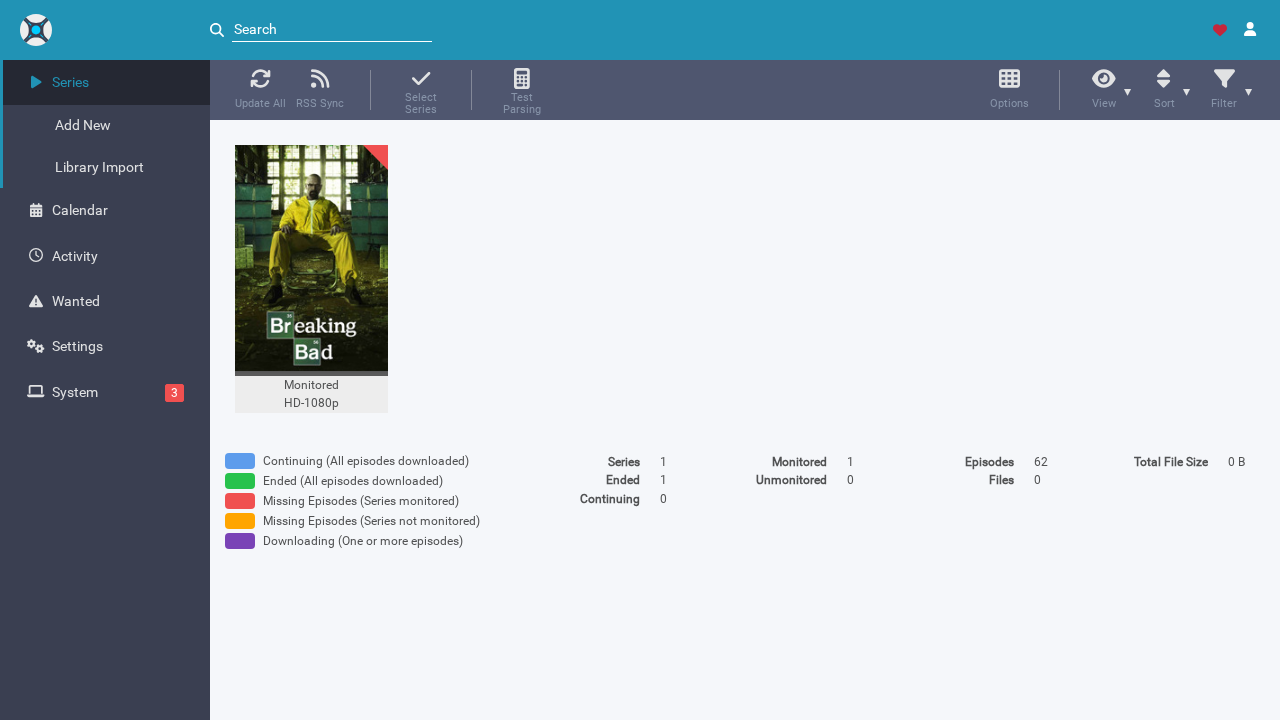
Click Series in the sidebar to return to the library overview:
- The series appears as a poster card displaying its monitoring status and quality profile.
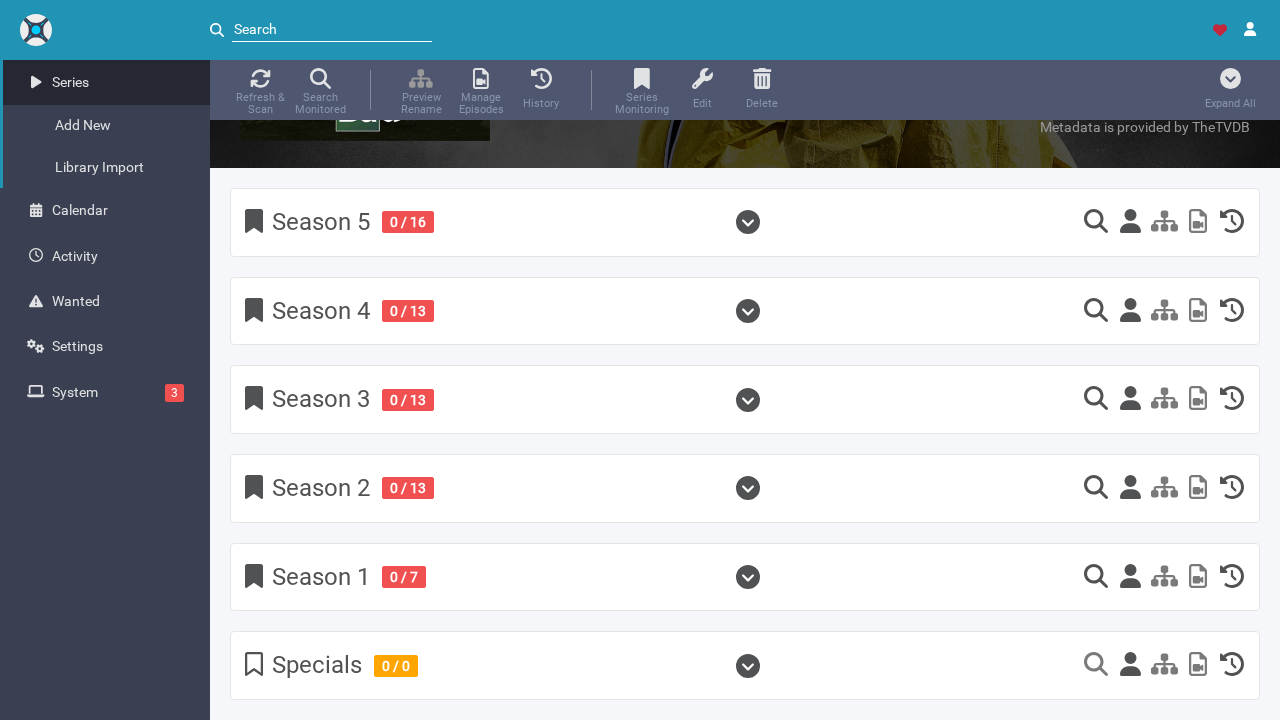
- The library summary indicates 1 series and 62 episodes (covering Seasons 1 through 5).
Click the series card to open the detailed series overview. Here you can inspect high-resolution fanart, season accordions, episode release dates, and download status. Red 0/N badges indicate episodes that have aired but are not yet present in your storage library.
Step 5: Review Calendar & Quality Profiles
Explore Sonarr's management views:
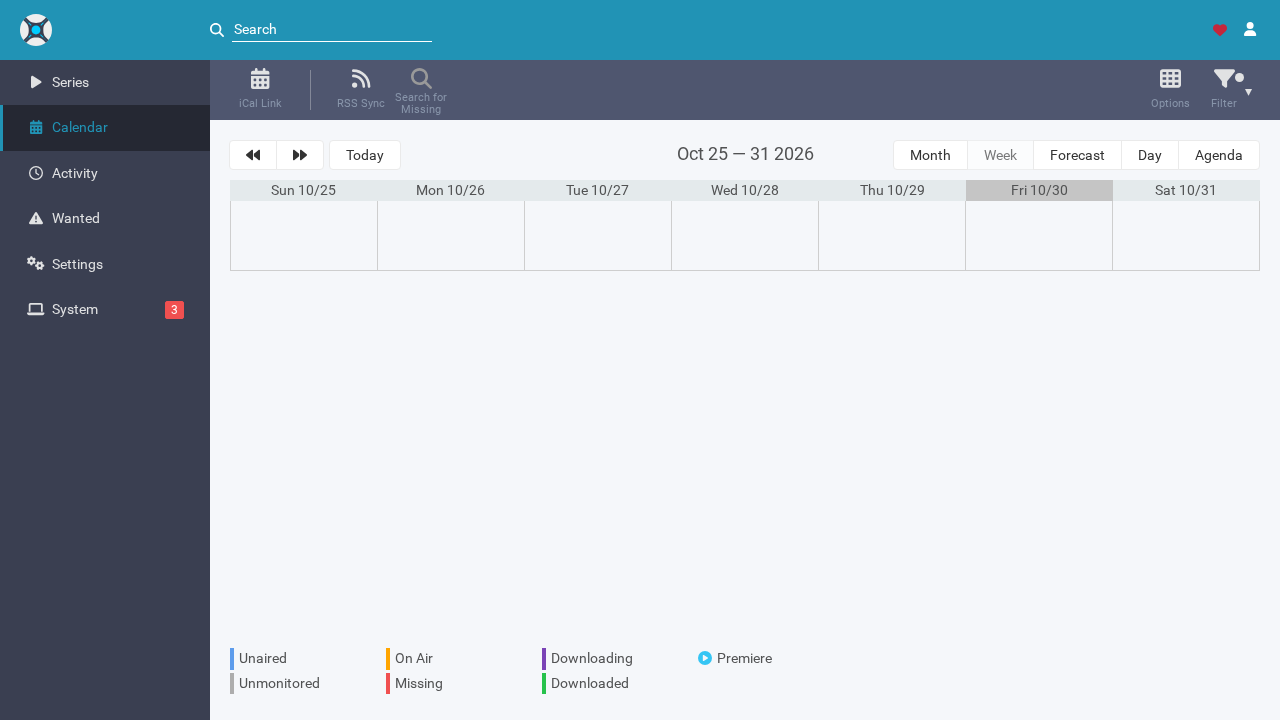
- Calendar: Click Calendar in the sidebar. For active or upcoming shows, Sonarr renders broadcast dates across daily, weekly, or monthly views. Shows that have concluded their broadcast run (like *Breaking Bad*) will not display entries in the current week's schedule.
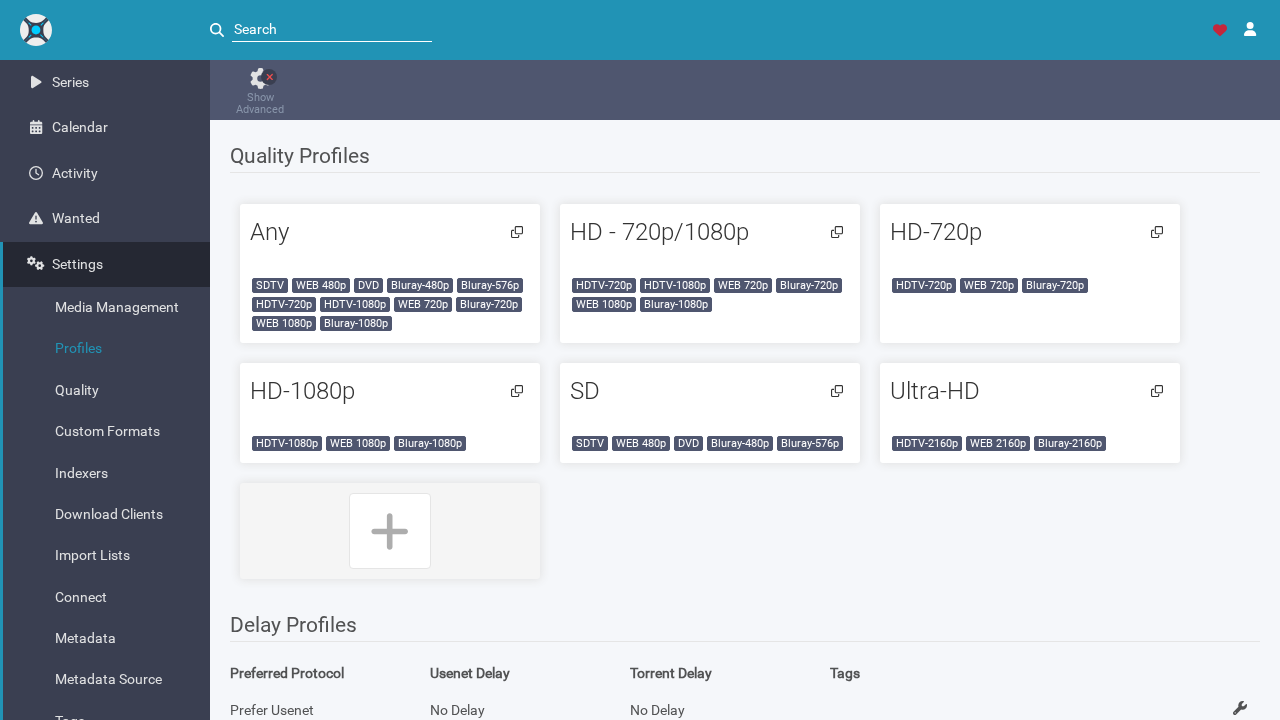
- Quality Profiles: Navigate to Settings › Profiles to view the default quality tiers (
Any,Ultra-HD,HD-1080p,HD-720p,SD). You can click any profile to customize the upgrade hierarchy (e.g., favoring Bluray-1080p over HDTV-1080p) and set quality cutoffs.
Verification
To verify that your Sonarr deployment is operating properly, perform the following automated and manual checks:
1. HTTP Liveness Ping
Query Sonarr's lightweight liveness endpoint:
curl -fsS http://localhost:3000/pingExpected output:
{"status":"OK"}2. Frontend Initialization API
Verify that the application configuration bootstrap endpoint is reachable:
curl -fsS http://localhost:3000/initialize.json | grep -o '"apiKey":"[^"]*"'Expected output:
"apiKey":"<your-sonarr-api-key>"3. Application Web Shell
Verify that the React SPA HTML shell loads:
curl -fsS http://localhost:3000/ | grep -q "<title>Sonarr</title>" && echo "Web UI OK"Expected output:
Web UI OK4. Container Health Check
Verify Docker's container status:
docker compose psThe container status should display Up (healthy).
5. System Status Dashboard
Navigate to System › Status (http://localhost:3000/system/status) in your browser to inspect the running environment:
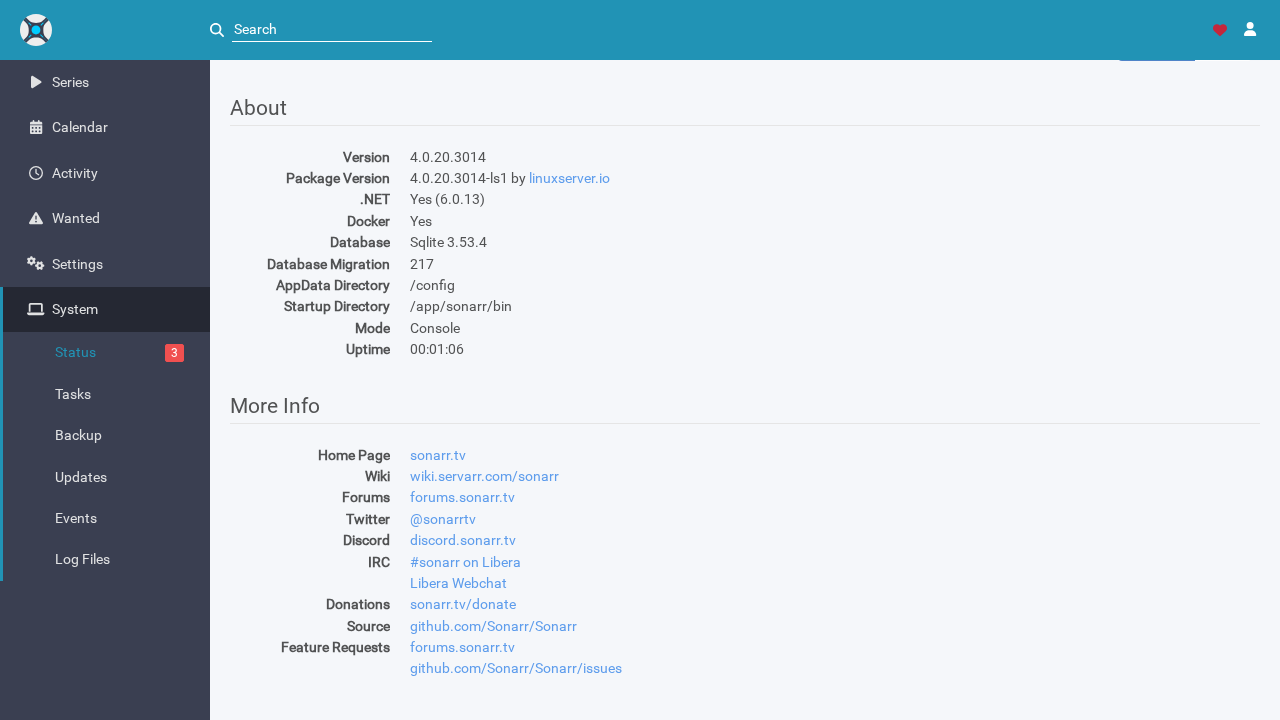
- Version:
4.0.20.3014(packaged by LinuxServer) - Runtime: .NET 6.0.13 running inside Alpine Linux
- Database: SQLite 3.53.4
- Disk Space: Verified storage paths for
/config,/tv, and/downloads
A red badge with number
3on the System tab is completely normal on initial setup; it indicates that no indexers or download clients have been linked yet.
Troubleshooting
| Symptom / Error | Root Cause | Resolution |
|---|---|---|
HTTP 400 Bad Request when clicking Save on first-run auth modal: "Allowed Hosts is required..." | When *Authentication Required* is set to *Disabled for Local Addresses*, Sonarr requires explicit allowed host headers to prevent DNS rebinding attacks. | In the auth configuration modal, enter localhost (or your domain/IP) into the Allowed Hosts field before clicking Save. |
| Container exits immediately or crashes with port binding error | Host port 3000 (or 8989) is already bound by another service on your machine. | Check listening ports using ss -ltn '( sport = :3000 or sport = :8989 )'. Update SONARR_PORT in your .env file to an unused port (such as 3002 or 18989) and restart with docker compose up -d. |
Permission denied when Sonarr attempts to write files or database fails to lock (CorruptDatabaseException) | PUID or PGID environment variables in .env do not match the ownership of your host mount directories (./config, ./tv, ./downloads). | Run id -u and id -g on the host. Update .env with those values, run chown -R <uid>:<gid> config tv downloads, and restart the container. Avoid hosting /config on NFS/CIFS shares without POSIX locking. |
| Search queries for series return no results or timeout | Sonarr cannot establish outbound HTTPS connections to skyhook.sonarr.tv or api.thetvdb.com. | Check DNS and outbound network access inside the container using docker compose exec sonarr curl -I https://skyhook.sonarr.tv. Ensure your host firewall allows container egress. |
| Calendar displays no episodes after adding a series | The added show has concluded its broadcast run (e.g., *Breaking Bad* ended in 2013) and has no upcoming airings scheduled for the current week. | Switch calendar view to Month or Agenda, or add an actively airing television series to see future scheduled broadcasts on the current calendar view. |
Red health badge on System tab: "Download client unavailable" and "No indexers available" | Default clean installation warnings reminding you that automated downloading requires external download clients and indexers. | Add indexers under Settings › Indexers (or connect Prowlarr) and configure a download client (like qBittorrent or SABnzbd) under Settings › Download Clients. |
Teardown / Cleanup
If you need to stop and completely remove the Sonarr test environment, execute the following commands from your deployment directory:
# 1. Stop and remove containers, networks, and internal volumes
docker compose down --remove-orphans -v

# 2. (Optional) Remove the persistent data directories
cd ..
rm -rf sonarr-deploy

# 3. Verify no lingering containers remain
docker ps -a --filter "name=shortform-sonarr"
Assumptions & Decisions
- First-Run Authentication: Sonarr v4 enforces authentication configuration upon initial startup. We documented the first-run modal setup directly in the guide rather than attempting to inject pre-baked configuration files, ensuring users understand how to configure credentials and avoid the required
Allowed Hostsvalidation error. - Docker Compose Deployment: While the upstream source repository does not ship a root
docker-compose.yml, Sonarr is standardly deployed across homelab environments via published OCI container images. We utilized the official LinuxServer image (lscr.io/linuxserver/sonarr:latest) with Docker Compose, providing instant zero-compiler reproducibility. - Port Mapping: We mapped host port
3000to internal container port8989to avoid common port collisions with existing services on host port 8989, while noting that 8989 is Sonarr's default port. - Quality Profile Selection: In the walkthrough, the
HD-1080pquality profile was selected to demonstrate quality ladder customization and upgrade cutoffs. - Episode Count Reporting: The library overview reflects 62 standard aired episodes across Seasons 1–5 for *Breaking Bad*, which excludes bonus specials (which bring total episode count to 80).
- Calendar Airings Nuance: We explicitly documented why historical completed series do not show scheduled events on the current calendar view, preventing user confusion about calendar functionality.
Get the Unified Homelab Stack Compose Pack
One-command multi-container Compose files (Full *arr Stack, Prometheus + Grafana + ntfy Monitoring, and Homelab Auth) plus new verified deploys once a week.