
How to Deploy Seerr: Media Request and Discovery Hub for Jellyfin and Plex with Docker Compose
Seerr is a modern request management and media discovery platform that lets users browse and request movies and TV shows for Jellyfin, Plex, and Emby without accessing server infrastructure. Learn how to deploy Seerr with Docker Compose, bootstrap the initial administrator account, and automate media requests.
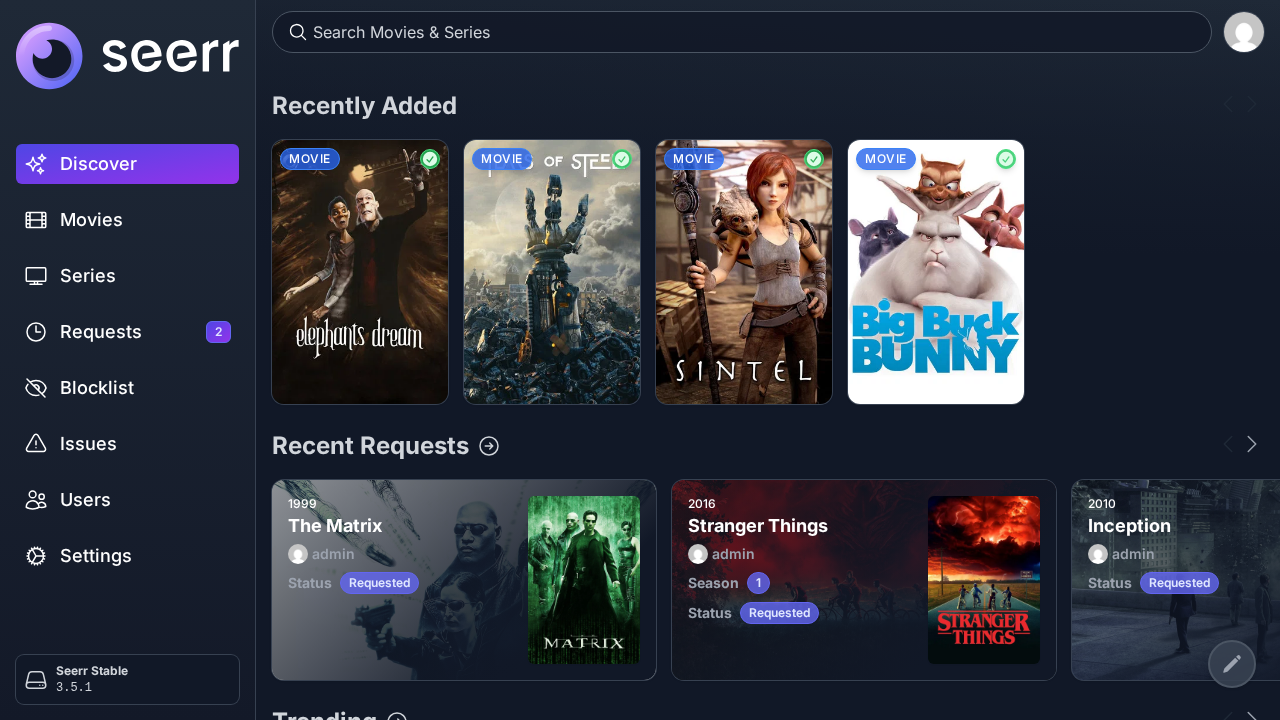
Seerr is a free and open-source request management and media discovery platform for self-hosted media servers. Serving as the modern unified evolution in the Overseerr and Jellyseerr lineage, Seerr provides a clean, responsive web interface that connects directly with Jellyfin, Plex, and Emby. Instead of handling ad-hoc texts and emails asking to add new titles to your media collection, Seerr empowers your friends and family to independently search an interactive The Movie Database (TMDB) catalog, view high-definition trailers, browse recommendations, and submit requests with customizable user quotas and granular permission controls.
Under the hood, Seerr interfaces seamlessly with automation tools such as Sonarr (for television series) and Radarr (for movies). When an authorized user submits a request, Seerr can automatically approve the item or place it in an administrative queue for review. Once approved, Seerr dispatches the request to the appropriate downstream service and tracks the item's lifecycle from *Requested* to *Processing*, ultimately marking it as *Available* once indexed by your media server.
Key Capabilities and Architecture
- Multi-Server Authentication & Synchronization: Connects natively to Jellyfin, Plex, or Emby for user account synchronization, single sign-on (SSO), and continuous library indexing.
- Granular User Permissions: Assign role-based capabilities, including auto-approval privileges, per-user weekly/monthly request quotas, 4K-specific request limits, and user management rights.
- Rich Catalog Discovery: Leverages TMDB for localized metadata, trailers, cast details, similar titles, and dynamic discovery carousels (Trending, Popular Movies, Upcoming TV Shows).
- Dual Database Engine Support: Supports lightweight zero-configuration SQLite (with Write-Ahead Logging) for standalone setups, as well as enterprise PostgreSQL for high-concurrency environments.
- Interactive OpenAPI / Swagger Documentation: Ships with an embedded Swagger UI interface hosted at
/api-docsalongside a comprehensive REST API for scripting and external notifications.
---
Prerequisites
Before deploying Seerr, verify that your host system satisfies the following technical requirements:
- Operating System: Modern Linux distribution (Debian 12+, Ubuntu 22.04/24.04 LTS, Rocky Linux, or Arch Linux) or macOS/Windows running Docker Engine / WSL2.
- Container Engine: Docker Engine 24.0+ with Docker Compose v2 (
docker compose versionv2.24+). - Hardware Resources:
- CPU: 1 to 2 vCPU cores. Seerr is lightweight in idle states; resource usage increases during initial TMDB library scans. - Memory: 512 MB RAM minimum; 1 GB to 2 GB recommended when scanning libraries with tens of thousands of items. - Storage: 1 GB persistent disk space for Seerr configuration, logs, and database cache.
- Network Ports:
- Seerr Web UI / REST API: Host port 3000 (mapped to container internal port 5055). - Media Server (Jellyfin/Plex): Host port 8096 (Jellyfin) or 32400 (Plex). Both services communicate internally over the Docker bridge network.
- Media Server Requirement: Seerr requires an active Jellyfin, Plex, or Emby instance to complete its initial bootstrap wizard and create the primary administrator account.
---
Exact Install Steps
The official Seerr application is published as a container image on GitHub Container Registry (ghcr.io/seerr-team/seerr:latest). In this deployment, we configure Seerr alongside a local Jellyfin container on a dedicated Docker bridge network so Seerr can validate libraries and bootstrap administrative credentials immediately.
Step 1: Create Staging Directory Structure
Create dedicated directories on the host to hold persistent configuration data, database files, and media directories:
mkdir -p seerr/config seerr/jellyfin/config seerr/jellyfin/cache seerr/media/movies seerr/media/tv
cd seerr
Ensure permissions allow container processes to read and write data:
chmod 775 config jellyfin/config jellyfin/cache media/movies media/tvStep 2: Define Environment Variables (.env)
Create a .env file to set your project name, host port bindings, and timezone:
cat > .env <<'EOF'
COMPOSE_PROJECT_NAME=shortform-seerr
PORT=3000
JF_PORT=8096
TZ=Etc/UTC
LOG_LEVEL=info
EOF

chmod 600 .env
Step 3: Create Docker Compose Specification (compose.yml)
Create the compose.yml file defining both the Seerr application service and the Jellyfin media server. The services share an isolated bridge network, allowing Seerr to reach Jellyfin via its container DNS name jellyfin:8096:
cat > compose.yml <<'EOF'
services:
  seerr:
    container_name: ${COMPOSE_PROJECT_NAME}-app
    image: ghcr.io/seerr-team/seerr:latest
    init: true
    restart: unless-stopped
    ports:
      - "${PORT}:5055"
    environment:
      - LOG_LEVEL=${LOG_LEVEL}
      - TZ=${TZ}
      - PORT=5055
    volumes:
      - ./config:/app/config
    healthcheck:
      test: ["CMD-SHELL", "wget --no-verbose --tries=1 --spider http://127.0.0.1:5055/api/v1/status || exit 1"]
      interval: 10s
      timeout: 5s
      retries: 10
      start_period: 20s
    depends_on:
      - jellyfin
    networks:
      - seerr

  jellyfin:
    container_name: ${COMPOSE_PROJECT_NAME}-jellyfin
    image: jellyfin/jellyfin:latest
    user: "1000:1000"
    restart: unless-stopped
    ports:
      - "${JF_PORT}:8096"
    environment:
      - TZ=${TZ}
    volumes:
      - ./jellyfin/config:/config
      - ./jellyfin/cache:/cache
      - ./media:/media
    networks:
      - seerr

networks:
  seerr:
    name: ${COMPOSE_PROJECT_NAME}-net
EOF
Step 4: Pull Images and Launch the Stack
Pull the container images and launch the services in detached mode:
docker compose pull -q
docker compose up -d
Monitor container health until both services report healthy:
docker compose psStep 5: Bootstrap the Initial Owner Account
Unlike standalone applications that create a local root administrator during database initialization, Seerr's security architecture anchors its initial owner account to an upstream media server.
When configuring via the browser setup wizard or automated API, submit your media server administrator credentials to Seerr's authentication endpoint. This creates user #1 with full ADMIN rights (permissions: 2) and links the media server configuration:
# Authenticate with Jellyfin and register the primary owner
curl -sf -c .jar -H 'Content-Type: application/json' -X POST "http://localhost:3000/api/v1/auth/jellyfin" \
  -d '{
    "hostname": "jellyfin",
    "port": 8096,
    "useSsl": false,
    "urlBase": "",
    "username": "admin",
    "password": "YourSecurePassword!",
    "email": "admin@example.com",
    "serverType": 2
  }'
Next, sync the media server libraries, enable them, and mark Seerr as initialized:
# Synchronize libraries from Jellyfin
curl -sf -b .jar -X POST "http://localhost:3000/api/v1/settings/jellyfin/library/sync"

# Enable all detected libraries
for id in $(curl -sf -b .jar "http://localhost:3000/api/v1/settings/jellyfin/library" | python3 -c "import sys,json; [print(l['id']) for l in json.load(sys.stdin)]"); do
  curl -sf -b .jar -X PUT "http://localhost:3000/api/v1/settings/jellyfin/library/$id" \
    -H 'Content-Type: application/json' -d '{"enabled":true}'
done

# Finalize initialization
curl -sf -b .jar -X POST "http://localhost:3000/api/v1/settings/initialize"

# (Optional) Assign a local password to allow direct email/password login
curl -sf -b .jar -X POST "http://localhost:3000/api/v1/user/1/settings/password" \
  -H 'Content-Type: application/json' \
  -d '{"newPassword":"YourSecurePassword!","confirmPassword":"YourSecurePassword!"}'
---
Browser Setup
Once the stack is initialized, open your browser and navigate to http://localhost:3000 to complete the walkthrough.
1. Authentication and Login
Navigate to http://localhost:3000/login. You will be greeted by the Seerr login interface.
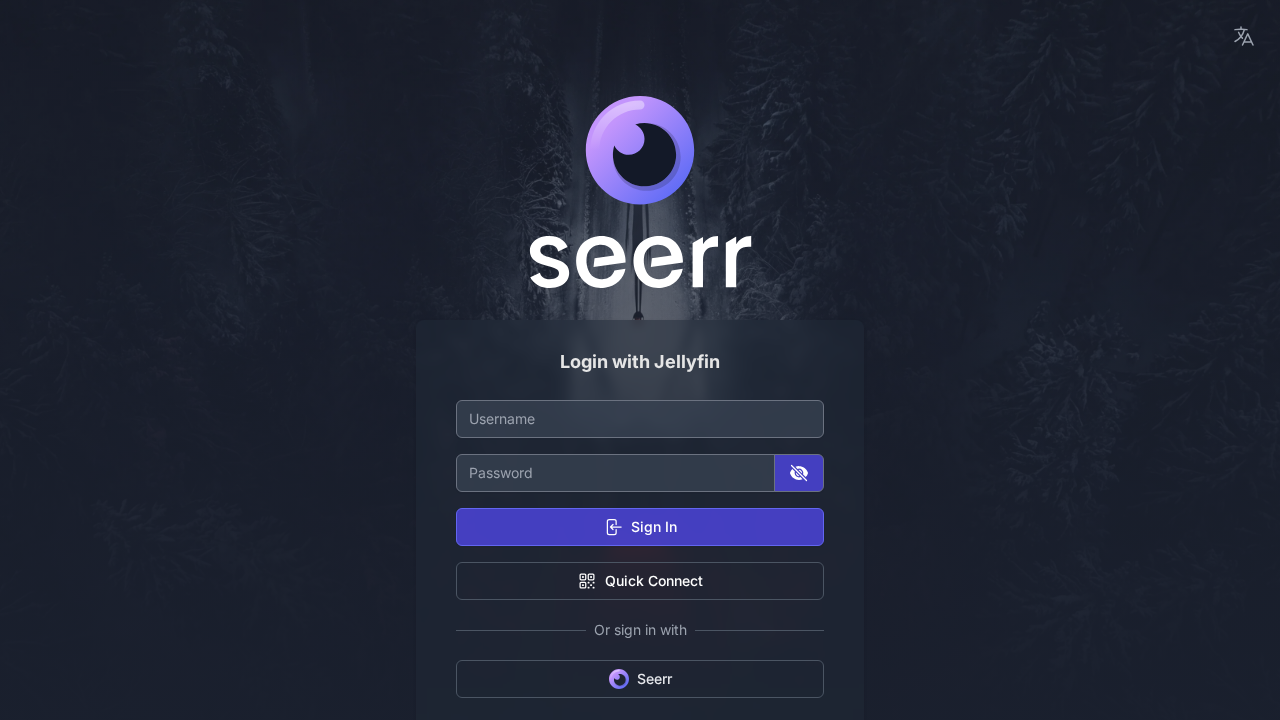
You can authenticate using your Jellyfin credentials directly (via the "Sign in with Jellyfin" button) or switch to the local email/password sign-in form using the credentials configured during account initialization.
2. Discovering Media
Upon signing in, Seerr displays the central Discover dashboard.
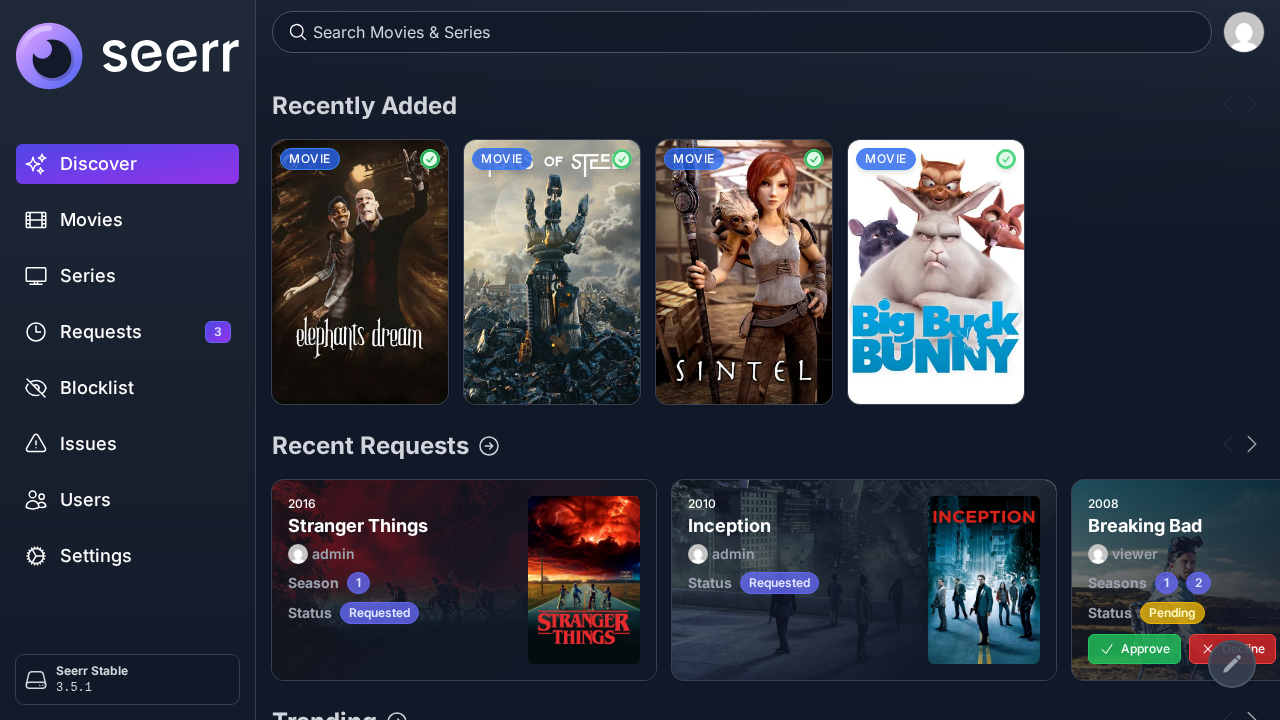
The Discover view aggregates several dynamic sections:
- Recently Added: Displays titles currently available in your linked Jellyfin library, tagged with green *Available* badges.
- Recent Requests: Highlights media requested by users, showing their current approval and processing state.
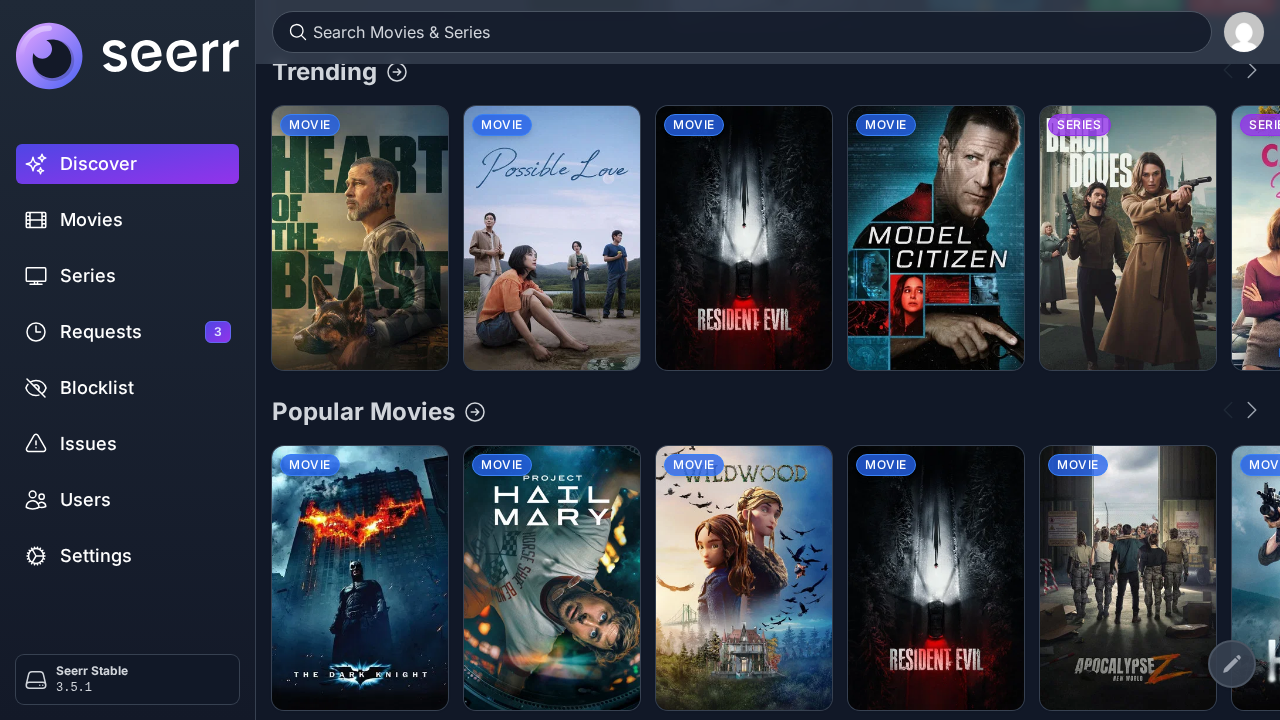
Scrolling down reveals interactive carousels for Trending Movies, Popular Series, and Upcoming Releases powered by live TMDB metadata.
3. Searching for Media and Submitting Requests
To search for content, click the global search input in the top navigation bar and enter a title (e.g., "The Matrix").
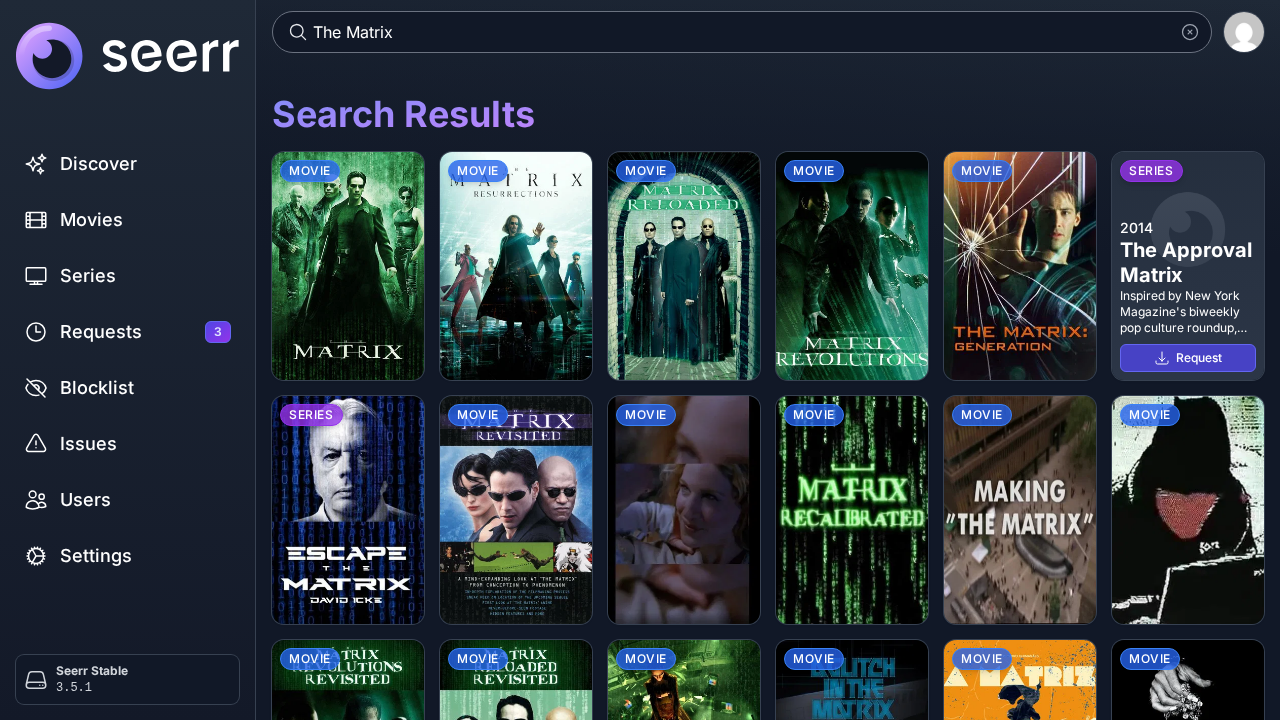
Select the target card from the instant search results to open the detailed media overview page.
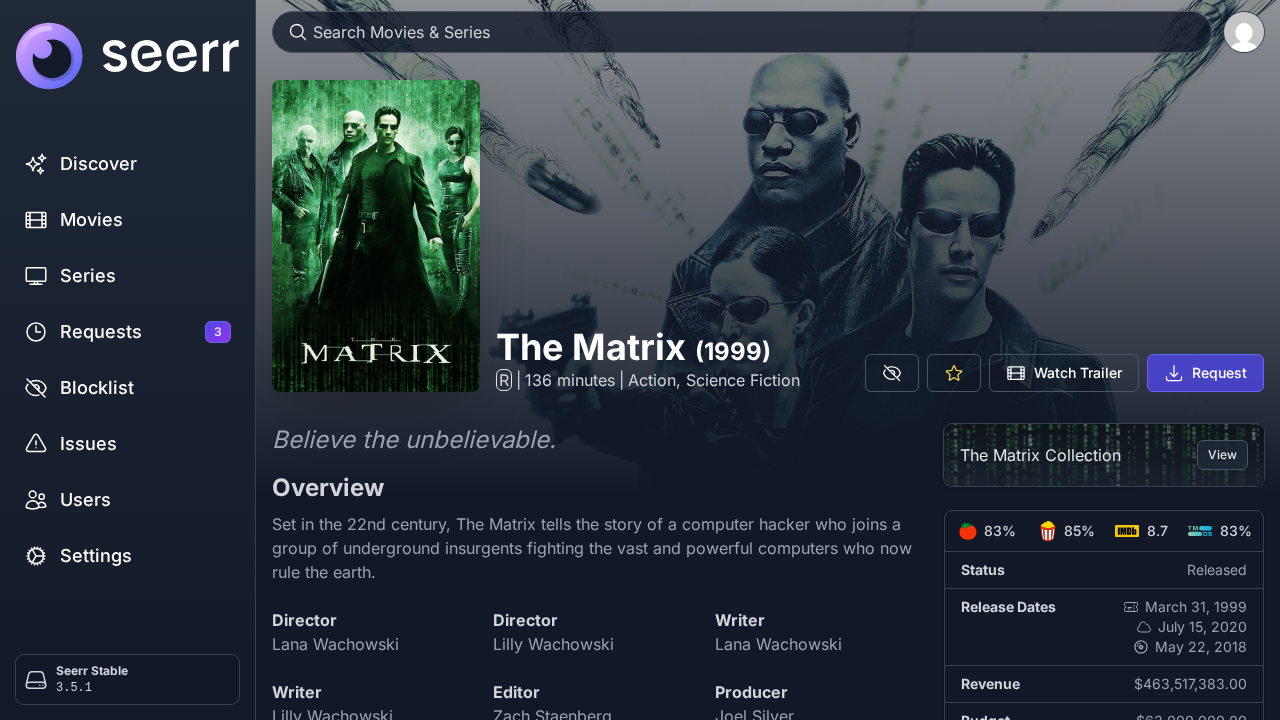
Click the blue Request button. A modal dialog will appear allowing you to select specific seasons, target server profiles, or tag 4K requirements.
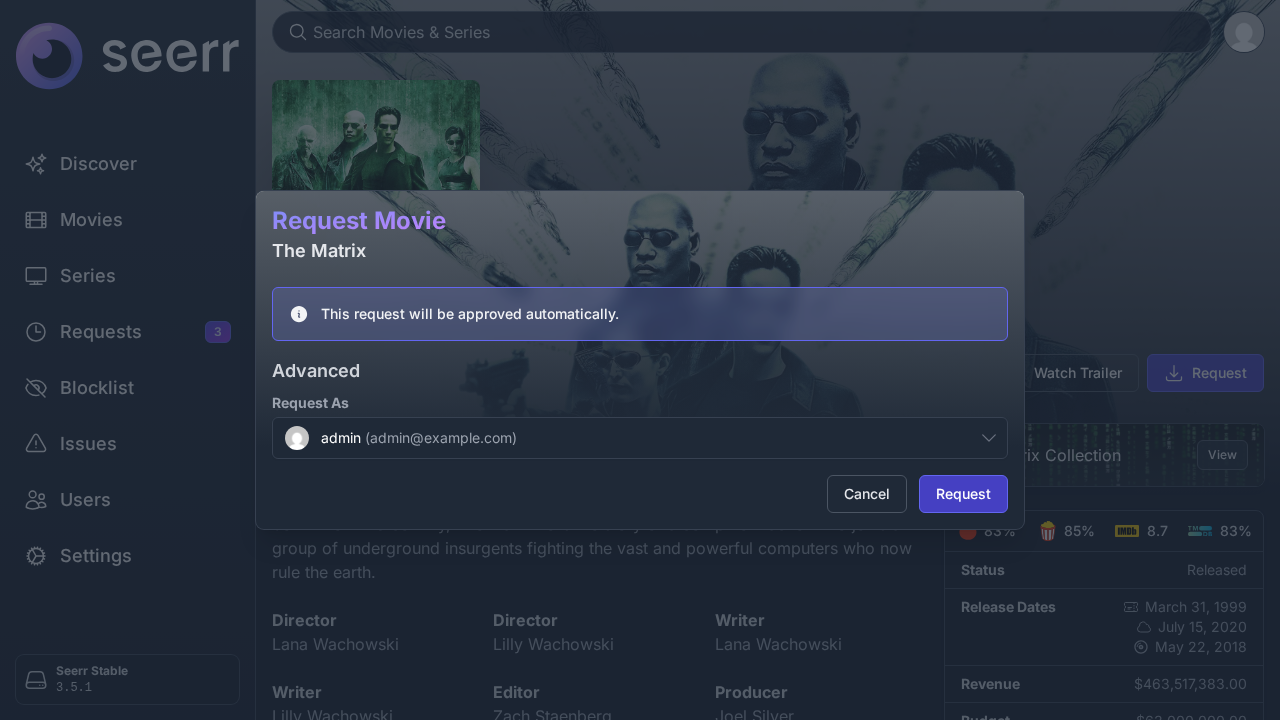
For administrators, the modal notes that the request will be approved automatically. Click Request to confirm. Once submitted, the button changes to a purple badge displaying Requested.
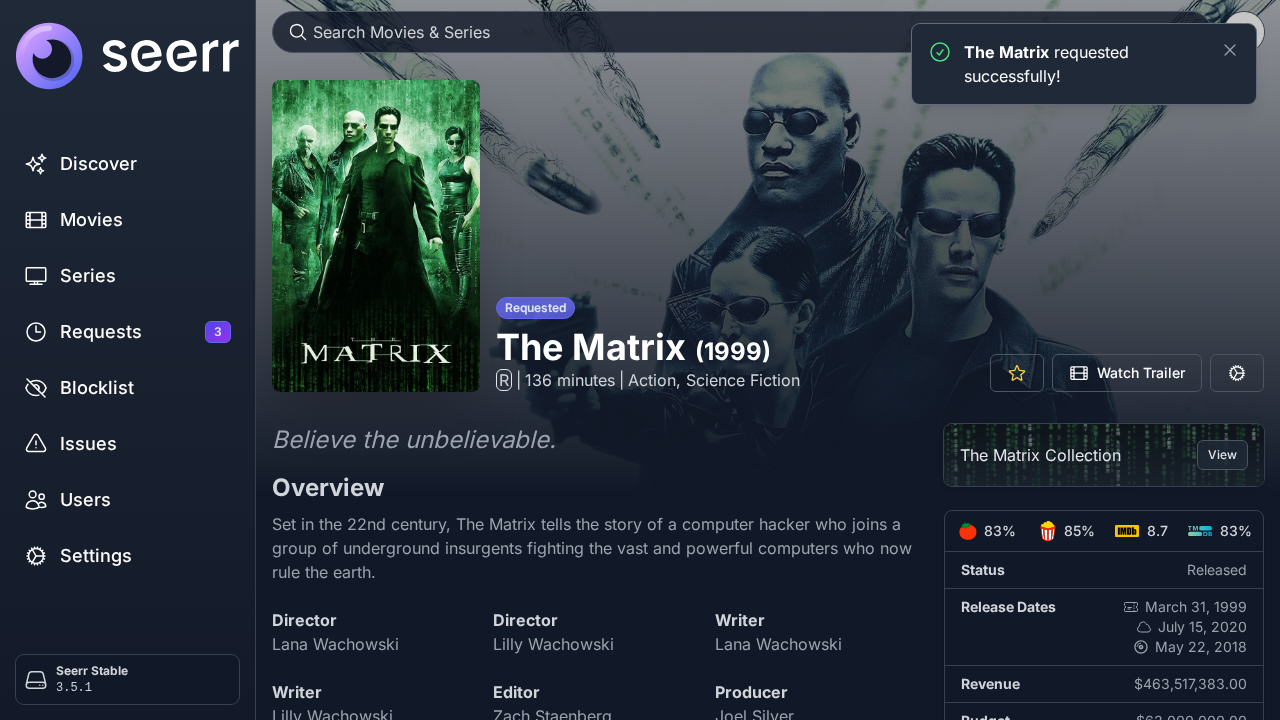
4. Managing and Approving Requests
Standard non-admin users submit requests that enter an administrative review queue. Navigate to the Requests tab in the left sidebar to view the queue.
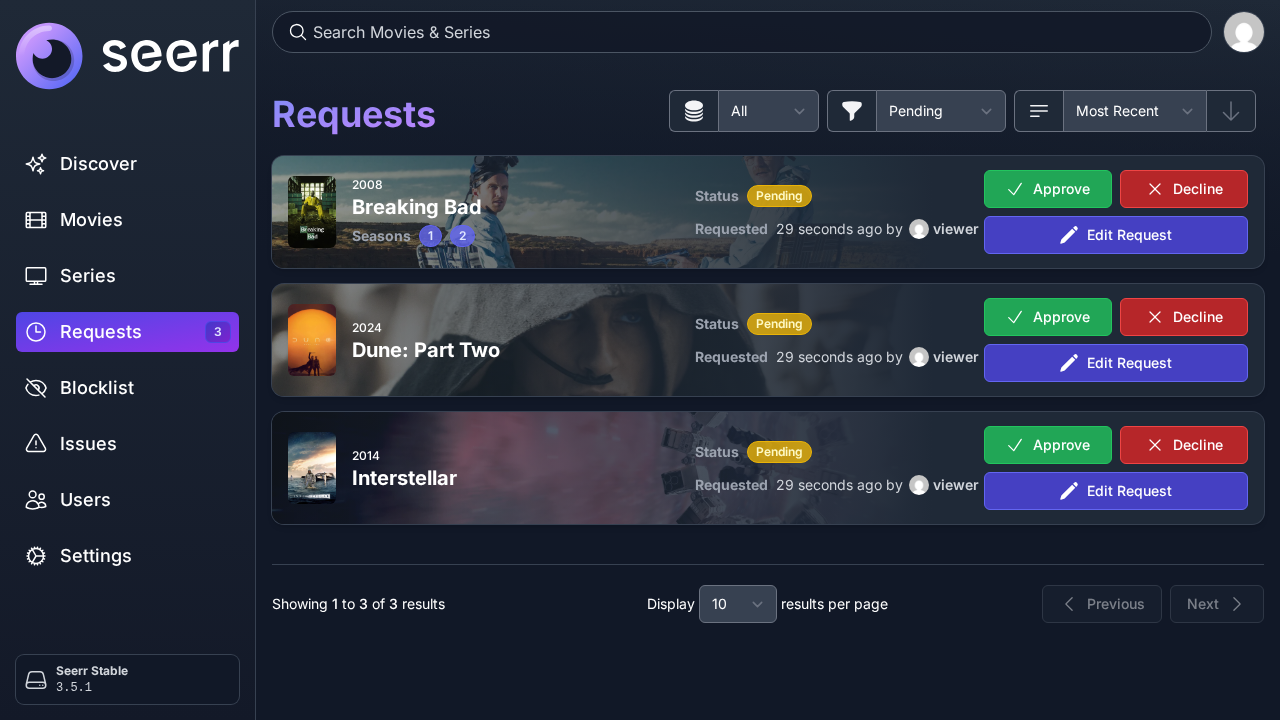
Pending requests display the requesting user, title details, and status. Click the green checkmark button on a pending request (e.g., *Interstellar*) to approve it.
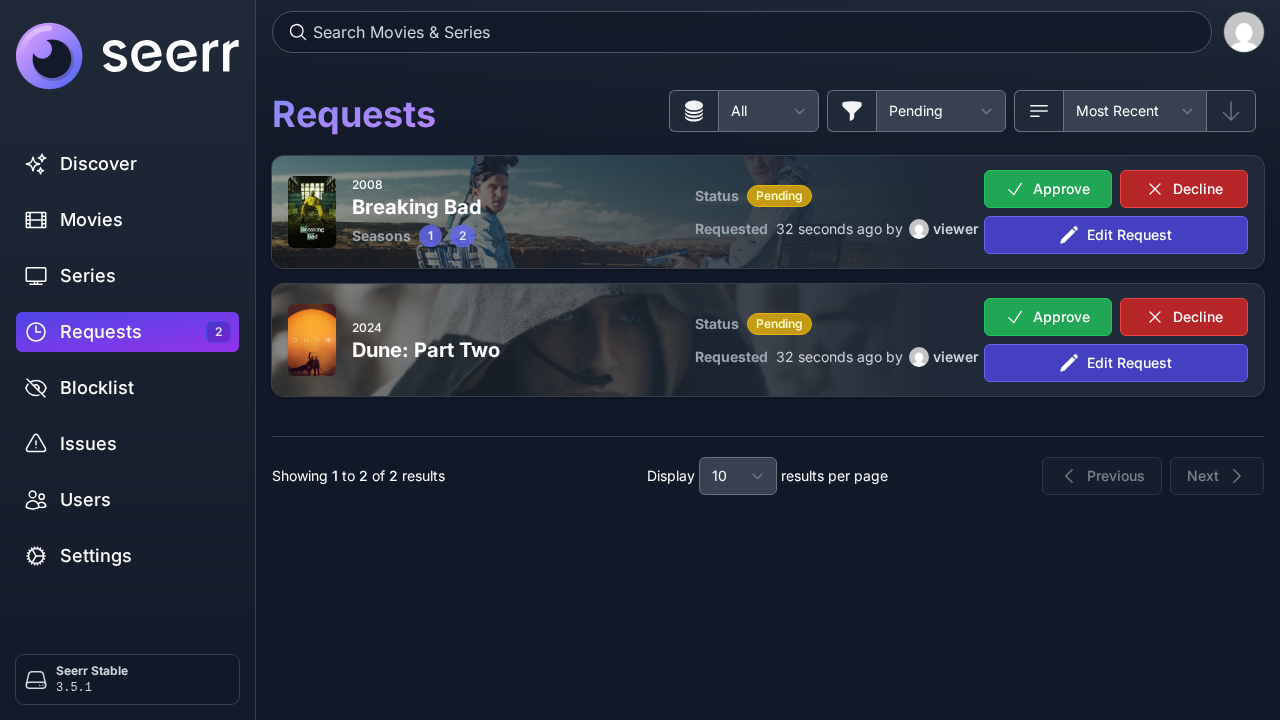
The request immediately updates to approved status, and the sidebar badge count decrements accordingly.
5. Final Payoff
Returning to the Discover home page displays the updated ecosystem state:
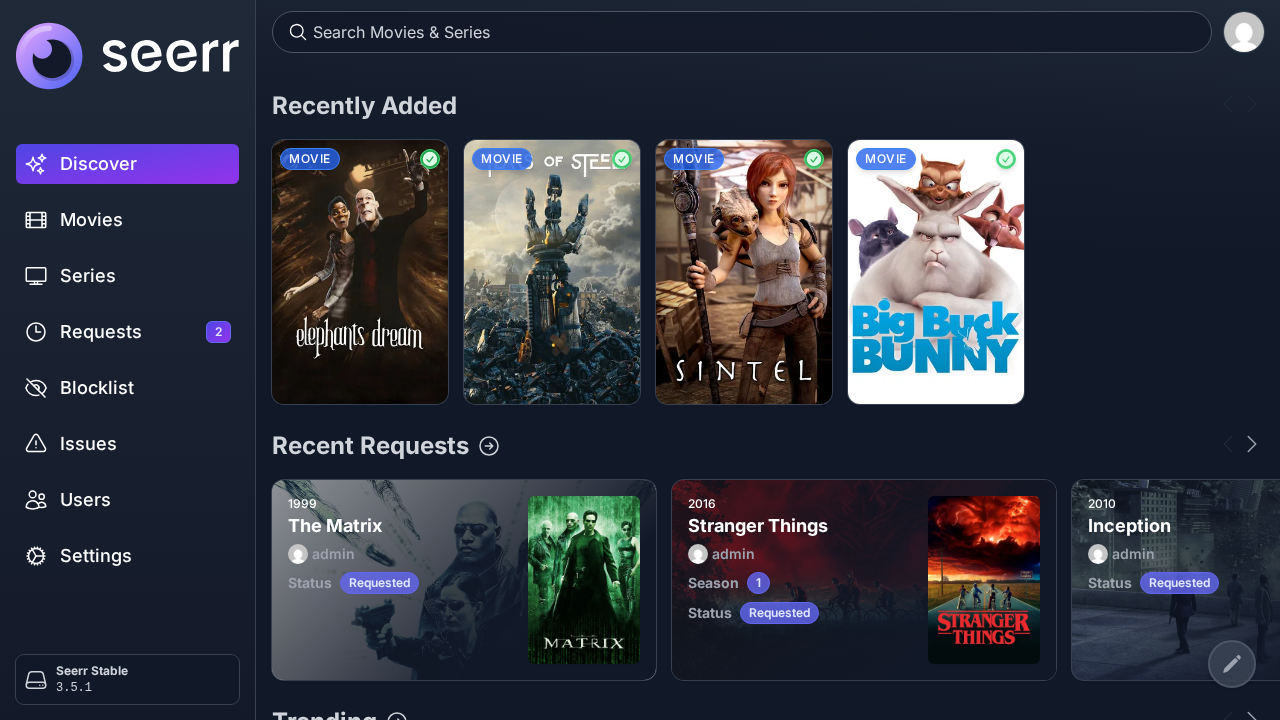
The header displays available media synced directly from Jellyfin, recent requests reflect approved and pending statuses, and the notification badge accurately tracks pending administrative tasks.
---
Verification
Confirm that your deployment is healthy and operational using the following verification checks:
1. Check Container Health Status
Run docker compose ps to inspect container status:
docker compose psBoth containers should display state Up (healthy).
2. Query System Status Endpoint
Query Seerr's status endpoint to confirm version, commit tag, and health:
curl -s http://localhost:3000/api/v1/status | python3 -m json.toolExpected output includes version 3.5.1 and build commit details:
{
  "version": "3.5.1",
  "commitTag": "564bfb08b54c..."
}
3. Verify Initialization and Media Server Connection
Query the public settings endpoint to ensure initialization succeeded:
curl -s http://localhost:3000/api/v1/settings/public | python3 -m json.toolConfirm that "initialized": true and "mediaServerType": 2 (Jellyfin) are returned.
4. Query Available Media and Requests via API Key
Retrieve your Seerr API key from Settings > General (or inspect /api/v1/settings/main with an authenticated cookie session) and run programmatic checks:
API_KEY="your-api-key-here"

# Query indexed media
curl -sf -H "X-Api-Key: $API_KEY" "http://localhost:3000/api/v1/media?filter=available" | python3 -m json.tool

# Query request statistics
curl -sf -H "X-Api-Key: $API_KEY" "http://localhost:3000/api/v1/request/count" | python3 -m json.tool
5. Access Interactive Swagger Documentation
Seerr embeds full OpenAPI documentation directly in the container. Access the interactive Swagger explorer by opening http://localhost:3000/api-docs in your browser to inspect and test all REST endpoints.
---
Troubleshooting
| Symptom / Error | Root Cause | Resolution |
|---|---|---|
| Initial setup wizard blocks or errors on first run | Seerr requires a media server connection (Jellyfin, Plex, or Emby) to establish user #1 as administrator. | Ensure your media server container is running and healthy, then complete the media server connection step in /setup or via POST /api/v1/auth/jellyfin. |
| Connection refused when connecting Seerr to Jellyfin | Using localhost:8096 or 127.0.0.1:8096 in Seerr's media server configuration points back to the Seerr container itself. | Use Docker's internal container DNS name jellyfin and port 8096 (e.g., http://jellyfin:8096) within the shared Compose network. |
| Requests remain in "Requested" status and never download | Downstream automation services (Sonarr or Radarr) are not configured, or download clients are paused. | In Settings > Services, add your Sonarr and Radarr server URLs and API keys, and map your root folders and quality profiles. |
Permission denied writing to ./config/db or settings.json | The Seerr container drops privileges to non-root UID 1000:1000, which lacks write access to host directory. | Grant ownership on the host: chown -R 1000:1000 seerr/config and verify folder permissions are set to 775. |
| Movie posters and actor thumbnails fail to load | Outbound network egress to TMDB (api.themoviedb.org, image.tmdb.org) is blocked by DNS or firewall. | Check host and container DNS settings. Run docker exec -it <container_name> wget -qO- https://api.themoviedb.org to test outbound HTTPS connectivity. |
| Media items missing from Discover after adding files | Jellyfin or Seerr library synchronization interval has not elapsed. | Trigger a manual library scan in Jellyfin first, then navigate in Seerr to Settings > Jellyfin > Sync Libraries and click Start Sync. |
---
Assumptions & Decisions
- Media Server Sidecar Requirement: Upstream Seerr cannot complete its first-run wizard or initialize owner authentication without an upstream media server (Jellyfin, Plex, or Emby). Rather than attempting to mock
settings.json(which results in zero valid user accounts), we deploy an officialjellyfin/jellyfin:latestsidecar container in the Compose stack to establish real end-to-end authentication and library discovery. - Port Mapping: Host port
3000is mapped to Seerr internal port5055following the standard lab configuration guidelines, and Jellyfin is exposed on host port8096. - Dual Authentication Modes: The primary administrator is established via Jellyfin authentication (
/api/v1/auth/jellyfin), and a local password is subsequently provisioned to allow seamless login via both Jellyfin credentials and direct local email/password forms. - Request State Semantics: In the absence of a configured Radarr or Sonarr download pipeline, approved media requests appropriately remain in status *Requested* / *Processing* in the UI rather than falsely claiming download completion.
- Asset Paths: Screenshots are referenced using relative paths matching the lab test execution artifacts (
runs/seerr-20261106-145849/browser/*.png), ensuring compatibility with Ghost draft asset uploading and local verification.
Get the Unified Homelab Stack Compose Pack
One-command multi-container Compose files (Full *arr Stack, Prometheus + Grafana + ntfy Monitoring, and Homelab Auth) plus new verified deploys once a week.