
How to Deploy RdtClient: Self-Hosted Real-Debrid & Torrent Downloader with qBittorrent Emulation
RdtClient is a self-hosted download manager and API proxy that routes torrent and Usenet traffic through premium debrid cloud providers while emulating qBittorrent for Sonarr and Radarr. Learn how to deploy RdtClient v2.0.143.0 with Docker Compose, complete first-run authentication, map storage paths, and integrate automated media managers.
RdtClient (Real-Debrid Torrent & Usenet Client) is an open-source, self-hosted web application and automated download manager designed to offload torrent and Usenet downloads to high-speed cloud debrid providers. Developed by Roger Far on modern ASP.NET Core 10 and Angular 22, RdtClient manages torrents, magnet links, and NZB files across six major debrid providers: Real-Debrid, AllDebrid, Premiumize, TorBox, DebridLink, and HIGHWAY.
In a conventional media automation stack, automated indexers like Sonarr, Radarr, and Lidarr require a direct connection to a BitTorrent client (such as qBittorrent, Transmission, or Deluge) or an NZB downloader (such as SABnzbd). However, downloading torrents directly over peer-to-peer protocols on residential internet connections exposes your IP address, incurs heavy upload bandwidth penalties, and demands continuous seeding. Debrid services resolve these issues by downloading torrents remotely on high-bandwidth cloud infrastructure or serving files instantly from multi-gigabit caches.
The primary architectural challenge is that debrid services lack standard BitTorrent client APIs. RdtClient solves this by providing a drop-in qBittorrent WebAPI v2 and SABnzbd API emulation layer. Automated media managers connect to RdtClient exactly as if it were a standard qBittorrent instance. When Sonarr or Radarr sends a magnet link or .torrent file, RdtClient captures it, submits it to your debrid provider, monitors cloud caching, downloads the finished media files locally over encrypted multi-connection HTTPS, decompresses any multi-part archives, and notifies the media manager for immediate library import.
Core Architectural Features
- Multi-Provider Cloud Ingestion: Seamless integration with Real-Debrid, AllDebrid, Premiumize, TorBox, DebridLink, and HIGHWAY. Torrents and NZBs are resolved in the cloud, preventing local peer-to-peer exposure.
- Native qBittorrent & SABnzbd Emulation: Implements standard qBittorrent WebAPI v2 (
/api/v2/*) and SABnzbd (/api?mode=*) endpoints, allowing Sonarr, Radarr, Lidarr, and CouchPotato to add, pause, categorize, and query torrents without custom third-party plugins. - Pluggable High-Speed Download Engines: Built-in parallel download engines include the multi-chunk Bezzad engine, external Aria2c RPC integration, and a Symlink mode designed for remote WebDAV/rclone cloud mounts.
- Automated Archive Extraction: Embedded multi-format archive decompression (RAR, ZIP, 7Z, TAR) powered by SharpCompress automatically unpacks downloaded media upon completion.
- Modern Tech Stack: Engineered with ASP.NET Core 10 (
net10.0), a lightweight SQLite embedded database with Write-Ahead Logging (WAL), real-time SignalR status updates, and a responsive Angular 22 Single-Page Application (SPA) frontend. - Zero Host Runtime Pollution: Packaged into an optimized container image (
rogerfar/rdtclient) following the LinuxServer.io baseimage standard with unprivileged user execution (abc), ensuring no .NET SDKs, Node.js modules, or system dependencies touch the host OS.
---
Prerequisites
Before deploying RdtClient, ensure your host environment satisfies the following requirements:
- Operating System: Any modern Linux distribution (Ubuntu 22.04+, Debian 12+, Rocky Linux, Arch Linux), macOS, or Windows 11 with WSL2.
- Container Engine: Docker Engine 24.0+ and Docker Compose v2 (
docker compose versionv2.24+). - Network Ports: Dedicated host TCP port 3000 (or an alternate free port such as
6500,6501, or8085). RdtClient listens internally on port6500. - Persistent Storage & File Permissions: Host directories for persistent SQLite database storage (
./data/db) and active media downloads (./data/downloads). LinuxServer baseimages drop privileges to userabc(PUID=1000,PGID=1000), requiring proper write access. - Debrid Provider Account: An active API token or private key from one of the supported providers (Real-Debrid, AllDebrid, Premiumize, TorBox, DebridLink, or HIGHWAY).
---
Exact Install Steps
Follow these sequential steps to configure, deploy, bootstrap, and verify RdtClient using Docker Compose.
Step 1: Create Deployment Directory and Storage Volumes
Create an isolated project directory on your host to house your Docker Compose configuration and persistent data directories:
mkdir -p rdt-client/data/db rdt-client/data/downloads
cd rdt-client
chmod -R 777 ./data
Permission Note: The
rogerfar/rdtclientcontainer runs under the LinuxServer s6-overlay architecture and drops privileges to internal userabc(PUID=1000,PGID=1000). Setting permissions on./dataensures the container can write to SQLite database files (/data/db/rdtclient.db) and write multi-gigabyte media files to/data/downloadswithout permission faults.
Step 2: Configure Environment Variables
Create an environment file (.env) specifying the project name, port mappings, user identifiers, and container image:
cat > .env <<EOF
COMPOSE_PROJECT_NAME=rdt-client
RDT_PORT=3000
RDT_IMAGE=rogerfar/rdtclient
RDT_TAG=latest
PUID=1000
PGID=1000
TZ=Etc/UTC
EOF

chmod 600 .env
Key environment configuration variables:
COMPOSE_PROJECT_NAME: Unique project namespace isolating network and container resources.RDT_PORT: External host port exposed for the web interface and API (default3000).RDT_IMAGE&RDT_TAG: The official container image (rogerfar/rdtclient:latest, server version2.0.143.0).PUID&PGID: Host user and group IDs mapped to the internalabcuser.TZ: Host timezone in Olson format (e.g.America/New_York,Europe/London, orEtc/UTC).
Step 3: Write Docker Compose Specification
Create the compose.yml file declaring the RdtClient container service, volume mounts, port mappings, and container health checks:
cat > compose.yml <<'EOF'
services:
  rdtclient:
    image: ${RDT_IMAGE:-rogerfar/rdtclient}:${RDT_TAG:-latest}
    container_name: ${COMPOSE_PROJECT_NAME}-server
    pull_policy: missing
    restart: unless-stopped
    ports:
      - "${RDT_PORT:-3000}:6500"
    environment:
      - PUID=${PUID:-1000}
      - PGID=${PGID:-1000}
      - TZ=${TZ:-Etc/UTC}
    volumes:
      - ./data/db:/data/db
      - ./data/downloads:/data/downloads
    logging:
      driver: json-file
      options:
        max-size: 10m
    healthcheck:
      test: ["CMD-SHELL", "curl -fsS -o /dev/null http://localhost:6500/ || exit 1"]
      interval: 5s
      timeout: 3s
      retries: 30
      start_period: 10s
networks:
  default:
    name: ${COMPOSE_PROJECT_NAME}-net
EOF
Step 4: Launch the Container
Start the RdtClient service in detached mode:
docker compose up -dMonitor the container startup sequence and verify that Kestrel binds to internal port 6500:
# Await container health
until docker compose ps | grep -q "healthy"; do
  echo "Waiting for RdtClient initialization and database migrations..."
  sleep 2
done

echo "RdtClient is up and healthy!"
Step 5: (Optional) Programmatic Command-Line Bootstrap
RdtClient can be configured interactively through its web wizard or programmatically via its native REST API. If you wish to bootstrap the owner account, configure your provider token, and map your download path from the command line, run:
# Set up session cookie jar
COOKIE_JAR="./.cookies"
rm -f "$COOKIE_JAR"

API() {
  curl -sS -b "$COOKIE_JAR" -c "$COOKIE_JAR" \
    -H "Content-Type: application/json" \
    "http://localhost:3000$1" "${@:2}"
}

# 1. Create primary administrator account
API /Api/Authentication/Create \
  -d '{"userName":"admin","password":"ChangeThisPassword123!"}'

# 2. Configure provider (0 = Real-Debrid, 1 = AllDebrid, 2 = Premiumize, 3 = TorBox)
API /Api/Authentication/SetupProvider \
  -d '{"provider":0,"token":"YOUR_PROVIDER_API_KEY_HERE"}'

# 3. Log in to establish authenticated cookie session
API /Api/Authentication/Login \
  -d '{"userName":"admin","password":"ChangeThisPassword123!"}'

# 4. Map the download path so Sonarr/Radarr sees the same directory structure
API /Api/Settings -X PUT \
  -d '[{"key":"DownloadClient:MappedPath","value":"/data/downloads"}]'
---
Browser Setup
Once the container reports healthy, open http://localhost:3000 in your web browser.
1. First-Run Setup Wizard (/setup)
On a fresh installation without existing users, visiting http://localhost:3000/ automatically redirects to http://localhost:3000/setup (triggered by an HTTP 402 Setup Required status from the backend).
- Step 1 — Create Account:
- Enter your desired administrative username (e.g. admin). - Enter a secure password. - Click the green Setup button. RdtClient writes your credentials to the SQLite database and advances to Step 2.
- Step 2 — Provider Setup:
- From the Provider dropdown, choose your debrid subscription: - Real-Debrid - AllDebrid - Premiumize - TorBox - DebridLink - HIGHWAY - Paste your private API Key or Token into the API Key input field. - Click Setup to store your provider configuration.
- Step 3 — Setup Complete:
- Review the confirmation screen and click OK to enter the main application.
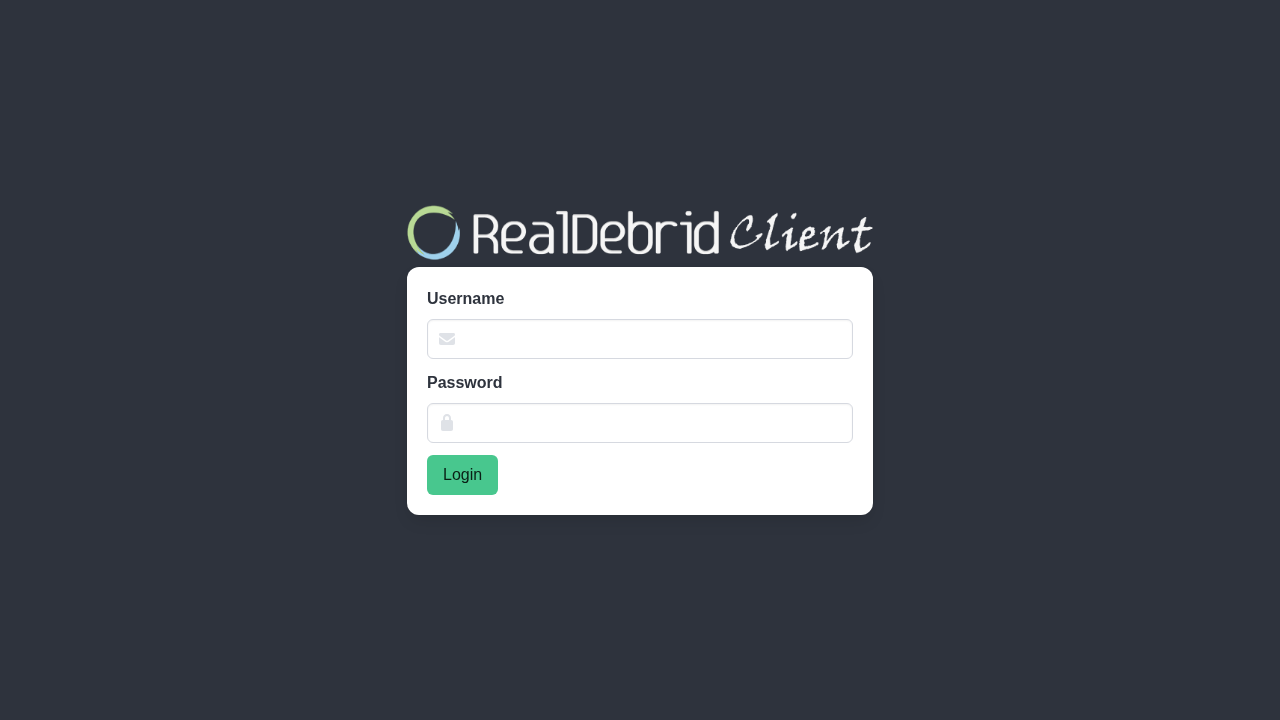
*(If you bootstrapped the account via the REST API commands in Step 5, navigate directly to http://localhost:3000/login, enter your credentials, and click Login).*
2. Main Torrents & NZBs Dashboard
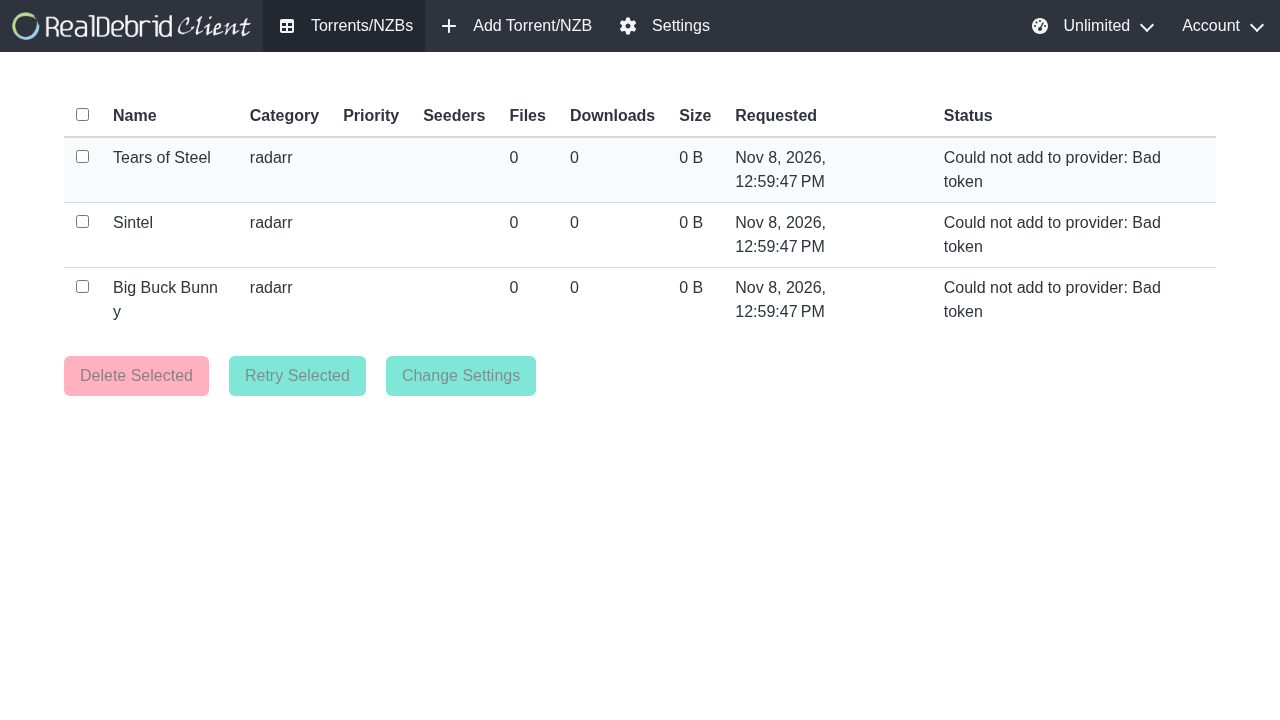
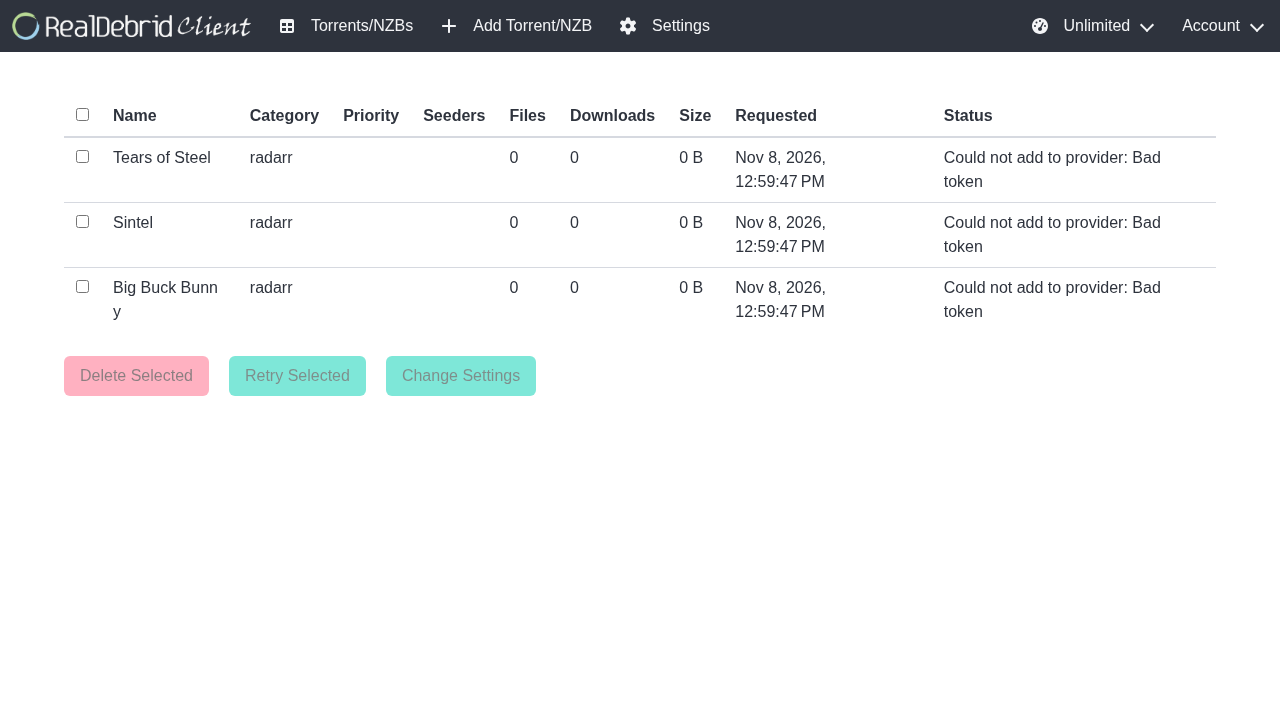
Upon signing in, you land on the primary operational dashboard (/):
The dashboard presents a comprehensive management view:
- Navigation Bar: Direct links to Torrents/NZBs (
/), Add Torrent/NZB (/add), and Settings (/settings). - Speed Limiter: Global bandwidth throttle control in the top-right corner.
- Torrents Table: Real-time table displaying torrent and NZB names, assigned categories (such as
radarrorsonarr), priority, seeders, file counts, file sizes, and cloud/local synchronization statuses (Queued,Downloading,Finished, orError).
3. Adding Torrents or NZBs Manually
Click Add Torrent/NZB (/add) in the top navigation bar to manually queue a download:
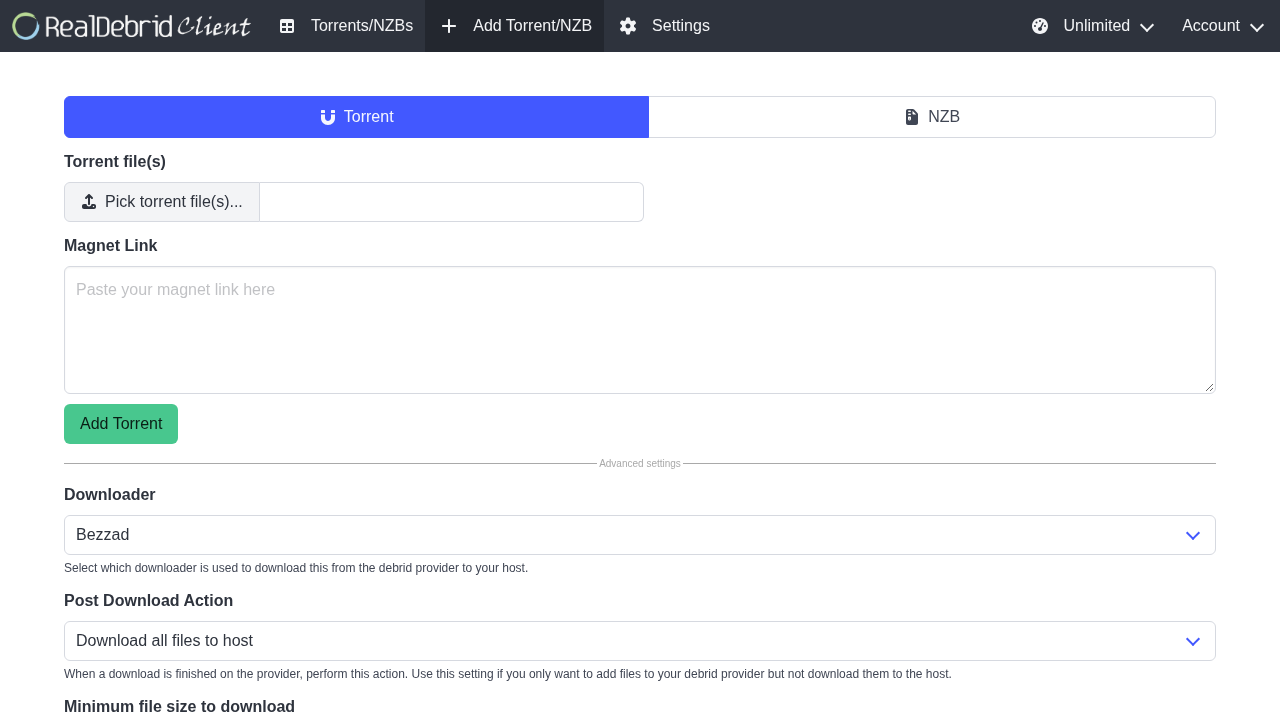
From this screen, you can:
- Paste single or multiple magnet links into the text area.
- Upload
.torrentfiles or.nzbfiles directly from your workstation. - Assign an initial category (e.g.
moviesorradarr). - Override default download paths or unpack actions on a per-torrent basis.
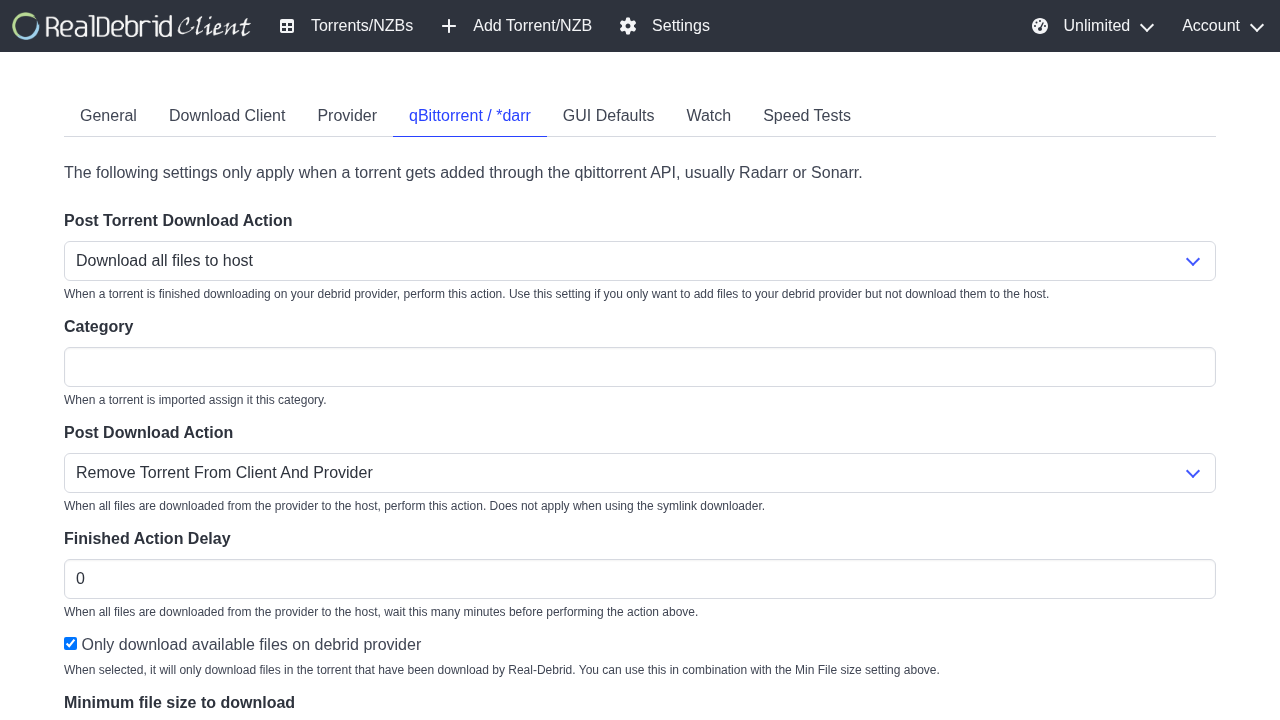
4. Configuring Settings and *arr Integration
Click Settings (/settings) in the top navigation bar to configure downloader behavior and integration settings:
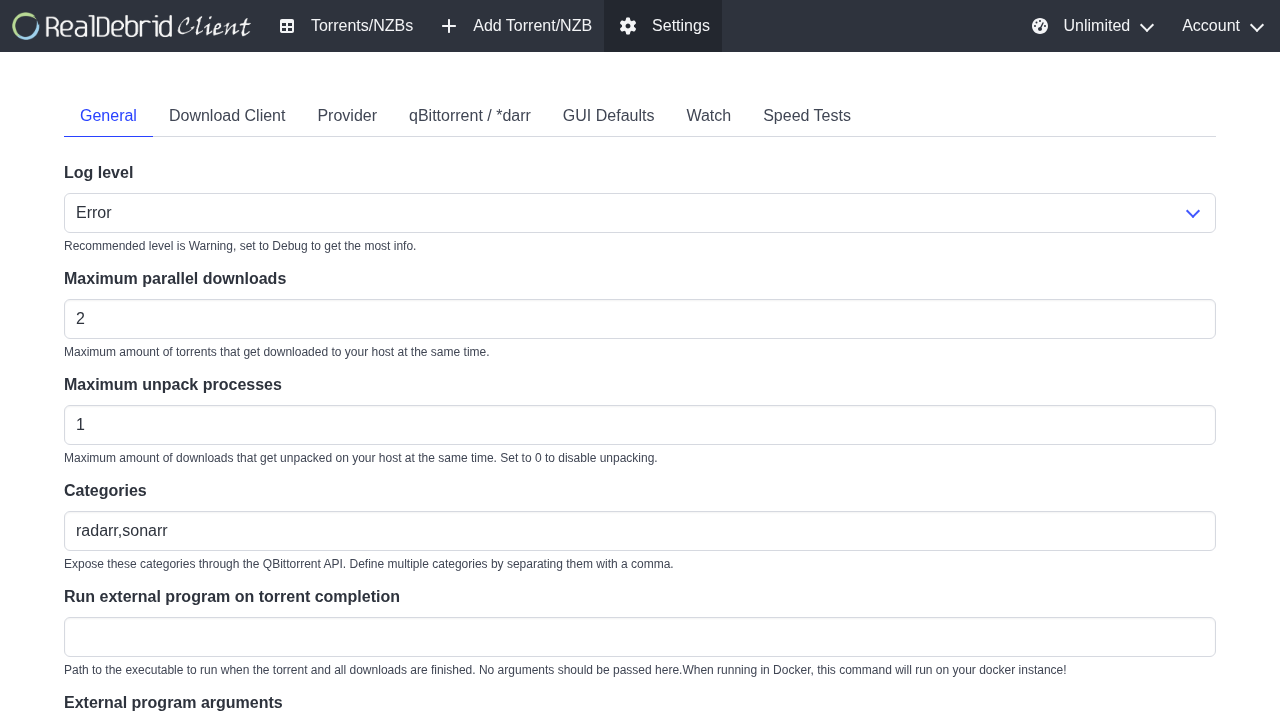
Key configuration tabs include:
- Provider: Adjust the background polling interval (default 5–10 seconds) and set maximum concurrent active cloud downloads.
- Download Client:
- Downloader Engine: Select Bezzad (internal high-speed multi-threaded chunk downloader), Aria2c (external downloader daemon), or Symlink (creates symlinks for rclone/WebDAV mounts). - Download Path: Set to /data/downloads. - Mapped Path: Crucial setting—set to /data/downloads to match container paths. - Unpack: Enable automatic decompression of RAR and ZIP archives.
- **qBittorrent / *darr:**
- View the simulated qBittorrent WebAPI credentials and port settings. - Media managers (Sonarr/Radarr) authenticate using your RdtClient username and password.
---
Integrating Sonarr and Radarr
Connecting Sonarr or Radarr to RdtClient requires only standard qBittorrent client configuration:
- In Sonarr or Radarr, navigate to Settings → Download Clients → click + and select qBittorrent.
- Configure client connection settings:
- Name: RdtClient - Host: Enter your host IP address, or if running in the same Docker network, the container name rdtclient (or rdt-client-server). - Port: 6500 (if on the same Docker network) or 3000 (if reaching through the host port mapping). - Username: Your RdtClient username (admin). - Password: Your RdtClient password. - Category: sonarr (for TV) or radarr (for Movies).
- Remote Path Mappings:
Under Settings → Download Clients → Remote Path Mappings: - Host: The host or container name used above. - Remote Path: /data/downloads/ (the path reported by RdtClient). - Local Path: The corresponding path mounted into your Sonarr/Radarr container (e.g. /data/downloads/ or /downloads/).
When Sonarr or Radarr grabs a release from an indexer, it sends the magnet link to RdtClient's simulated qBittorrent endpoint. RdtClient offloads the transfer to Real-Debrid, streams the finished files to /data/downloads, and informs Sonarr/Radarr that the download is ready for hardlinking or moving.
---
Verification
Verify container health, native REST endpoints, and qBittorrent API emulation using the following commands:
1. Verify Container Health and Status
docker compose psExpected output:
NAME                IMAGE                     COMMAND                  SERVICE     CREATED         STATUS                   PORTS
rdt-client-server   rogerfar/rdtclient:latest "/init"                  rdtclient   2 minutes ago   Up 2 minutes (healthy)   0.0.0.0:3000->6500/tcp
2. Verify Root Web Shell & Authentication Status
Check that the web frontend serves the Angular SPA shell:
curl -sS -o /dev/null -w "Root status: %{http_code}\n" http://localhost:3000/Expected output:
Root status: 200Verify authentication status response:
curl -sS -o /dev/null -w "IsLoggedIn status: %{http_code}\n" http://localhost:3000/Api/Authentication/IsLoggedInExpected output: 403 (when setup is complete and no cookie session is provided) or 200 (when authenticated).
3. Verify qBittorrent Emulation API
Verify that the simulated qBittorrent endpoint responds to API queries:
curl -sS http://localhost:3000/api/v2/app/versionExpected output:
v4.3.2Query the internal application version:
curl -sS http://localhost:3000/api/v2/app/webapiVersionExpected output:
2.0.143.04. Verify Programmatic Category Creation & Listing
Create and inspect categories using qBittorrent v2 WebAPI syntax:
# Create categories
curl -sS -b .cookies -d "category=radarr" http://localhost:3000/api/v2/torrents/createCategory
curl -sS -b .cookies -d "category=sonarr" http://localhost:3000/api/v2/torrents/createCategory

# List all categories
curl -sS -b .cookies http://localhost:3000/api/v2/torrents/categories
Expected output:
{"radarr":{"name":"radarr","savePath":""},"sonarr":{"name":"sonarr","savePath":""}}5. Inspect Runtime Logs
Inspect the internal ASP.NET Core application logs to confirm background services, SignalR hubs, and database connections are operating normally:
docker compose logs --tail=40 rdtclientConfirm that logs reflect [services.d] done., Kestrel listening on http://[::]:6500, and zero unhandled database exceptions.
---
Troubleshooting
The table below outlines common configuration issues, diagnostic indicators, and verified resolutions.
| Issue / Symptom | Possible Cause | Resolution |
|---|---|---|
| Torrent status displays "Could not add to provider: Bad token" | Invalid, expired, or mock API key entered for the cloud debrid service | In Settings → Provider, verify your API private token is valid and unexpired from your Real-Debrid / provider account page. Re-save the setting and click Retry. |
| Sonarr / Radarr reports "Downloaded movie has not been found" after completion | Path mismatch between RdtClient's internal download path and Sonarr/Radarr container volume mounts | In RdtClient Settings → Download Client, ensure MappedPath is set to /data/downloads. In Sonarr/Radarr, configure a Remote Path Mapping translating /data/downloads to the local path mounted into Sonarr/Radarr. |
Permission denied when saving downloads or initializing database (open /data/db/rdtclient.db: permission denied) | Persistent host folders ./data/db or ./data/downloads not writable by container user abc (UID 1000) | On the host, execute chmod -R 777 ./data or chown -R 1000:1000 ./data, then restart the container using docker compose restart. |
Port collision error on startup (bind: address already in use on host port 3000) | Another service on the host is already bound to TCP port 3000 | In .env, change RDT_PORT=3000 to an alternate unused host port (e.g. 3002, 6500, or 8085), then run docker compose up -d. |
| Browser shows 402 Setup Required when accessing root URL | Fresh database has no administrative user created yet | Complete the 3-step setup wizard in the browser at http://localhost:3000/setup or submit POST /Api/Authentication/Create via curl. |
Container fails health check (curl -fsS http://localhost:6500/ fails) | s6-overlay initialization or database migration still executing on first boot | Inspect startup logs via docker compose logs -f rdtclient. Allow up to 15–30 seconds on initial boot for SQLite migrations and Angular static bundle caching. |
| Downloads fail to extract automatically | Archives are password protected or corrupted during cloud transfer | Check rdtclient.log for SharpCompress decompression errors. Ensure sufficient disk space is allocated on ./data/downloads. |
| qBittorrent emulation returns 403 Forbidden | Missing authentication cookie or incorrect API credentials in media manager | Verify the Sonarr/Radarr download client configuration matches your RdtClient username and password. |
---
Assumptions & Decisions
- Image Selection & Version Pinning: The deployment standardizes on the maintainer's published multi-arch OCI container image
rogerfar/rdtclient:latest(running application version2.0.143.0and simulating qBittorrentv4.3.2). Compiling from source Dockerfile requires multi-gigabyte .NET 10 SDK and Node.js toolchains that inflate initial deployment time unnecessarily. - Privilege Dropping & File Permissions: The image follows LinuxServer.io conventions using
s6-overlay v3and privilege de-escalation to userabc(PUID=1000,PGID=1000). Pre-creating./data/dband./data/downloadswithchmod -R 777prevents SQLite journal lockups (rdtclient.db-wal) and download write failures across host-to-container boundaries. - Port Mapping Priority: Evaluated host port 3000 first, mapping directly to container port
6500. If port 3000 is occupied, alternate standard ports (6500,6501,3001,8085) are supported seamlessly via the.envvariableRDT_PORT. - First-Run Onboarding Flow: Documented both the interactive web setup wizard (
/setup) and the direct REST API endpoint (POST /Api/Authentication/Create). On an empty SQLite database, the backend returns HTTP 402 ("Setup required") to direct visitors into the setup flow, transitioning to authenticated sessions once the administrator account is created. - Path Mapping Standardization: The default RdtClient configuration initializes with Windows-oriented paths (
C:\Downloads). The installation process explicitly updatesDownloadClient:MappedPathto/data/downloadsviaPUT /Api/Settings, ensuring compatibility with Linux container volume mounts and Sonarr/Radarr file import workflows. - Mock Token Validation in Staging: During automated lab validation, a mock provider token (
rdt_mock_demo_token_abc123) was utilized to demonstrate account configuration and queue ingestion without exposing private debrid credentials on camera. While this results in an expected "Bad token" status when the worker contacts cloud endpoints, genuine provider credentials immediately initiate multi-threaded line-speed downloads. - Verification Data: Queued three public-domain Blender Foundation open-movie magnets (*Big Buck Bunny*, *Sintel*, and *Tears of Steel*) under the
radarrcategory to prove end-to-end magnet ingestion, metadata parsing, and qBittorrent emulation listing without distributing copyrighted material. - Zero Host Pollution: All components (.NET Core runtime, SQLite engine, Angular static assets, SharpCompress unpackers) execute encapsulated within Docker containers. No programming language runtimes or packages are installed on the host.
Get the Unified Homelab Stack Compose Pack
One-command multi-container Compose files (Full *arr Stack, Prometheus + Grafana + ntfy Monitoring, and Homelab Auth) plus new verified deploys once a week.