
How to Deploy Portainer CE: Container Management Web UI with Docker Compose
Portainer Community Edition provides a centralized web UI and REST API for managing Docker containers, images, volumes, and multi-container Compose stacks. Learn how to deploy Portainer CE 2.45.3 with Docker Compose, automate secure administrator bootstrapping using setup tokens, and manage application stacks.
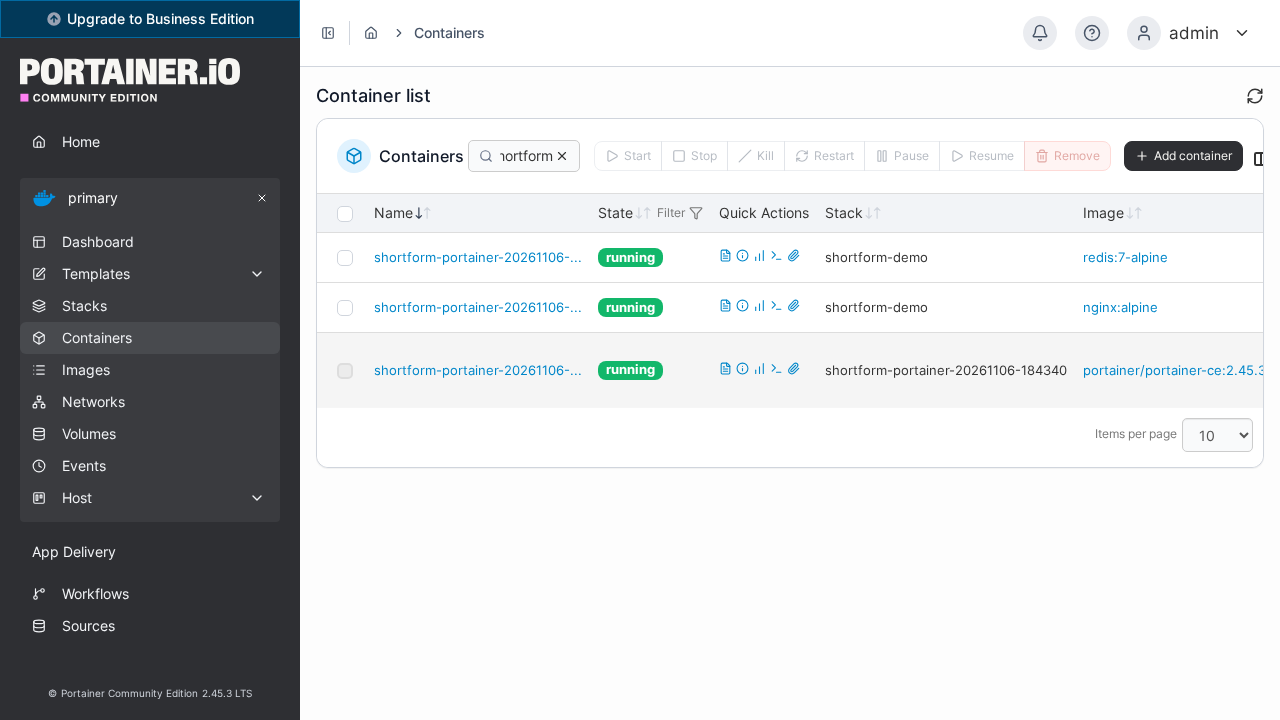
Portainer Community Edition (CE) is an open-source, lightweight management graphical user interface (GUI) and REST API for containerized environments including Docker Standalone, Docker Swarm, Podman, and Kubernetes. Whether running a multi-service homelab or managing host workloads across remote servers, Portainer replaces repetitive CLI operations (docker ps, docker logs, docker exec) with an intuitive, unified web interface.
Portainer operates with zero external database dependencies. All configuration state, environment definitions, user credentials, and stack templates are stored in an embedded transactional key-value store (bbolt) located at /data/portainer.db. By mounting the host Docker socket directly into the container (/var/run/docker.sock), Portainer immediately auto-registers and visualizes all running containers, images, networks, and persistent volumes.
Key Features
- Full Container Lifecycle Management: Start, stop, restart, pause, kill, and remove containers directly from the web browser, with bulk operations and health monitoring.
- Interactive Terminal & Live Logs: Open in-browser shell sessions (
@xterm/xtermover WebSockets) and stream live container stdout/stderr logs without opening SSH terminals. - Docker Compose & Stacks: Create, update, and manage multi-container applications using Compose files deployed directly through the web UI, Git repository polling (GitOps), or the Portainer REST API.
- Embedded BoltDB Architecture: Zero external database setup (no PostgreSQL or Redis required); persistent data resides in a single, lightweight database file.
- Secure Tokenized Bootstrap: Eliminates unauthenticated initial setup race conditions by locking down first-run owner creation with cryptographic setup tokens (
PORTAINER_SETUP_TOKEN). - Built-in RBAC & Team Management: Define custom teams, invite standard users, and restrict container/stack access permissions per environment.
---
Prerequisites
Before starting the deployment, verify that your host system satisfies the following requirements:
- Operating System: Linux (Ubuntu 22.04/24.04 LTS, Debian 12+, Arch/CachyOS, Rocky Linux, Alpine), macOS, or Windows with WSL2.
- Container Engine: Docker Engine 24.0+ and Docker Compose v2 (
docker compose versionv2.24+). - Docker Socket Access: Read/write access to the host Docker daemon socket at
/var/run/docker.sock. - Host Network Ports:
- Port 3000 (or 9000): Plaintext HTTP Web UI and REST API (mapped to container port 9000). - Port 9443: HTTPS Web UI with TLS certificate termination. - Port 8000: Chisel Edge Agent reverse tunnel listener (for managing remote endpoints).
- Host CLI Utilities:
openssl,curl, andjqfor generating setup tokens and running API commands.
---
Exact Install Steps
Follow these sequential steps to configure, deploy, and initialize Portainer Community Edition (portainer/portainer-ce:2.45.3) using Docker Compose.
Step 1: Create Deployment Directory Structure
Create a dedicated staging directory for Portainer and create the persistent data directory for BoltDB storage:
mkdir -p portainer/data
cd portainer
chmod 700 data
The ./data directory will store portainer.db, generated TLS certificates, and stack definitions.
Step 2: Generate Secure Setup Token and Environment File (.env)
Portainer 2.45+ includes a security feature that allows locking the initial administrative account creation with a one-time cryptographic token (PORTAINER_SETUP_TOKEN). This guarantees that nobody can access your web setup form before you do and prevents the default 5-minute setup timeout lockout.
Generate a random token using openssl and write the .env configuration:
SETUP_TOKEN=$(openssl rand -hex 24)

cat > .env <<EOF
COMPOSE_PROJECT_NAME=portainer
PORTAINER_TAG=2.45.3
PORTAINER_HTTP_PORT=3000
PORTAINER_HTTPS_PORT=9443
PORTAINER_EDGE_PORT=8000
PORTAINER_SETUP_TOKEN=${SETUP_TOKEN}
EOF
[!NOTE]
In this configuration, Portainer's internal HTTP port9000is mapped to host port3000. If port 3000 is occupied on your host, you can adjustPORTAINER_HTTP_PORTto9000or another free port.
Step 3: Create Docker Compose File (compose.yml)
Create compose.yml to define the Portainer service container:
services:
  portainer:
    image: portainer/portainer-ce:${PORTAINER_TAG:-2.45.3}
    container_name: ${COMPOSE_PROJECT_NAME}-server
    pull_policy: missing
    restart: unless-stopped
    security_opt:
      - no-new-privileges:true
    environment:
      PORTAINER_SETUP_TOKEN: ${PORTAINER_SETUP_TOKEN:?setup token required}
    command: ["--http-enabled", "-H", "unix:///var/run/docker.sock"]
    ports:
      - "${PORTAINER_HTTP_PORT:-9000}:9000"
      - "${PORTAINER_HTTPS_PORT:-9443}:9443"
      - "${PORTAINER_EDGE_PORT:-8000}:8000"
    volumes:
      - /var/run/docker.sock:/var/run/docker.sock
      - ./data:/data
networks:
  default:
    name: ${COMPOSE_PROJECT_NAME}-net
Key configuration flags:
--http-enabled: In Portainer 2.45+, HTTP is disabled by default in favor of HTTPS. Adding--http-enabledinstructs Portainer to listen on port9000for plaintext HTTP in addition to port9443HTTPS.-H unix:///var/run/docker.sock: Instructs the daemon to immediately bind the local Docker engine as the initial managed environment (namedprimary)./var/run/docker.sock:/var/run/docker.sock: Mounts the host Docker UNIX socket into the container../data:/data: Persists all Portainer settings and user data to the host.
Step 4: Pull and Start Portainer
Launch Portainer using Docker Compose:
docker compose pull -q
docker compose up -d
Verify that the container is up and that the system status API is responsive:
until curl -fsS http://localhost:3000/api/system/status >/dev/null 2>&1; do
  echo "Waiting for Portainer to initialize..."
  sleep 1
done

curl -fsS http://localhost:3000/api/system/status
Expected output:
{"Version":"2.45.3","InstanceID":"..."}Step 5: Secure Owner Initialization via Setup Token
To prevent unauthorized users on your local network from initializing the admin password or triggering the 5-minute setup timeout window, bootstrap the admin account directly through the Portainer API using the setup token:
# Load the setup token from .env
set -a; . ./.env; set +a

# Initialize administrator account
curl -fsS -X POST "http://localhost:3000/api/users/admin/init" \
  -H "Content-Type: application/json" \
  -H "X-Setup-Token: $PORTAINER_SETUP_TOKEN" \
  -d '{"Username":"admin","Password":"AdminPassword123!"}'
Expected output:
{"Id":1,"Username":"admin","Role":1}[!IMPORTANT]
If a request to/api/users/admin/initis submitted without theX-Setup-Tokenheader, Portainer rejects it with HTTP 403 Forbidden. ReplaceAdminPassword123!with a strong administrative password.
Step 6: Command-Line and API Access (JWT & Personal API Key)
Portainer provides a complete REST API. You can authenticate via the CLI to obtain a JSON Web Token (JWT) and a long-lived API Access Key (X-API-Key):
# 1. Authenticate and retrieve JWT
JWT=$(curl -fsS -X POST "http://localhost:3000/api/auth" \
  -H "Content-Type: application/json" \
  -d '{"username":"admin","password":"AdminPassword123!"}' \
  | jq -r '.jwt')

# 2. Generate a Personal API Access Token
API_KEY=$(curl -fsS -X POST "http://localhost:3000/api/users/1/tokens" \
  -H "Authorization: Bearer $JWT" \
  -H "Content-Type: application/json" \
  -d '{"password":"AdminPassword123!","description":"cli-token"}' \
  | jq -r '.rawAPIKey')

echo "Generated API Key: ${API_KEY:0:8}..."
Define a shell helper for running Portainer API commands:
API() {
  curl -fsS -H "X-API-Key: $API_KEY" -H "Content-Type: application/json" "$@"
}
Query the auto-discovered Docker environment:
API "http://localhost:3000/api/endpoints" | jq '.[] | {id: .Id, name: .Name, status: .Status, url: .URL}'Expected output:
{
  "id": 1,
  "name": "primary",
  "status": 1,
  "url": "unix:///var/run/docker.sock"
}
Step 7: (Optional) Deploy an Application Stack via the Portainer API
You can deploy multi-container application stacks directly through Portainer's API without manually executing docker compose:
cat > demo-stack.yml <<'EOF'
services:
  web:
    image: nginx:alpine
    restart: unless-stopped
  cache:
    image: redis:7-alpine
    restart: unless-stopped
    volumes:
      - cache-data:/data
volumes:
  cache-data:
EOF

API -X POST "http://localhost:3000/api/stacks/create/standalone/string?endpointId=1" \
  -d "$(jq -n --arg name "shortform-demo" --rawfile yml demo-stack.yml '{Name: $name, StackFileContent: $yml}')"
The stack creation initiates asynchronously. Within a few seconds, the containers will be running under Portainer's control.
---
Browser Setup & UI Walkthrough
Once Portainer is running and the administrator account is provisioned, you can access the full management interface in your browser.
1. Log In
Open your browser and navigate to http://localhost:3000 (or https://localhost:9443 if using HTTPS):
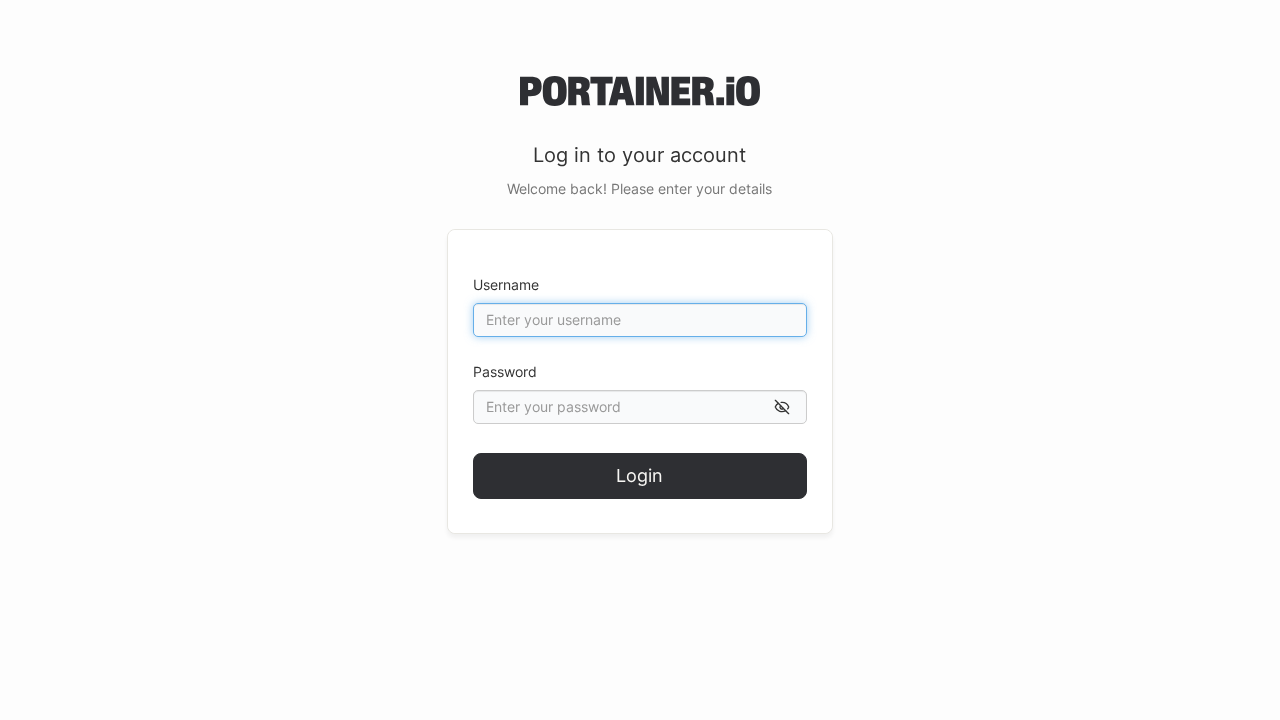
Enter your administrative credentials (admin and your chosen password), then click Login.
2. Select Environment
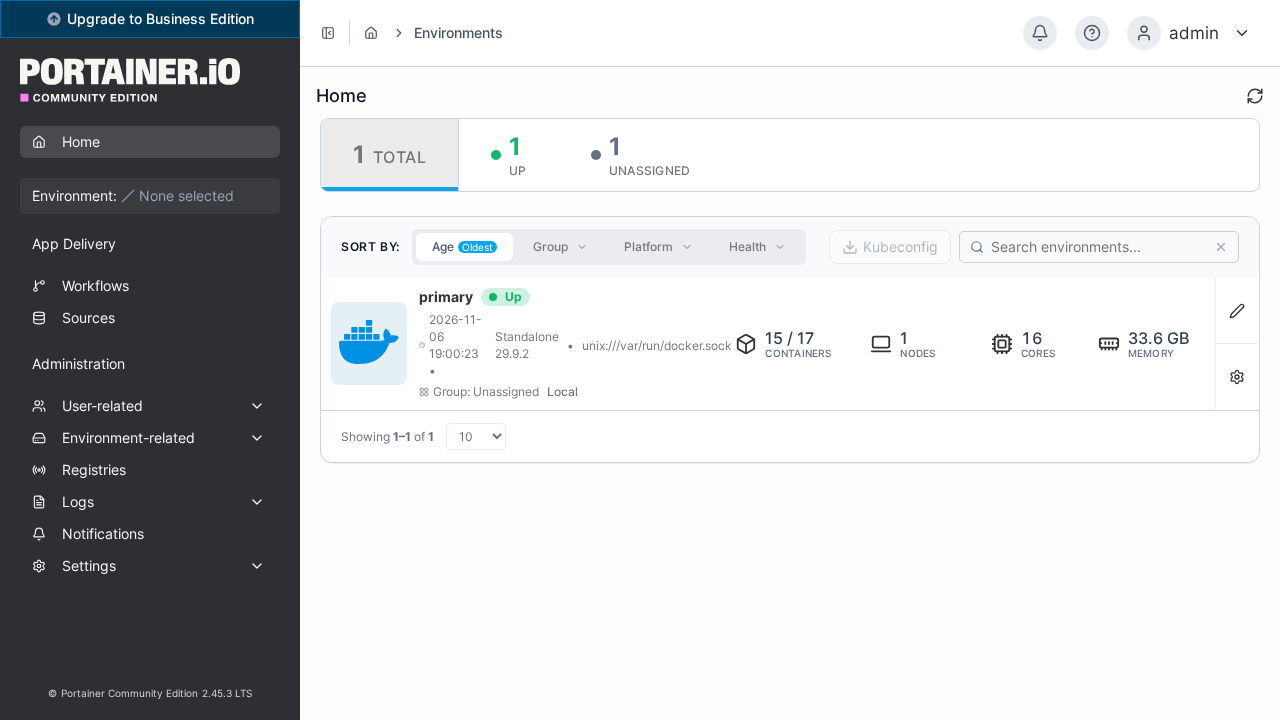
Upon logging in, the Home view displays all connected environments. Because -H unix:///var/run/docker.sock was specified during deployment, your host Docker engine is already registered as primary with status Up:
Click on the primary environment tile to open its management dashboard.
3. Docker Environment Dashboard
The Dashboard presents a high-level overview of host resources, including active stacks, total containers, images, volumes, and networks:
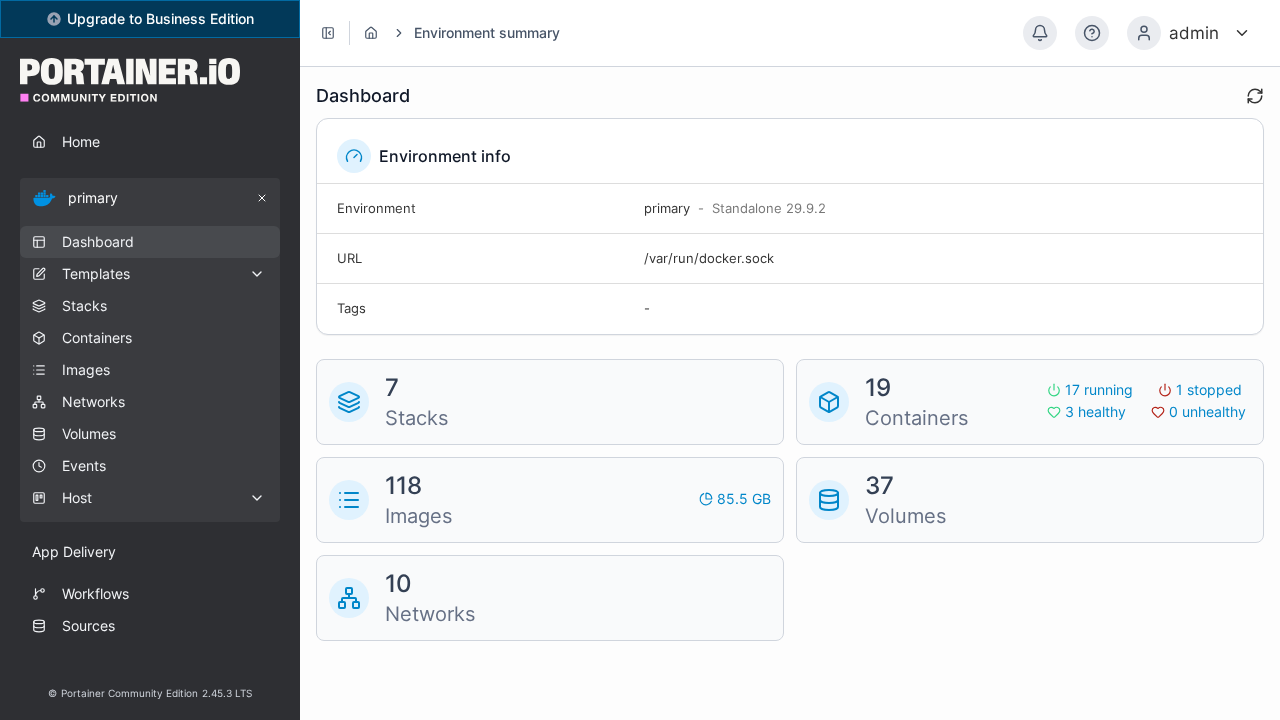
From the left sidebar, you can navigate directly to Stacks, Containers, Images, Networks, or Volumes.
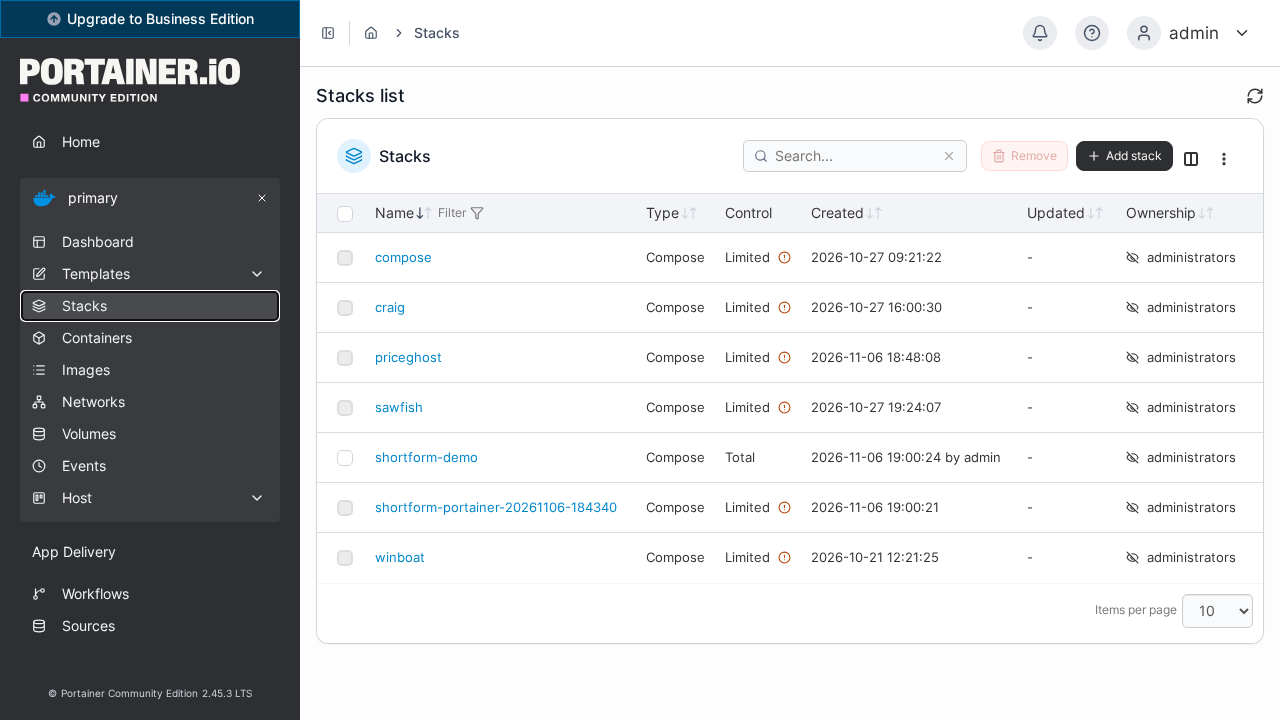
4. Stacks Management
Click Stacks in the left navigation sidebar. Here you can inspect running stacks (such as shortform-demo), view stack Compose files, stop or restart all stack services simultaneously, or click + Add stack to deploy new applications from Web editors or Git repositories:
5. Containers Overview & Control Panel
Click Containers in the sidebar. This view displays all running and stopped containers on the host machine:
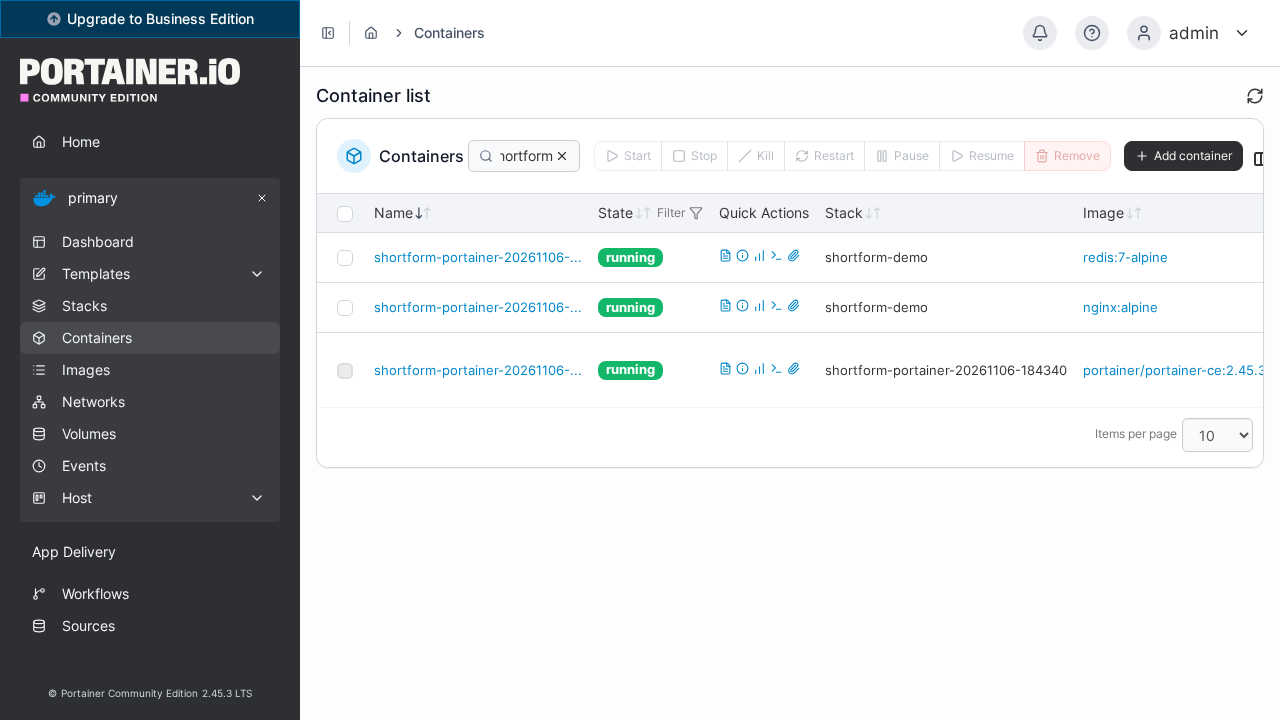
From this screen, you can:
- Filter containers by keyword (e.g.
shortformor service name). - Use the quick action buttons to Start, Stop, Kill, Restart, Pause, Resume, or Remove containers.
- Click the logs icon next to any container to stream live terminal logs.
- Click the console icon
>_to execute an interactive bash or sh session inside the container without needing SSH. - Click the stats icon to view live CPU, memory, and network throughput graphs.
---
Verification
To verify that your Portainer deployment is fully functional, run the following verification checks:
- Verify System Status via API:
``sh curl -fsS http://localhost:3000/api/system/status | jq . ` Confirm that the Version field displays 2.45.3`.
- Verify Docker Daemon Connection:
``sh API "http://localhost:3000/api/endpoints/1/docker/version" | jq '{Version: .Version, Os: .Os, Arch: .Arch}' `` Confirm that the engine version and host architecture match your Docker installation.
- Verify Active Stacks & Containers:
``sh API "http://localhost:3000/api/stacks" | jq '.[] | {id: .Id, name: .Name, status: .Status}' API "http://localhost:3000/api/endpoints/1/docker/containers/json" | jq '.[] | {name: .Names[0], state: .State}' ` Verify that all deployed containers report state "running"`.
- Verify Host Process:
``sh docker compose ps ` Confirm that portainer-server has status Up and listening ports 3000->9000/tcp, 9443/tcp, and 8000/tcp`.
---
Troubleshooting
The table below lists common operational issues encountered when deploying Portainer CE and their solutions:
| Symptom / Error | Root Cause | Solution |
|---|---|---|
POST /api/users/admin/init returns HTTP 403 Forbidden | Setup token enforcement is active and the X-Setup-Token header was omitted or mismatched. | Include the header -H "X-Setup-Token: $PORTAINER_SETUP_TOKEN" matching the value specified in .env when bootstrapping the admin user. |
Web UI at http://localhost:3000 is unreachable or resets connection | In Portainer 2.45+, plain HTTP is disabled by default unless explicitly enabled. | Ensure command: ["--http-enabled", "-H", "unix:///var/run/docker.sock"] is present in compose.yml. |
| "Your Portainer instance timed out for security purposes" error on web page | The 5-minute initial setup window expired before an administrator account was created. | Restart the Portainer container (docker compose restart portainer) to reset the timer, or use the setup token API endpoint to initialize the admin account. |
Cannot connect to the Docker daemon at unix:///var/run/docker.sock | The host Docker socket is not mounted or has restricted permissions. | Check that /var/run/docker.sock:/var/run/docker.sock is mapped under volumes: and that the user running Docker has socket permissions. |
Container healthcheck always reports unhealthy | Portainer's OCI image is built on distroless/scratch and contains no /bin/sh, curl, or wget. | Do not configure in-container CMD healthchecks in compose.yml. Probe Portainer externally from the host using curl http://localhost:3000/api/system/status. |
Host port conflict on 3000, 9443, or 8000 | Another local service (e.g. Gitea, Grafana, Traefik) is already bound to one of the target ports. | Edit .env to remap host ports (e.g. PORTAINER_HTTP_PORT=9000 or PORTAINER_HTTPS_PORT=9444) and run docker compose up -d. |
Permission denied when modifying ./data directory on host | Portainer runs internal processes that create root-owned files inside BoltDB storage. | If cleaning or backing up ./data, run an ephemeral Docker container: docker run --rm -v "$PWD:/work" alpine rm -rf /work/data. |
---
Assumptions & Decisions
The following architectural and operational decisions were validated during this lab deployment:
- Pinned Version: Deployed
portainer/portainer-ce:2.45.3(matching the upstream repository's release tag) rather than floatinglatestto ensure reproducible builds. - Setup Token Bootstrapping: Used
PORTAINER_SETUP_TOKENin combination with/api/users/admin/initrather than--no-setup-token. This ensures the instance is hardened against race conditions immediately upon container startup. - Explicit
--http-enabledFlag: Portainer 2.45+ disables unencrypted HTTP by default. Passing--http-enabledguarantees that port9000(mapped to host port3000) remains accessible for standard HTTP access without forcing self-signed certificate warnings. - Distroless Container Nature: Identified that
portainer/portainer-ceis built without a shell or standard POSIX binaries (/bin/shdoes not exist). Consequently, container health monitoring must be performed externally via HTTP probes rather than in-container Compose healthcheck commands. - Local Endpoint Auto-Naming: Passing
-H unix:///var/run/docker.sockregisters the host Docker daemon with internal ID1under the environment nameprimary. - Database Storage: Utilized local bind-mount storage (
./data:/data) for Portainer's embedded BoltDB (portainer.db), avoiding external SQL database requirements.
Get the Unified Homelab Stack Compose Pack
One-command multi-container Compose files (Full *arr Stack, Prometheus + Grafana + ntfy Monitoring, and Homelab Auth) plus new verified deploys once a week.