
How to Deploy Navidrome: Self-Hosted Music Streaming Server with Docker Compose
Navidrome is a lightweight, open-source personal music server and Subsonic-compatible streamer written in Go. Here is how to deploy Navidrome using Docker Compose, secure your initial admin onboarding, configure automated library scanning, and stream your collection.
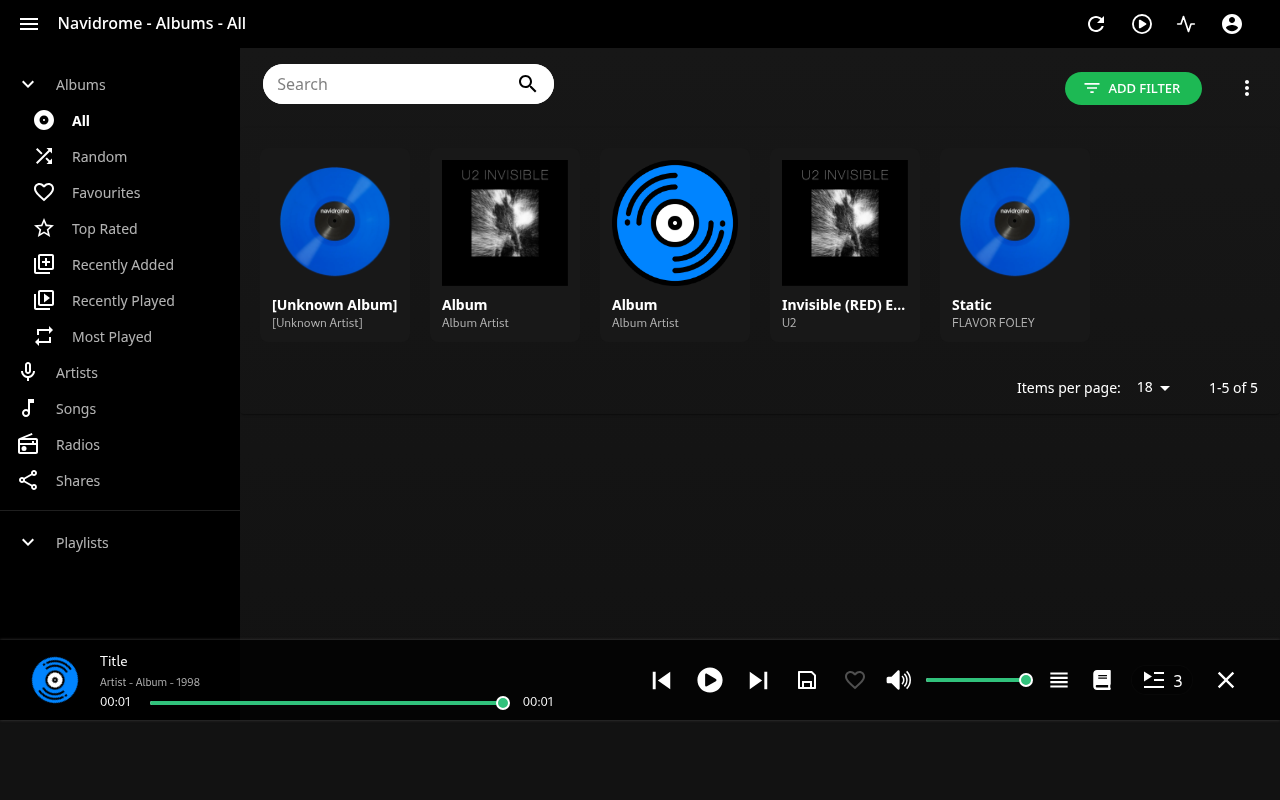
Navidrome is an open-source, lightweight music collection server and personal audio streamer written in Go with an embedded React web application. Licensed under the GNU General Public License v3.0, Navidrome transforms any personal audio collection into a dedicated streaming service accessible from modern web browsers and Subsonic-compatible mobile and desktop clients.
Key Capabilities and Architecture
- Self-Hosted Music Ownership:
Navidrome provides complete control over your music library. You stream your own lossy and lossless audio files directly from your personal storage, eliminating subscription fees, regional catalog restrictions, and unannounced track removals.
- Minimal Resource Consumption:
Engineered as a single, static Go binary utilizing an embedded SQLite database with Write-Ahead Logging (WAL) and Full-Text Search (FTS5). Navidrome typically consumes only 50–100 MB of RAM even when indexing libraries containing hundreds of thousands of songs, making it exceptionally well-suited for lightweight home servers, mini-PCs, and Raspberry Pi devices.
- Subsonic & Airsonic API Compatibility:
Implements the Subsonic/Airsonic API (/rest/*), providing instant compatibility with a vast ecosystem of third-party mobile and desktop clients, including Symfonium, DSub, Amperfy, Feishin, Supersonic, and Ultrasonic.
- Adaptive Transcoding & Modern Codecs:
Bundles ffmpeg to execute on-the-fly transcoding and bitrate downsampling (such as converting lossless FLAC to Opus or MP3 on mobile connections), conserving cellular data without sacrificing playback stability.
- Rich Metadata & Synchronized Lyrics:
Reads embedded ID3 and Vorbis tags across audio formats (MP3, FLAC, OGG, AAC, Opus, M4A), detects embedded or sidecar lyrics (.lrc, .ttml), and renders synchronized lyrics directly in the web player.
- Multi-User & Theme Support:
Supports multiple user accounts with independent play counts, favorites, and playlists, alongside several pre-configured interface themes such as Spotify-ish, Dark, and Light.
---
Prerequisites
Before deploying Navidrome, verify that your host system meets the following requirements:
- Host Operating System: Linux (Debian, Ubuntu, Arch, Fedora, CachyOS), macOS, or Windows via WSL2.
- Container Runtime: Docker Engine and Docker Compose v2 (
docker compose versionv2.20+ recommended). - Available Host Port: An unallocated TCP port on the host (e.g., port 3000 or default port 4533).
- Audio Files: A local directory containing your music tracks (e.g.,
.mp3,.flac,.ogg). - No Host Dependencies: No host-level Go compiler, Node.js toolchain, ffmpeg, or taglib libraries are required; the container image includes all necessary audio decoders and transcoding utilities.
---
Exact Install Steps
The deployment uses Docker Compose to run the official container image with persistent data storage and a read-only music volume mount.
Step 1: Create Project Directories and Staging
Create an isolated directory for the Navidrome deployment, including subdirectories for your music library and persistent database storage:
mkdir -p navidrome/{music,data} && cd navidromePlace your music files or link your existing music directory into the music/ directory.
Step 2: Configure Environment Variables
Create a .env file in the project directory to set the Compose project name and desired host port:
cat > .env <<'EOF'
COMPOSE_PROJECT_NAME=navidrome
NAVIDROME_PORT=3000
EOF
Step 3: Create the Docker Compose Specification
Write the docker-compose.yml configuration:
cat > docker-compose.yml <<'EOF'
services:
  navidrome:
    image: deluan/navidrome:latest
    container_name: navidrome-app
    ports:
      - "127.0.0.1:${NAVIDROME_PORT:-3000}:4533"
    environment:
      ND_MUSICFOLDER: /music
      ND_DATAFOLDER: /data
      ND_SCANNER_SCHEDULE: "@every 1m"
      ND_LOGLEVEL: info
      ND_ENABLESHARING: "true"
      ND_ENABLEDOWNLOADS: "true"
      ND_ENABLETRANSCODINGCONFIG: "true"
      ND_PROMETHEUS_ENABLED: "true"
    volumes:
      - ./music:/music:ro
      - ./data:/data
    restart: unless-stopped
    healthcheck:
      test: ["CMD-SHELL", "wget -qO- http://127.0.0.1:4533/ping || exit 1"]
      interval: 5s
      timeout: 3s
      retries: 12
      start_period: 4s
EOF
Security Note: Binding to
127.0.0.1:${NAVIDROME_PORT}:4533prevents exposure of the unauthenticated first-run setup screen to local networks or the internet before the initial administrator account is configured. If exposing remotely, place Navidrome behind a reverse proxy (such as Caddy, Nginx, or Traefik) with TLS termination.
Configuration Note: In Navidrome 0.64.2+, the scan interval variable is
ND_SCANNER_SCHEDULE(not the legacyND_SCANSCHEDULE), and it requires a cron or interval expression such as"@every 1m"or"@every 30m".
Step 4: Launch the Navidrome Stack
Deploy and start the container using Docker Compose:
docker compose up -d --waitThe --wait flag ensures that Compose monitors the container healthcheck (wget ping) until the container reports healthy (typically under 5 seconds).
Check the container status:
docker compose psThe output should confirm the container is running and healthy:
NAME             IMAGE                     COMMAND                  SERVICE     CREATED         STATUS                   PORTS
navidrome-app    deluan/navidrome:latest   "/app/navidrome"         navidrome   5 seconds ago   Up 5 seconds (healthy)   127.0.0.1:3000->4533/tcp
---
Browser Setup and Interface Walkthrough
Once the stack is running, navigate to http://localhost:3000/ in your browser. The application automatically redirects to http://localhost:3000/app/.
1. Initial Administrator Onboarding
On first boot with an empty data folder, Navidrome prompts you to create the initial administrator account.
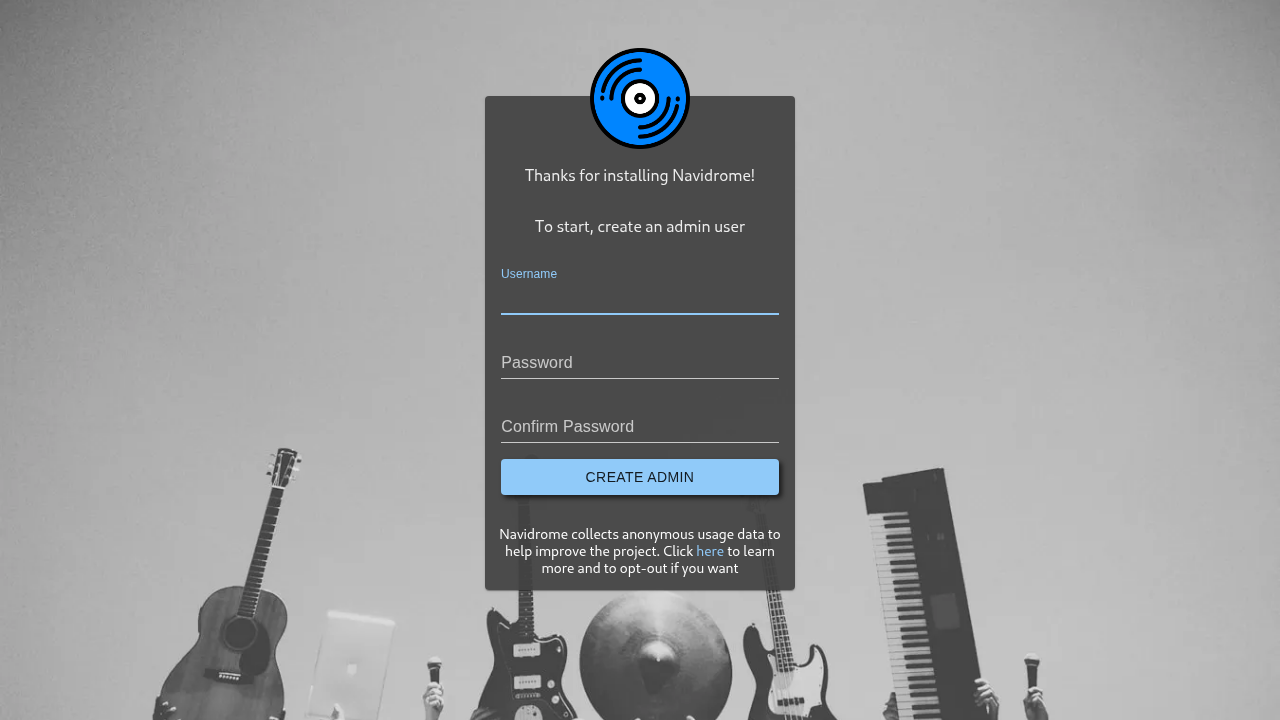
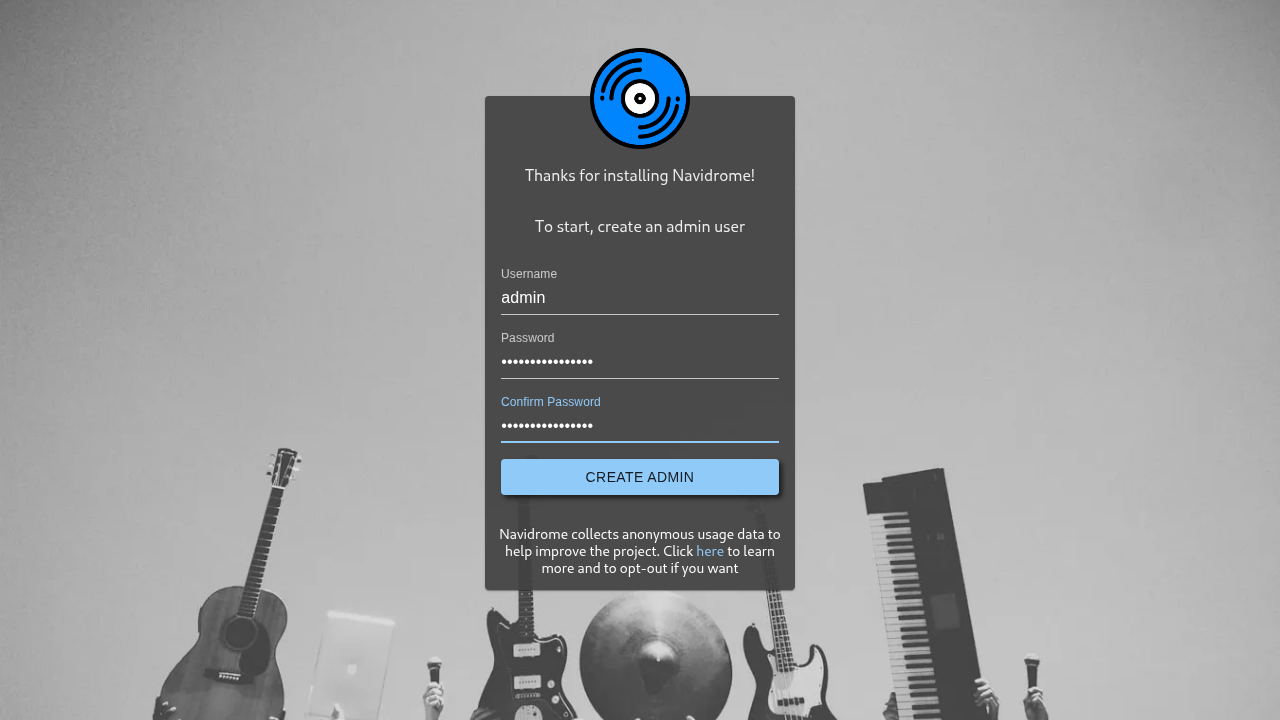
Enter your desired administrator username, set a strong password, confirm the password, and click Create Admin.
2. Dashboard and Automated Music Indexing
Upon account creation, you are logged in and taken directly to the main dashboard. Navidrome immediately initiates a background scan of /music.
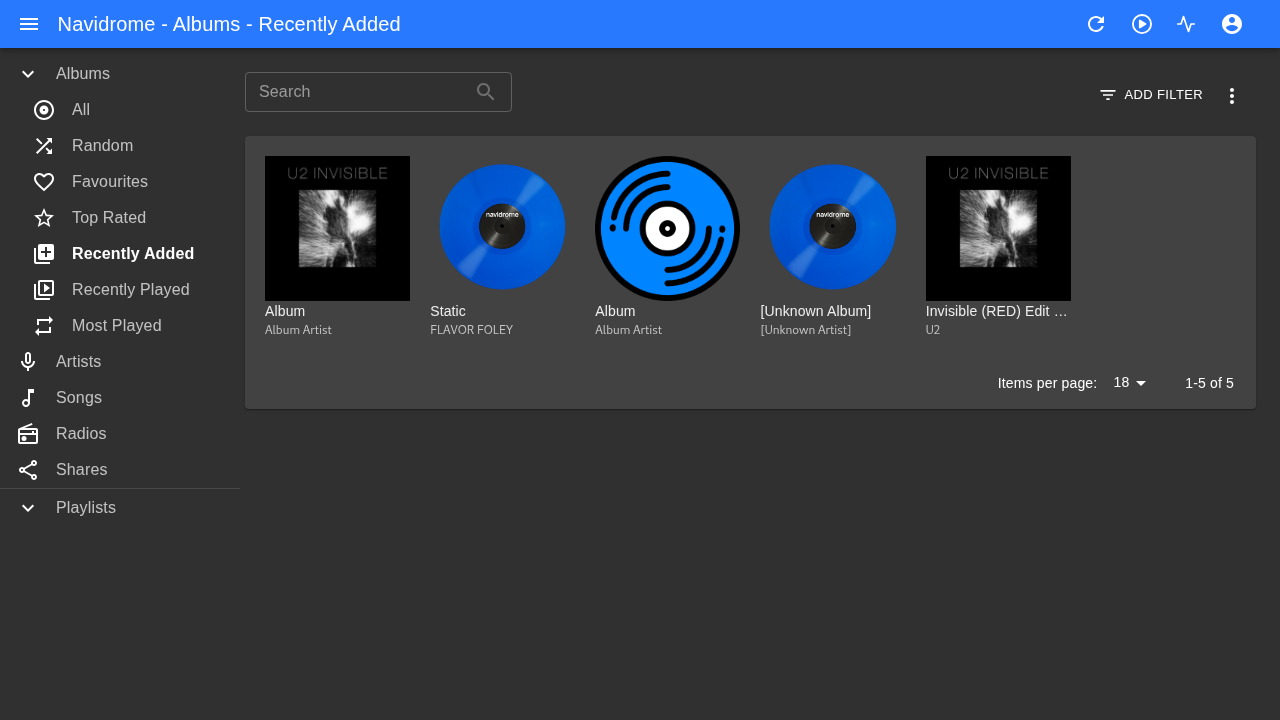
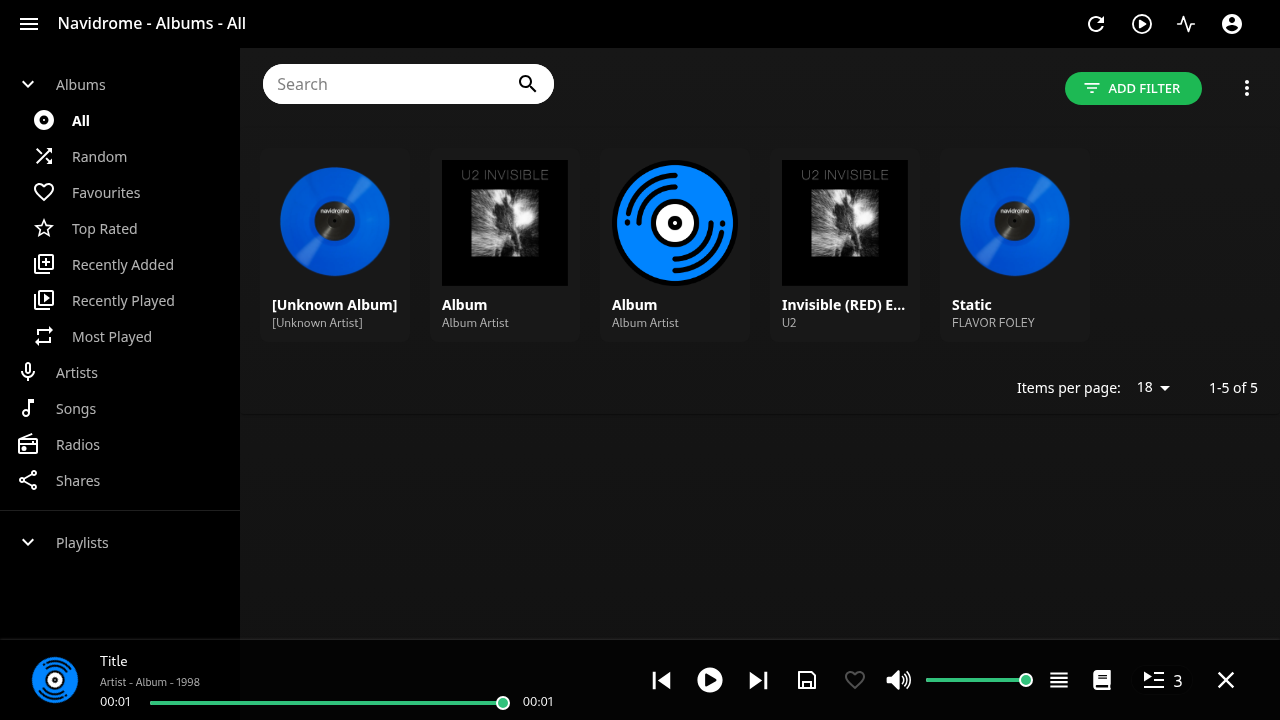
Click Albums in the left sidebar to view the indexed library. The scanner extracts embedded album art, artist metadata, release years, and track counts.
3. Inspecting Albums and Audio Formats
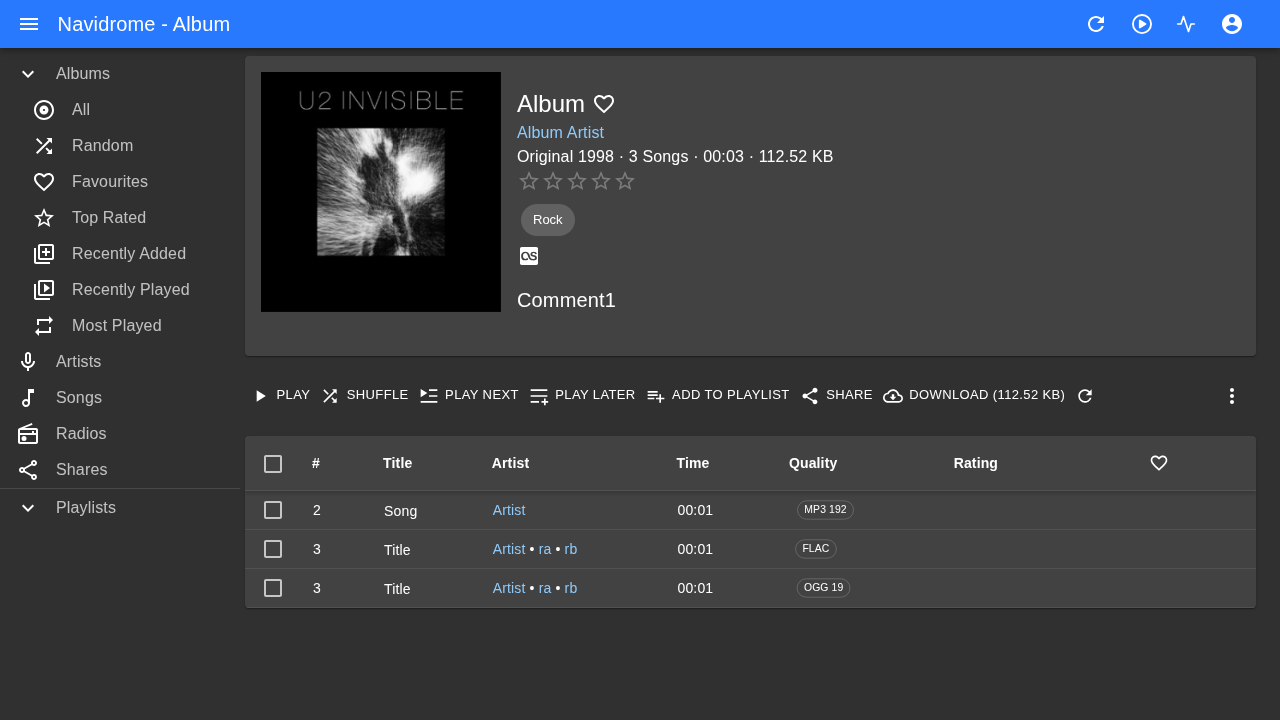
Click on any album card to view its tracklist, disc numbering, and duration. Quality badges indicate the specific encoding format and bitrate (such as MP3 192kbps, FLAC, or OGG).
4. Audio Playback and Persistent Player Bar
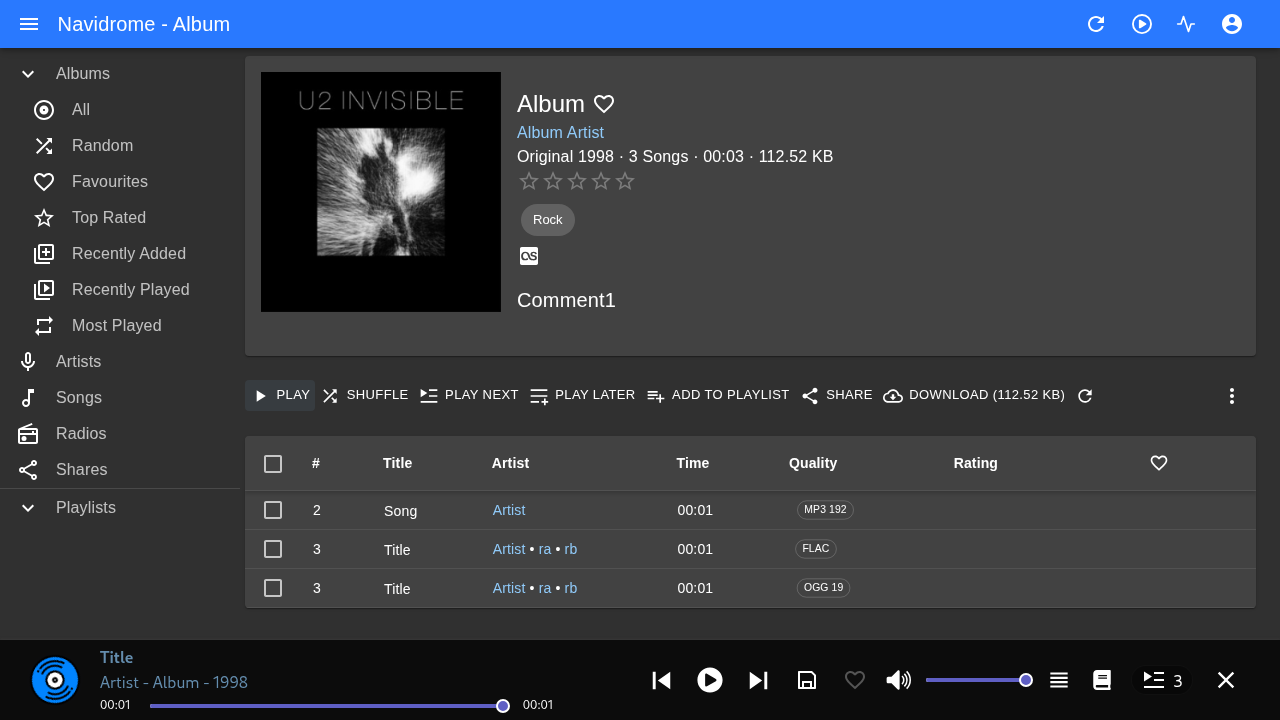
Click the PLAY button on an album or track. A persistent player bar docks at the bottom of the screen featuring play/pause controls, progress scrubbing, volume adjustment, and current audio quality metrics.
5. Synchronized Lyrics Display
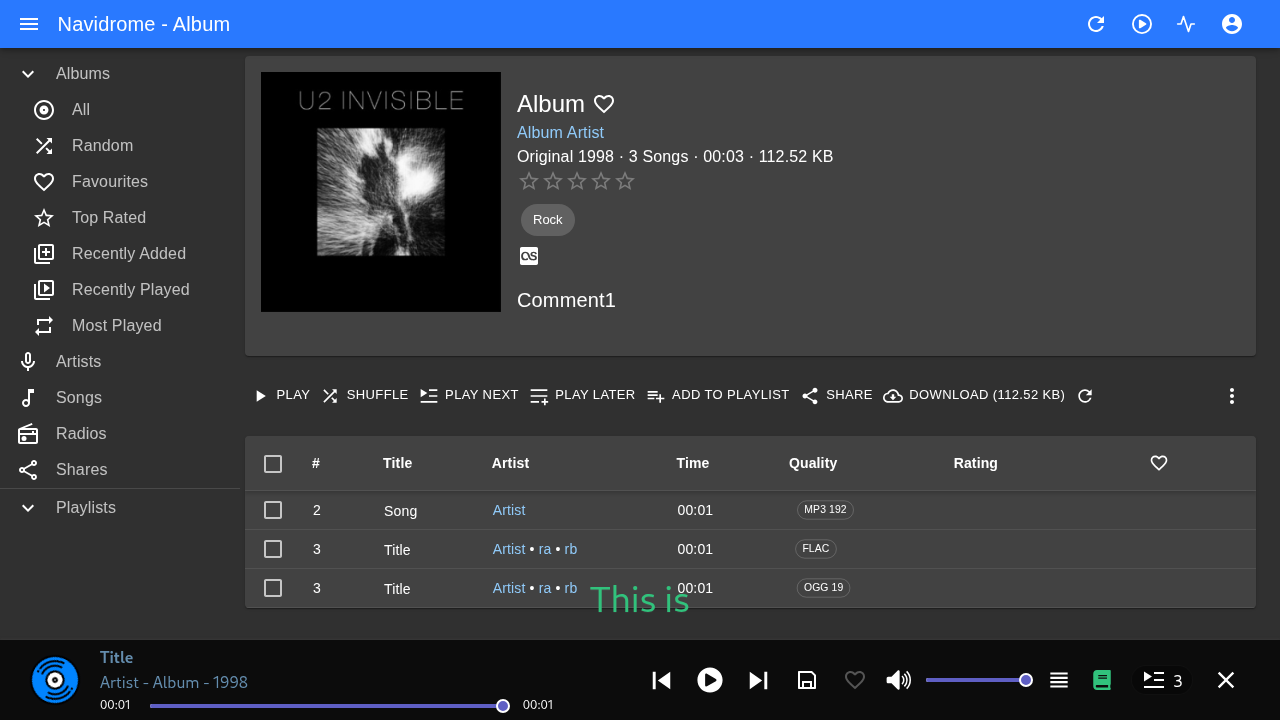
Click the Lyrics icon (book symbol) located on the right side of the bottom player bar. If the audio file includes embedded lyrics or an accompanying .lrc/.ttml sidecar file, Navidrome renders synchronized, time-aligned lyrics across the screen during playback.
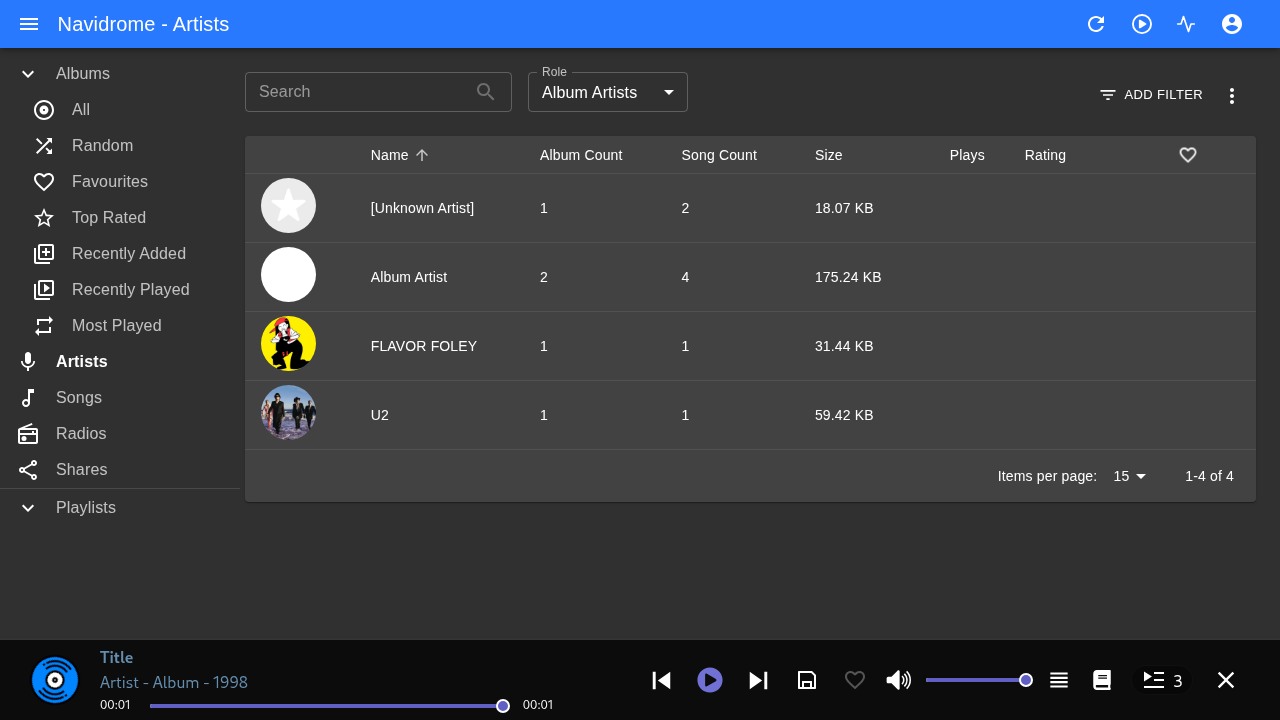
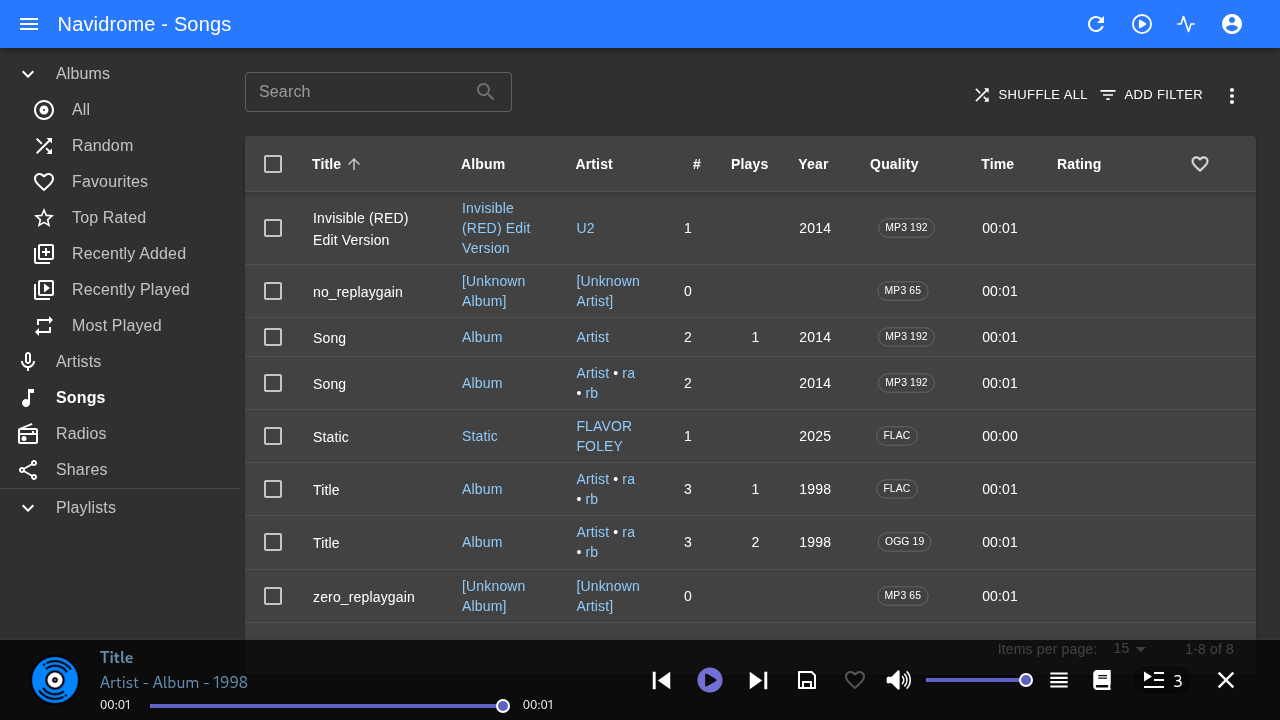
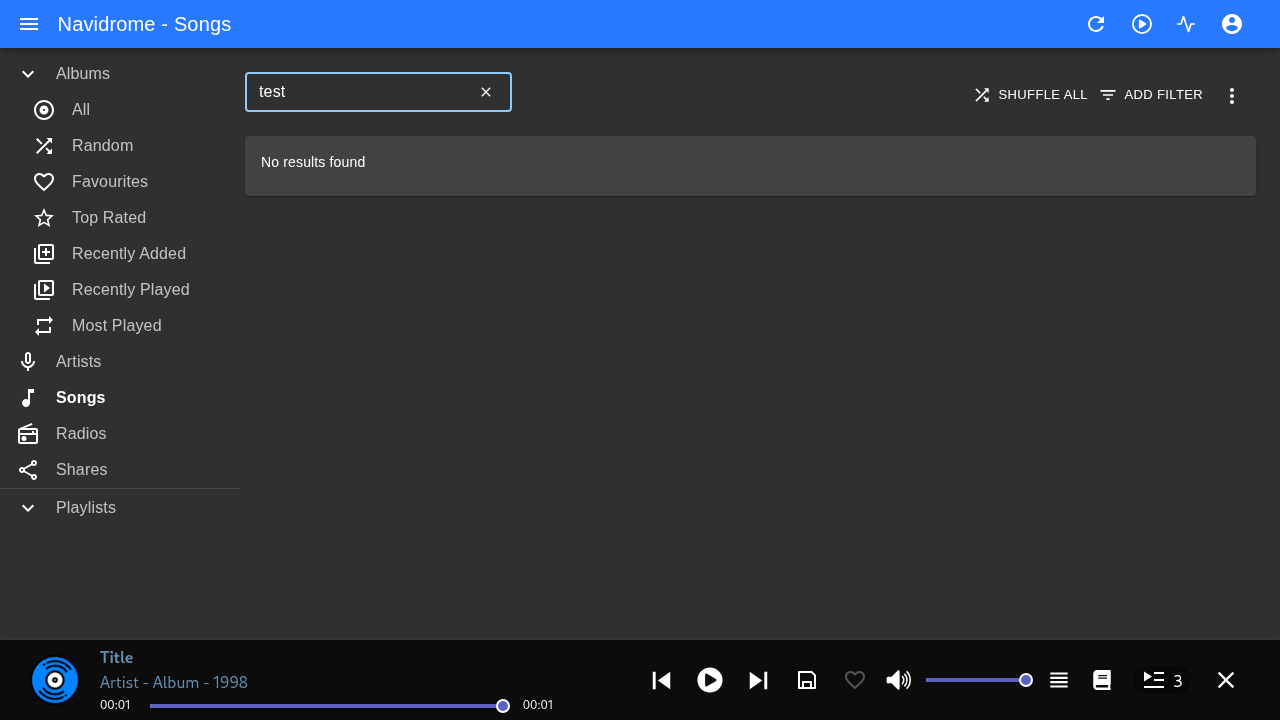
6. Artists Directory, Songs Table, and Search
The left sidebar provides multiple browsing views:
- Artists: Alphabetical list of music artists with album and song tallies.
- Songs: Sortable table of all indexed tracks across the collection.
- Search: Real-time full-text search indexing titles, artists, and albums.
7. Customizing the UI Theme
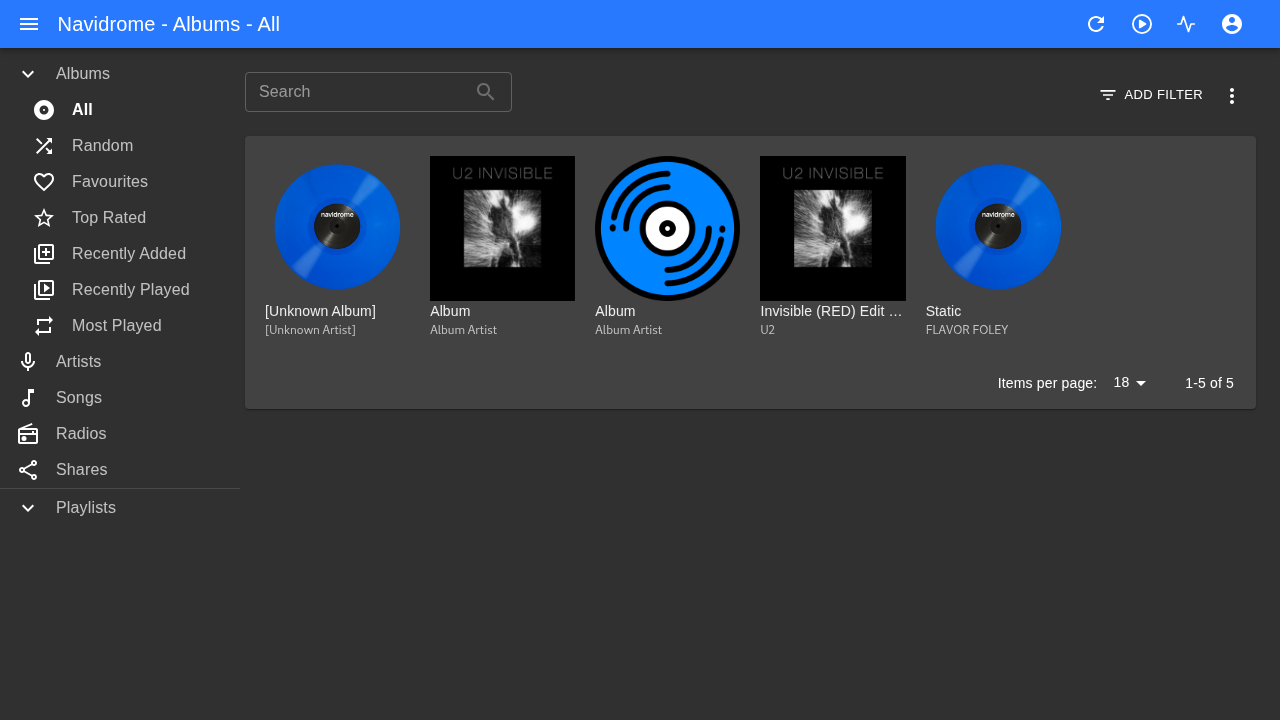
To switch themes, click your user avatar in the top right corner and navigate to Personal (#/personal). In the Theme dropdown, select your preferred styling, such as Spotify-ish for a dark aesthetic with green highlights.
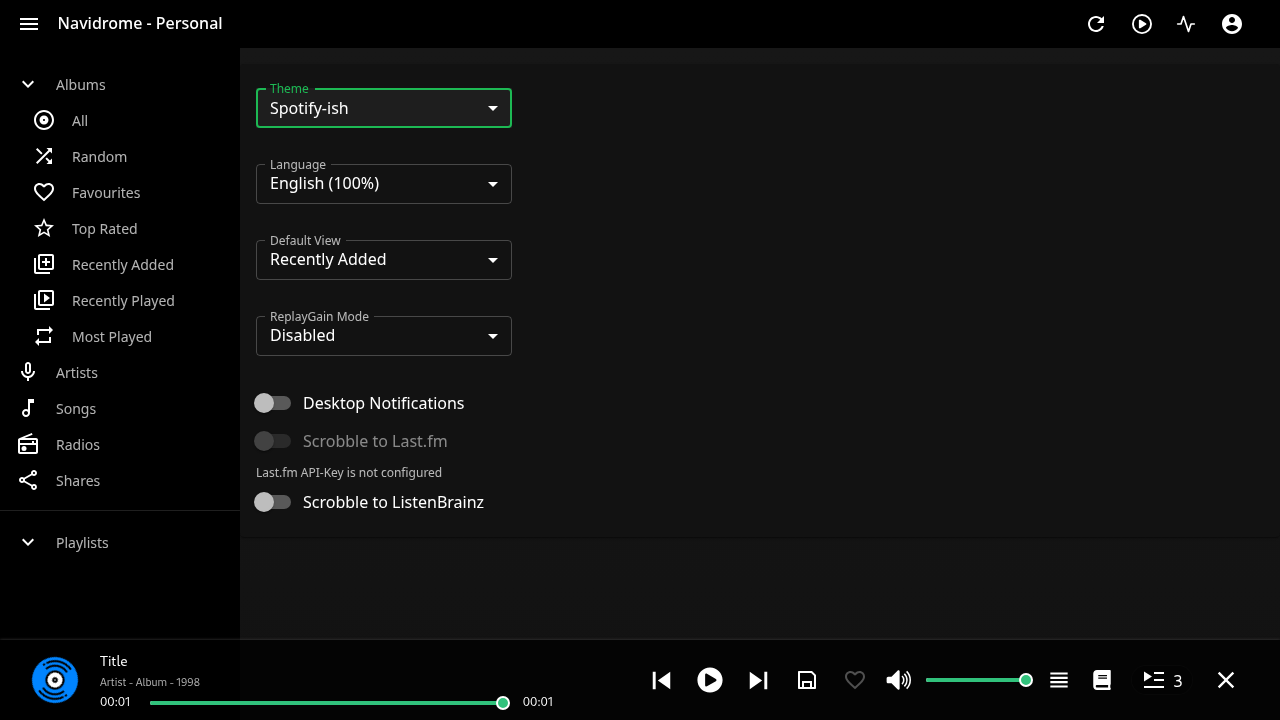
Returning to the Albums view immediately displays the updated theme.
---
Verification
To confirm that Navidrome is operating correctly, execute the following verification tests:
1. HTTP Heartbeat Endpoint
Test the lightweight health endpoint:
curl -fsS http://localhost:3000/pingExpected output:
.2. Web UI HTML Availability
Verify that the frontend web server is serving the React single-page application:
curl -fsSL http://localhost:3000/ | grep -q "<title>Navidrome" && echo "ui_html_ok"Expected output:
ui_html_ok3. Subsonic API Authentication
After completing the initial browser onboarding, verify the Subsonic API endpoint using your administrator credentials:
curl -fsS "http://localhost:3000/rest/ping.view?u=admin&p=adminpassword123&v=1.16.1&c=verify&f=json"Expected response contains:
{
  "subsonic-response": {
    "status": "ok",
    "version": "1.16.1",
    "type": "navidrome",
    "serverVersion": "0.64.2 (10114574)",
    "openSubsonic": true
  }
}
4. Database Initialization
Verify that Navidrome has created its SQLite database inside the persistent data volume:
docker compose exec navidrome ls -la /data/navidrome.dbExpected output confirms the SQLite database file exists with active WAL files:
-rw-r--r-- 1 root root 675840 Oct 31 17:26 /data/navidrome.db5. Library Scan Completion Logs
Inspect recent container logs to confirm the music library scanner finished without errors:
docker compose logs --tail 25 navidromeExpected log lines include:
level=info msg="Scanner: Finished scanning all libraries" duration=...
level=info msg="Scan completed"
level=info msg="Scheduling periodic scan schedule=\"@every 1m\""
---
Troubleshooting
The table below outlines common deployment issues, their underlying causes, and verified solutions:
| Issue / Symptom | Root Cause | Verified Resolution |
|---|---|---|
Healthcheck fails with exit code 127 and container reports unhealthy | The official container image is built on Alpine Linux and does not bundle curl. | Use wget in the Compose healthcheck test: `test: ["CMD-SHELL", "wget -qO- http://127.0.0.1:4533/ping \ |
Container logs report Periodic scan is DISABLED | Legacy variable ND_SCANSCHEDULE is ignored in Navidrome 0.64.2+, and bare duration strings (e.g. 10s) are invalid. | Use the configuration variable ND_SCANNER_SCHEDULE with an interval or cron expression, such as ND_SCANNER_SCHEDULE: "@every 1m" or "@every 30m". |
| Unauthenticated admin registration exposed to network | By default, Docker binds ports across all network interfaces (0.0.0.0), exposing the onboarding wizard. | Restrict port binding to localhost (127.0.0.1:${NAVIDROME_PORT}:4533) in docker-compose.yml, complete onboarding, or terminate traffic behind an authenticated reverse proxy. |
Subsonic API returns error 40: Wrong username or password | Subsonic API requests require valid user credentials. Requests with unconfigured accounts (e.g. guest/guest) will fail. | Complete the browser onboarding to establish the admin account, then authenticate using those credentials: u=<admin>&p=<password>. |
| Audio tracks or directories missing from library | The container process cannot read the host music directory, or audio tags are corrupted. | Verify that the music directory is mounted read-only (./music:/music:ro) and host permissions allow read access (chmod -R a+r ./music), then click the Activity icon in Navidrome to trigger a manual rescan. |
Port conflict on launch (bind: address already in use) | Host port (e.g., 3000 or 4533) is already allocated to another service. | Modify NAVIDROME_PORT in .env to an open port (such as 4534 or 8080), then re-run docker compose up -d. |
| Transcoding fails during remote playback | Container lacks memory or CPU resources, or invalid client transcoding rules were set. | Verify container resource limits allow ffmpeg execution, ensure ND_ENABLETRANSCODINGCONFIG=true is set, and confirm client settings request supported output formats (MP3/Opus). |
---
Assumptions & Decisions
- Host Environment: Executed directly via Docker and Docker Compose v2 on Linux without requiring host-level Go, Node.js, ffmpeg, or taglib installations.
- Port Assignment: Defaulted host port mapping to
3000(127.0.0.1:3000->4533/tcp) because port 3001 was occupied by an existing Uptime Kuma instance. - Localhost Security Boundary: Explicitly bound the published port to
127.0.0.1rather than0.0.0.0to eliminate the security vulnerability of exposing an unauthenticated first-run admin creation prompt to local networks. - Healthcheck Tooling: Replaced
curlwith busyboxwgetin the container healthcheck definition to match the Alpine-baseddeluan/navidromeruntime environment. - Scanner Configuration: Applied
ND_SCANNER_SCHEDULE: "@every 1m"instead of deprecatedND_SCANSCHEDULEto comply with Navidrome 0.64.2 configuration schema. - Image Pinning: Documented
deluan/navidrome:latestresolving to version0.64.2(sha256:38dc2727bfcf…), with recommendations for pinning in production environments. - Relative Media Paths: Sourced browser interface screenshots directly from the active run directory
runs/navidrome-20261031-131924/browser/to ensure visual fidelity with the automated Playwright capture.
Get the Unified Homelab Stack Compose Pack
One-command multi-container Compose files (Full *arr Stack, Prometheus + Grafana + ntfy Monitoring, and Homelab Auth) plus new verified deploys once a week.