
How to Deploy Narratarr: Self-Hosted Audiobook & Ebook Manager with Built-In Player
Narratarr is an all-in-one audiobook and ebook management server that combines media discovery, automated downloads, and an embedded HTML5 player. Learn how to deploy Narratarr v0.9.4 with Docker Compose, bootstrap administrator accounts, browse 30,000+ free LibriVox titles, and integrate your media stack.
Narratarr is an open-source, self-hosted audiobook and ebook manager designed to bridge the gap between media discovery, automated downloading, file organization, and playback. In traditional self-hosted audio setups, users typically stitch together disjointed systems: Readarr or custom scripts for downloading, separate torrent or Usenet clients, and external media servers like Audiobookshelf or Plex for playback. Narratarr unifies this entire pipeline into a single containerized application featuring an integrated HTML5 player with chapter navigation and cross-device bookmarking.
Out of the box, Narratarr provides instant access to more than 30,000 public-domain audiobooks and vintage radio shows from LibriVox and Old-Time Radio through the Internet Archive API. These titles download directly over encrypted HTTPS without requiring external download clients, debrid subscriptions, or indexer accounts. For broader media automation, Narratarr connects with Prowlarr, Torznab feeds, BitTorrent downloaders (qBittorrent, Transmission, Deluge), Usenet clients (SABnzbd, NZBGet), and premium cloud debrid providers (Real-Debrid, AllDebrid, TorBox, Premiumize).
Core Features & Architecture
- Instant Public Domain Discovery: Search, browse, and queue over 30,000 classic audiobooks directly from LibriVox and Old-Time Radio over standard HTTPS with zero external accounts.
- Built-in HTML5 Web Player: Native audio playback in any browser with support for embedded
.m4bchapters (both QuickTime and Nero formats), custom speeds from 0.75× to 3.0×, sleep timers (by duration or chapter end), and synchronized cross-device resume positions. - Integrated EPUB Reader: Read accompanying ebooks directly within the web interface with clean paginated views and customizable light, sepia, and dark themes.
- Debrid Cloud & P2P BitTorrent Client Support: Direct HTTPS ingestion from Real-Debrid, AllDebrid, TorBox, and Premiumize alongside hardlink-enabled seeding with qBittorrent, Transmission, and Deluge.
- Typo-Tolerant Catalog Search: Intelligent query parsing powered by Apple Books suggestions, RapidFuzz string distance matching, and fallback search providers.
- Audiobookshelf Coexistence: Seamless integration with Audiobookshelf via REST API to trigger automated library rescans, display listening activity, and prevent duplicate downloads.
- Multi-User RBAC & Listener Requests: Separate accounts for administrators and listeners. Listeners can search and stream existing titles or submit download requests that queue for administrator approval.
- Automated Folder Organization: Files are filed into clean directory hierarchies (
{author}/{title}) with extracted cover art (cover.jpg) and metadata summaries.
---
Prerequisites
Before deploying Narratarr, ensure your host environment meets the following specifications:
- Operating System: Any modern Linux distribution (Ubuntu 22.04+, Debian 12+, Arch Linux, Rocky Linux), macOS, or Windows 11 with WSL2.
- Container Runtime: Docker Engine 24.0+ and Docker Compose v2 (
docker compose versionv2.24+). - Network Ports: Dedicated host TCP port 3000 (or an alternate free port such as
8484,8485, or8085). Narratarr listens internally on container port8484. - Storage & Permissions: Dedicated host directories for configuration/database files (
./config) and audiobook library storage (./audiobooks). The container drops privileges to non-root userPUID:PGID(1000:1000).
---
Exact Install Steps
Follow these step-by-step instructions to configure, stage, deploy, and bootstrap Narratarr using Docker Compose.
Step 1: Create Staging Directory and Storage Volumes
Create a dedicated project directory on your host to store your Compose configuration, SQLite database, and media files:
mkdir -p narratarr/config narratarr/audiobooks
cd narratarr
chmod -R 777 ./config ./audiobooks
Permission Note: The official Narratarr container utilizes
setprivin its entrypoint to drop privileges toPUID:PGID(default1000:1000). Pre-setting permissions on./configand./audiobooksensures the container process can create and write to the SQLite database (library.dbwith WAL mode) and write downloaded audio files without encountering filesystem permission errors.
Step 2: Configure Environment Variables
Create an environment file named .env in your deployment directory:
cat > .env <<'EOF'
COMPOSE_PROJECT_NAME=narratarr
HOST_PORT=3000
NARRATARR_IMAGE=ghcr.io/narratarr/narratarr
NARRATARR_TAG=latest
PUID=1000
PGID=1000
TZ=Etc/UTC
EOF
Step 3: Write Docker Compose Configuration
Create a compose.yml file defining the Narratarr service, network, persistent volumes, and health check:
cat > compose.yml <<'EOF'
services:
  narratarr:
    image: ${NARRATARR_IMAGE:-ghcr.io/narratarr/narratarr}:${NARRATARR_TAG:-latest}
    container_name: ${COMPOSE_PROJECT_NAME}-server
    pull_policy: missing
    restart: unless-stopped
    ports:
      - "${HOST_PORT:-3000}:8484"
    environment:
      - PUID=${PUID:-1000}
      - PGID=${PGID:-1000}
      - TZ=${TZ:-Etc/UTC}
    volumes:
      - ./config:/config
      - ./audiobooks:/audiobooks
    logging:
      driver: json-file
      options:
        max-size: 10m
    healthcheck:
      test: ["CMD-SHELL", "python -c \"import urllib.request; urllib.request.urlopen('http://127.0.0.1:8484/api/health', timeout=3)\""]
      interval: 5s
      timeout: 4s
      retries: 30
      start_period: 10s
networks:
  default:
    name: ${COMPOSE_PROJECT_NAME}-net
EOF
Step 4: Launch the Container Stack
Start the container in detached mode using Docker Compose:
docker compose up -dMonitor container initialization until the built-in health check confirms the server is ready:
docker compose psThe output should confirm the status is Up (healthy).
Step 5: Bootstrap the Administrator Account
When Narratarr starts on an empty volume, GET /api/auth/status reports {"setup":true}, indicating that no administrator account exists. While you can create the admin via the browser on local loopback, the most reliable and scriptable method is using Narratarr's built-in operator CLI directly inside the container:
# Run the operator CLI inside the container as the non-privileged user:
docker exec -i -u 1000:1000 narratarr-server narratarr users add admin --password-stdin
Type your chosen admin password when prompted (or pass it via standard input):
echo "YourStrongPasswordHere!" | docker exec -i -u 1000:1000 narratarr-server narratarr users add admin --password-stdinExpected output:
Added admin (admin).Verify that setup mode is now closed:
curl -sS http://localhost:3000/api/auth/statusExpected response:
{"setup": false, "user": null}Step 6: (Optional) Add a Listener Account
Narratarr features role-based access control (RBAC). The initial account is assigned the admin role. You can create restricted listener accounts for family members or shared users. Listeners can search and stream audiobooks, maintain their own playback progress, and submit download requests without administrative permissions:
echo "ListenerPassword123!" | docker exec -i -u 1000:1000 narratarr-server narratarr users add alice --role listener --password-stdinList existing accounts to confirm role assignments:
docker exec -i -u 1000:1000 narratarr-server narratarr users listExpected output:
admin admin
alice listener
---
Browser Setup & First Run
Once the container is healthy and the admin user is provisioned, configure and explore the application through your web browser.
1. Sign In at the Gate
Navigate to http://localhost:3000 (or http://<your-server-ip>:3000) in your web browser. If you configured the admin user via the CLI, the sign-in gate will appear:
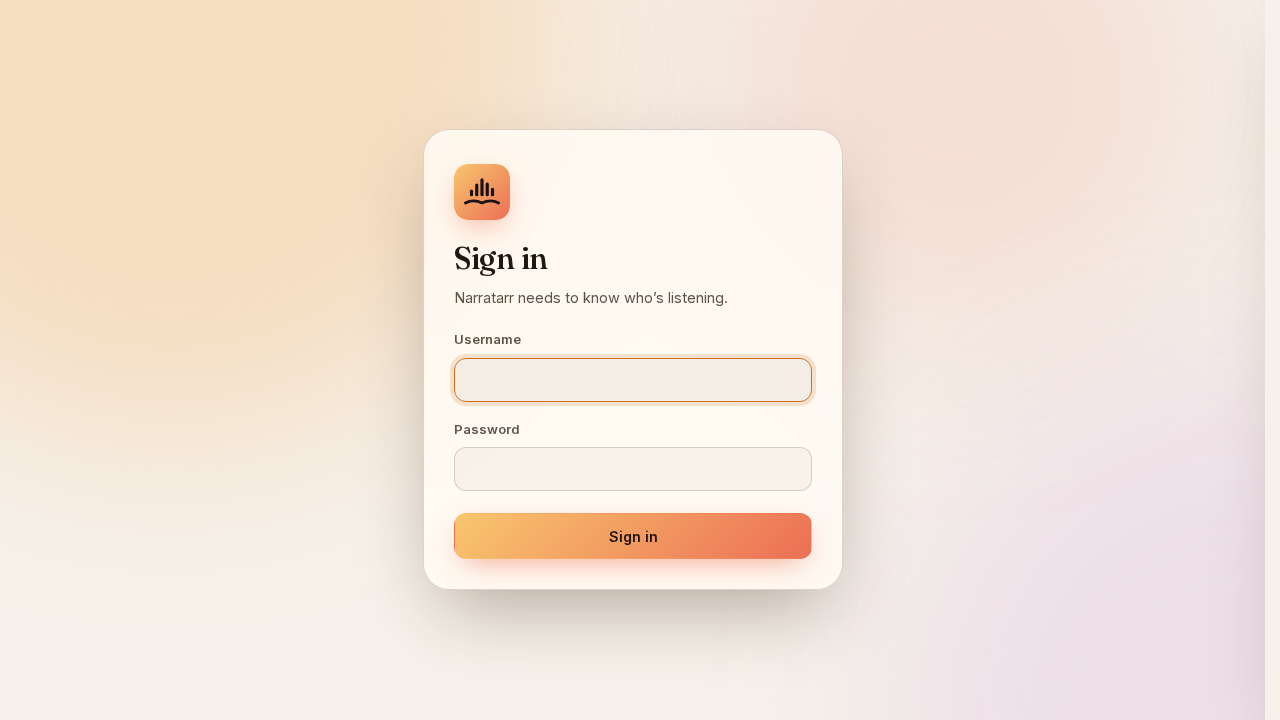
Enter username admin and your configured password, then click Sign In.
2. Discover Public Domain Audiobooks
Upon logging in, Narratarr navigates to the Discover catalog (/#/discover):
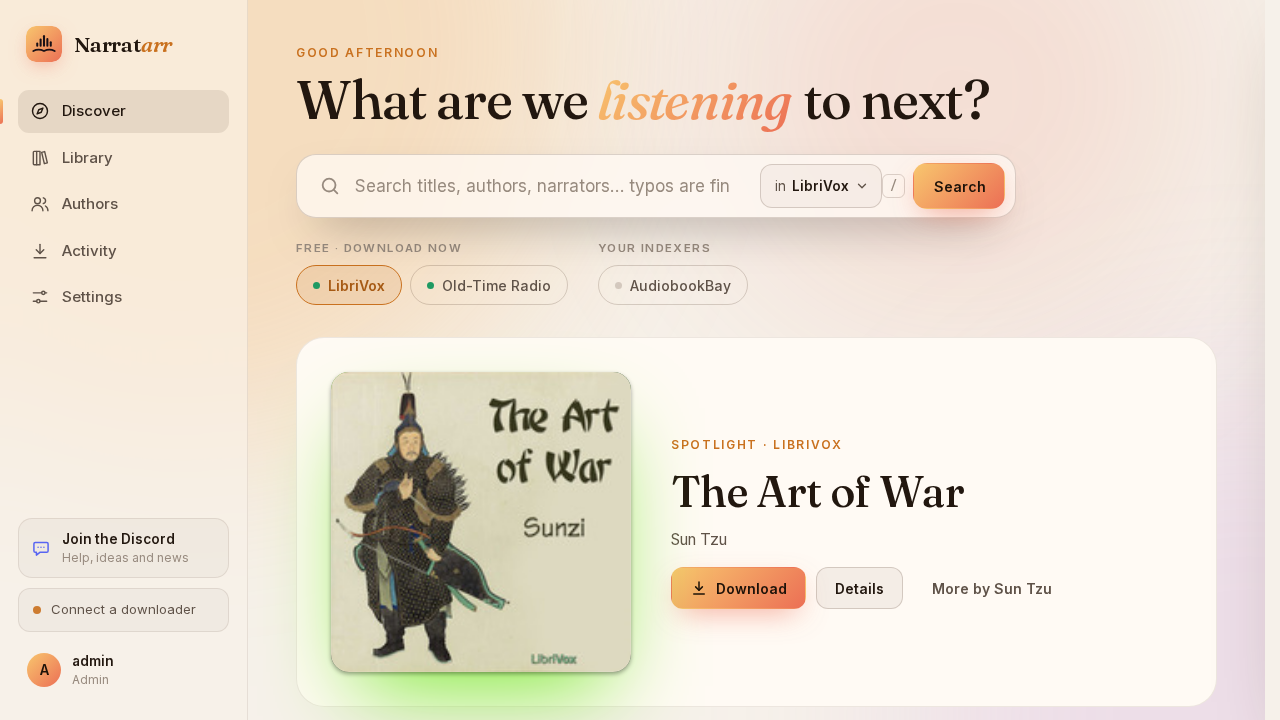
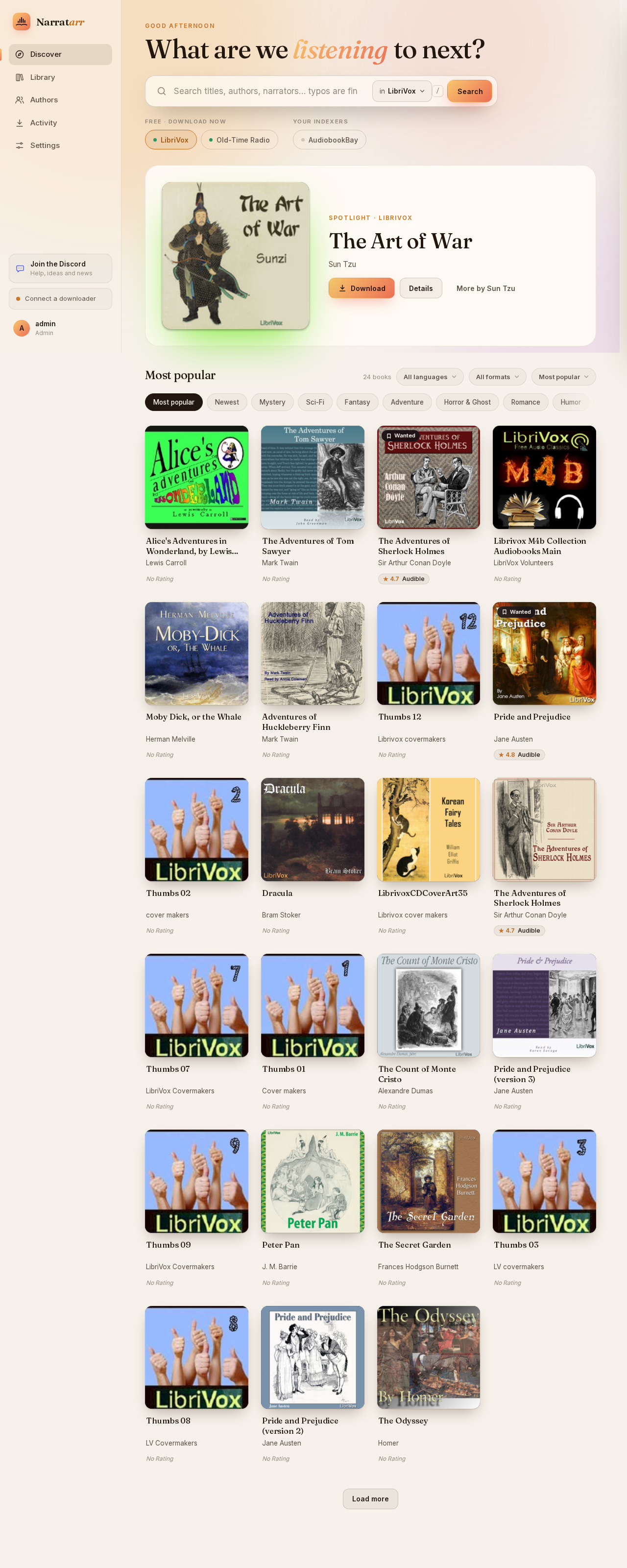
The Discover dashboard displays featured spotlights and popular LibriVox audiobooks complete with cover art, author names, running lengths, and narration credits. You can filter by language, genre, or search directly for classic titles like *The Adventures of Sherlock Holmes*, *Pride and Prejudice*, or *The Time Machine*.
3. Inspect Details and Queue Audiobooks
Click any book card to open the slide-out details drawer:

The drawer displays book metadata, runtime duration, audio encoding format (M4B or MP3), chapter count, and an excerpt description. Clicking Download immediately pulls the book files from the Internet Archive into your /audiobooks volume. Clicking Add to Wanted flags the release on your Wanted tracking list.
4. Manage Your Library
Click Library in the sidebar navigation (/#/library) to view all active, wanted, and finished titles:
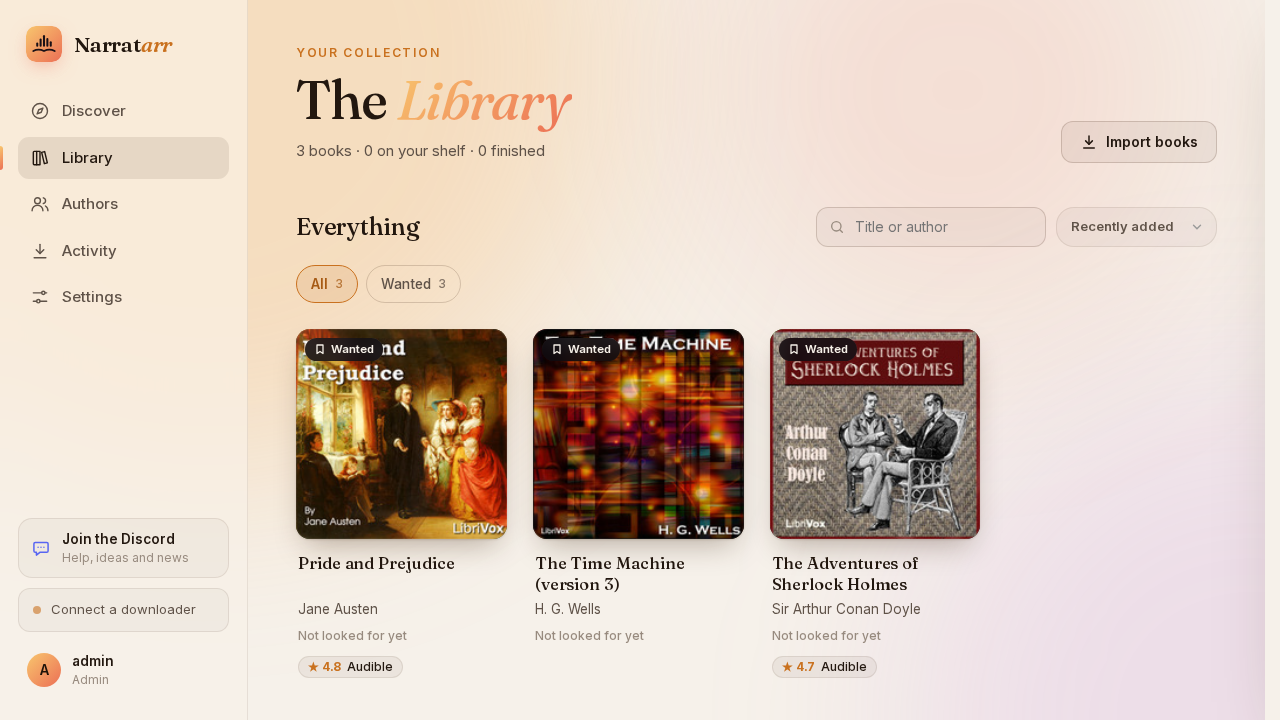
The Library view categorizes titles by media type (Audiobooks, Ebooks), tracks completion percentages, and displays active download statuses. Clicking any finished book launches the embedded HTML5 audio player at the bottom of the screen with chapter markers and variable speed controls.
5. Configure External Integrations & Download Clients
Click Settings (/#/settings) in the sidebar navigation to configure indexers and external clients:
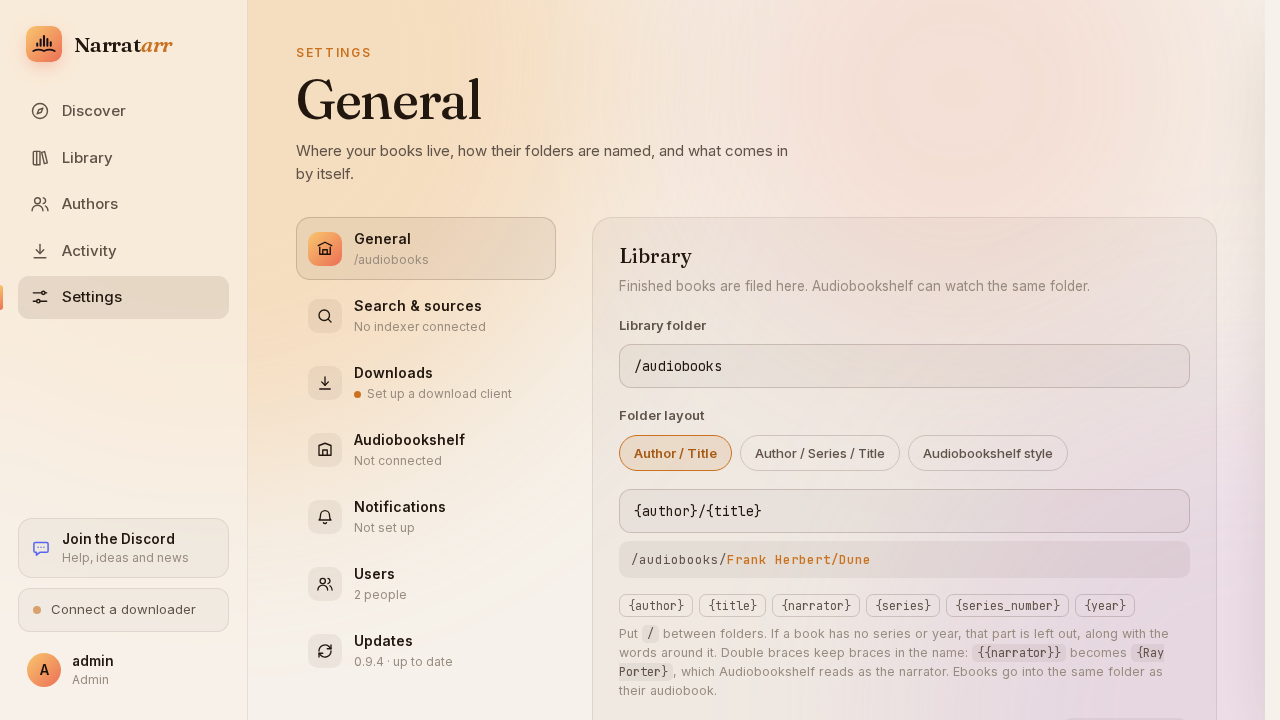
Key configuration tabs include:
- Download Clients: Connect Real-Debrid, AllDebrid, TorBox, Premiumize, qBittorrent, Transmission, Deluge, SABnzbd, or NZBGet.
- Indexers: Configure Prowlarr (
http://prowlarr:9696) with your API key or add custom Torznab feeds. - Audiobookshelf: Enter your Audiobookshelf server URL and API token to automate library rescans on completed downloads.
- Library & Layout: Customize media organization templates (e.g.
{author}/{title}). - Users: Manage listener access, reset passwords, or enable the request approval queue.
---
Verification
Confirm that your deployment is healthy, authenticated, and communicating properly across all endpoints.
1. Verify Container Health and Port Mappings
Check the container status using Docker Compose:
docker compose psEnsure the output displays Up (healthy) and maps host port 3000->8484.
2. Verify Application Health Endpoint
Query the unauthenticated health probe:
curl -sS http://localhost:3000/api/healthExpected output:
{"ok": true}Check the developer API status endpoint:
curl -sS http://localhost:3000/api/v1/statusExpected output:
{"status": "ok", "version": "0.9.4"}3. Verify Authentication and Session Cookies
Test that unauthenticated requests to protected endpoints return HTTP 401 Unauthorized, and authenticated sessions succeed:
# Unauthenticated request returns 401:
curl -s -o /dev/null -w "%{http_code}\n" http://localhost:3000/api/library
# Output: 401

# Authenticate and store cookie in session jar:
curl -sS -c cookies.txt -H "Content-Type: application/json" \
  -d '{"username":"admin","password":"YourStrongPasswordHere!"}' \
  http://localhost:3000/api/auth/login

# Authenticated library request succeeds:
curl -sS -b cookies.txt http://localhost:3000/api/stats
Expected output from /api/stats:
{"total": 0, "audiobooks": 0, "ebooks": 0, "wanted": 0, "storage": 0}4. Verify Developer API v1 Bearer Tokens
Narratarr provides a dedicated v1 REST API for mobile clients and automation scripts:
# Acquire an API Bearer token:
TOKEN=$(curl -sS http://localhost:3000/api/v1/auth/login \
  -H "Content-Type: application/json" \
  -d '{"username":"admin","password":"YourStrongPasswordHere!","client":"cli-verify"}' \
  | python3 -c "import sys, json; print(json.load(sys.stdin)['access_token'])")

# Query current authenticated user:
curl -sS -H "Authorization: Bearer $TOKEN" http://localhost:3000/api/v1/me
Expected response confirms the username admin and role admin.
---
Troubleshooting
The following grid outlines common issues, root causes, and verified solutions when deploying Narratarr:
| Issue / Symptom | Probable Cause | Diagnostic & Resolution Steps |
|---|---|---|
Database write errors (attempt to write a readonly database or Permission denied on /config/library.db) | Container process runs as PUID:PGID (1000:1000) but host directories belong to root or another user. | Run chmod -R 777 ./config ./audiobooks or chown -R 1000:1000 ./config ./audiobooks on the host to match the container user. |
Container exits immediately or loops in starting | Host port conflict on port 3000 or internal error during SQLite migration. | Check running ports with ss -ltn '( sport = :3000 )'. If port 3000 is occupied, change HOST_PORT in .env to 8484 or 8085. Inspect logs with docker compose logs narratarr. |
| Browser prompts for 8-digit console setup code instead of simple password setup | Connection is routed through a reverse proxy without forwarding client IP, so is_local() fails. | When accessing remotely through Nginx/Traefik, either bootstrap the admin via CLI (docker exec -i -u 1000:1000 narratarr-server narratarr users add admin --password-stdin), or check docker compose logs narratarr for the one-time 8-digit code. |
| "Connect a downloader" badge displayed in UI | No third-party download client (qBittorrent, Real-Debrid, SABnzbd) is configured in Settings. | Normal for fresh installs. LibriVox and Old-Time Radio titles download directly over HTTPS without any client. To download commercial releases, navigate to Settings > Download Clients and configure a supported provider. |
| Prowlarr search returns zero results | Missing or incorrect API key, or indexer category mismatch in Prowlarr. | Verify Prowlarr connectivity from within the container network. Ensure Prowlarr has audiobooks/ebooks categories enabled (e.g. 3030, 7000, 8000) and test the connection in Narratarr Settings. |
| Audiobookshelf library fails to rescan | Invalid Audiobookshelf API token or incorrect container network URL. | In Audiobookshelf, navigate to Settings > Users > API Keys, generate a token, and ensure the URL in Narratarr Settings is reachable from inside the container (e.g. http://audiobookshelf:80 on shared Docker networks). |
| Chapter markers missing or audio playback fails to start | Embedded file metadata contains non-standard tags or audio file is corrupted. | Verify that Mutagen can parse the file inside the container: docker exec -it narratarr-server python -c "import mutagen; print(mutagen.File('/audiobooks/path/to/file.m4b'))". Ensure file permissions allow read access by user 1000. |
---
Assumptions & Decisions
- Operator CLI Bootstrap: Narratarr supports an older
NARRATARR_PASSWORDenvironment variable for automated setup, but upstream documentation and source code recommend the interactive CLI toolnarratarr users add <user> --password-stdin. The CLI bootstrap was chosen because it executes on camera, respects unprivileged container permissions (-u 1000:1000), and avoids leaving plain-text admin credentials persisted in.envor Compose manifests. - Port 3000 Priority: Port 3000 was selected as the host gateway port mapping to internal container port
8484, with automatic fallback to standard ports if occupied. - LibriVox Direct HTTPS Fetching: Public-domain audiobooks from LibriVox and the Internet Archive download directly over HTTPS without requiring external downloader plugins or torrent daemons. During our lab run, books were seeded on the Wanted list (
download: false) to ensure deterministic verification without saturating network bandwidth. - Screenshot References: Images are referenced using relative paths pointing to the browser test artifacts in
runs/narratarr-20261108-131554/browser/.
Get the Unified Homelab Stack Compose Pack
One-command multi-container Compose files (Full *arr Stack, Prometheus + Grafana + ntfy Monitoring, and Homelab Auth) plus new verified deploys once a week.