
Self-Host LightPost, a One-Dashboard Social Media Scheduler, with Docker Compose
LightPost lets you write a post once and send it to Bluesky, Mastodon, X, Threads, LinkedIn and more from your own server. Here is the recorded Docker Compose install of LightPost v0.2.0, running locally with no login and no Dockerfile.
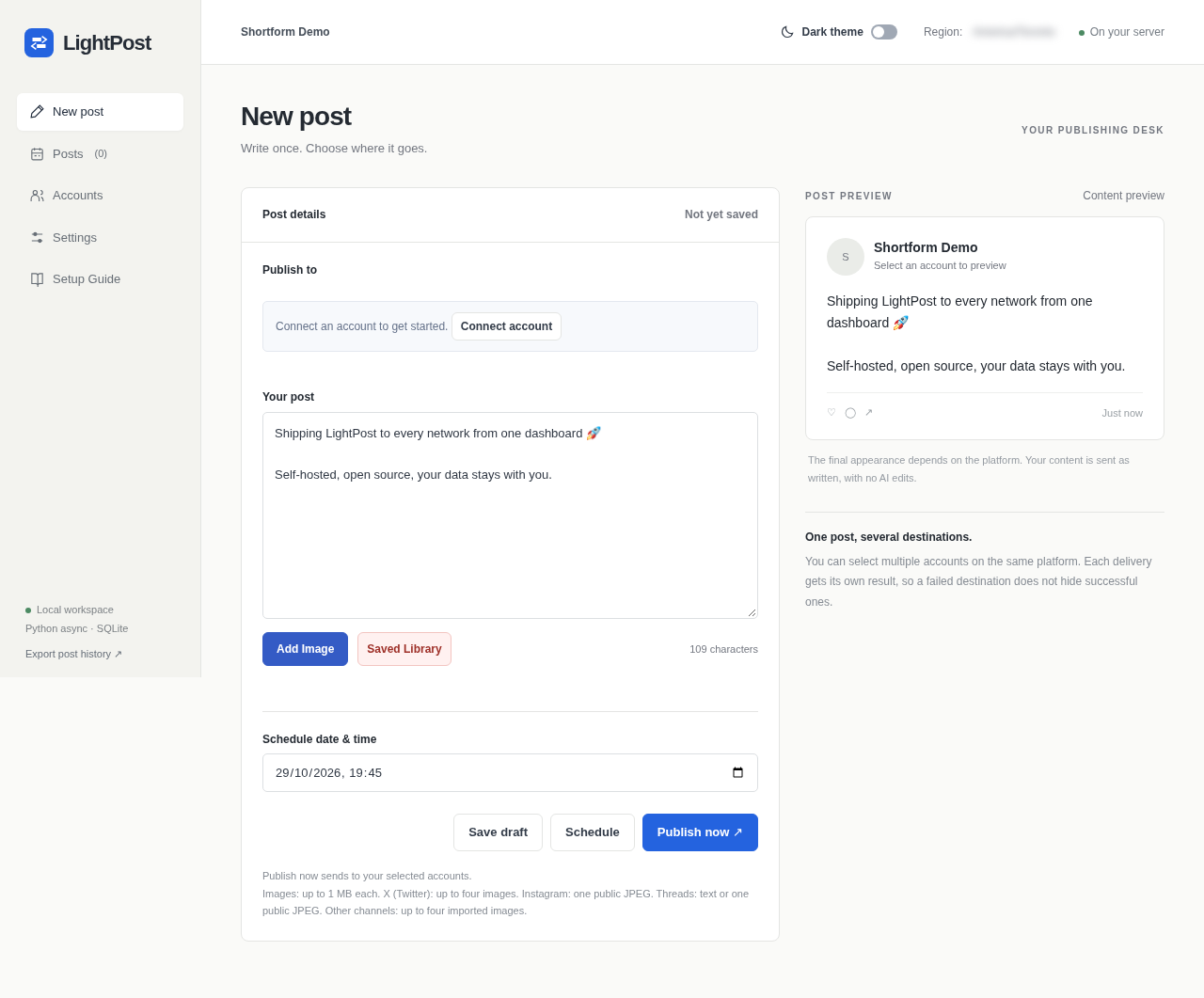
LightPost is a small, self-hosted social media scheduler. You connect your accounts, write a post once, and publish it now or schedule it for later from a single dashboard. It is one Python process with SQLite and plain HTML/CSS/JavaScript, so it needs no external database and no frontend build step. It is MIT-licensed.
Supported platforms in v0.2.0 are Bluesky, Mastodon, X (Twitter), Instagram, Threads, Discord, LinkedIn, Telegram and Facebook Pages. TikTok, Pinterest and Google Business Profile are listed upstream as under development, so don't plan on them yet. You bring your own API credentials for each platform. LightPost encrypts them and keeps them on your server.
This guide follows the exact path we recorded and checked: LightPost v0.2.0 (commit 1698095) on Docker 29.9.2 with Compose 5.6.1, rootful Docker on Linux. The repo ships no Dockerfile, so we run the README's own Python install inside a throwaway python:3.12-slim container. Nothing gets installed on your host besides that image, two Docker volumes and one container.
Source: github.com/brainstormity/LightPost
Prerequisites
- Rootful Docker Engine on Linux with the Compose v2 plugin (
docker compose versionworks). The primary path usesnetwork_mode: host. On rootless Docker or Docker Desktop, host networking isn't your real loopback, so use the bridge variant in the troubleshooting section. git,curlandss(iproute2)- A free TCP port 3000 on
127.0.0.1 - No platform credentials are needed to install and explore the app. You only need them when you connect a real account.
Install
Run every block in the same shell, because the variables from step 1 are used throughout.
1. Get the code and set paths
git clone https://github.com/brainstormity/LightPost.git ~/LightPost
export REPO=~/LightPost
export DEPLOY=~/lightpost-deploy
export PROJ=lightpost
The compose file and its .env go in $DEPLOY, outside the clone. The repo gets mounted read-only, so the clone stays clean.
2. Preflight
docker info >/dev/null 2>&1 && echo docker_ok
# expect: docker_ok
docker compose version
# expect: Docker Compose version v2.x or newer
test -f $REPO/requirements.txt && test -f $REPO/lightpost/__main__.py && echo repo_ok
# expect: repo_ok
docker info --format '{{.SecurityOptions}}' | grep -q rootless && echo ROOTLESS || echo rootful
# expect: rootful   (ROOTLESS means: use the bridge variant under Troubleshooting)
3. Pick a free port
LightPost defaults to 3000. This loop takes the first free port from a short list:
LP_PORT=
for p in 3000 3010 3020 3030 3040; do
  ss -ltn | awk '{print $4}' | grep -qE "[:.]$p\$" || { LP_PORT=$p; break; }
done
echo "LP_PORT=$LP_PORT"
# expect: LP_PORT=3000
4. Write the compose file
The container uses host networking and binds 127.0.0.1. That keeps LightPost in its documented loopback mode, where no password is needed and nothing is exposed to your LAN. The venv and the SQLite database live in named volumes.
mkdir -p $DEPLOY
cat > $DEPLOY/.env <<EOF
LP_PORT=$LP_PORT
REPO=$REPO
EOF
cat > $DEPLOY/compose.yml <<'EOF'
services:
  lightpost:
    image: python:3.12-slim
    network_mode: host
    working_dir: /src
    volumes:
      - ${REPO}:/src:ro
      - lightpost-data:/data
      - lightpost-venv:/opt/venv
    environment:
      HOST: 127.0.0.1
      PORT: ${LP_PORT}
      DATABASE_PATH: /data/lightpost.sqlite
      PYTHONUNBUFFERED: "1"
      PIP_DISABLE_PIP_VERSION_CHECK: "1"
    command:
      - sh
      - -c
      - |
        set -e
        test -x /opt/venv/bin/python || python -m venv /opt/venv
        /opt/venv/bin/pip install -q -r requirements.txt
        exec /opt/venv/bin/python -m lightpost
    healthcheck:
      test: ["CMD", "python", "-c", "import os,urllib.request;urllib.request.urlopen('http://127.0.0.1:%s/api/session'%os.environ['PORT'],timeout=3)"]
      interval: 5s
      timeout: 5s
      retries: 30
      start_period: 60s
    restart: "no"
volumes:
  lightpost-data:
  lightpost-venv:
EOF
docker compose -p $PROJ --env-file $DEPLOY/.env -f $DEPLOY/compose.yml config >/dev/null && echo compose_ok
# expect: compose_ok
restart: "no" suits a test run. If you keep LightPost, change it to unless-stopped, because scheduled posts only go out while the app is running.
5. Start it
docker compose -p $PROJ --env-file $DEPLOY/.env -f $DEPLOY/compose.yml up -d
docker compose -p $PROJ --env-file $DEPLOY/.env -f $DEPLOY/compose.yml logs lightpost | tail -1
# expect: lightpost-1  | LightPost: http://127.0.0.1:3000
The first start installs the four Python dependencies (aiohttp, aiosqlite, cryptography, regex) into the venv volume. On our run, with the image already pulled, the container was healthy about 12 seconds after up -d. On a cold machine, give it up to a minute or two. If the log line isn't there yet, wait a few seconds and run the logs command again.
Browser setup
Open http://127.0.0.1:3000/ (use your LP_PORT). Use 127.0.0.1 or localhost only. In loopback mode, LightPost rejects API calls that arrive with any other hostname, such as a LAN IP.
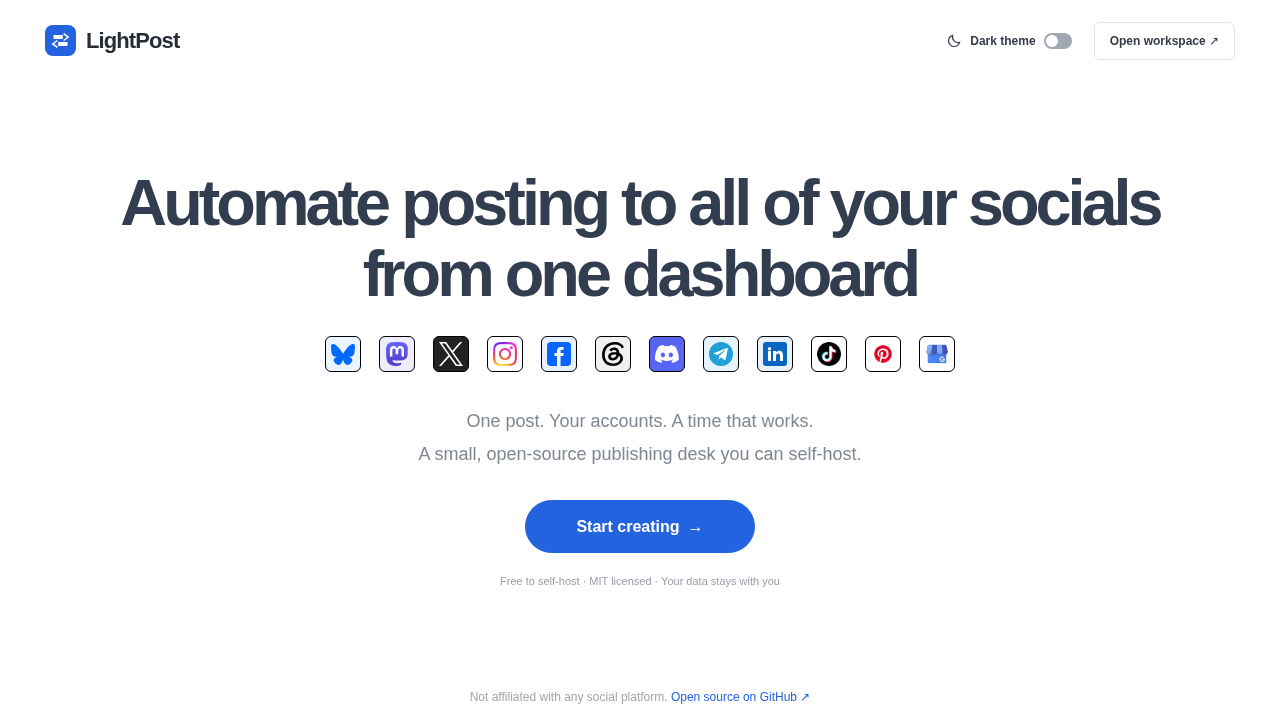
- The landing page shows the hero and platform logos. Click Start creating → to open
/app. No signup or login is needed. - "Opening your workspace…" gives way to the dashboard. The sidebar has New post, Posts, Accounts, Settings and Setup Guide.
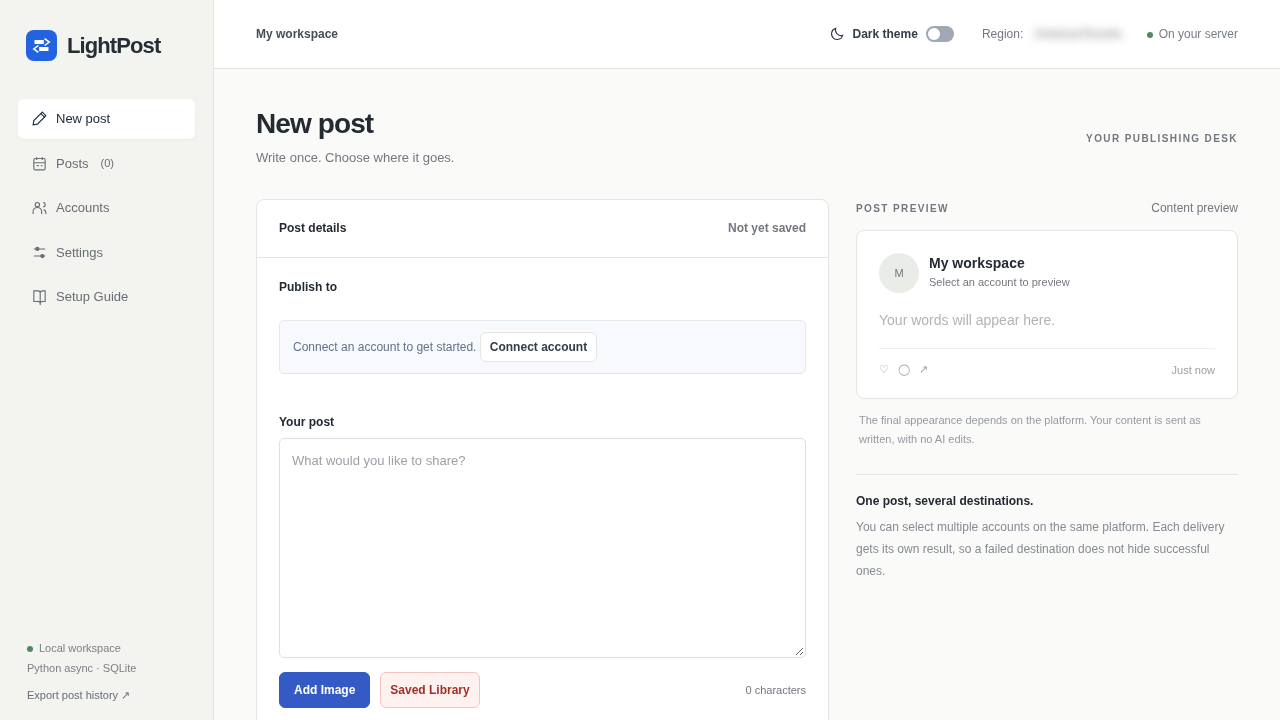
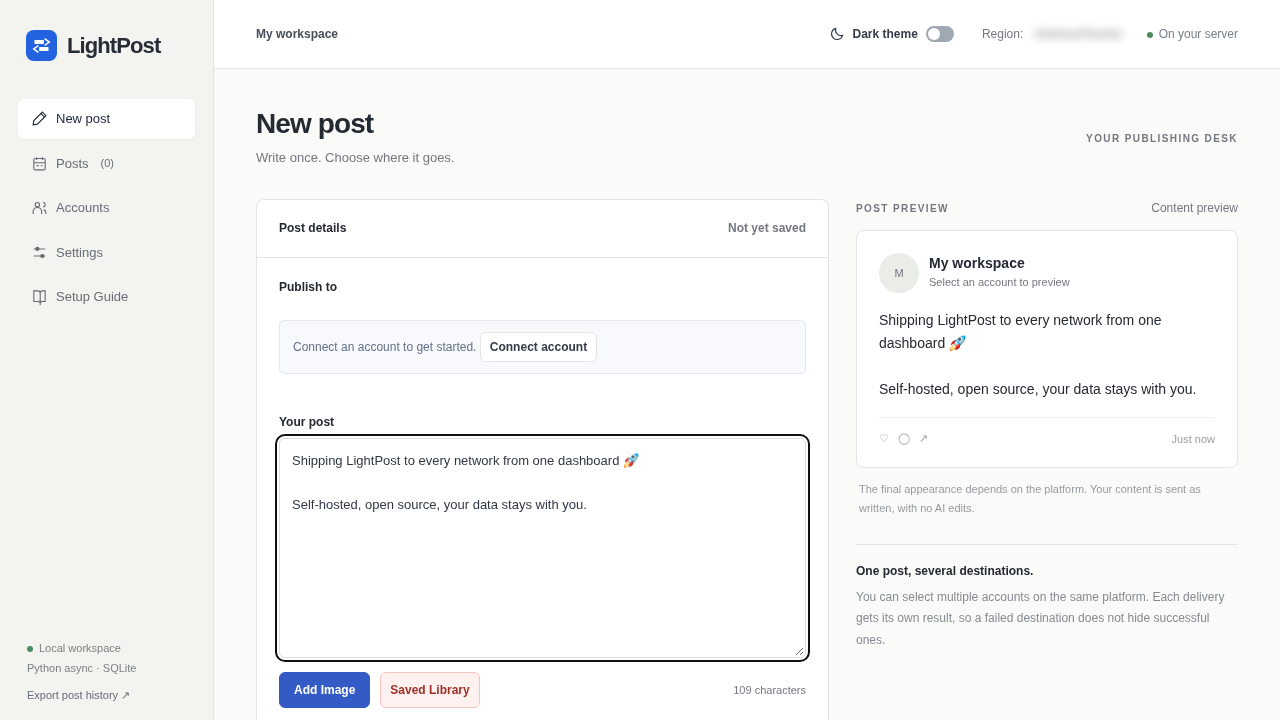
- New post: type into the text box. The Post preview on the right mirrors your text as you type, and the character counter updates. "Publish to" shows Connect account until you add one. Saving, scheduling or publishing a post requires at least one connected account.
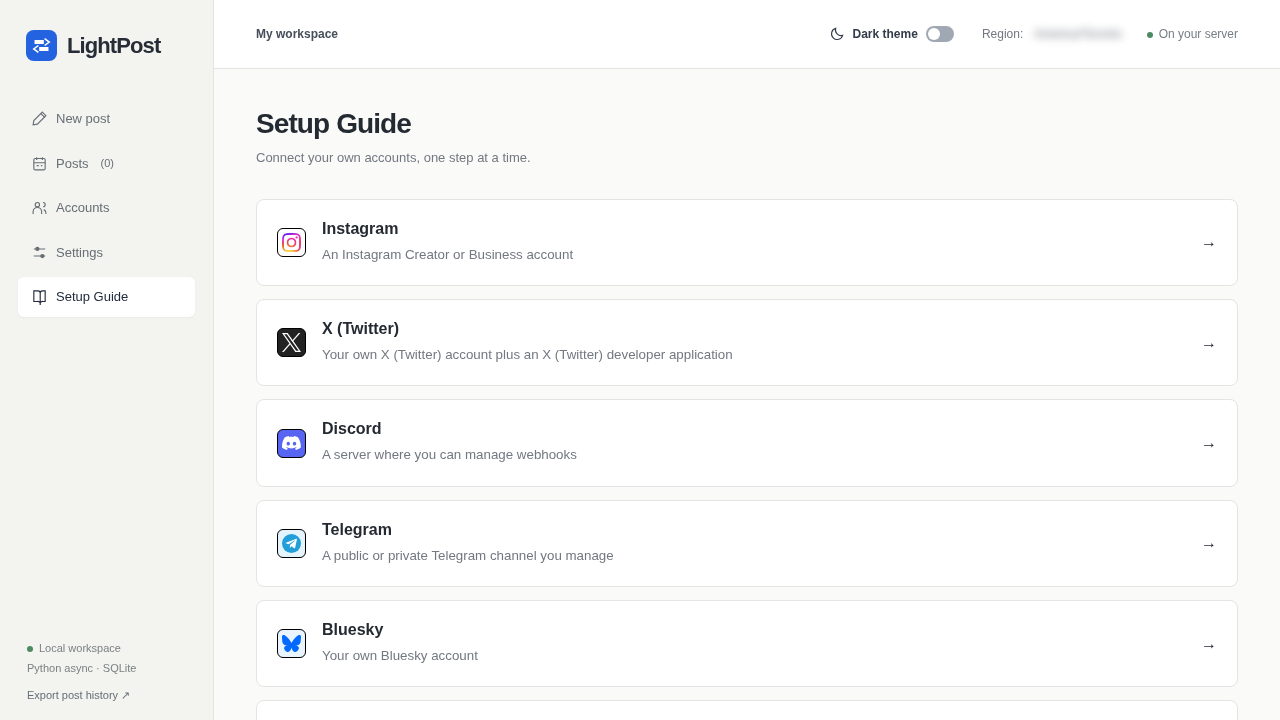
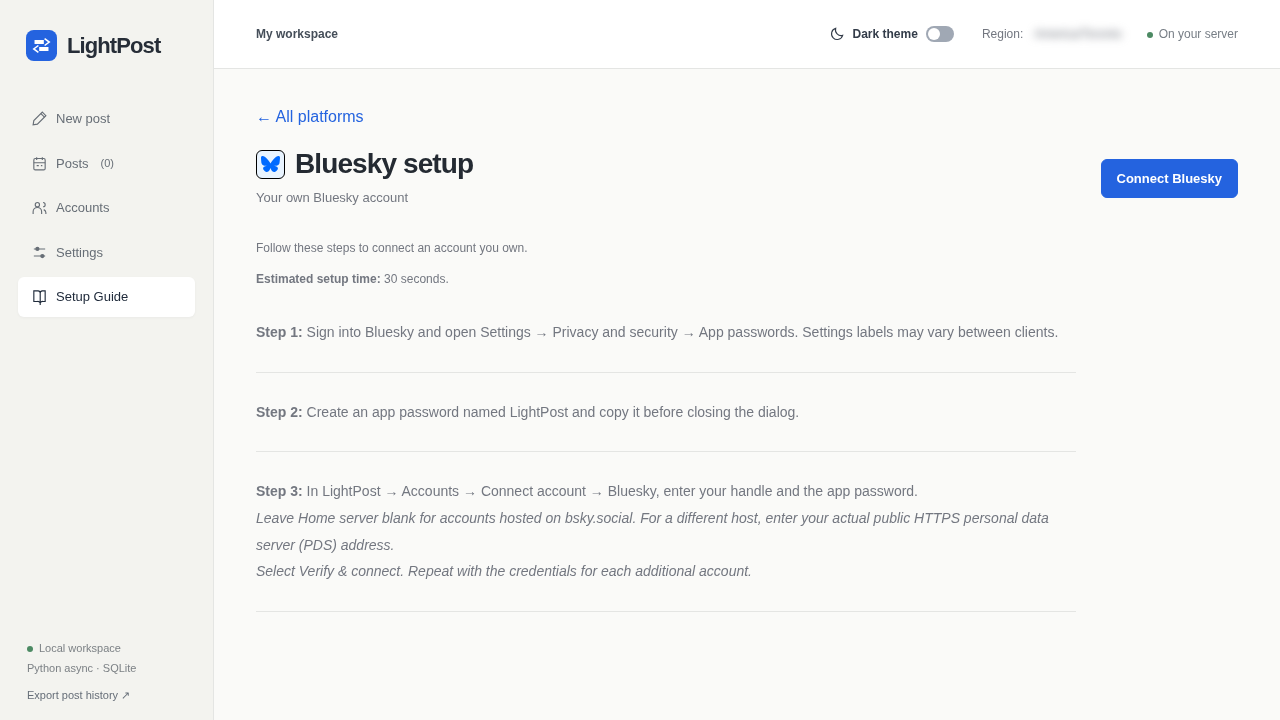
- Setup Guide: a card for each platform. Open one, for example Bluesky, to see step-by-step credential instructions and a Connect Bluesky button. ← All platforms takes you back.
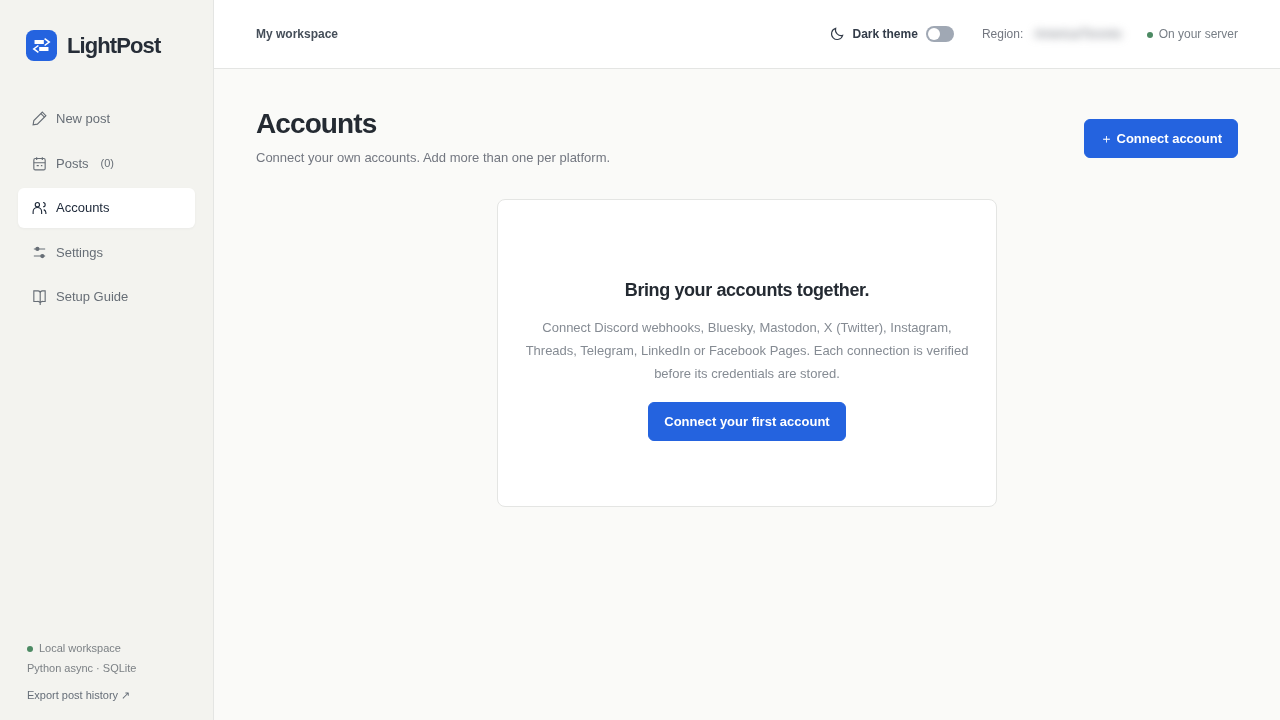
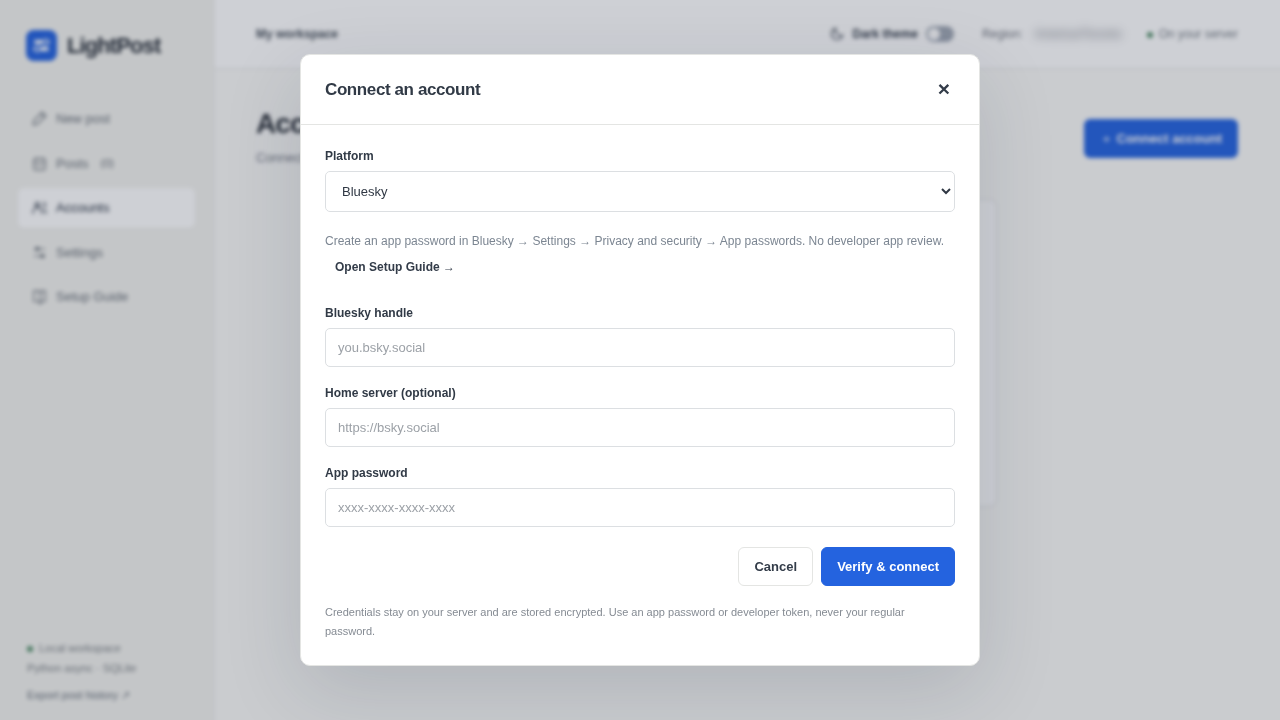
- Accounts: starts empty. Connect your first account opens a modal where you pick a platform and enter its credentials. For Bluesky, that's your handle, home server and an app password. Submitting the form makes a real call to the platform, so only do it with credentials you intend to use.
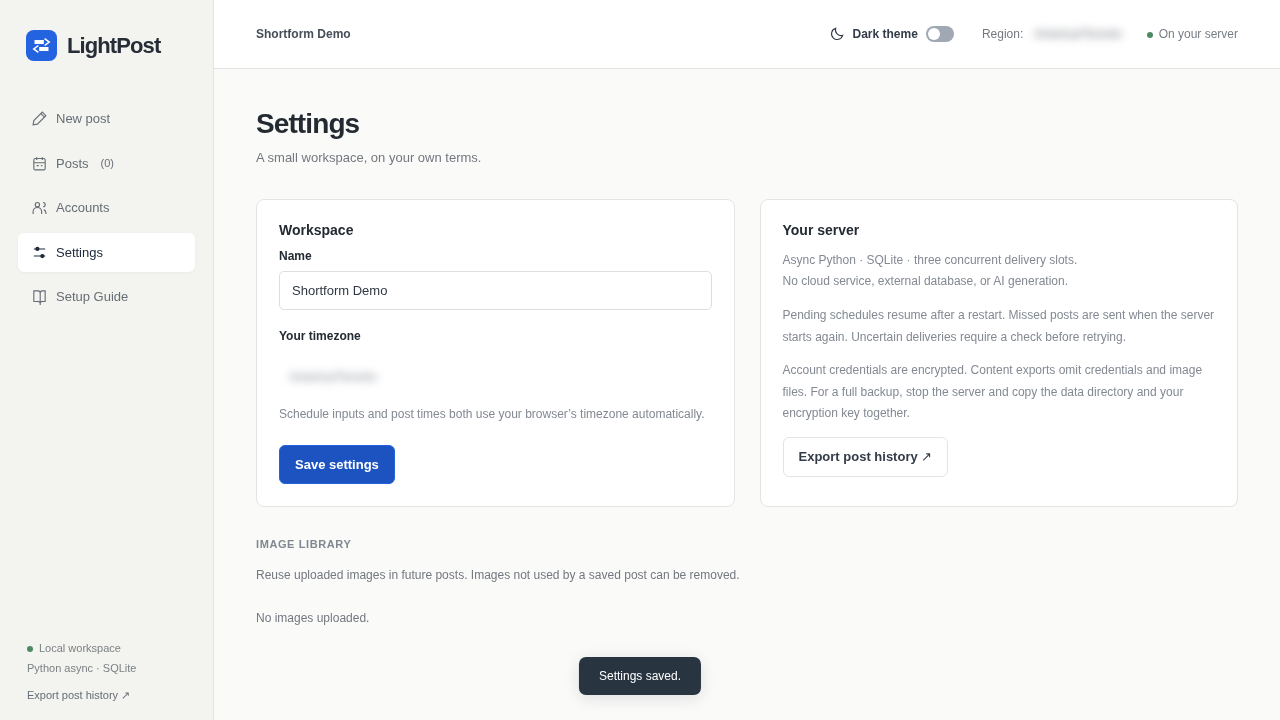
- Settings: change Name to your workspace name and click Save settings. The top-bar title updates and a "Settings saved." toast appears. This writes to the SQLite database in the
lightpost-datavolume.
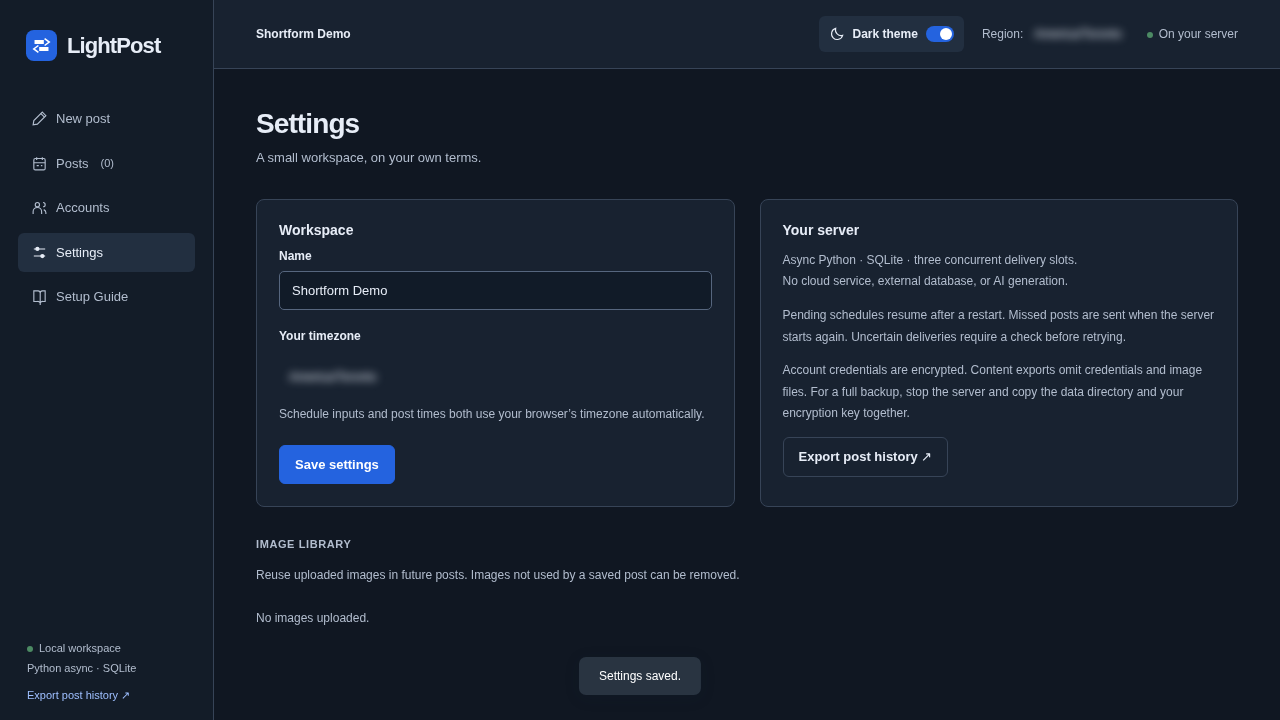
- Theme: the Dark theme switch in the top bar flips between light and dark.
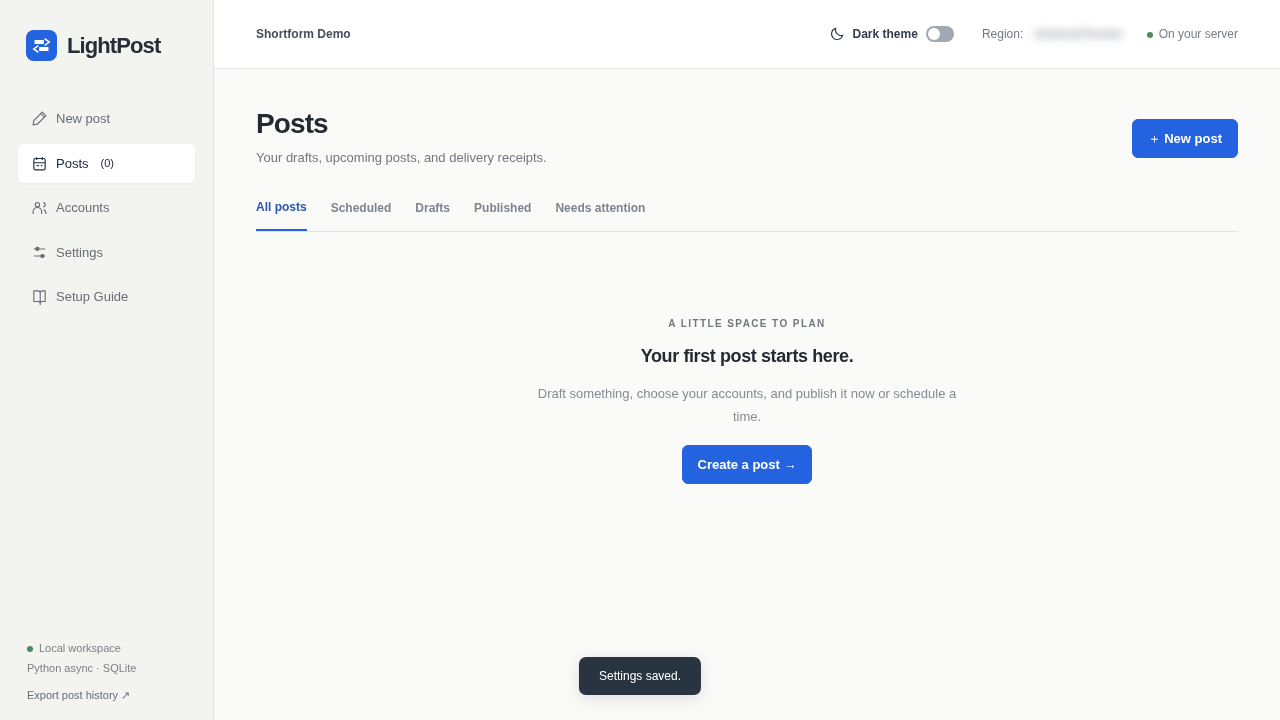
- Posts: shows "Your first post starts here." until you create one.
In our recorded run we did not connect any account or publish anything. Everything above works with no credentials.
Verify
for i in $(seq 1 30); do
  s=$(docker inspect -f '{{.State.Health.Status}}' $(docker compose -p $PROJ --env-file $DEPLOY/.env -f $DEPLOY/compose.yml ps -q lightpost))
  [ "$s" = healthy ] && break; sleep 3
done; echo "health=$s"
# expect: health=healthy

curl -s http://127.0.0.1:$LP_PORT/api/session; echo
# expect: {"authenticated": true, "passwordRequired": false}

curl -s -o /dev/null -w '%{http_code}\n' http://127.0.0.1:$LP_PORT/app
# expect: 200

curl -s http://127.0.0.1:$LP_PORT/api/state | head -c 300; echo
# expect: JSON starting with {"accounts": [], "posts": [], ...  on a new workspace
A working install also means:
/appshows the sidebar and composer with no "Unable to open workspace" error card.- The workspace name you saved in Settings is still there after a page reload.
docker compose ... logs lightpostshows no Python tracebacks.
Tear down
docker compose -p $PROJ --env-file $DEPLOY/.env -f $DEPLOY/compose.yml down -v --remove-orphans
docker volume ls --filter name=$PROJ -q     # expect: no output
rm -rf $DEPLOY                              # optional: removes the compose file and .env
down -v deletes the data volume, which holds the database, uploaded media and the generated encryption key. If you want to keep your workspace, run down without -v. For a backup, the README says to stop the app and copy the whole data directory, here the lightpost-data volume, together with any .env. Post-history exports leave out credentials and images, so they are not full backups.
Troubleshooting
| Symptom | Cause | Fix |
|---|---|---|
Logs say Set ADMIN_PASSWORD ... and the container exits | HOST isn't a loopback address. LightPost refuses to bind beyond loopback without a password of 16+ characters | Keep HOST: 127.0.0.1 with host networking, or use the bridge variant below |
Address already in use in the logs | Port was taken between step 3 and step 5 | Re-run steps 3–5 to pick another port |
/api/* returns 403 with "Use a loopback hostname…" | You opened the app via a LAN IP or another hostname | Browse to http://127.0.0.1:<port>/app or http://localhost:<port>/app |
curl to 127.0.0.1 gets connection refused, but the container runs | Rootless Docker or Docker Desktop: network_mode: host isn't your host's loopback | Use the bridge variant below |
No LightPost: http://... log line yet | pip is still installing on first start | Wait and re-run the logs command. Later starts reuse the lightpost-venv volume |
| Save, Schedule or Publish shows "Choose at least one connected account." | No account is connected | Connect an account under Accounts, using that platform's Setup Guide |
| Settings and posts disappeared after a restart | You ran down -v, which removes the data volume | Use down without -v to keep data |
Bridge variant (rootless Docker / Docker Desktop)
We did not run this variant in the recorded install. It comes from the install plan and the README's
ADMIN_PASSWORDrule.
In bridge mode the app must bind 0.0.0.0, so LightPost requires an ADMIN_PASSWORD of at least 16 characters and shows a sign-in form at /app.
grep -q ADMIN_PASSWORD $DEPLOY/.env || echo "ADMIN_PASSWORD=lightpost-$(openssl rand -hex 6)" >> $DEPLOY/.env
grep ADMIN_PASSWORD $DEPLOY/.env       # you'll type this into the sign-in form
cat > $DEPLOY/compose.bridge.yml <<'EOF'
services:
  lightpost:
    network_mode: !reset null
    ports:
      - "127.0.0.1:${LP_PORT}:${LP_PORT}"
    environment:
      HOST: 0.0.0.0
      ADMIN_PASSWORD: ${ADMIN_PASSWORD}
EOF
docker compose -p $PROJ --env-file $DEPLOY/.env -f $DEPLOY/compose.yml -f $DEPLOY/compose.bridge.yml up -d
curl -s http://127.0.0.1:$LP_PORT/api/session; echo
# expect: {"authenticated": false, "passwordRequired": true}
Add -f $DEPLOY/compose.bridge.yml to the down command when you tear this variant down. If you serve LightPost over HTTPS, also set COOKIE_SECURE=true.
Assumptions & decisions
- Primary path only, as validated. The steps follow the Deployment Process Reviewer's PASS verdict (install plan path A: host network, loopback bind, no login). The bridge variant is marked untested because only path A ran.
- Reader-friendly paths. The recorded run used pipeline paths (
runs/lightpost-20261029-193937/...) and the project nameshortform-lightpost-20261029-193937. The post uses~/LightPost,~/lightpost-deployandPROJ=lightpostinstead. Every command and the compose file are otherwise identical to the recordedinstall.sh/compose.yml. - Non-following logs. The plan used
logs -f. The recorded script and this post uselogs | tail -1, which needs no Ctrl-C. - Timing. We report the measured ~12 s (warm image cache) and avoid promising a cold-start number. The plan's 30–90 s estimate was not measured.
restart: "no"kept to match the recording, with a note to switch tounless-stoppedfor real use. That note follows from the README's statement that the app must keep running for scheduled delivery.- The Settings screenshot shows "Shortform Demo", the name the recording used. The text tells readers to use their own workspace name.
- No publishing or account connection claims. The demo ran with no credentials. TikTok, Pinterest and Google Business Profile are called out as under development, matching upstream.
- Screenshots are referenced by repo-root-relative paths under
runs/lightpost-20261029-193937/browser/. All 10 referenced files exist.final.pngis left for the feature image, because the ghost stage already picks it up. - Troubleshooting rows come from the install plan's documented errors, the README's configuration table and the reviewer's 403 check. The "connection refused on rootless" row is inferred from the plan's rootless note.
- Replaced the stale Sablier
howto.mdfrom the previous job.
Get the Unified Homelab Stack Compose Pack
One-command multi-container Compose files (Full *arr Stack, Prometheus + Grafana + ntfy Monitoring, and Homelab Auth) plus new verified deploys once a week.