
How to Deploy Kestra: Declarative Workflow Orchestration with Docker Compose
Kestra is an open-source, event-driven orchestration platform that unifies scheduled data workflows, containerized tasks, and infrastructure automation into declarative YAML. Learn how to deploy Kestra with Docker Compose, execute isolated Python scripts in sibling containers, and manage flows via the web UI and REST API.
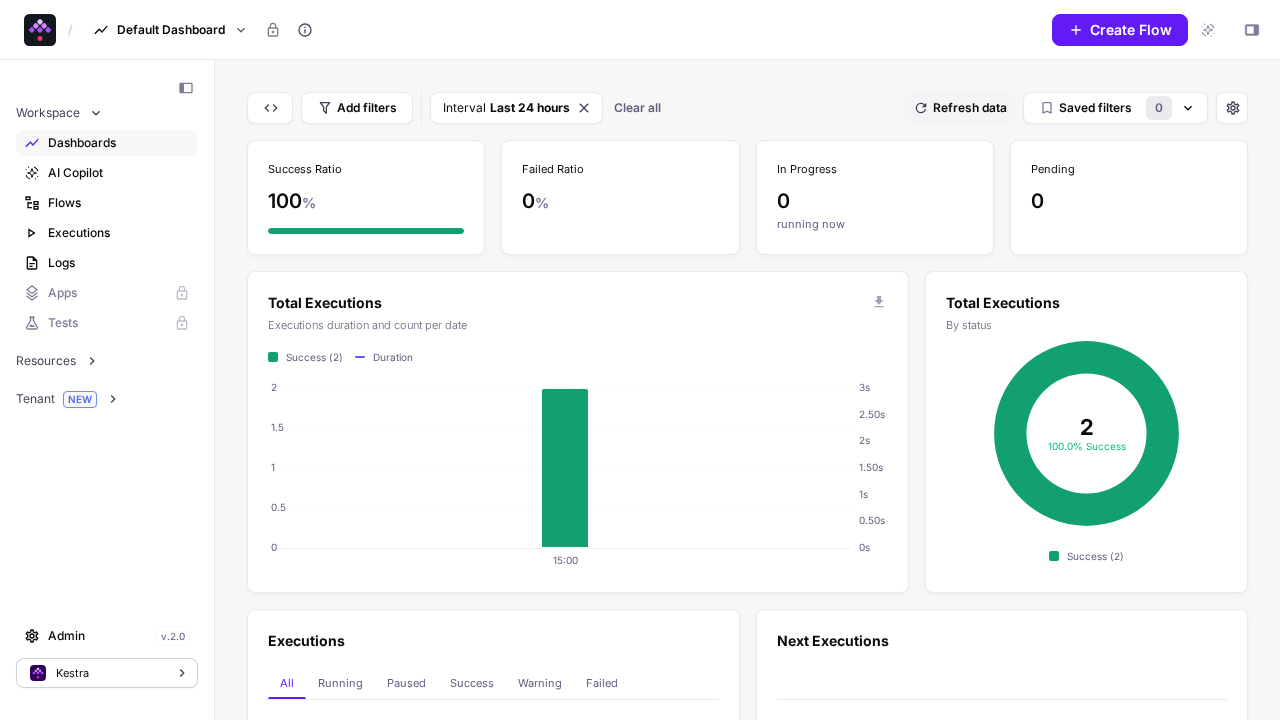
Kestra is an open-source, event-driven workflow orchestration and automation engine released under the Apache-2.0 license. As engineering and data infrastructure matures, organizations often accumulate a fragile web of unmonitored cron jobs, standalone shell scripts, and disconnected scheduling tools. When an unmonitored script fails at 3 a.m., operators lack visibility into which task failed, what inputs triggered it, or how dependent downstream systems are affected. Kestra solves this by modeling data, infrastructure, and automation workflows as declarative Directed Acyclic Graphs (DAGs) defined entirely in YAML.
Unlike legacy orchestrators that demand heavy programming language SDKs or complex distributed clusters just to get started, Kestra provides a lightweight standalone deployment mode powered by a high-performance Micronaut Netty runtime and PostgreSQL. It delivers code-centric YAML authoring with Monaco editor integration, dynamic visual topology rendering via @vue-flow, interactive Gantt execution timelines, and native Docker socket integration for spawning ephemeral, containerized task runners.
Core Capabilities and Architecture
- Declarative Flow Definitions: Workflows are written in human-readable YAML. Operators can inspect and edit flows interchangeably using code view, visual topology graphs, or the built-in AI Copilot without vendor lock-in.
- Unified Standalone Topology: In standalone mode, Kestra combines the HTTP Webserver, Scheduler, Executor, and Worker components into a single container process backed by PostgreSQL 18 for queues, state management, and execution history.
- Pluggable Containerized Script Runners: Workflow tasks can execute shell commands, Python scripts, Node.js, R, or custom binaries inside isolated Docker containers using the host Docker daemon (
/var/run/docker.sock). - Rich Developer UI: The web console provides real-time topology visualization, task dependency tracking, live execution Gantt charts, structured per-task logging, and metrics dashboards with historical success ratios.
- Robust API and Extensibility: Over 240 plugin groups provide native connectors for databases, cloud providers, messaging brokers, and notification services, accessible through both a REST API and an in-container operator CLI.
---
Prerequisites
Before starting the deployment, verify that your host system satisfies the following requirements:
- Operating System: Linux (Ubuntu 22.04+, Debian 12+, Fedora, Rocky Linux, or Arch Linux), macOS, or Windows via WSL2.
- Container Runtime: Docker Engine 20.10+ with Docker Compose v2 (
docker compose versionv2.20+ recommended). - Hardware Resources:
- CPU: 2 vCPU cores minimum (4 vCPUs recommended for executing parallel containerized script runners). - Memory: 4 GB RAM minimum (PostgreSQL and Kestra JVM standalone server consume ~1.5–2.0 GB at idle). - Storage: 10 GB free disk space for Docker container images (kestra/kestra:latest, postgres:18, and task images such as python:3.11-slim) plus persistent database volumes.
- Network Ports: An available host port (this guide uses port
3000, mapped to container port8080). - Host Permissions: User membership in the
dockergroup or root access to communicate with/var/run/docker.sock.
---
Exact Install Steps
The deployment uses Docker Compose to run PostgreSQL 18 alongside the official Kestra multi-architecture container (kestra/kestra:latest).
Step 1: Create Deployment Directory Structure
Create a dedicated staging directory for your Kestra deployment and create the task working directory:
mkdir -p kestra/kestra-wd
cd kestra
chmod -R 777 kestra-wd
[!NOTE]
The./kestra-wddirectory serves as the shared workspace for containerized script tasks. When Kestra spawns task runner containers via the host Docker daemon, both the Kestra server and the task container mount this absolute host directory to exchange scripts and artifacts.
Step 2: Configure Environment Variables (.env)
Kestra supports declarative configuration via environment variables and YAML configuration injection. Create a .env file to define the project namespace, host port, storage paths, database credentials, and initial administrative user:
cat << EOF > .env
COMPOSE_PROJECT_NAME=kestra
KESTRA_PORT=3000
KESTRA_WD=$(pwd)/kestra-wd
POSTGRES_DB=kestra
POSTGRES_USER=kestra
POSTGRES_PASSWORD=k3str4
KESTRA_USER=admin@kestra.io
KESTRA_PASS=Admin1234!
EOF

chmod 600 .env
Key environment settings include:
KESTRA_PORT: The host port exposed for the Kestra web console and REST API.KESTRA_WD: The absolute filesystem path to the task workspace. Setting this to$(pwd)/kestra-wdensures Docker volume bind mounts resolve correctly from the host daemon when sibling containers are launched.POSTGRES_PASSWORD: The database password for the dedicated PostgreSQL metadata store.KESTRA_USERandKESTRA_PASS: Administrative basic authentication credentials pre-seeded into the server configuration.
Step 3: Create Docker Compose Specification (compose.yml)
Create compose.yml to define the PostgreSQL 18 database service and the Kestra standalone server:
volumes:
  postgres-data:
  kestra-data:

services:
  postgres:
    image: postgres:18
    container_name: ${COMPOSE_PROJECT_NAME}-postgres
    volumes:
      - postgres-data:/var/lib/postgresql
    environment:
      POSTGRES_DB: ${POSTGRES_DB}
      POSTGRES_USER: ${POSTGRES_USER}
      POSTGRES_PASSWORD: ${POSTGRES_PASSWORD}
    healthcheck:
      test: ["CMD-SHELL", "pg_isready -d ${POSTGRES_DB} -U ${POSTGRES_USER}"]
      interval: 5s
      timeout: 5s
      retries: 10
    restart: unless-stopped

  kestra:
    image: kestra/kestra:latest
    container_name: ${COMPOSE_PROJECT_NAME}-server
    restart: unless-stopped
    user: "root"
    command: server standalone
    volumes:
      - kestra-data:/app/storage
      - /var/run/docker.sock:/var/run/docker.sock
      - ${KESTRA_WD}:${KESTRA_WD}
    environment:
      KESTRA_CONFIGURATION: |
        datasources:
          postgres:
            url: jdbc:postgresql://postgres:5432/${POSTGRES_DB}
            driverClassName: org.postgresql.Driver
            username: ${POSTGRES_USER}
            password: ${POSTGRES_PASSWORD}
        kestra:
          server:
            basic-auth:
              username: ${KESTRA_USER}
              password: ${KESTRA_PASS}
          repository:
            type: postgres
          storage:
            type: local
            local:
              base-path: "/app/storage"
          queue:
            type: postgres
          tasks:
            tmp-dir:
              path: ${KESTRA_WD}/tmp
          anonymous-usage-report:
            enabled: false
          url: http://localhost:${KESTRA_PORT}/
    ports:
      - "${KESTRA_PORT}:8080"
    depends_on:
      postgres:
        condition: service_healthy
Important architectural points in this specification:
user: "root": Grants the Kestra process permission to communicate with/var/run/docker.sockto start containerized script runners.command: server standalone: Runs all scheduler, executor, webserver, and worker planes in a single unified container instance.basic-auth: Configures the administrative user at startup, eliminating unauthenticated first-run setup wizards.condition: service_healthy: Ensures Kestra delays startup until PostgreSQL has completed initialization and passespg_isready.
Step 4: Pull Images and Launch Services
Fetch the required container images and launch the stack in detached mode:
docker compose pull
docker compose up -d
Check the status of the containers:
docker compose psExpected output:
NAME              IMAGE                  COMMAND                  SERVICE    CREATED          STATUS                    PORTS
kestra-postgres   postgres:18            "docker-entrypoint.s…"   postgres   12 seconds ago   Up 12 seconds (healthy)   5432/tcp
kestra-server     kestra/kestra:latest   "/app/docker-entrypo…"   kestra     12 seconds ago   Up 11 seconds             0.0.0.0:3000->8080/tcp
During the initial boot (typically 8–10 seconds), Kestra automatically executes Flyway database migrations (0-init, 0-init-queue, 2.0.01-schema, 2.0.02-queue, 2.0.03-triggers) against PostgreSQL.
---
Browser Setup and Workflow Walkthrough
Once the stack is running, you can access the visual interface and configure your first automated pipeline.
Step 1: Access and Authenticate
Open your web browser and navigate to http://localhost:3000/ (which automatically redirects to http://localhost:3000/ui/ and then to the login page /ui/login).
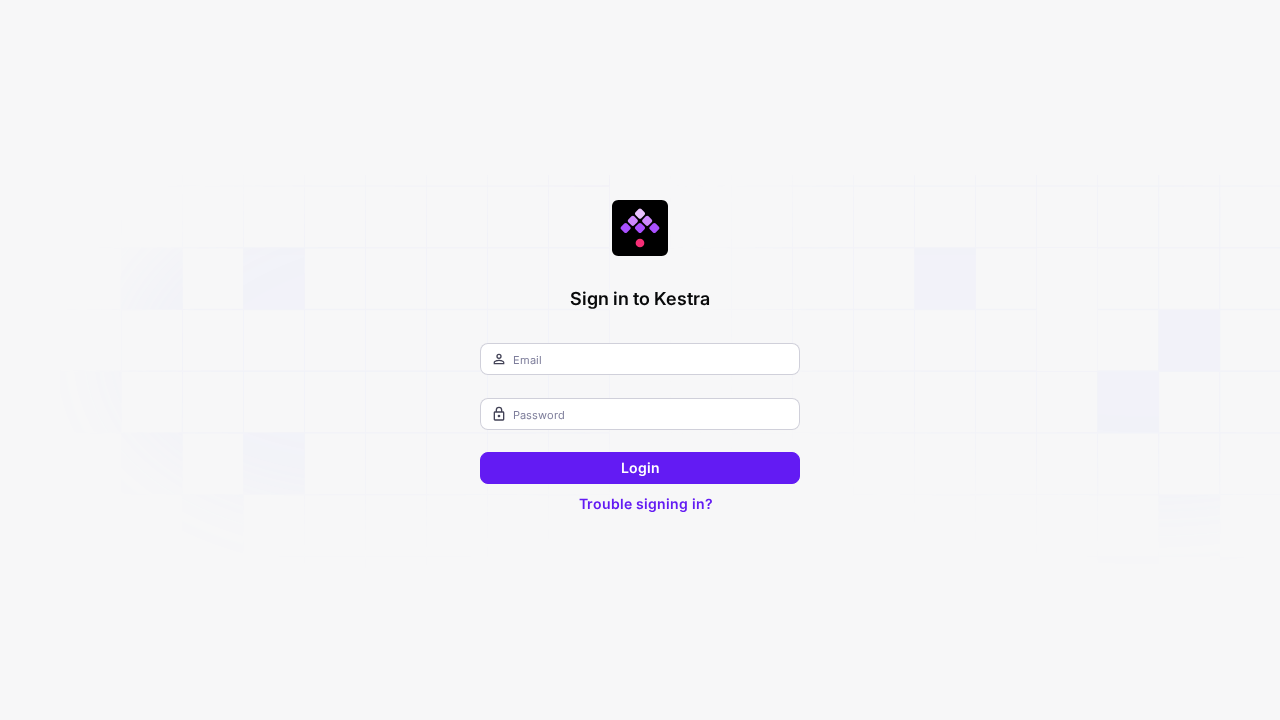
Log in using the administrator credentials configured in your .env file:
- Username / Email:
admin@kestra.io - Password:
Admin1234!
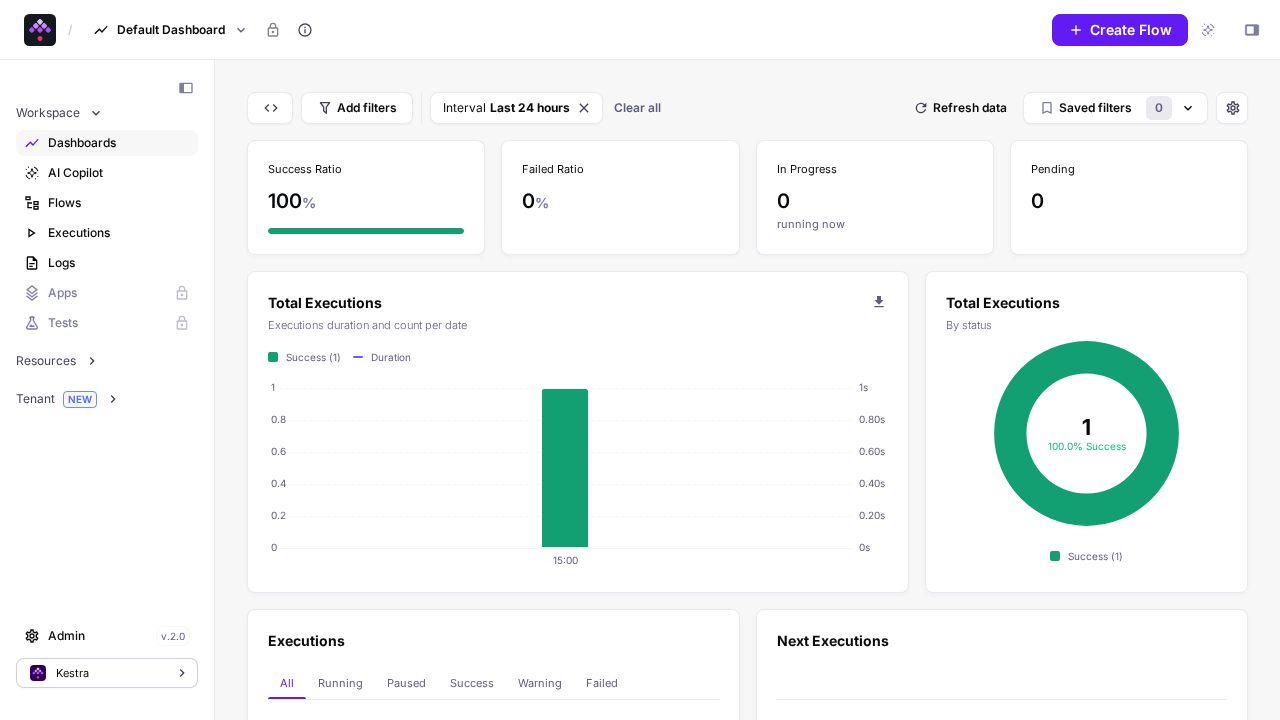
Upon successful authentication, you land on the Kestra Dashboards view.
Step 2: Inspect Flow Management
Click on the Flows item in the left-hand navigation sidebar to view registered workflow pipelines.
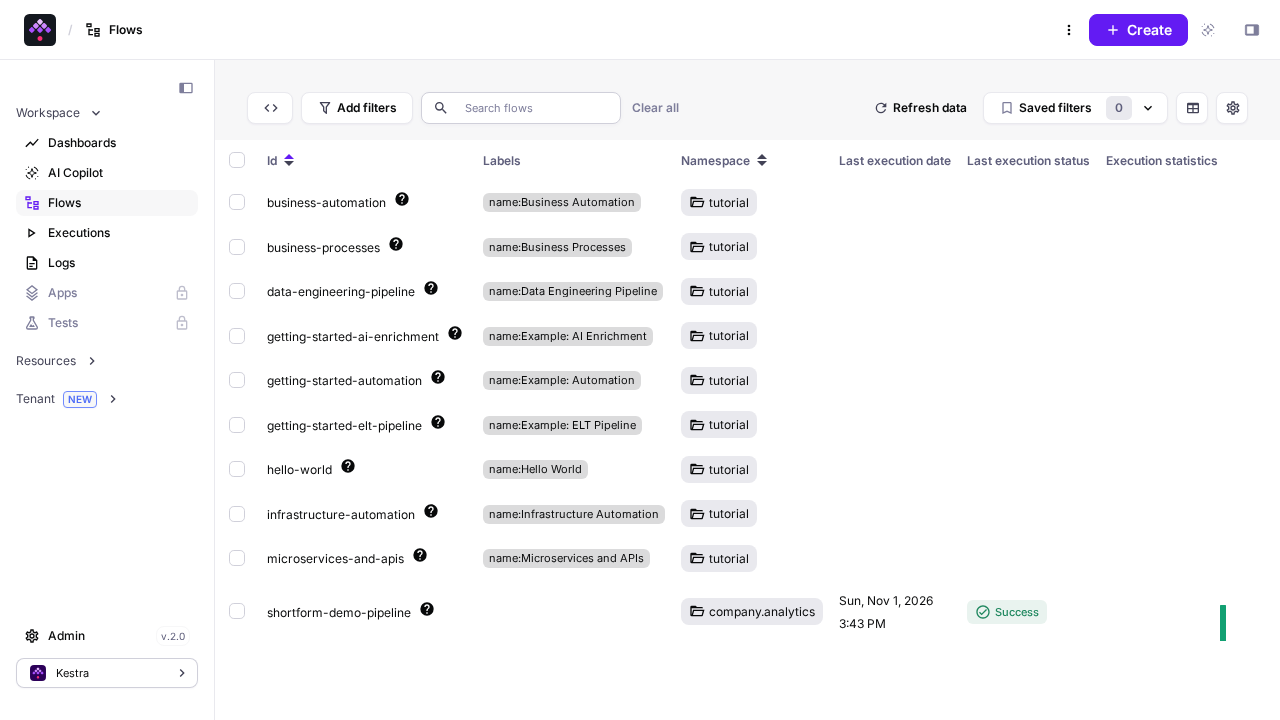
Select shortform-demo-pipeline (or click Create to create a new flow). The Monaco YAML editor opens in the Edit view:
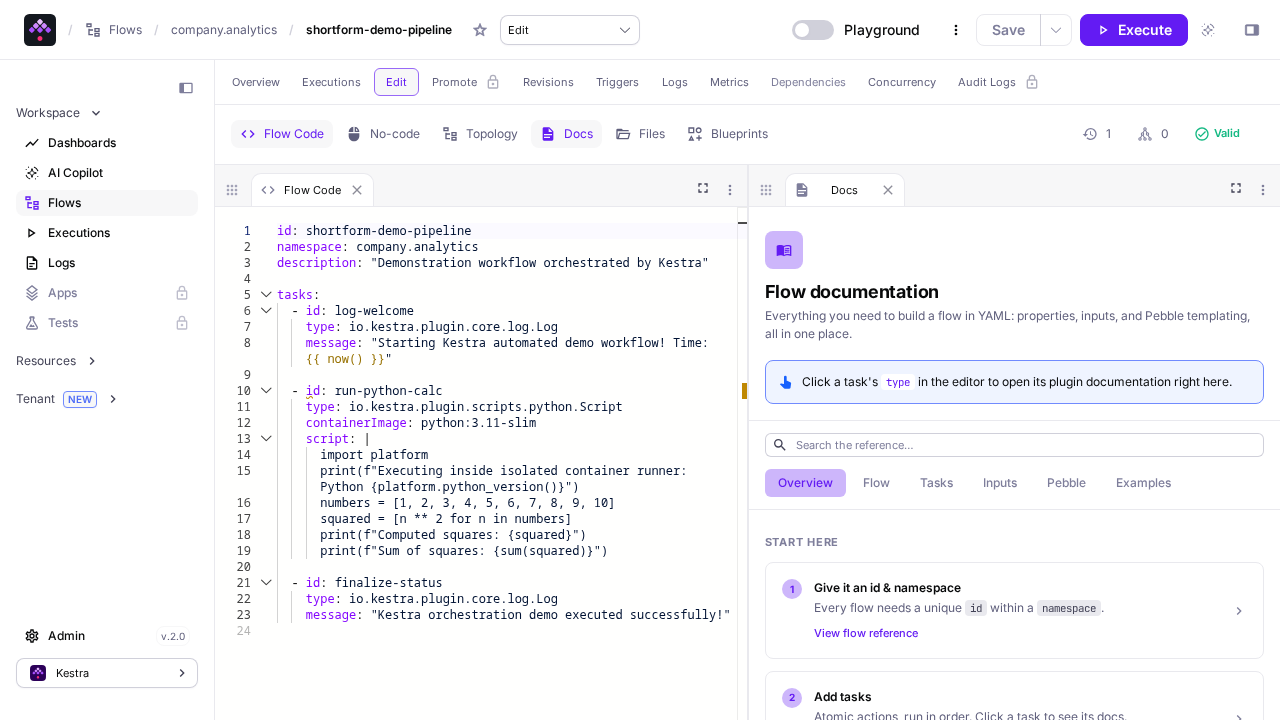
The workflow definition uses declarative YAML to compose three sequential tasks:
id: shortform-demo-pipeline
namespace: company.analytics
description: "Demonstration workflow orchestrated by Kestra"

tasks:
  - id: log-welcome
    type: io.kestra.plugin.core.log.Log
    message: "Starting Kestra automated demo workflow! Time: {{ now() }}"

  - id: run-python-calc
    type: io.kestra.plugin.scripts.python.Script
    containerImage: python:3.11-slim
    script: |
      import platform
      print(f"Executing inside isolated container runner: Python {platform.python_version()}")
      numbers = [1, 2, 3, 4, 5, 6, 7, 8, 9, 10]
      squared = [n ** 2 for n in numbers]
      print(f"Computed squares: {squared}")
      print(f"Sum of squares: {sum(squared)}")

  - id: finalize-status
    type: io.kestra.plugin.core.log.Log
    message: "Kestra orchestration demo executed successfully!"
In this pipeline:
log-welcome: Logs a dynamic start timestamp using Kestra's built-in Pebble templating syntax{{ now() }}.run-python-calc: Usesio.kestra.plugin.scripts.python.Scriptto pull and spawn an isolatedpython:3.11-slimcontainer on the host Docker daemon, compute the sum of squares, and return stdout.finalize-status: Emits a completion status log message.
Step 3: Visualize Directed Acyclic Graph (Topology)
Click the Topology tab in the flow view. Kestra renders the interactive DAG layout showing upstream and downstream task dependencies:
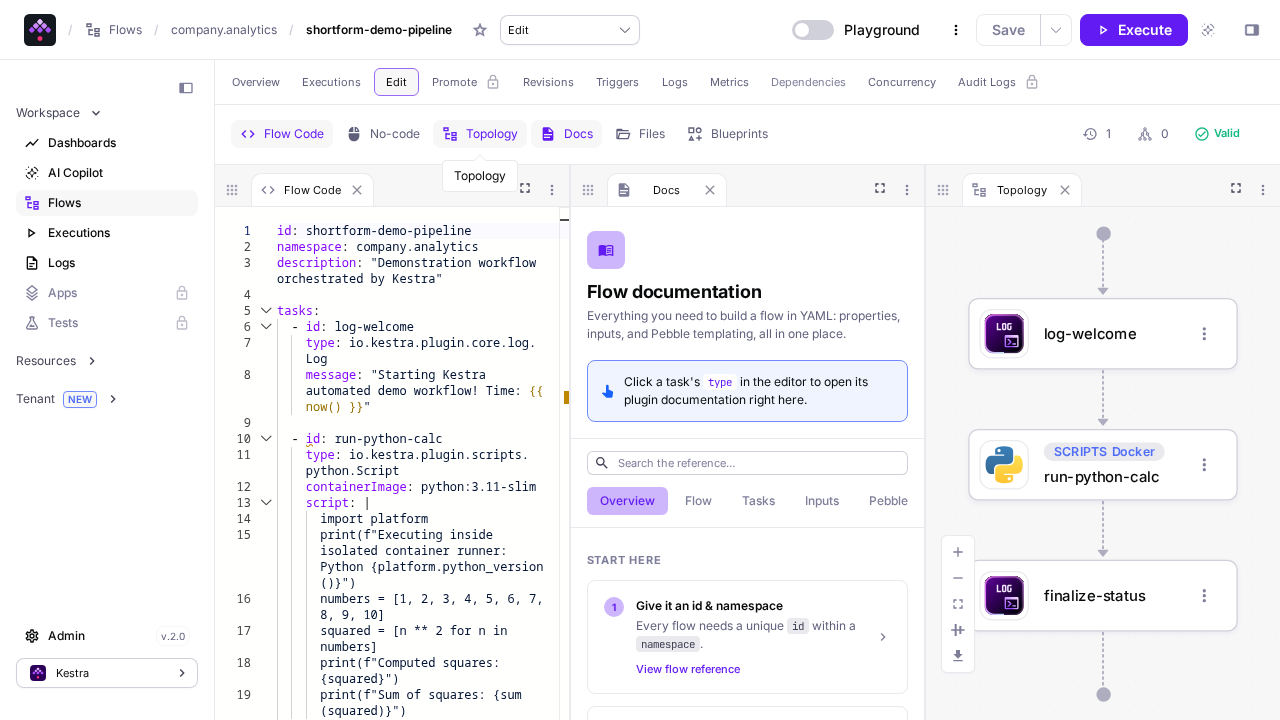
The visual graph displays log-welcome feeding directly into run-python-calc (tagged as a Docker script runner), followed by finalize-status.
Step 4: Execute the Workflow
Click the Execute button in the upper right navigation bar. An execution modal appears:
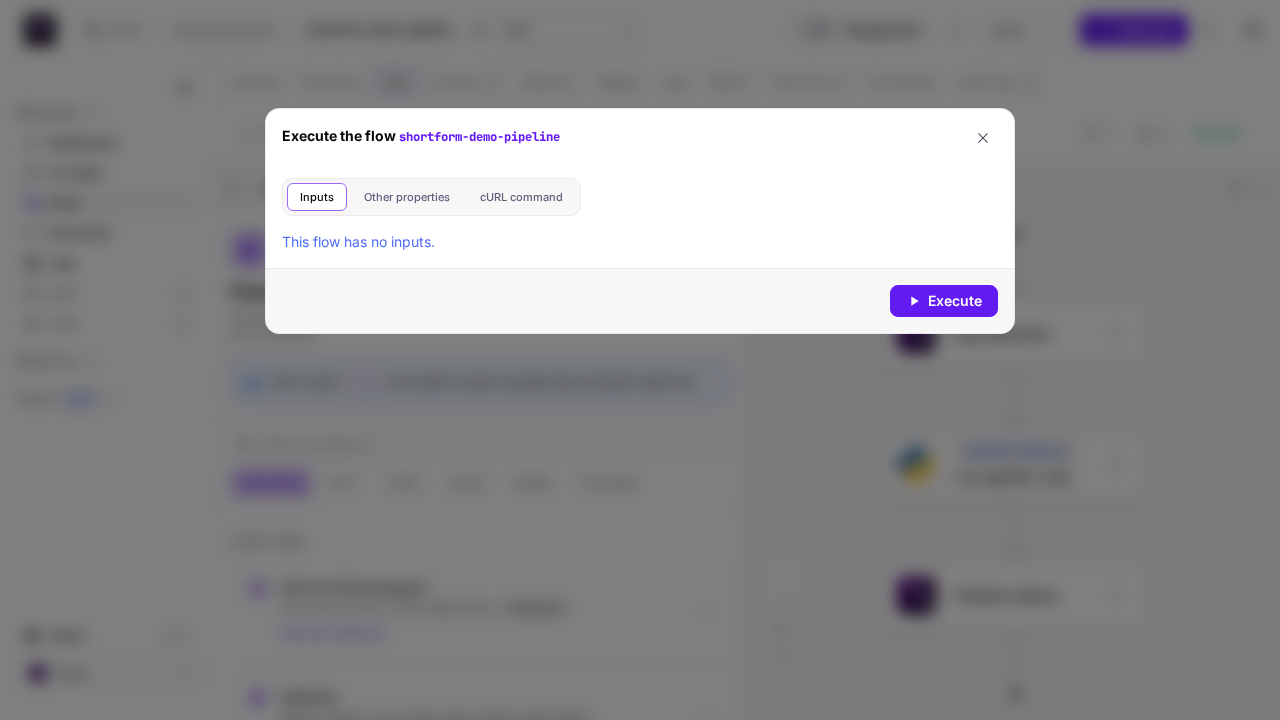
Confirm by clicking Execute. Kestra dispatches the execution to the worker engine and redirects immediately to the live execution view.
Step 5: Monitor Gantt Timeline and Logs
The Gantt view tracks task execution progression in real time:
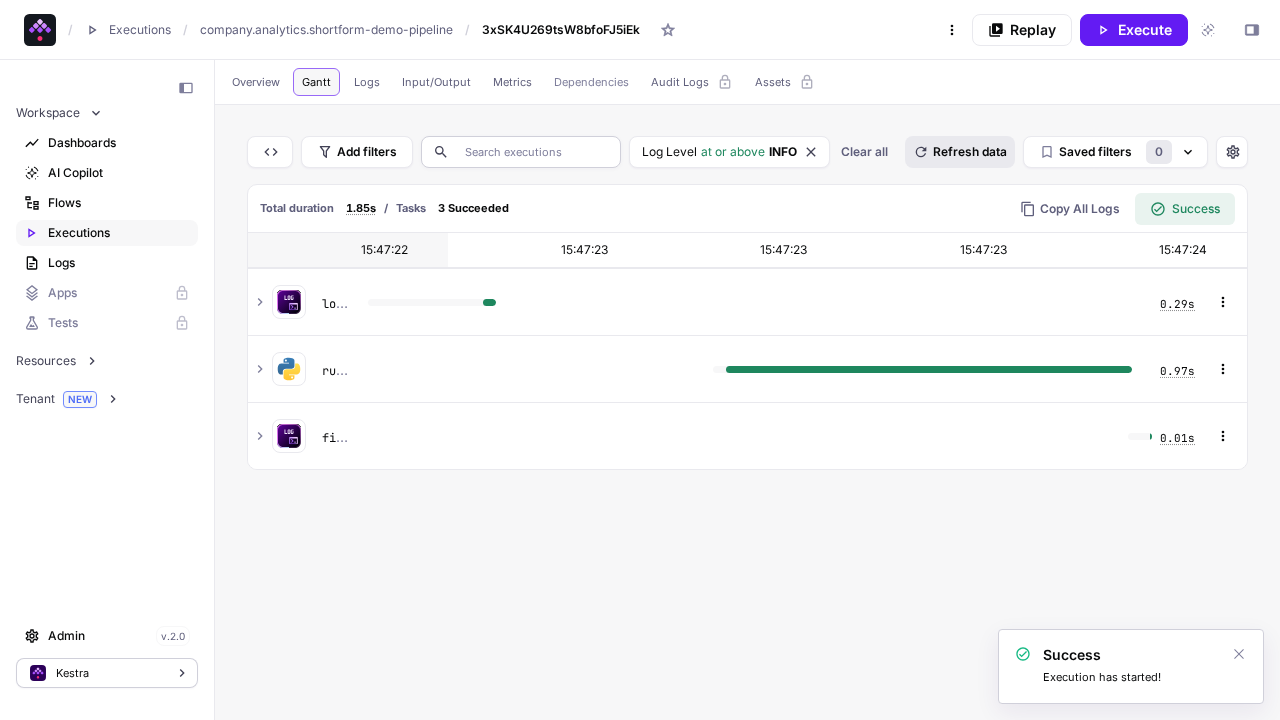
Each task block transitions from queued to running to a green SUCCESS status badge. Click the Logs tab to view output across all tasks:
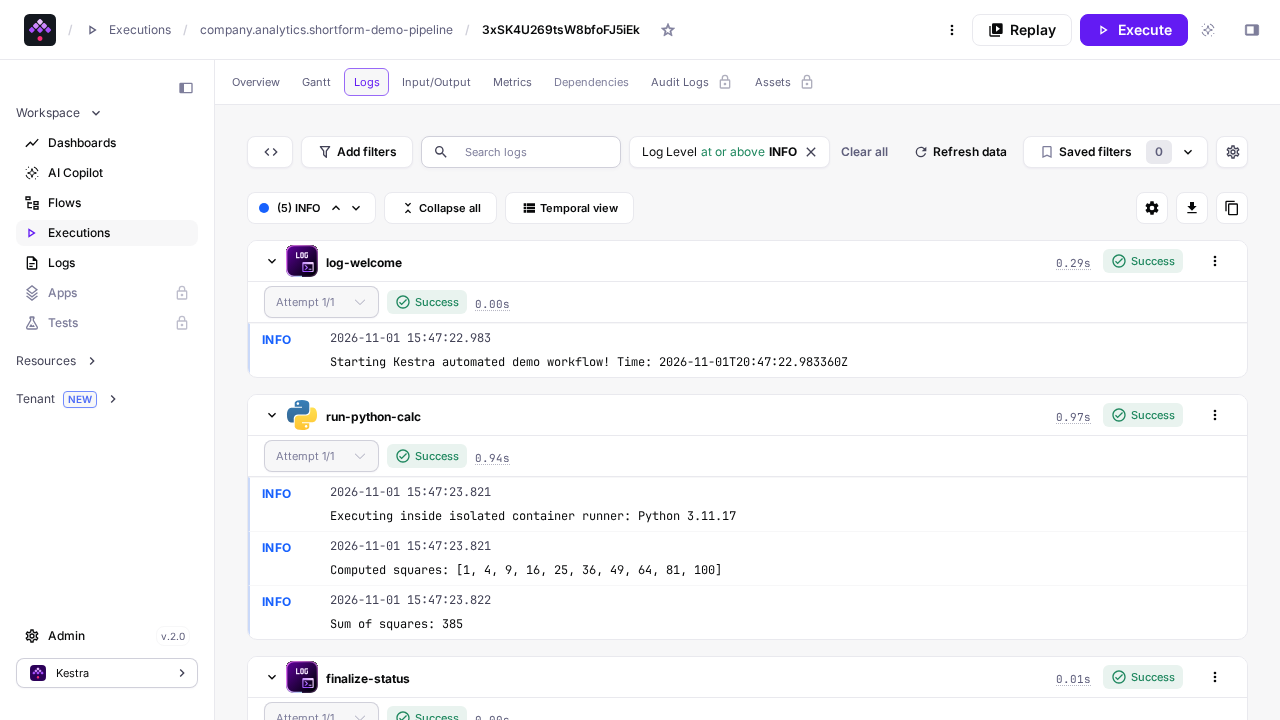
The logs confirm that run-python-calc successfully initialized the python:3.11-slim container runner, executed the script, and printed:
Executing inside isolated container runner: Python 3.11.17
Computed squares: [1, 4, 9, 16, 25, 36, 49, 64, 81, 100]
Sum of squares: 385
Step 6: Review Aggregated Metrics
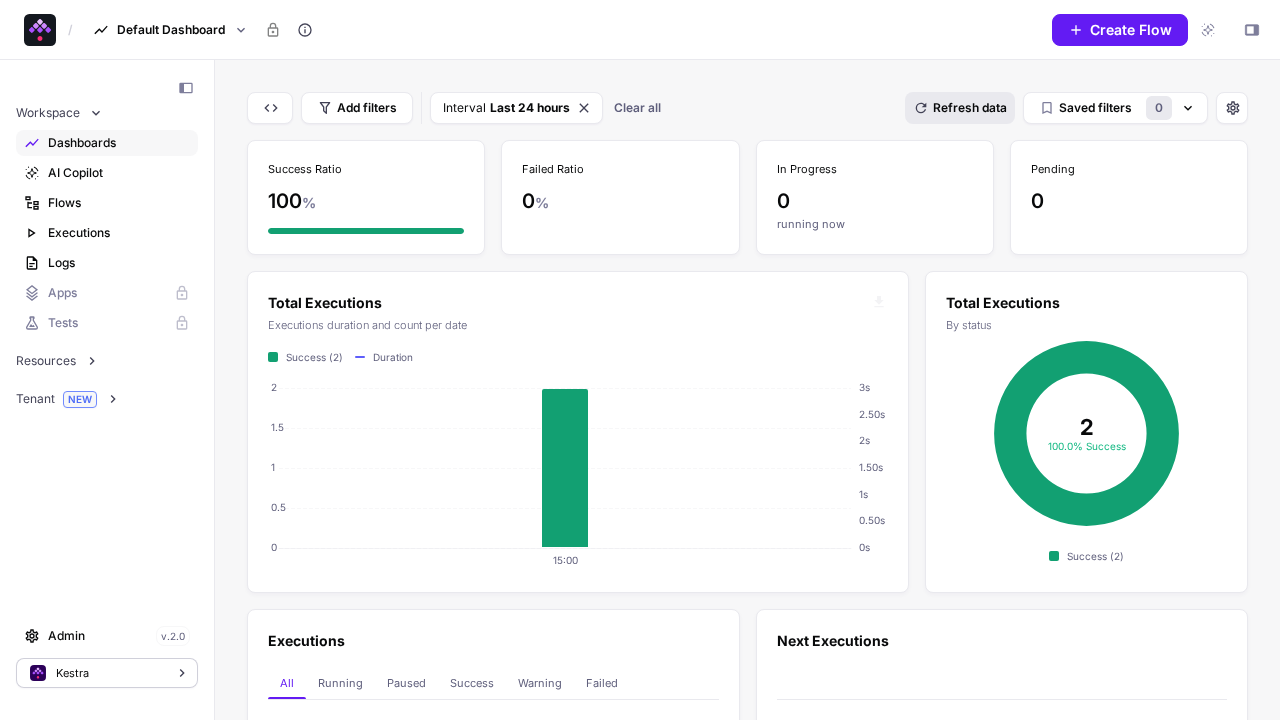
Navigate back to the Dashboards menu. The dashboard aggregates execution telemetry, reflecting a 100% Success Ratio with visual status donuts and execution history bar charts.
---
Verification
To verify that Kestra's API, CLI, and database migrations are fully functioning outside the web UI, perform the following operational checks:
1. REST API Authentication and Health Check
Verify that anonymous API requests are rejected with HTTP 401 Unauthorized:
curl -s -o /dev/null -w "%{http_code}\n" http://localhost:3000/api/v1/main/flows/searchExpected output:
401Verify that the pre-seeded owner credentials authenticate successfully with HTTP 200 OK:
curl -s -o /dev/null -w "%{http_code}\n" -u "admin@kestra.io:Admin1234!" http://localhost:3000/api/v1/main/flows/searchExpected output:
2002. Triggering Executions Programmatically via REST
You can trigger flow executions directly through Kestra's REST API:
curl -sf -u "admin@kestra.io:Admin1234!" -X POST \
  http://localhost:3000/api/v1/main/executions/company.analytics/shortform-demo-pipeline
The endpoint returns a JSON payload containing the unique id of the queued execution and its initial state.
3. In-Container Operator CLI Verification
Kestra ships with a command-line interface bundled inside the container. Check the runtime version:
docker compose exec kestra sh /app/kestra --versionExpected output:
2.0.8Inspect the list of installed core plugins:
docker compose exec kestra sh /app/kestra plugins list | grep -c "Found plugin"Expected output:
2424. Database Migrations Verification
Inspect the server logs to verify that all PostgreSQL schema migrations applied successfully during initial boot:
docker compose logs kestra | grep -i "migration"Expected output:
Migration [0-init] applied successfully
Migration [0-init-queue] applied successfully
Migration [2.0.01-schema] applied successfully
Migration [2.0.02-queue] applied successfully
Migration [2.0.03-triggers] applied successfully
---
Troubleshooting
| Symptom / Error | Root Cause | Remediation Step |
|---|---|---|
permission denied while trying to connect to the Docker daemon socket | The Kestra container runs as a non-privileged user unable to read /var/run/docker.sock. | Verify that compose.yml specifies user: "root" on the kestra service, or ensure the host socket has appropriate group permissions. |
Containerized script runner fails with No such file or directory or cannot find files in working dir | Working directory bind mount path mismatch between Kestra container and host Docker daemon. | Ensure KESTRA_WD in .env is set to an absolute host path ($(pwd)/kestra-wd) and that compose.yml mounts ${KESTRA_WD}:${KESTRA_WD} identically. |
HTTP 401 Unauthorized when calling /api/v1/configs or /api/v1/main/flows | Kestra 2.x enforces authentication across all administrative and configuration endpoints by default. | Pass HTTP Basic Authentication credentials with -u "admin@kestra.io:Admin1234!" in all curl or client requests. |
Port binding error: bind: address already in use during docker compose up | Host port 3000 or 8080 is already allocated by another running service. | Change KESTRA_PORT in .env to an alternate unused host port (e.g. 8082, 8083, or 3001), then re-run docker compose up -d. |
Connection to postgres:5432 refused during startup | Kestra started before PostgreSQL finished its initial database initialization. | Ensure compose.yml includes the healthcheck on postgres and configures depends_on: postgres: condition: service_healthy. |
exec format error when running /app/kestra directly inside container | /app/kestra is packaged as an executable shell and JAR polyglot without an ELF binary header. | Always invoke the CLI using the shell interpreter: docker compose exec kestra sh /app/kestra <command>. |
---
Assumptions & Decisions
- Compose Deployment Model: Deployed using Docker Compose with
kestra/kestra:latest(version 2.0.8) andpostgres:18. The embedded H2 standalone configuration was bypassed in favor of PostgreSQL to ensure production-grade transactional queuing and state persistence. - PostgreSQL 18 Mount Layout: The database data volume is mounted directly to
/var/lib/postgresqlas mandated by PostgreSQL 18+ container conventions. - Absolute Host Paths for Task Runners: The task working directory
kestra-wdis bind-mounted at the identical absolute path inside the Kestra container (${KESTRA_WD}:${KESTRA_WD}). Because script tasks communicate with the host Docker daemon via/var/run/docker.sockto spawn sibling containers, matching absolute paths are essential for the host daemon to resolve file volumes. - Pre-Seeded Administrative Credentials: Administrative authentication was provisioned via the
kestra.server.basic-authconfiguration block incompose.yml, creating theadmin@kestra.ioaccount automatically at boot and directing browser users straight to the login interface. - Operator CLI Shell Invocation: The CLI binary located at
/app/kestrainside the container is a self-executing shell/JAR polyglot; all CLI instructions specifysh /app/kestrato prevent execution format errors across container environments. - Visual Capture Artifacts: In-post visual references link directly to screenshots captured during automated Playwright verification in
runs/kestra-20261101-153201/browser/.
Get the Unified Homelab Stack Compose Pack
One-command multi-container Compose files (Full *arr Stack, Prometheus + Grafana + ntfy Monitoring, and Homelab Auth) plus new verified deploys once a week.