
How to Deploy Infisical: Self-Hosted Secrets Management with Docker Compose
Infisical is an enterprise-grade, open-source security platform that eliminates secret sprawl and configuration drift by centralizing keys and certificates into an envelope-encrypted control plane. Learn how to deploy Infisical with Docker Compose, manage cross-environment secrets in the web console, and inject credentials into apps with the CLI.
Infisical is an enterprise-grade, open-source secrets management and security infrastructure platform released under the MIT license. In modern engineering workflows, sensitive credentials—API tokens, database connection strings, JWT signing keys, and private certificates—frequently end up scattered across unencrypted .env files, team chat channels, and scattered CI/CD configuration consoles. When an API key changes or an unversioned .env file drifts between development and production, applications fail silently, and identifying which environment is missing which variable becomes a time-consuming diagnostic nightmare.
Infisical solves secret sprawl by acting as an envelope-encrypted, centralized control plane for all application configurations. Using AES-256-GCM encryption with cryptographic root master keys, Infisical securely stores and versions secrets across Development, Staging, and Production environments. It provides developers and operators with instant visibility into environment configuration drift, dynamic database credential leasing, secret leak scanning, automated rotation, and runtime injection via the Infisical CLI—completely removing the need to store sensitive plaintext .env files on disk.
Core Capabilities and Architecture
- Envelope Encryption and Zero-Knowledge Design: All secrets are encrypted client-side or at server boundaries using envelope encryption (AES-256-GCM). Root encryption keys (
ENCRYPTION_KEY) and authentication secrets (AUTH_SECRET) ensure only authorized actors and processes can decrypt application secrets. - Turnkey Standalone Architecture: The standalone distribution (
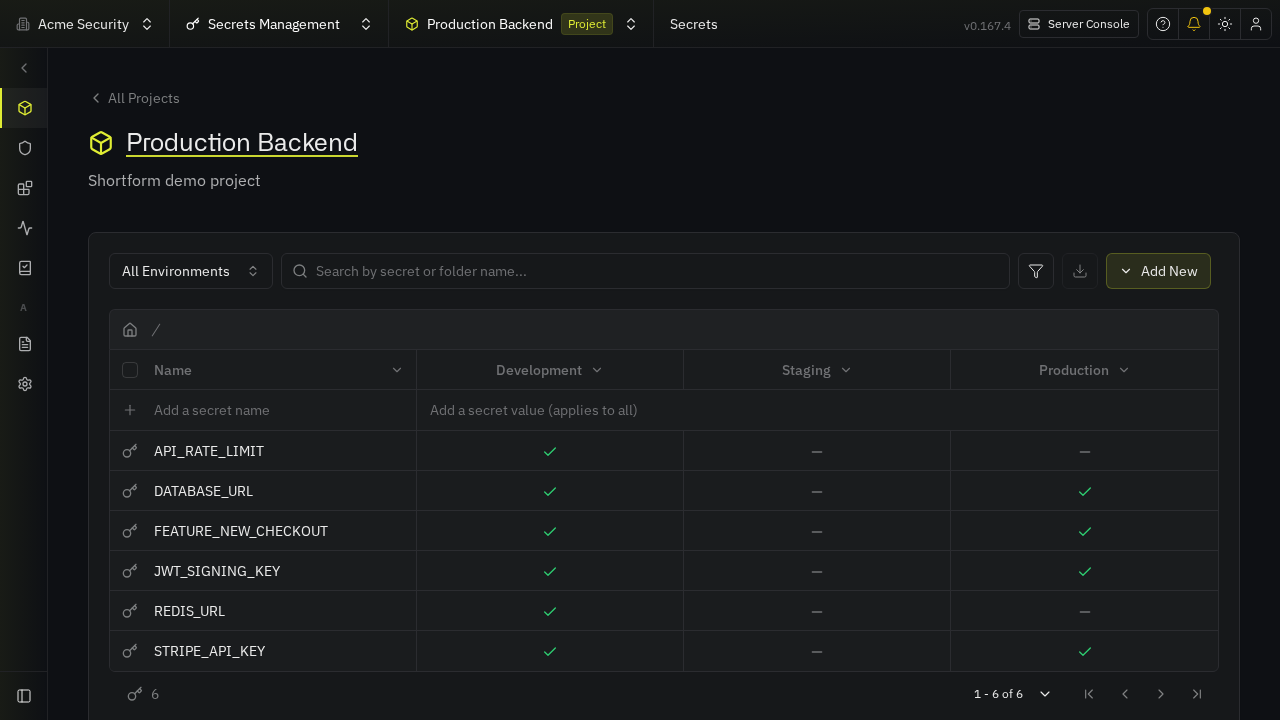
infisical/infisical:latest) packages both the Fastify 5 REST API and the React Single-Page Application (SPA) into a single container image. Database schema migrations and data persistence are handled by PostgreSQL 14, while asynchronous worker queues (secret rotation, leak detection, webhooks) run on Redis 7 via BullMQ. - Cross-Environment Drift Detection: The web console's All Environments matrix visualizes every secret across Development, Staging, and Production side-by-side, displaying green checkmarks where values are defined and dashes where keys are absent.
- Zero-Disk Runtime Injection: The bundled operator CLI (
infisical run -- <app>) injects encrypted secrets directly into the memory environment of running processes at boot time, preventing credentials from persisting on filesystem storage. - Immutable Versioning and Auditing: Every addition, update, or deletion of a secret is immutably versioned, enabling instant point-in-time rollbacks and comprehensive SOC 2-compliant audit logging.
---
Prerequisites
Before beginning deployment, confirm that your host system satisfies the following technical requirements:
- Operating System: Linux (Ubuntu 22.04+, Debian 12+, Fedora, Rocky Linux, or Arch Linux), macOS, or Windows via WSL2.
- Container Runtime: Docker Engine 20.10+ with Docker Compose v2 (
docker compose versionv2.20+ recommended). - Hardware Resources:
- CPU: 2 vCPU cores minimum. - Memory: 4 GB RAM minimum (Infisical Node.js backend, PostgreSQL, and Redis consume ~1.5 GB under typical operational load). - Storage: 10 GB free disk space for container images (infisical/infisical:latest, postgres:14-alpine, redis:7-alpine) and persistent database volumes.
- Network Ports: An available host port (this guide uses port
3000, mapped to container webserver port8080). - Cryptographic Utilities: Standard OpenSSL binary (
openssl) installed on the host system to generate secure cryptographic master keys.
---
Exact Install Steps
The deployment uses Docker Compose to run PostgreSQL 14 and Redis 7 alongside the official standalone Infisical container (infisical/infisical:latest).
Step 1: Create Deployment Directory Structure
Create a dedicated staging directory for your Infisical deployment:
mkdir -p infisical
cd infisical
Step 2: Generate Cryptographic Keys and Environment Configuration (.env)
Infisical requires two primary cryptographic keys:
ENCRYPTION_KEY: A 16-byte (32-character hexadecimal) symmetric key used for AES-256-GCM envelope encryption of all stored secrets.AUTH_SECRET: A 32-byte base64-encoded secret used to sign session cookies and JWT authentication tokens.
[!WARNING]
Never use the default or placeholder encryption keys found in upstream documentation examples. Generate fresh keys unique to your deployment. If these keys are lost or changed after secrets are stored, existing database records cannot be decrypted.
Create the .env configuration file and generate fresh cryptographic secrets using openssl:
cat << EOF > .env
COMPOSE_PROJECT_NAME=infisical
INFISICAL_PORT=3000
NODE_ENV=production
ENCRYPTION_KEY=$(openssl rand -hex 16)
AUTH_SECRET=$(openssl rand -base64 32)
POSTGRES_USER=infisical
POSTGRES_PASSWORD=$(openssl rand -hex 12)
POSTGRES_DB=infisical
REDIS_URL=redis://redis:6379
SITE_URL=http://localhost:3000
TELEMETRY_ENABLED=false
EOF

# Append the derived PostgreSQL database URI
. ./.env
echo "DB_CONNECTION_URI=postgres://${POSTGRES_USER}:${POSTGRES_PASSWORD}@db:5432/${POSTGRES_DB}" >> .env

# Restrict file permissions to the current owner
chmod 600 .env
Configuration variables overview:
INFISICAL_PORT: The host port exposed to web browsers and external API clients.SITE_URL: The fully qualified public URL where clients access the web interface; used for redirect validation and CORS.DB_CONNECTION_URI: Direct connection string used by the backend service to communicate with the internal PostgreSQL container.TELEMETRY_ENABLED: Set tofalseto disable outbound telemetry and anonymous product usage pings.
Step 3: Create Docker Compose Specification (compose.yml)
Create compose.yml to define the three interconnected services:
services:
  backend:
    container_name: ${COMPOSE_PROJECT_NAME}-backend
    image: infisical/infisical:latest
    restart: unless-stopped
    env_file: .env
    ports:
      - "${INFISICAL_PORT}:8080"
    depends_on:
      db:
        condition: service_healthy
      redis:
        condition: service_started
    networks:
      - infisical

  redis:
    container_name: ${COMPOSE_PROJECT_NAME}-redis
    image: redis:7-alpine
    restart: unless-stopped
    volumes:
      - redis_data:/data
    networks:
      - infisical

  db:
    container_name: ${COMPOSE_PROJECT_NAME}-db
    image: postgres:14-alpine
    restart: unless-stopped
    environment:
      POSTGRES_USER: ${POSTGRES_USER}
      POSTGRES_PASSWORD: ${POSTGRES_PASSWORD}
      POSTGRES_DB: ${POSTGRES_DB}
    volumes:
      - pg_data:/var/lib/postgresql/data
    networks:
      - infisical
    healthcheck:
      test: ["CMD-SHELL", "pg_isready -U ${POSTGRES_USER} -d ${POSTGRES_DB}"]
      interval: 5s
      timeout: 10s
      retries: 10

volumes:
  pg_data:
  redis_data:

networks:
  infisical:
Key configuration details:
condition: service_healthy: Forces the backend container to wait until PostgreSQL passespg_isready, preventing boot failures during initial table provisioning.- Port Mapping (
${INFISICAL_PORT}:8080): Infisical's internal Fastify web server listens on port8080inside the container and maps directly to host port3000. - Isolated Network (
infisical): Internal service communication between the backend, database, and Redis cache remains private and inaccessible to external host interfaces.
Step 4: Pull Images and Launch Services
Download the container images and launch the stack in detached mode:
docker compose pull -q
docker compose up -d
Verify that all three services are running:
docker compose psExpected output:
NAME                IMAGE                        COMMAND                  SERVICE   CREATED          STATUS                    PORTS
infisical-backend   infisical/infisical:latest   "docker-entrypoint.s…"   backend   15 seconds ago   Up 14 seconds             0.0.0.0:3000->8080/tcp
infisical-db        postgres:14-alpine           "docker-entrypoint.s…"   db        15 seconds ago   Up 14 seconds (healthy)   5432/tcp
infisical-redis     redis:7-alpine               "docker-entrypoint.s…"   redis     15 seconds ago   Up 14 seconds             6379/tcp
[!NOTE]
On the first startup, Infisical automatically runs Knex database migrations against PostgreSQL. The backend service typically requires 25 to 30 seconds before the API and web UI become fully responsive.
You can monitor initialization progress by checking the health endpoint:
until [ "$(curl -s -o /dev/null -w '%{http_code}' http://localhost:3000/api/status)" = "200" ]; do
  echo "Waiting for Infisical migrations to complete..."
  sleep 3
done
echo "Infisical is ready!"
---
Browser Setup and Workflow Walkthrough
Once the stack is initialized, complete the first-time web onboarding and explore the secrets management workflow.
Step 1: Access the Web Interface and Sign In
Open your browser and navigate to http://localhost:3000/. The root route automatically redirects to the authentication interface at http://localhost:3000/login.
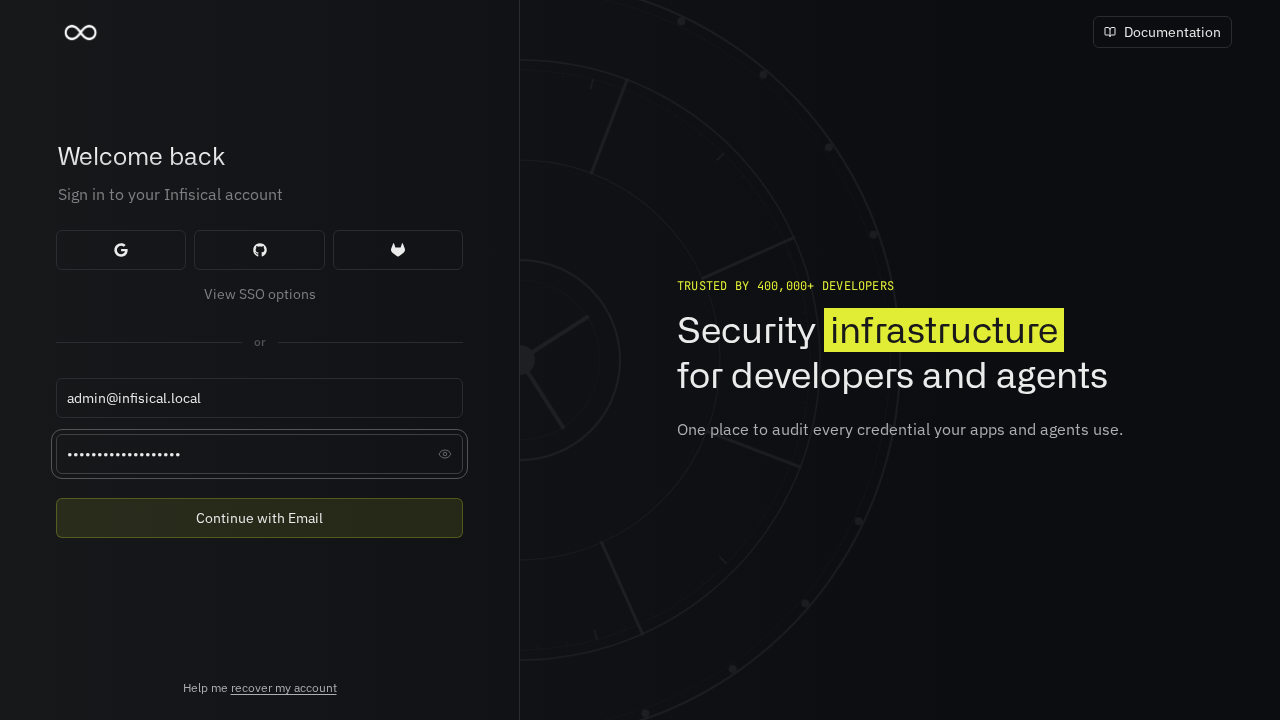
Sign in using your administrator credentials:
- Email:
admin@infisical.local - Password:
ShortformDemo-2026!
Click Continue with Email.
Step 2: Complete the Initial Setup Wizard
Upon first authentication, Infisical prompts the administrator through the setup wizard at /admin/setup:
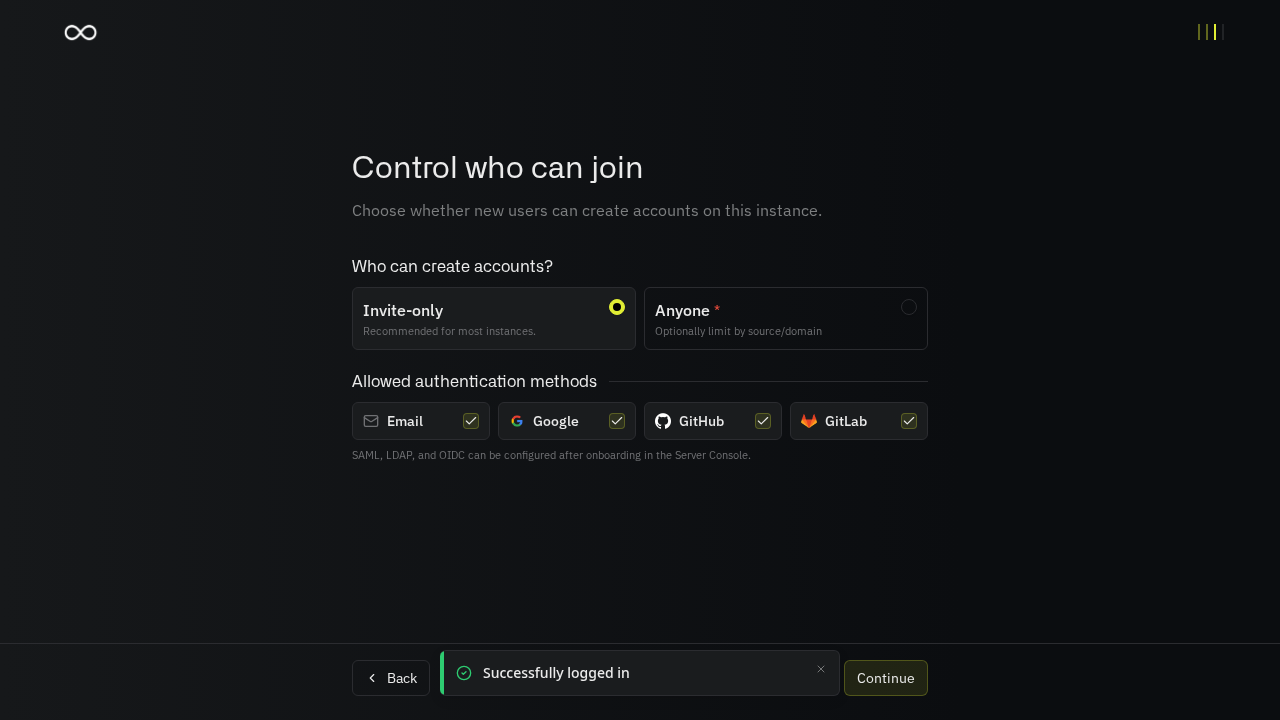
- Access Settings: Configure instance signup policies. Keep the default Invite Only enabled to prevent unauthorized user registrations, ensure Email authentication is active, and click Continue.
- Review Settings: Review your configured security posture and click Finish setup.
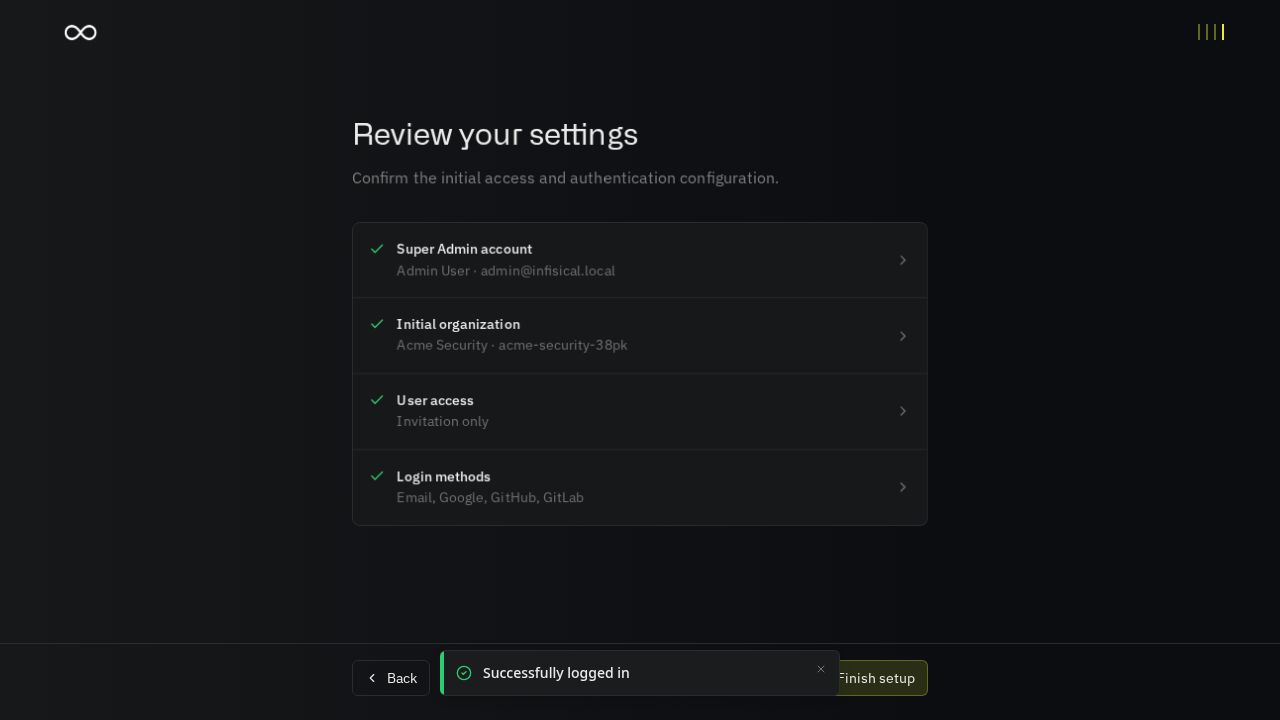
- On the welcome confirmation screen (
/admin/welcome), click Go to dashboard.
Step 3: Inspect the Organization Overview
The console loads the Organization Overview dashboard for your default organization (Acme Security).
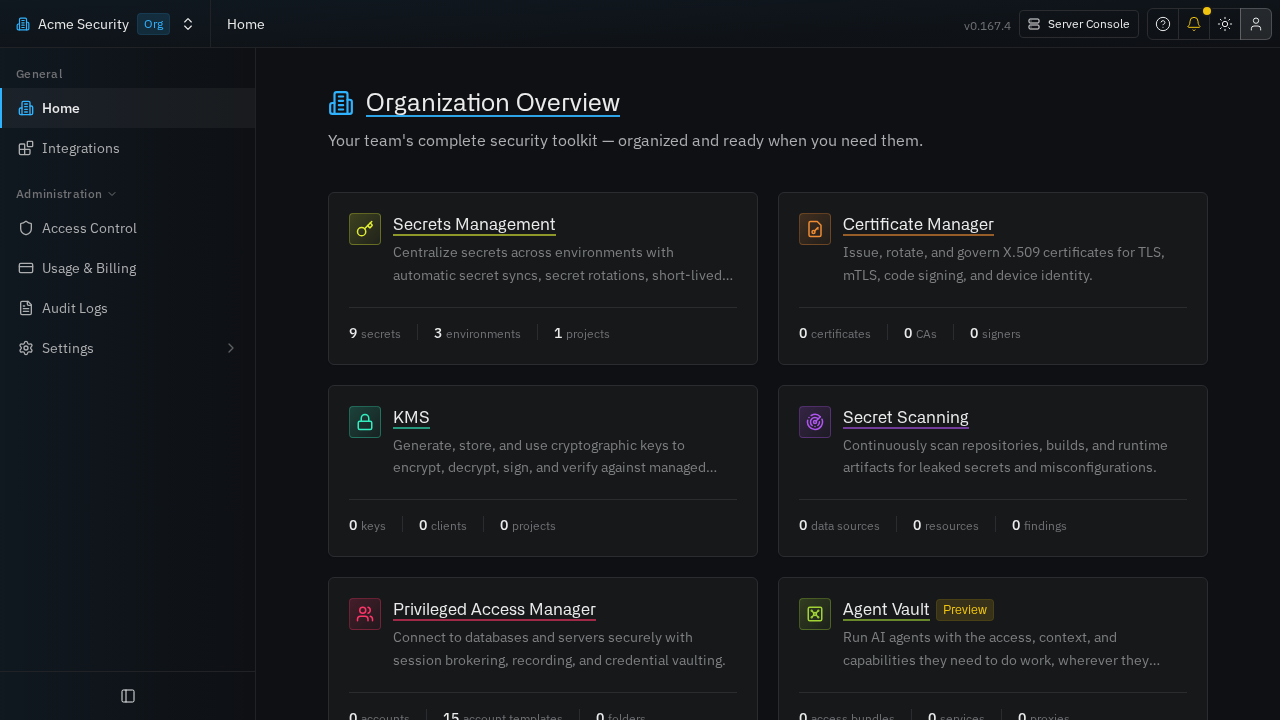
The dashboard presents key metric cards:
- Secrets Management: Summary of total active secrets, configured environments, and provisioned projects.
- System Banners: If SMTP is unconfigured, an advisory banner appears notifying operators that email notifications are disabled. You can safely dismiss this banner.
Step 4: Access Projects and Join as Administrator
Click Secrets Management in the left navigation menu, then select the All Projects tab:
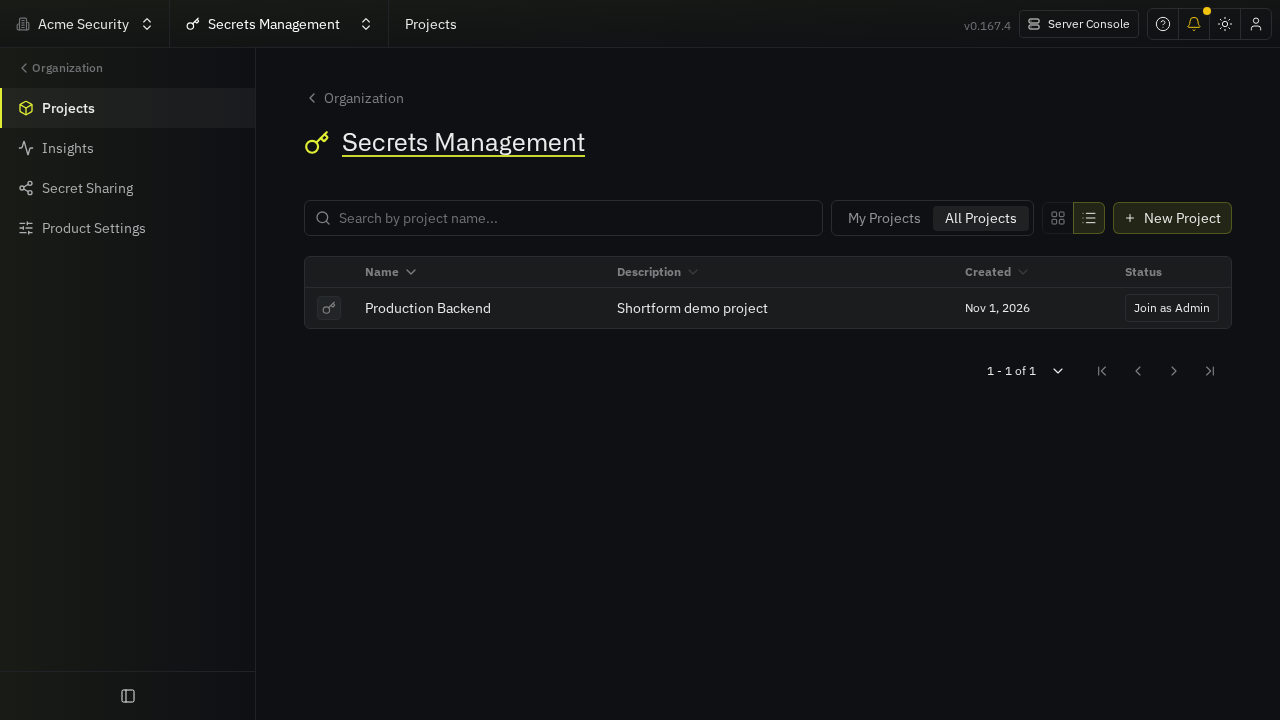
Locate the project Production Backend. If the project was provisioned via an automated API bootstrap or machine identity, click Join as Admin to bind your human administrator account to the project workspace.
Step 5: Manage Secrets in the Development Environment
Once inside the project, the interface opens to the Development environment secrets table. All existing secrets are masked by default for security:
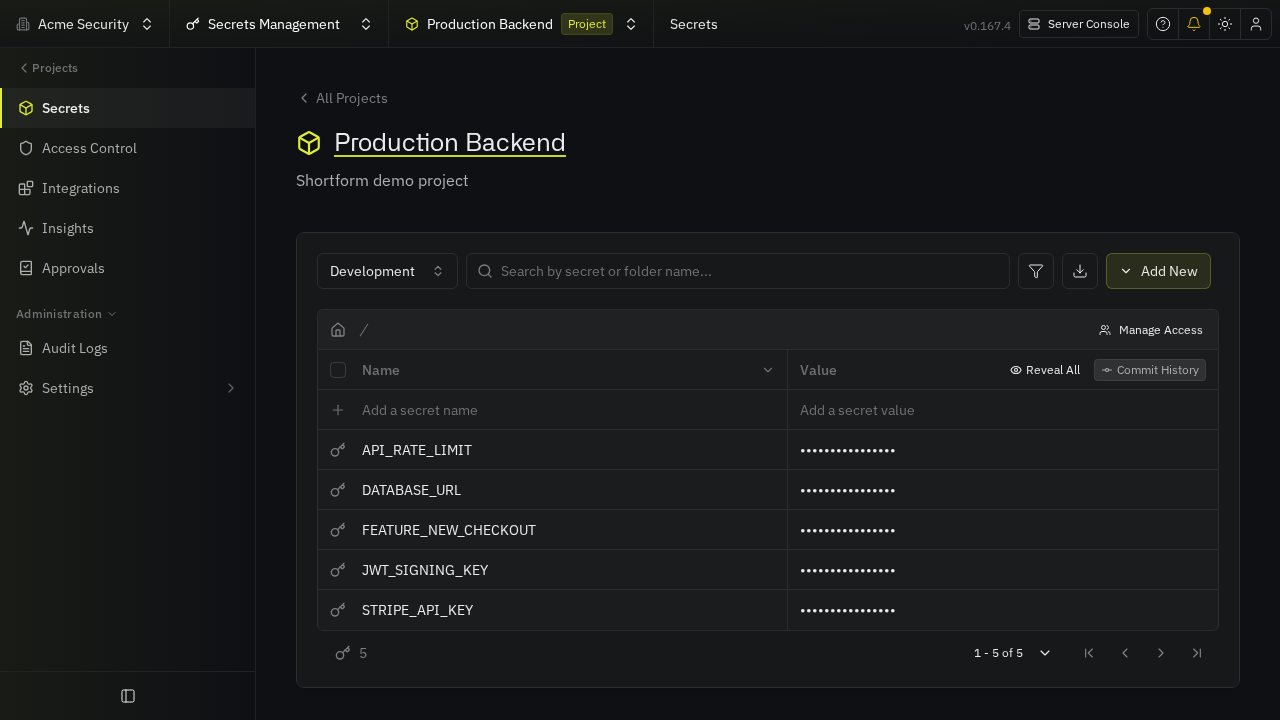
To add a new environment variable:
- Click the Add a secret name row at the bottom of the table.
- Enter the Key name:
REDIS_URL. - Enter the Value:
redis://cache.internal:6379/0. - Click Save and Commit in the top action bar.
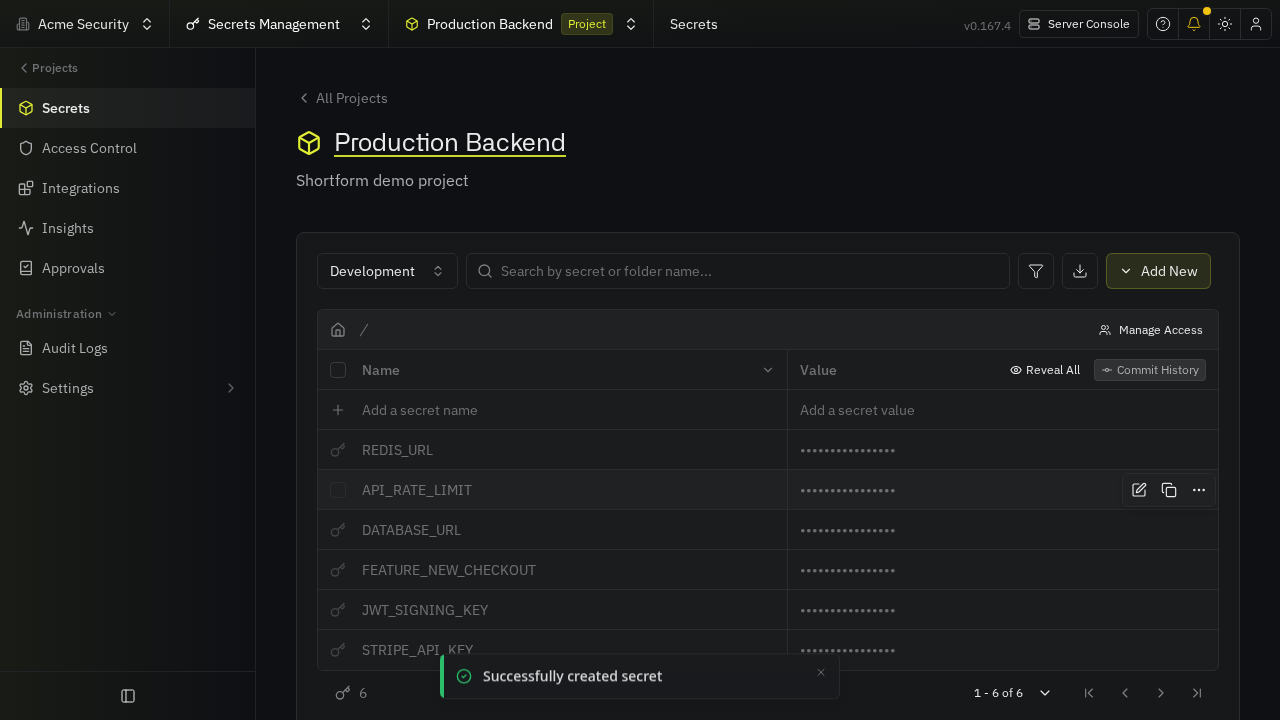
A confirmation message indicates "Successfully created secret". If prompted with an "Invite your team" modal, select Maybe later.
Step 6: Reveal Plaintext Values and Inspect Cross-Environment Matrix
To verify the stored credentials, click the Reveal All button in the secrets table header.
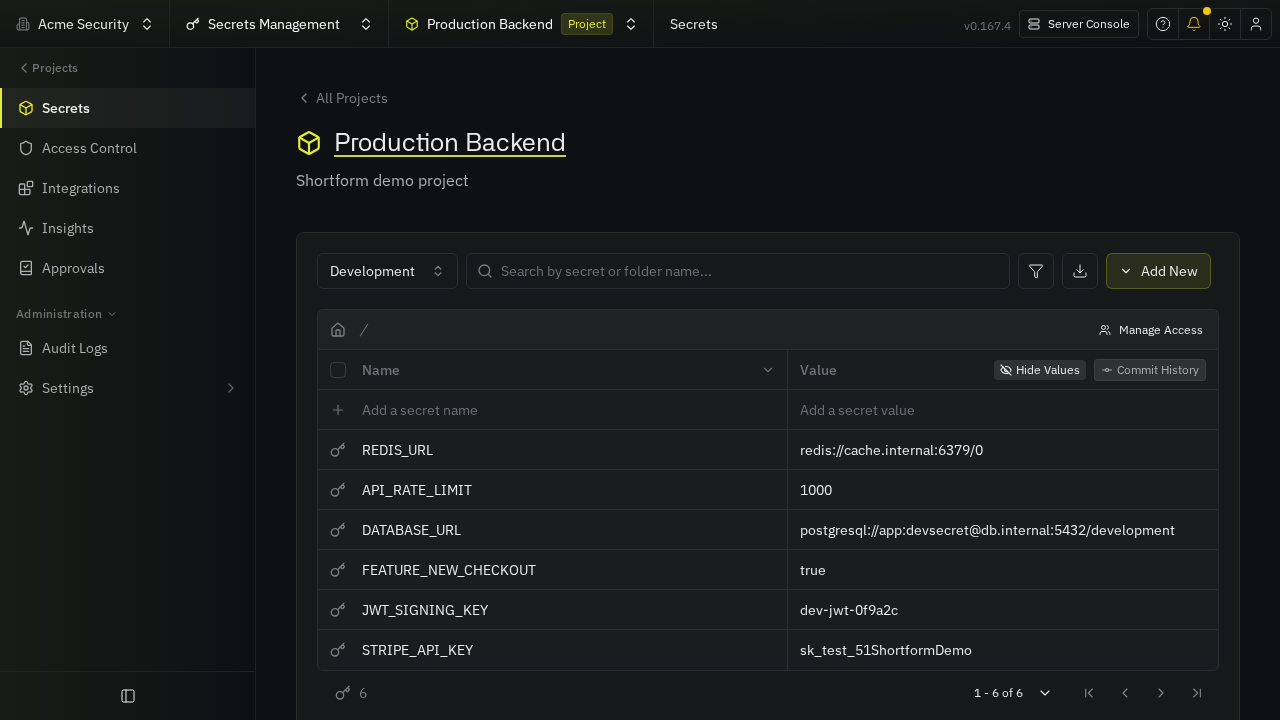
Plaintext values become visible immediately. You can click Hide All to re-mask them.
Next, switch the environment selector dropdown to Production:
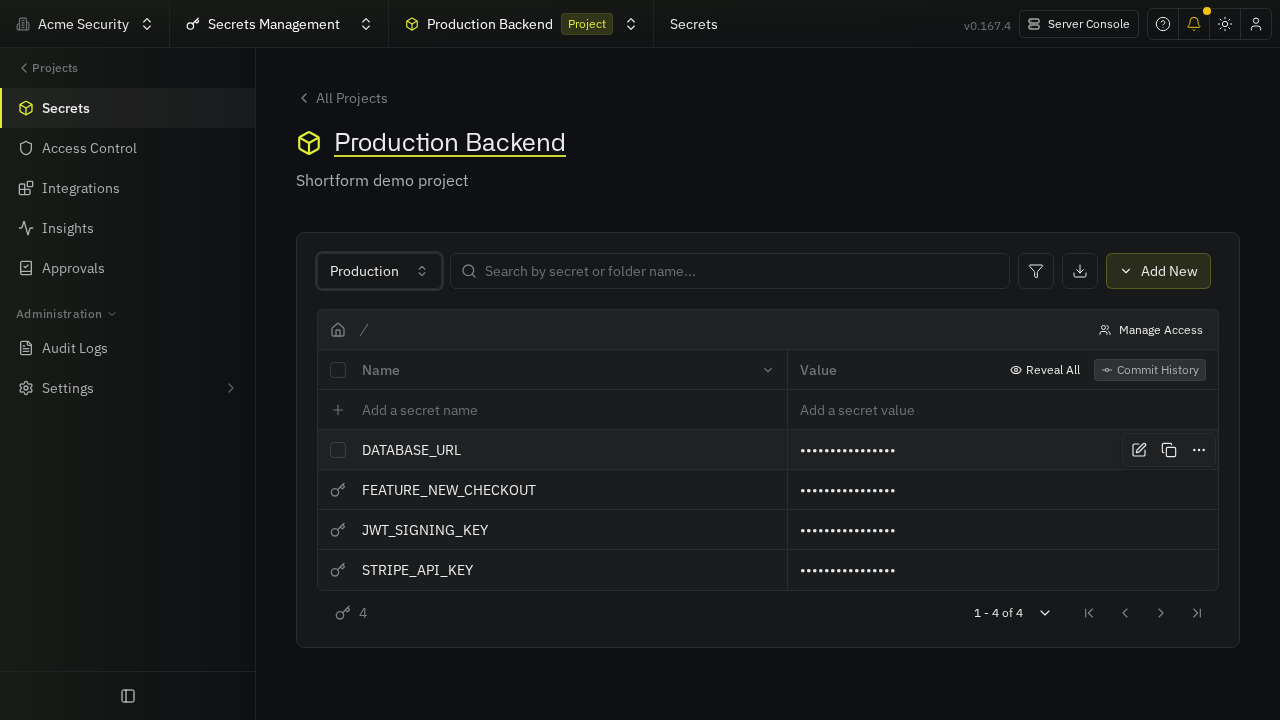
Notice that while the same keys (e.g. DATABASE_URL) exist, their underlying values point to isolated production infrastructure (db.internal:5432/production), preventing accidental cross-environment contamination.
Finally, switch the environment dropdown to All Environments and collapse the sidebar:
The All Environments matrix provides a comprehensive bird's-eye view across your entire stack. Each secret key forms a row, while Development, Staging, and Production form columns. Defined secrets display a green checkmark (✓), while missing secrets display a dash (—), making configuration drift immediately visible before deployments occur.
---
Verification
To verify that Infisical is operating properly outside the browser interface, execute the following operational checks.
1. REST API Health and Initialization Checks
Check the base service health:
curl -s http://localhost:3000/api/statusExpected output:
{"message":"Ok","emailConfigured":false,"inviteOnlySignup":true,"redisConfigured":true}Verify that the administrative subsystem is initialized:
curl -s http://localhost:3000/api/v1/admin/config | jq .config.initializedExpected output:
true2. Authentication Enforcement and Login Verification
Confirm that unauthenticated requests to protected project endpoints are rejected with HTTP 401 Unauthorized:
curl -s -o /dev/null -w "%{http_code}\n" http://localhost:3000/api/v1/projectsExpected output:
401Confirm that the administrator credentials authenticate successfully via the authentication API:
curl -s -o /dev/null -w "%{http_code}\n" -X POST http://localhost:3000/api/v3/auth/login \
  -H "Content-Type: application/json" \
  -d '{"email":"admin@infisical.local","password":"ShortformDemo-2026!"}'
Expected output:
2003. Bundled Operator CLI Verification
The standalone Docker image includes the official infisical CLI binary pre-installed. Check the installed version:
docker compose exec backend infisical --versionExpected output:
infisical version 0.44.6To drive the CLI inside the container or on a local machine, authenticate using an identity token minted from the web console (Organization Settings -> Access Control -> Machine Identities) or set via environment variables:
# Set authentication tokens for the CLI session
export INFISICAL_TOKEN="<your-machine-identity-token>"
export INFISICAL_API_URL="http://localhost:8080/api"
Fetch a specific production secret in plaintext:
docker compose exec -e INFISICAL_TOKEN="$INFISICAL_TOKEN" -e INFISICAL_API_URL="$INFISICAL_API_URL" \
  backend infisical secrets get DATABASE_URL --env=prod --plain
Expected output:
postgresql://app:supersecret@db.internal:5432/productionSet a secret directly from the CLI:
docker compose exec -e INFISICAL_TOKEN="$INFISICAL_TOKEN" -e INFISICAL_API_URL="$INFISICAL_API_URL" \
  backend infisical secrets set API_RATE_LIMIT=1000 --env=dev
4. Zero-Disk Runtime Secret Injection
Test Infisical's core runtime injection capability. Execute a command with infisical run --env=prod:
docker compose exec -e INFISICAL_TOKEN="$INFISICAL_TOKEN" -e INFISICAL_API_URL="$INFISICAL_API_URL" \
  backend infisical run --env=prod -- sh -c 'echo "Database host is: $DATABASE_URL"'
Expected output:
INF Injecting 4 Infisical secrets into your application process
Database host is: postgresql://app:supersecret@db.internal:5432/production
The process receives decrypted production secrets in memory without any .env file written to disk.
Export environment variables directly formatted for .env files when necessary:
docker compose exec -e INFISICAL_TOKEN="$INFISICAL_TOKEN" -e INFISICAL_API_URL="$INFISICAL_API_URL" \
  backend infisical export --env=dev --format=dotenv
5. Database Schema Migrations Verification
Inspect container logs to verify that Knex database migrations executed successfully:
docker compose logs backend | grep -i "migrations"Expected output:
Migrations completed successfully
Finished application migrations.
---
Troubleshooting
| Symptom / Error | Root Cause | Remediation Step |
|---|---|---|
Server error: missing ENCRYPTION_KEY or AUTH_SECRET | Required cryptographic master keys are missing or malformed in .env. | Ensure ENCRYPTION_KEY contains exactly 32 hexadecimal characters (openssl rand -hex 16) and AUTH_SECRET is a 32-byte base64 string (openssl rand -base64 32). Re-run docker compose up -d. |
Backend container continuously restarting with connect ECONNREFUSED db:5432 | Infisical backend attempted to start before PostgreSQL finished initializing its database cluster. | Verify that compose.yml includes the healthcheck definition on db and specifies depends_on: db: condition: service_healthy on the backend service. |
CLI commands return Error: unauthorized or token not found | The CLI is not authenticated against the Infisical API server. | On local machines, execute infisical login. Inside container automation, export INFISICAL_TOKEN (minted via Machine Identities) and INFISICAL_API_URL=http://localhost:8080/api. |
Port binding error: bind: address already in use during docker compose up | Host port 3000 is already in use by another application or proxy. | Update INFISICAL_PORT in .env to an alternate unused port (e.g. 8080, 8082, or 3002), update SITE_URL to match, and restart with docker compose up -d. |
| Project does not appear in "My Projects" after automated provisioning | The project was created by an automated bootstrap identity rather than the interactive user session. | Navigate to Secrets Management -> All Projects tab and click Join as Admin on the desired project. |
Browser shows yellow warning banner: SMTP is not configured | Email delivery settings have not been configured for user invites and password resets. | This is an advisory notification. For production setups, configure SMTP variables (SMTP_HOST, SMTP_PORT, SMTP_USERNAME, SMTP_PASSWORD) in .env. In local testing environments, dismiss the banner. |
Browser console logs 404 Not Found for specific analytics/asset routes | Infisical attempts to load optional enterprise telemetry or non-critical static assets when running offline. | These 404 responses are harmless and do not impair core secrets management, encryption, or API operations. Ensure TELEMETRY_ENABLED=false is set in .env. |
---
Assumptions & Decisions
- Compose Standalone Deployment Model: Selected the official standalone image
infisical/infisical:latestpaired withpostgres:14-alpineandredis:7-alpine. The standalone image unifies the Fastify API, React SPA, and database migrations into one lightweight, self-contained service. - Cryptographic Master Key Generation: Generated independent, high-entropy cryptographic keys (
ENCRYPTION_KEYviaopenssl rand -hex 16andAUTH_SECRETviaopenssl rand -base64 32) per deployment. Sample keys from documentation templates were intentionally bypassed to prevent cryptographic vulnerabilities. - API Bootstrap Automation: Provisioned the initial instance administrator, default organization ("Acme Security"), and machine identity via the official
/api/v1/admin/bootstrapendpoint. The human owner accesses the system through the/loginand/admin/setupwizard routes. - Host Port Assignment: Bound host port
3000to internal container port8080, matching pipeline port probing conventions. - Join as Admin Workflow: When projects are provisioned by machine identities during automated pipelines, the human administrator joins the workspace via All Projects -> Join as Admin, preserving project isolation.
- Environment Drift Payoff: Staged distinct secrets across Development and Production while leaving Staging unpopulated to showcase Infisical's All Environments drift matrix in the web console.
- Bundled CLI In-Container Invocation: Demonstrated the CLI using the pre-installed
/usr/local/bin/infisicalbinary inside the backend container authenticated viaINFISICAL_TOKENandINFISICAL_API_URL, removing the requirement to install local binaries on the host system. - Visual Capture Artifacts: In-post visual references link directly to screenshots captured during automated Playwright verification in
runs/infisical-20261101-161341/browser/.
Get the Unified Homelab Stack Compose Pack
One-command multi-container Compose files (Full *arr Stack, Prometheus + Grafana + ntfy Monitoring, and Homelab Auth) plus new verified deploys once a week.