
Self-Host Homelab Atlas with Docker Compose and Draw Your Homelab Diagram
Homelab Atlas is a free, MIT-licensed, self-hosted app that lays out homelab diagrams for you and exports them as PNG or SVG. This guide runs the official v0.12.0 release with one Compose file, then walks through the editor, the export privacy filter and the discovery wizard.
Homelab Atlas is "a self-hosted app for making homelab diagrams." You add your servers, services and network gear, and it lays out the diagram for you. It has an offline, searchable logo catalog and exports PNG or SVG. It runs locally with no account, no database and no LLM. Your project autosaves in your browser, and you can save a JSON copy as a backup.
This guide follows the path we ran and checked against v0.12.0 (MIT): the project's own compose.release.yaml and the prebuilt image ghcr.io/aiden0rchad/homelab-atlas:0.12.0. You don't build anything, and you don't need a .env file, volumes or secrets.
Prerequisites
- Docker with the Compose v2 plugin (
docker compose versionworks). We tested on Linux x86_64 with Docker Compose 5.6.1. The image is published for Linux AMD64 and ARM64. curl- Port 8080 free on the Docker host (the upstream default). Step 5 shows how to use a different port if 8080 is taken.
- A browser on the same machine. The release file binds to
127.0.0.1only.
Install
1. Download the release Compose file
curl -fsSLO https://github.com/aiden0rchad/homelab-atlas/releases/download/v0.12.0/compose.release.yamlThis file is identical to deploy/compose.release.yaml in the repo (we diffed them). It defines two services:
atlas: the web app. It is published on127.0.0.1:8080, runs with a read-only root filesystem, has all capabilities dropped and setsno-new-privileges.collector: an optional Docker discovery helper behind thediscoveryprofile. It is off unless you enable that profile, and this guide leaves it off.
2. Pull the image
docker compose -f compose.release.yaml pullIn our run the image pulled in about 5 seconds:
✔ Image ghcr.io/aiden0rchad/homelab-atlas:0.12.0 Pulled 5.0s3. Start it
docker compose -f compose.release.yaml up -dCompose creates two networks (_default and _discovery) and starts one container.
4. Check that it is healthy
docker compose -f compose.release.yaml ps
curl -s -o /dev/null -w '%{http_code}\n' http://localhost:8080/healthz
Right after startup, ps shows Up … (health: starting), and a few seconds later (healthy). The health check prints 200.
5. (Optional) Use a different host port
The release file hard-codes ${ATLAS_BIND:-127.0.0.1}:8080:8080 and has no port variable. To publish another port without editing the upstream file, add an override next to it. We used port 3000 for the recording:
cat > compose.override.yaml <<'EOF'
services:
  atlas:
    ports: !override
      - "127.0.0.1:3000:8080"
EOF

docker compose -f compose.release.yaml -f compose.override.yaml up -d
curl -s -o /dev/null -w '%{http_code}\n' http://localhost:3000/healthz   # 200
The !override tag needs Docker Compose 2.24.4 or newer. The app keeps listening on 8080 inside the container. In the rest of this guide, replace 8080 with your port if you changed it. Our screenshots show localhost:3000.
Browser setup
Open http://localhost:8080/ (or your custom port). Use localhost or 127.0.0.1, not the machine's LAN IP. The API checks the host name, and a LAN IP gets 403 from /api/*.
Load the example project
On first load you get an empty dark editor with Saved locally in the header.
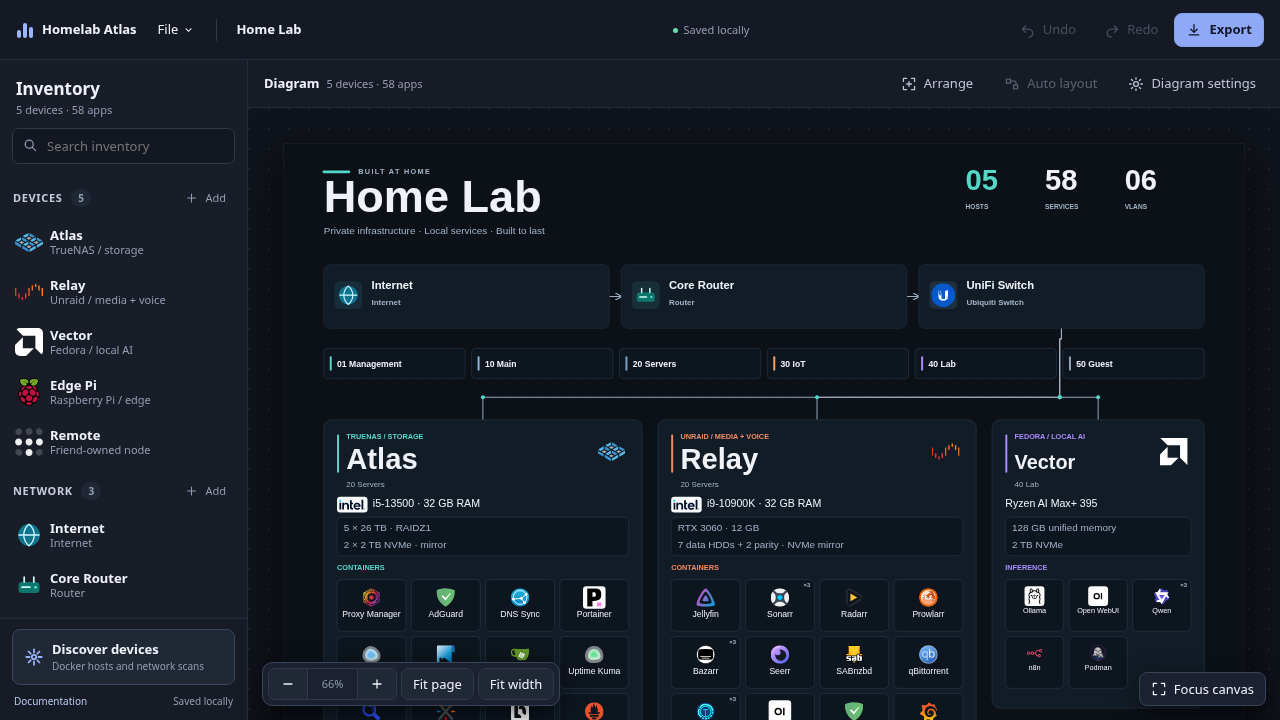
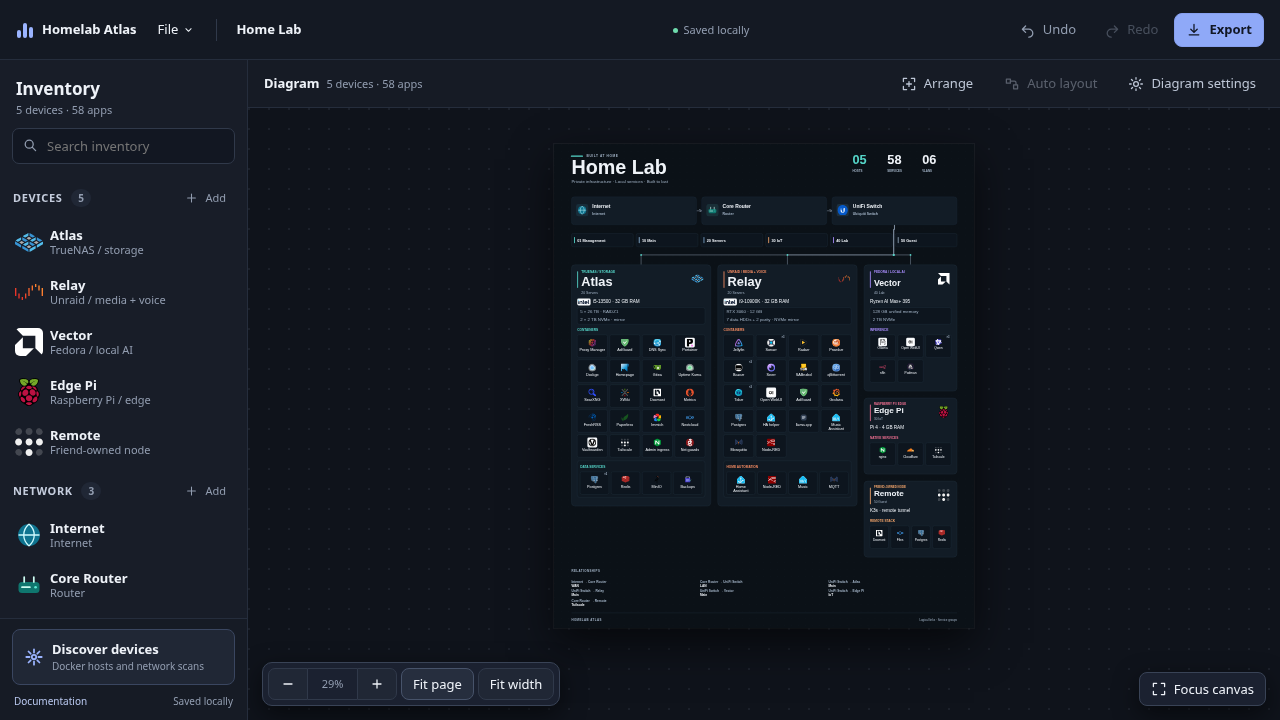
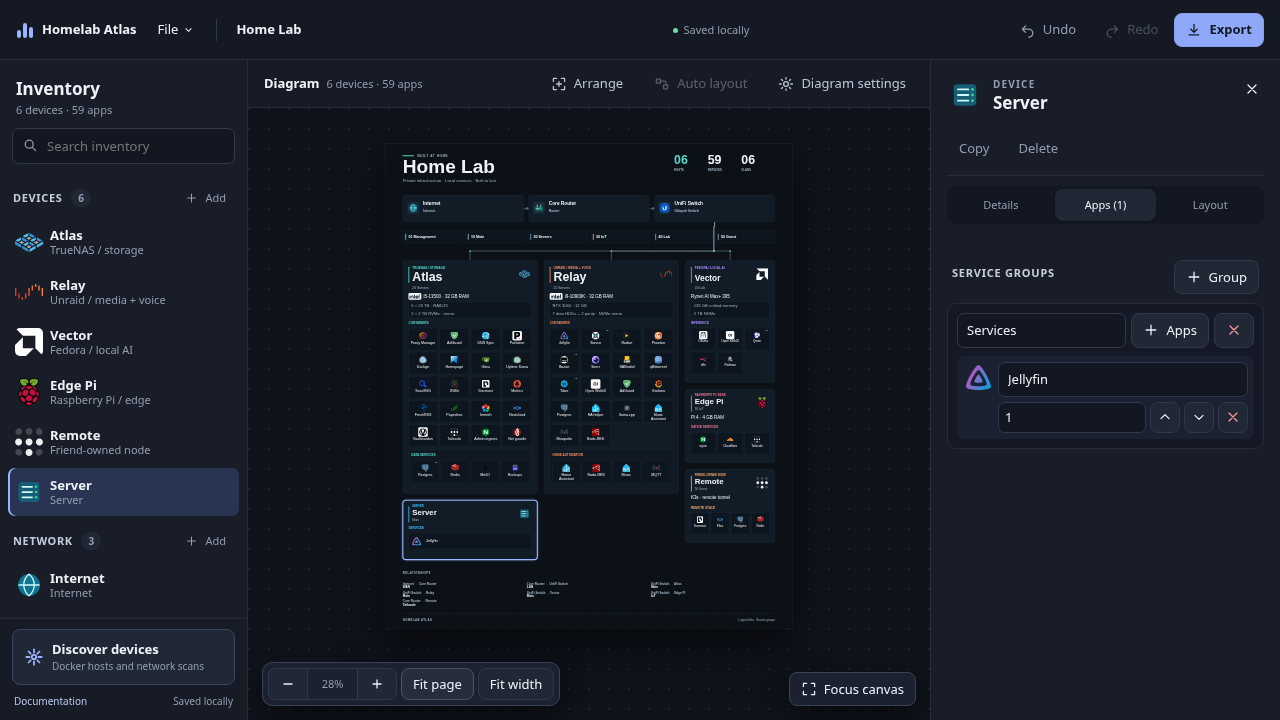
Click File → Load example and accept the "Replace this project?" prompt. The bundled "Home Lab" example loads with 5 devices, 3 networks and 58 apps. Click Fit page to see the whole diagram. (To draw your own lab, choose File → Start empty instead.)
Arrange and auto layout
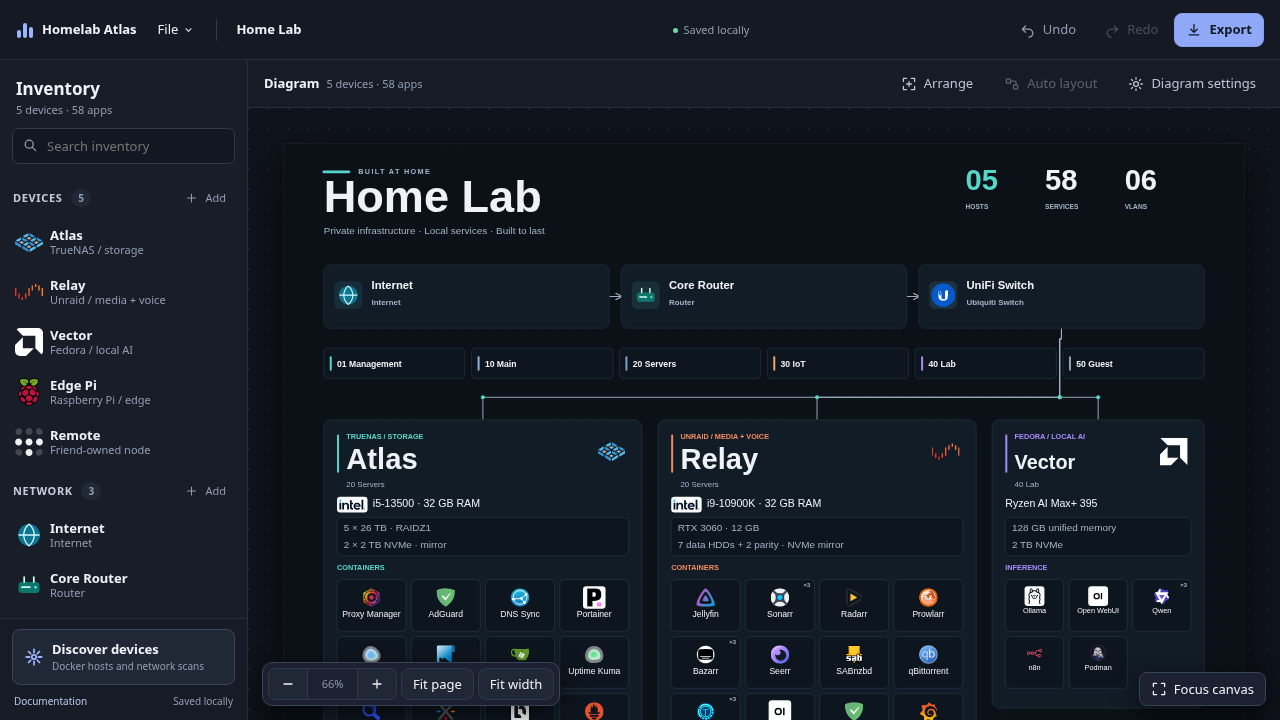
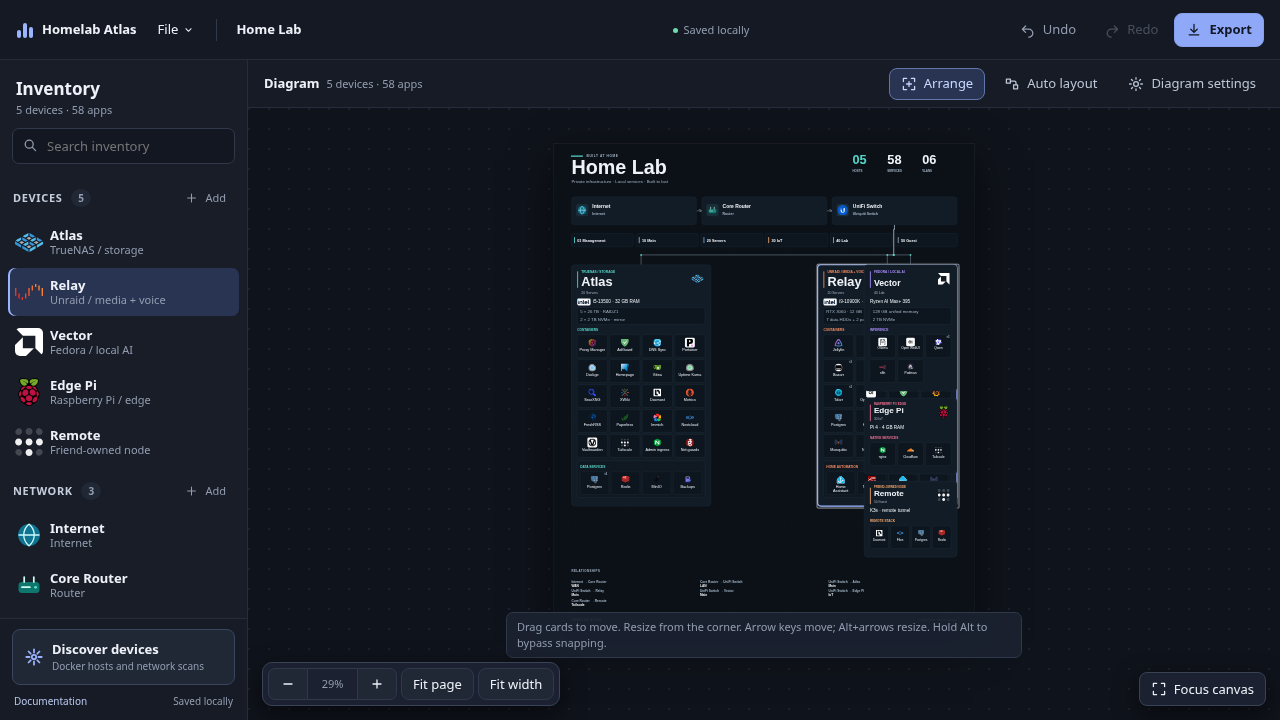
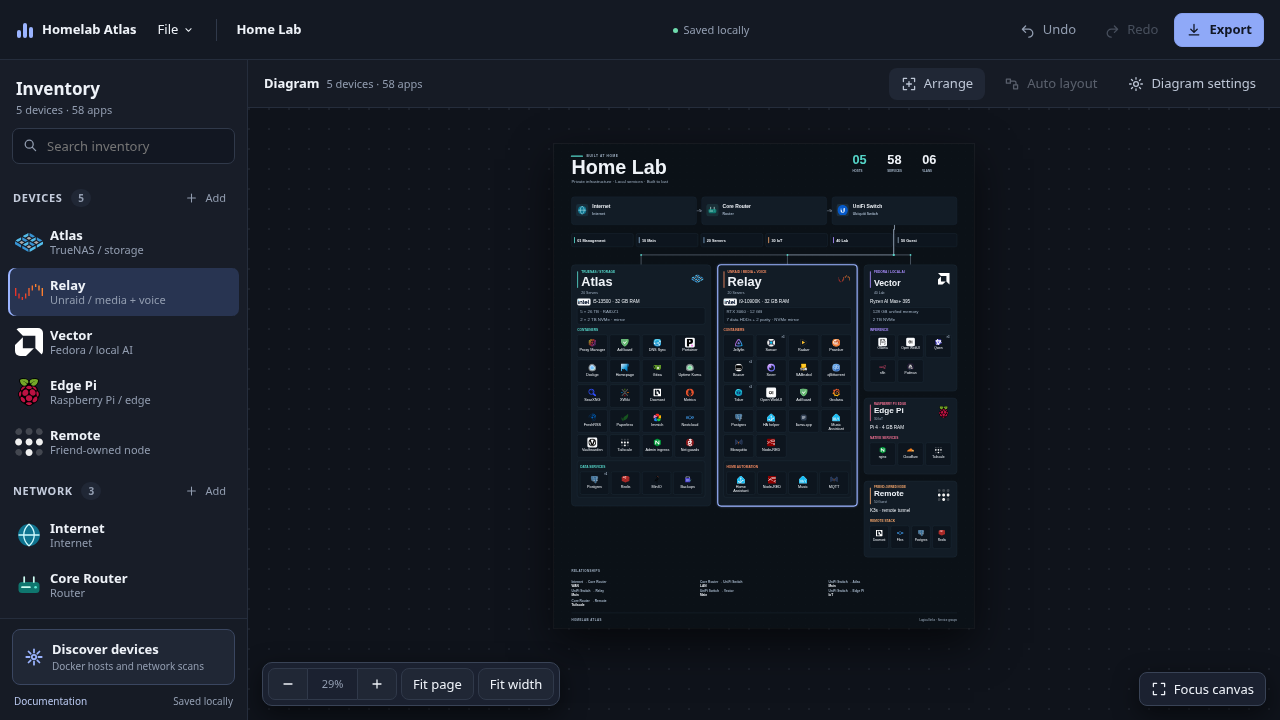
Atlas places the cards for you. To adjust the layout, click Arrange in the canvas header, then drag or resize device cards. Auto layout snaps everything back to the automatic layout. Click Arrange again to leave arrange mode.
Add a device and its services
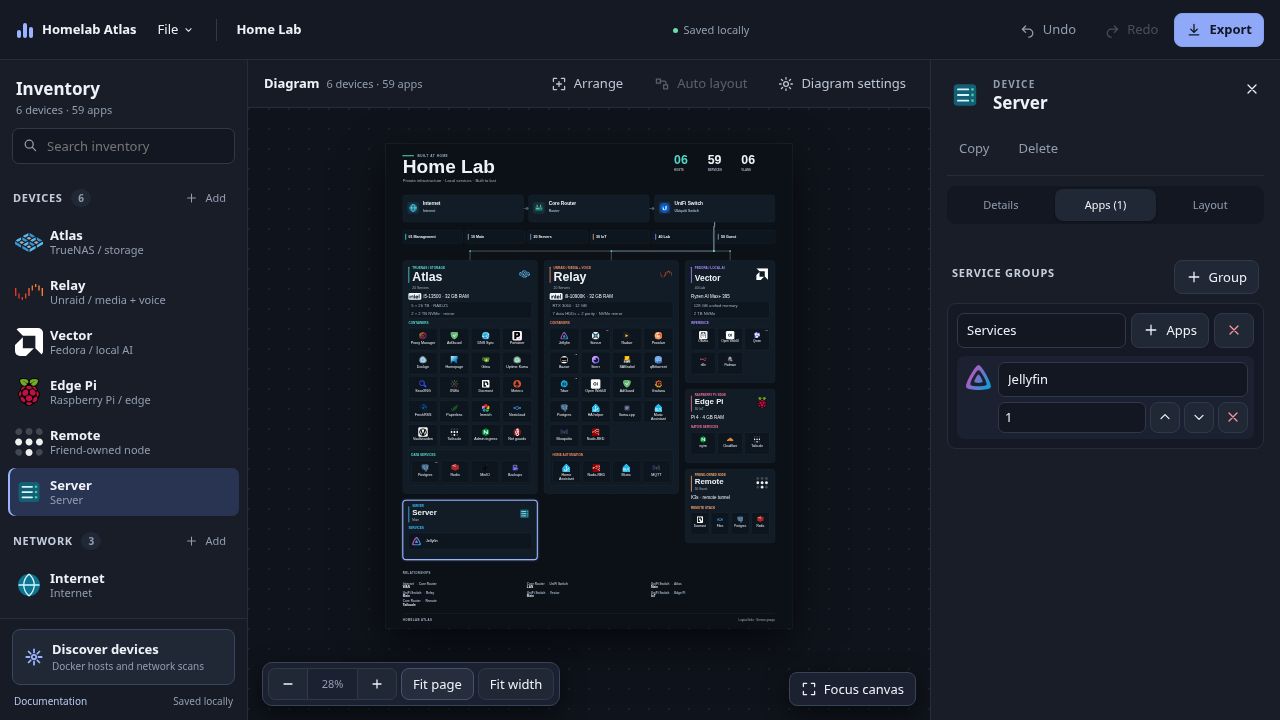
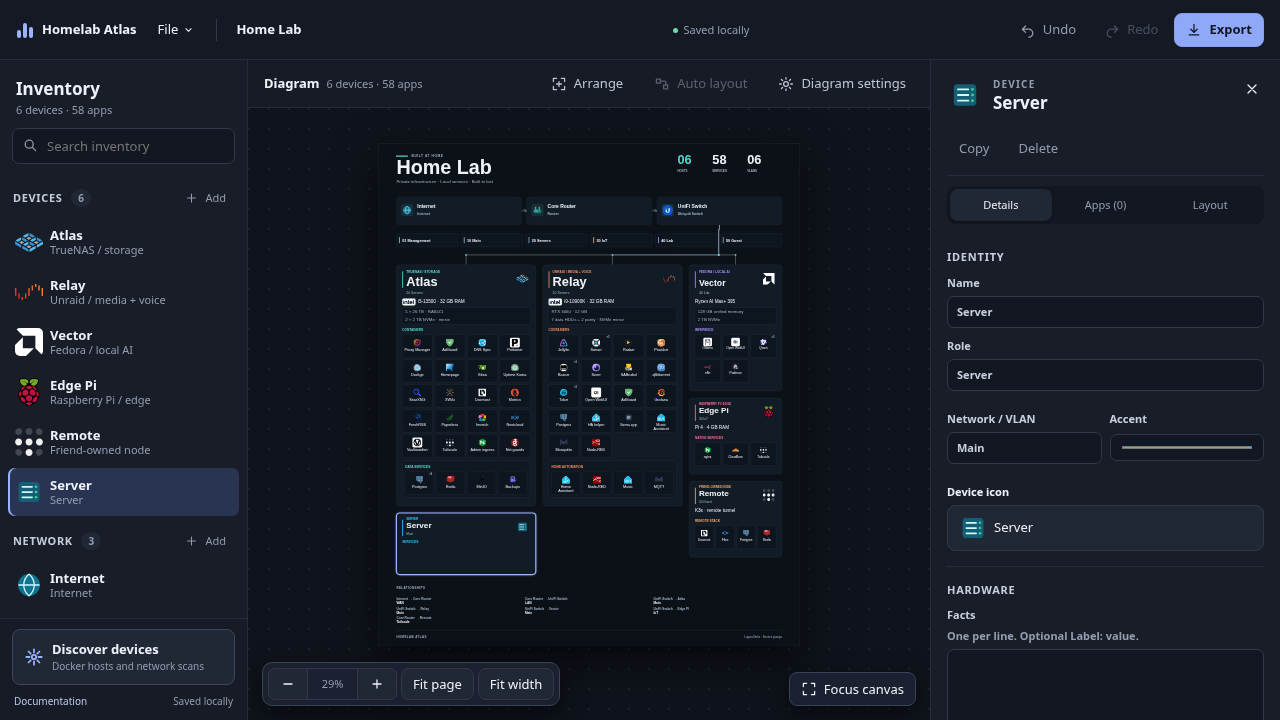
- In the Inventory drawer, click Devices Add and pick a template. We picked Server. A new card appears, the device count goes from 5 to 6, and the Inspector opens.
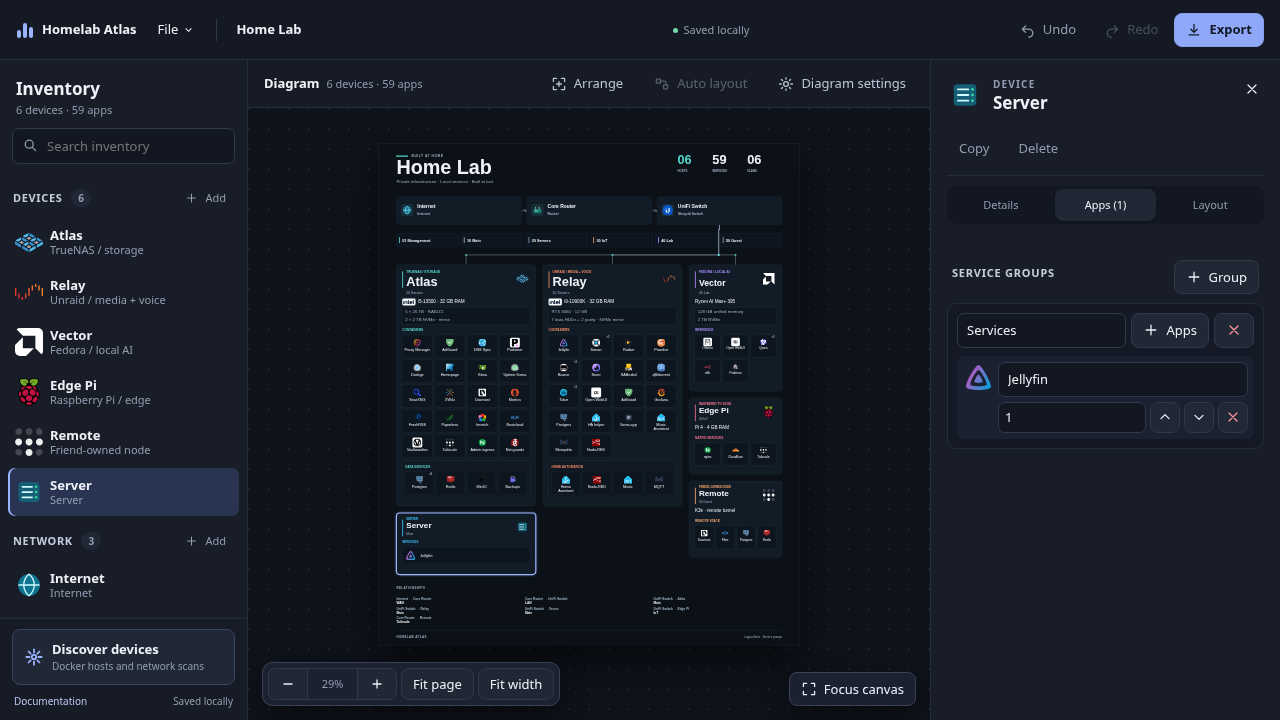
- In the Inspector, find the device's Services group and click Apps.
- Search the logo catalog (we searched
Jellyfin). Tick the checkbox next to each app you want; the picker supports multi-select. Then click Add selected.
Pressing Escape in the app picker clears the search box and leaves the picker open. Close it with its own cancel/✕ button.
Export PNG or SVG
Click Export. The Export diagram dialog shows a read-only preview with Hide network details turned on by default. With the filter on, IP addresses, MAC addresses, URLs and email addresses in the exported image are replaced with [hidden]. You can also list your own terms to hide.
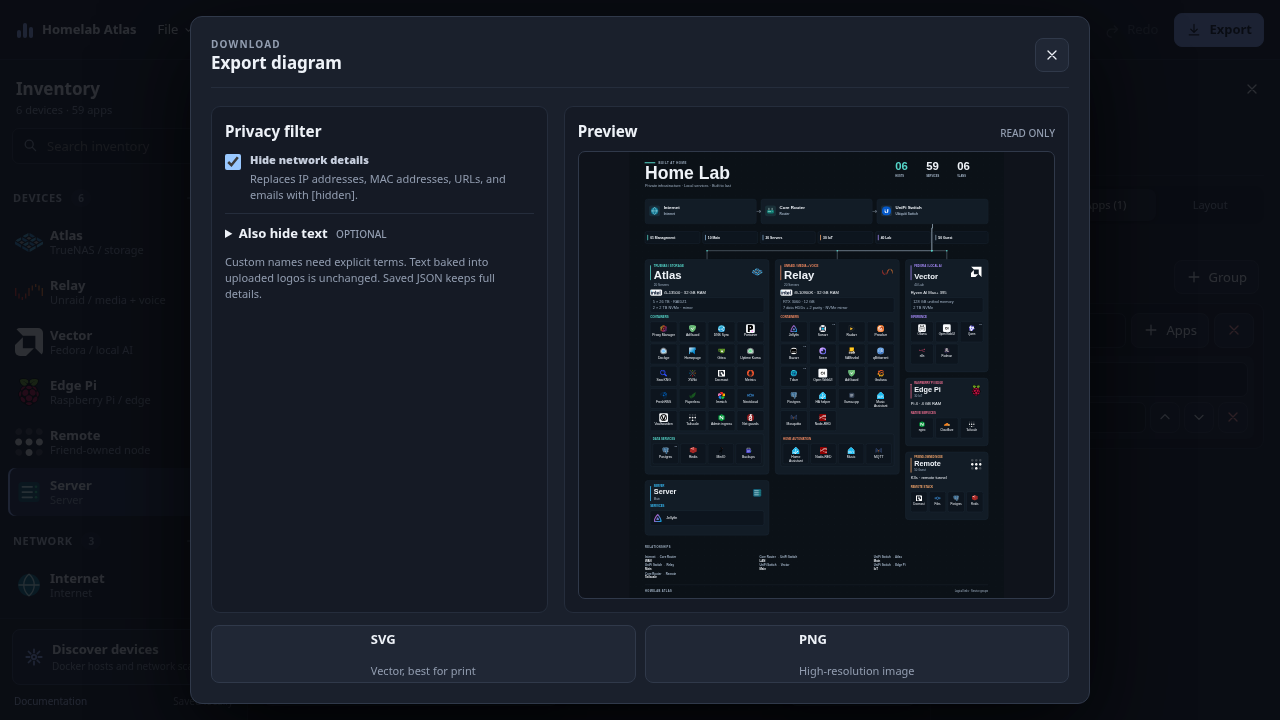
Click the SVG or PNG card. The download starts immediately; there's no separate Download button. Close the dialog with ✕.
The filter only changes the exported image. It doesn't change your saved project JSON or text that is part of an uploaded logo image.
Discover devices (optional, view only)
Click Discover devices to open a Choose → Find → Review wizard with three sources: Docker apps, network devices (Nmap), and Import saved scan (Docker JSON or Nmap XML). On a default install the Docker and Nmap cards say Setup needed, because the collector profile is off and Nmap isn't in the published image. Import saved scan says Available. Atlas never scans on its own, and every result starts unchecked until you review it.
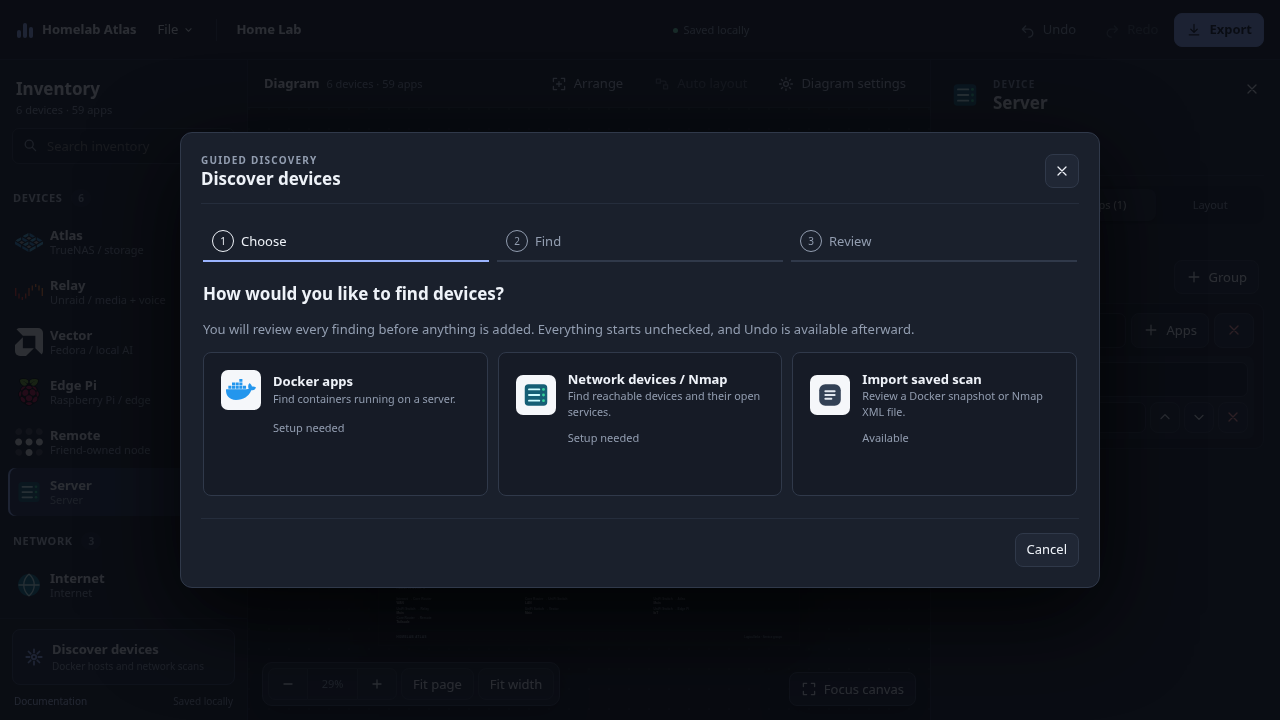
We cancelled at this step and didn't run a scan.
Verification
# Container is up and healthy
docker compose -f compose.release.yaml ps
# → … Up N seconds (healthy)   127.0.0.1:8080->8080/tcp

# Health endpoint
curl -s -o /dev/null -w '%{http_code}\n' http://localhost:8080/healthz
# → 200

# The UI is served
curl -s http://localhost:8080/ | grep -o '<title>[^<]*</title>'
# → <title>Homelab Atlas</title>

# The API answers (the bundled frontend sends this header; a raw curl without it gets 403)
curl -s -H 'X-Atlas-Request: 1' http://localhost:8080/api/discovery/sources
# → []
In the browser: the example diagram renders with logos, Arrange and Auto layout move cards, and Export downloads a file. In our run, the exported home-lab.svg was a real 1448×1727 SVG.
Back up your work
Autosave is stored in your browser's localStorage, not in the container. Clearing site data, using a private window, or opening Atlas at a different host name or port can make your project look missing. Use File → Save project to download a JSON copy, and File → Import project to load it back. You can't import a PNG or SVG back as an editable project.
Troubleshooting
| Symptom | Cause | Fix |
|---|---|---|
/api/* returns 403 | You opened the app at a LAN IP or hostname that isn't allowed, or a raw request left out the X-Atlas-Request: 1 header | Open http://localhost:8080 or http://127.0.0.1:8080. For curl, add -H 'X-Atlas-Request: 1' |
port is already allocated on up -d | Something else is using 8080 on the host | Use the override in step 5 with a free port |
!override tag rejected | Docker Compose is older than 2.24.4 | Upgrade Compose, or edit the port line in compose.release.yaml to "127.0.0.1:<port>:8080" and run without the override |
Container keeps restarting with ATLAS_API_TOKEN is required… | ATLAS_ALLOWED_HOSTS includes a non-loopback host but no ATLAS_API_TOKEN is set | Unset ATLAS_ALLOWED_HOSTS to stay on localhost, or follow the upstream setup guide for remote access |
| Project is gone after reopening | Autosave is per browser and per origin (host + port) | Open the same URL you used before, or load your saved JSON with File → Import project |
| App picker won't close with Escape | Escape only clears the search field | Use the picker's cancel/✕ button |
| No Download button in Export | It doesn't exist | Clicking the SVG or PNG card downloads the file |
| Discovery shows "Setup needed" for Docker and Nmap | The discovery collector profile is off, and Nmap isn't in the image | Expected on a default install. Use Import saved scan, or see the upstream discovery guide |
| Pull is denied or rate-limited from GHCR | Registry issue | Clone the repo and run docker compose -f compose.yaml up -d --build (multi-stage Go build) |
Security note
Homelab Atlas has no login system. Keep it on localhost or a trusted LAN, and don't expose it directly to the internet. The release file's 127.0.0.1 bind already enforces this by default.
Teardown
docker compose -f compose.release.yaml down --remove-orphans
docker image rm ghcr.io/aiden0rchad/homelab-atlas:0.12.0   # optional
If you used the step 5 override, add -f compose.override.yaml to the down command. There are no volumes, so this removes everything. Your diagrams survive only in your browser's localStorage and in any JSON you saved.
Assumptions & decisions
- The main commands follow the README (port 8080, no project name). Our recorded run used
-p shortform-homelab-atlas-20261029-215532and an override that published127.0.0.1:3000:8080. The reviewer confirmed the two are equivalent apart from the host port, so the override appears as optional step 5 and the screenshots are labelled as showing:3000. - The privacy filter is described by what it does, not by a before/after picture. The example project has no IPs, MACs or URLs, so in our capture the preview didn't change when we toggled the filter (a pixel diff showed only the checkbox moving). I left out
09-export-show-network.pngand10-export-hide-network.pngbecause they would suggest a visible change that doesn't happen. - No pull-time measurement beyond the one we logged. The 5.0 s pull and the "health: starting → healthy" transition come from the deploy log and recording. They aren't guaranteed on other machines.
- Discovery is shown view-only. The collector profile needs the Docker socket and a token, so it stays out of scope. The upstream discovery guide is linked instead.
- The source-build troubleshooting row uses the repo's
compose.yamlfrom the install plan's fallback B. We didn't run it in this job because the GHCR pull worked. - Image paths are relative to the pipeline root (
runs/<job>/browser/…), matching how the ghost stage resolves local images. Every referenced file exists. - The slug is
homelab-atlas(the repo name), so the post lives at https://howto.croogserverdude.ca/homelab-atlas. It is drafted, not published.
Get the Unified Homelab Stack Compose Pack
One-command multi-container Compose files (Full *arr Stack, Prometheus + Grafana + ntfy Monitoring, and Homelab Auth) plus new verified deploys once a week.