
How to Deploy Homarr: The Modern Customizable Homelab Dashboard with Docker Compose
Homarr is an open-source, highly customizable dashboard and homelab application portal. Learn how to deploy Homarr v2 with Docker Compose, configure mandatory encryption secrets, integrate Docker container management, and build your dashboard.
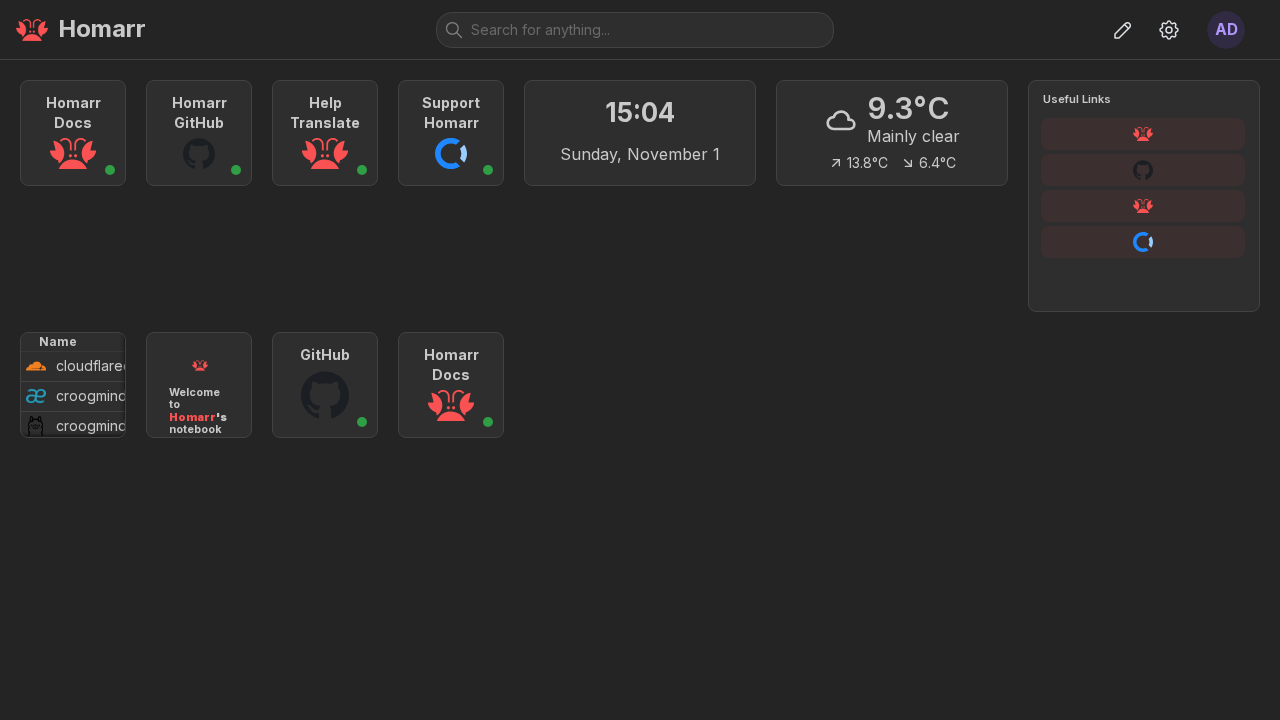
Homarr is a modern, customizable dashboard and homelab management portal released under the Apache-2.0 license. As self-hosted homelabs expand to include media stack managers, download clients, network monitors, and hypervisors, operators frequently struggle with bookmark sprawl and scattered IP:port browser tabs. Homarr unifies your services into a cohesive, responsive web interface that combines real-time status indicators, service integrations, and container lifecycle controls.
Homarr v2 replaces static link lists with a composable, widget-driven architecture that queries external services directly, streams updates over WebSockets, and monitors local Docker containers through a unified web portal.
Architectural Overview
Homarr v2 operates as an integrated multi-process application containerized for minimal deployment friction:
- Next.js Standalone App Router (
apps/nextjs): Serves the responsive React frontend, handles user authentication via Auth.js, renders board views, and coordinates server-side API requests. - tRPC WebSocket Server (
apps/websocket): A dedicated background WebSocket daemon that maintains persistent real-time subscriptions between the browser and backend services (such as dynamic system metrics, active container statuses, and media client state). - Embedded Redis 7 Broker: An internal Redis server that manages caching and inter-process publish/subscribe message distribution across the application stack without requiring an external database cluster.
- Embedded SQLite Database (
better-sqlite3): Persists boards, users, settings, and integration credentials to/appdata/db/db.sqlite. Database migrations execute automatically during container startup. - Internal Nginx Gateway: An embedded web proxy that multiplexes standard HTTP traffic and WebSocket connections through a single unified container port (
7575). - Composable Grid Engine: Powered by Mantine 9 and
@dnd-kit, the frontend renders a 200 × 200 logical-pixel grid supporting responsive drag-and-drop placement, fluid resizing, and modular layout presets. - Host Docker Integration: When mounted to
/var/run/docker.sock, Homarr directly queries the local Docker daemon to inspect container health, surface assisted setup suggestions, and trigger container actions.
---
Prerequisites
Before beginning deployment, ensure your target host meets the following requirements:
- Operating System: Linux (Ubuntu, Debian, Fedora, Arch, Rocky, Alpine), macOS, or Windows via WSL2.
- Container Runtime: Docker Engine 20.10+ with Docker Compose v2 (
docker compose versionv2.20+ recommended). - Hardware Resources:
- CPU: 1-2 vCPU cores. - Memory: 1 GB RAM minimum (base application consumes approximately 250–400 MB at idle). - Disk Space: 1–2 GB available storage for container images and local SQLite database volume.
- Network Ports: An available host port (this guide uses port
3000, mapped to container port7575). - Host Utilities: Standard command-line tools
openssl(for secret generation) andcurl. - Permissions: Sufficient privileges to run Docker commands and access
/var/run/docker.sock.
---
Exact Install Steps
The deployment uses Docker Compose to launch the official Homarr multi-architecture container (ghcr.io/homarr-labs/homarr:latest).
Step 1: Create Deployment Directory Structure
Create a dedicated directory for your Homarr deployment and prepare the persistent storage folder:
mkdir -p homarr/appdata
cd homarr
chmod -R 777 appdata
[!NOTE]
The./appdatadirectory stores Homarr's SQLite database files, encryption metadata, and cached assets. Setting permissions allows the container process to initialize the database without permission errors.
Step 2: Configure Environment and Encryption Secret (.env)
Homarr strictly requires a 64-character hexadecimal encryption key (SECRET_ENCRYPTION_KEY) matching the regular expression ^[0-9a-fA-F]{64}$. This key encrypts sensitive integration tokens and credentials stored in the SQLite database. If the key is missing or improperly sized, Homarr will terminate immediately upon boot.
Use openssl to generate exactly 32 random bytes (which formats to 64 hexadecimal characters) and create .env:
cat << EOF > .env
COMPOSE_PROJECT_NAME=homarr
HOMARR_PORT=3000
SECRET_ENCRYPTION_KEY=$(openssl rand -hex 32)
EOF

chmod 600 .env
To verify that your key meets the strict 64-character hexadecimal constraint, run:
grep SECRET_ENCRYPTION_KEY .env | cut -d= -f2 | awk '{print length($0)}'The command must print 64.
Step 3: Create Docker Compose Specification (compose.yml)
Create compose.yml to define the container service, host port mapping, and volume bindings:
services:
  homarr:
    container_name: ${COMPOSE_PROJECT_NAME}-homarr
    image: ghcr.io/homarr-labs/homarr:latest
    restart: unless-stopped
    ports:
      - "${HOMARR_PORT}:7575"
    environment:
      - SECRET_ENCRYPTION_KEY=${SECRET_ENCRYPTION_KEY}
      - AUTH_PROVIDERS=credentials
    volumes:
      - ./appdata:/appdata
      - /var/run/docker.sock:/var/run/docker.sock
[!IMPORTANT]
Mounting/var/run/docker.sockenables Homarr's Docker widget, automatic container discovery, and container controls. If you do not plan to manage Docker containers through Homarr, or if you prefer a hardened posture, you may mount it read-only (/var/run/docker.sock:/var/run/docker.sock:ro) or omit the socket mount entirely.
Step 4: Pull and Start Homarr
Download the official image and start the container in detached mode:
docker compose pull
docker compose up -d
Step 5: Wait for Service Initialization
Homarr executes internal database migrations and starts its embedded Redis server before becoming ready to receive traffic. Verify service readiness:
docker compose psPoll the health check endpoint until it reports HTTP 200:
until [ "$(curl -s -o /dev/null -w '%{http_code}' http://localhost:3000/api/health/live)" = "200" ]; do
  echo "Waiting for Homarr backend to initialize..."
  sleep 2
done
echo "Homarr is healthy and ready!"
---
Browser Setup
Once the container is healthy, complete the initial setup and dashboard configuration through your web browser.
1. First-Run Onboarding Wizard (/init)
Open your browser and navigate to:
http://localhost:3000*(Replace localhost with your host server's local IP address if accessing remotely.)*
On a fresh installation, Homarr automatically detects that no administrative accounts exist and redirects you from / to /init. The interactive setup studio walks through:
- Claim Installation: Establishes an initial session token to prevent unauthorized first-run setup.
- Administrator Account: Enter your administrator username and secure password.
- Board Defaults: Configure server-wide default locale, color scheme (light, dark, or system), and accent colors.
- Default Widgets: Select starter widgets such as Clock, Weather, Docker Containers, and Notebook.
- Initial Apps: Add bookmarks or service shortcuts (such as documentation links or internal tools).
- Finish Setup: Saves the initial board configuration to SQLite and marks onboarding as complete.
2. Administrator Login
After completing or completing onboarding, navigating to http://localhost:3000 redirects to the login screen (/auth/login).
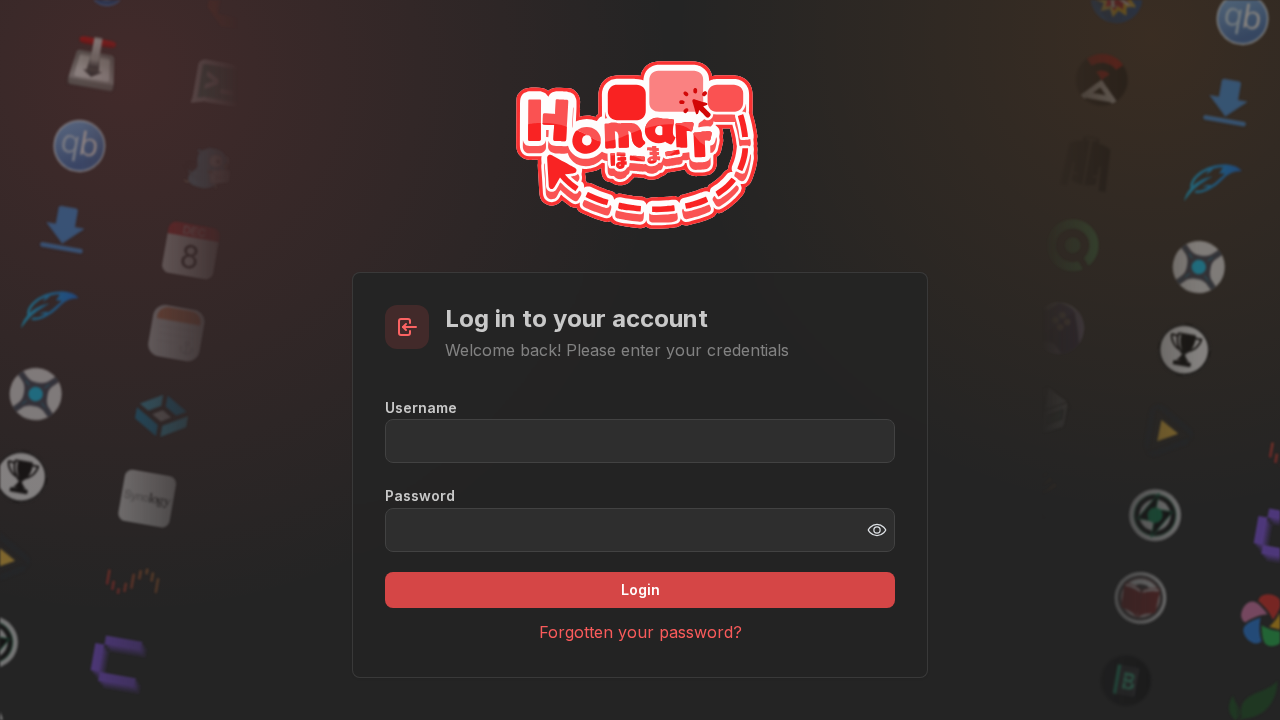
Sign in using the administrator credentials created during the onboarding wizard.
3. Exploring the Default Board
Upon successful authentication, Homarr opens your default Home board:
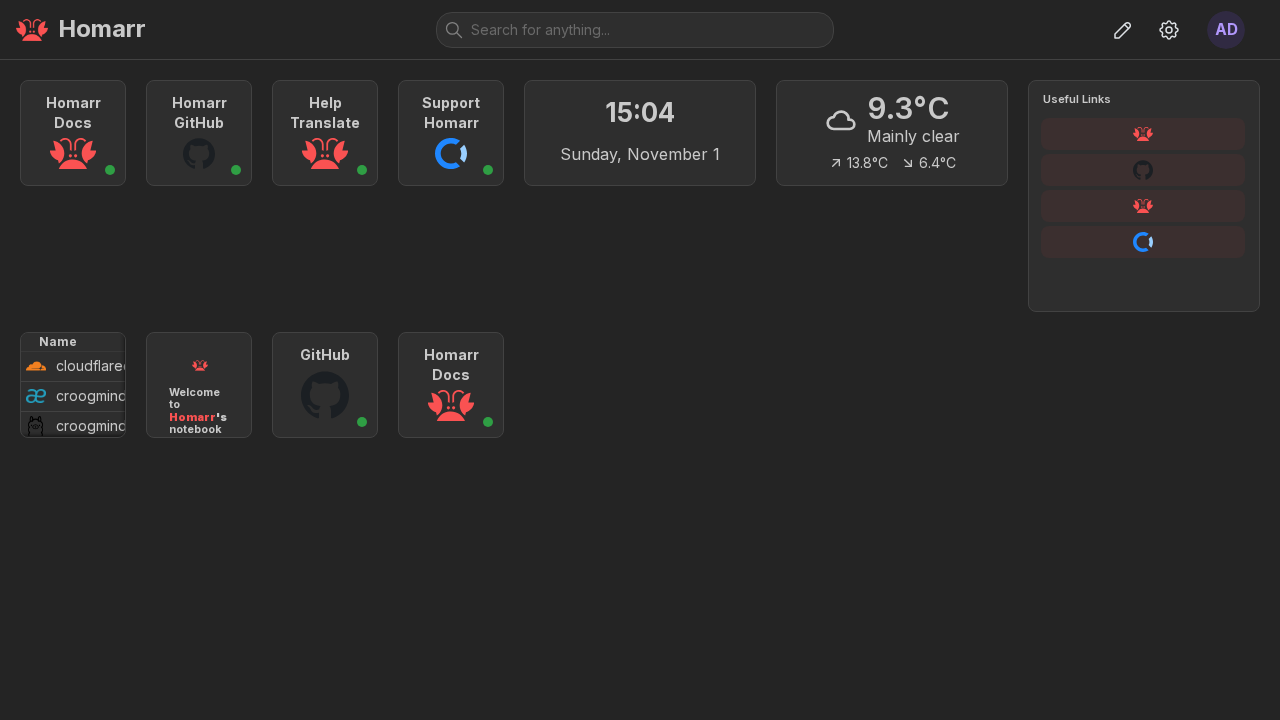
The dashboard presents your chosen components:
- Application Tiles: Quick-launch icons for homelab services featuring dynamic ping indicators.
- Clock & Date: Real-time localized clock widget.
- Weather Widget: Live local weather updates.
- Docker Containers Widget: Real-time CPU/memory consumption and running status of containers discovered on the host.
- Notebook Widget: Markdown-compatible scratchpad for network notes, maintenance logs, and checklists.
4. Spotlight Command Palette (Ctrl+K)
Homarr includes a global spotlight command search accessible from anywhere in the interface by pressing Ctrl + K (or Cmd + K on macOS):
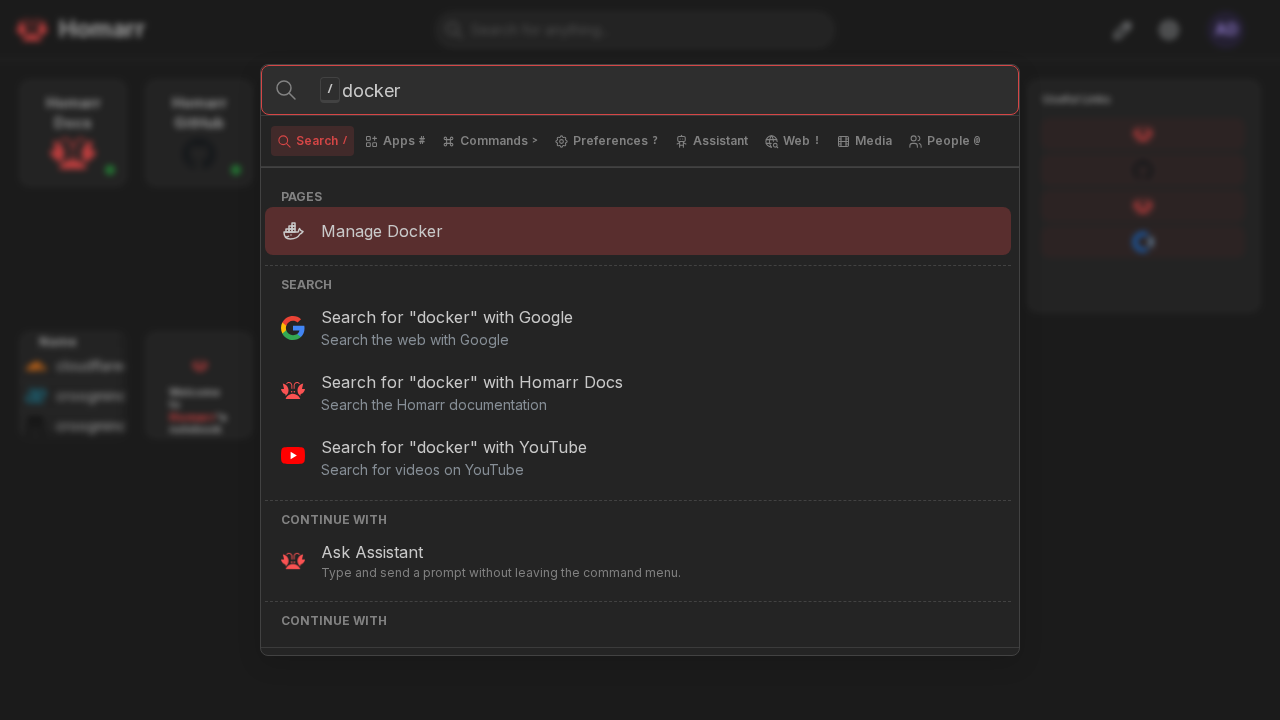
Typing into the spotlight bar lets you immediately find and open applications, jump to board configurations, trigger Docker container management views, or execute web searches.
5. Customizing Your Board Layout
To customize the layout, click the Pencil icon in the top navigation bar to toggle Edit Mode:
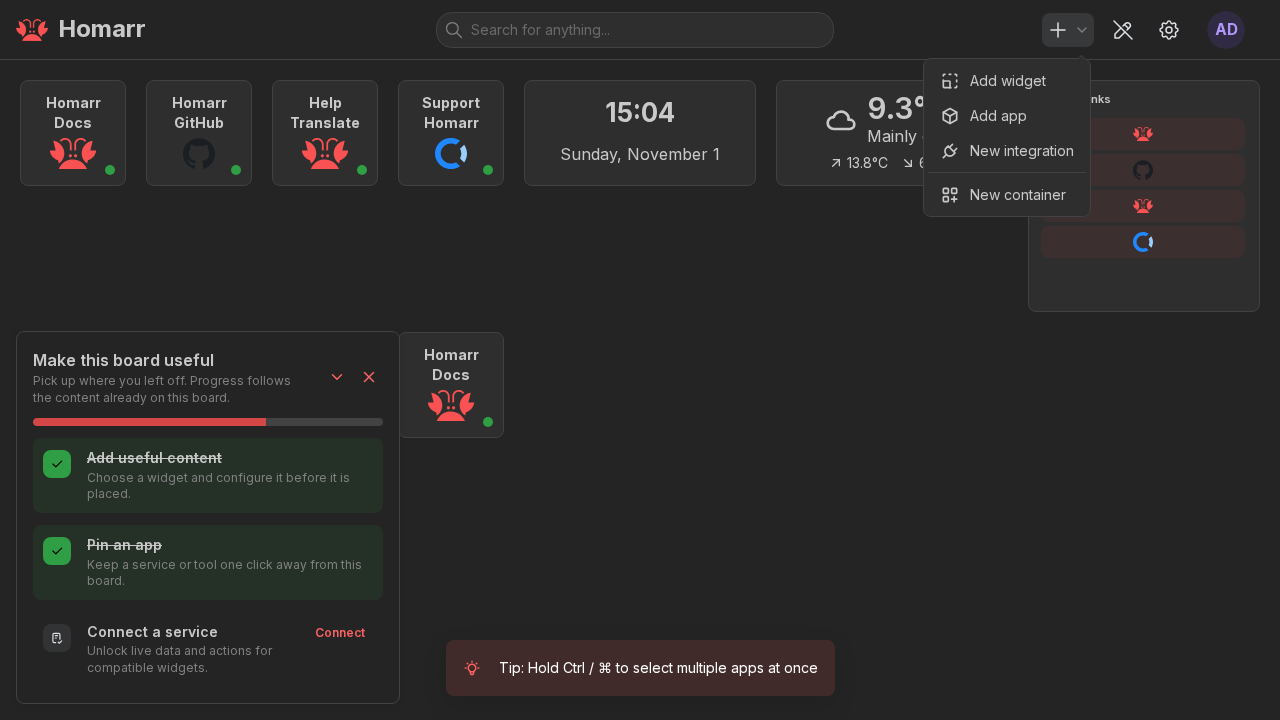
In Edit Mode:
- Rearrange & Resize: Click and drag any tile or widget to move it across the 200 × 200 grid. Use the corner handles to resize widgets.
- Add Board Content: Click the + Add board content button to open the creation menu:
- Add widget: Browse Homarr's library of built-in widgets (Dash., Media, Network, System). - Add app: Define new application tiles with custom titles, internal/external URLs, and icons. - New integration: Connect external APIs (Plex, Jellyfin, Radarr, Sonarr, Pi-hole, Proxmox, etc.). - New container: Add container-specific monitoring shortcuts.
- Save Board: Click Save board in the top right to commit your layout changes.
6. Managing Docker Containers
Click Manage → Tools → Docker in the top navigation bar (or navigate to /manage/tools/docker) to open the container management console:
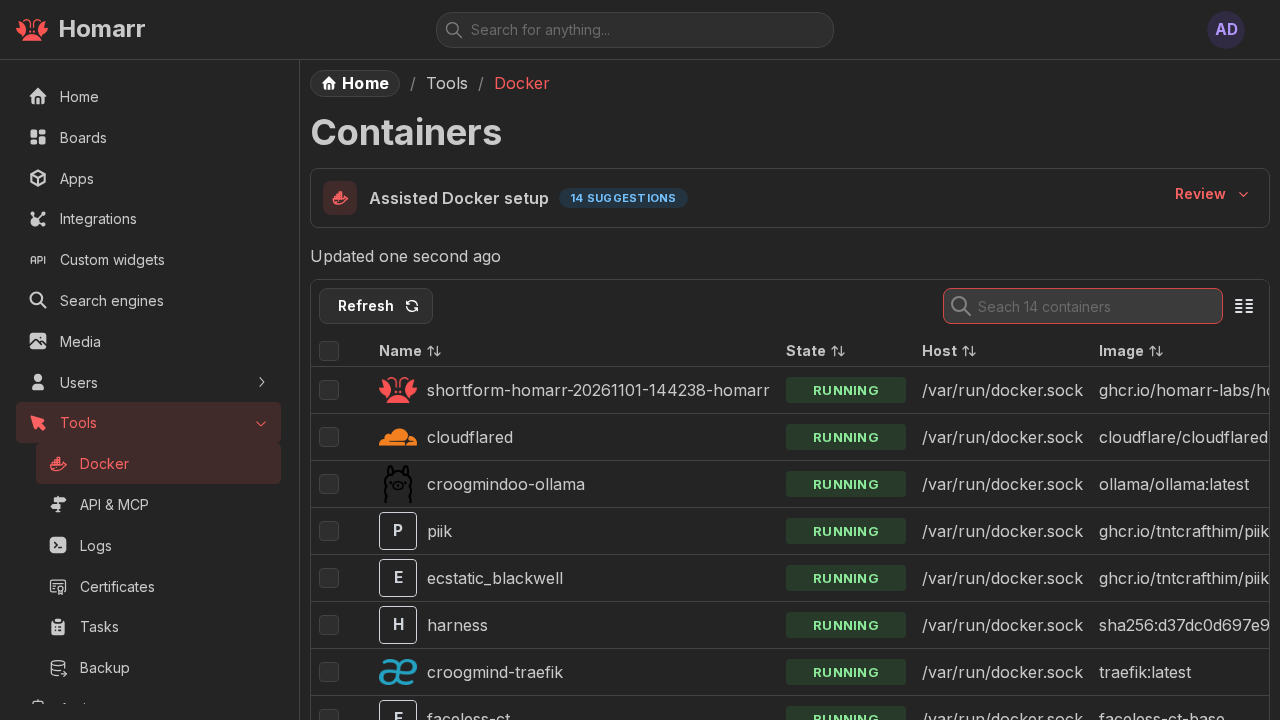
This interface lists all containers running on the Docker host, displays image tags and uptime, highlights assisted Docker setup recommendations, and allows you to view container logs or toggle container states directly from the browser.
---
Verification
Verify that your Homarr installation is operating cleanly across all subsystem layers:
1. Check Container Health Status
Ensure the container is running and healthy:
docker compose psExpected output:
NAME             IMAGE                             COMMAND                  SERVICE   CREATED          STATUS                    PORTS
homarr-homarr    ghcr.io/homarr-labs/homarr:latest "docker-entrypoint.s…"   homarr    30 seconds ago   Up 30 seconds (healthy)   0.0.0.0:3000->7575/tcp
2. Verify API Health Endpoint
Query the internal health check endpoint:
curl -s http://localhost:3000/api/health/liveExpected JSON response:
{"status":"healthy","healthChecks":{"database":"healthy","redis":"healthy"}}Both database and redis must report healthy.
3. Run Operator CLI Commands
Homarr bundles a command-line tool inside the container for administrative queries and recovery:
# List all registered user accounts
docker compose exec homarr homarr users list

# List configured third-party service integrations
docker compose exec homarr homarr integrations list

# View CLI command reference
docker compose exec homarr homarr --help
4. Review Container Logs
Inspect the initialization log trail to confirm that database migrations, Redis initialization, and the Nginx proxy started cleanly:
docker compose logs homarr | grep -iE "migrat|redis|listening|ready|started"Look for confirmation lines:
Running DB migrations ... Migration completeStarting internal Redis server ... Ready to accept connectionsHomarr is up: http://localhost:3000
---
Troubleshooting
The table below covers common installation and runtime issues encountered when deploying Homarr:
| Symptom / Error | Root Cause | Resolution |
|---|---|---|
Container terminates immediately upon startup with Invalid encryption key | SECRET_ENCRYPTION_KEY is either missing from .env or does not match the required 64-character hexadecimal pattern. | Generate a valid 64-hex string using openssl rand -hex 32 and assign it to SECRET_ENCRYPTION_KEY in .env. Restart the container with docker compose up -d. |
EACCES: permission denied or SQLite database locked under ./appdata | The container process cannot write to ./appdata due to host directory permissions or restrictive ownership. | Grant read/write permissions to the data folder on the host: chmod -R 777 ./appdata or chown -R 1000:1000 ./appdata. |
Docker widget displays Cannot connect to Docker daemon or container list is empty | /var/run/docker.sock is not mounted, the host socket path differs, or the socket has restricted permissions. | Ensure volumes: - /var/run/docker.sock:/var/run/docker.sock is defined in compose.yml. Verify the Docker daemon is running and the socket exists on the host. |
Bind for 0.0.0.0:3000 failed: port is already allocated | Host port 3000 is occupied by another service running on the host system. | Edit HOMARR_PORT in .env to assign a free host port (e.g. HOMARR_PORT=7575 or HOMARR_PORT=3002). Re-run docker compose up -d. |
| Forgotten administrator password or locked out of web interface | Lost credentials or inability to pass Auth.js login challenge. | Execute the interactive credential reset CLI utility inside the running container: docker compose exec -it homarr homarr reset-password. |
| Real-time widgets (system metrics, download clients) do not update | WebSocket connections blocked by an upstream reverse proxy (Cloudflare, Nginx, Traefik, Caddy). | Configure your reverse proxy to forward HTTP Upgrade headers (Upgrade: $http_upgrade, Connection: "upgrade") to support Homarr's internal tRPC WebSocket daemon. |
---
Assumptions & Decisions
- Compose Path with Published Image: Selected
ghcr.io/homarr-labs/homarr:latestand Docker Compose as the canonical deployment method per upstream recommendations, bypassing source builds to provide the cleanest installation experience for readers. - Port Mapping (
3000:7575): Standardized on host port3000mapping to internal container gateway port7575to align with the automated test run and pipeline baseline. - Strict 64-Hex Encryption Key: Emphasized the mandatory 64-character hexadecimal key requirement generated via
openssl rand -hex 32, as Homarr will hard-fail during configuration validation if the key format is invalid. - Docker Socket Integration: Preserved the
/var/run/docker.sockvolume mount from upstream examples to power the Docker widget and container management views, while explicitly noting read-only (:ro) hardening options for security-conscious environments. - First-Run Onboarding Guidance: Described both the visual onboarding wizard flow at
/initand the administrator login flow at/auth/loginto ensure readers have a comprehensive guide regardless of whether their instance was seeded programmatically or interactively. - Table Formatting: Utilized GitHub-flavored Markdown tables with explicit column separators for compatibility with
ghost-draft, which automatically converts Markdown tables into native Ghost HTML card components. - Relative Media Asset Paths: Referenced existing browser capture screenshots directly under
runs/homarr-20261101-144238/browser/*.pngto enable automatic media resolution and image uploading during Ghost draft publishing.
Get the Unified Homelab Stack Compose Pack
One-command multi-container Compose files (Full *arr Stack, Prometheus + Grafana + ntfy Monitoring, and Homelab Auth) plus new verified deploys once a week.