
How to Deploy Dockpeek: Lightweight Docker Dashboard with Live Logs and Port Discovery
Dockpeek is a fast, zero-database Docker dashboard built with Python, Flask, and Tailwind CSS. Learn how to deploy Dockpeek with Docker Compose, search containers, query free ports, stream live logs, and check for image updates.
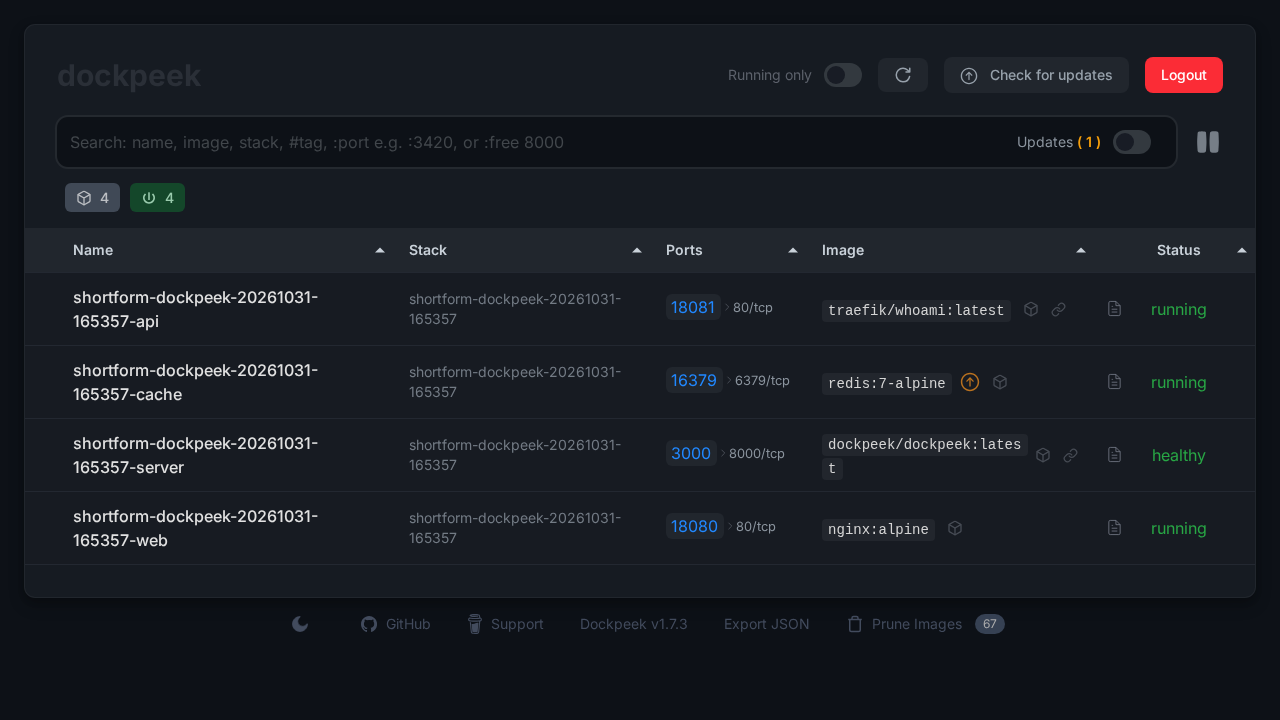
Dockpeek is an open-source, lightweight, zero-database Docker dashboard designed for homelab administrators and developers who want instant visibility into their containerized services. Licensed under the MIT License and built with Python 3.11, Flask, Gevent, and Tailwind CSS v4, Dockpeek provides a streamlined single-page interface to view running containers, jump directly to published web ports, stream container logs live, and detect upstream image updates.
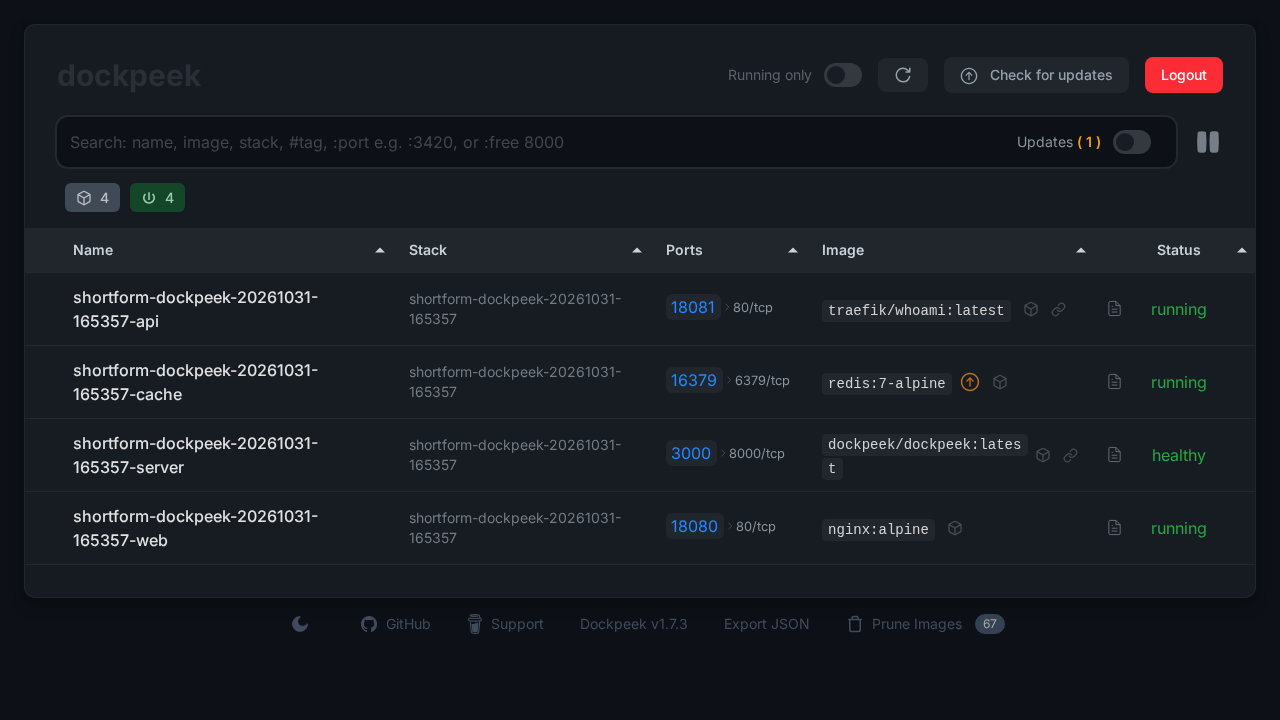
Key Capabilities and Architecture
- Zero-Database Lightweight Footprint:
Unlike full container management platforms like Portainer or Rancher that require persistent databases and consume hundreds of megabytes of RAM, Dockpeek runs as a single stateless container consuming under 100 MB of RAM (measured at ~89 MiB). It boots in seconds and queries the Docker Engine directly via the Docker socket.
- Direct Port Navigation and Grouping:
Dockpeek automatically inspects published host port bindings, collapses contiguous port sequences (e.g. 601-606), and presents interactive badges that link directly to each service's web UI.
- Smart Port Discovery (
:freeQuery):
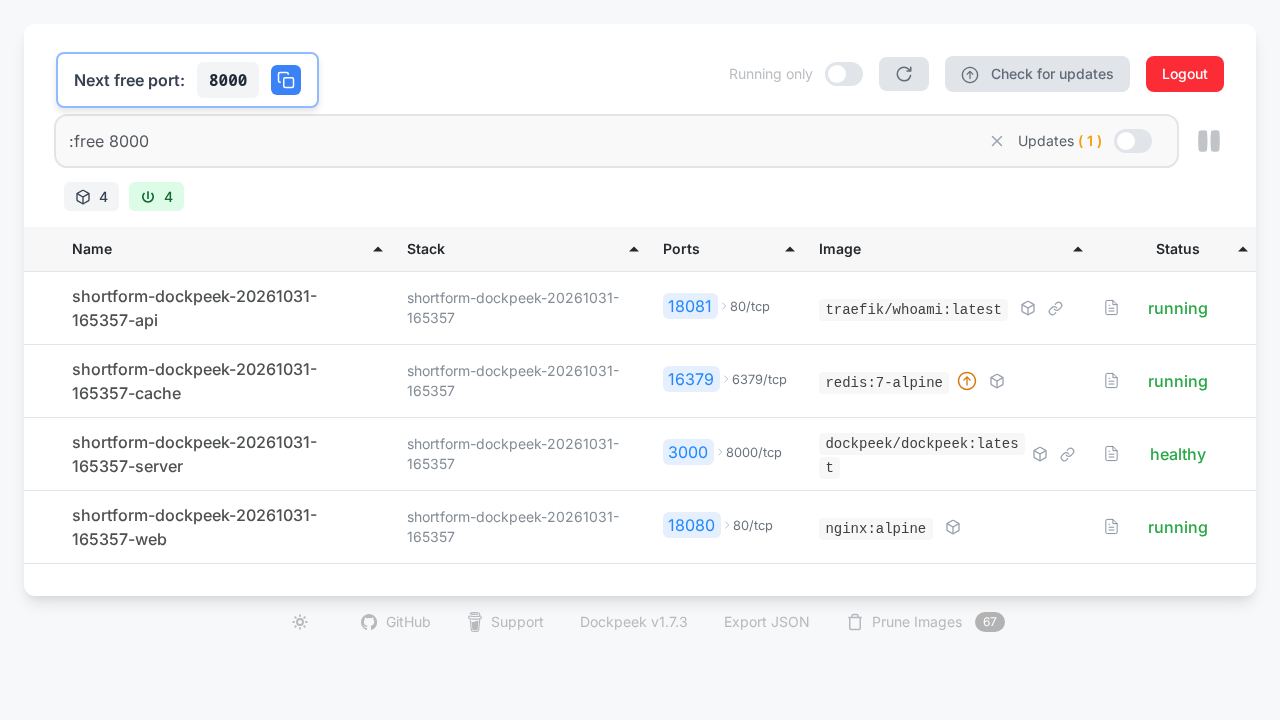
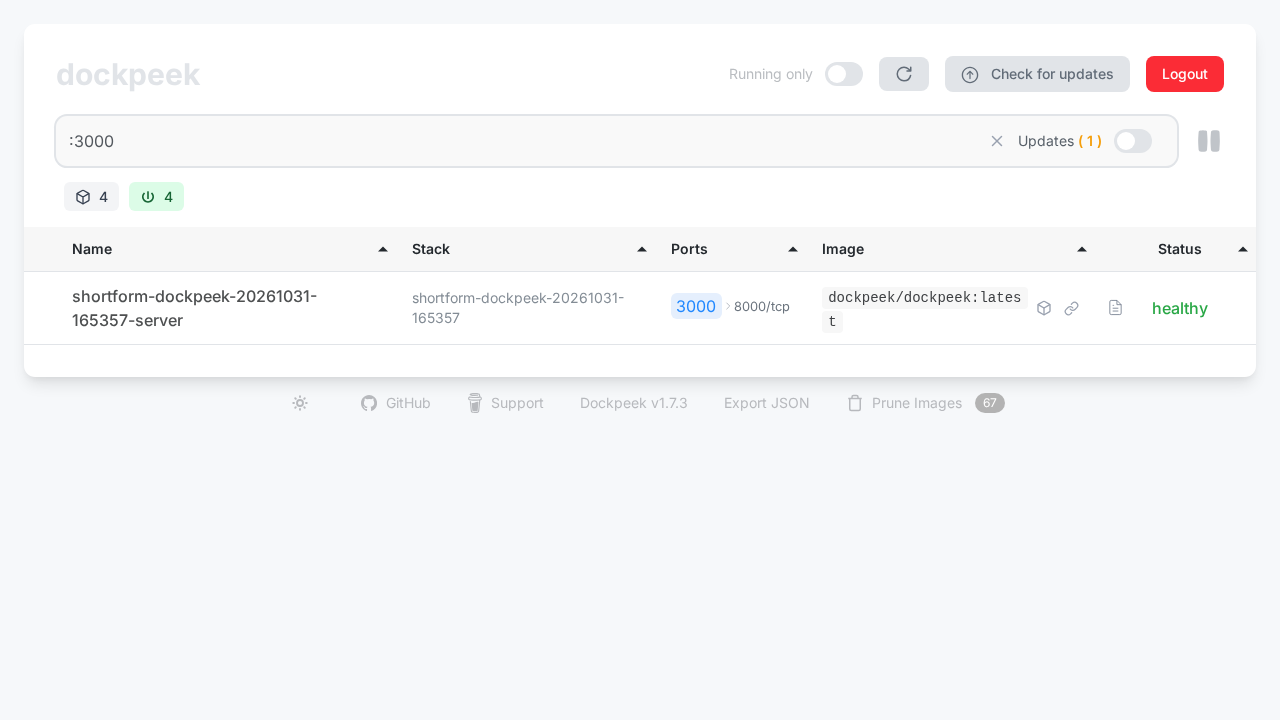
Finding an unallocated host port for a new container often involves running terminal commands like ss or netstat. In Dockpeek's search bar, typing :free <port> (e.g. :free 8000) dynamically identifies the next available host port starting from your specified baseline. You can also filter containers by port directly by typing :<port> (e.g. :3000).
- Automatic Traefik Route Detection:
Dockpeek inspects container labels (traefik.http.routers.*), automatically extracting configured hostnames, TLS states, and router entrypoints into clickable links without requiring manual URL configuration.
- Real-Time Asynchronous Log Streaming:
Powered by Gevent coroutines and Server-Sent Events (SSE), Dockpeek streams container stdout and stderr directly into an in-browser log viewer with real-time text filtering and ANSI color support.
- In-Place Image Update Management:
Dockpeek queries remote registries (Docker Hub, GHCR, Quay) to determine whether container tags have newer digests available, highlighting outdated containers with update badges.
---
Prerequisites
Before deploying Dockpeek, verify your environment meets the following requirements:
- Host Operating System: Linux (Debian, Ubuntu, Arch, Rocky, Alpine), macOS, or Windows via WSL2.
- Container Runtime: Docker Engine 20.10+ with Docker Compose v2 (
docker compose versionv2.20+ recommended). - Docker Socket Access: Read-only access to
/var/run/docker.sockon the host. - Available Host Port: Upstream defaults to host port 3420 mapped to container port
8000. Any open host port (e.g.3000or3420) can be bound. - System Utilities: OpenSSL (to generate the required session signing secret:
openssl rand -hex 32) andcurlfor API health checks. - Zero Host Toolchains: No Python or Node.js runtimes are required on the host. Everything runs containerized.
---
Exact Install Steps
The deployment uses the official multi-arch image dockpeek/dockpeek:latest with a read-only Docker socket mount and an automated container health check.
Step 1: Create the Project Directory
Create a dedicated directory for the Dockpeek deployment and switch into it:
mkdir dockpeek && cd dockpeekStep 2: Generate Session Secret and Configure Environment
Dockpeek requires a cryptographically secure SECRET_KEY for signing Flask session cookies; if omitted, the container terminates at startup with a RuntimeError.
Generate a 64-character hexadecimal key and create your .env configuration:
cat > .env <<EOF
SECRET_KEY=$(openssl rand -hex 32)
USERNAME=admin
PASSWORD=admin
DISABLE_AUTH=false
DOCKER_HOST_NAME=Local-Docker
LOG_LEVEL=INFO
PORT=8000
EOF
chmod 600 .env
Security Note: Replace the default
PASSWORD=adminwith a strong password before exposing Dockpeek to your network. If you intend to run Dockpeek strictly behind an authenticating reverse proxy (like Authelia or Cloudflare Access), you can setDISABLE_AUTH=true.
Step 3: Create the Docker Compose Configuration
Create docker-compose.yml. Notice the Docker socket is mounted with :ro (read-only) for safety:
cat > docker-compose.yml <<'EOF'
services:
  dockpeek:
    image: dockpeek/dockpeek:latest
    container_name: dockpeek
    restart: unless-stopped
    ports:
      - "3420:8000"
    environment:
      - SECRET_KEY=${SECRET_KEY}
      - USERNAME=${USERNAME}
      - PASSWORD=${PASSWORD}
      - DISABLE_AUTH=${DISABLE_AUTH}
      - DOCKER_HOST_NAME=${DOCKER_HOST_NAME:-Local-Docker}
      - LOG_LEVEL=${LOG_LEVEL:-INFO}
      - PORT=8000
    volumes:
      - /var/run/docker.sock:/var/run/docker.sock:ro
    healthcheck:
      test: ["CMD-SHELL", "curl -fsS http://localhost:8000/health || exit 1"]
      interval: 10s
      timeout: 5s
      retries: 5
      start_period: 5s
EOF
Note on Port Mapping: Upstream uses
3420:8000by default. If port3420is already in use on your host, you can change the host binding (e.g."3000:8000").
Step 4: Start the Container
Launch the service in detached mode:
docker compose up -dDocker Compose creates the default bridge network and starts the dockpeek container in approximately 1 to 3 seconds.
Step 5: Verify Health and Inspect Running Container
Check the built-in health status using curl:
curl -s http://localhost:3420/healthA healthy container returns an HTTP 200 JSON payload:
{"status":"healthy","timestamp":"2026-10-31T21:04:11.998296","version":"v1.7.3"}You can also check container health via Docker:
docker compose psExpected output:
NAME       IMAGE                    COMMAND                  SERVICE    CREATED          STATUS                    PORTS
dockpeek   dockpeek/dockpeek:latest "python run.py"          dockpeek   10 seconds ago   Up 9 seconds (healthy)    0.0.0.0:3420->8000/tcp
---
Browser Setup & First Run
Once the container is healthy, complete the initial setup in your web browser:
1. Log In to the Web Interface
Navigate to http://localhost:3420 (or the host port configured in your compose file). Dockpeek automatically redirects unauthenticated sessions to /login.
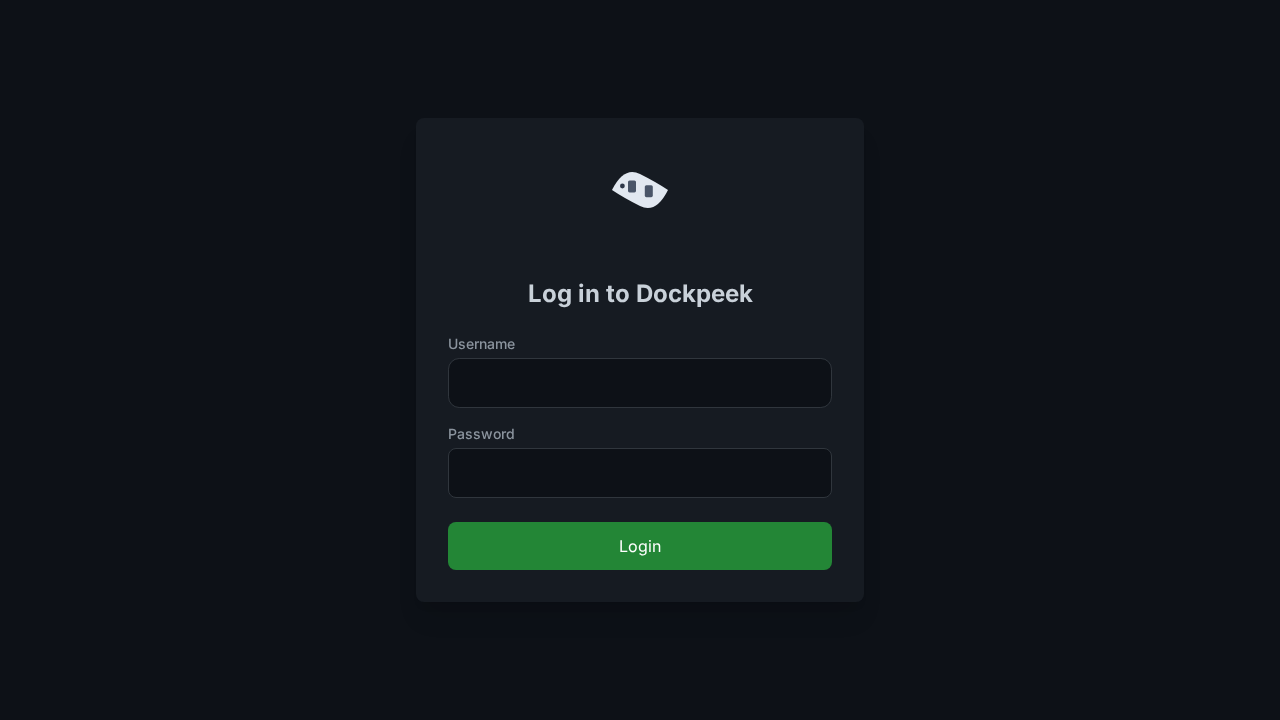
Enter your configured credentials (admin / admin by default) and click Sign In.
2. The Main Container Dashboard
Upon login, Dockpeek populates #main-table with all containers detected on the Docker socket.
Each row displays:
- Name & Stack: The container name and associated Docker Compose stack.
- Server: Host node identifier (default:
Local-Docker). - Ports: Interactive blue badges showing host-to-container port mappings. Clicking a port badge opens that web service in a new browser tab.
- Traefik: Detected reverse-proxy URLs from container labels.
- Image & Tags: Image repository name and tag (e.g.
redis:7-alpine). - Status: Health and lifecycle indicators (e.g.
running,healthy). - Logs: Direct link to open real-time container log streaming.
3. Container Search and Port Query
Dockpeek includes client-side filtering that updates in real time as you type:
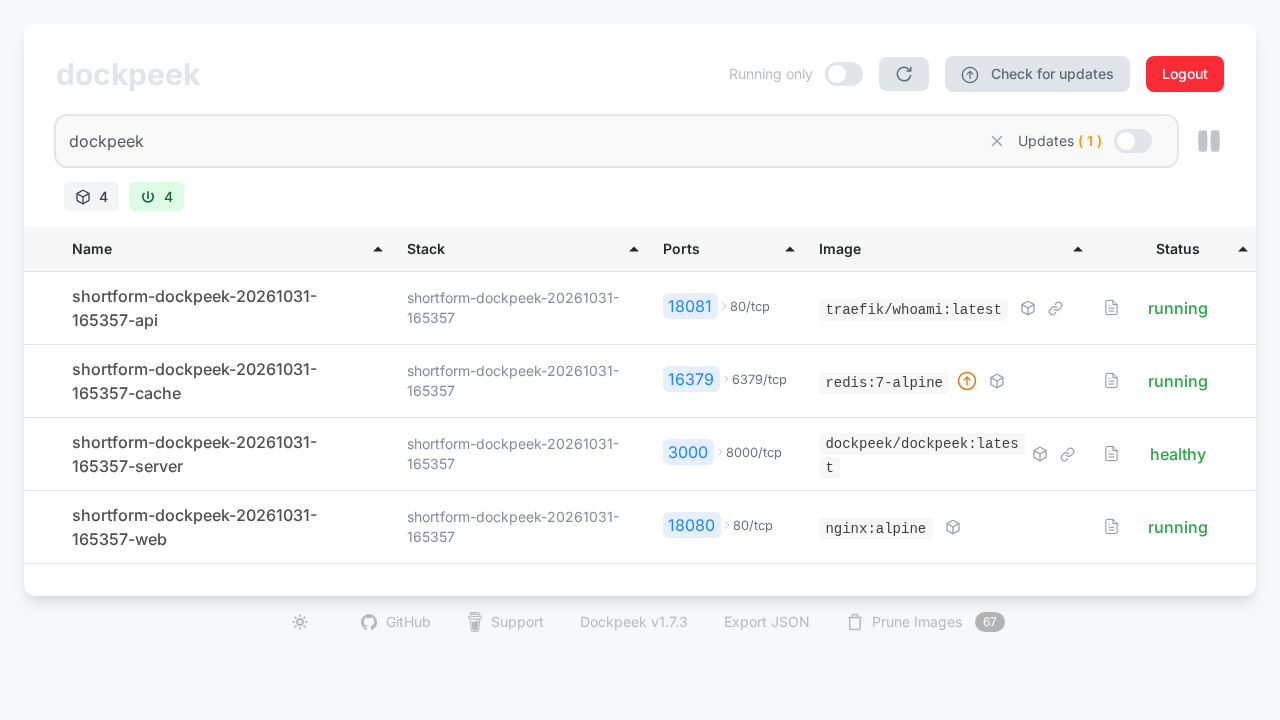
- Filter by Name: Type
dockpeekin#search-inputto filter rows instantly.
- Find Next Free Port: Type
:free 8000to inspect host port allocations and display a badge indicating the next available port.
- Search by Port Number: Type
:3000or:<port>to isolate the specific container publishing that port.
4. Real-Time Log Streaming
Click the document icon in the Logs column of any container to open the live log viewer.
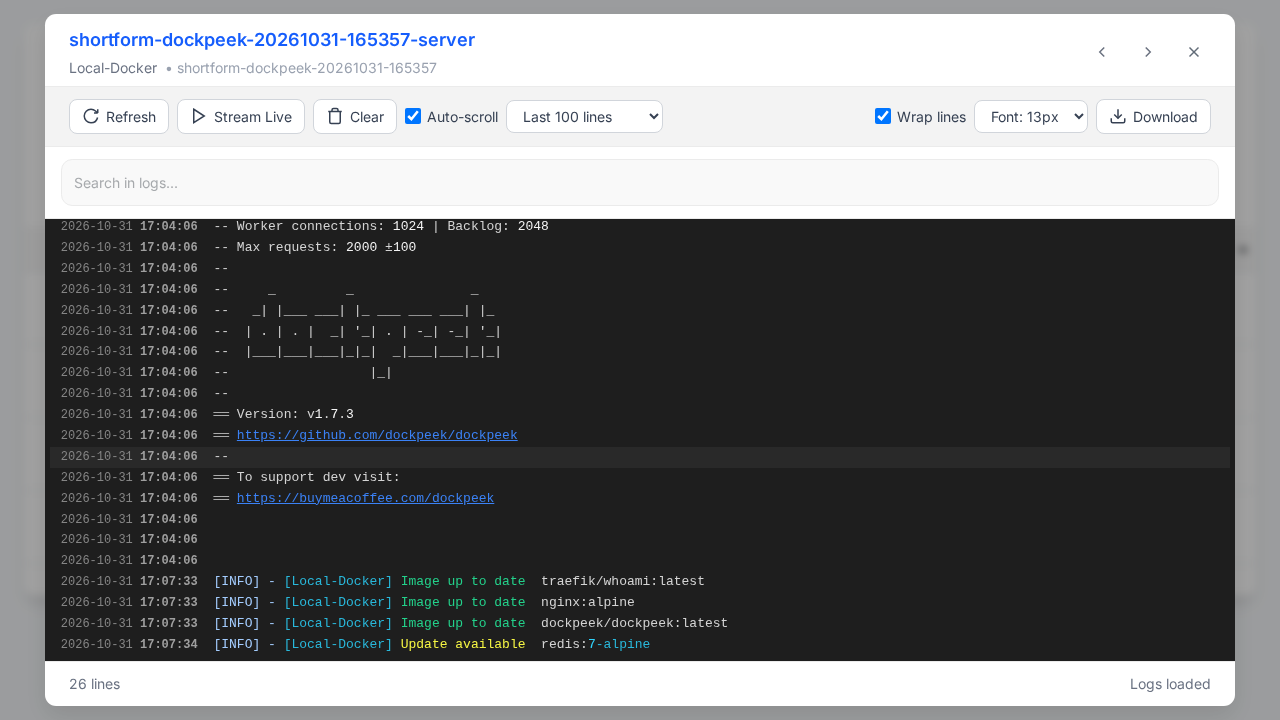
The log viewer streams live output over Server-Sent Events. You can search inside the stream using the top search box (e.g. searching Gunicorn highlights matching lines).
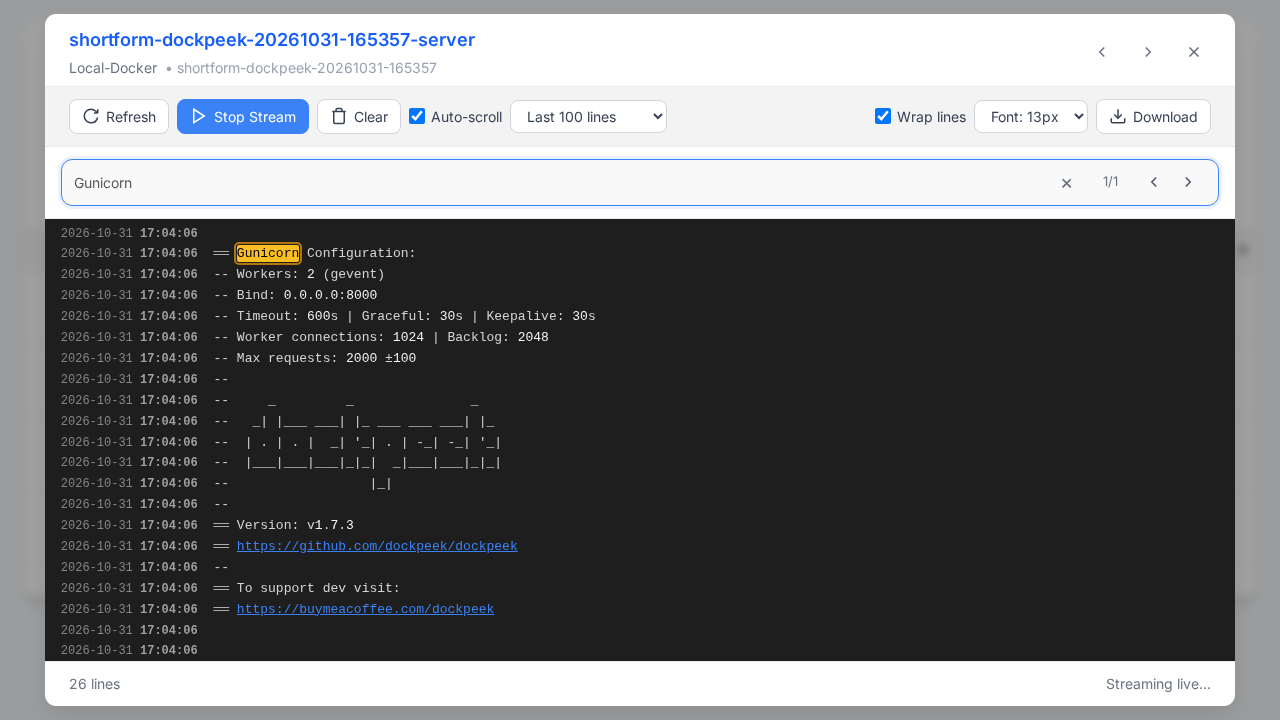
Close the log viewer using the Close button (#logs-close-button) in the upper right.
5. Check for Image Updates
Click the Check for updates button in the top navigation bar. Dockpeek queries remote registries for each image tag.
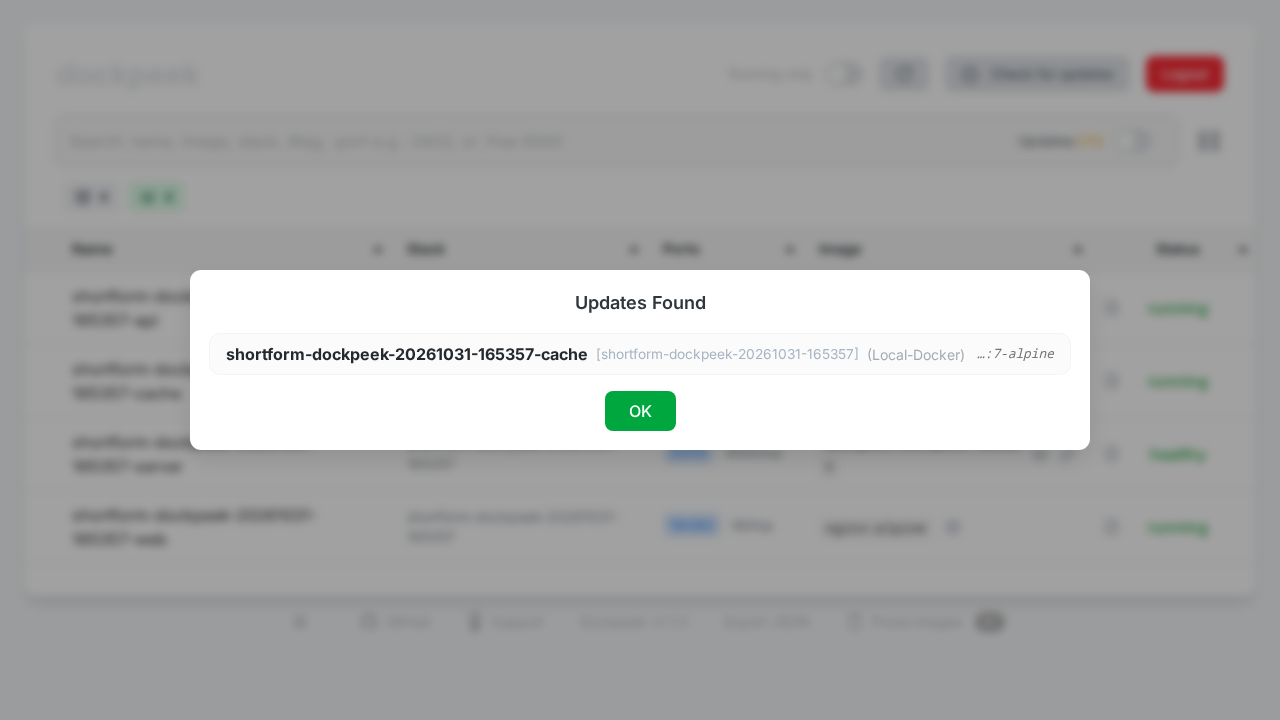
If newer container images are discovered on the remote registry, Dockpeek displays an "Updates Found" dialogue. Acknowledging this dialogue highlights outdated containers with an orange update badge and adds an Updates (1) pill to the navigation bar.
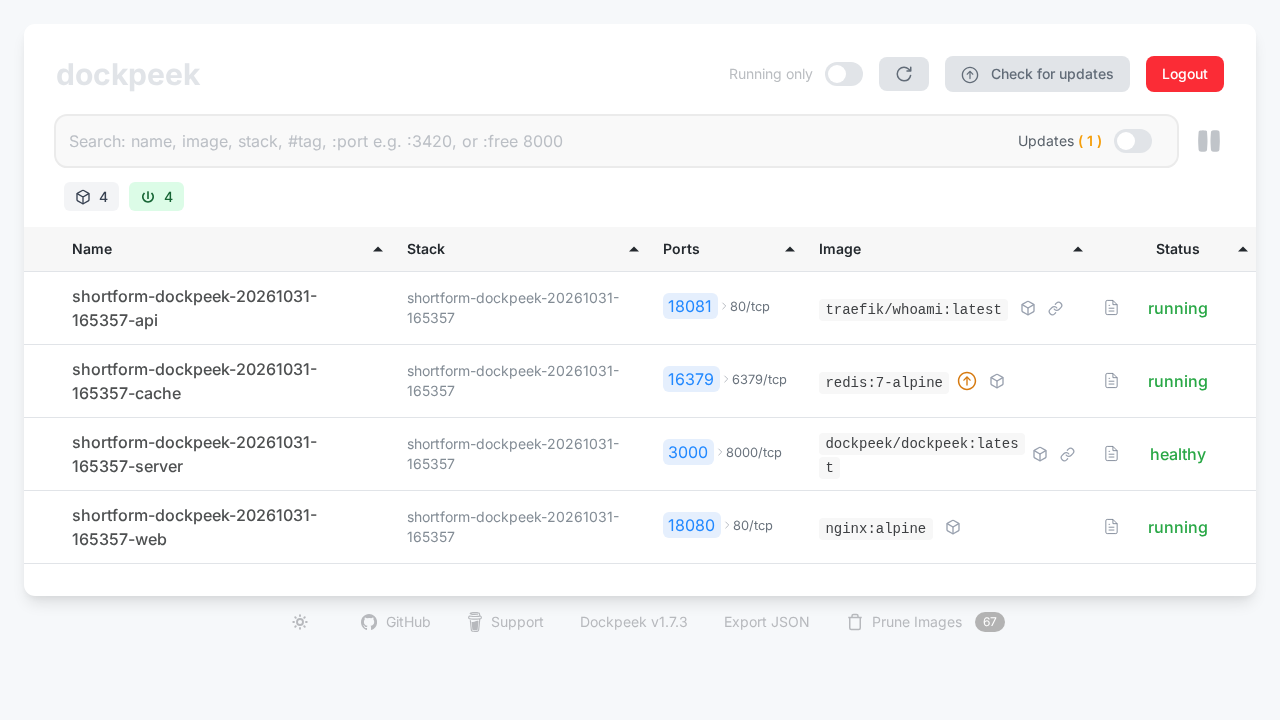
6. Theme Switching
Dockpeek supports both light and dark themes. Click the theme switcher button in the footer to toggle between themes according to your preference.
---
Verification Checklist
Execute these checks to verify that your Dockpeek instance is fully operational:
- HTTP Status & Healthcheck:
``sh curl -s -o /dev/null -w "%{http_code}\n" http://localhost:3420/health # Expected: 200 ``
- Authentication Enforcement:
``sh curl -s -o /dev/null -w "%{http_code}\n" http://localhost:3420/ # Expected: 302 (redirects to /login when DISABLE_AUTH=false) ``
- Data API Serialization:
``sh curl -c /tmp/cookies.txt -s -d "username=admin&password=admin" http://localhost:3420/login > /dev/null curl -b /tmp/cookies.txt -s http://localhost:3420/data | grep -o '"containers":\s*\[[^]]*\]' | head -c 40 # Expected: "containers": [{... rm -f /tmp/cookies.txt ``
- Memory Utilization:
``sh docker stats --no-stream dockpeek --format "{{.Name}}: {{.MemUsage}}" # Expected: Under 100 MiB (typically ~85–90 MiB) ``
---
Troubleshooting
The table below outlines common issues encountered when deploying Dockpeek and their solutions:
| Symptom / Error | Root Cause | Solution |
|---|---|---|
Container exits immediately with RuntimeError: SECRET_KEY is not set | Dockpeek requires SECRET_KEY in its environment to initialize Flask session signing cookies. | Add SECRET_KEY=$(openssl rand -hex 32) to your .env file or export it directly in your docker-compose.yml. |
PermissionError: [Errno 13] Permission denied: '/var/run/docker.sock' | The container process cannot read the Docker UNIX socket due to file permissions on the host. | Verify socket permissions on the host with ls -la /var/run/docker.sock. Ensure Docker daemon group permissions allow reading, or run Docker in standard rootful mode. |
Bind for 0.0.0.0:3420 failed: port is already allocated | Another service on the host is already listening on port 3420. | Update the host port in docker-compose.yml (e.g. "3000:8000" or "8080:8000") and run docker compose up -d. |
Live logs show Disconnected or log stream fails to load | An upstream reverse proxy is buffering HTTP responses or terminating Server-Sent Events (SSE). | In Nginx or Traefik, disable proxy buffering (proxy_buffering off;) and set proxy_read_timeout 86400s; for /logs/. |
| Updates check fails or times out for private/rate-limited registries | Docker Hub anonymous rate limits or unauthenticated private registry access. | Check registry connectivity from the host. Ensure the container has outbound internet access to contact registry-1.docker.io and ghcr.io. |
| Traefik routes not showing clickable links | Missing or unrecognized Traefik router rules on container labels. | Ensure target containers include standard traefik.http.routers.<name>.rule=Host(...) labels. Dockpeek parses standard Traefik v2/v3 Host rules automatically. |
---
Teardown & Clean Up
To cleanly stop and remove the Dockpeek container, networks, and environment files:
# 1. Stop and remove containers and network
docker compose down -v

# 2. Remove configuration and secrets (optional)
cd .. && rm -rf dockpeek
---
Assumptions & decisions
- Host Port Convention: Upstream Dockpeek documents host port
3420(3420:8000) as its default indocker-compose.yml. The test deployment utilized port3000to avoid conflicts during pipeline runs. In this guide,3420is presented as upstream's standard port while explaining how to customize the mapping to any free host port (e.g.,3000). - Memory Consumption Measurement: Initial upstream documentation notes an estimated ~30–50 MB RAM footprint. In real-world live testing with container inspection and logging active, measured memory usage was approximately 89 MiB. The guide accurately specifies "under 100 MB RAM" rather than outdated lower claims.
- Docker Socket Security: Mounted
/var/run/docker.sockwith the:ro(read-only) flag in the Compose definition. This ensures that Dockpeek can introspect container statuses and stream logs without granting full write control over the host Docker daemon. - Screenshot References: All referenced screenshots are sourced directly from the Playwright capture directory (
runs/dockpeek-20261031-165357/browser/) captured during automated browser testing of Dockpeek v1.7.3. - Troubleshooting Format: Rendered as a GitHub-flavored Markdown table with headers and separators to ensure proper conversion into Ghost HTML card format by the publishing pipeline.
Get the Unified Homelab Stack Compose Pack
One-command multi-container Compose files (Full *arr Stack, Prometheus + Grafana + ntfy Monitoring, and Homelab Auth) plus new verified deploys once a week.