
How to Deploy and Run Corgi: Terminal Multiplexer for AI Coding Agents with Docker & Native CLI
Corgi is a Ghostty-powered terminal multiplexer and agent workspace manager designed to coordinate humans and autonomous AI coding agents like Claude Code and Codex. Here is how to run its sandboxed web simulator with Docker Compose and operate its native CLI daemon.
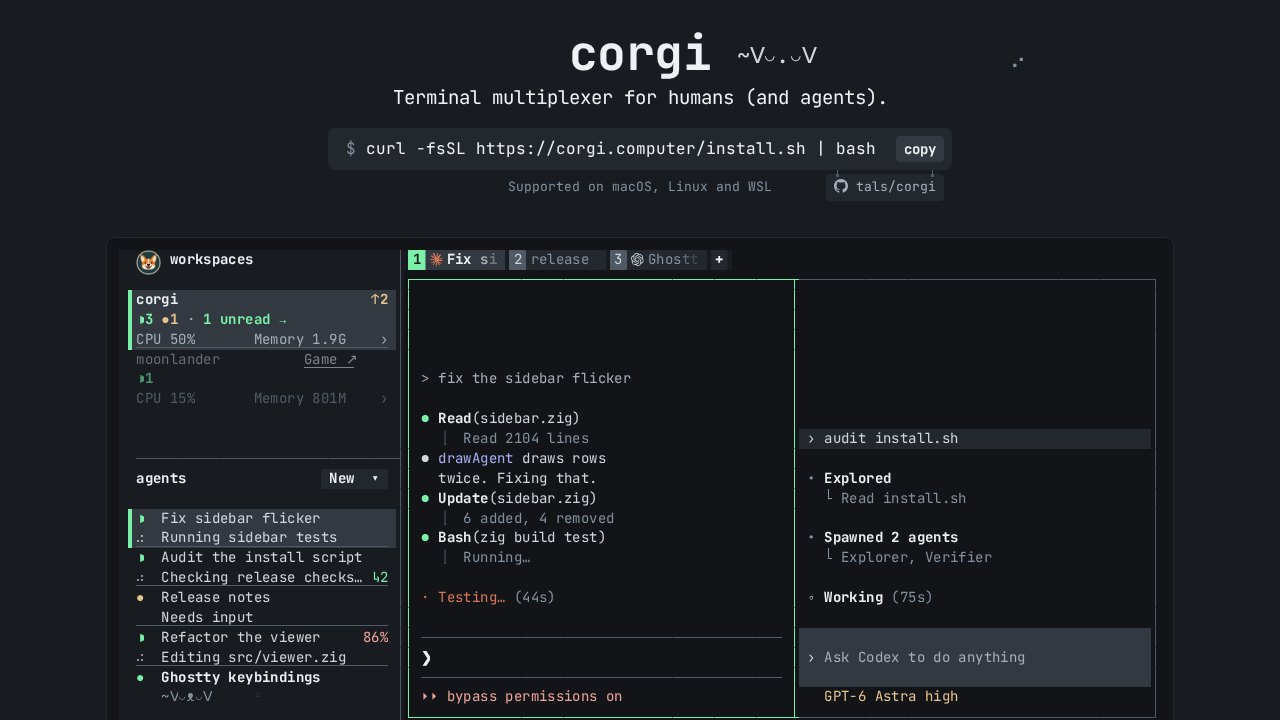
Corgi is an open-source (MIT licensed) terminal multiplexer and multi-agent workspace manager designed specifically for coordinating human developers and autonomous AI coding agents. Powered by Ghostty's native terminal emulation engine (libghostty v1.4.0) compiled via Zig and supporting the Kitty graphics protocol, Corgi unifies terminal split panes, workspace isolation, background process lifecycles, and deep hooks into leading coding agent CLIs into a responsive, mouse-friendly interface.
Whether managing multiple parallel agent tasks or driving terminals programmatically, Corgi provides deep agent coordination features:
- AI Coding Agent Multiplexing & Awareness: Automatically detects and monitors background AI agents running in panes—including Claude Code (
claude), OpenAI Codex CLI (codex), Pi (pi), OpenCode (opencode), and Oh My Pi (omp). Corgi injects hooks to display real-time status indicators in the sidebar:
- ▶ Working (agent executing a prompt, tool call, or reasoning step) - ● Needs you (agent awaiting user approval, input, or confirmation) - ● Finished / Done (turn settled or completed) - ○ Idle / Dormant
- Token Tracking & Resource Metrics: Features a dedicated "
topfor tokens" view, tracking active context window fill, prompt token usage, rate limits, CPU load, and memory consumption per workspace. - Modern Terminal Graphics & Truecolor: Core terminal emulation, input encoding, and frame diffing run on Ghostty's engine with 24-bit ANSI truecolor and Kitty graphics protocol support for visual avatars, cards, and image thumbnails.
- Daemon-Viewer Architecture & Persistence: Separates an authoritative background daemon (
corgi start) from decoupled front-end viewers (corgi attach). Sessions survive client detachments, reboots, and network disconnects. - Full CLI Scriptability & Agent Discovery: Programmatic control via
corgi list,corgi tab new,corgi pane split,corgi pane send, andcorgi pane readwith optional--jsonoutput. Panes expose a built-in agent skill (corgi --skill) so agents can inspect and manage sibling panes. - Interactive Web Simulator & Landing Page: Upstream bundles an interactive web terminal simulator (
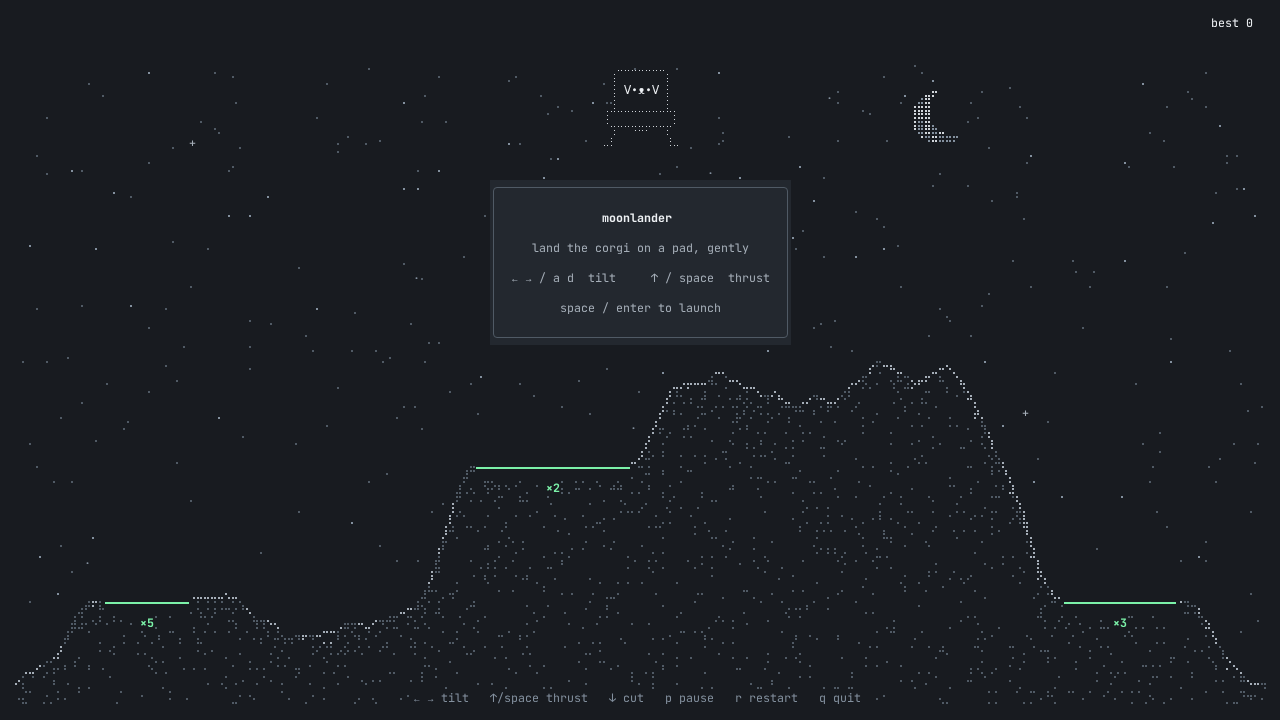
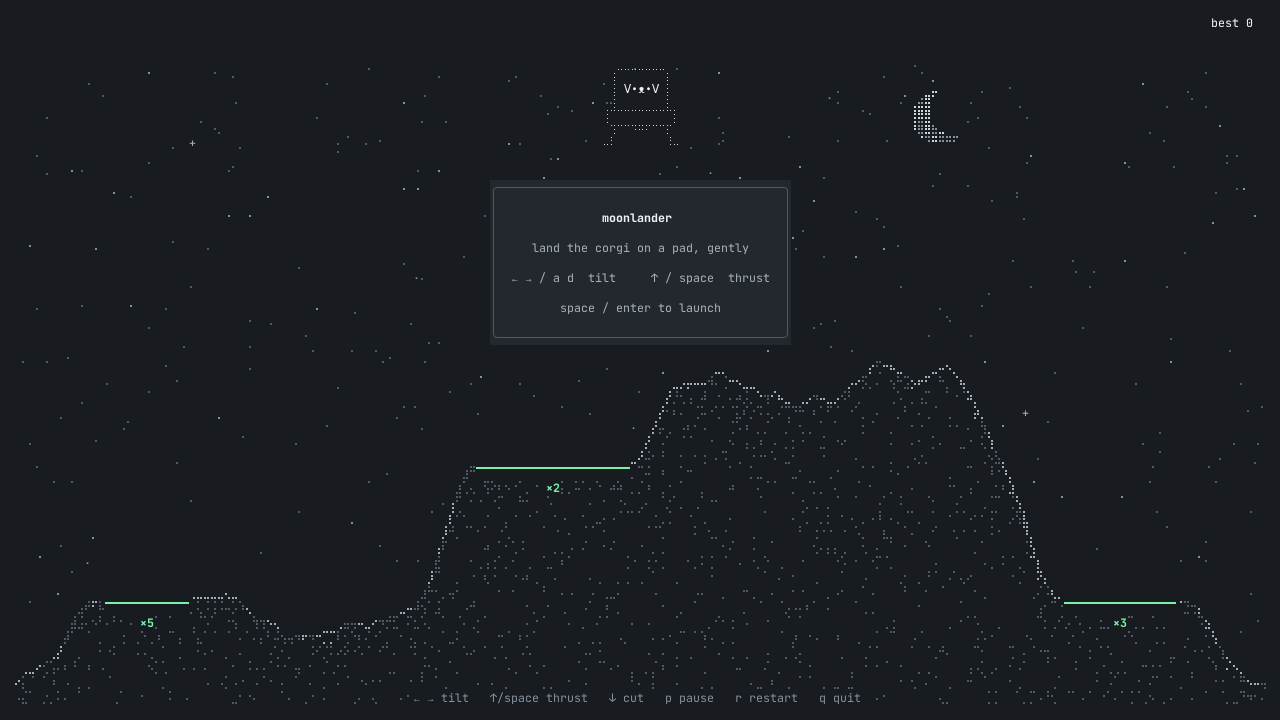
#v-sim) served via Bun (site/serve.ts), reproducing the full multiplexer interface directly in modern web browsers alongside an interactive Lunar Lander easter egg (/moonlander).
This guide details how to deploy Corgi's web simulator in a sandboxed Docker Compose stack, download and verify the official native Linux release binary, run the native CLI daemon in an isolated environment, and verify its operational state.
Prerequisites
Before starting the deployment, verify that your environment satisfies the following requirements:
- Host Operating System: Linux x86_64 system (tested on Linux 6.x and 7.x kernels).
- Docker Engine & Docker Compose: Docker Engine 20.10+ and Docker Compose v2.24+ installed on the host system.
- Core CLI Utilities: Standard shell utilities:
bash,curl,sha256sum, andss(ornetstat). - Network Egress: HTTPS access to GitHub (
github.com) and Corgi release infrastructure (corgi.computer). - Host Ports: Port
3000available on loopback (127.0.0.1) for the web container (fallback ports:3002,3003,4400,8080,13000). - Zero Host Toolchains Required: No host installation of Bun, Node.js, Zig, or C compilation tools is required. The web simulator builds inside a container, and the native CLI runs from a precompiled official binary.
Check port availability on the host before continuing:
ss -ltn | grep -E ':(3000|4400)\b'If port 3000 is already in use, select an unused port from the fallback list for the CORGI_WEB_PORT variable.
Exact Install Steps
The deployment consists of two parallel components: staging the official native binary for isolated local CLI automation, and containerizing the upstream Bun landing page and interactive terminal simulator using Docker Compose.
1. Set Environment Variables
Define the workspace directories, target release version, and pinned cryptographic hash:
export DEPLOY_DIR="$HOME/corgi-deploy"
export CORGI_WEB_PORT=3000
export VERSION=20261030T200700Z-f539bbadd798
export RELEASE_BIN=corgi-linux-x86_64
export RELEASE_URL="https://corgi.computer/releases/${VERSION}/${RELEASE_BIN}"
export RELEASE_SHA256=028d22c5dd528aec8af6231431780270bbb9b6b0f1e07e8c5a16fa3b15a1d1f8

mkdir -p "$DEPLOY_DIR/native" "$DEPLOY_DIR/state" "$DEPLOY_DIR/environment" "$DEPLOY_DIR/sock"
chmod 700 "$DEPLOY_DIR/sock"
2. Download and Verify the Native Binary
Download the precompiled Linux x86_64 binary and verify its integrity against the upstream SHA-256 checksum:
curl --disable -fsSL --proto '=https' --proto-redir '=https' \
  --connect-timeout 15 --max-time 300 \
  "$RELEASE_URL" -o "$DEPLOY_DIR/native/corgi"

cd "$DEPLOY_DIR/native"
echo "$RELEASE_SHA256  corgi" | sha256sum -c -
chmod +x corgi
Expected output from the checksum verification:
corgi: OKInitialize default viewer preferences in the isolated state directory to disable onboarding prompts:
echo '{"onboarding_complete":true,"preset":"corgi","prefix":"ctrl_b"}' > "$DEPLOY_DIR/state/viewer.json"3. Stage the Dockerized Web Simulator
The bundled web landing page and interactive simulator provide a complete browser representation of Corgi's interface. To avoid installing Bun, Happy-DOM, and build tooling directly onto the host system, create a multi-stage Docker build.
Clone the repository into a temporary source directory:
git clone --depth 1 https://github.com/tals/corgi.git "$DEPLOY_DIR/repo"Create the Dockerfile inside $DEPLOY_DIR:
cat > "$DEPLOY_DIR/Dockerfile" <<'EOF'
FROM oven/bun:1-debian
LABEL org.opencontainers.image.source="https://github.com/tals/corgi" \
      org.opencontainers.image.licenses="MIT"
WORKDIR /app

# Copy dependency manifests and install pinned dependencies
COPY repo/package.json repo/bun.lock repo/tsconfig.json ./
RUN bun install --frozen-lockfile

# Copy application source, tooling scripts, assets, and web site files
COPY repo/src ./src
COPY repo/assets ./assets
COPY repo/scripts ./scripts
COPY repo/site ./site

# Prerender the web simulator and build static client assets
RUN bun run landingpage:build

ENV PORT=4400
EXPOSE 4400/tcp
CMD ["bun", "site/serve.ts"]
EOF
Create the docker-compose.yml file:
cat > "$DEPLOY_DIR/docker-compose.yml" <<EOF
services:
  web:
    build:
      context: .
      dockerfile: Dockerfile
    container_name: corgi-web
    restart: unless-stopped
    ports:
      - "127.0.0.1:${CORGI_WEB_PORT}:4400"
    environment:
      - PORT=4400
      - NODE_ENV=production
    security_opt:
      - no-new-privileges:true
    cap_drop:
      - ALL
EOF
4. Build and Launch the Web Container
Run Docker Compose to build the image and start the simulator service:
cd "$DEPLOY_DIR"
docker compose up -d --build
Wait for the service to bind and report ready on port 3000:
for i in $(seq 1 45); do
  if curl -fsS "http://localhost:${CORGI_WEB_PORT}/" >/dev/null 2>&1; then
    echo "Corgi web simulator is ready on port ${CORGI_WEB_PORT}"
    break
  fi
  sleep 2
done
5. Start and Control the Native Daemon
Operate the native CLI multiplexer daemon in an isolated environment without root privileges or host system pollution:
cd "$DEPLOY_DIR"

export CORGI_SOCKET="$DEPLOY_DIR/sock/control.sock"
export CORGI_ENV_DIR="$DEPLOY_DIR/environment"
export XDG_STATE_HOME="$DEPLOY_DIR/state"
export SHELL=/bin/bash

# Start the background multiplexer runtime daemon
./native/corgi start

# Inspect running workspaces and panes
./native/corgi list

# Create a new named tab inside Workspace 1
./native/corgi tab new --name demo --workspace 1

# Split pane 1 horizontally to the right
./native/corgi pane split 1 --right

# Send commands to pane 1
./native/corgi pane send 1 'echo hello from a corgi pane; uname -sr' --enter

# Read recent buffer output from pane 1
./native/corgi pane read 1 --lines 4
Expected output from pane read:
hello from a corgi pane
Linux 7.3.0-4-cachyos
Inspect active layout:
./native/corgi listExpected output:
workspace 1 "deploy" /home/craig/corgi-deploy
  tab 2 "demo": 1 left of 3
    pane 1
    pane 3
Shut down the background daemon when the terminal session completes:
./native/corgi shutdown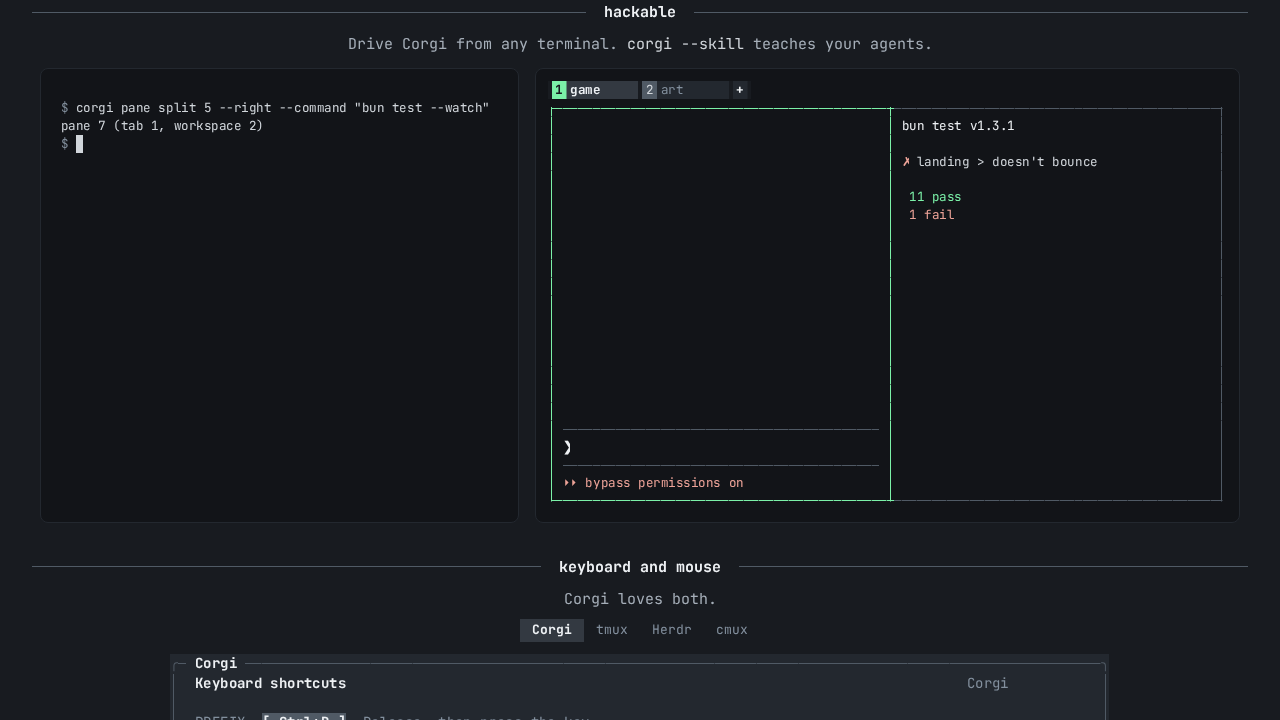
Browser Setup
Once the container is healthy, navigate to http://localhost:3000/ in any modern web browser. The web application renders an interactive simulation of the Corgi terminal multiplexer alongside documentation of its capabilities.
1. Interactive Terminal Simulator (#v-sim)
The main viewport displays #v-sim, an interactive simulation of Corgi running active agent sessions. You can interact with the simulator using keyboard shortcuts or mouse clicks:
- Focus the Simulator: Click directly into the simulator pane.
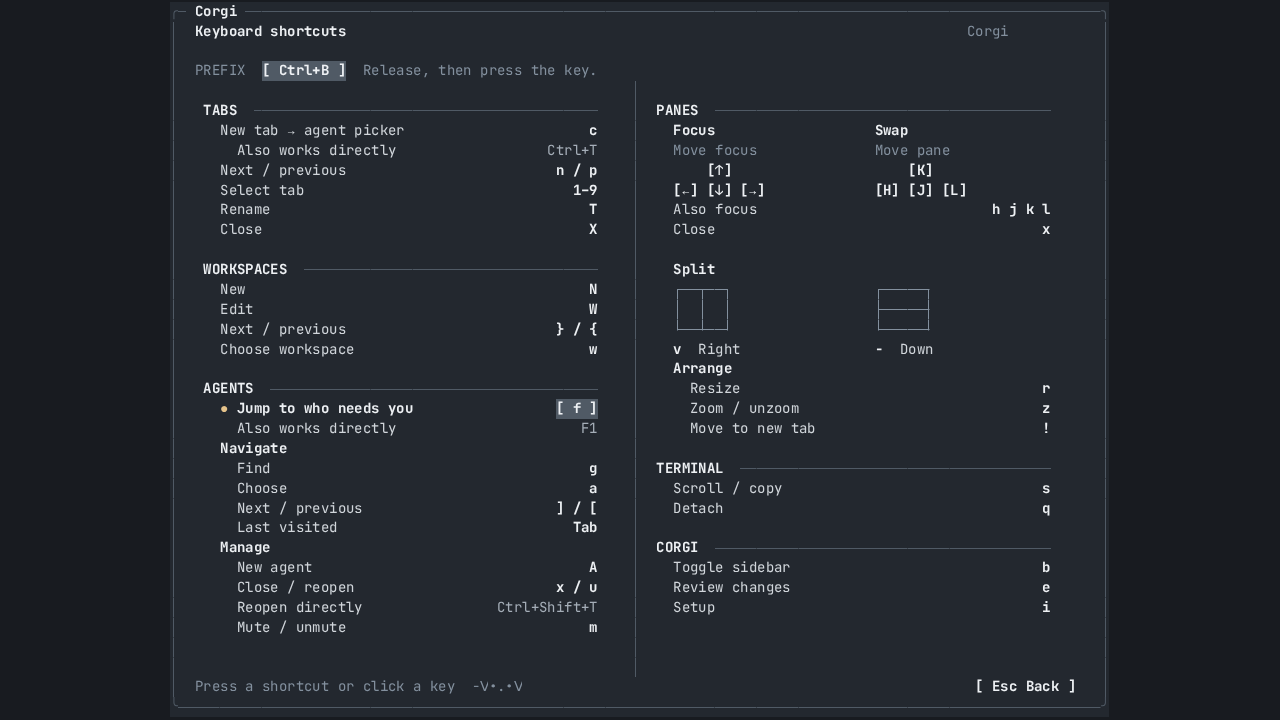
- Open Shortcut Menu: Press
Ctrl+Bfollowed by?. This opens the keyboard shortcut cheat sheet modal covering tab creation, pane navigation, and agent switching. PressEscapeto close the modal. - Launch Agent Picker: Press
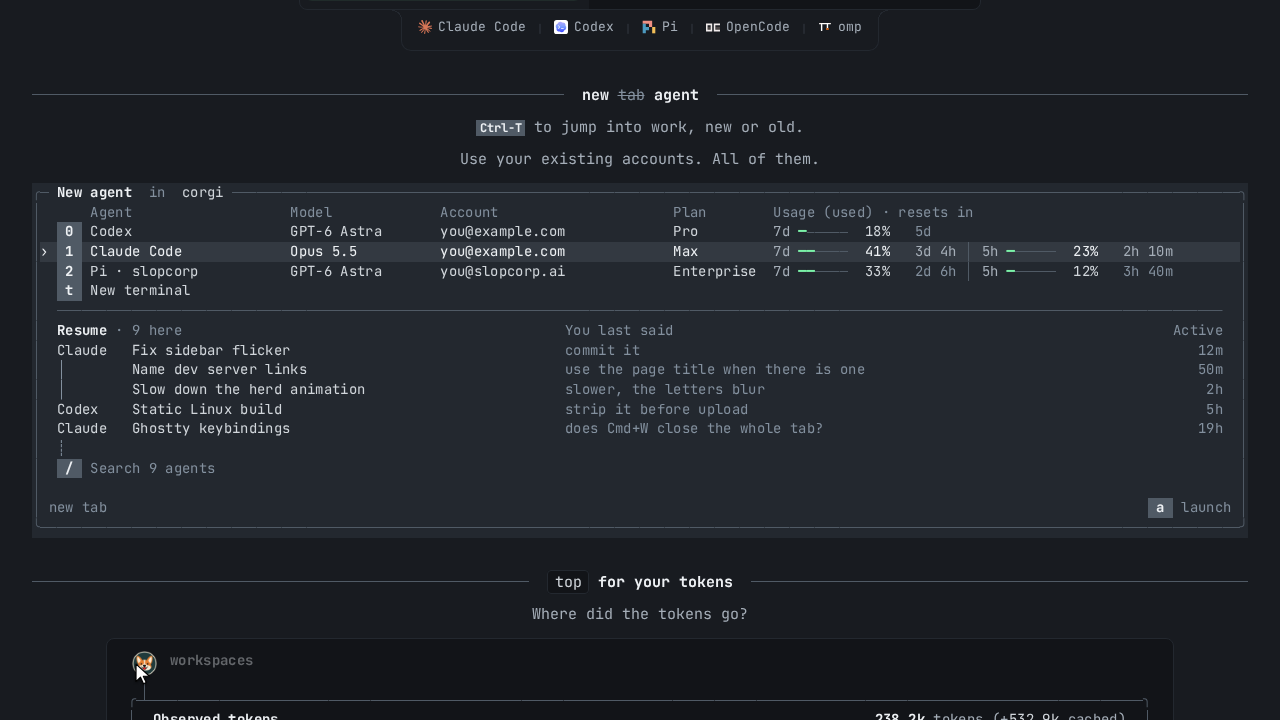
Ctrl+Tinside the simulator to open the interactive agent selector.
2. Multi-Agent Awareness & Activity Tracking
Scroll down the landing page to inspect live simulator cards demonstrating how Corgi monitors multiple coding agents simultaneously:
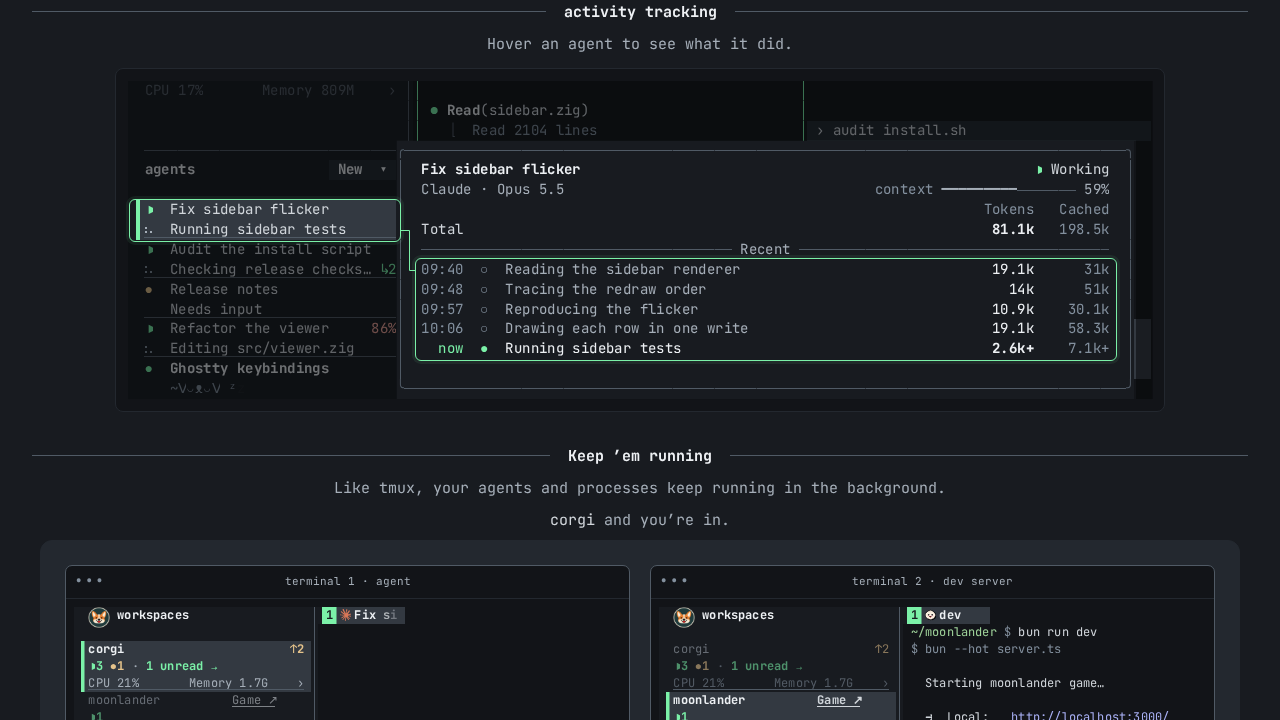
- Sidebar Status Dots: The agent list displays live indicators showing which agent is working (▶), waiting for user confirmation (●), or finished.
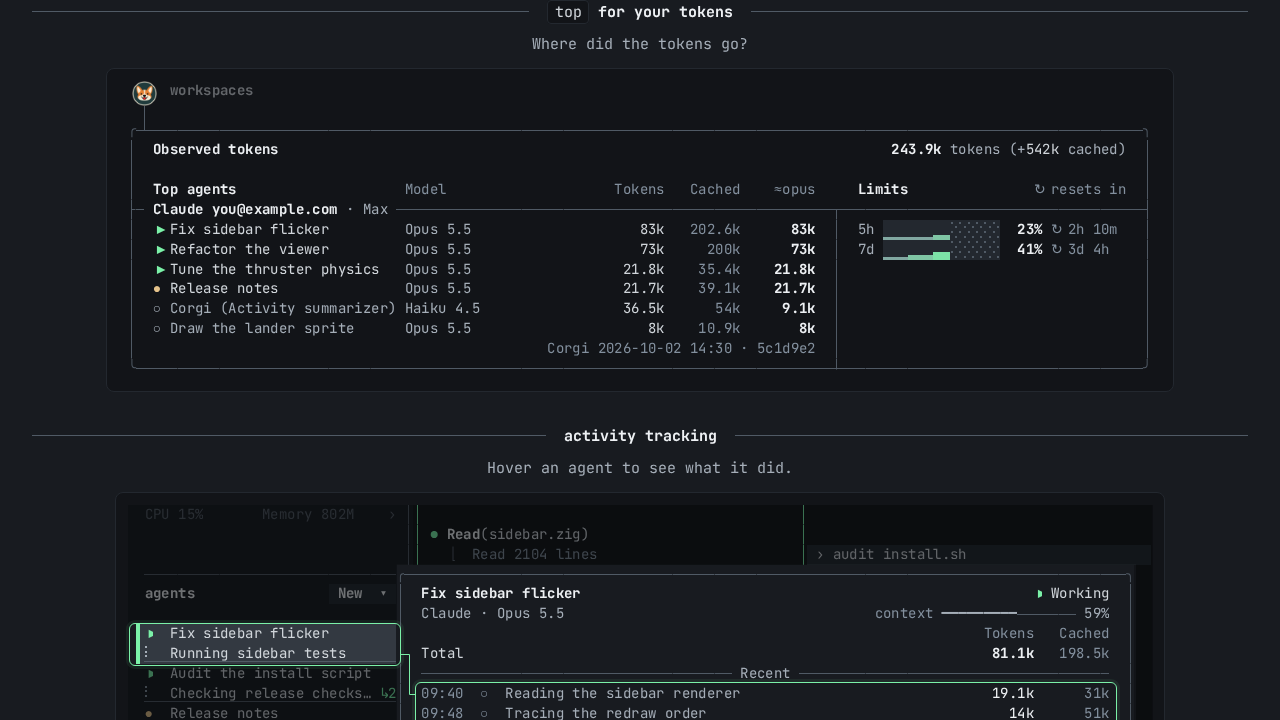
- Top for Your Tokens: View real-time token metrics, context window percentages, and provider quota tracking per agent pane.
- Activity Stream & Diffs: Review live conversation summaries and inspect git diffs produced by background agents before accepting changes.
3. Keyboard Presets (Corgi vs tmux)
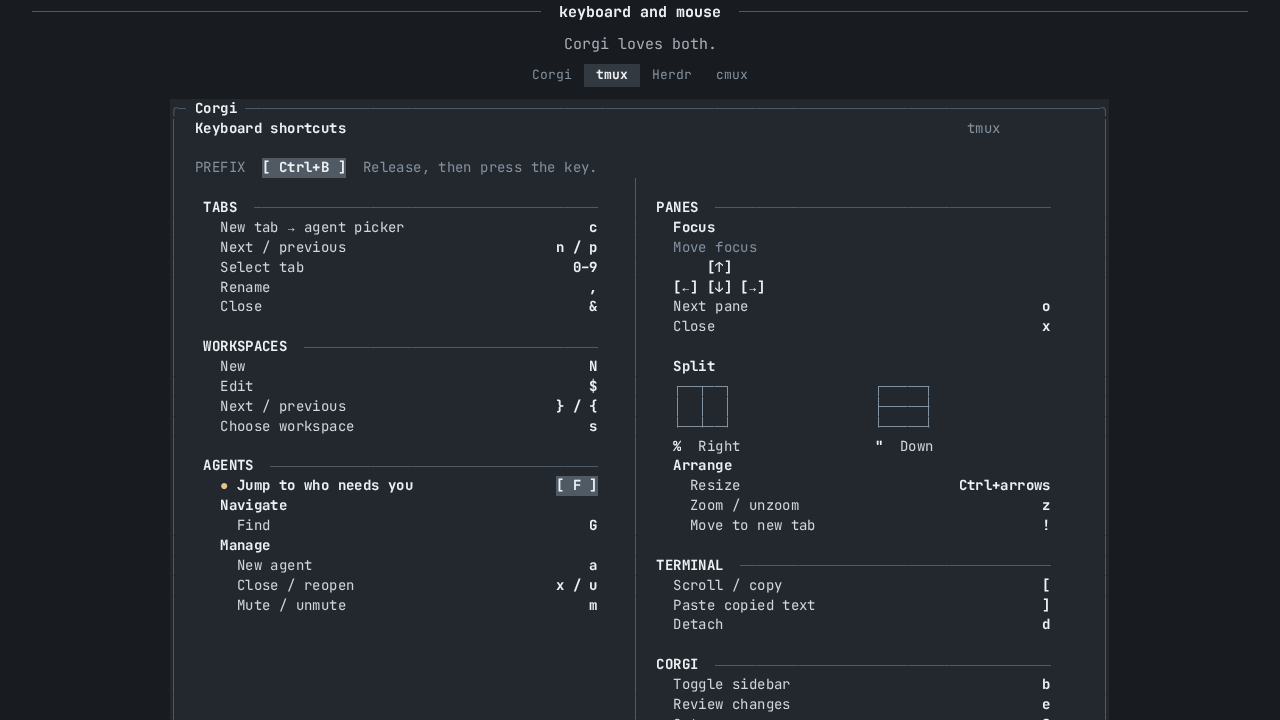
Corgi supports customizable shortcut presets. In the "Keyboard & mouse" section of the landing page, you can toggle between the native Corgi preset (prefix Ctrl+B, arrow keys, and intuitive split bindings) and the standard tmux compatibility preset (Ctrl+B, ", %, o).
4. Lunar Lander Easter Egg (/moonlander)
Navigate to http://localhost:3000/moonlander in your browser to access the bundled retro Lunar Lander canvas game. Use arrow keys to apply thrusters and land the corgi astronaut gently onto the landing pad.
Verification
Run these validation commands to verify that both the containerized web simulator and the native binary components are operating correctly.
1. Verify Docker Service State
Confirm the web container is running and listening on the designated loopback port:
cd "$DEPLOY_DIR"
docker compose ps --format '{{.Service}}: {{.State}}'
Expected output:
web: running2. Verify HTTP Endpoints
Check that the landing page and simulator assets return HTTP 200:
html=$(curl -fsS "http://localhost:${CORGI_WEB_PORT}/")

# Verify HTML title
grep -o '<title>[^<]*</title>' <<<"$html"
# Expected: <title>Corgi</title>

# Verify simulator element existence
grep -q 'id="v-sim"' <<<"$html" && echo "v-sim present: OK"

# Verify moonlander endpoint
curl -fsS -o /dev/null -w "moonlander HTTP %{http_code}\n" "http://localhost:${CORGI_WEB_PORT}/moonlander"
# Expected: moonlander HTTP 200
3. Verify Native Binary Execution & Agent Discovery
Verify that the standalone executable runs, reports its help menu, and outputs its agent integration skill definition:
cd "$DEPLOY_DIR"

# Verify binary architecture
file native/corgi

# Output built-in subagent tool schema
./native/corgi --skill
Expected output snippet:
---
name: corgi
description: Control Corgi terminal panes, tabs, agents, and workspaces when the user asks to use Corgi. Discover layout, arrange running terminals, read output, and send input through its CLI.
---
Troubleshooting
| Symptom / Error | Root Cause | Remediation |
|---|---|---|
UnsafeSocketDirectory / ServerStartFailed | The Unix domain socket is created inside a directory with permissions wider than 0700 (e.g. 0755). Corgi strictly enforces private directory permissions for security. | Place the socket in a dedicated directory and restrict permissions: mkdir -p sock && chmod 700 sock, then set CORGI_SOCKET="$PWD/sock/control.sock". |
connect ENOENT …/control.sock | Running CLI commands (corgi list, corgi tab new) before starting the background runtime. Operations never auto-start the server. | Run corgi start to launch the detached background daemon before executing CLI commands. |
Docker build fails on landingpage:build | site/prerender.ts depends on ../scripts/tooling and @earendil-works/pi-tui, which fail if bun.lock or scripts/ are missing from the build context. | Ensure COPY repo/bun.lock and COPY repo/scripts ./scripts are included in Dockerfile, and execute bun install --frozen-lockfile before running the build. |
curl: (23) Failure writing output during smoke tests | Grepping directly from curl with set -eo pipefail causes curl to fail when grep -q exits immediately after finding a match. | Fetch the response into a shell variable first (html=$(curl -fsS ...)), then grep the variable. |
Port 3000 already bound (address already in use) | An existing container or local process is bound to port 3000. | Use the fallback port sequence (3002, 3003, 4400, 8080) by adjusting CORGI_WEB_PORT in your environment and .env. |
| Leftover tabs/panes restored on fresh start | Corgi automatically restores saved session state from $XDG_STATE_HOME. | To reset state completely between runs, wipe the state directory: rm -rf "$DEPLOY_DIR/state" "$DEPLOY_DIR/environment" before starting. |
Teardown
To shut down the web simulator container and clean up all deployed assets and containers, run:
cd "$DEPLOY_DIR"

# Stop and remove Docker containers, networks, and anonymous volumes
docker compose down --remove-orphans -v

# Remove the built local image
docker image rm corgi-web

# Stop any dangling background corgi daemon
export CORGI_SOCKET="$DEPLOY_DIR/sock/control.sock"
./native/corgi shutdown 2>/dev/null || true

# Remove staging files
cd "$HOME"
rm -rf "$DEPLOY_DIR"
Assumptions & decisions
- Dockerized Bun Web Simulator: Rather than requiring host-level installation of Bun, TypeScript, and Happy-DOM, the web simulator and landing page were built and served entirely inside a containerized
oven/bun:1-debianimage. - Standalone Binary with Checksum Verification: The native Linux executable was fetched directly from upstream release infrastructure (
https://corgi.computer/releases/20261030T200700Z-f539bbadd798/corgi-linux-x86_64) and verified using SHA-256 (028d22c5dd528aec8af6231431780270bbb9b6b0f1e07e8c5a16fa3b15a1d1f8). The upstreaminstall.shshell script was intentionally avoided to prevent uncontained modifications to~/.local/share/corgi,~/.local/bin, and shell configuration files. - Isolated Socket Security: The Corgi daemon strictly refuses to start if its Unix domain control socket resides in a directory with file permissions more permissive than
0700. The deployment stages the socket inside a dedicated$DEPLOY_DIR/sockdirectory withchmod 700. - Daemon Lifecycle Management: In accordance with the zero-host-pollution constraint, the background native daemon is explicitly shut down via
corgi shutdownfollowing CLI verification. The web container remains active for browser verification. - Visual Capture References: Inline screenshots reference verified images from
runs/corgi-20261030-173015/browser/(01-hero.png,05-sim-help.png,06-sim-ctrl-t.png,09-top-for-tokens.png,10-activity-tracking.png,19-hackable.png,21-keys-tmux.png,23-moonlander.png) as verified during Playwright testing.
Get the Unified Homelab Stack Compose Pack
One-command multi-container Compose files (Full *arr Stack, Prometheus + Grafana + ntfy Monitoring, and Homelab Auth) plus new verified deploys once a week.