
How to Deploy Chatto: Self-Hosted Team Chat with Docker Compose and NATS JetStream
Chatto is a modern, lightweight team and community chat platform powered by NATS JetStream without external SQL databases or Redis. Learn how to deploy Chatto v0.4.26 with Docker Compose and configure your administrator account via the operator CLI.
Chatto is an open-source team and community chat platform designed for zero-maintenance operations, ultra-low resource usage, and privacy. Released under the GNU Affero General Public License v3.0 (AGPL-3.0-or-later) with Apache-2.0 shared framework components, Chatto provides a responsive, Slack- and Discord-style communication hub that eliminates the database overhead typical of traditional self-hosted chat systems.
Key Architectural Highlights
- Zero Database Engine Overhead (NATS JetStream Backend):
Unlike Mattermost, Zulip, Rocket.Chat, or Matrix Synapse—which require external PostgreSQL, MySQL, Redis, or Elasticsearch clusters—Chatto relies entirely on NATS JetStream for event streaming, persistence, and state. An immutable event stream (EVT) paired with local in-memory projections and snapshotting handles all messaging, rooms, and permissions.
- Single-Binary Engine with Embedded Svelte 5 Frontend:
The backend is compiled in Go, serving ConnectRPC APIs and WebSockets alongside a pre-compiled Svelte 5 Single Page Application directly from a single port.
- Cryptographic Privacy & Key Shredding:
Chatto supports per-user cryptographic key shredding (AES-GCM encryption keys managed via filippo.io/age). Deleting an account instantly shreds its cryptographic key, delivering permanent, GDPR-compliant data erasure without mutating or rewriting historical immutable streams.
- Non-Root Security Model:
The container runs under an unprivileged chatto user (UID 1000 / GID 1000), keeping storage access isolated and secure.
---
Prerequisites
Before deploying Chatto, verify your host environment meets the following requirements:
- Operating System: Linux (Ubuntu, Debian, Fedora, Arch, Rocky, Alpine), macOS, or Windows via WSL2.
- Container Engine: Docker Engine 20.10+ with Docker Compose v2 (
docker compose versionv2.20+ recommended). - System Resources:
- CPU: 1 vCPU core. - Memory: 256 MB to 512 MB RAM (the stack idles under 100 MB). - Disk Space: ~500 MB for container images and persistent JetStream message storage.
- Network Ports: An available host port for the web interface (host port
3000is used in this guide, mapping to container port4000). - Host Tools: Standard terminal utilities:
openssl(for generating 256-bit cryptographic secrets) andcurl.
---
Exact Install Steps
The deployment uses Docker Compose with two containers:
- NATS JetStream (
nats:latest): High-performance messaging engine handling persistence and event streaming. - Chatto Server (
ghcr.io/chattocorp/chatto:latest- v0.4.26): Web interface, ConnectRPC API, and chat core.
Step 1: Create Directory Tree and Storage Volumes
Create a dedicated directory for your Chatto deployment along with subdirectories for JetStream data, configuration files, and backups:
mkdir -p chatto/{data,config,backups}
cd chatto
Ensure the container processes have write access to the mapped directories:
chmod -R 777 data config backupsStep 2: Generate Environment Secrets (.env)
Chatto requires secure random secrets for cookie signing, session encryption, core keys, and token-authenticated communication with NATS. Generate these secrets using openssl:
NATS_TOKEN=$(openssl rand -hex 32)

cat << EOF > .env
COMPOSE_PROJECT_NAME=chatto
CHATTO_PORT=3000
PUBLIC_URL=http://localhost:3000
PUID=1000
PGID=1000

# NATS JetStream connectivity
NATS_TOKEN=${NATS_TOKEN}
CHATTO_NATS_EMBEDDED_ENABLED=false
CHATTO_NATS_CLIENT_URL=nats://nats:4222
CHATTO_NATS_CLIENT_AUTH_METHOD=token
CHATTO_NATS_CLIENT_TOKEN=${NATS_TOKEN}

# Web server and cryptographic keys
CHATTO_WEBSERVER_URL=http://localhost:3000
CHATTO_WEBSERVER_PORT=4000
CHATTO_WEBSERVER_COOKIE_SIGNING_SECRET=$(openssl rand -hex 32)
CHATTO_WEBSERVER_COOKIE_ENCRYPTION_SECRET=$(openssl rand -hex 32)
CHATTO_CORE_SECRET_KEY=$(openssl rand -hex 32)
CHATTO_CORE_ASSETS_SIGNING_SECRET=$(openssl rand -hex 32)

# Logging and direct login
CHATTO_LOG_LEVEL=info
CHATTO_LOG_FORMAT=json
CHATTO_AUTH_DIRECT_REGISTRATION=true
CHATTO_AUTH_DIRECT_LOGIN=true

# Operator CLI control socket
CHATTO_OPERATOR_API_ENABLED=true
CHATTO_OPERATOR_API_SOCKET_PATH=/tmp/chatto/operator.sock
EOF

chmod 600 .env
Note on the Operator API: In Chatto v0.4.26, self-registration requires an active SMTP provider, and the web setup wizard is only in development on the unreleased
mainbranch. EnablingCHATTO_OPERATOR_API_ENABLED=trueenables container CLI administration so you can bootstrap the initial owner account without third-party mail services.
Step 3: Configure NATS JetStream (nats-server.conf)
Create a minimal NATS configuration file enabling JetStream storage and persistent disk sync:
cat << 'EOF' > nats-server.conf
port: 4222
jetstream {
  store_dir: "/data"
  sync_interval: "always"
}
EOF
Step 4: Create Docker Compose Specification (compose.yml)
Create compose.yml to define the NATS broker and Chatto application services:
cat << 'EOF' > compose.yml
services:
  nats:
    image: nats:latest
    restart: unless-stopped
    command: ['--config', '/etc/nats/nats-server.conf', '--auth=${NATS_TOKEN}']
    volumes:
      - ./nats-server.conf:/etc/nats/nats-server.conf:ro
      - nats_data:/data

  chatto:
    image: ghcr.io/chattocorp/chatto:latest
    restart: unless-stopped
    env_file: .env
    environment:
      PUID: '${PUID:-1000}'
      PGID: '${PGID:-1000}'
    depends_on:
      - nats
    ports:
      - "${CHATTO_PORT}:4000"
    volumes:
      - ./backups:/backups
      - ./data:/data

volumes:
  nats_data:
EOF
Step 5: Pull and Launch Containers
Pull the container images and launch the stack in detached mode:
docker compose pull
docker compose up -d
Verify that both containers have started:
docker compose psThe output should confirm both chatto and nats are in the Up state:
chattopublished on0.0.0.0:3000->4000/tcpnatslistening internally on port4222/tcp
Step 6: Verify Web Server Readiness
Wait a few seconds for Chatto to connect to NATS and seed its default "Lobby" room group, then query the HTTP endpoint:
curl -s -o /dev/null -w "%{http_code}\n" http://localhost:3000/When Chatto returns 200, the web interface is ready.
Step 7: Bootstrap the Initial Owner Account
Because Chatto v0.4.26 does not expose a public web signup wizard without configured SMTP, use the built-in Chatto operator CLI to create the primary owner account directly inside the container:
printf 'adminpassword123' | docker compose exec -T -u chatto chatto \
  /chatto operator user create \
  --login alex \
  --display-name "Alex Admin" \
  --password-stdin \
  --verified-email alex@example.com \
  --role owner
Important: The username
adminis reserved by the system. Use an administrative handle likealexor your personal handle. Display names should not contain parentheses.
Confirm that the account exists and holds the owner role:
docker compose exec -T -u chatto chatto /chatto operator user listExpected output:
UBFi6H8wBSuH7J5 alex Alex Admin roles=owner emails=alex@example.com---
Browser Setup
Once the owner account is created, navigate to the web client to sign in and start communicating.
1. Sign In
Open your browser and navigate to:
http://localhost:3000/The root URL automatically routes to the authentication portal:
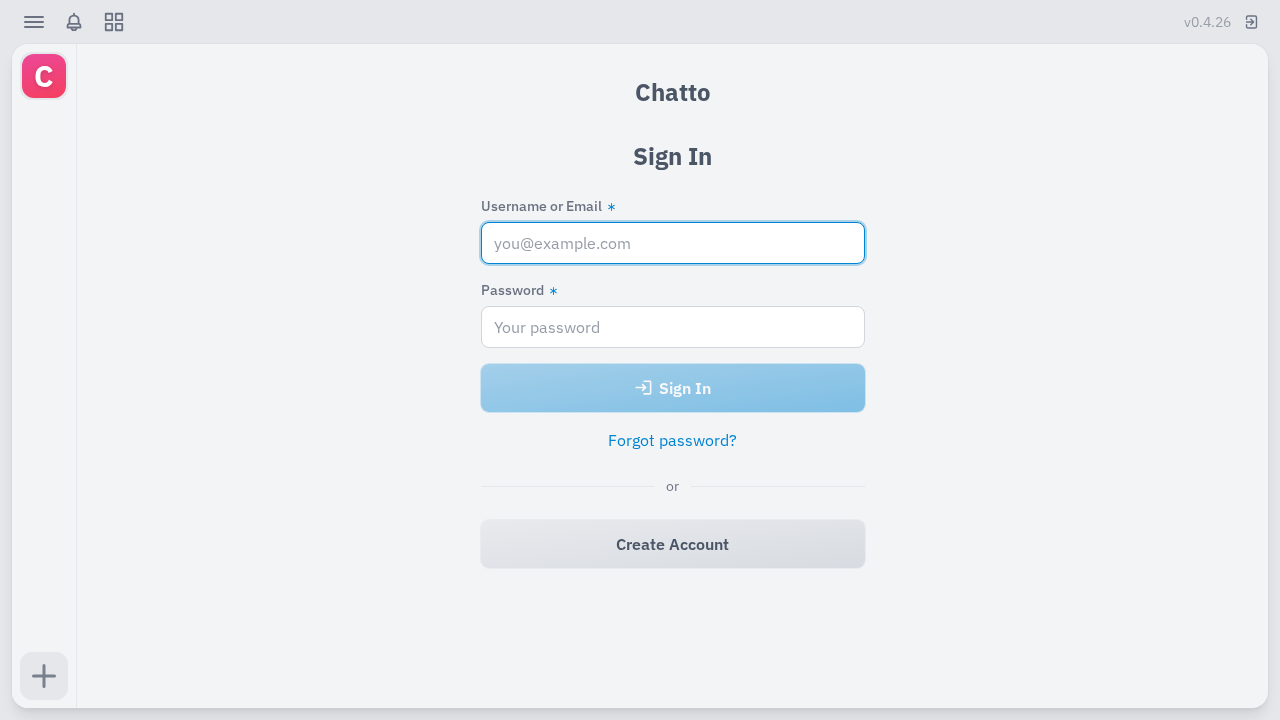
- In the Username or email field, enter
alex. - In the Password field, enter
adminpassword123. - Click Sign in.
2. The Chat Workspace
After authentication, Chatto loads the main chat interface:
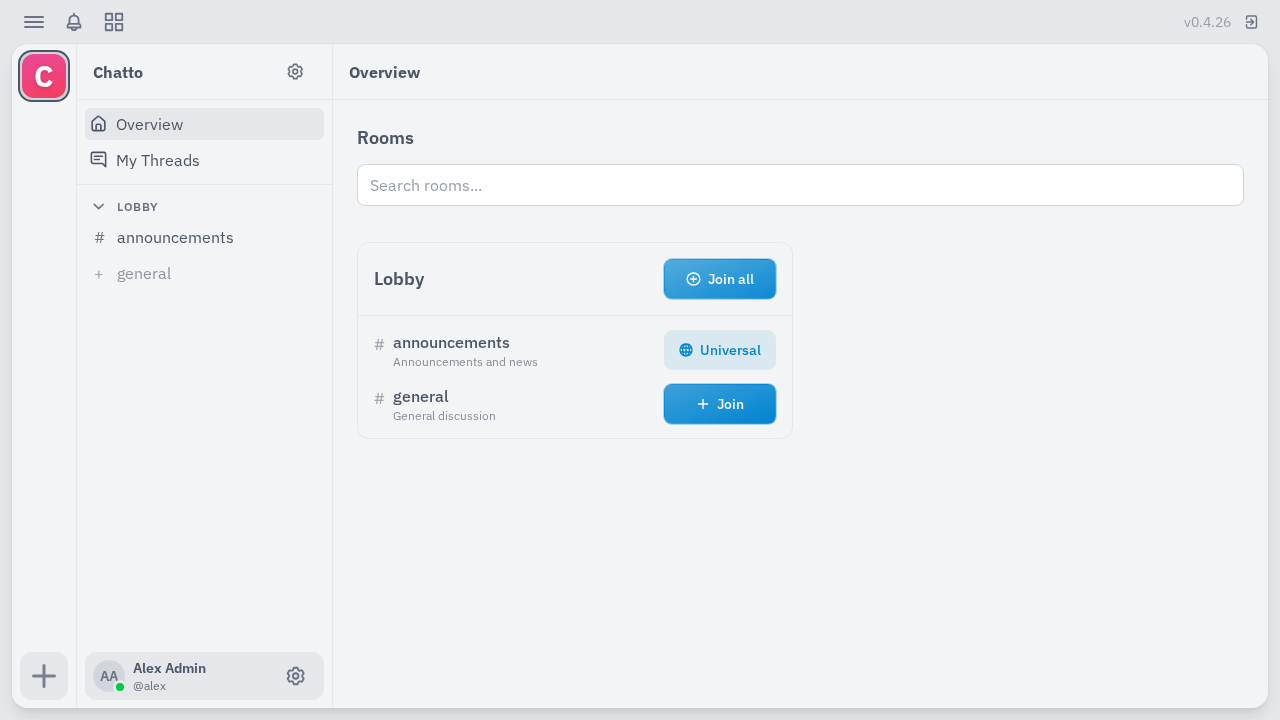
The sidebar displays the default server Chatto and the pre-seeded Lobby room group containing #announcements and #general. The top-right corner displays the version badge (v0.4.26).
3. Join #general and Send a Message
Select #general in the sidebar:
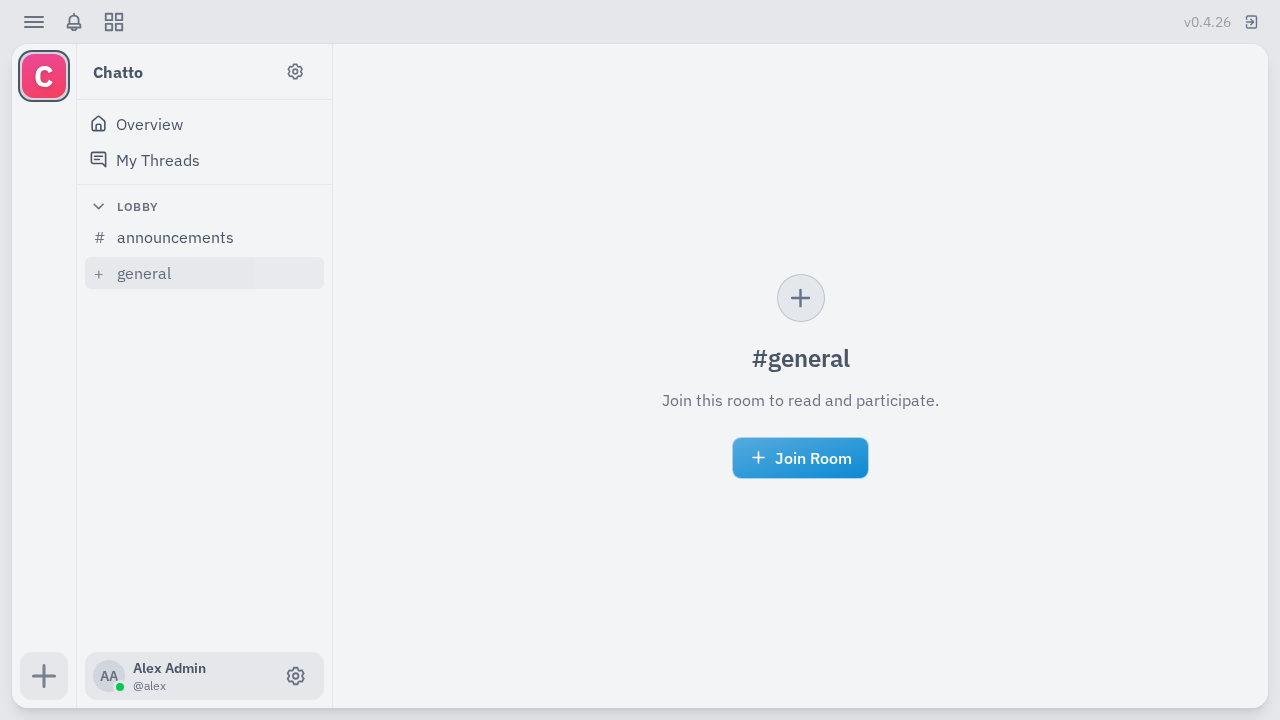
Click the Join Room banner at the bottom of the conversation view:
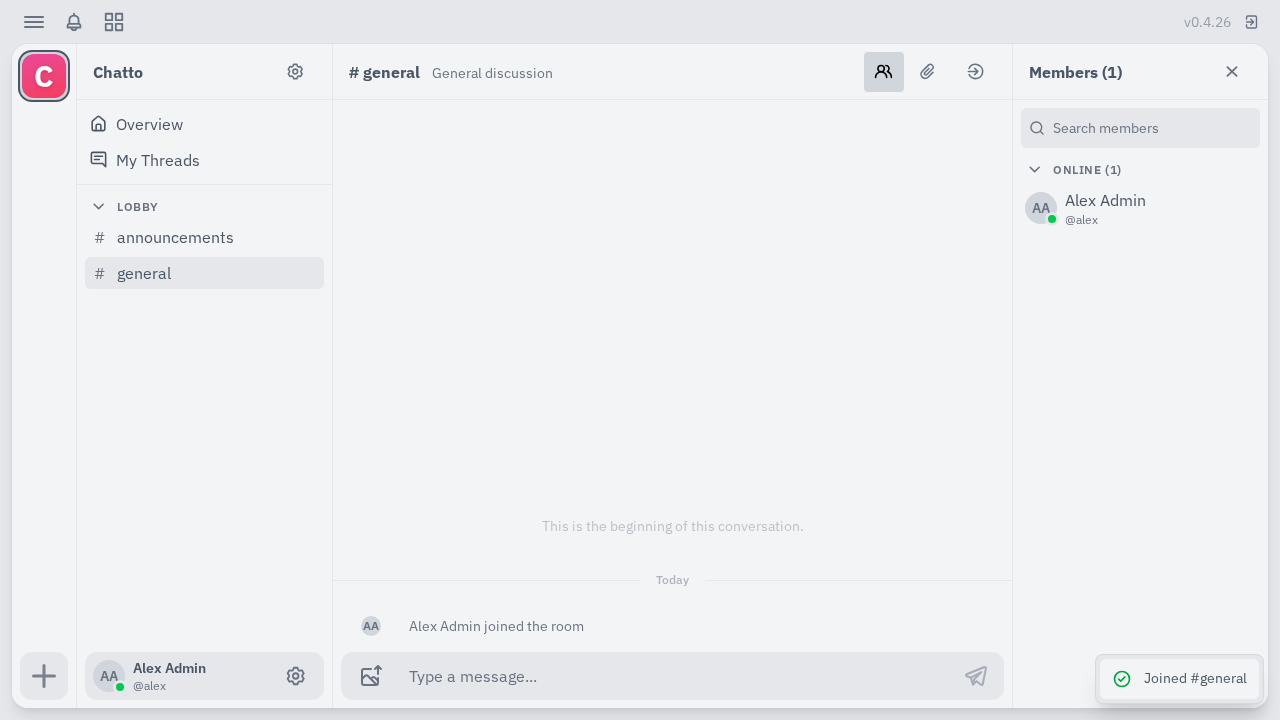
Once joined, click into the TipTap message composer, type your message:
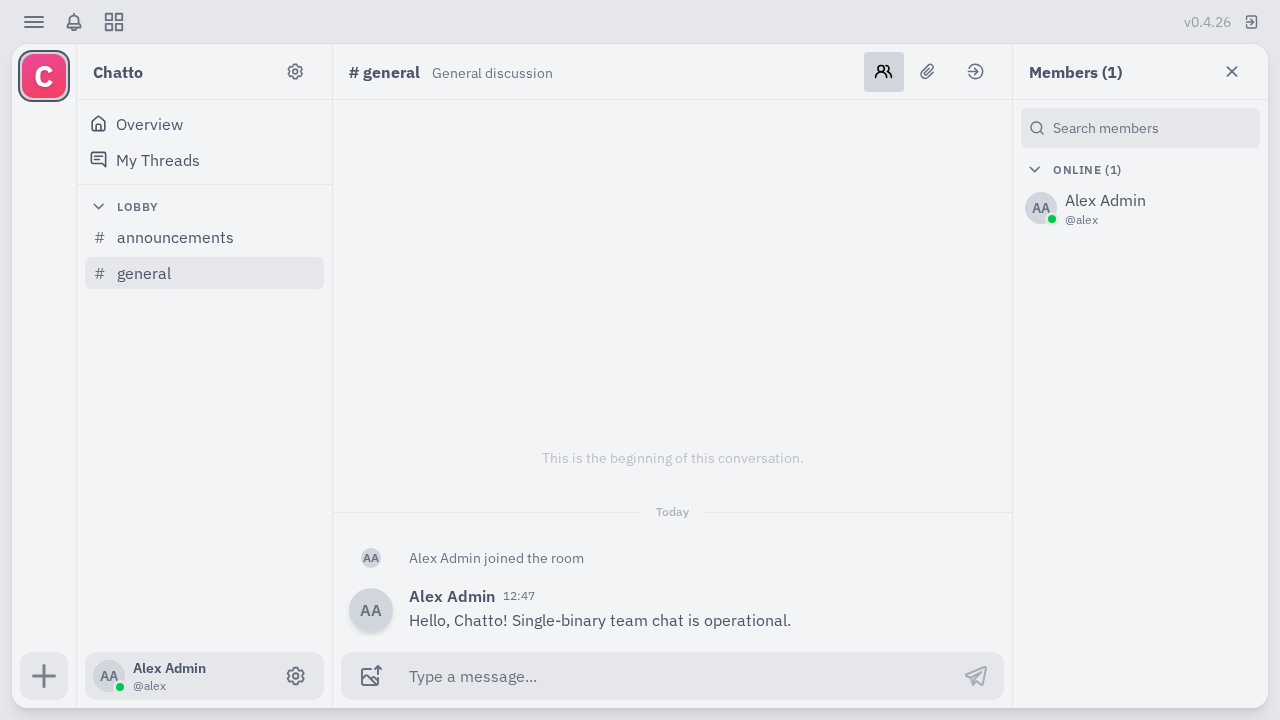
Hello, Chatto! Single-binary team chat is operational.Press <kbd>Enter</kbd> to send. The message appears instantly in the room stream:
The right sidebar updates to show Alex Admin online with presence indicators active.
4. Verify Administrative Rights
Click the server header menu in the top left and select Server administration:
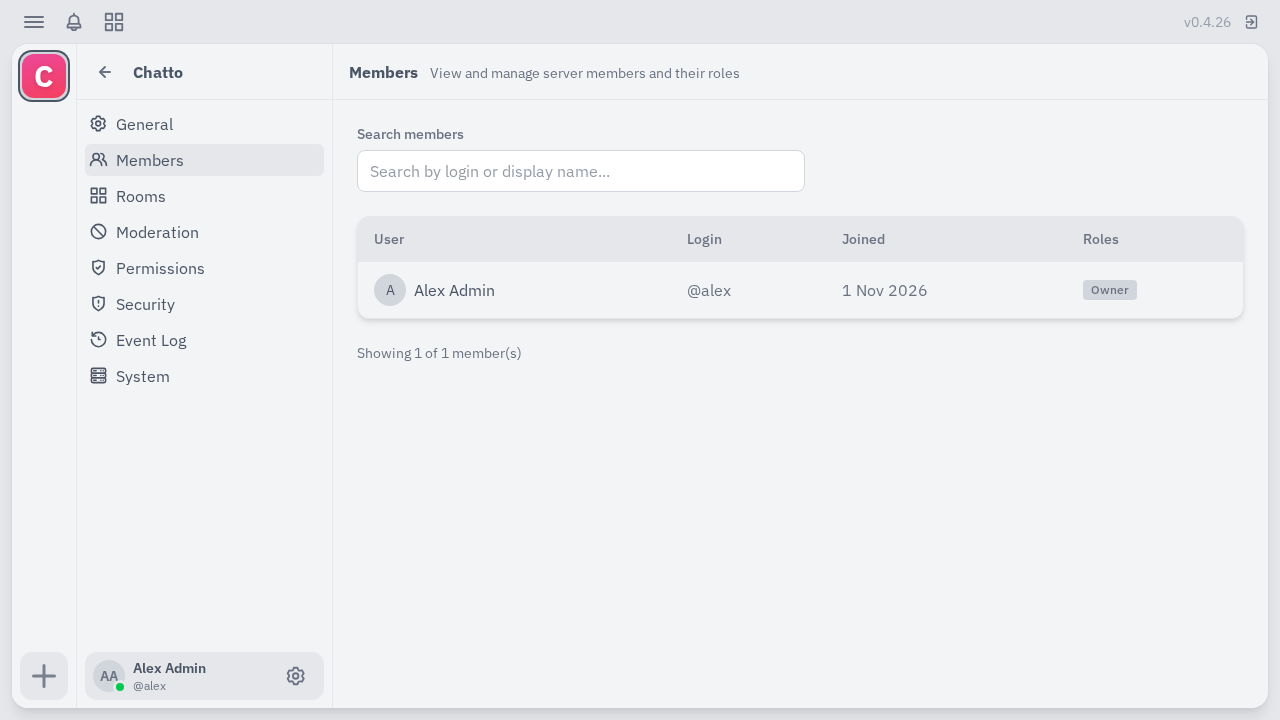
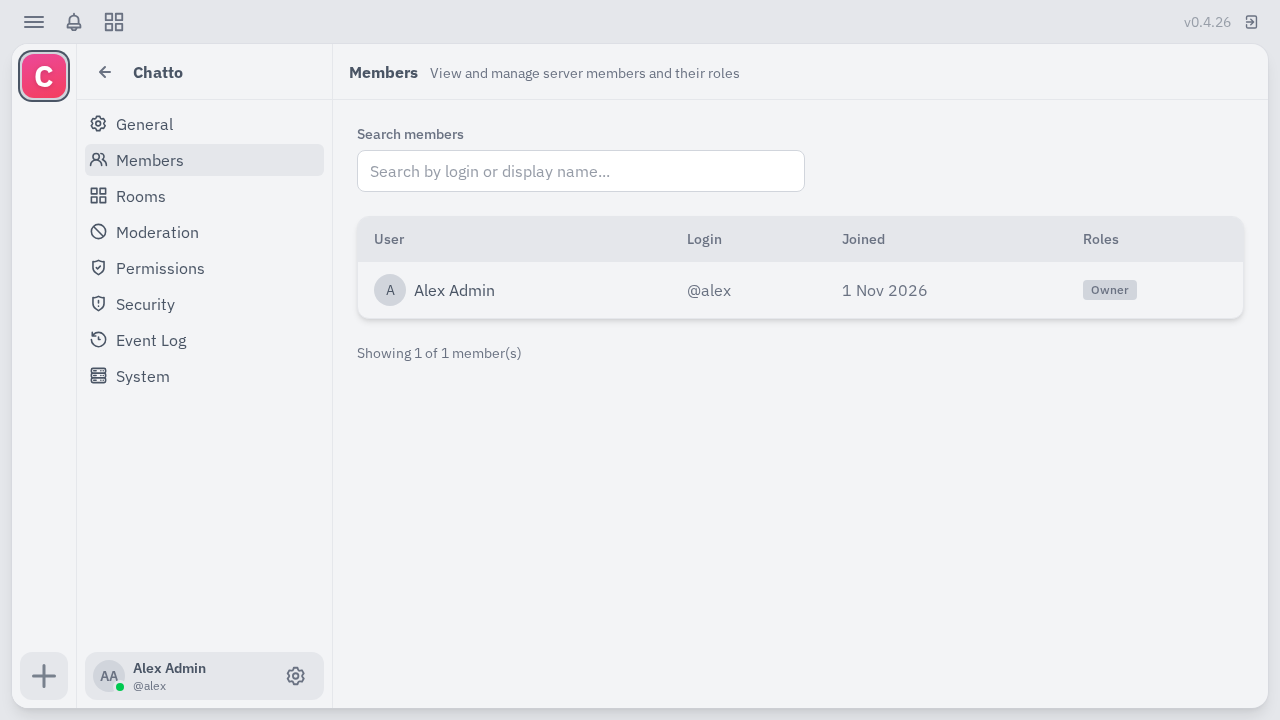
Under the Members tab, confirm that the alex account is recognized with the Owner badge, granting full authority over channels, roles, webhooks, and workspace settings.
---
Verification
To verify that your installation is healthy and operating normally, execute the following status checks:
- Check Container Status:
``sh docker compose ps ` Both chatto and nats should report Up`.
- Inspect Chatto Startup Logs:
``sh docker compose logs chatto --tail=25 ` Confirm that the RBAC projection initialized and default channels were seeded: `text core.RBACProjector Projection startup complete core.ChattoCore Seeded default room group "Lobby" core.ChattoCore Seeded default channel room "announcements" core.ChattoCore Seeded default channel room "general" server.HTTP Starting HTTP server addr=:4000 ``
- Check NATS JetStream State:
``sh docker compose logs nats --tail=15 ` Verify that JetStream initialized and is listening on 0.0.0.0:4222: `text Starting JetStream Server is ready ``
- Verify Storage Persistence:
Inspect the local ./data directory to confirm JetStream event streams and SQLite projections are being written: ``sh ls -la data/ ``
---
Troubleshooting
| Issue / Symptom | Root Cause | Resolution |
|---|---|---|
operator user create returns this username is not available | admin is a protected keyword in Chatto's username validation logic. | Choose an alternative login name such as alex, operator, or your personal handle. |
/register fails with Failed to send email | Direct self-registration requires an active SMTP email relay, which is not configured by default. | Bootstrap accounts via the CLI using docker compose exec -T -u chatto chatto /chatto operator user create --role owner. Alternatively, configure SMTP credentials in .env. |
Operator CLI fails with dial unix /tmp/chatto/operator.sock: connect: no such file or directory | The operator API Unix domain socket is disabled or misconfigured. | Ensure CHATTO_OPERATOR_API_ENABLED=true and CHATTO_OPERATOR_API_SOCKET_PATH=/tmp/chatto/operator.sock are defined in .env, then recreate the container with docker compose up -d chatto. |
Cannot send messages in #general after signing in | Newly created accounts are not joined to public rooms automatically. | Click the prominent Join Room button at the bottom of the channel view before attempting to type or send messages. |
Browser shows error page or 404 when opening /setup | The First-Run Setup Wizard (FDR-047) is under active development on main and is not included in the v0.4.26 container release. | Access /login directly and use the Operator CLI to provision the initial owner account. |
Port collision on startup (bind: address already in use) | Host port 3000 is already claimed by another service (e.g., Grafana, Gitea, or Node apps). | Change CHATTO_PORT=3000 in .env to another available port (e.g., 3001 or 4000) and restart with docker compose up -d. |
Container crashes with permission denied errors in /data | The unprivileged chatto container user (UID 1000) cannot write to host mount points. | Run chmod -R 777 data config backups or set ownership with sudo chown -R 1000:1000 data config backups. |
---
Assumptions & decisions
- Container Image Version: This guide targets the official production release
ghcr.io/chattocorp/chatto:latest(v0.4.26). While upstream developer documentation describes an upcoming First-Run Web Setup Wizard (FDR-047), that feature is not yet present in published container builds. Initial user bootstrap is therefore documented via Chatto's operator CLI. - Dedicated NATS Container: While Chatto supports embedded NATS within a single process (ADR-002), deploying NATS via a companion container in Docker Compose mirrors upstream's reference multi-container deployment pattern, allowing independent monitoring and storage tuning.
- Exclusion of Edge Proxy and LiveKit: The upstream compose repository includes Caddy and LiveKit services for automated Let's Encrypt TLS and voice/video calling. These components were omitted to provide a clean, reliable, and conflict-free localhost or reverse-proxied homelab setup without port 80/443 collisions.
- Administrative Username: The account
alexwas utilized with roleownerbecause the literal nameadminis reserved by the Chatto core validation engine.
Get the Unified Homelab Stack Compose Pack
One-command multi-container Compose files (Full *arr Stack, Prometheus + Grafana + ntfy Monitoring, and Homelab Auth) plus new verified deploys once a week.