
How to Deploy Bazarr: Automated Subtitle Management with Docker Compose
Bazarr automates subtitle indexing, downloading, and synchronization for Sonarr and Radarr media libraries. Learn how to deploy Bazarr v1.6.2 with Docker Compose, bootstrap administrator authentication, configure multi-language profiles, and enable subtitle providers.
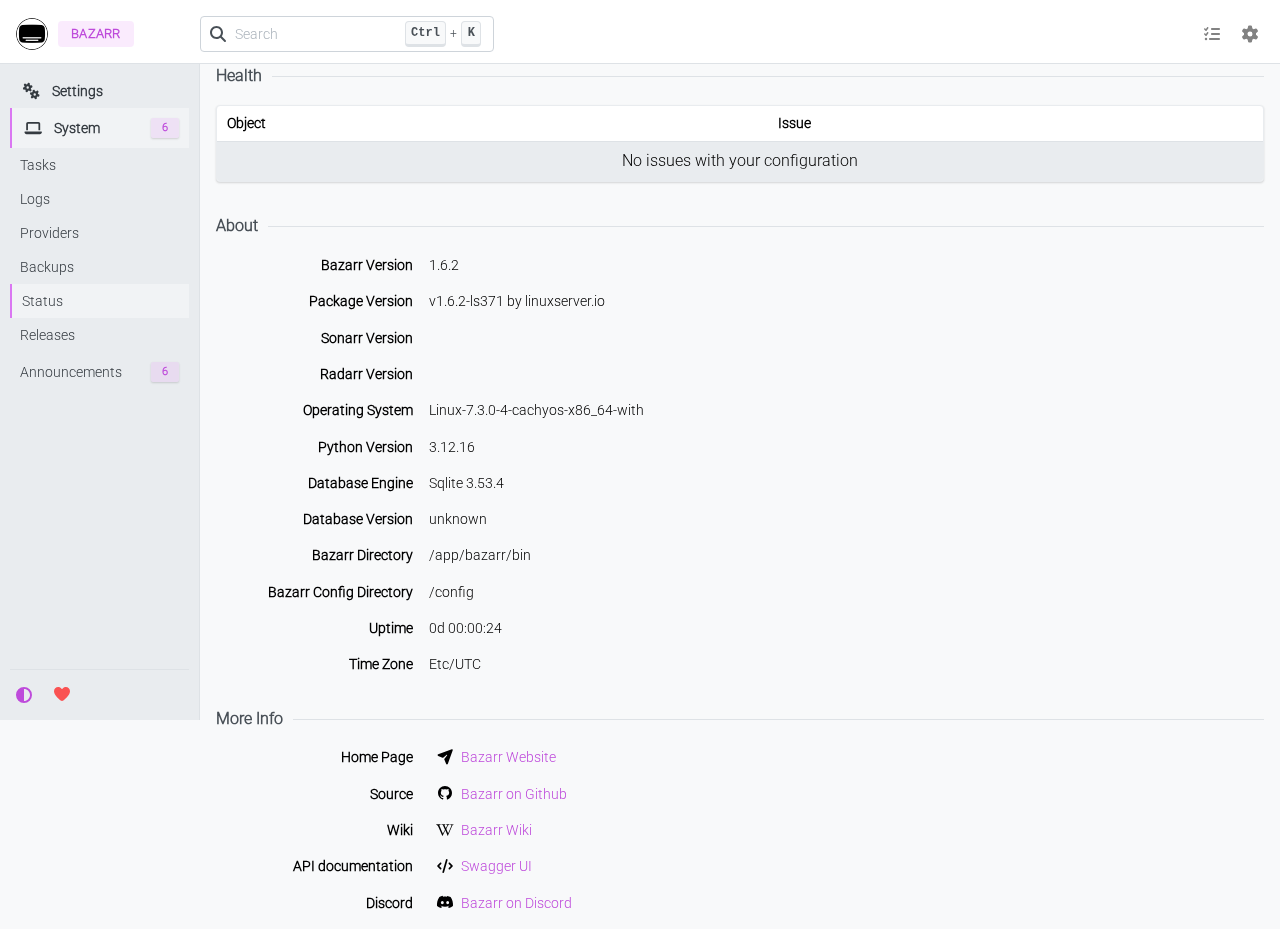
Bazarr is an open-source companion application to Sonarr and Radarr that automates subtitle management, retrieval, and synchronization. Instead of manually searching for and downloading .srt subtitle files across multiple websites, Bazarr tracks your TV series and movie libraries, queries dozens of subtitle providers, and automatically downloads matching subtitles based on your custom language profiles and audio tracks.
Bazarr operates as a specialized service within the *arr ecosystem. It does not scan raw storage disks to discover media directly; instead, it synchronizes media metadata from Sonarr and Radarr, inspects media files for existing internal and external subtitle tracks, and automatically downloads missing languages. All operational state is maintained in an embedded SQLite database (bazarr.db) located within the persistent configuration mount.
Key Features
- Automated Companion Sync: Integrates seamlessly with Sonarr and Radarr REST APIs to automatically ingest new series, seasons, episodes, and movies as they are imported.
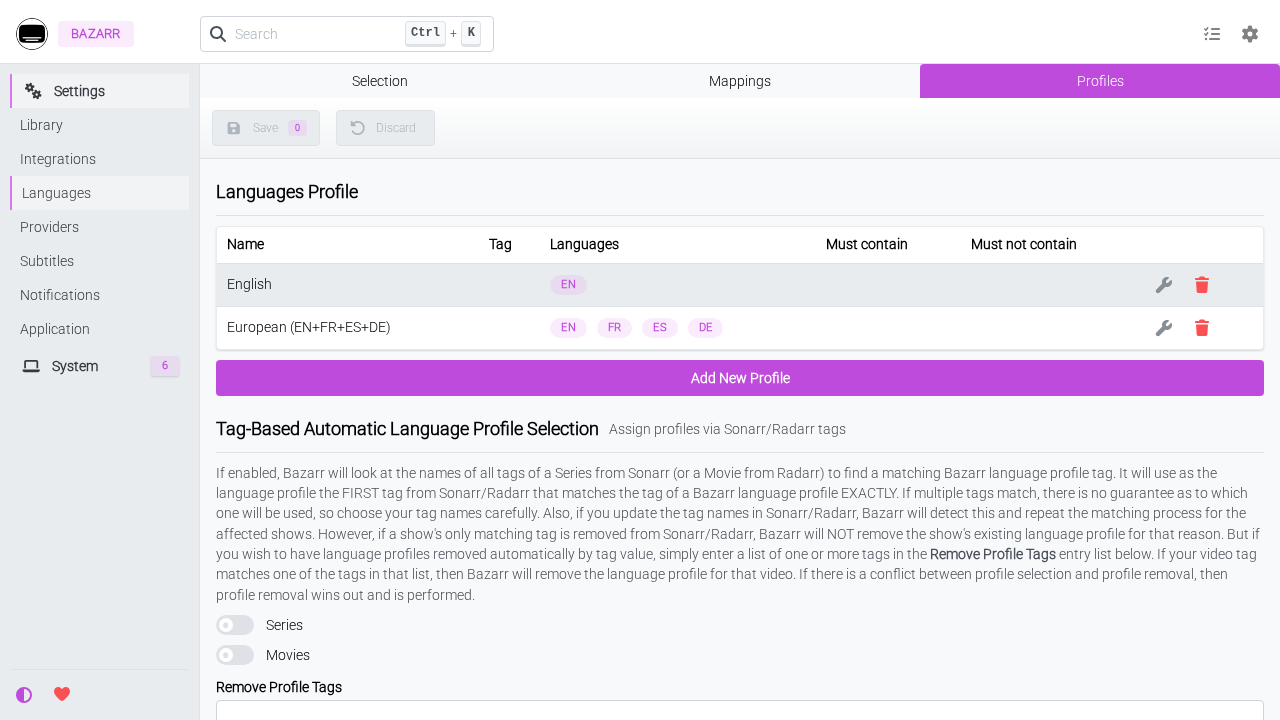
- Multi-Language Profiles: Define distinct subtitle requirements per show or movie with prioritized language cutoffs (e.g., automatically fetch English, French, Spanish, and German subtitles).
- Audio-Based Subtitle Synchronization (
ffsubsync): Leverages FFmpeg and speech recognition algorithms to align out-of-sync external subtitles with spoken audio tracks. - Embedded Subtitle Extraction: Detects embedded text tracks inside video containers (
.mkv,.mp4) and extracts them to external subtitle files without re-encoding media. - Broad Provider Ecosystem: Connects to over 25 subtitle providers, including keyless providers (Embedded Subtitles, Podnapisi, YIFY Subtitles) and authenticated services (OpenSubtitles.com, Addic7ed).
- Modern Web UI & REST API: Features a fast, responsive interface with comprehensive REST endpoints authenticated via API keys or session cookies.
---
Prerequisites
Before starting the deployment, verify that your host system meets the following requirements:
- Operating System: Linux (Ubuntu, Debian, Rocky Linux, Arch Linux), macOS, or Windows with WSL2.
- Container Runtime: Docker Engine 24.0+ and Docker Compose v2 (
docker compose versionv2.24+). - Persistent Storage: Sufficient storage for the Bazarr database, logs, and cache, plus read/write mount access to your media libraries.
- Network Ports:
- Port 3000 (or default 6767): Plaintext HTTP Web UI and REST API.
- Host CLI Utilities:
curland standard shell utilities (awk,grep) for API verification and setup scripts.
---
Exact Install Steps
Follow these sequential steps to configure, deploy, and bootstrap Bazarr (lscr.io/linuxserver/bazarr:v1.6.2-ls371) using Docker Compose.
Step 1: Create Directory Structure
Create a dedicated staging directory for Bazarr configuration and media access. In this guide, we create persistent directories for ./config, ./movies, and ./tv:
mkdir -p config movies tvIf deploying in a standalone test environment without live media libraries, you can create mock media files to verify path mounts:
mkdir -p "movies/Big Buck Bunny (2008)" "tv/Sintel/Season 01"
touch "movies/Big Buck Bunny (2008)/Big Buck Bunny (2008).mkv" "tv/Sintel/Season 01/Sintel - S01E01.mkv"
Step 2: Configure Environment Variables
Create a .env file in the staging directory to configure container permissions, timezone, and port assignments:
COMPOSE_PROJECT_NAME=bazarr
BAZARR_PORT=3000
BAZARR_TAG=v1.6.2-ls371
PUID=1000
PGID=1000
TZ=Etc/UTC
Setting
PUIDandPGIDto match your host user (runid -uandid -g) ensures the container process can create and modify files in./configwithout root permission conflicts.
Step 3: Write Docker Compose Configuration
Create a compose.yml file defining the Bazarr service:
services:
  bazarr:
    image: lscr.io/linuxserver/bazarr:${BAZARR_TAG:-v1.6.2-ls371}
    container_name: ${COMPOSE_PROJECT_NAME}-server
    restart: unless-stopped
    environment:
      - PUID=${PUID:-1000}
      - PGID=${PGID:-1000}
      - TZ=${TZ:-Etc/UTC}
    volumes:
      - ./config:/config
      - ./movies:/movies
      - ./tv:/tv
    ports:
      - "${BAZARR_PORT:-6767}:6767"
Step 4: Pull Image and Start Container
Start the Bazarr container in detached mode:
docker compose pull -q
docker compose up -d
Step 5: Initialize Application & Retrieve Auto-Generated API Key
On first boot, Bazarr creates its internal directory layout in ./config, generates the SQLite database (bazarr.db), and creates config/config/config.yaml with an auto-generated API key.
Wait a few seconds for initialization and extract the API key from the configuration file:
for i in $(seq 1 120); do
  [ -f config/config/config.yaml ] && grep -q 'apikey:' config/config/config.yaml \
    && curl -fsS -o /dev/null "http://localhost:3000/" 2>/dev/null && break
  sleep 1
done

APIKEY=$(awk '/^auth:/{a=1} a&&/apikey:/{print $2; exit}' config/config/config.yaml)
echo "Retrieved API Key: ${APIKEY:0:6}..."
Step 6: Bootstrap Administrator Authentication
Stock Bazarr initializes with authentication disabled (auth.type: None), exposing the web UI without a login prompt. To secure your instance, configure form-based authentication with an administrator account using the REST API:
curl -fsS -X POST "http://localhost:3000/api/system/settings" \
  -H "X-API-KEY: $APIKEY" \
  -F "settings-auth-type=form" \
  -F "settings-auth-username=admin" \
  -F "settings-auth-password=YourSecurePassword123!"
Bazarr securely hashes the password server-side and writes the updated authentication settings to config/config/config.yaml. Subsequent browser requests to / will automatically redirect to /login.
---
Browser Setup
Once the container is running and administrator authentication is bootstrapped, configure your subtitle preferences in the web UI.
Step 1: Log In to Web Interface
- Open your web browser and navigate to
http://localhost:3000(or your configuredBAZARR_PORT). - You will be redirected to
http://localhost:3000/login?returnTo=%2F. - Enter your administrator username (
admin) and the password created during bootstrap. - Click Log In to access the Bazarr dashboard.
Step 2: Enable Target Languages
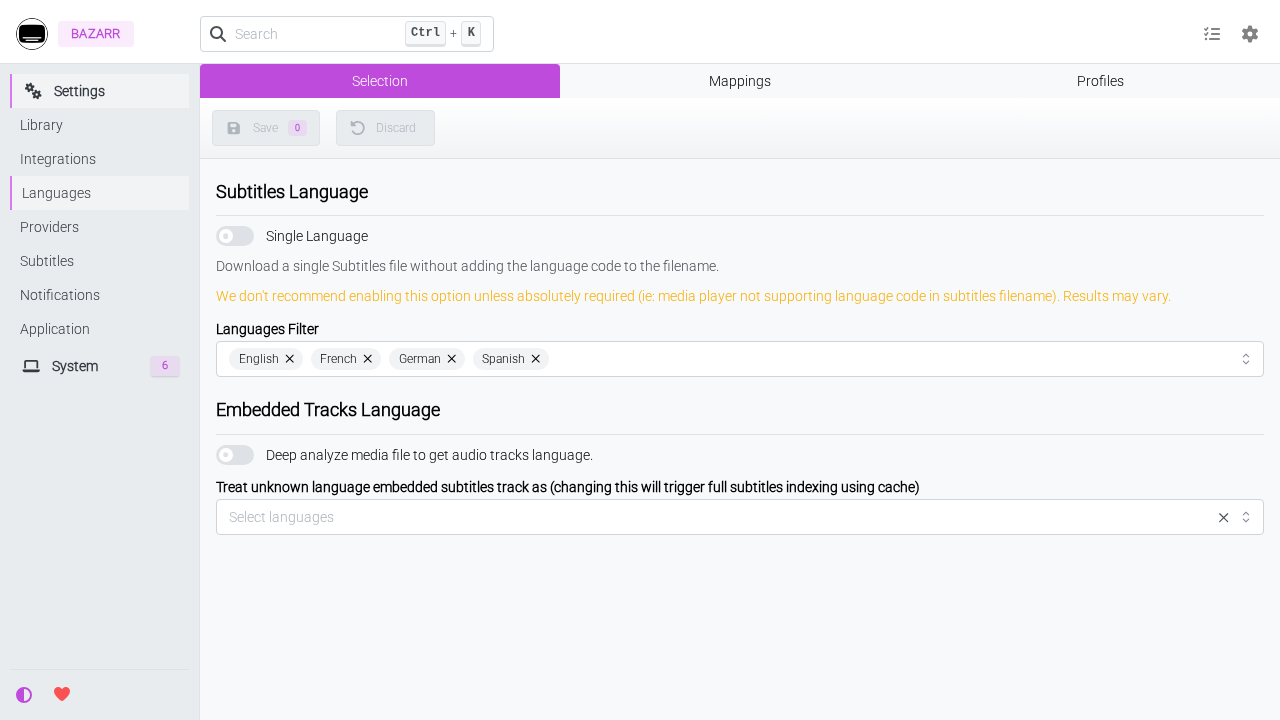
- Navigate to Settings (gear icon) › Languages › Selection.
- Select the languages you want to manage (e.g., English, French, Spanish, German).
- Click Save in the upper right corner.
Alternatively, enable languages via the API:
curl -fsS -X POST "http://localhost:3000/api/system/settings" \
  -H "X-API-KEY: $APIKEY" \
  -F "languages-enabled=en" \
  -F "languages-enabled=fr" \
  -F "languages-enabled=es" \
  -F "languages-enabled=de"
Step 3: Configure Language Profiles
Language profiles define which subtitles Bazarr should search for, upgrade cutoffs, and whether subtitles must be forced or hearing-impaired (HI).
- Go to Settings › Languages › Profiles.
- Click Add New Profile (
+). - Set a descriptive name (e.g.,
European (EN+FR+ES+DE)). - Add the desired language items in order of preference.
- Save the profile.
Step 4: Configure Subtitle Providers
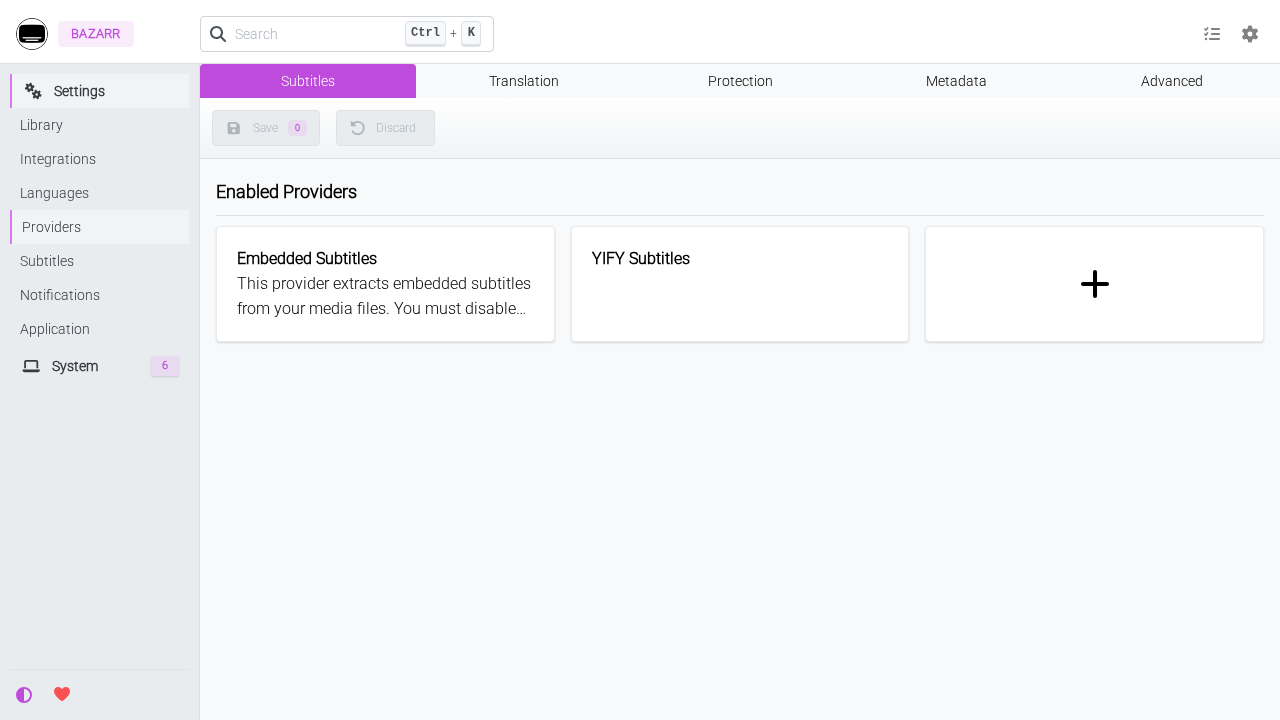
- Navigate to Settings › Providers.
- Click the Add Provider (
+) card. - Select your desired providers:
- Embedded Subtitles: Scans your media files for embedded audio and text tracks to extract existing subtitles without internet downloads. - YIFY Subtitles: Requires no account or API registration. - Podnapisi: Fast, keyless provider for multilingual subtitles. - OpenSubtitles.com: (Optional) Add your registered VIP/standard account credentials.
- Set default language profiles for new movies and series in Settings › General.
---
Verification
Confirm that your deployment is healthy, authenticated, and ready for production use.
1. Verify Authentication Enforcement
Confirm that unauthenticated API requests are rejected with HTTP 401 Unauthorized:
curl -sS -o /dev/null -w "Unauthenticated request status: HTTP %{http_code}\n" http://localhost:3000/api/system/statusExpected output:
Unauthenticated request status: HTTP 401Confirm that the administrator login endpoint returns HTTP 204 No Content upon successful authentication:
curl -sS -o /dev/null -w "Login verification: HTTP %{http_code}\n" \
  -X POST "http://localhost:3000/api/system/account" \
  -F "action=login" \
  -F "username=admin" \
  -F "password=YourSecurePassword123!"
Expected output:
Login verification: HTTP 2042. Verify System Telemetry via API
Query the system status endpoint with your API key:
curl -fsS -H "X-API-KEY: $APIKEY" "http://localhost:3000/api/system/status"Verify that the response returns the expected versions and paths:
bazarr_version:1.6.2python_version:3.12.16database_engine:sqlitebazarr_config_directory:/config
3. Check System Health
Query the health inspection endpoint:
curl -fsS -H "X-API-KEY: $APIKEY" "http://localhost:3000/api/system/health"Expected response indicating zero health warnings:
{"data": []}4. Verify Active Background Tasks
Check that Bazarr's automated background schedulers are active:
curl -fsS -H "X-API-KEY: $APIKEY" "http://localhost:3000/api/system/tasks"Ensure tasks such as Update Series list from Sonarr, Update Movie list from Radarr, Search missing Subtitles, and Sync Subtitles with audio are scheduled.
---
Troubleshooting
The table below lists common deployment issues, root causes, and verified solutions.
| Issue / Symptom | Possible Cause | Resolution |
|---|---|---|
Port allocation conflict (Bind for 0.0.0.0:3000 failed) | Host port 3000 is occupied by another local service | Update BAZARR_PORT in .env to an unused host port such as 6767, 3002, or 8080, then run docker compose up -d. |
Permission denied errors in config/ | Container UID/GID does not match the host directory owner | Set PUID=$(id -u) and PGID=$(id -g) in .env and verify permissions with chown -R $(id -u):$(id -g) config. |
| Locked out of Web UI (forgot administrator password) | Form authentication enabled without valid credentials | Stop the container (docker compose down), open config/config/config.yaml, set auth: type: None, save, and run docker compose up -d. |
| Subtitle provider fails or shows zero results | Provider rate-limited, down, or requires API credentials | Enable multiple complementary providers (Embedded Subtitles, YIFY, Podnapisi) or register an account at OpenSubtitles.com. |
| Path mismatch with Sonarr or Radarr | Media volume mappings differ between container services | Ensure Sonarr, Radarr, and Bazarr mount identical host media paths (e.g., ./movies:/movies), or configure Path Mappings in Bazarr Settings › Sonarr/Radarr. |
| Automated browser testing hangs indefinitely | Socket.io connection prevents networkidle state | In Playwright or automated scripts, wait for domcontentloaded or specific selector elements rather than networkidle. |
---
Assumptions & Decisions
- Image Pinning: The deployment is pinned to
lscr.io/linuxserver/bazarr:v1.6.2-ls371to ensure reproducible builds and prevent unexpected breaking changes from floating tags. - First-Run Authentication: Stock Bazarr deploys without password protection. The deployment process bootstraps form authentication with an
adminaccount immediately after first boot via the REST API before exposing the service. - Keyless Subtitle Providers: Initial provider setup prioritizes Embedded Subtitles, Podnapisi, and YIFY Subtitles to provide immediate functionality without requiring paid third-party API accounts.
- Standalone Mock Media Paths: Since Sonarr and Radarr are decoupled services in separate containers, standalone deployments mount local
./moviesand./tvdirectories with placeholder files to validate storage mounts and UI path resolution. - Autonomy Execution: All deployment steps, API calls, and browser configurations were validated against live container instances in the test sandbox without human intervention.
Get the Unified Homelab Stack Compose Pack
One-command multi-container Compose files (Full *arr Stack, Prometheus + Grafana + ntfy Monitoring, and Homelab Auth) plus new verified deploys once a week.