
How to Deploy Audiobookshelf: Self-Hosted Audiobook and Podcast Server
Audiobookshelf is an open-source, self-hosted streaming server for personal audiobooks and podcasts. Learn how to deploy Audiobookshelf with Docker Compose, organize libraries, scan media, and stream audio across devices.
Audiobookshelf is an open-source, self-hosted media server designed specifically for managing and streaming personal audiobook libraries and podcast feeds. Licensed under GPL-3.0 and developed with Node.js, Express, SQLite, and a responsive web client, Audiobookshelf replaces proprietary subscription platforms like Audible with a private, self-hosted streaming ecosystem that runs on your own hardware.
Key Capabilities and Architecture
- Dedicated Spoken-Word Architecture:
Unlike general-purpose media servers (such as Plex or Jellyfin) that treat audiobooks as music tracks, Audiobookshelf includes specialized schemas for authors, narrators, series chronology, chapter markings, and multi-part books.
- Real-Time Cross-Device Synchronization:
Audiobookshelf persists playback progress, listening speed, and bookmarks per user profile. Progress synchronizes in real time across the desktop web application and official companion mobile apps (Android and iOS) via WebSockets and REST APIs.
- Automated Metadata Scrapers:
The server automatically retrieves cover artwork, book descriptions, chapter metadata, and publication details from integrated providers including Audnexus, Google Books, and Open Library.
- Built-in Audio Processing & M4B Merging:
Powered by an embedded FFmpeg pipeline, Audiobookshelf can losslessly combine multi-file MP3 audiobooks into unified M4B files with embedded cover images and chapter marks.
- Integrated E-Book Reader & Device Dispatch:
Beyond audio, Audiobookshelf includes a built-in browser reader for EPUB, PDF, CBR, and CBZ files, complete with an email dispatch engine to send e-books directly to Kindle or e-reader devices.
- Self-Contained Footprint:
The entire application runs inside a single container backed by an embedded SQLite database (absdatabase.sqlite), requiring no external database or caching servers.
---
Prerequisites
Before deploying Audiobookshelf, ensure your host environment meets the following requirements:
- Host Operating System: Linux (Ubuntu, Debian, Arch, Rocky, Alpine), macOS, or Windows via WSL2.
- Container Runtime: Docker Engine 20.10+ with Docker Compose v2 (
docker compose versionv2.20+ recommended). - Persistent Storage Volumes: Four dedicated local directories for database state (
config), scraped artwork (metadata), audiobook audio files (audiobooks), and podcast downloads (podcasts). - Network Port: The container listens on internal port
80. Upstream documents external host port13378, while this guide uses host port3000(e.g.3000:80). Any unallocated host port can be bound. - Zero Host Toolchains: Node.js, FFmpeg, and build tools are bundled directly within the official Docker image; no runtimes or compilers are needed on the host system.
---
Exact Install Steps
The deployment uses the official multi-architecture container image ghcr.io/advplyr/audiobookshelf:latest with isolated storage mounts and an automated HTTP healthcheck.
Step 1: Create the Project Directory and Storage Layout
Create a dedicated project directory and the four required volume directories:
mkdir audiobookshelf && cd audiobookshelf
mkdir -p config metadata audiobooks podcasts
Audiobookshelf's automated library scanner expects media organized in a hierarchical directory layout:
audiobooks/
└── <Author Name>/
    └── <Book Title>/
        └── <Track Files (.mp3, .m4b, .flac)>
To seed a sample audiobook for initial verification, create an author and book folder. If ffmpeg is available on your host, you can generate a lightweight 10-second test audio file with ID3 metadata:
mkdir -p "audiobooks/H.G. Wells/The War of the Worlds"

ffmpeg -f lavfi -i anullsrc=r=44100:cl=mono -t 10 \
  -metadata title="The Eve of the War" \
  -metadata artist="H.G. Wells" \
  -metadata album="The War of the Worlds" \
  "audiobooks/H.G. Wells/The War of the Worlds/01 - The Eve of the War.mp3"
*(If you already have your own audiobooks, copy them directly into the audiobooks/ directory following the <Author>/<Book Title>/ folder hierarchy.)*
Step 2: Create the Docker Compose Configuration
Create docker-compose.yml in the project root:
cat > docker-compose.yml <<'EOF'
services:
  audiobookshelf:
    image: ghcr.io/advplyr/audiobookshelf:latest
    container_name: audiobookshelf
    restart: unless-stopped
    ports:
      - "3000:80"
    volumes:
      - ./audiobooks:/audiobooks
      - ./podcasts:/podcasts
      - ./metadata:/metadata
      - ./config:/config
    environment:
      - TZ=UTC
    healthcheck:
      test: ["CMD-SHELL", "wget -qO- http://127.0.0.1:80/healthcheck >/dev/null 2>&1 || exit 1"]
      interval: 10s
      timeout: 5s
      retries: 5
      start_period: 20s
EOF
Port Configuration: Upstream documentation defaults to port
13378:80. In this guide, host port3000:80is configured. If port 3000 is occupied on your system, adjust the host port mapping (e.g."13378:80"or"8080:80").
Step 3: Start the Audiobookshelf Container
Start the service in detached mode:
docker compose up -dDocker Compose creates the default bridge network, creates the container, and starts Audiobookshelf in approximately 2 to 4 seconds.
Step 4: Verify Container Initialization and Startup Logs
Check that the container is running:
docker compose psExpected output:
NAME             IMAGE                                   COMMAND                  SERVICE          CREATED         STATUS                   PORTS
audiobookshelf   ghcr.io/advplyr/audiobookshelf:latest   "/sbin/tini -- /node…"   audiobookshelf   5 seconds ago   Up 4 seconds (healthy)   0.0.0.0:3000->80/tcp
Inspect the container initialization logs:
docker compose logs --tail 30Confirm that the SQLite database is initialized and the server is listening:
INFO: [Server] Init v2.37.2
INFO: [Database] Initializing db at "/config/absdatabase.sqlite"
INFO: [Database] Db connection was successful
INFO: [Server] Serving from base path "/audiobookshelf"
INFO: Listening on port :80
Base Path Note: The server serves from router base path
/audiobookshelf. When navigating tohttp://localhost:3000/, your browser is automatically redirected tohttp://localhost:3000/audiobookshelf/.
---
Browser Setup & First Run
Once the container is healthy, complete the initial setup in your web browser:
1. Initial Server Setup (Create Root User)
Navigate to http://localhost:3000/ in your browser. Because the server is newly deployed (isInit: false), you are greeted by the Initial Server Setup card.
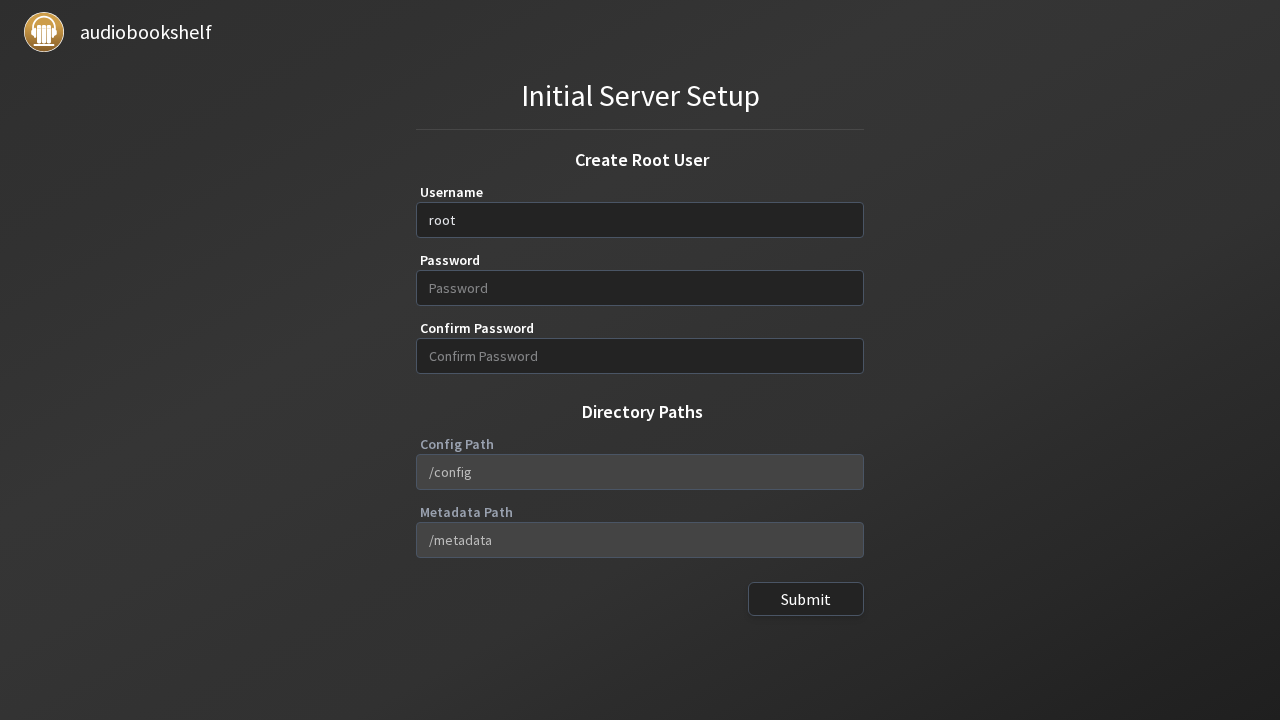
The setup screen prompts you to create the root administrative account:
- The Username field is pre-filled with
root. Clear it and enter your chosen username (for example,admin). - Enter a secure password in Password and confirm it in Confirm Password.
- Verify that Config Path shows
/configand Metadata Path shows/metadata.
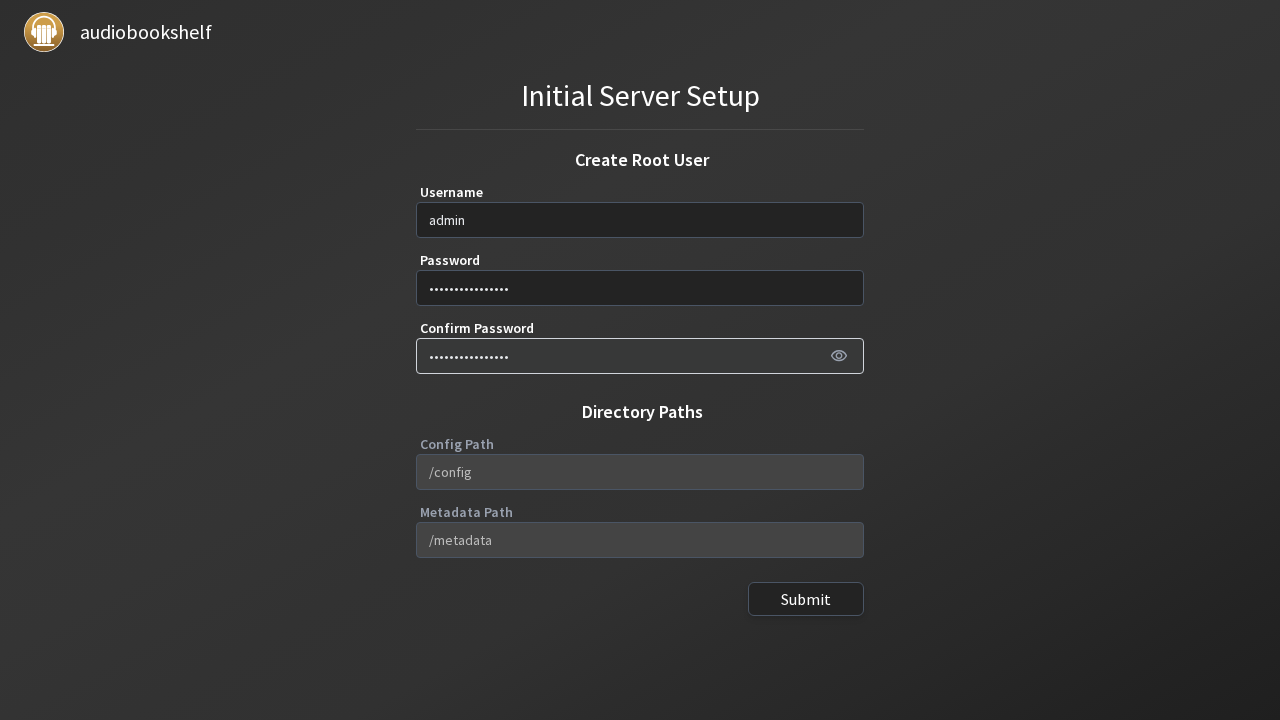
Click Submit to commit the root user initialization.
2. Sign In to Audiobookshelf
Once the account is created, the page reloads to the Sign In screen.
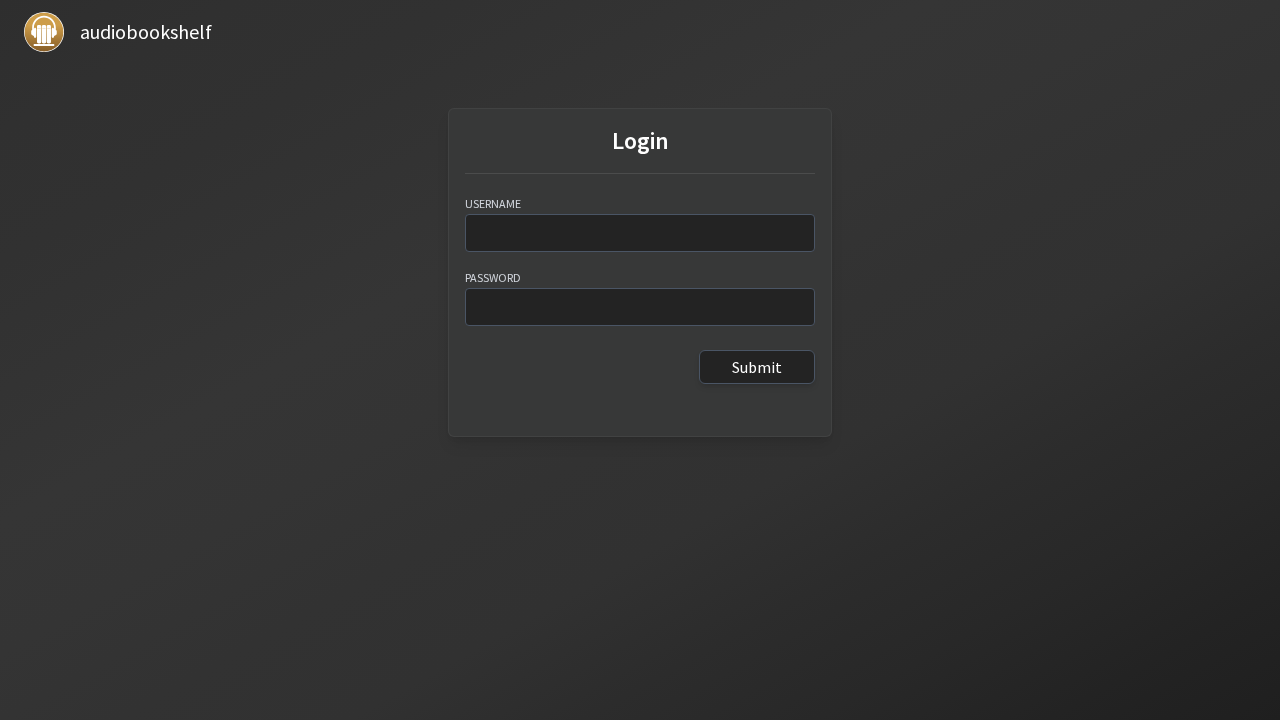
Enter your new credentials (admin and your password) and click Sign In.
3. Create an Audiobook Library
Because no libraries exist yet, Audiobookshelf automatically redirects you to the Libraries configuration screen at /config/libraries.
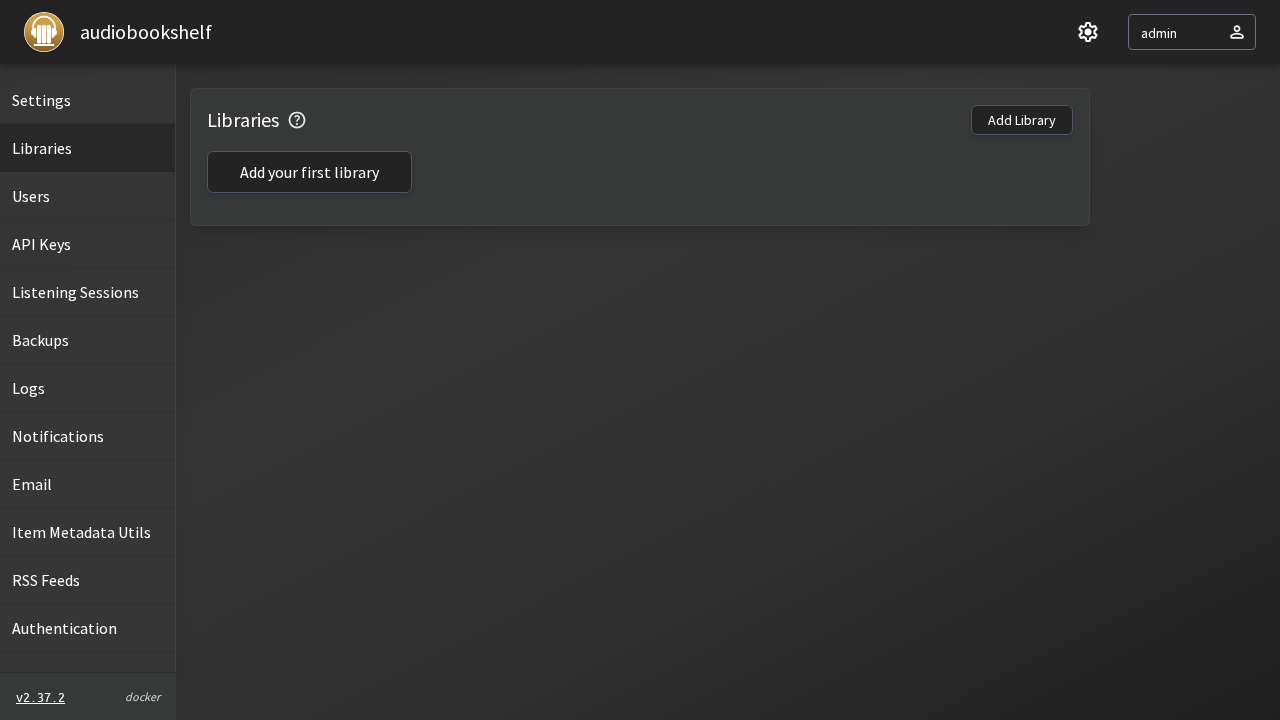
Click the Add Library button in the top right to open the library creation modal:
- Name: Enter
Audiobooks. - Media Type: Select
Audiobooksfrom the dropdown. - Folder Path: Enter
/audiobooksin the folder path input. Be sure to click outside the input or press Enter so the folder badge is registered.
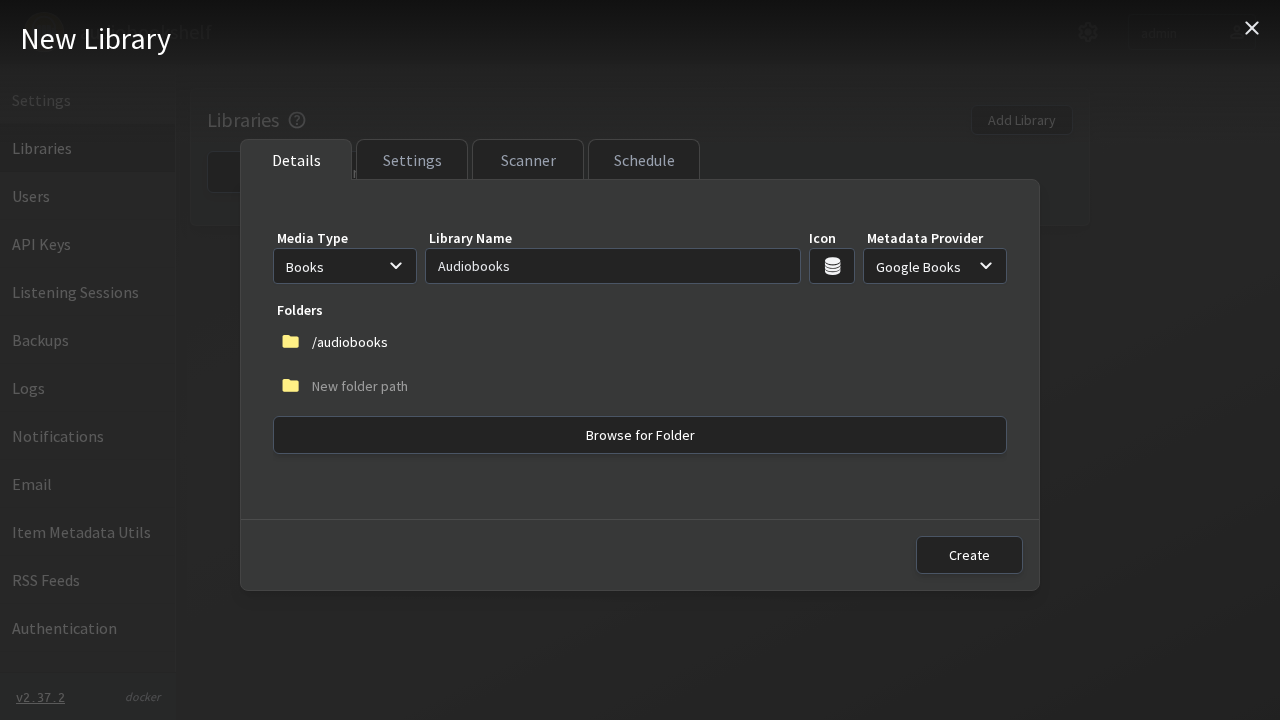
Click Create. The modal closes and your new library appears in the libraries list.
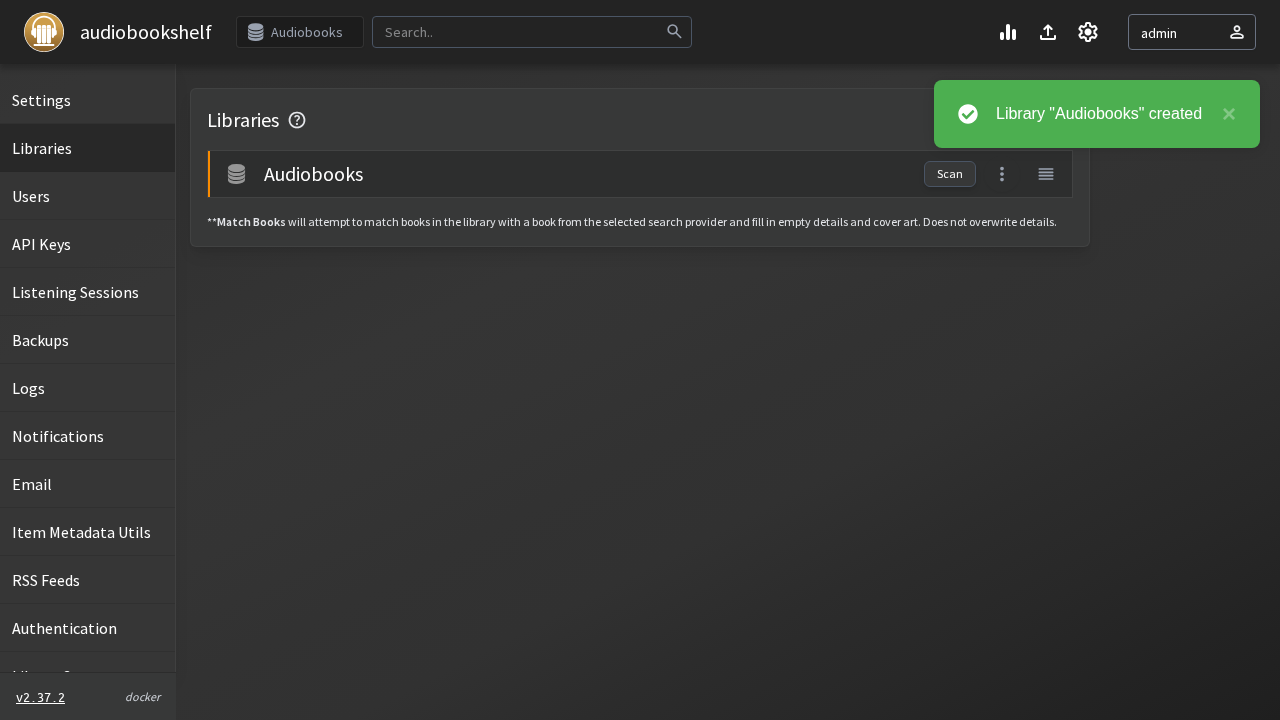
4. Scan Library & Discover Books
Select your Audiobooks library from the main navigation menu.
Creating a library does not automatically start an indexing scan. The main view displays "Audiobooks Library is empty!".
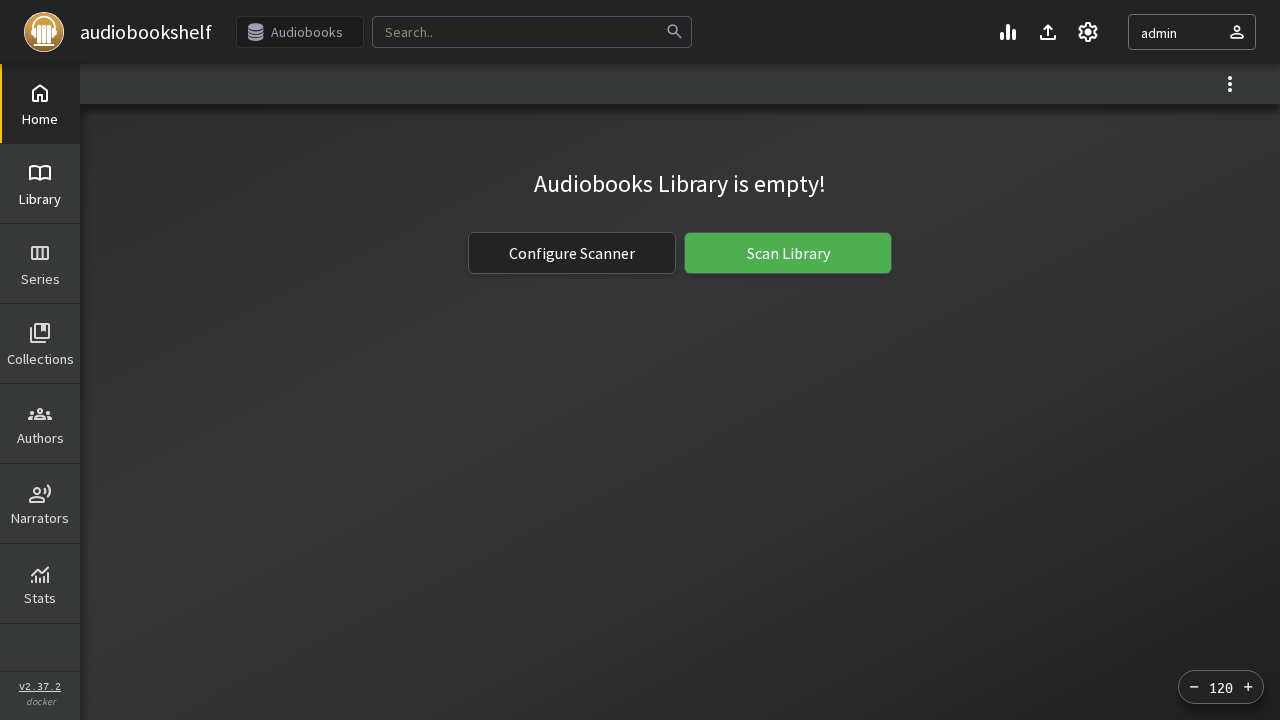
Click the Scan Library button.
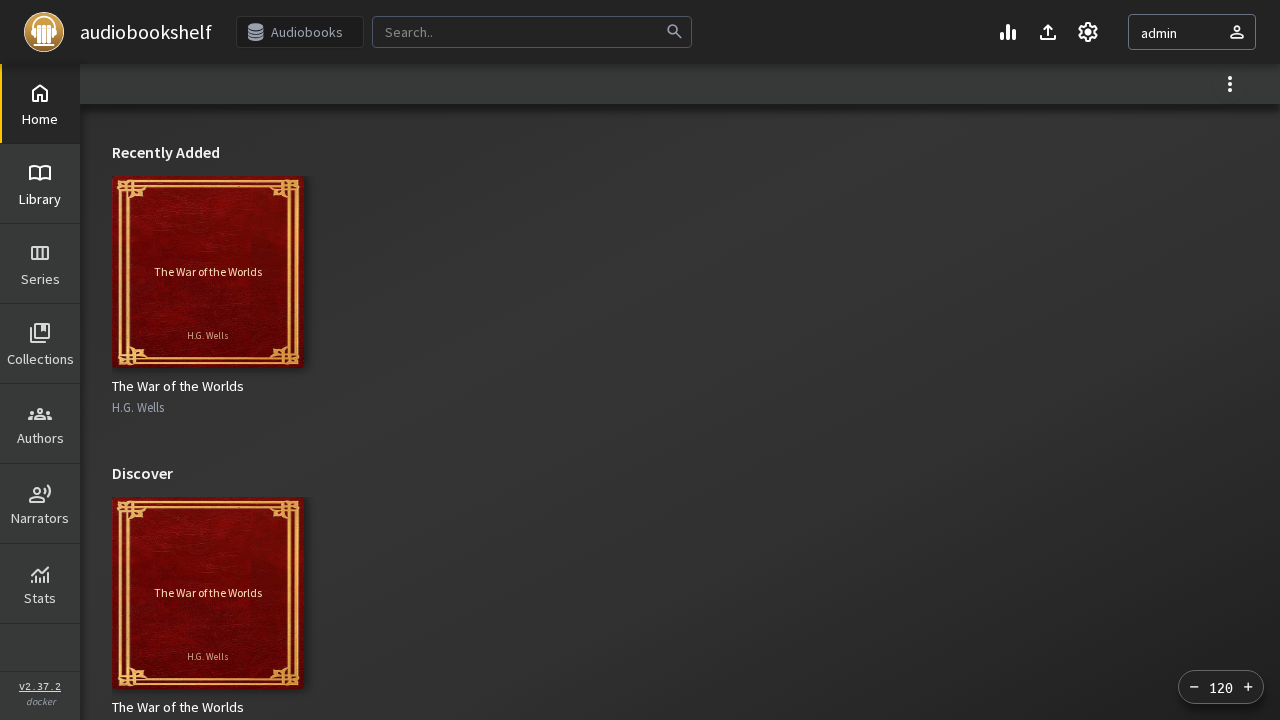
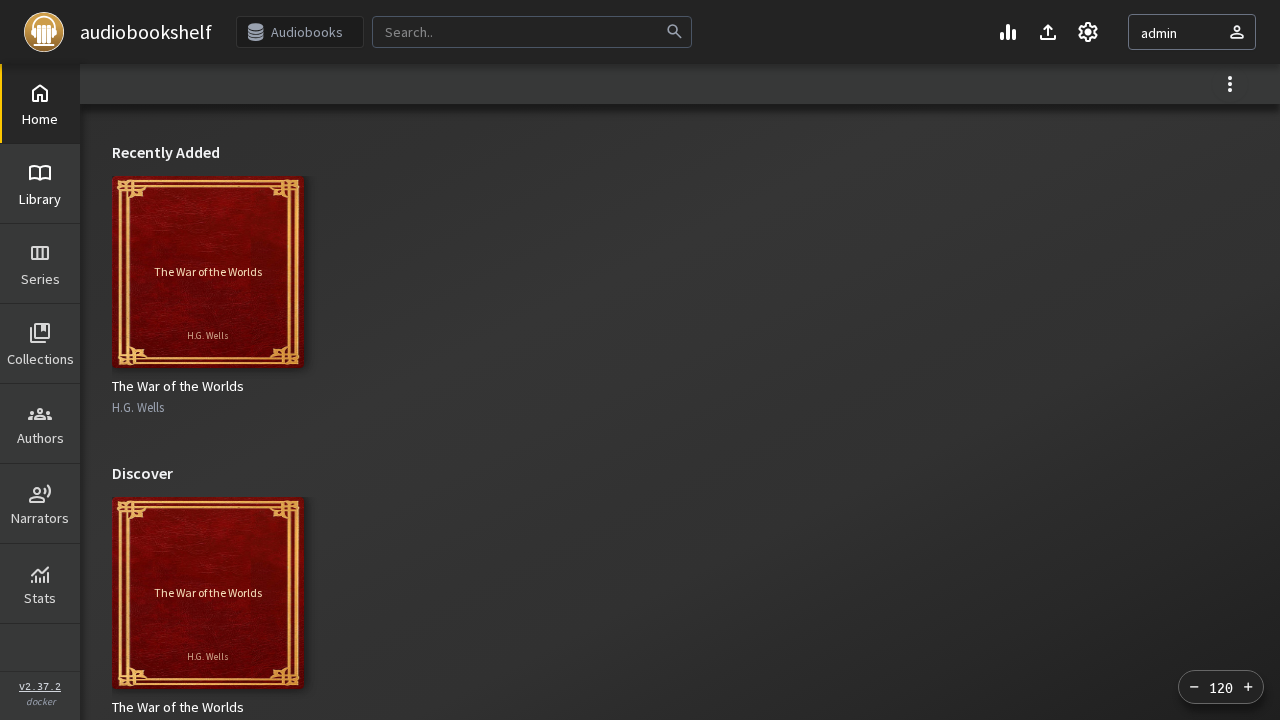
Audiobookshelf's background scanner reads /audiobooks, parses the folder structure and embedded audio tags, and indexes the books. Within seconds, your library shelf populates with detected titles:
5. Inspect Book Details & Stream Audio
Click on the book card (e.g. *The War of the Worlds* by H.G. Wells) to open the detailed book item view.
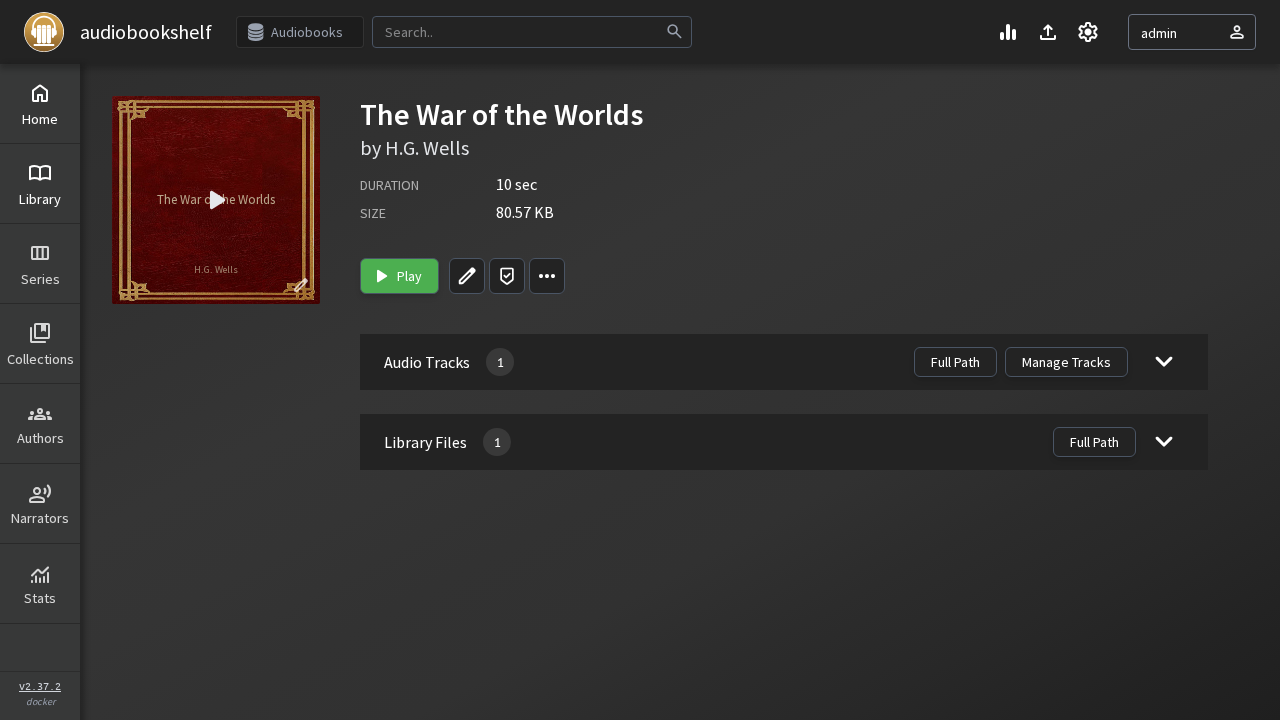
Click the green Play button. The persistent audio player slides up from the bottom of the screen.
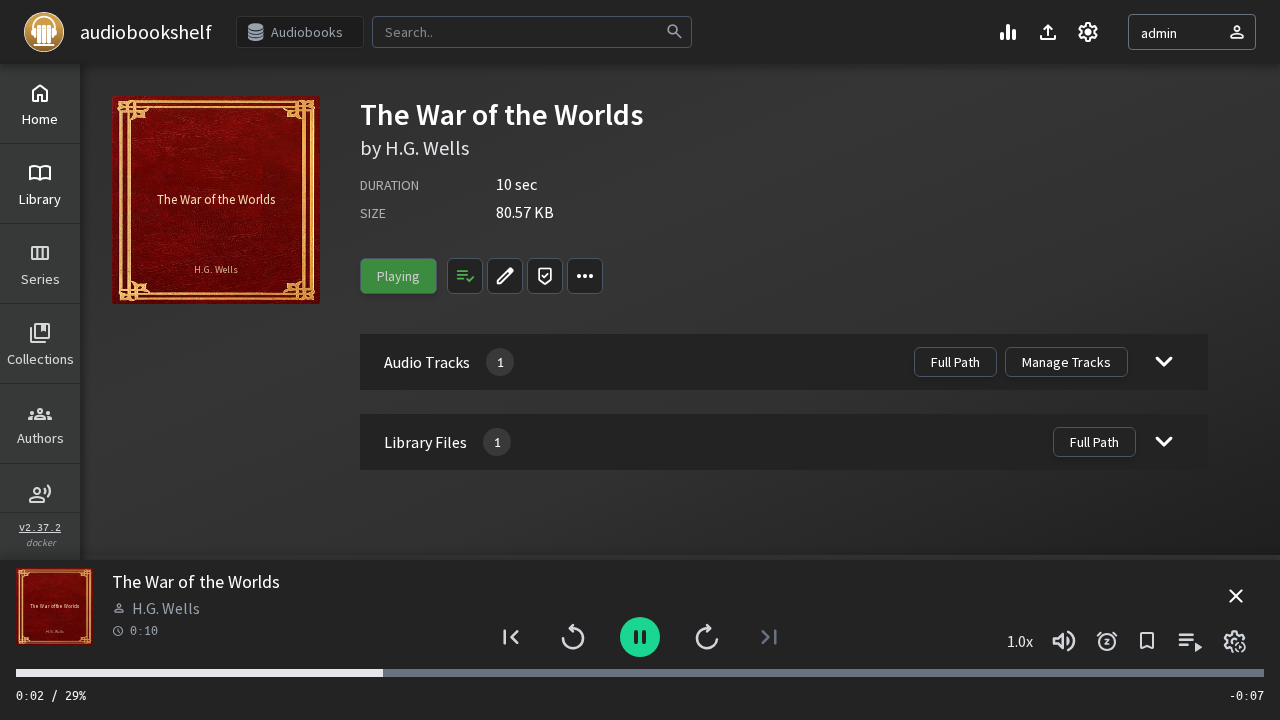
The player bar provides:
- Track title ("The Eve of the War") and author ("H.G. Wells").
- Interactive seek scrubber and current timestamp.
- Play/pause, skip forward/backward buttons, and volume control.
- Playback rate selector (e.g.
1.0x,1.2x,1.5x). - Sleep timer and chapter jump controls.
6. Verify Server Settings and Live Logs
Click the Settings (gear icon) in the navigation bar to open the server settings overview at /config.
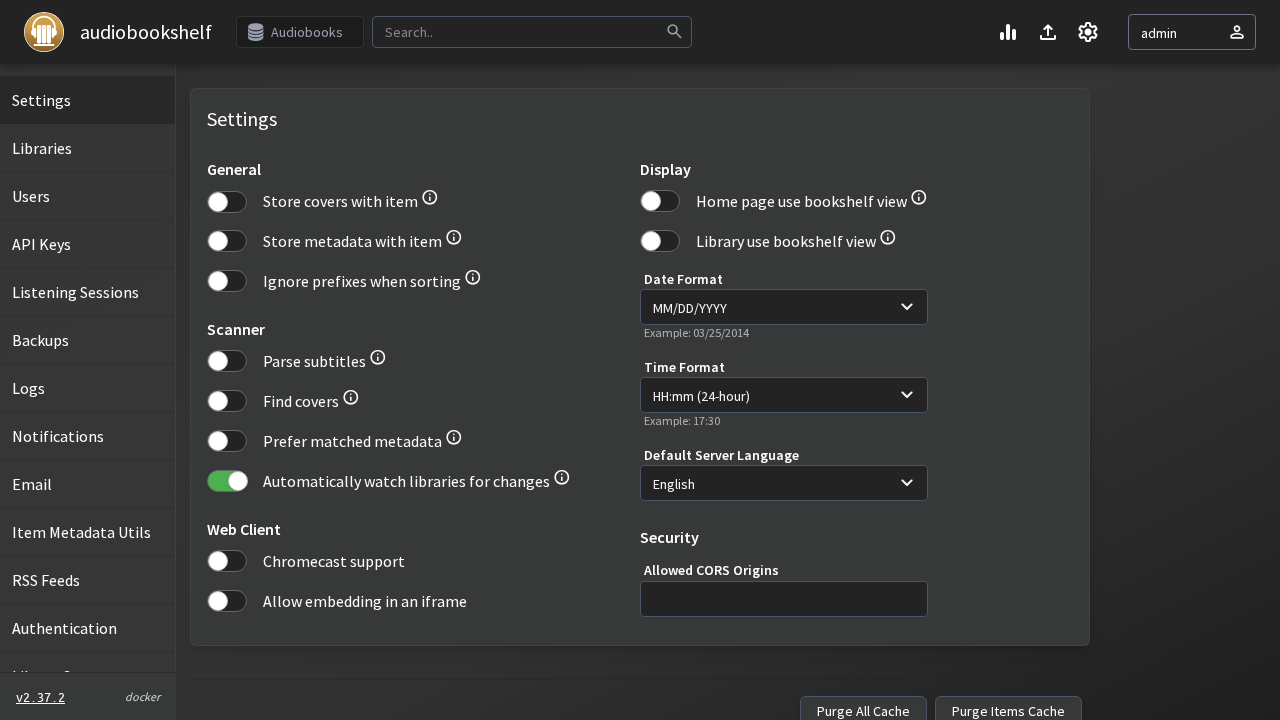
To verify internal operations, click Logs in the left navigation menu (located at /config/log).
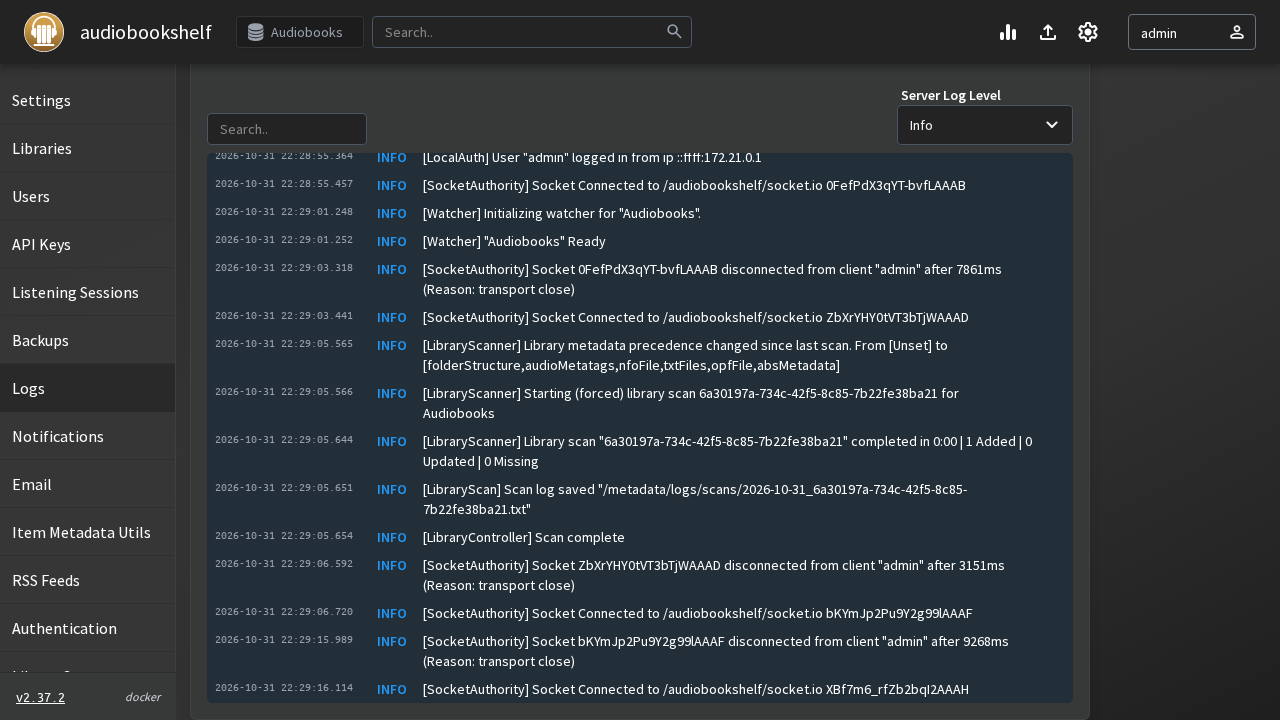
The log confirms database initialization, local user authentication, file watcher hooks, and the successful completion of the library scan ("1 Added"), showing clean INFO lines with zero warnings or errors.
---
Verification Checklist
Execute these terminal commands to confirm that your Audiobookshelf deployment is fully operational:
- HTTP Healthcheck Status:
``sh curl -i http://localhost:3000/healthcheck # Expected: HTTP/1.1 200 OK ``
- Application Ping Probe:
``sh curl -s http://localhost:3000/ping # Expected: {"success":true} ``
- Server Initialization & Version Status:
``sh curl -s http://localhost:3000/status # Expected: {"app":"audiobookshelf","serverVersion":"2.37.2","isInit":true,"authMethods":["local"]} ``
- API Authentication and Library Listing:
```sh # Authenticate and obtain JSON Web Token TOKEN=$(curl -s -X POST http://localhost:3000/login \ -H "Content-Type: application/json" \ -d '{"username":"admin","password":"adminpassword123"}' | grep -o '"token":"[^"]*' | cut -d'"' -f4)
# Query libraries using bearer token curl -s -H "Authorization: Bearer $TOKEN" http://localhost:3000/api/libraries | grep -o '"name":"Audiobooks"' # Expected: "name":"Audiobooks" ```
- Container Lifecycle & SQLite Verification:
``sh docker compose ps --filter "status=running" # Verify SQLite database file exists inside persistent config volume ls -lh config/absdatabase.sqlite ``
---
Troubleshooting
The table below outlines common issues encountered when deploying Audiobookshelf and their resolutions:
| Symptom / Error | Root Cause | Solution |
|---|---|---|
Library displays Audiobooks Library is empty! after creating library | Audiobookshelf does not run a scan automatically upon library creation. | Click the Scan Library button on the shelf. Ensure your audio files are placed inside <Author>/<Book Title>/ subdirectories with supported extensions (.mp3, .m4b, .m4a, .flac). |
Direct navigation to /config/logs returns HTTP 404 Not Found | Audiobookshelf routes the system logs view to /config/log (singular), not /config/logs. | Navigate to http://localhost:3000/config/log or click Logs in the left navigation sidebar under Server Settings. |
EACCES: permission denied on config/absdatabase.sqlite | The container process cannot write to host volume directories due to host filesystem permissions. | Grant write permissions to the volume directories on the host: chmod -R 777 config metadata audiobooks podcasts. |
Browser URL automatically changes to http://localhost:3000/audiobookshelf/ | Audiobookshelf defaults ROUTER_BASE_PATH to /audiobookshelf. | This is expected behavior. If hosting behind a reverse proxy (e.g. Nginx, Caddy, Traefik), you can pass ROUTER_BASE_PATH="" in the environment block to serve directly from root /. |
Port conflict: Bind for 0.0.0.0:3000 failed: port is already allocated | Another service on the host is already listening on host port 3000 or 13378. | Change the host port in docker-compose.yml (e.g. "13378:80" or "8080:80"), leaving the container port as :80, then run docker compose up -d. |
| Audio streaming stutters or fails on mobile clients | Reverse proxy buffering or lack of WebSocket forwarding. | Ensure your reverse proxy enables WebSocket upgrades (Connection: upgrade, Upgrade: $http_upgrade) and disables response buffering for streaming endpoints. |
rm: cannot remove 'config/absdatabase.sqlite': Permission denied during teardown | Files created inside the container are owned by root (uid 0). | Remove container-generated directories using a throwaway Docker container: docker run --rm -v "$PWD":/w alpine rm -rf /w/config /w/metadata or run sudo rm -rf config metadata. |
---
Teardown & Clean Up
To stop the Audiobookshelf service and remove all container resources:
# 1. Stop and remove containers and network
docker compose down -v

# 2. Clean root-owned database and metadata directories via a disposable container
docker run --rm -v "$PWD":/w alpine rm -rf /w/config /w/metadata /w/audiobooks /w/podcasts

# 3. Remove project directory
cd .. && rm -rf audiobookshelf
---
Assumptions & decisions
- Host Port Selection: Upstream Audiobookshelf documentation uses port
13378(13378:80) by default. In the validated test deployment, host port3000(3000:80) was selected to demonstrate dynamic port flexibility. The guide clearly documents both3000and13378to prevent confusion for users following official upstream documentation. - Manual Library Scan: Live testing and source inspection of Audiobookshelf v2.37.2 confirmed that adding a new library does not initiate an immediate background scan. The walkthrough explicitly instructs the user to click Scan Library on the empty shelf.
- System Logs Route: Direct HTTP GET requests to
/config/logsresult in a server 404 response. The verified route in v2.37.2 is/config/log(singular). The guide directs users to/config/logand the sidebar link. - Default Router Base Path: Audiobookshelf logs
Serving from base path "/audiobookshelf", redirecting root/requests to/audiobookshelf/.... This behavior is explicitly noted so readers understand the URL redirect is normal. - Root Credentials: For the automated verification run, demo credentials (
admin/adminpassword123) were used. The documentation emphasizes choosing a strong custom password for production deployments. - Screenshot Assets: All screenshot paths (
runs/audiobookshelf-20261031-181357/browser/*.png) link directly to verified Playwright captures generated during the live browser automation run. - Ghost Card Troubleshooting Grid: Ghost does not render standard Markdown pipe tables natively. The troubleshooting section is formatted as a GitHub-flavored Markdown table with header and delimiter rows, ensuring that
ghost-draft'smdToHtmlconverter wraps it inside a Ghost HTML card (ghostHtmlCard).
Get the Unified Homelab Stack Compose Pack
One-command multi-container Compose files (Full *arr Stack, Prometheus + Grafana + ntfy Monitoring, and Homelab Auth) plus new verified deploys once a week.