
How to Deploy Attic with Docker Compose: Self-Hosted Home Inventory System
Attic is a modern, self-hosted home inventory system built with Go, Nuxt, and PostgreSQL for tracking personal belongings, nested locations, and collections. Here is how to deploy Attic with Docker Compose, configure automated bootstrap admin credentials, and catalog your household assets.
Attic is an open-source (MIT License), self-hosted home inventory management application designed for individuals and households. It provides an intuitive, comprehensive solution for cataloging everything you own—from tools and electronics to books, board games, appliances, and furniture—while keeping physical locations, condition states, purchase documentation, receipts, warranties, and user manuals unified in a single system.
Architecturally, Attic combines a lightweight, high-performance Go 1.27 backend (chi router, embedded SQL database migrations via golang-migrate) with an embedded Nuxt 4 / Vue 3 / Tailwind CSS v4 single-page web UI, backed by PostgreSQL 16. The application packages as a self-contained container image (ghcr.io/lmmendes/attic:latest), eliminating the need to install host runtimes, compilers, or Node packages on your host machine.
Attic models household belongings the way you actually organize them:
- Hierarchical Locations: Physical spaces nest infinitely (e.g., *Living Room* → *Media Console* → *Shelf 1*).
- Cross-Cutting Collections: Belongings can be grouped logically (e.g., *Vintage Electronics*, *Board Games*, *Audio Gear*) without disrupting their real-world physical locations.
- Detailed Asset Tracking: Each item tracks condition ratings, purchase dates, original purchase prices, currencies, purchase notes, file attachments, and warranty periods with automated dashboard alerts.
- Search & Discovery: Instant substring quick-search, dropdown filters by location and condition, and an advanced nested search builder supporting compound boolean logic rules.
- Automated Metadata Integrations: Built-in import plugins automatically fetch metadata, book summaries, release years, and cover artwork from Google Books, TMDB, BoardGameGeek, IGDB, and Rebrickable.
- Built-in Authentication & SSO: Native user authentication with automatic first-boot admin provisioning, optional OIDC/Keycloak single sign-on, and a documented REST API (
/api/openapi.yaml). - Responsive Dark Mode: Built-in high-contrast dark theme accessible via a single click.
This guide walks through deploying Attic with Docker Compose, securing credentials in a persistent environment file, verifying service readiness, and stepping through an end-to-end asset cataloging workflow in the web interface.
Prerequisites
Before deploying Attic, ensure that your target host meets the following prerequisites:
- Docker Engine & Docker Compose: Docker Engine with Docker Compose v2+ installed (
docker compose version). Tested against Docker Compose 5.6.1. - Available Host Port: Port
3000(or an alternative unallocated port such as3002,3010, or8080) available for loopback binding. - HTTP Client:
curlinstalled on the host for health checks, readiness polling, and API smoke testing. - Modern Web Browser: A modern browser (Chrome, Firefox, Safari, Edge) for navigating the Vue 3 single-page application.
Exact Install Steps
Follow these sequential steps to configure, deploy, and launch Attic and PostgreSQL.
1. Create Deployment Directory Structure
Create an isolated directory for your Attic deployment and asset upload storage:
mkdir -p attic-deploy/uploads
cd attic-deploy
2. Stage Environment Configuration (.env)
Generate cryptographically secure random passwords for PostgreSQL and session encryption using openssl rand. Staging these credentials in a persistent .env file ensures that subsequent container restarts or stack updates reuse the existing database password rather than generating a new secret that the persistent PostgreSQL volume would reject:
# Generate random secrets
POSTGRES_PASS=$(openssl rand -hex 16)
SESSION_SECRET=$(openssl rand -hex 32)

cat > .env <<EOF
# Attic Deployment Environment
POSTGRES_USER=attic
POSTGRES_PASSWORD=${POSTGRES_PASS}
POSTGRES_DB=attic
ATTIC_SESSION_SECRET=${SESSION_SECRET}
ATTIC_PORT=8080
HOST_PORT=3000
EOF
Security Note: If re-running or updating the deployment, check if
.envalready exists before generating new secrets so you preserve the credentials associated with your existing database volume.
3. Create Docker Compose Manifest (docker-compose.yml)
Create docker-compose.yml to orchestrate Attic and PostgreSQL 16.
Notice that PostgreSQL is kept exclusively on the private Docker bridge network (attic-net) without binding port 5432 to the host. This prevents port collisions if your host already runs a local PostgreSQL service:
services:
  attic:
    image: ghcr.io/lmmendes/attic:latest
    container_name: attic-app
    user: "0:0"
    ports:
      - "127.0.0.1:${HOST_PORT}:8080"
    environment:
      - ATTIC_PORT=8080
      - ATTIC_DATABASE_URL=postgres://attic:${POSTGRES_PASSWORD}@postgres:5432/attic?sslmode=disable
      - ATTIC_LOCAL_STORAGE_PATH=/data/uploads
      - ATTIC_SESSION_SECRET=${ATTIC_SESSION_SECRET}
      - ATTIC_BASE_URL=http://localhost:${HOST_PORT}
      - ATTIC_CORS_ORIGINS=http://localhost:${HOST_PORT},http://127.0.0.1:${HOST_PORT}
      - ATTIC_ADMIN_EMAIL=admin
      - ATTIC_ADMIN_PASSWORD=admin
      - ATTIC_AUTH_DISABLED=false
      - ATTIC_OIDC_ENABLED=false
    volumes:
      - attic_uploads:/data/uploads
    depends_on:
      postgres:
        condition: service_healthy
    restart: unless-stopped
    networks:
      - attic-net
    healthcheck:
      test: ["CMD-SHELL", "wget --no-verbose --tries=1 --spider http://127.0.0.1:8080/health || exit 1"]
      interval: 5s
      timeout: 3s
      retries: 5
      start_period: 5s

  postgres:
    image: postgres:16-alpine
    container_name: attic-db
    environment:
      POSTGRES_USER: attic
      POSTGRES_PASSWORD: ${POSTGRES_PASSWORD}
      POSTGRES_DB: attic
    volumes:
      - postgres_data:/var/lib/postgresql/data
    healthcheck:
      test: ["CMD-SHELL", "pg_isready -U attic -d attic"]
      interval: 3s
      timeout: 3s
      retries: 10
      start_period: 3s
    restart: unless-stopped
    networks:
      - attic-net

volumes:
  postgres_data:
    name: attic_postgres_data
  attic_uploads:
    name: attic_uploads

networks:
  attic-net:
    name: attic_net
    driver: bridge
Configuration Note: Attic bootstraps an initial administrator account automatically when given
ATTIC_ADMIN_EMAILandATTIC_ADMIN_PASSWORD. Setting both toadminprovides an immediate, functional admin login on first boot without manual database seeding or interactive command-line setup.
4. Launch the Stack
Start the application and database containers in detached mode:
docker compose up -dExpected output:
✔ Network attic_net            Created
✔ Volume attic_postgres_data   Created
✔ Volume attic_uploads         Created
✔ Container attic-db           Healthy
✔ Container attic-app          Started
5. Verify Container Status
Verify that both containers are running and healthy:
docker compose psExpected output:
NAME        IMAGE                          COMMAND                  SERVICE    CREATED         STATUS                   PORTS
attic-app   ghcr.io/lmmendes/attic:latest  "/app/attic"             attic      9 seconds ago   Up 8 seconds (healthy)   127.0.0.1:3000->8080/tcp
attic-db    postgres:16-alpine             "docker-entrypoint.s…"   postgres   9 seconds ago   Up 9 seconds (healthy)   5432/tcp
Verification
Perform terminal-based verification checks to validate network connectivity, database schema migrations, and authentication before opening the web browser.
1. Service Health and Readiness Endpoints
Attic provides standard HTTP endpoints for health probes and service readiness.
Check backend health:
curl -fsS http://localhost:3000/healthExpected output:
{"status":"ok"}Check database readiness and migration status:
curl -fsS http://localhost:3000/readyExpected output:
{"status":"ready"}Verify authentication configuration:
curl -fsS http://localhost:3000/auth/modeExpected output:
{"auth_disabled":false,"oidc_enabled":false}2. Verify OpenAPI Documentation
Verify that the embedded OpenAPI documentation spec is served:
curl -fsS -o /dev/null -w "%{http_code}\n" http://localhost:3000/api/openapi.yamlExpected output: 200.
3. Web UI Route and Redirect Check
Verify web endpoint accessibility:
curl -sS -o /dev/null -w "%{http_code}\n" http://localhost:3000/login/Expected output: 200.
Note on Routing: Querying
/loginreturns an HTTP301 Moved Permanentlydirecting clients to/login/with a trailing slash. Web browsers follow this redirect automatically.
4. Authentication and Session Smoke Test
Verify that the bootstrap administrator account credentials function correctly by requesting a login cookie:
curl -sS -c cookies.txt -X POST http://localhost:3000/auth/login \
  -H "Content-Type: application/json" \
  -d '{"email":"admin","password":"admin"}'
Expected output:
{"success":true,"user":{"email":"admin","id":"b8a828c8-f80e-4363-95cf-25caea5be3ea","name":"Administrator","role":"admin"}}Validate the authenticated session:
curl -sS -b cookies.txt http://localhost:3000/auth/sessionExpected output:
{"auth_disabled":false,"authenticated":true,"csrf_token":"","user":{"email":"admin","id":"b8a828c8-f80e-4363-95cf-25caea5be3ea","name":"Administrator","role":"admin"}}Browser Setup & Navigation
Now that the backend and database are verified, open http://localhost:3000/login/ in your web browser.
1. Sign In and Dashboard Overview
On the Attic login page, enter the bootstrap credentials:
- Email / Username:
admin - Password:
admin
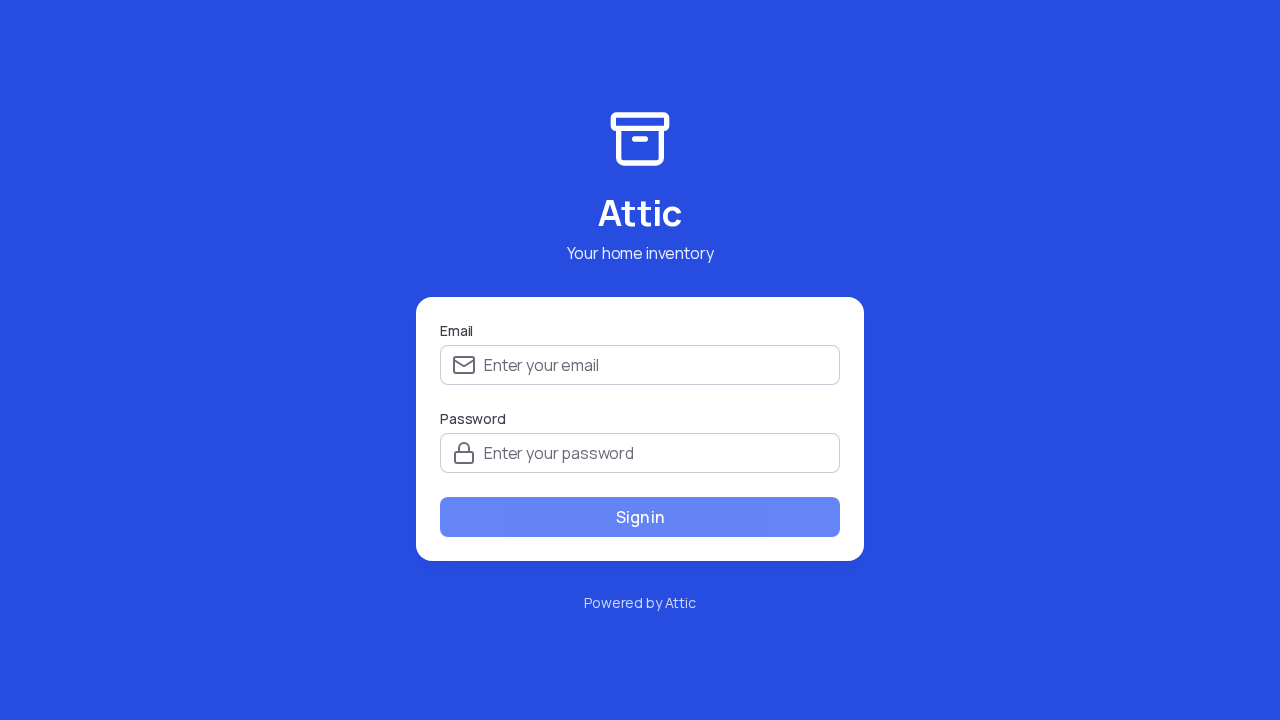
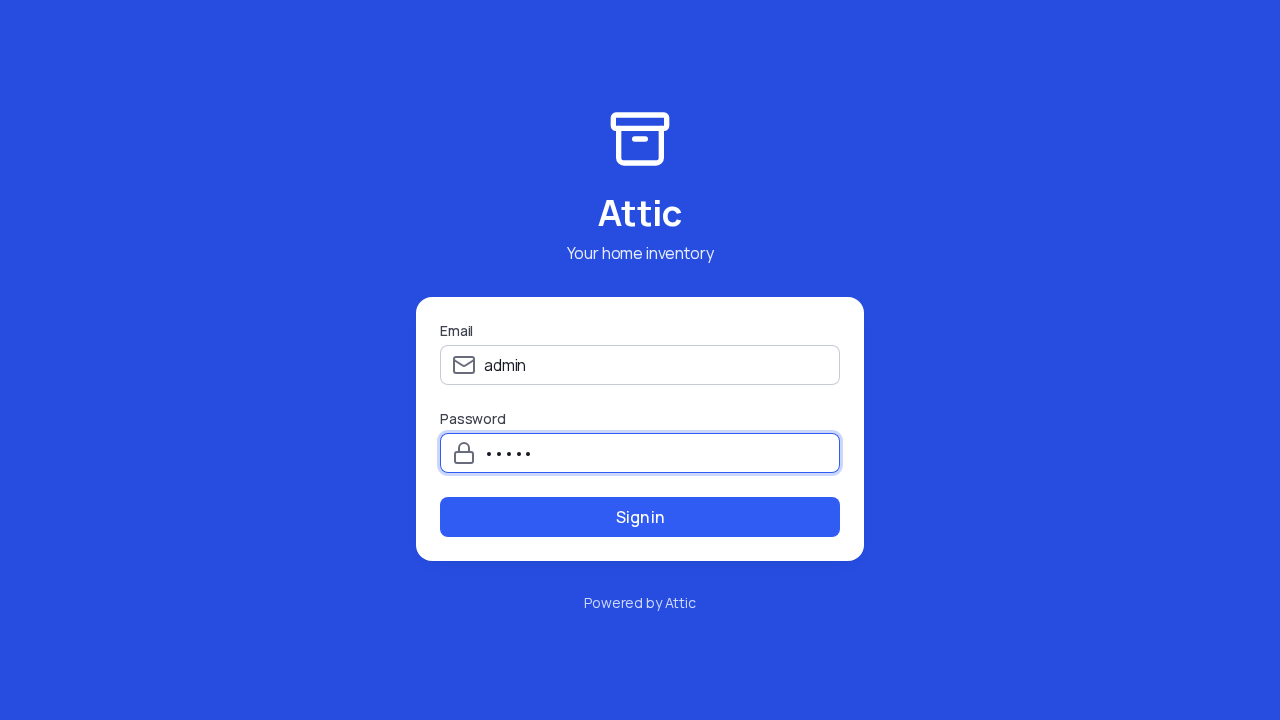
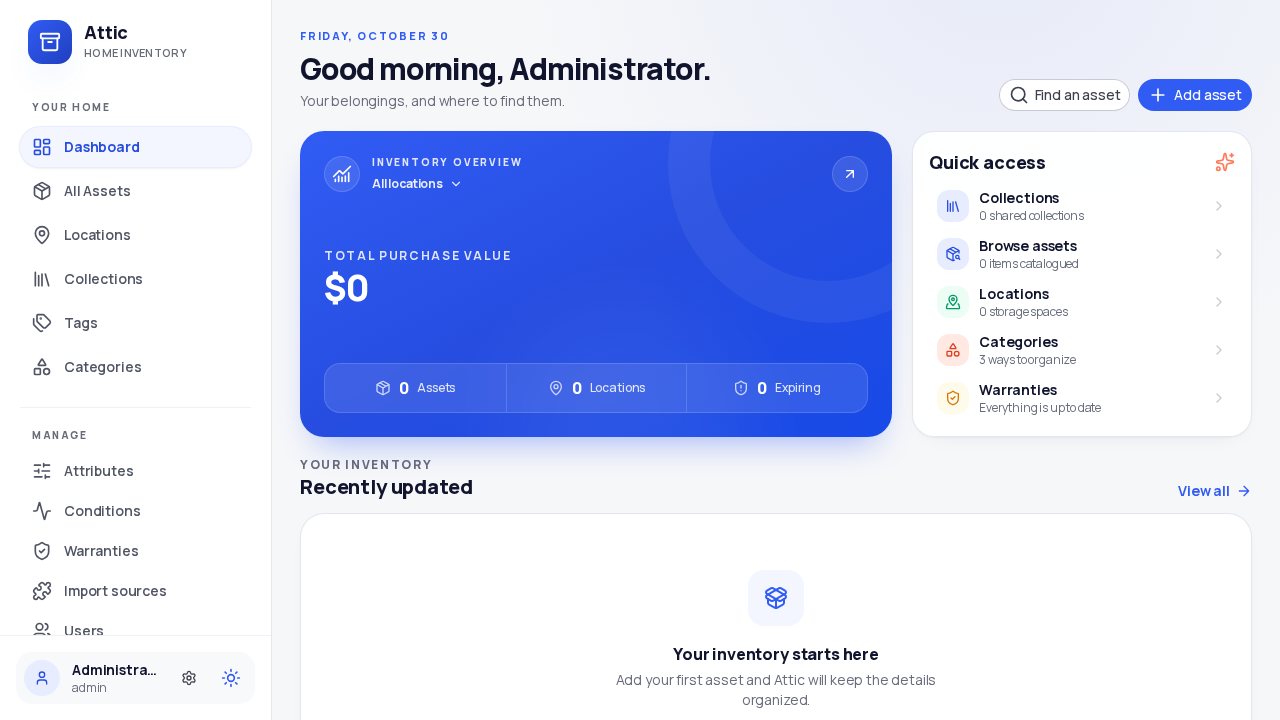
Click Sign in. You are greeted by the clean initial dashboard displaying summary counters for Total Assets, Total Locations, Total Collections, and Total Estimated Value.
2. Modeling Physical Spaces with Hierarchical Locations
Attic organizes inventory items into physical locations that can be nested as deeply as needed.
- Click Locations in the left sidebar navigation.
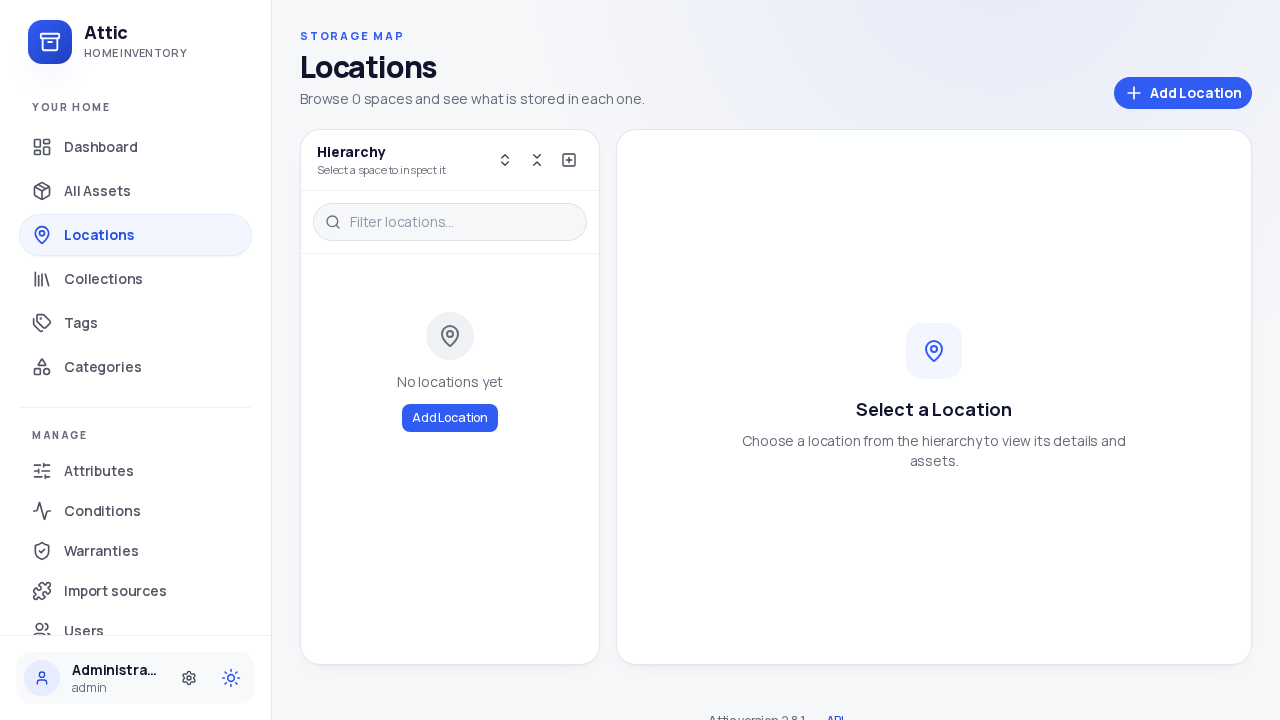
- Click Add Location to create a top-level room:
- Name: Living Room - Description: Main floor living room - Icon: Select the Armchair icon
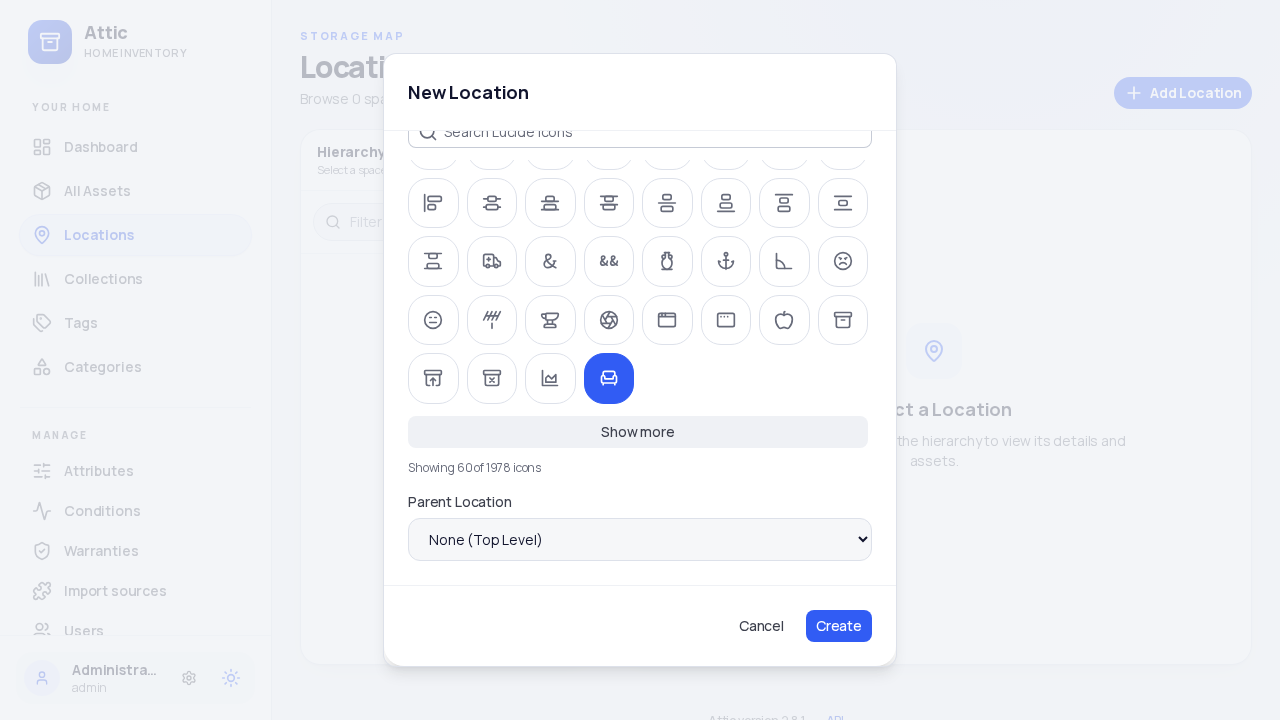
- Click Create. The Living Room location card is now visible.
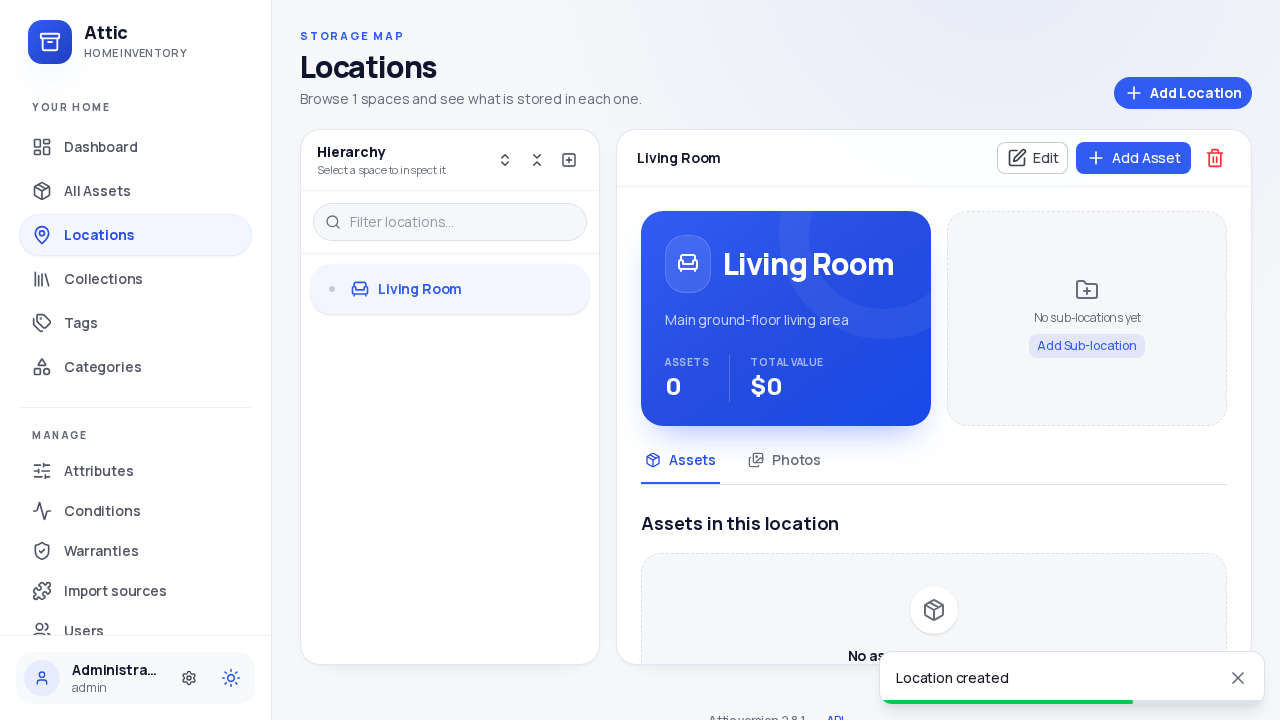
- Create a nested child location inside the Living Room:
- Click Add Location. - Name: Media Console Shelf 1 - Parent Location: Select Living Room - Description: Upper shelf inside media cabinet
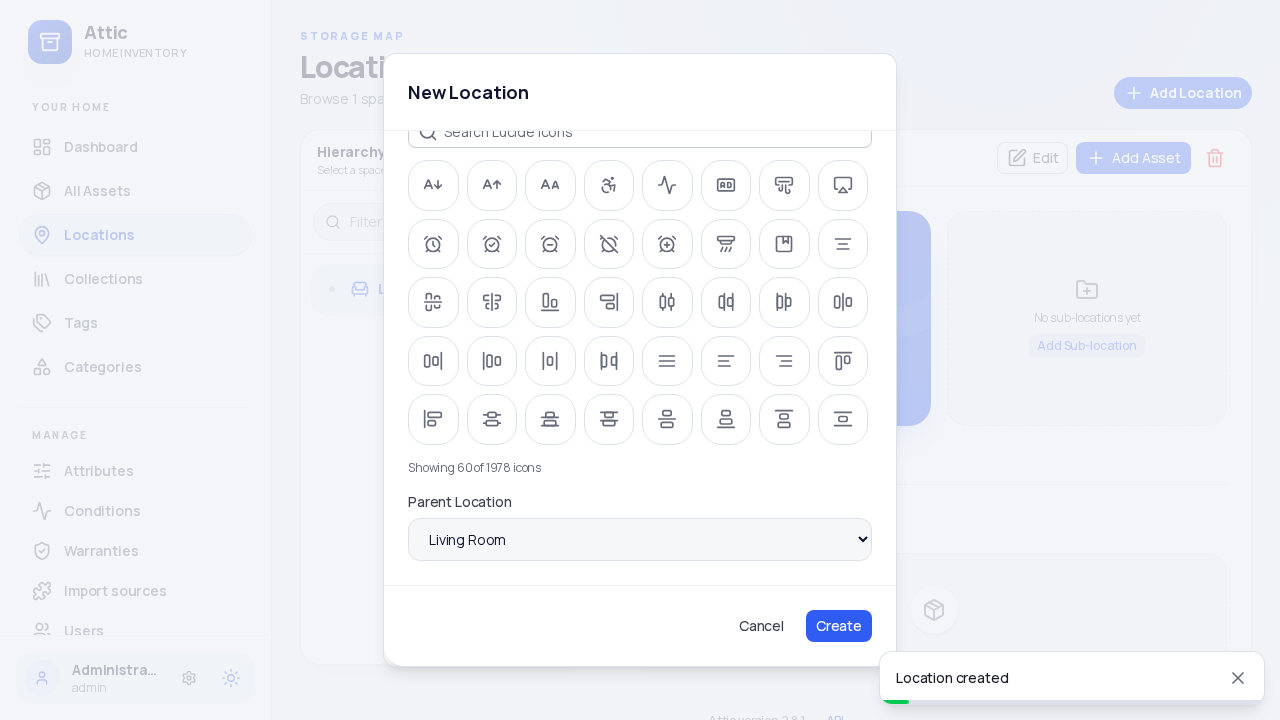
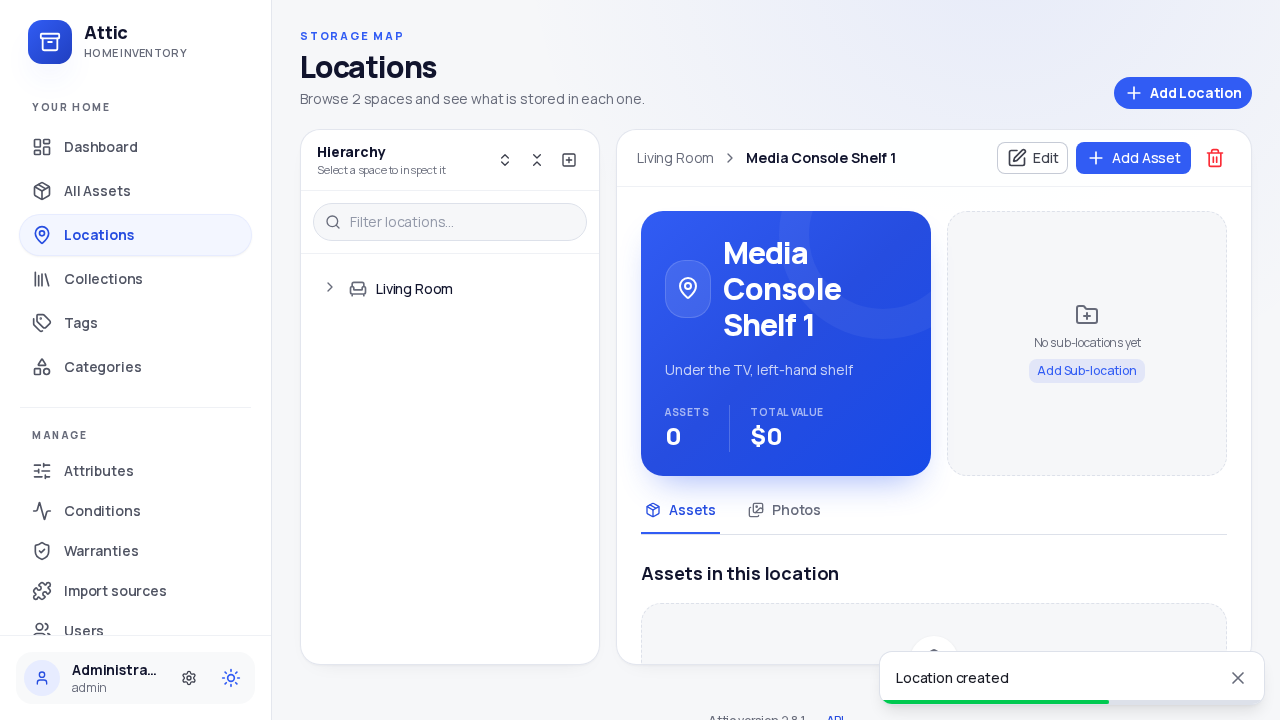
- Click Create. Attic renders the tree hierarchy view, showing
Living Room›Media Console Shelf 1with a detailed hierarchy breadcrumb card.
3. Organizing Items with Cross-Cutting Collections
Collections let you group related belongings regardless of where they are physically stored in your home.
- Click Collections in the sidebar.
- Click New collection:
- Name: Vintage Electronics - Description: Retro computers, classic consoles, and vintage peripherals
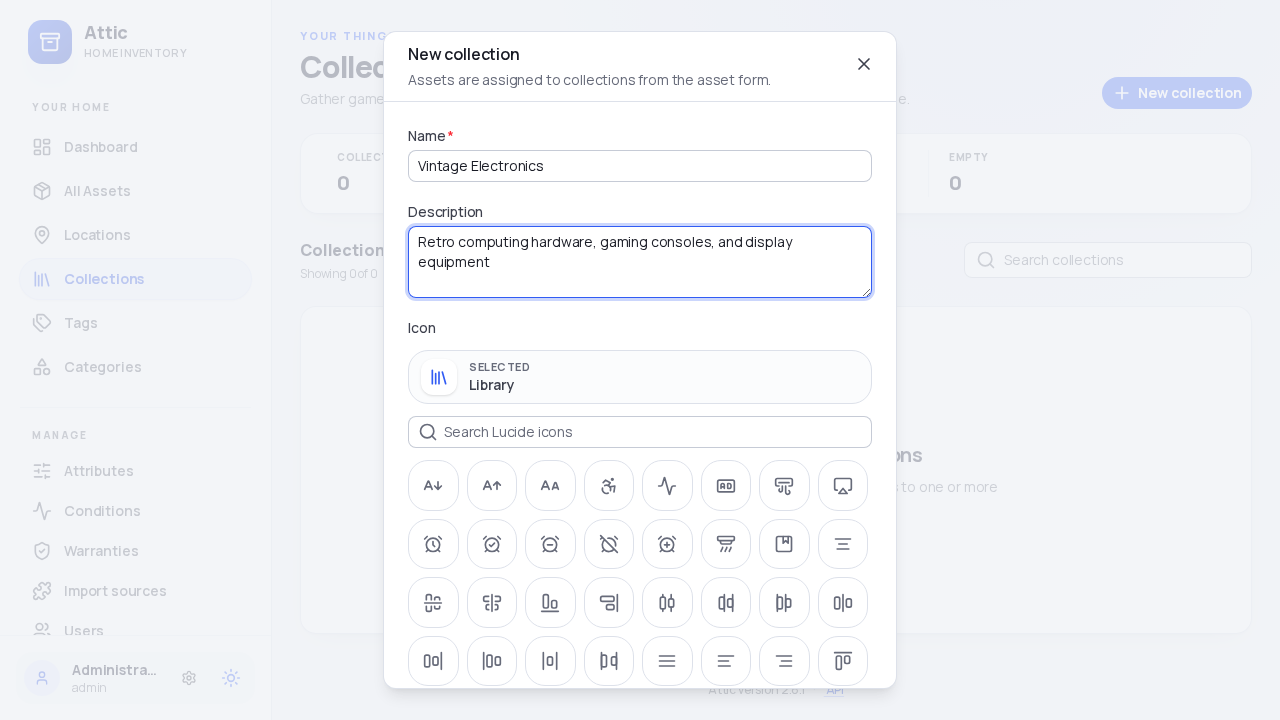
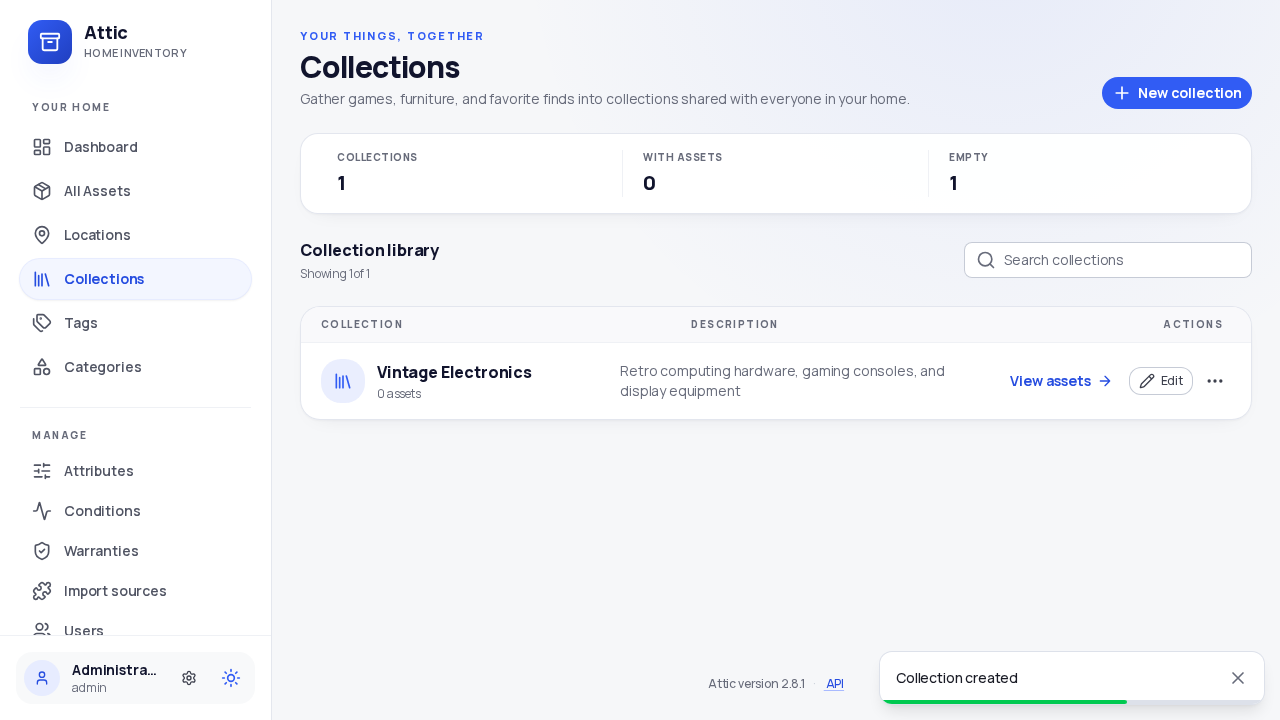
- Click Create. The collection card is created and a confirmation toast appears.
4. Cataloging an Asset
Now add an asset to your inventory and link it to both its physical location and its collection.
- Click All Assets in the sidebar.
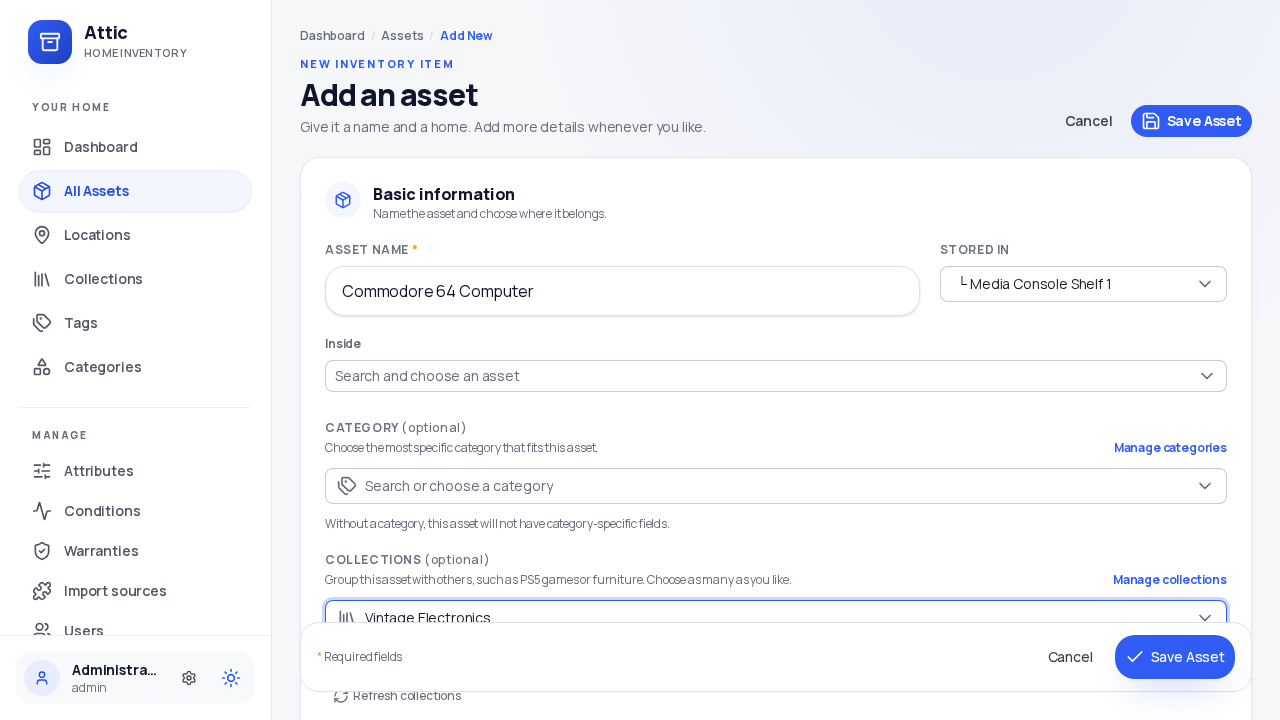
- Click Add Asset to open the asset creation modal.
- Enter primary asset details:
- Name: Commodore 64 Computer - Stored in: Select Media Console Shelf 1 - Collections: Select Vintage Electronics
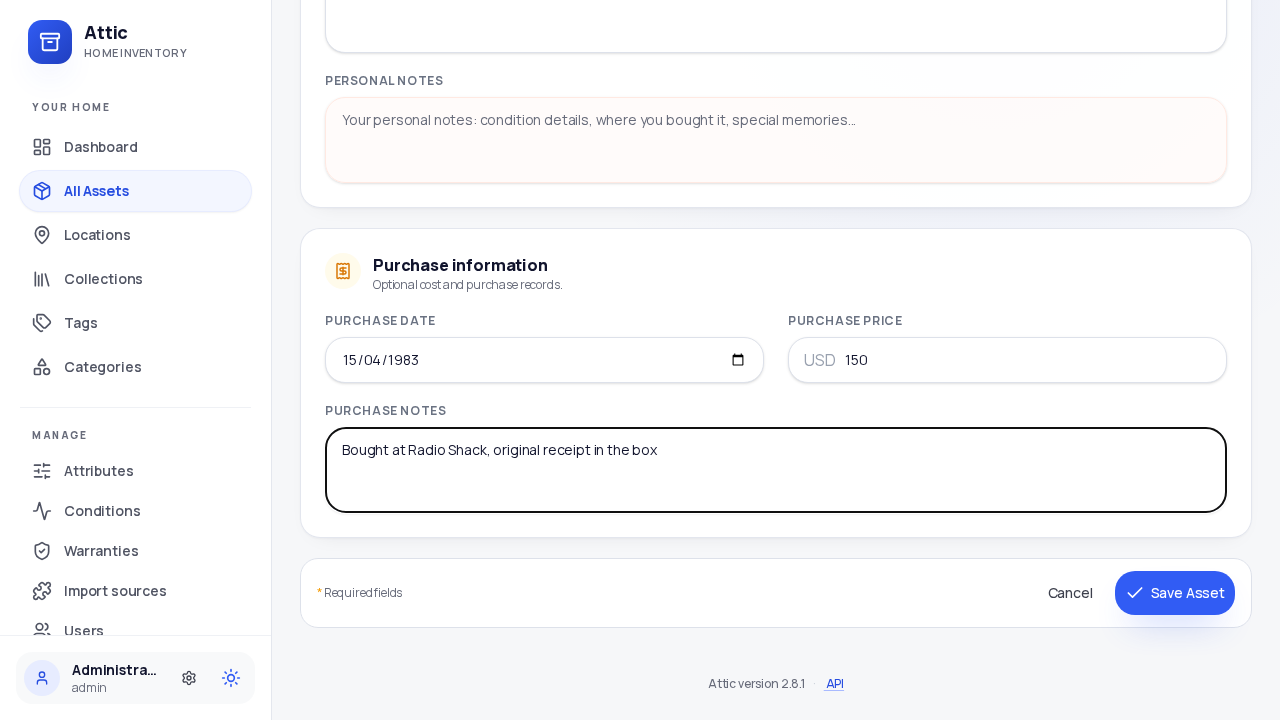
- Fill in asset details and financial records:
- Description: Classic 8-bit home computer introduced in 1982 with 64KB RAM and SID sound chip - Condition: Select Very good - Purchase date: 1983-04-15 - Currency: USD - Purchase price: 150.00 - Purchase notes: Bought at Radio Shack, original receipt in the box
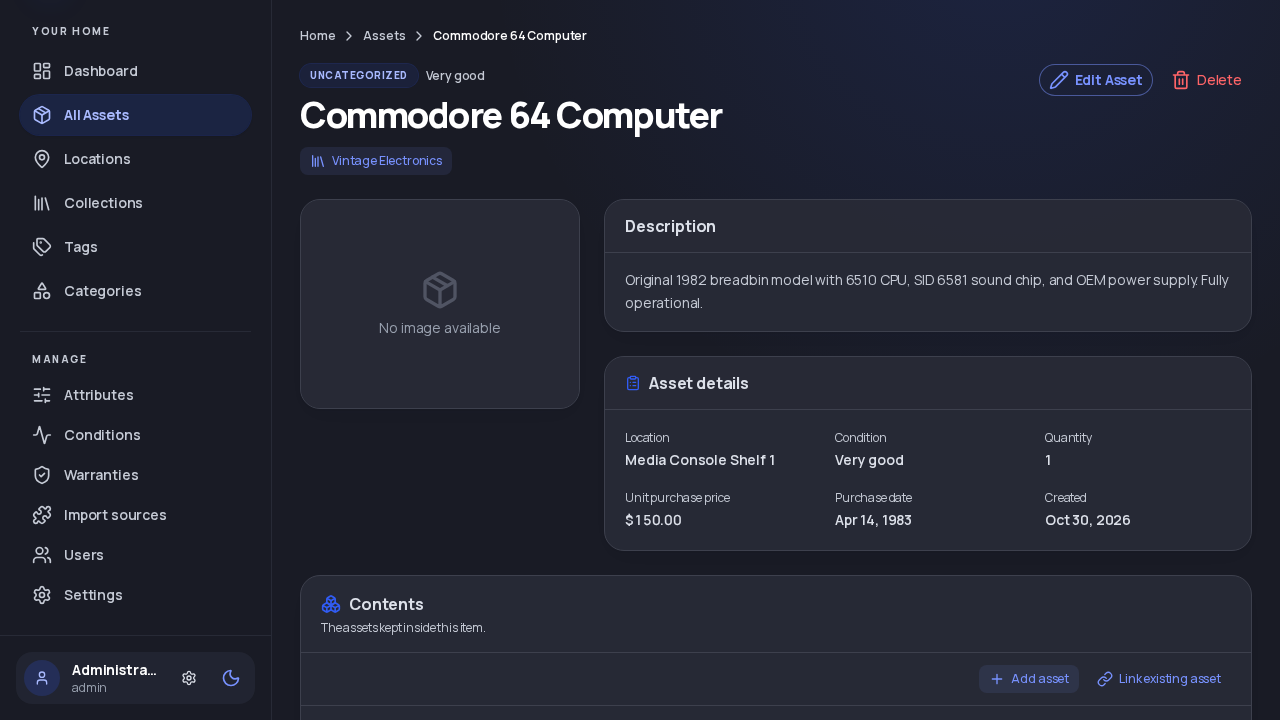
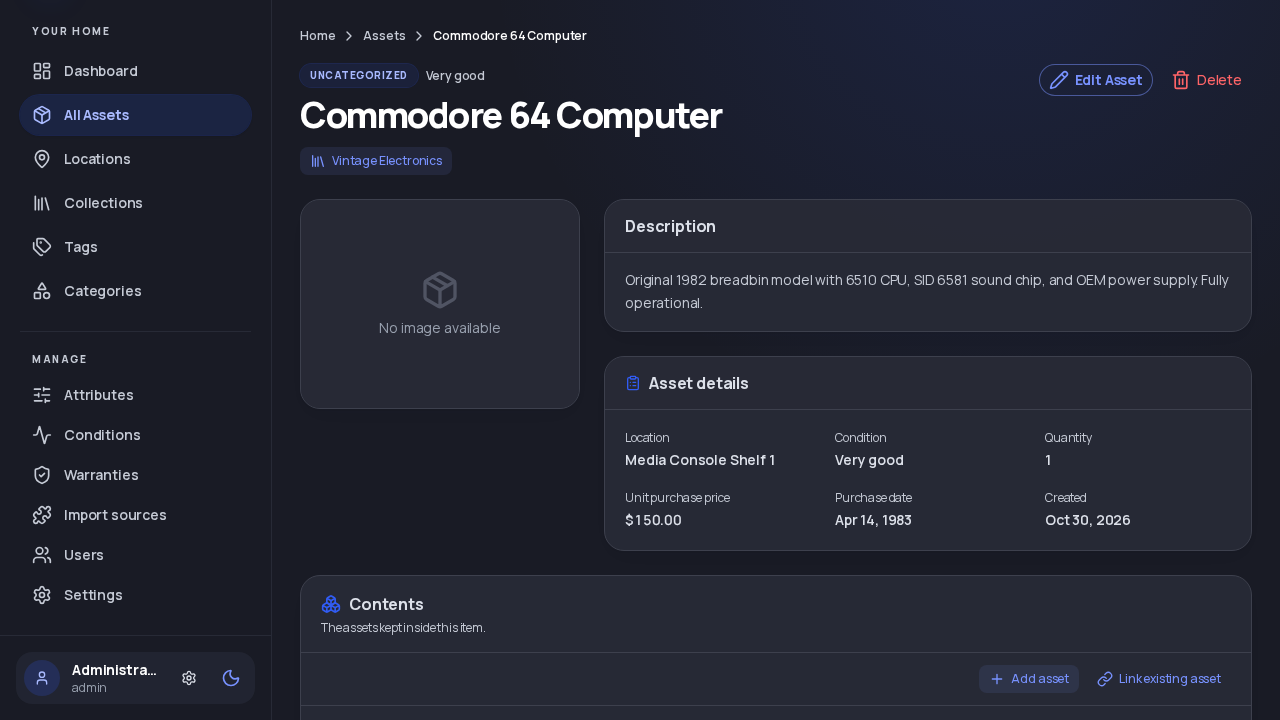
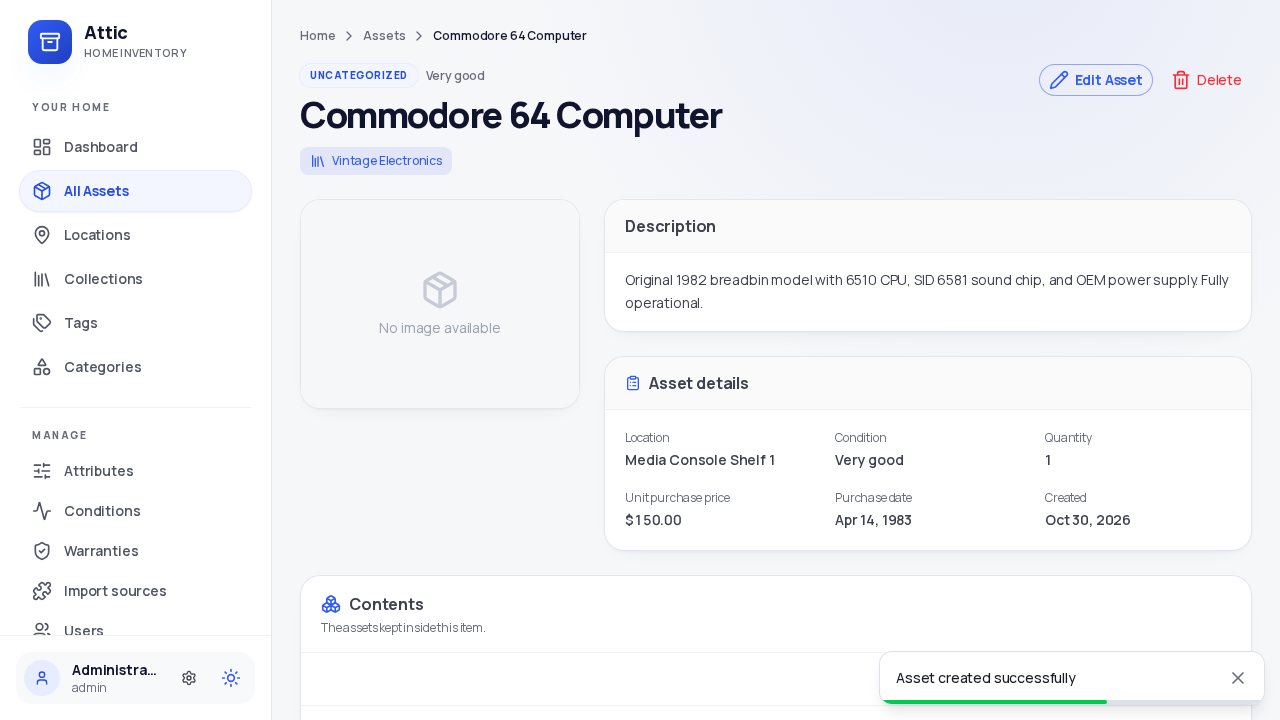
- Click Save. The asset detail page displays the cataloged item with its location hierarchy, collection badges, valuation, and condition rating.
5. Instant Search and Advanced Rule Filtering
Attic includes instant substring search across names and attributes, as well as an advanced rule builder.
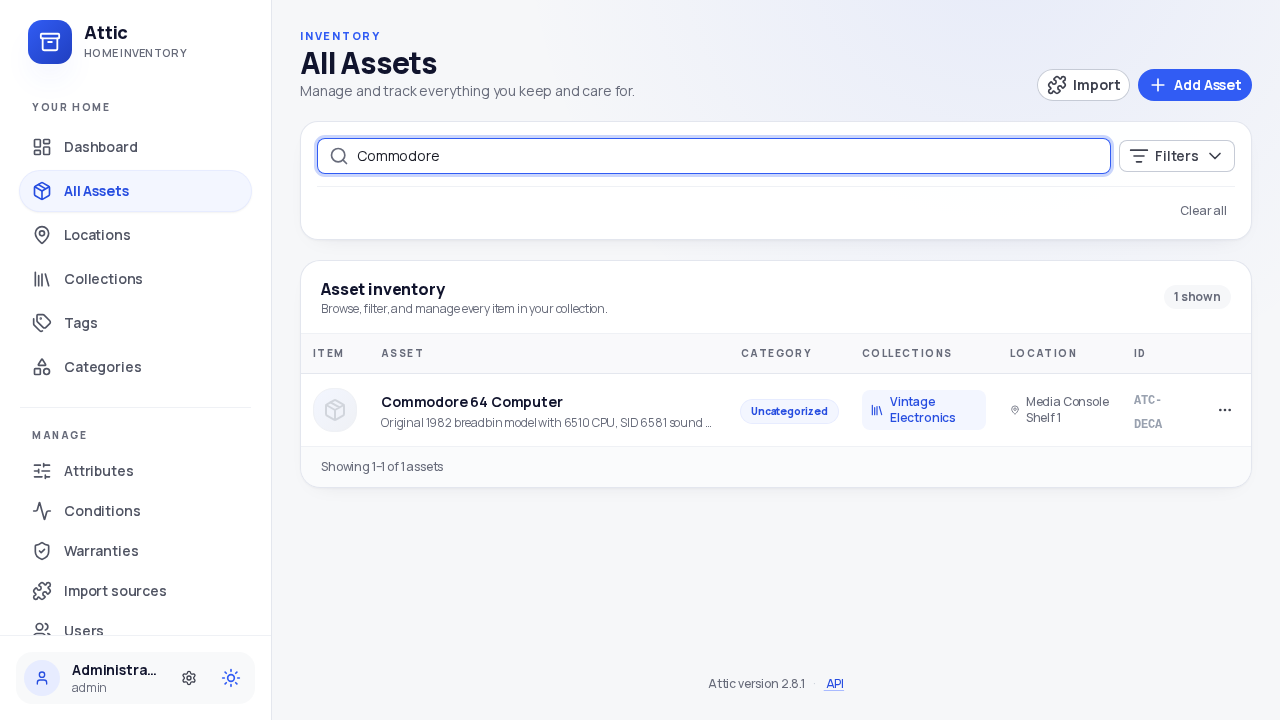
- Click All Assets to view the inventory table.
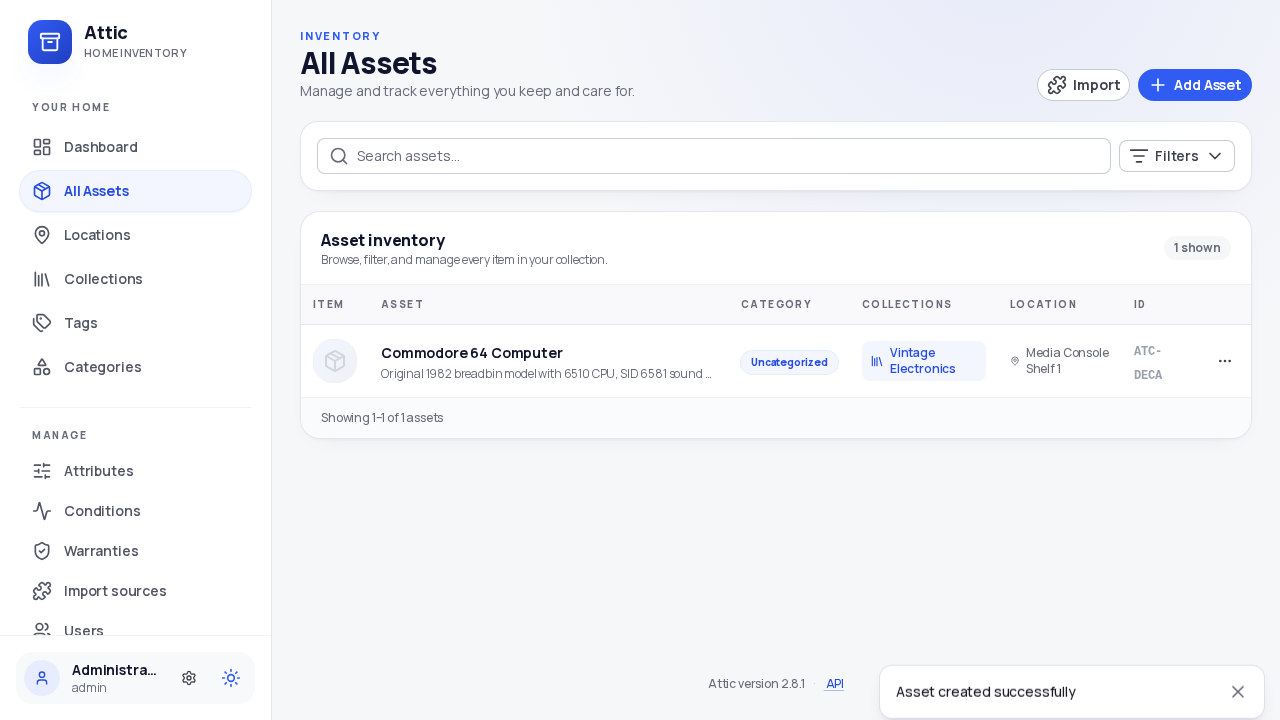
- Quick Search: In the search bar, type
Commodore. The table immediately filters to matching records.
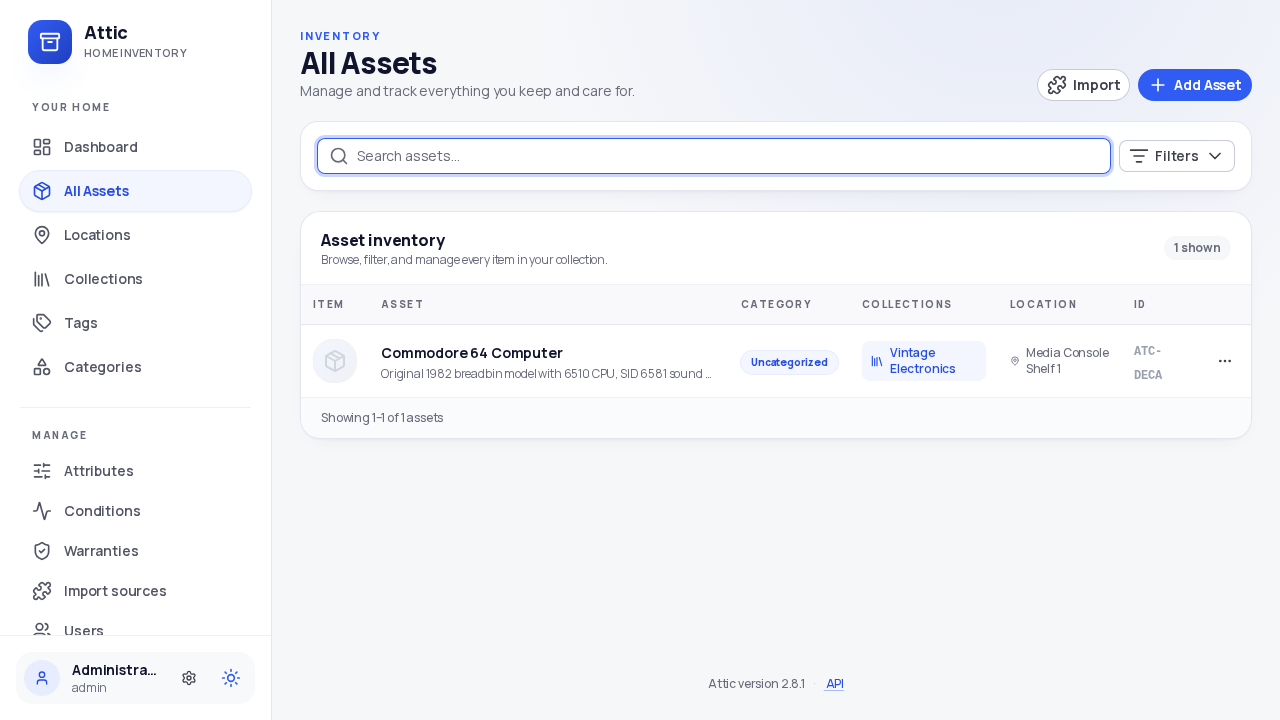
- Type
Amigato test negative matching. The table displays "No assets match these filters".
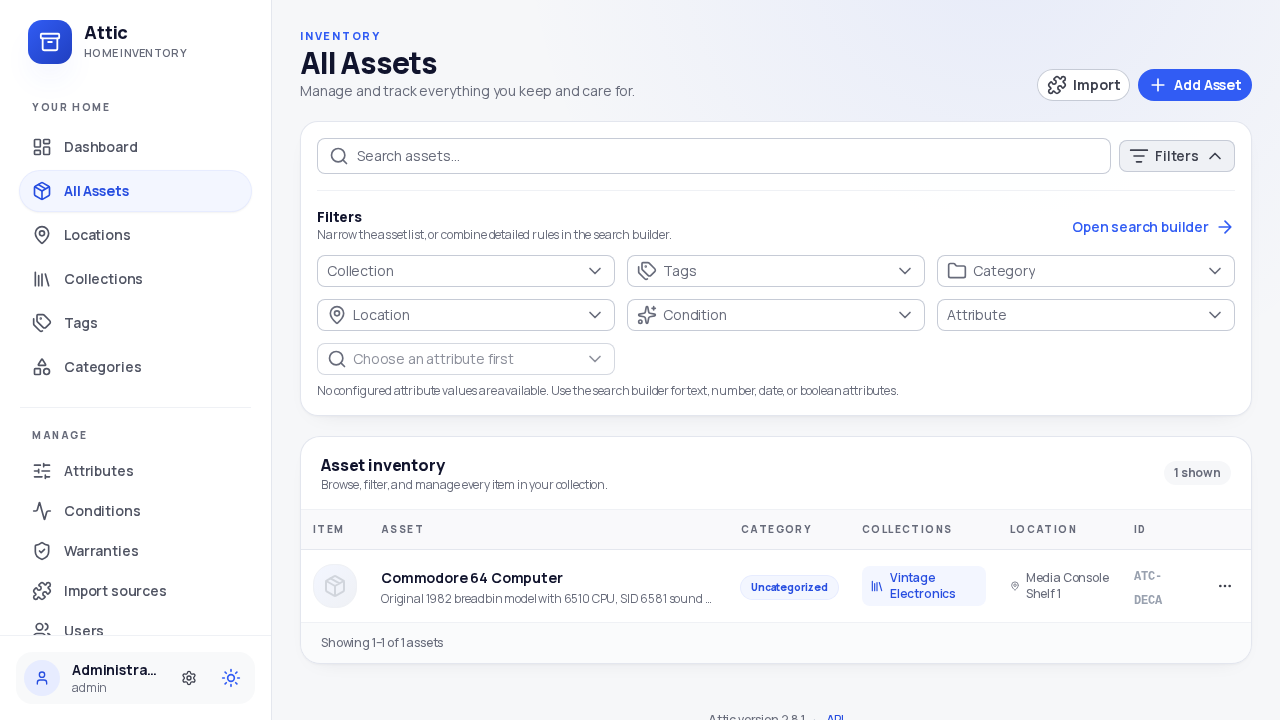
- Clear the search input and click Filters to open the structured filter drawer.
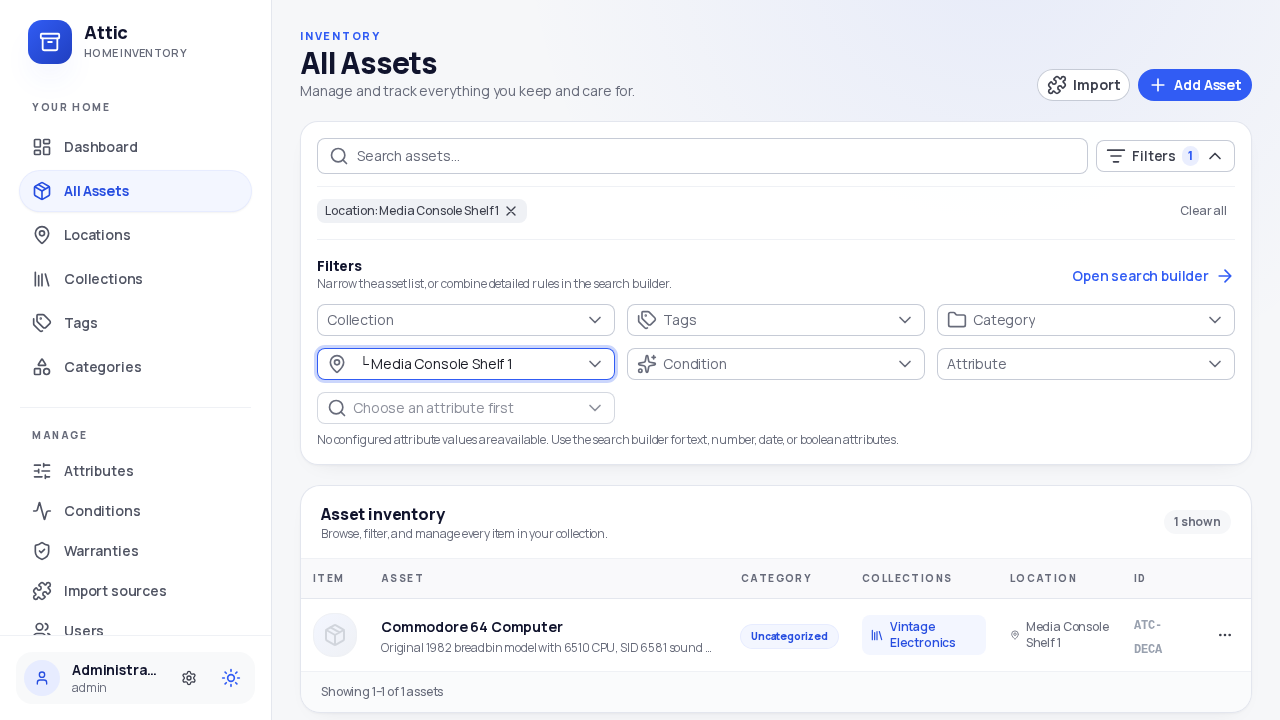
- Select Location →
Media Console Shelf 1. The list updates to show only assets stored in that shelf.
- Click Open search builder to construct boolean compound queries. Add the rule:
- Field: Collections - Operator: includes - Value: Vintage Electronics
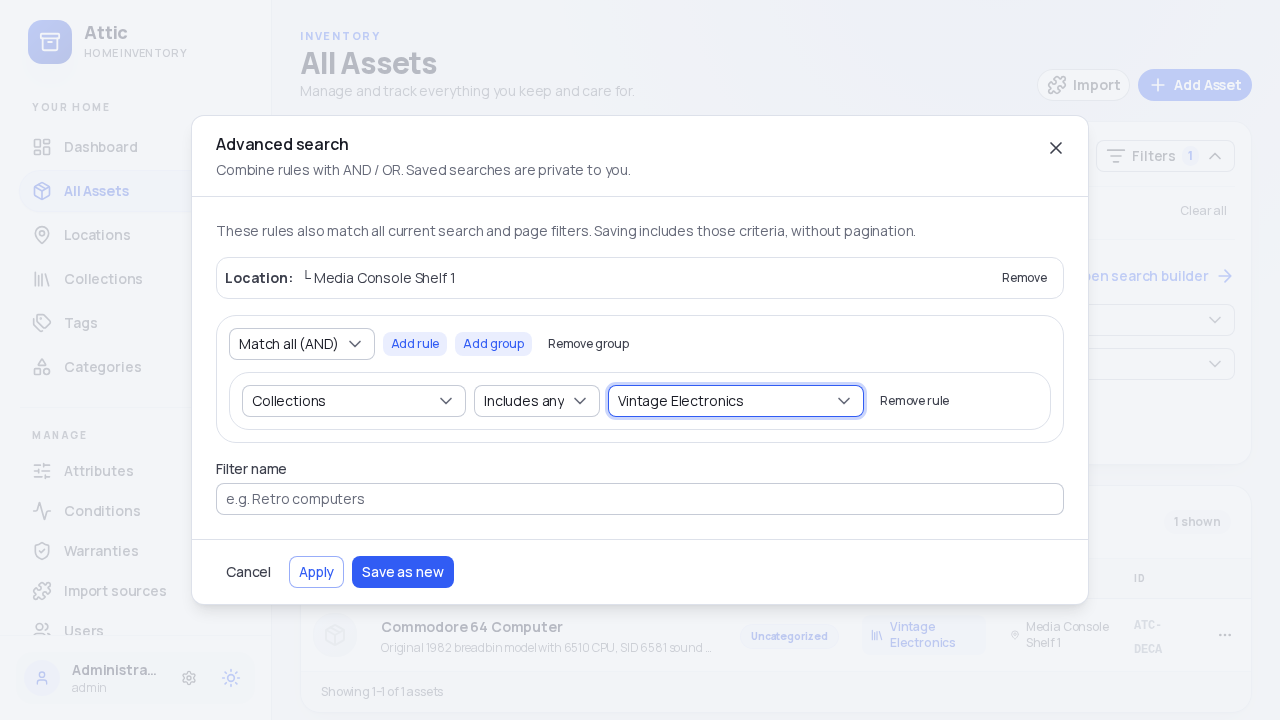
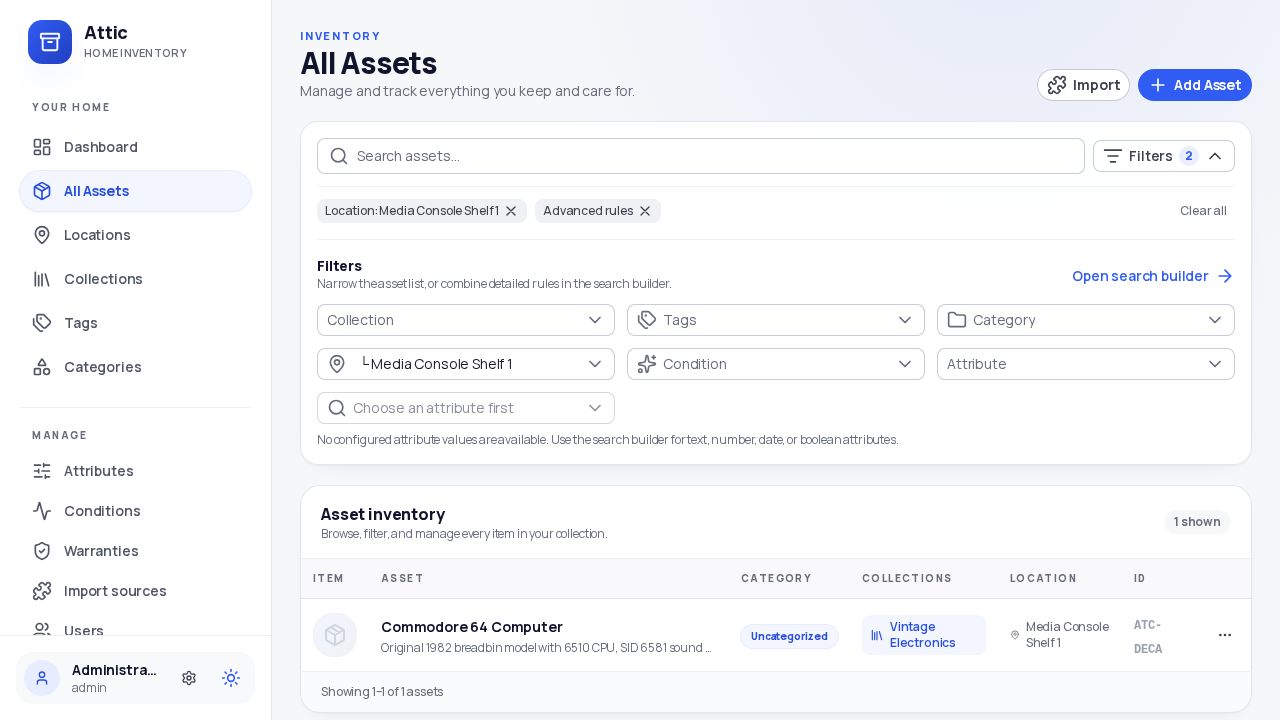
- Click Apply. Both active filter chips (
Location: Media Console Shelf 1andAdvanced rules) appear above the table.
6. Settings and Dark Mode Payoff
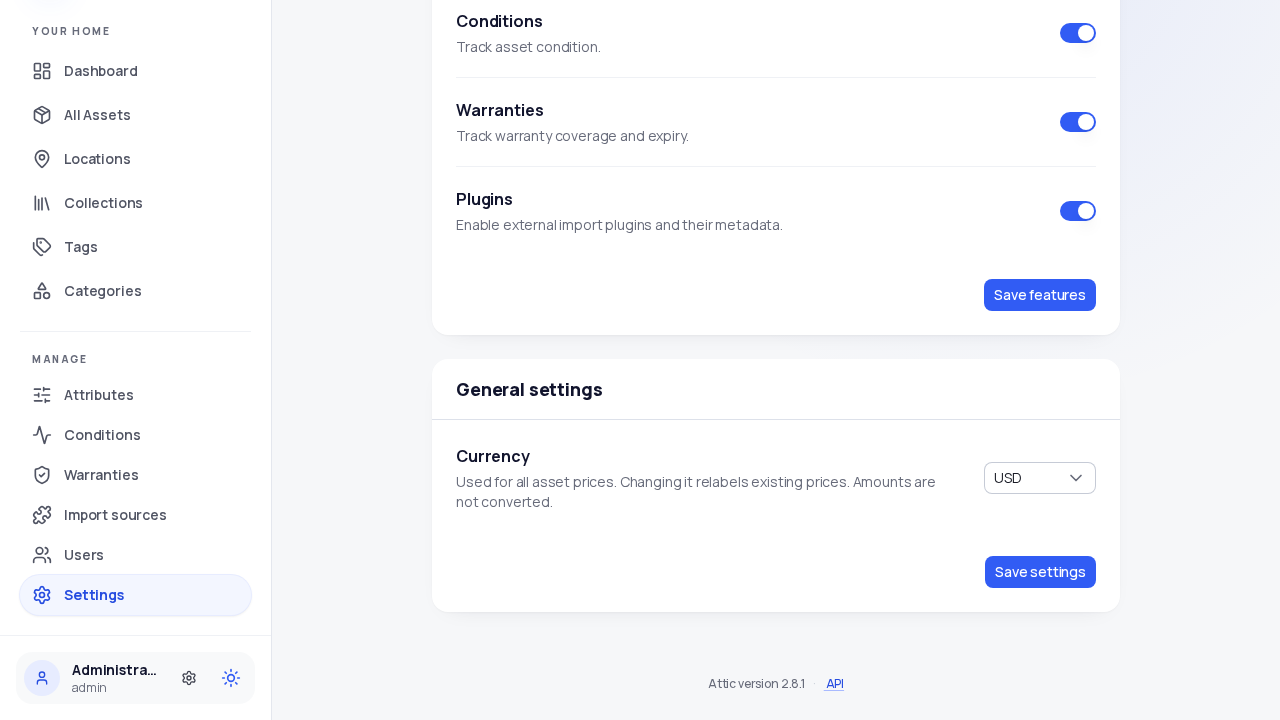
- Click Settings in the left sidebar to configure default currency preferences, external plugin API keys (such as Google Books, TMDB, or Rebrickable), and backup exports.
- Click the moon icon button in the left sidebar navigation to toggle Dark mode. The entire interface switches immediately to high contrast.
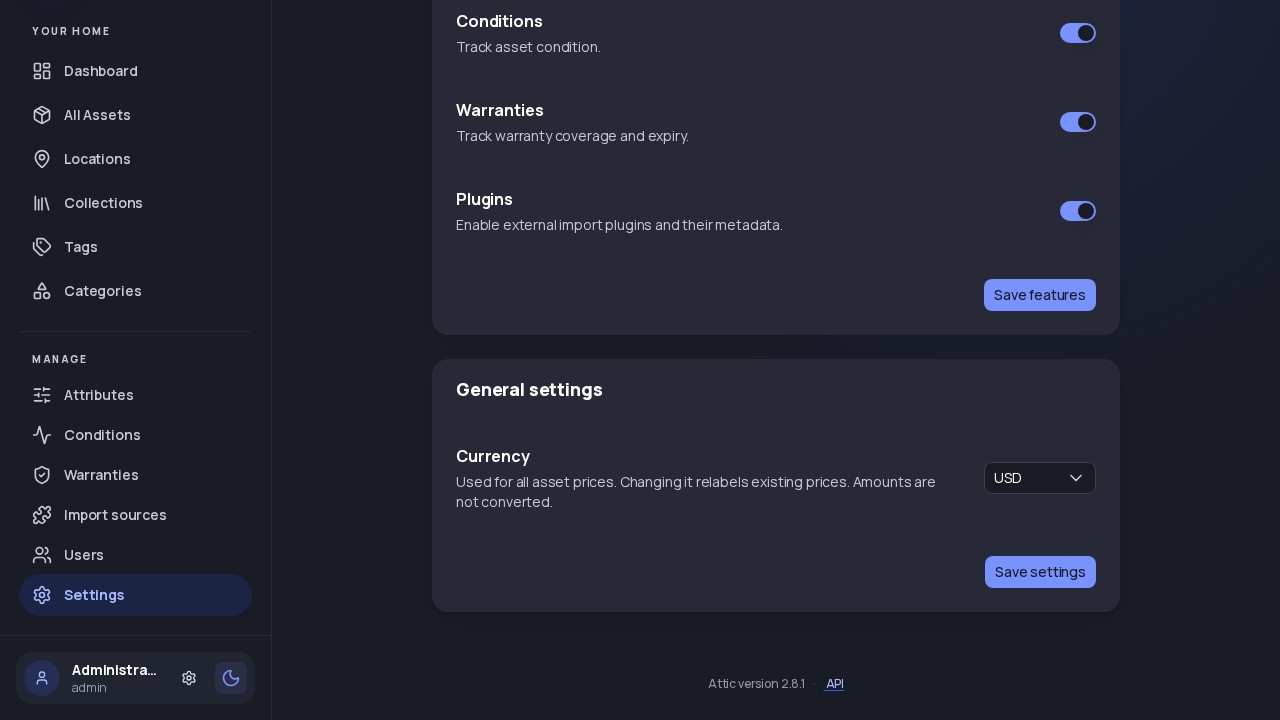
- Return to the Dashboard to see the dark mode overview showing your total asset count, total locations, and financial valuation ($150.00).
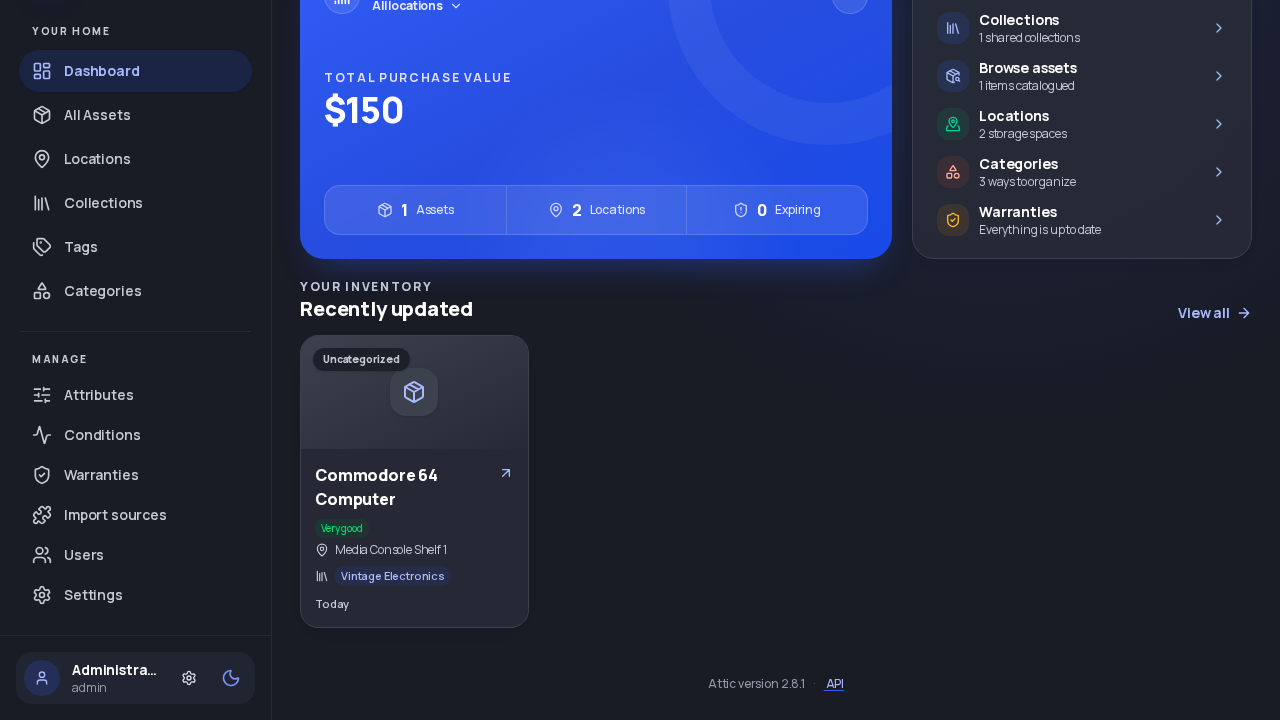
- Open the asset detail page in dark mode for a clear, modern presentation of your inventory records.
Troubleshooting
The table below lists common operational symptoms, root causes, and verified resolutions:
| Symptom | Cause | Resolution |
|---|---|---|
PostgreSQL container crashes with password authentication failed for user "attic" | Compose re-ran with a freshly generated random password that conflicts with existing database volume | Ensure .env is reused across stack restarts, or delete attic_postgres_data volume if performing a clean re-initialization. |
Docker port bind error address already in use on host port 3000 | Another service or previous container is already bound to port 3000 | Change HOST_PORT in .env and docker-compose.yml to an unallocated port (e.g. 3002, 3010, or 8080). |
Browser shows blank page or HTTP 301 when navigating to /login | Attic requires a trailing slash for the login route | Navigate explicitly to http://localhost:3000/login/ (with trailing slash) or access the root http://localhost:3000/. |
curl: (56) Connection reset by peer immediately after docker compose up -d | Attic Go server is running database schema migrations before opening its listening socket | Wait 5 to 10 seconds for initial database migrations (version 34) to complete before sending requests. |
| Purchase date displays one day earlier (e.g. Apr 14 instead of Apr 15) | UTC midnight timestamps are adjusted for Western hemisphere timezones by browser JavaScript | Date is stored accurately as UTC in PostgreSQL (1983-04-15T00:00:00Z); client timezone display is cosmetic. |
Console logs GET /api/assets/<id>/warranty 404 Not Found | Asset does not have an active warranty record attached | Expected API behavior handled gracefully by the UI; no action required. |
| Search builder modal closes prematurely when selecting dropdown options | Pressing the Escape key inside a dropdown dismisses the entire dialog | Click option values using the mouse cursor rather than dismissing via keyboard escape. |
| Automated setup creates duplicate assets or locations on rerun | Database persists previously created items across test executions | Remove existing items via the web interface or reset the database with docker compose down -v. |
Teardown
To shut down Attic and remove container instances while preserving your database and uploaded attachments:
docker compose downTo completely delete the deployment, including all PostgreSQL data and uploaded files:
docker compose down --remove-orphans -vAssumptions & Decisions
- Validated Source of Truth: All commands, routes, and environment variables were verified against live containers deployed from
ghcr.io/lmmendes/attic:latest(Attic 2.8.1) and documented invalidated-process.mdanddeploy-log.md. - Database Isolation: PostgreSQL 16 was deployed strictly on the internal Docker network
attic-netwithout exposing port 5432 to the host, eliminating port collision risks with existing host PostgreSQL instances. - Compose Version Key: Omitted the obsolete
version: "3.8"key fromdocker-compose.ymlto conform with modern Docker Compose v2+ standards and avoid deprecation warnings. - Persistent Credential Storage: Documented saving generated passwords into
.envto ensure idempotent restarts without volume credential conflicts. - Sidebar Navigation Layout: Attic 2.8.1 utilizes a unified left sidebar rather than a top navigation bar. Selectors and navigation instructions reflect this live layout.
- Condition Taxonomy: Used the default built-in condition "Very good", as "Used" is not a standard built-in option in Attic 2.8.1.
- Dark Mode Placement: Documented the dark mode toggle as the moon button located at the bottom of the left sidebar navigation, rather than within the Settings page form.
- Timezone Display Behavior: Documented the one-day display variance on dates (UTC midnight rendered in local timezone) as a cosmetic client-side rendering quirk rather than a data integrity fault.
- Ghost Table Compatibility: The troubleshooting guide is formatted as a standard GitHub-flavored Markdown table to allow automatic compilation into a Ghost HTML card by
ghost-draft.
Get the Unified Homelab Stack Compose Pack
One-command multi-container Compose files (Full *arr Stack, Prometheus + Grafana + ntfy Monitoring, and Homelab Auth) plus new verified deploys once a week.