
How to Deploy and Use Adminer: The Single-File Database Manager in Docker
Adminer is a lightweight, full-featured database management tool packaged into a single PHP file. Here is how to deploy Adminer with MariaDB via Docker Compose, explore multi-engine support, execute SQL queries, and inspect relational schemas.
Adminer (formerly *phpMinAdmin*) is a full-featured, open-source database management tool distributed under the Apache License 2.0 and GPL 2.0. Unlike heavyweight database administration interfaces like phpMyAdmin that comprise thousands of files, scripts, and third-party dependencies, Adminer is engineered to compile into a single PHP file ready for instant deployment.
Despite its minimal footprint, Adminer provides a comprehensive feature set for interacting with relational and non-relational database engines. It handles database creation, table schema alterations, index and foreign key management, inline data editing, SQL execution with syntax highlighting, and database exports.
Key Capabilities and Architecture
- Single-File Architecture:
The entire application compiles into a single, compact adminer.php script via compile.php. It bundles all styling, minified JavaScript, syntax highlighting, and compressed translation catalogs without external runtime dependencies.
- Multi-Engine Support:
The official container image natively supports MySQL / MariaDB, PostgreSQL, SQLite, MS SQL Server, and Oracle. Additional community drivers (such as Elasticsearch, OpenSearch, MongoDB, ClickHouse, and Redis) are available through its modular plugin architecture.
- Hardened Security Defaults:
Adminer enforces strict security out of the box. All state-modifying requests require valid CSRF tokens. Authentication sessions leverage SameSite cookies and validate Origin / Sec-Fetch-Site request headers. Furthermore, connections with blank or missing passwords are automatically rejected unless explicitly configured through authentication plugins.
- Adminer Editor Variant:
Alongside the main database administration interface, the project includes *Adminer Editor*, a streamlined data-entry interface designed for non-technical stakeholders that restricts DDL operations (dropping databases, modifying schemas, or running raw queries) while enabling safe record management.
- High Performance & Low Memory Footprint:
Because Adminer closes session locks prior to page rendering, multiple database tabs and long-running queries can execute concurrently without blocking user sessions.
---
Prerequisites
Before deploying Adminer, verify that your environment satisfies the following requirements:
- Host Operating System: Linux (Ubuntu, Debian, Fedora, Arch, CachyOS), macOS, or Windows via WSL2.
- Container Engine: Docker Engine and Docker Compose v2 (
docker compose versionv2.20+ recommended). - Available Port: An open TCP port on the host (e.g., port 3000 or 8080).
- Web Browser: Any modern browser (Google Chrome, Chromium, Mozilla Firefox, or Apple Safari).
- No Host Dependencies: No host-level PHP runtime, web server (Apache/Nginx), or local database installation is needed; the entire stack runs within isolated Docker containers.
---
Exact Install Steps
We will deploy Adminer alongside a MariaDB 10.11 database pre-seeded with sample data using Docker Compose.
Step 1: Create the Project Directory and Seed Script
Create a working directory for the deployment and stage the initial database schema script init-db.sql. This seed creates a relational database (adminer_demo) with three linked tables (categories, users, posts), foreign key constraints, and sample records:
mkdir -p adminer-deploy && cd adminer-deployCreate init-db.sql:
CREATE DATABASE IF NOT EXISTS `adminer_demo` CHARACTER SET utf8mb4 COLLATE utf8mb4_unicode_ci;
USE `adminer_demo`;

CREATE TABLE IF NOT EXISTS `categories` (
    `id` INT UNSIGNED AUTO_INCREMENT PRIMARY KEY,
    `slug` VARCHAR(64) NOT NULL UNIQUE,
    `name` VARCHAR(128) NOT NULL,
    `description` TEXT NULL,
    `created_at` DATETIME NOT NULL DEFAULT CURRENT_TIMESTAMP
) ENGINE=InnoDB DEFAULT CHARSET=utf8mb4 COLLATE=utf8mb4_unicode_ci;

CREATE TABLE IF NOT EXISTS `users` (
    `id` INT UNSIGNED AUTO_INCREMENT PRIMARY KEY,
    `username` VARCHAR(64) NOT NULL UNIQUE,
    `email` VARCHAR(191) NOT NULL UNIQUE,
    `full_name` VARCHAR(128) NOT NULL,
    `role` ENUM('admin', 'editor', 'viewer') NOT NULL DEFAULT 'viewer',
    `is_active` TINYINT(1) NOT NULL DEFAULT 1,
    `created_at` DATETIME NOT NULL DEFAULT CURRENT_TIMESTAMP
) ENGINE=InnoDB DEFAULT CHARSET=utf8mb4 COLLATE=utf8mb4_unicode_ci;

CREATE TABLE IF NOT EXISTS `posts` (
    `id` INT UNSIGNED AUTO_INCREMENT PRIMARY KEY,
    `author_id` INT UNSIGNED NOT NULL,
    `category_id` INT UNSIGNED NOT NULL,
    `title` VARCHAR(255) NOT NULL,
    `content` TEXT NOT NULL,
    `published` TINYINT(1) NOT NULL DEFAULT 1,
    `view_count` INT UNSIGNED NOT NULL DEFAULT 0,
    `created_at` DATETIME NOT NULL DEFAULT CURRENT_TIMESTAMP,
    CONSTRAINT `fk_posts_author` FOREIGN KEY (`author_id`) REFERENCES `users` (`id`) ON DELETE CASCADE,
    CONSTRAINT `fk_posts_category` FOREIGN KEY (`category_id`) REFERENCES `categories` (`id`) ON DELETE RESTRICT
) ENGINE=InnoDB DEFAULT CHARSET=utf8mb4 COLLATE=utf8mb4_unicode_ci;

INSERT IGNORE INTO `categories` (`id`, `slug`, `name`, `description`) VALUES
(1, 'announcements', 'Announcements', 'Platform and release updates'),
(2, 'tutorials', 'Tutorials', 'Technical how-to guides and walk-throughs'),
(3, 'showcase', 'Community Showcase', 'Real-world projects and implementations');

INSERT IGNORE INTO `users` (`id`, `username`, `email`, `full_name`, `role`, `is_active`) VALUES
(1, 'admin', 'admin@example.local', 'System Administrator', 'admin', 1),
(2, 'sarah_dev', 'sarah@example.local', 'Sarah Connor', 'editor', 1),
(3, 'john_dba', 'john@example.local', 'John Matrix', 'editor', 1);

INSERT IGNORE INTO `posts` (`id`, `author_id`, `category_id`, `title`, `content`, `published`, `view_count`) VALUES
(1, 1, 1, 'Welcome to Adminer Demo', 'Adminer is a single-file database management powerhouse.', 1, 1420),
(2, 2, 2, 'Speed Run: Managing MySQL and SQLite', 'Comparing connection latencies and schema browsing across drivers.', 1, 890),
(3, 3, 3, 'Zero-Host Installation with Docker', 'Deploying containerized databases in seconds.', 1, 450);
Step 2: Configure Environment Variables
Create a .env file to define the project name and host port:
COMPOSE_PROJECT_NAME=adminer-stack
ADMINER_PORT=3000
Step 3: Create the Docker Compose Specification
Create docker-compose.yml to define both the Adminer web service and the MariaDB backend:
services:
  adminer:
    image: adminer:latest
    container_name: adminer-app
    ports:
      - "127.0.0.1:${ADMINER_PORT:-3000}:8080"
    environment:
      ADMINER_DEFAULT_SERVER: db
    depends_on:
      db:
        condition: service_healthy
    restart: unless-stopped
    healthcheck:
      test: ["CMD", "php", "-r", "exit(@file_get_contents('http://127.0.0.1:8080/') === false ? 1 : 0);"]
      interval: 5s
      timeout: 3s
      retries: 10
      start_period: 3s

  db:
    image: mariadb:10.11
    container_name: adminer-db
    environment:
      MARIADB_ROOT_PASSWORD: adminer
      MARIADB_DATABASE: adminer_demo
      MARIADB_USER: adminer
      MARIADB_PASSWORD: adminer
    volumes:
      - ./init-db.sql:/docker-entrypoint-initdb.d/01-init.sql:ro
      - adminer-db-data:/var/lib/mysql
    restart: unless-stopped
    healthcheck:
      test: ["CMD", "healthcheck.sh", "--connect", "--innodb_initialized"]
      interval: 5s
      timeout: 3s
      retries: 20
      start_period: 10s

volumes:
  adminer-db-data:
Step 4: Launch the Containers
Start the stack with healthcheck verification:
docker compose up -d --waitExpected terminal output:
[+] Running 3/3
 ✔ Network adminer-stack_default  Created
 ✔ Container adminer-db           Healthy
 ✔ Container adminer-app          Healthy
Both containers boot and reach healthy status within approximately 8–10 seconds.
---
Browser Setup and Interface Walkthrough
Once the stack is running, access the Adminer interface in your web browser.
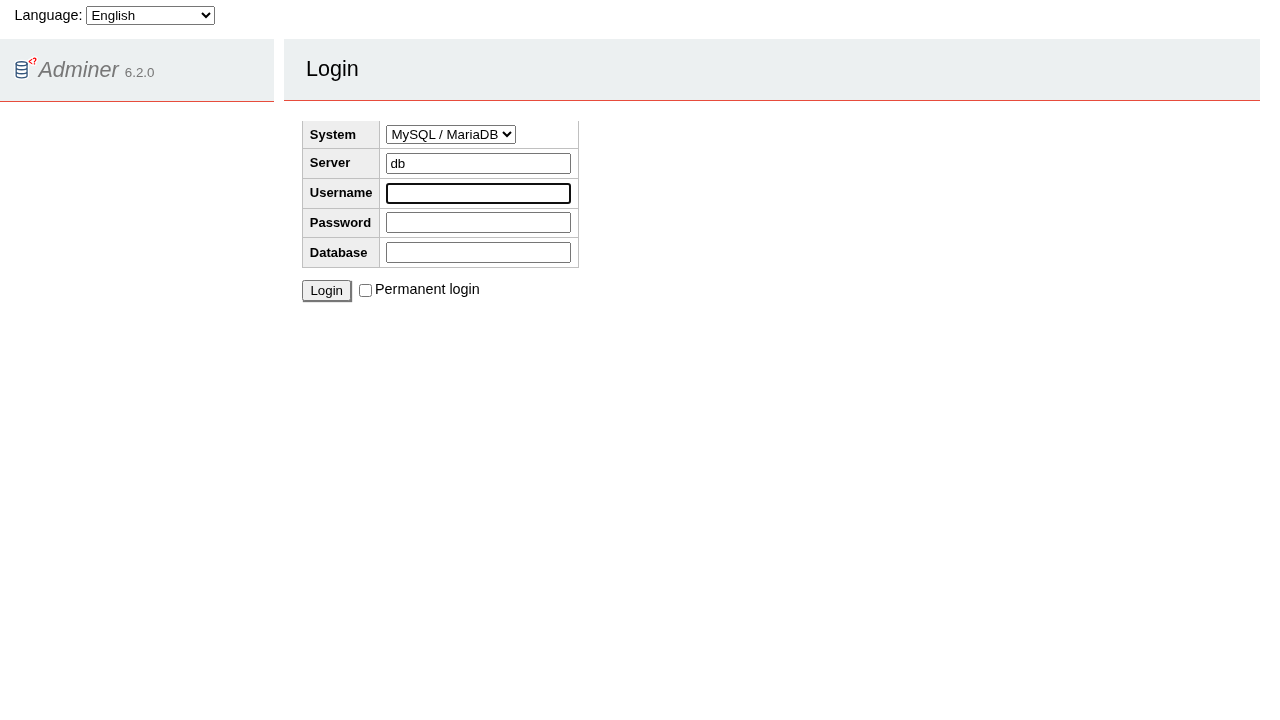
1. The Login Screen and Multi-Engine Drivers
Navigate to http://localhost:3000/. You will be greeted by the clean, minimal Adminer login screen.
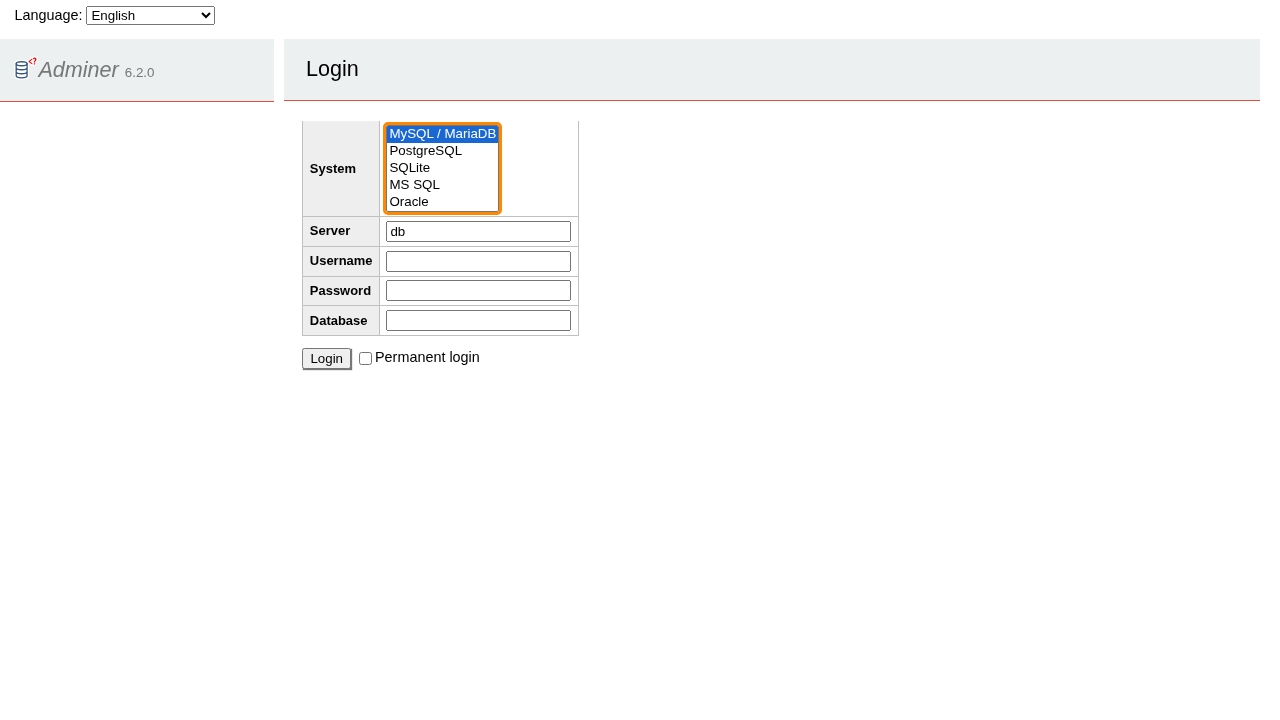
The System dropdown highlights Adminer's multi-engine capabilities, allowing you to connect directly to MySQL / MariaDB, PostgreSQL, SQLite, MS SQL Server, or Oracle without altering the deployment:
2. Authenticating to MariaDB
Enter the database credentials established in your compose configuration:
- System:
MySQL / MariaDB - Server:
db(pre-filled viaADMINER_DEFAULT_SERVER) - Username:
adminer - Password:
adminer - Database:
adminer_demo
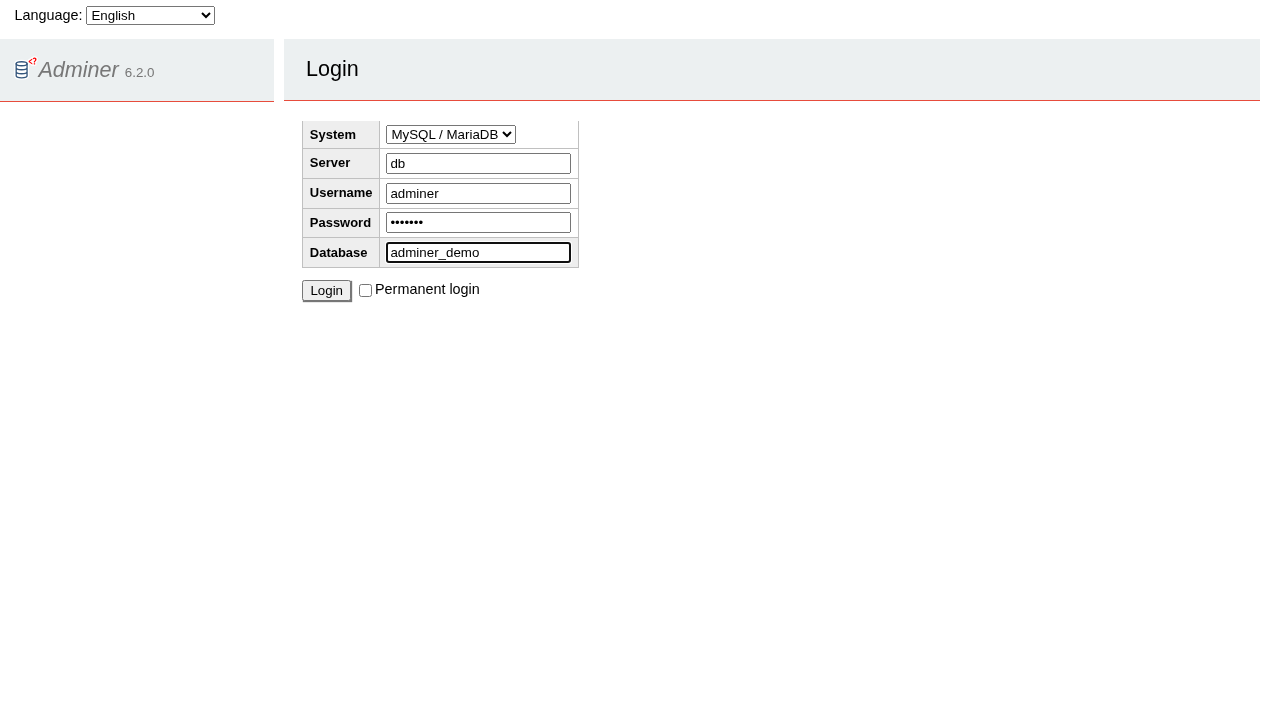
Click Login.
3. Database Dashboard Overview
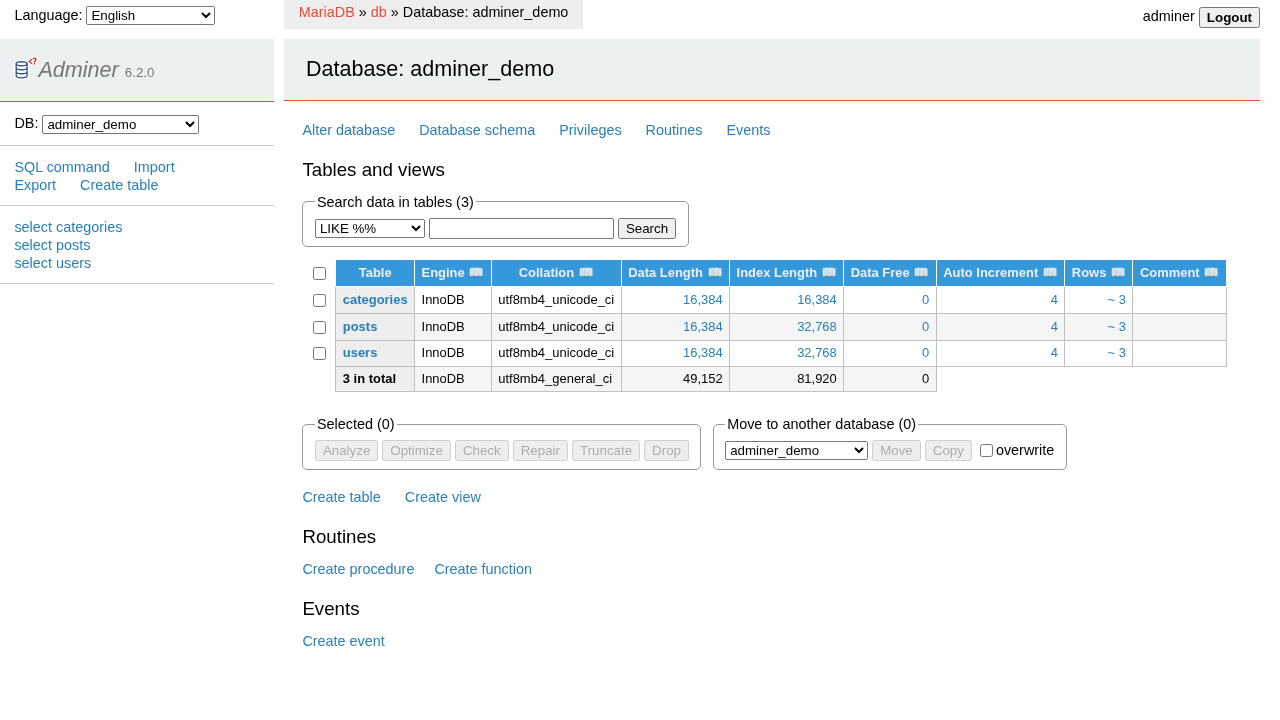
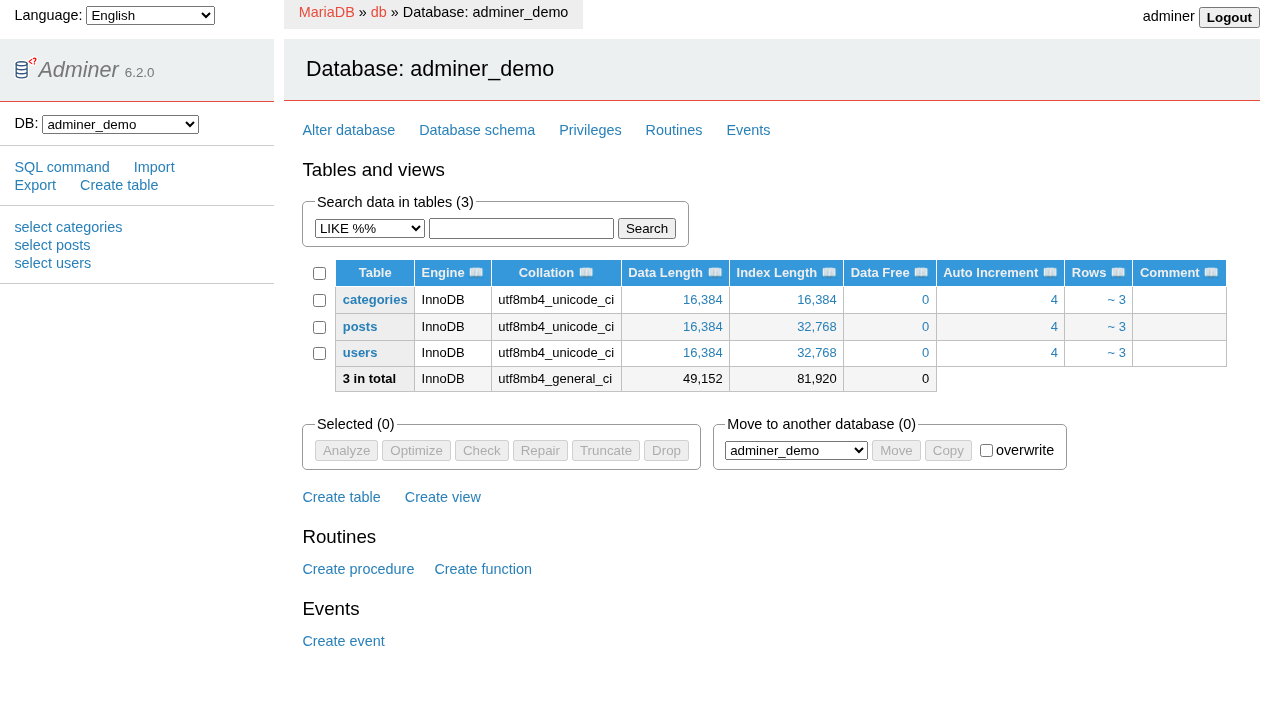
Upon successful login, Adminer opens the database dashboard showing the breadcrumb hierarchy: MariaDB » db » adminer_demo.
The overview lists all tables (categories, posts, users) alongside their storage engines (InnoDB), collations (utf8mb4_unicode_ci), approximate row counts, and data lengths:
4. Browsing and Sorting Table Records
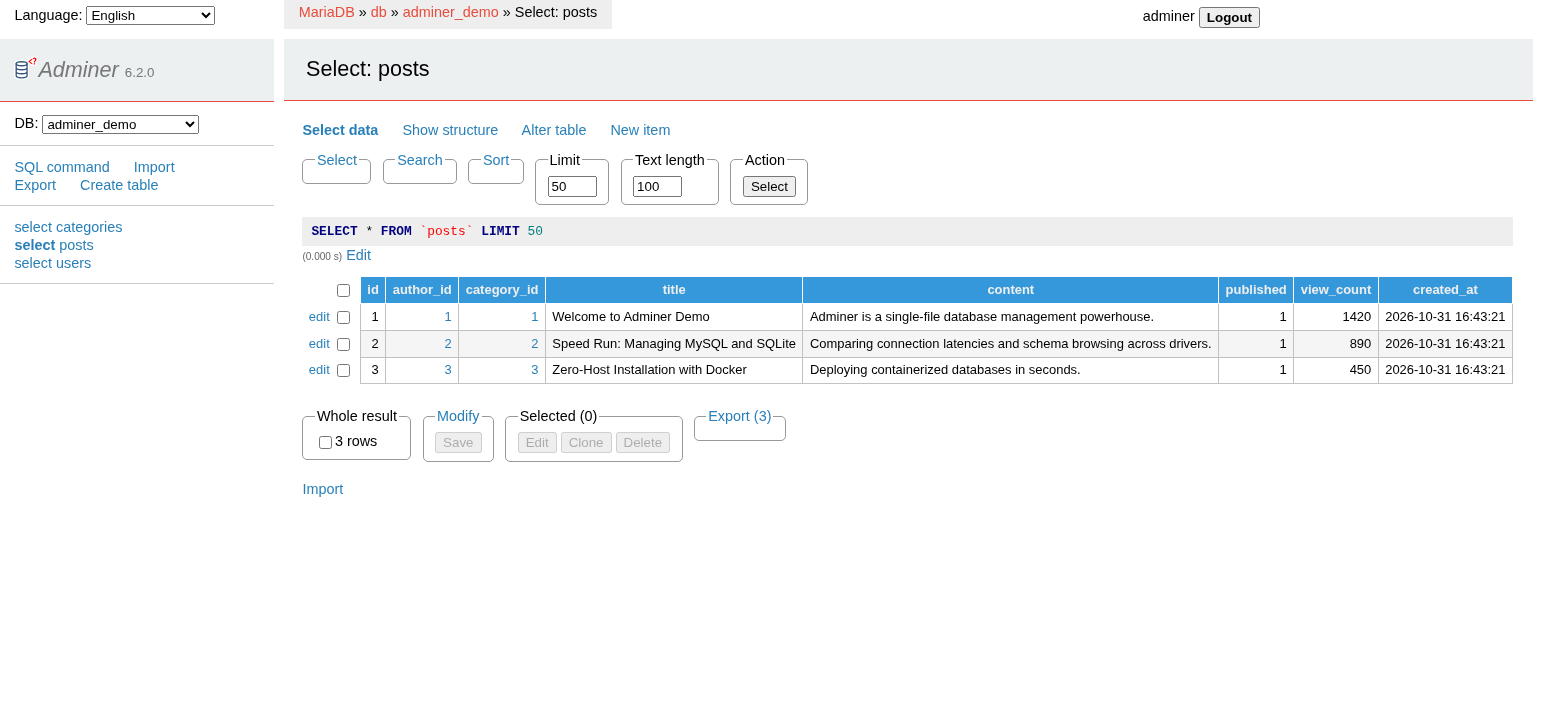
Click select next to the posts table to inspect the seeded records. Adminer presents a clean data grid with immediate controls for pagination, custom search conditions, and column visibility:
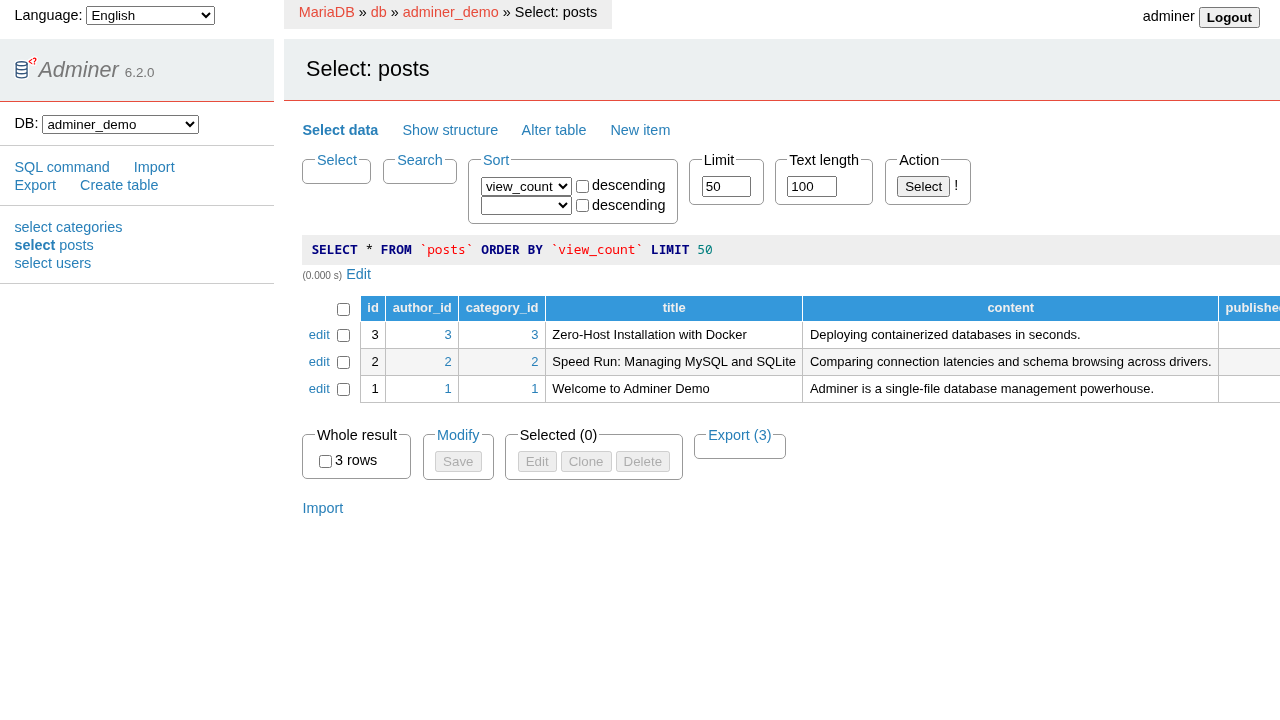
Clicking any table column header (such as view_count) re-sorts the table dynamically:
5. Running SQL Commands with Syntax Highlighting
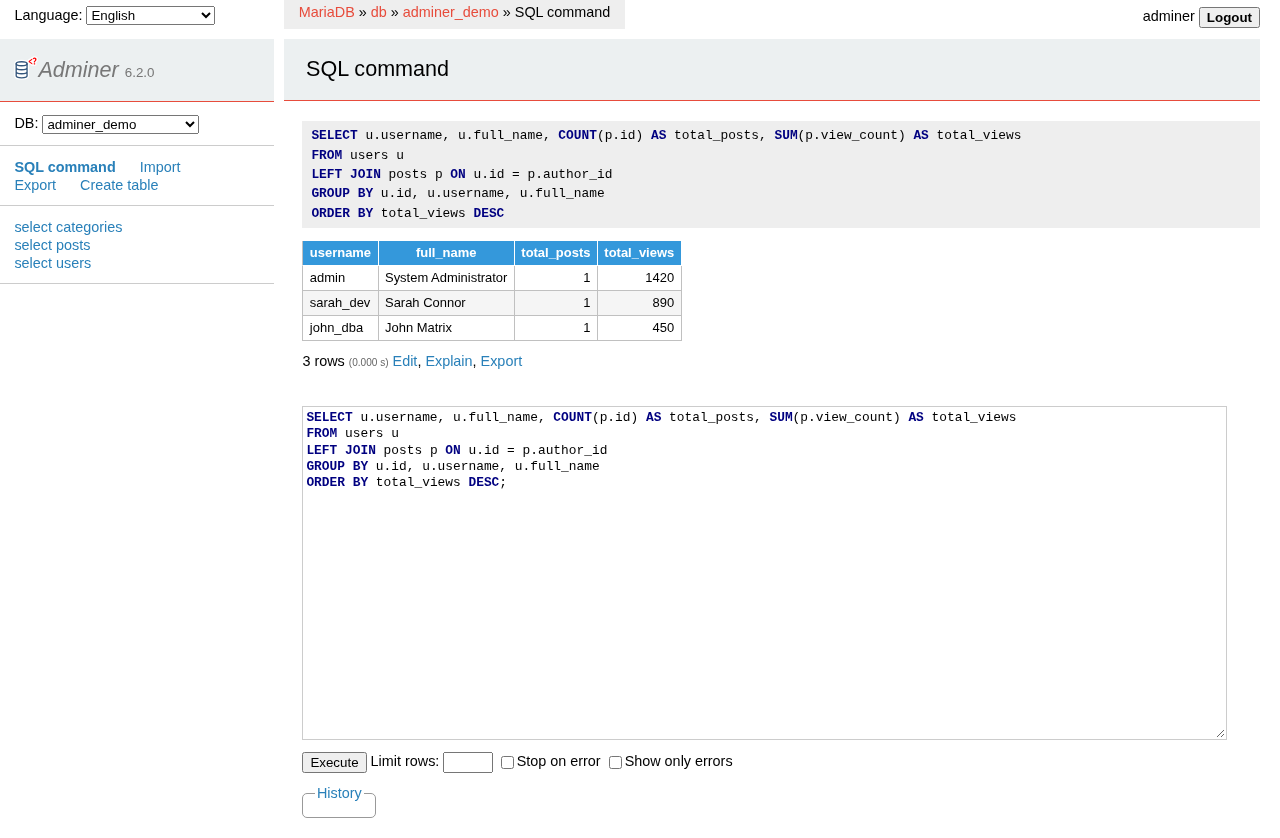
Adminer includes an interactive SQL editor powered by JUSH (JavaScript Ultra Syntax Highlighter). Click SQL command in the left sidebar and enter an analytical aggregation query joining posts and users:
SELECT
    u.username,
    u.role,
    COUNT(p.id) AS post_count,
    SUM(p.view_count) AS total_views
FROM users u
LEFT JOIN posts p ON p.author_id = u.id
GROUP BY u.id, u.username, u.role
ORDER BY total_views DESC;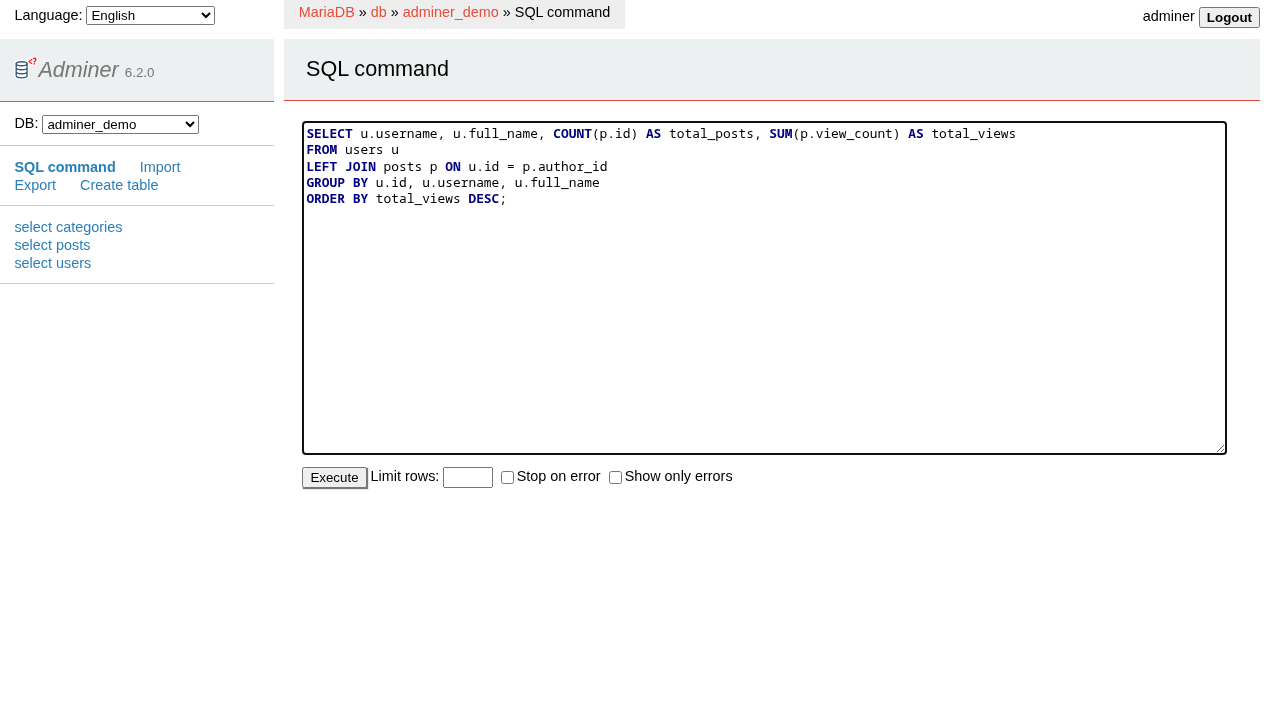
Click Execute. The query result renders instantly, displaying row counts and execution timing down to the millisecond:
6. Inspecting Schema Structure and Foreign Keys
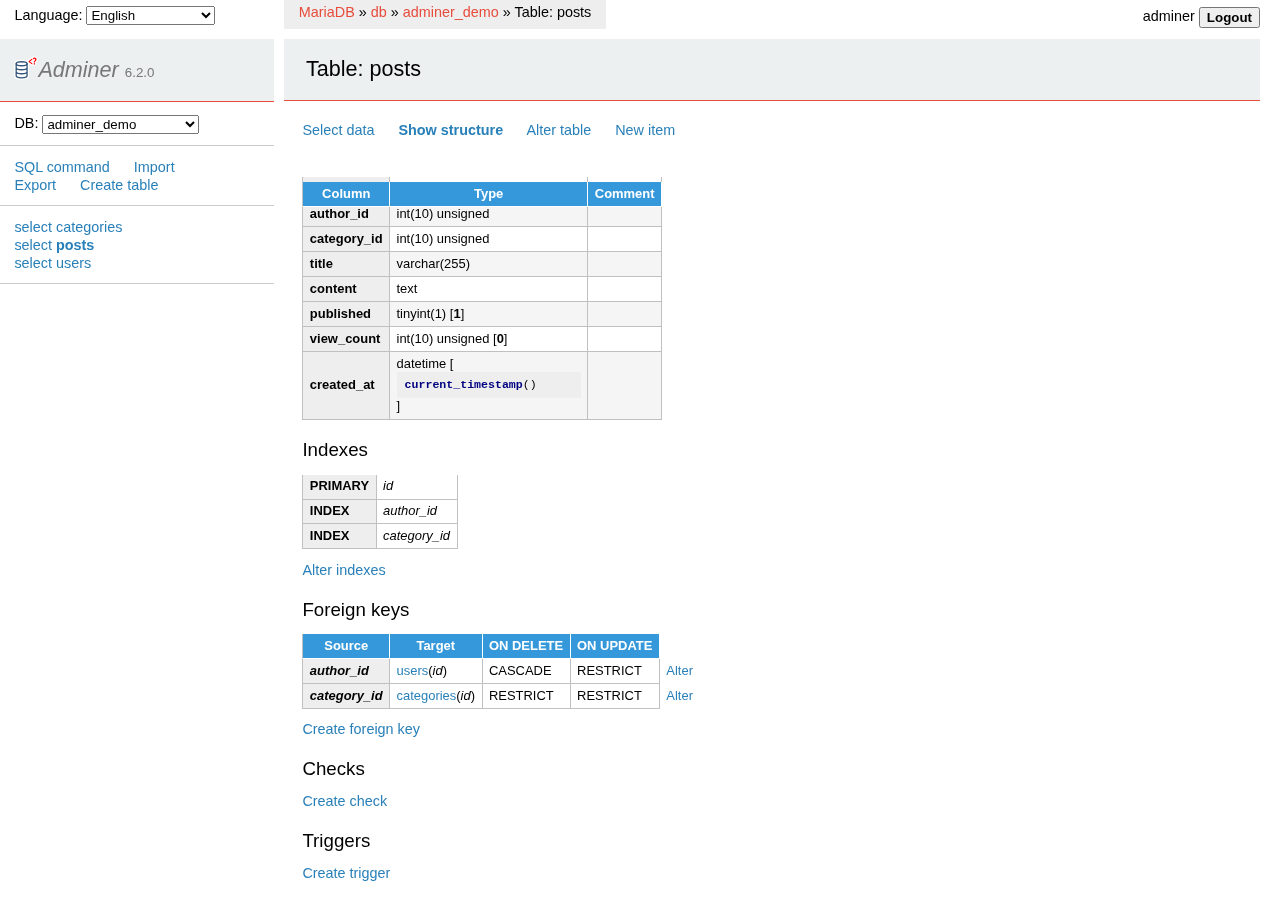
Click posts in the sidebar navigation or table listing, then select Show structure. Adminer displays columns, data types, defaults, primary keys, and established relational foreign keys (fk_posts_author with CASCADE delete and fk_posts_category with RESTRICT delete):
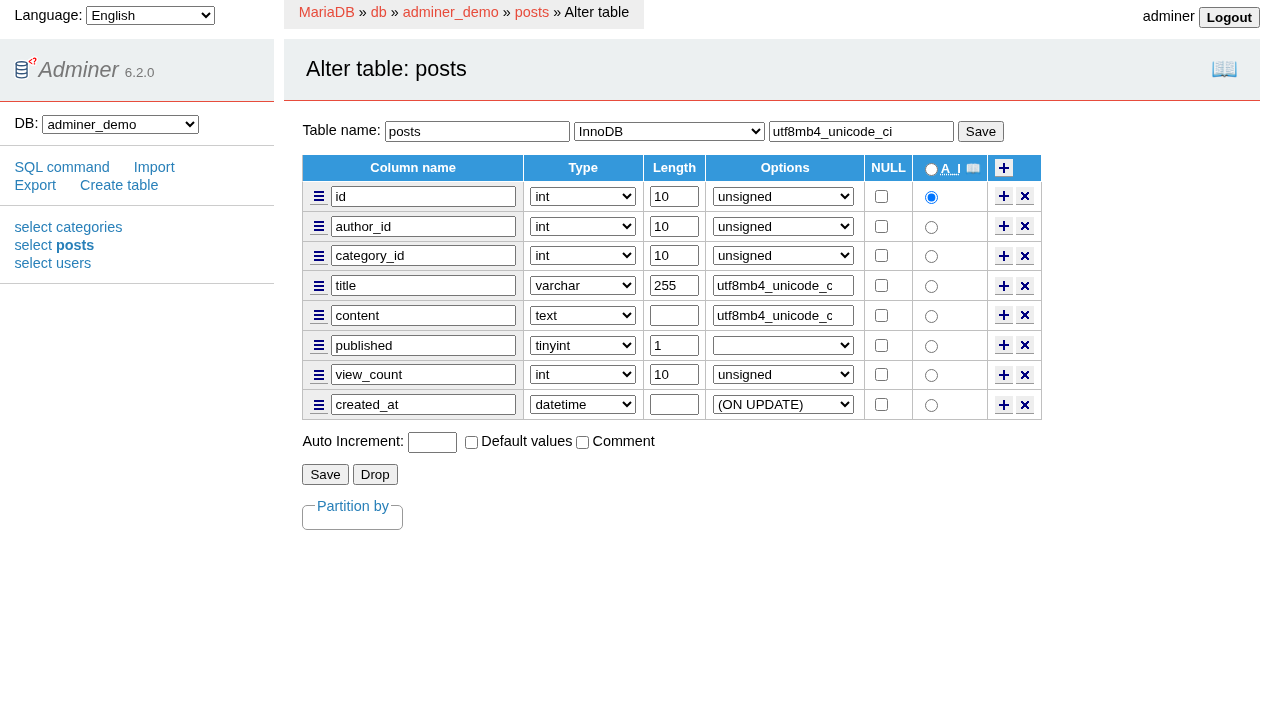
Clicking Alter table opens Adminer's visual schema designer, allowing you to add, reorder, or modify columns, datatypes, and constraints visually:
7. Navigating Related Tables
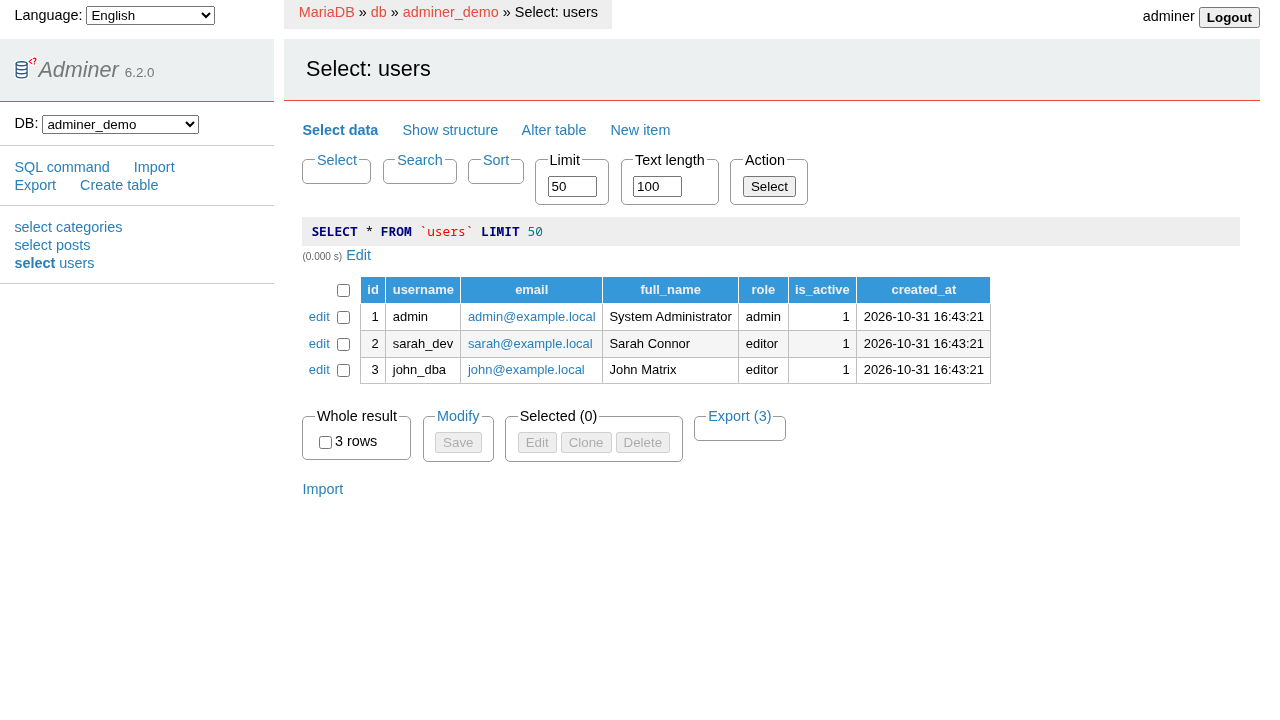
Switch to the users table via the left navigation tree to view user permissions, email addresses, and roles:
---
Verification
To verify that the deployment is operating correctly from the command line, perform the following automated checks:
1. Verify Container Health
Check that both services report healthy:
docker compose psExpected output:
NAME          IMAGE            STATUS                   PORTS
adminer-app   adminer:latest   Up 2 minutes (healthy)   127.0.0.1:3000->8080/tcp
adminer-db    mariadb:10.11    Up 2 minutes (healthy)   3306/tcp
2. Verify HTTP Response and Driver Availability
Verify that Adminer's web server responds with the expected title and driver list:
# Verify HTTP 200 and page title
curl -s http://localhost:3000/ | grep -q "<title>Login - Adminer</title>" && echo "login_html_ok"

# Verify MySQL / MariaDB driver is available
curl -s http://localhost:3000/ | grep -E 'value="server"[^>]*>MySQL' && echo "mysql_driver_ok"

# Verify SQLite driver is available
curl -s http://localhost:3000/ | grep -E 'value="sqlite"[^>]*>SQLite' && echo "sqlite_driver_ok"
3. Verify Database Seeding
Verify that MariaDB initialized all three demo tables with the expected row counts:
docker exec adminer-db mariadb -uadminer -padminer -e \
  "SELECT table_name, table_rows FROM information_schema.tables WHERE table_schema='adminer_demo';"
Expected output:
+------------+------------+
| table_name | table_rows |
+------------+------------+
| categories |          3 |
| users      |          3 |
| posts      |          3 |
+------------+------------+
---
Troubleshooting
| Issue | Root Cause | Solution |
|---|---|---|
| Login fails with blank password rejection | Adminer enforces a strict security policy that prohibits connecting to databases without a password by default. | Supply a valid non-empty password for the database user, or deploy the login-password-less Adminer plugin if passwordless local connections are strictly required. |
Automated curl POST login redirects back to login page | Adminer's CSRF protection validates session tokens and checks Sec-Fetch-Site and Origin headers on POST requests. | Ensure scripted HTTP clients parse the hidden input token from the login form and include both -H 'Origin: http://localhost:3000' and -H 'Sec-Fetch-Site: same-origin' in the POST headers. |
adminer container healthcheck reports unhealthy | Standard CLI curl is not bundled inside the official adminer:latest Alpine/PHP image. | Configure the container healthcheck to invoke PHP directly: php -r "exit(@file_get_contents('http://127.0.0.1:8080/') === false ? 1 : 0);" |
| MariaDB container healthcheck passes before init completes | Generic mariadb-admin ping checks may report ready during the temporary bootstrap daemon before init-db.sql finishes importing. | Use MariaDB's official check utility: healthcheck.sh --connect --innodb_initialized in your compose healthcheck definition. |
| Database engine missing from System dropdown | The running PHP environment lacks the required database extension (e.g., pdo_pgsql or sqlite3). | The official adminer:latest image bundles drivers for MySQL, PostgreSQL, SQLite, MS SQL, and Oracle. For custom drivers (e.g. MongoDB, Redis), load the corresponding Adminer plugin script and PHP extension. |
| Port 3000 already in use on host | Another service on your host machine is actively listening on TCP port 3000. | Update ADMINER_PORT in your .env file to an unused port (e.g., 8080, 8081, or 8000) and restart the stack with docker compose up -d. |
| Table header obscures top row in structure view | The sticky CSS table header on smaller viewports can visually overlap the first column row (id). | Scroll down slightly within the table body, use the Alter table designer to inspect all columns, or maximize browser viewport height. |
---
Teardown
To shut down the Adminer deployment and clean up container resources, run:
docker compose down -v --remove-orphansThe -v flag removes the persistent named volume (adminer-db-data), ensuring a clean state.
---
Assumptions & decisions
- Isolated Network Architecture: The MariaDB service (
db) does not expose its default port (3306) to the host network. All database communication occurs strictly within Docker's internal bridge network, isolating the database instance from external LAN exposure. - Loopback Host Binding: Adminer's web interface is bound to
127.0.0.1:${ADMINER_PORT}rather than0.0.0.0, ensuring the administrative interface is accessible only from the local machine unless deliberately proxied behind a reverse proxy (e.g., Traefik or Caddy). - MariaDB Healthcheck Implementation: We replaced standard
mariadb-admin pingwith MariaDB's dedicatedhealthcheck.sh --connect --innodb_initializedscript to prevent race conditions where downstream containers might connect while entrypoint initialization scripts are still executing. - PHP-Native Application Healthcheck: Because the official
adminer:latestcontainer does not bundlecurl, we utilized PHP's built-infile_get_contents()via CLI execution for health probing. - SQLite Passwordless Authentication: While Adminer natively supports SQLite databases, stock Adminer builds reject passwordless logins. Demonstrating SQLite in the official container without custom plugin volume mounts requires bypassing authentication, so MariaDB was selected as the verified primary demonstration engine.
- Read-Only Verification: Interface actions during verification and browser recording exercised schema navigation, sorting, and analytical queries without altering the underlying seed records or table structures.
Get the Unified Homelab Stack Compose Pack
One-command multi-container Compose files (Full *arr Stack, Prometheus + Grafana + ntfy Monitoring, and Homelab Auth) plus new verified deploys once a week.